

































































Add Menu - Keying
These nodes give you the essential tools for creating a Matte or keying for images that do not already have their own Alpha Channel. One usage scenario is blue-screen or green-screen footage, where live action is shot…
Add menu - Keying
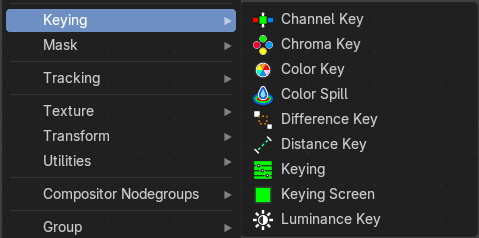
These nodes give you the essential tools for creating a Matte or keying for images that do not already have their own Alpha Channel. One usage scenario is blue-screen or green-screen footage, where live action is shot in front of a blue or green backdrop for replacement by a matte painting or virtual background.
In general, hook up these nodes to a viewer, set your Image Editor to show the Viewer node, and play with the sliders in real-time using a sample image from the footage, to get the settings right. In some cases, small adjustments can eliminate artifacts or foreground image degradation. Taking out too much green can result in foreground actors looking flat or blueish/purplish.
You can and should chain these nodes together, improving your masking and color correction in successive refinements, using each node’s strengths to operate on the previous node’s output. Keying Node is the closest to a “does-it-all” node for green screens, but the best results stem from a combination of techniques.
Note:
Garbage Matte is not a node, but a technique selecting what to exclude from an image. It is a Mask used to identify content to be removed from an image that cannot be removed by an automatic process like chroma keying. It is used either to select specific content to be removed, or it is the inverse of a rough selection of the subject; removing everything else.
Some nodes accept a garbage matte directly. For those that don’t, you can still apply one by subtracting the garbage matte from the matte generated by the node.
Simple garbage mattes can be created with the Box Mask or the Ellipse Mask. More complicated matte shapes using a Double Edge Mask or using a Mask.
Channel Key
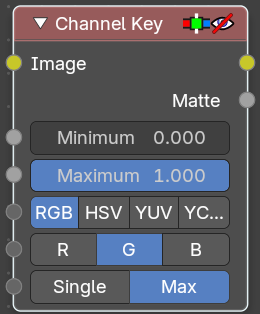
The Channel Key node determines background objects from foreground objects by the difference in the selected channel’s levels.
For example in YUV color space, this is useful when compositing stock footage of explosions (very bright) which are normally shot against a solid, dark background.
Inputs
| Entry | What it does |
|---|---|
| Image | Standard image input. · Minimum: Determines the lowest values that are considered foreground. (Which is supposed to be – relatively – height values: from this value to 1.0.) · Maximum: Determines the highest values that are considered to be background objects. (Which is supposed to be – relatively – low values: from 0.0 to this value.) |
| Color Space | This button selects what color space the channels will represent. RGB, HSV, YUV, YCbCr |
| Key channel | This button selects the channel, defined by the Color Space, to use to determine the matte. |
Algorithm
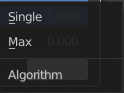
Max or Single.
Limit
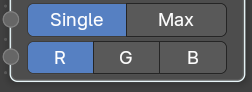
Limit by single channel or limit by maximum of other channels.
With method Single you can choose a single channel.
Outputs
| Entry | What it does |
|---|---|
| Image | Image with an alpha channel adjusted for the keyed selection. |
| Matte | A black-and-white alpha mask of the key. |
Chroma Key
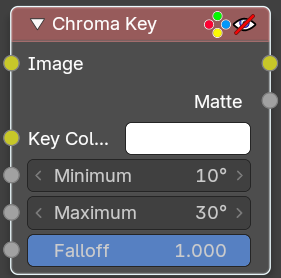
The Chroma Key node determines if a pixel is a foreground or background (and thereby should be transparent) based on its chroma values.
Use this, for example, to composite images that have been shot in front of a green or blue screen.
| Entry | What it does |
|---|---|
| Inputs | Image: Standard image input. · Key Color: The background color usually selected using the color picker and the original image. · Minimum: The minimum value to key a color. · Maximum: The maximum value to key a color. · Falloff: Increase to make nearby pixels partially transparent producing a smoother blend along the edges. |
| Outputs | Image: Image with its alpha channel adjusted for the keyed selection. · Matte: A black-and-white alpha mask of the key. |
Color Key
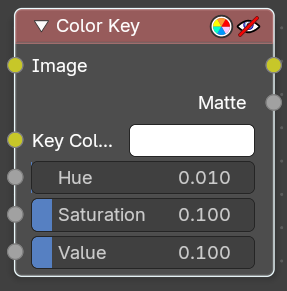
The Color Key node creates a matte based on a specified color of the input image.
| Entry | What it does |
|---|---|
| Inputs | Image: Standard image input. · Key Color: The sliders represent threshold values. Higher values in this node’s context mean a wider range of colors from the specified will be added to the matte. · Hue, Saturation, Value: Hue, saturation and value values. |
| Outputs | Image: Image with its alpha channel adjusted for the keyed selection. · Matte: A black-and-white alpha mask of the key. |
Color Spill
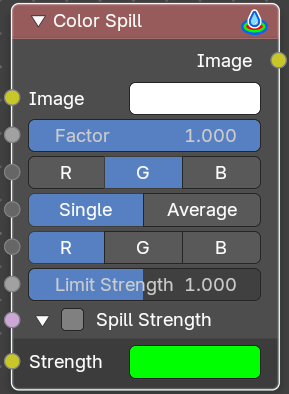
The Color Spill node reduces one of the RGB channels so that it is not greater than any of the others.
This is common when compositing images that were shot in front of a green or blue screen. In some cases, if the foreground object is reflective, it will show the green or blue color; that color has “spilled” onto the foreground object. If there is light from the side or back, and the foreground actor is wearing white, it is possible to get “spill” green (or blue) light from the background onto the foreground objects, coloring them with a tinge of green or blue. To remove the green (or blue) light, you use this fancy node.
Inputs
| Entry | What it does |
|---|---|
| Image | Standard image input. |
| Factor | Standard Factor. |
| Spill Channel | R, G, B |
Limit Method
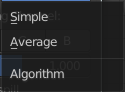
Simple or Average.
| Entry | What it does |
|---|---|
| Limiting Channel | R, G, B values |
| Limit Strength | Specifies the strtength of the limit channel. |
| Spill Strength subpanel | Allows you to specify the spill strength for each color channel. If disabled the spill channel will have a unit scale. While other channels will be zero. · Strength: Specifies the spilling strengt of each color channel. |
Outputs
Image
The image with the corrected channels.
Difference Key
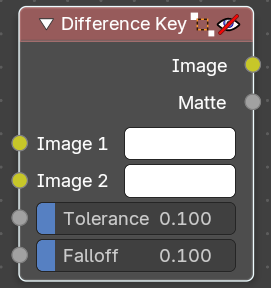
This node produces a matte that isolates foreground content by comparing it with a reference background image.
| Entry | What it does |
|---|---|
| Inputs | Image 1: Contains foreground content against the background that is to be removed. · Image 2: The reference background image. · Tolerance: Where pixels match the reference background to within the specified threshold, the matte is made transparent. · Falloff: Increase to make nearby pixels partially transparent producing a smoother blend along the edges. |
| Outputs | Image: Image with its alpha channel adjusted for the keyed selection. · Matte: A black-and-white alpha mask of the key. |
Distance Key
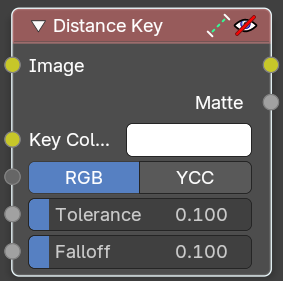
The Distance Key node determines a pixel’s alpha value based on the three-dimensional distance between the image pixel color and the key color in a 3D color space.
This key works well when trying to single out a specific color in a background (not necessarily green).
Inputs
| Entry | What it does |
|---|---|
| Image | Standard image input. |
| Key Color | The color that is to be keyed. |
| Color Space | RGB, YCC It is also possible to work with YCbCr color space, but only the Cb and Cr channels are taken into consideration for determining the distance between the foreground and background pixels. |
| Tolerance | A threshold what the node considers a match between the key color and the foreground pixel. The tolerance affects how close a pixel needs to be to the background pixel to be considered an absolute match. |
| Falloff | When the Falloff value is high, pixels that are close to the Key Color are more transparent than pixels that are not as close to the Key Color (but still considered close enough to be keyed). When the Falloff value is low, it does not matter how close the pixel color (Image) is to the Key Color, it is transparent. |
Outputs
| Entry | What it does |
|---|---|
| Image | The image with an alpha channel adjusted for the keyed selection. |
| Matte | A black-and-white alpha mask of the key. |
Keying
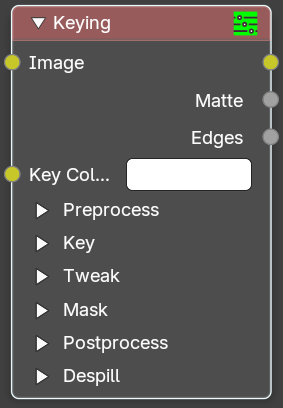
The Keying node is a one-stop-shop for “green screen” / “blue screen” removal. It performs both chroma keying to remove the backdrop and despill to correct color cast from the backdrop. Additionally, you can perform common operations used to tweak the resulting matte.
Inputs
| Entry | What it does |
|---|---|
| Image | Standard image input. |
| Key Color | The color of content to be removed. This may be a single color, or a reference image such as generated by the Keying Screen Node. |
Preprocess subpanel
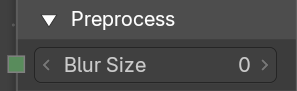
Blur Size
Reduce the effects of color noise in the image by blurring only color by the given amount, leaving luminosity intact. This will affect matte calculation only, not the result image.
Key subpanel
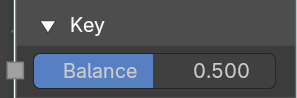
Balance
This is the balance between color channels compared with the key color. 0.5 will average the other channels (red and blue in the case of a green screen).
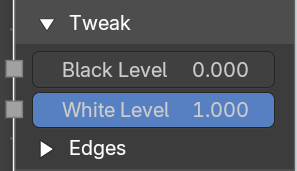
This may be tweaked in tandem with Clip Black and Clip White while checking the Matte output to create a mask with optimal separation.
Tweak subpanel
Black Level
This sets the threshold for what becomes fully transparent in the output (black in the matte). It should be set as low as possible. Uneven backdrops will require this value to be increased. Use of the Keying Screen Node can help keep this value low. You may also use a Garbage Matte to exclude problematic areas.
This value does not impact areas detected as edges to ensure edge detail is preserved.
White Level
This sets the threshold for what becomes fully opaque in the output (white in the matte). It should be set as high as possible. Colors close to green in the foreground may require reducing this value and/or adjusting the Screen Balance. Particularly problematic parts can fixed with a Core Matte instead of a low Clip White.
This value does not impact areas detected as edges to ensure edge detail is preserved.
Edges subpanel
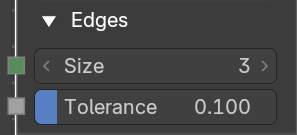
Size
Size of the search window to find edges.
Tolerance
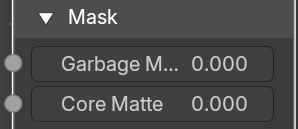
The tolerance in the color difference in which a pixel is considered to be part of the edge.
| Entry | What it does |
|---|---|
| Mask subpanel | — |
| Garbage Matte | An optional mask of area(s) to always exclude from the output. This is removed from the chroma key generated matte. |
| Core Matte | An optional mask of area(s) to always include in the output. This is merged with the chroma key generated matte. |
Postprocess subpanel
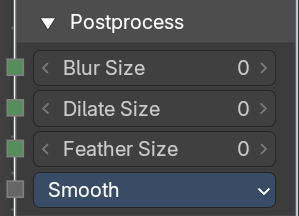
| Entry | What it does |
|---|---|
| Blur Size | Blur the image with the given size. |
| Dilate Size | Dilate or erode the image with the given size. A negative value means erosion, a positive value means dilate. |
| Feather Size | Dilate or erode the image using an inverse distance operation with the given size. A negative value means erosion, a positive value means dilate. |
Feather falloff
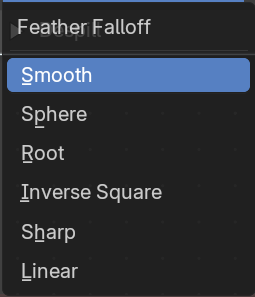
The rate of the falloff at the edges of the matte when feathering, to manage edge detail.
Despill subpanel
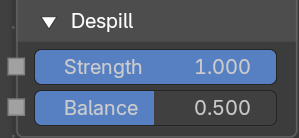
| Entry | What it does |
|---|---|
| Strength | Controls how much color bleed from the key color is removed from the input image: 0 means no despilling, 1 means all possible spilling will be removed. The underlying implementation is the same as adjusting the Unspill amount of the Color Spill Node. |
| Balance | This controls how the color channels are compared when computing spill, affecting the hue and shade of the corrected colors. It is similar to setting the Limiting Channel in the Color Spill Node. |
Keying Screen
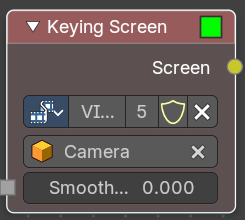
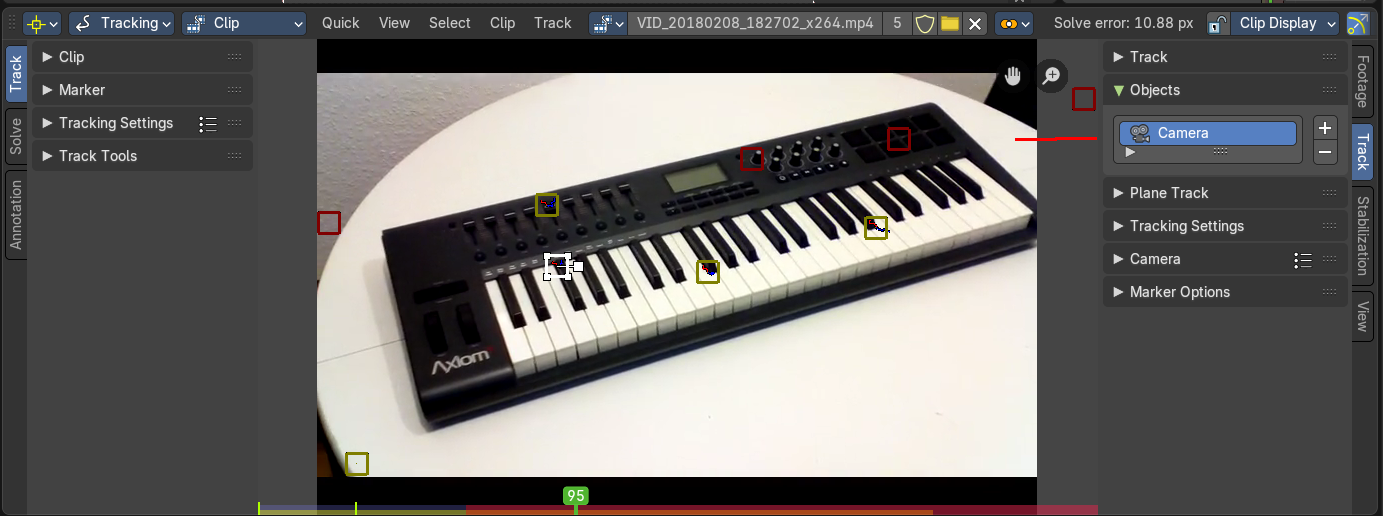
The Keying Screen node creates plates for use as a color reference for keying nodes. It generates gradients from sampled colors on motion tracking points on movie clips. It can be used to deal with uneven colors of green screens.
Note that you need to have a motion tracking project loaded. This gives you the Camera then.
Properties
Movie Clip
The selectable clip data-block used as input for the gradient colors.
The movie needs to be loaded already. You cannot load it from here, just choose.
Tracking Object
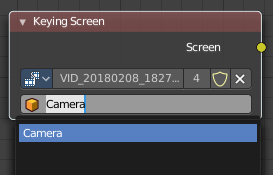
Tracking Object to generate the gradient. You will probably want to create new a tracking object in the Object panel, because tracks used for gradients can not actually be used for camera/object tracking. After this tracks might be placed in places where gradient colors should be sampled. These tracks could be tracked or moved manually, so gradients would be updating automatically along the movie. Tracks might have an offset for easier tracking of feature-less screens.
Smooth
The smoothness of the keying screen.
Outputs
Screen
Gradient image output.
Luminance Key
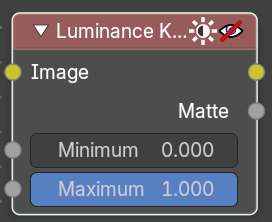
The Luminance Key node determines background objects from foreground objects by the difference in the luminance (brightness) levels.
Stock footage of explosions, smoke or debris are normally shot against a solid, dark background rather than a green screen. This node can separate the foreground effect from the background. It can also be used for sky replacement for overexposed or gray skies that aren’t suitable for chroma keying.
Tip
When compositing footage of something that emits light and has a dark background, like fire, a Mix Node using a Screen or Add operator will produce better results.
Inputs
| Entry | What it does |
|---|---|
| Image | Standard image input. |
| Minimum | Determines the lowest values that are considered foreground. (Which is supposed to be – relatively – light: from this value to 1.0.) |
| Maximum | Determines the highest values that are considered to be background objects. (Which is supposed to be – relatively – dark: from 0.0 to this value.) Note. Brightness levels between the two values form a gradient of transparency between foreground and background objects. |
Outputs
| Entry | What it does |
|---|---|
| Image | Image with an alpha channel adjusted for the keyed selection. |
| Matte | A black-and-white alpha mask of the key. |