

































































Add Menu - Input - Scene
Inputs the available render layers.
Add menu - Input - Scene

Render Layers
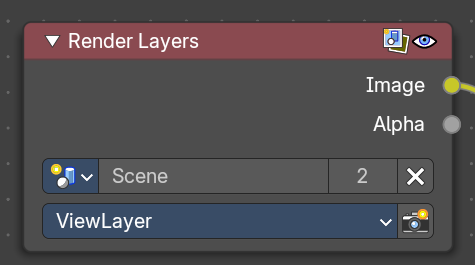
Inputs the available render layers.
This node is the starting place for getting a picture of your scene into the compositing node map.
The input happens through the properties.
Properties
Scene
Usually you don't need to select anything here when you work with just one Scene file. But in Bforartists you can work with more than one scene in a blend file. The scene information taken is the raw footage (pre-compositing and pre-sequencing).
Hint. To use composited footage from another scene, it has to be rendered into a multi-layer frame set (e.g. OpenEXR) as an intermediate file store and then imported with Image input node again.
| Entry | What it does |
|---|---|
| View layer | A list of available View Layers. |
| Render | The render button allows you to re-render the active scene with one click. |
Outputs
| Entry | What it does |
|---|---|
| Image | The rendered image. |
| Alpha | The Alpha channel. |
Render passes sockets
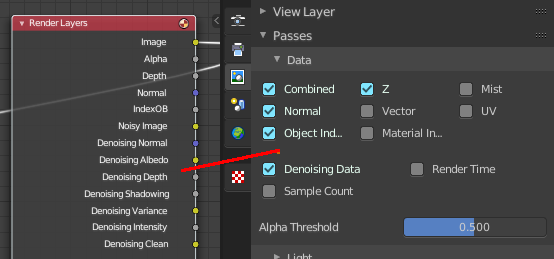
Depending on the Render passes that are enabled, other sockets are available. See Cycles and Eevee render passes. The Workbench renderer does not have extra render passes sockets. It just provides Image and Alpha output.
Depth
By default the Z depth pass is enabled.
Scene time
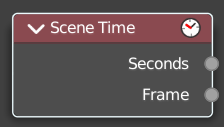
Outputs the current scene time in seconds or in frames.
The Frame output is a float value to make subframe rendering for motion
blur possible.
Outputs
| Entry | What it does |
|---|---|
| Seconds | Output in seconds. |
| Frame | Output in Frames. |
Time Curve
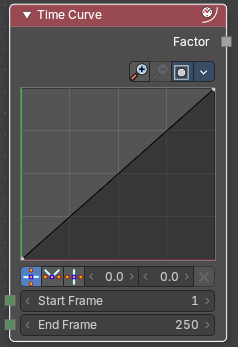
The Time node generates a factor value that changes according to the curve as time progresses through the Timeline. The range goes from 0.0 to 1.0. The default is a linear line from 0.0 to 1.0. But the curve can be adjusted.
Properties
Navigation elements

The navigation elements for the curve. They are described from left to right.
Zoom in and out
The two buttons with the magnifying glass at it zooms in and out in the curve window.
Clipping
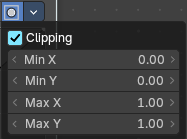
Clipping options. Set up clipping for the stroke.
Tools
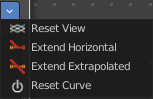
Tools is a menu where you can find some curve related tools.
| Entry | What it does |
|---|---|
| Reset View | Resets the curve windows zoom. |
| Extend Horizontal | Extends the curve horizontally before the first point and behind the last point. |
| Extend Extrapolated | Extends the curve extrapolated before the first point and behind the last point. |
| Reset Curve | Resets the curve to the initial shape. |
Curve window
Tweak and adjust the falloff curve by clicking at a curve point and dragging it around.
Double click adds a new point.
Holding down ctrl activates temporary snapping.
Holding down shift enables slower movement, which allows more accurate setting.
Selecting Points
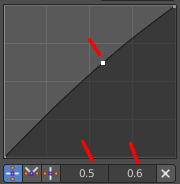
You can select curve points. This reveals two edit boxes for the x and y coordinate of this point.
Selected points can be moved around. Left click at them, hold the mouse button down and move them to a new location.
Adding Points
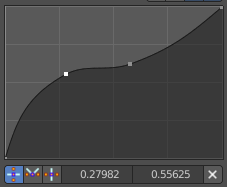
You can add new curve points by simply left clicking at the curve. Move the mouse to position them where you need it.
| Entry | What it does |
|---|---|
| Vector Handle | Set handle type to Vector. |
| Auto Handle | Set handle type to Auto. |
| Auto Clamped Handle | Set handle type to Auto Clamped. |
| X and Y value edit box | The X and Y value for the currently selected curve point. |
| Delete Points | Deletes selected curve points. |
| Start Frame/ End Frame | Start frame and End frame of the range of time specifying the values the output should last. This range becomes the X axis of the graph. The time input could be reversed by specifying a start frame greater than the end frame. |
Outputs
Factor
A speed of time factor (from 0.00 to 1.00) relative to the frame rate defined in the Render Dimensions Panel. The factor changes according to the defined curve.
Hint. By using curves it is possible that the Time node may output a number larger than one or less than zero. To be safe, you should use the Min/Max clamping function of the Map Value node to limit output.