Add Menu - Input
The Input menu contains Input node types.
Add menu - Input
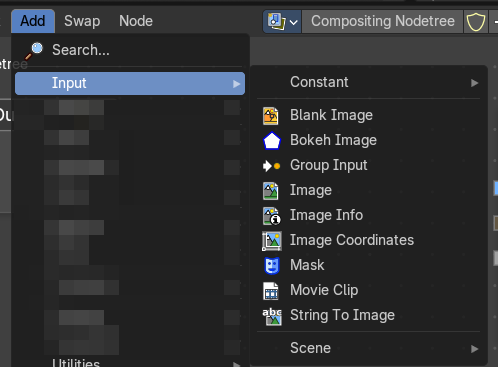
The Input menu contains Input node types.
The content is the same for all three sub modes. Note that you need to tick Use Nodes to activate the menu items when you are in Line Style sub mode.
Blank Image
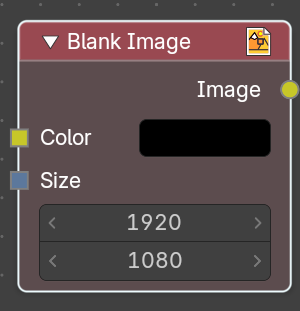
The Blank Image node generates a solid image of a chosen size and color. It is used as a base layer, background plate, or placeholder in compositing workflows, allowing to create flat color fields or masks without importing external images.
| Entry | What it does |
|---|---|
| Inputs | Color: Defines the fill color of the image. Chosen through a swatch or color picker, supporting any RGB value. Determines the visual appearance of the generated blank image. · Size: Specifies the resolution of the image in pixels. Allows matching render dimensions or creating custom aspect ratios. |
| Output | Produces a standard image that can be connected to other compositor nodes. This can be layered with Mix or Alpha Over, processed with filters, or used as a mask source. |
Bokeh Image
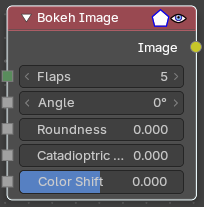
The Bokeh Image node generates a special input image for use with the Bokeh Blur filter node.
The Bokeh Image node is designed to create a reference image which simulates optical parameters such as aperture shape and lens distortions which have important impacts on bokeh in real cameras.
| Entry | What it does |
|---|---|
| Inputs | The first three settings simulate the aperture of the camera. · Flaps: Sets an integer number of blades for the cameras iris diaphragm. · Angle: Gives these blades an angular offset relative to the image plane. · Rounding: Sets the curvature of the blades with (0 to 1) from straight to bringing them to a perfect circle. · Catadioptric: Provides a type of distortion found in mirror lenses and some telescopes. This can be useful to produce a visual complex bokeh. · Color Shift: Introduces chromatic aberration into the blur such as would be caused by a tilt-shift lens. |
| Outputs | Image: The generated bokeh image. |
Image
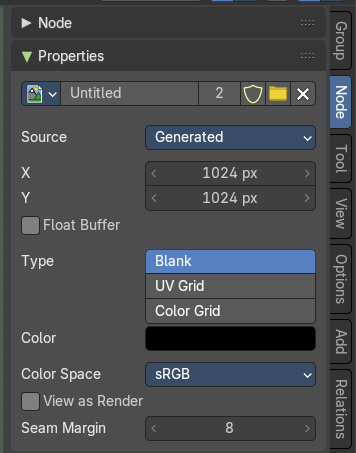
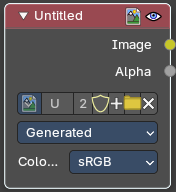
Image input. For further image settings see also the Properties Panel in the Node Tab in the Sidebar. It contains the same settings than the image types in the image and uv editor.
Properties
Image Property
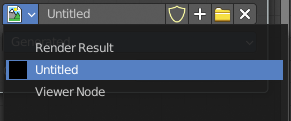
This property contains the list of loaded images. When no image is loaded then it displays the New and Open Buttons. When an image exists then it displays the name of the currently selected image.
From left to right ...

List of images in the scene
This is a list of the images in the scene. This list allows you to switch to other images.
Search form
Search for specific images.
| Entry | What it does |
|---|---|
| Image Edit Box | Read the name of the currently selected image. And you can rename the image here too. |
| Number of Fake Users | In case this file has a fake user assigned, then this number displays the number of fake users. |
| Fake User | Wit this button you assign a fake user to this selected image. Data, like images, that is not longer linked to anything else gets removed when you save and reload a scene. Bforartists has the concept of fake users to go around this behavior. An image with a fake user is in fact linked to something. And so it is not lost when you save and reload the scene. |
Open
Open a new image.
New
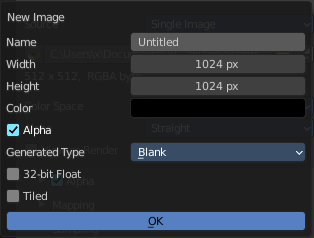
Create a new image.
Creates a new image. You will get a dialog where you can define settings for the new image.
| Entry | What it does |
|---|---|
| Name | The name of the new image |
| Width | The width of the new image. |
| Height | The height of the new image. |
Color
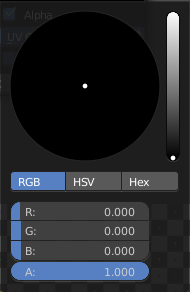
Adjust the color of the new image. A click will call a color picker.
Alpha
Check this checkbox if the new image should have an alpha channel.
Generated Type
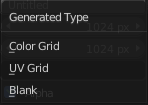
Here you can define what kind of texture you want to create.
Blank is one plain color.
UV Grid is a checker texture in black and white.
Color Grid is a colored checker texture.
| Entry | What it does |
|---|---|
| 32 Bit Float | Check this checkbox if the image should be in 32 Bit floating point bit depth per channel. Else it is in 8 bit per channel. |
| Tiled | Create a tiled image. |
Source
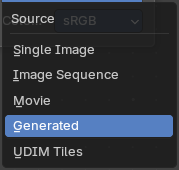
What kind of source image to use.
Single Image
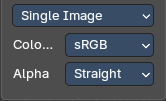
Color Space
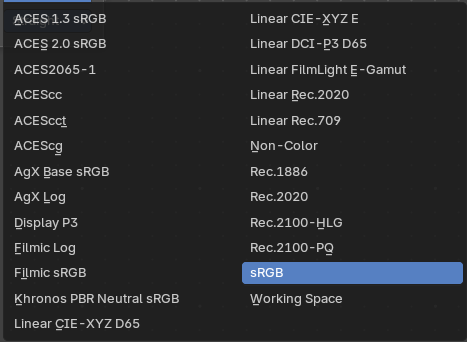
The color space for the image.
Alpha
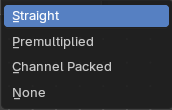
The alpha channel mode.
Image Sequence + Movie
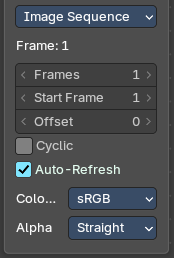
| Entry | What it does |
|---|---|
| Frames | Number of images to use |
| Start Frame | The start frame |
| Offset | Offset the nubmer of the frame to use in the animation. |
| Cyclic | Cycle the images in the image sequence / Movie. |
| Auto-Refresh | Always refresh images on frame changes. |
Color Space
The color space for the image.
Alpha
The alpha channel mode.
Generated
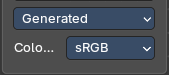
Color Space
The color space for the image.
UDIM Tiles
Color Space
The color space for the image.
Alpha
The alpha channel mode.
Image Info
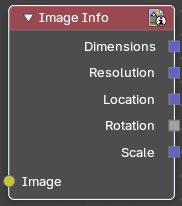
Returns informations about an image.
| Entry | What it does |
|---|---|
| Inputs | Image: The input image. |
| Outputs | Dimensions: The dimensions output value. · Resolutions: The resolutions output value. · Location: The locations output value. · Rotation: The rotation output value. · Scale: The scale output value. |
Image Coordinates
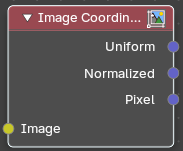
Returns the coordinates of the pixles of an image
| Entry | What it does |
|---|---|
| Inputs | Image: The input image. |
| Outputs | Uniform: Zero centered coordinates normalizes along the larger dimension for uniform scaling. · Normalized: Normalized coordinates with half pixels offset. · Pixel: Integer pixel coordinates. |
Mask
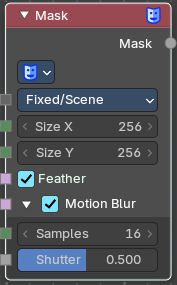
The Mask node can be used to select a Mask data. This node can be used with other nodes, for example to Invert, Multiply or Mix, or used as a factor input.
Masks can be created in the Image and Movie Clip editors, by changing the mode to Mask in the header. So you first need to create one in one of those editors.
Properties
Masks
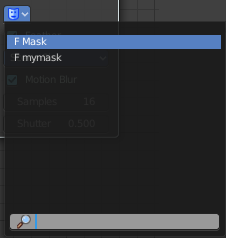
The available mask data. If the label is left blank, the mask name will be set.
| Entry | What it does |
|---|---|
| Size X / Y | The resolution of the mask |
| Feather | Use or ignore feather points defined for splines see Mask Feathers for more details. |
| Motion Blur | For animated masks, creating a motion blurred mask from the surrounding frames, with a given number of samples (higher gives better quality), and a camera shutter time in seconds. · Samples: The number of motion blur samples. · Shutter: Expose for motion blur as a factor of Frames per Seconds. |
Outputs
Mask
The black-and-white output of the mask.
hier weiter
Movie Clip

This node is a special node that uses some of the values taken from footage cameras and trackings and links them to the output. It is possible to load image sequences, but only Image and Alpha values will be available, because the other outputs will not have any values associated with them. When a tracked clip is chosen, Blender will fulfill the outputs using internal values taken from the tracking. So the controls for start and end frames will be defined at the Movie Clip editor.
Properties
Movie Clip
Select the movie clip.
Once loaded you will see a preview image of the movie. Scrolling through the timeline will display the corresponding frame in this preview image.
File browser
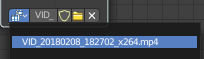
Choose an already loaded video.
| Entry | What it does |
|---|---|
| Name | Read and edit the name of the video. |
| Fake User | Assign a fake user to this video. Fake users is an odd concept to keep data in the scene even if it has no user somewhere. The fake user is then a dummy user so that the object is not deleted when saving the scene. |
| Load File | Load a new video. |
| Delete File | Delete this video. |
| Entry | What it does |
|---|---|
| Outputs | — |
| Image | Outputs the entire image at the specified color space. |
| Alpha | The alpha value taken from the movie or image. |
| Offset X | The X offset value from the footage camera or tracking. |
| Offset Y | The Y offset value from the footage camera or tracking. |
| Scale | The scale of the image taken from the footage camera or tracking. |
| Angle | The lens angle taken from the footage camera or tracking. |
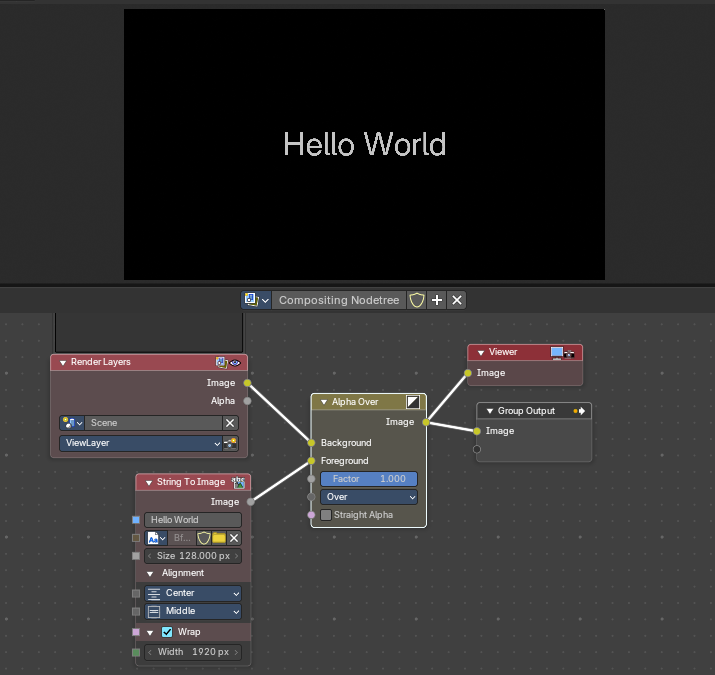
String to Image
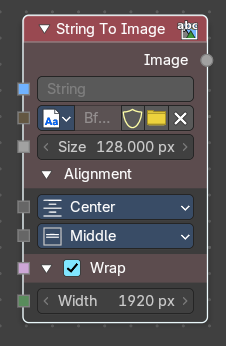
Converts a text string into an image buffer directly inside the compositor. Useful for overlaying text, generating procedural titles, or integrating dynamic labels into compositing workflows without external text objects.
Properties
| Entry | What it does |
|---|---|
| String | Input field for the text content. Accepts plain text or dynamic string inputs. Can be used for captions, labels, or procedural text overlays. |
| Font | Dropdown or file selector for choosing the font datablock. Supports internal packed fonts and external font files. Ensures consistent typography across compositing setups. |
| Size | Defines the pixel size of the rendered text. Larger values = bigger text. Scales proportionally with resolution. |
| Alignment | Horizontal: Left, Center, Right. Vertical: Top, Middle, Bottom. Controls text placement within the image buffer. |
| Wrap | Checkbox to enable word wrapping. When enabled, text flows into multiple lines based on width. Useful for paragraphs or captions. |
| Width | Defines the maximum width (in pixels) for text wrapping. Only active when Wrap is enabled. Controls line breaks and text block layout. |
Output
Produces an Image output containing the rendered text as a float black and white image at the dimensions of the text.
This then can be connected to compositing nodes (e.g., Mix, Alpha Over) for integration into final renders. Supports color grading, masking, and blending like any other image input.