

































































Add Menu - Filter - Blur
The Filter add menu contains multiple filters you can use on image data, including blurs and other lens effects.
Add menu - Filter - Blur
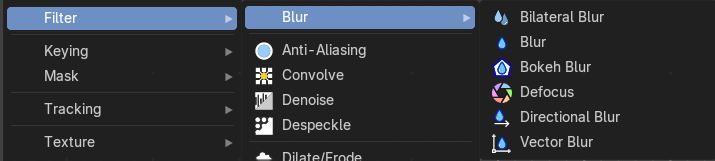
The Filter add menu contains multiple filters you can use on image data, including blurs and other lens effects.
Bilateral Blur
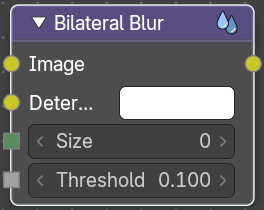
The Bilateral Blur node performs a high-quality adaptive blur on the source image, allowing to blur images while retaining their sharp edges.
It can be used for various purposes like: smoothing noisy render passes to avoid longer computation times in example ray-traced ambient occlusion, blurry refraction's/reflections, soft shadows, or to make non-photo realistic compositing effects.
Inputs
| Entry | What it does |
|---|---|
| Image | Standard image input. If only the image input is connected, the node blurs the image depending on the edges present in the source image. |
| Determinator | Which is non-obligatory and if the Determinator is connected, it serves as the source for defining edges/borders for the blur in the image. This has great advantage in case the source image is too noisy, but normals in combination with Z-buffer can still define exact borders/edges of objects. |
| Size | The size of the blur in pixels. |
| Threshold | The threshold of the blur area. Pixels are considered to be in the blur area if the average difference between their determinator of the center pixels is less than this threshold. |
Outputs
Image
Standard image output.
Blur
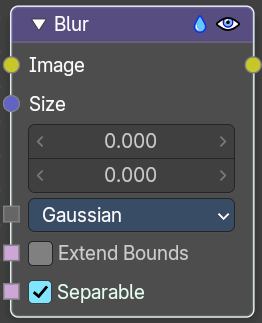
The Blur node provides several blur modes to blur an image. The icon top right allows you to collapse and show the image part of the node.
Inputs
Image
Standard image input.
Size
The optional Size input will be multiplied with the X and Y blur radius values. It accepts also a value image, to control the blur radius with a mask. The values should be mapped between (0 to 1) for an optimal effect.
| Entry | What it does |
|---|---|
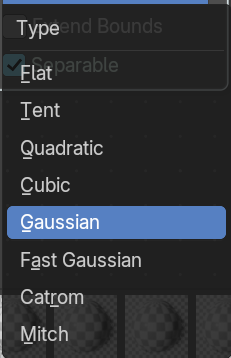
| Type | The different blur types. · Flat: Simply blurs everything uniformly. · Tent: Preserves the high and the lows better by making a linear falloff. · Quadratic: Looks similar to Gaussian but can be a little faster but slightly worse looking. · Cubic: Preserve the highs, but give an almost out-of-focus blur while smoothing sharp edges. · Gaussian: Gives the best looking results but tends to be the slowest. · Fast Gaussian: An approximation of the Gaussian. · Catmull-Rom: Catmull-Rom keeps sharp contrast edges crisp. · Mitch: Preserve the highs, but give an almost out-of-focus blur while smoothing sharp edges. |
| Extend Bounds | Allows the image, that is being blurred, to extend past its original dimension. |
| Separable | Blur along the horizontal and vertical directions independently. This method is faster. |
Outputs
Image
Standard image output.
Bokeh Blur
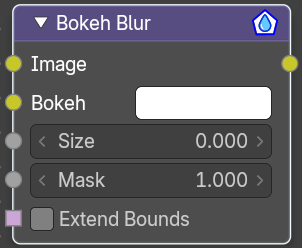
The Bokeh Blur node generates a bokeh type blur similar to Defocus. Unlike defocus an in-focus region is defined in the Compositor.
Several performance optimizations are also available such as OpenCL support, calculation area restriction and masking.
Inputs
| Entry | What it does |
|---|---|
| Image | Standard image input. |
| Bokeh | This is an input for the Bokeh Image node. |
| Size | Size controls the amount of blur. Size can either be a single value across the entire image or a variable value controlled by an input image. In order to use the latter, the Variable Size option must be selected. See the examples section below for more on how to use this. |
| Mask | Here you can input a Box Mask matte node or a Mask input node to restrict the area of the image the blur is applied to. This could be helpful, for example, when developing a node system by allowing only a small area of the image to be filtered thus saving composite time each time adjustments are made. |
| Extend Bounds | Extend the bounds of the input image to fully fit the blurred image. |
Outputs
Image
Image output.
Defocus
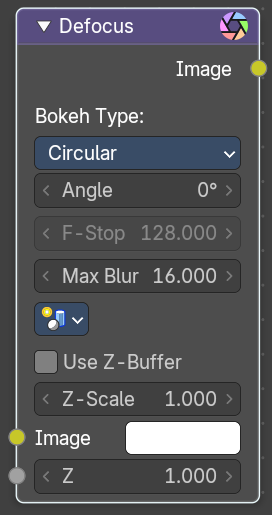
It is typically used to emulate depth of field (DOF) using a post-processing method with a Z-buffer input. But also allows to blur images that are not based on Z depth too.
Inputs
| Entry | What it does |
|---|---|
| Image | Standard image input. |
| Z | Z-buffer input, but could also be a (greyscale) image used as a mask, or a single value input. |
Properties
Bokeh Type
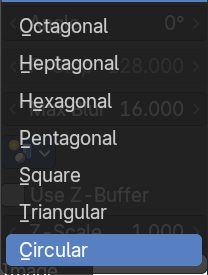
The number of iris blades of the virtual camera’s diaphragm.
Disk (to emulate a perfect circle) or Triangle (3 blades), Square (4 blades), Pentagon (5 blades), Hexagon (6 blades), Heptagon (7 blades) or Octagon (8 blades).
| Entry | What it does |
|---|---|
| Angle | This button is deactivated, if the Bokeh Type is set to Disk. It can be used to add a rotation offset to the Bokeh shape. The value is the angle in degrees. |
| F-Stop | This option controls the amount of focal blur in the same way as a real camera. It simulates the aperture f of a real lens’ iris, without modifying the luminosity of the picture. The default value 128 is assumed to be infinity: everything is in perfect focus. Half the value will double the amount of blur. This button is deactivated, if No Z-buffer is enabled. |
| Max Blur | This value limits the amount of blur by setting a maximum blur radius. Could be used to optimize the performance. The default value of 0 means no limit. |
Scene
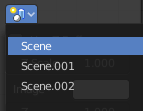
Select the linked scene. Scenes can be created in the properties editor in the Scene properties tab in the Scene panel.

| Entry | What it does |
|---|---|
| Use Z-buffer | Should be activated for a non Z-buffer in the Z input. No Z-buffer will be enabled automatically whenever a node that is not image based is connected to the Z input. |
| Z Scale | Only active when No Z-buffer is enabled. When No Z-buffer is used, the input is used directly to control the blur radius (similar to F-Stop when using the Z-buffer). This parameter can be used to scale the range of the Z input. |
| Image | Input Image |
| Z | The Z value of the image. |
Outputs
Image
Image output.
Directional Blur
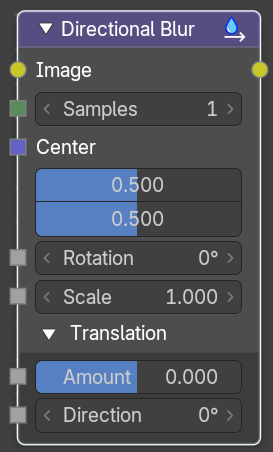
Blurs an image in a specified direction and magnitude. Can be used to fake motion blur.
Inputs
| Entry | What it does |
|---|---|
| Image | Standard image input. |
| Samples | The number of samples to compute the blur. |
| Center X, Y | Sets the position where the blur center is. This makes a difference if the angle, spin, and/or zoom are used. |
| Distance | How large the blur effect is. |
| Rotation | Rotates the image each iteration to create a spin effect, from the center point. |
| Scale | Scales the image each iteration, creating the effect of a zoom. |
| Translation subtab | Amount: The translation amount relative to the image. · Direction: The translation direction. |
Outputs
Image
Image output.
Vector Blur
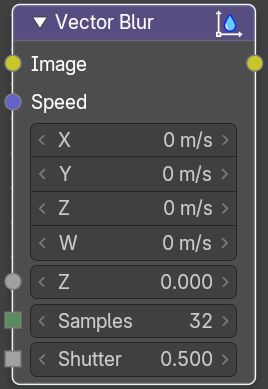
The Vector Blur node is a fast method for simulating Motion blur in compositing. It uses the vector speed render pass to blur the image pixels in 2D.
| Entry | What it does |
|---|---|
| Inputs | Image: Image input, to be linked to the “Combined” render pass. · Speed: Input for the “Vector” render pass. See Cycles render passes. · Z: Z depth, to be linked to the “Depth” render pass. · Samples: Quality factor. · Shutter: Time between open and close the shutter. |
| Outputs | Image: Motion blurred image output. |