

































































Asset Browser - Essentials Asset Library
Bforartists comes with a default asset library created by Blender. This asset library is a special one that only allows to append assets, there is no way to link in the assets.
Essentials Asset Library
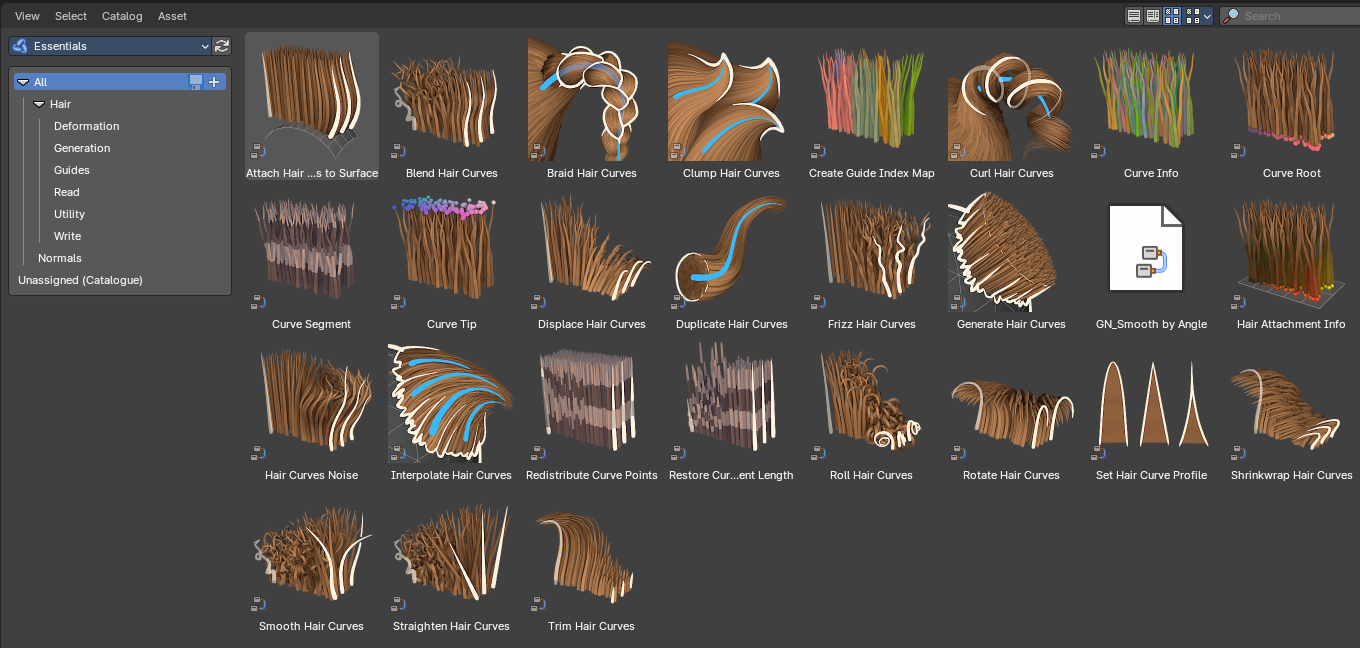
Bforartists comes with a default asset library created by Blender. This asset library is a special one that only allows to append assets, there is no way to link in the assets.
The Asset Browser
The Asset Browser is an editor in the Asset Workspace that gives you some essential nodegroups mostly for curves objects and curve data geometry nodes modifiers and node groups.
Library Contents
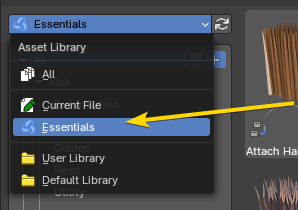
To select the Essential Library, choose it from drop-down box that contains the libraries that comes with Bforartists. Here you can select what asset you want to load.
The assets are grouped by categories.
Introduction
The Asset Browser Library and Modifier assets
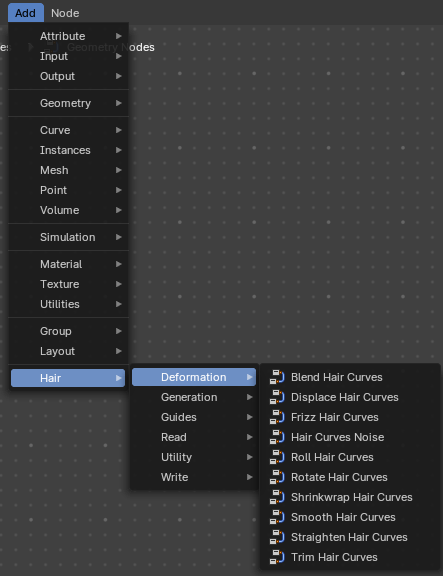
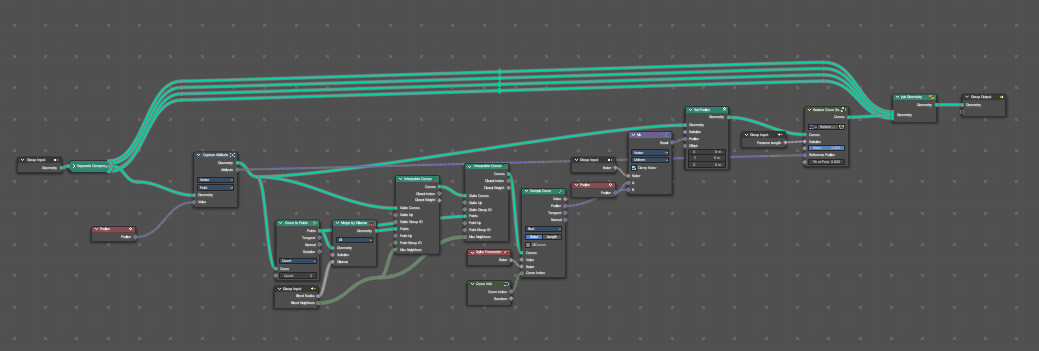
Hair nodes are Geometry node groups found in the Essentials Library included with Bforartists. They differ from the other nodes in the add menu due to being mid level node groups instead of individual low level nodes.
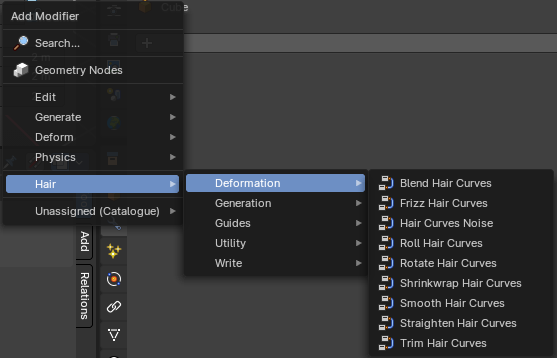
These hair nodes are also available as Modifier assets. When used as a Modifier asset, these adds the same node group as you would do it in the geometry node editor. Which means you can control these node groups in the modifier stack now instead of the geometry node editor.
Note: Curves objects is usually a mesh only functionality. But shows for all other object types too. You can use some of the these node groups with Curve data also.
General functionality
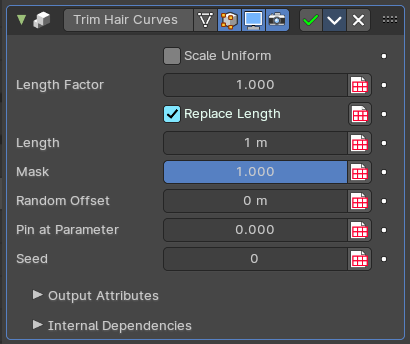
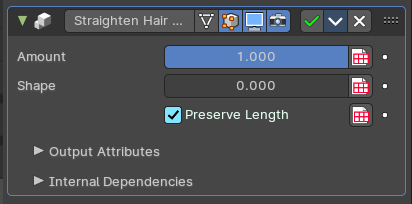
Every node group has a set of parameters with tooltips, each can help you understand what each node group does. You can view the properties in the modifiers stack in the Properties Editor or directly in the Geometry Nodes Editor.
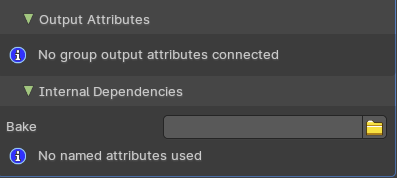
All node groups also have an Output Attributes and Internal dependencies tab. If the hair node has output attributes or internal dependencies depends of the hair node.
Examples of properties:
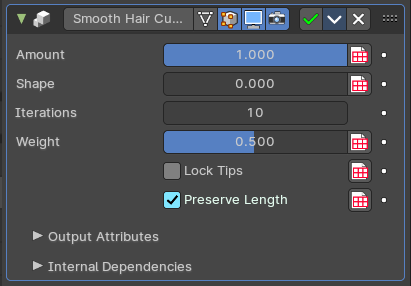
Categories Overview
- Hair
- Deformers
- Generation
- Guides
- Read
- Utility
- Write
- Normal
Usage
Preparation
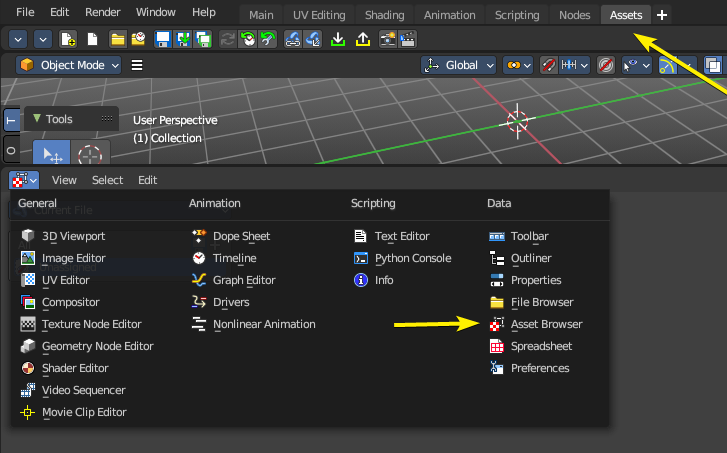
Select the Assets Workspace or alternatively change and editor by toggling the Hide Editor Type and changing it to the Asset Browser.
Once you have an asset browser open, select the Default Library from the drop down to the top left of the editor.
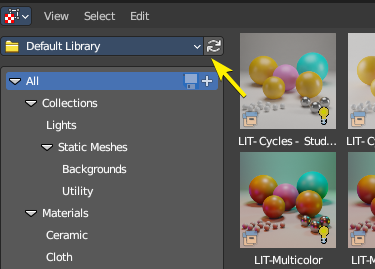
If you don’t see any assets, press the refresh icon.
Loading Assets
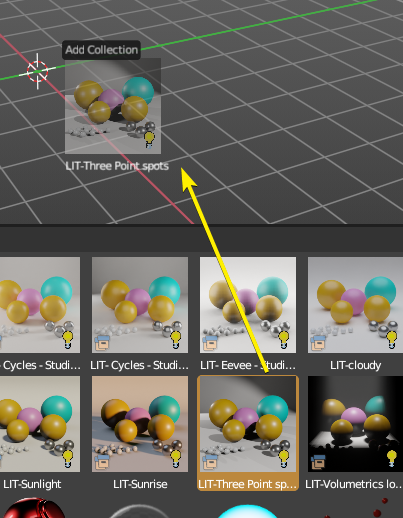
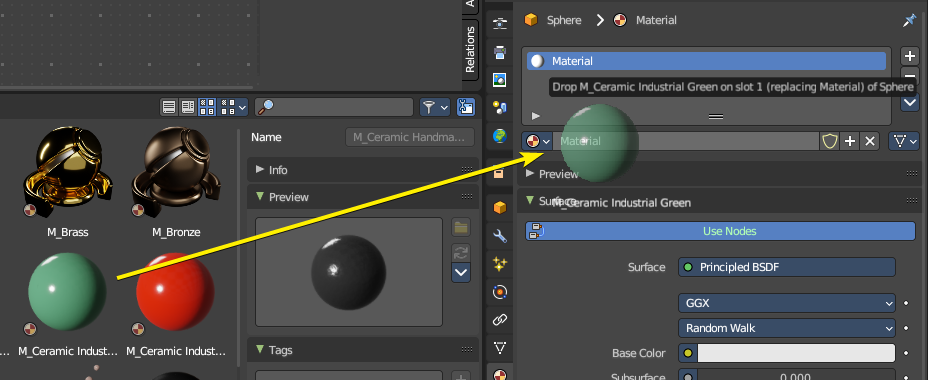
Click on any categories in the left sidebar, then click and drag on an item to then add it into either the Node editors or the 3D View.
The asset and editor context may influence where you can drag and drop. Example: A collection can only be added to the 3D Viewport, but a Node Group can only be added to the Node Editor in the correct mode (Shader, Geometry Nodes, etc)
You can also drag and drop the assets onto data slots.
Categories
Brushes
| Entry | What it does |
|---|---|
| Curve Sculpt | — |
| Grease Pencil Draw | — |
| Grease Pencil Draw | — |
| Grease Pencil Draw | — |
| Grease Pencil Draw | — |
| Mesh Sculpt | General · Add & Subtract · Contrast · Transform · Utilities · Paint · Simulation |
| Mesh Texture Paint | — |
| Mesh Vertex Paint | — |
| Mesh Weight Paint | — |
Hair
Deformations
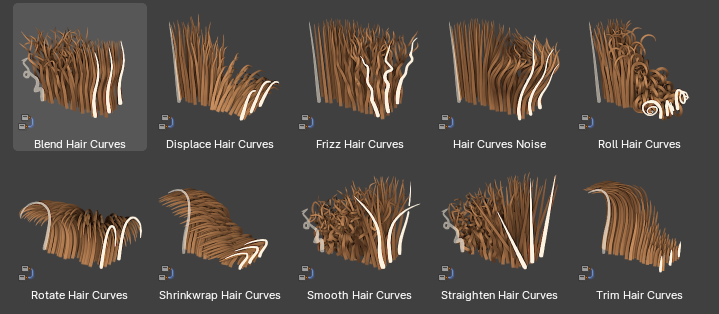
This group of hair node groups are useful for deforming the curves object hair strands. They can also be used on curve objects or curve data in other geometry nodes.
| Entry | What it does |
|---|---|
| Blend Hair Curves | Blends the shape between multiple hair curves in a certain radius together. |
| Frizz Hair Curves | Deforms hair curves using a random vector per point to frizz them. |
| Hair Curves Noise | Deforms hair curves using noise texture. |
| Roll Hair Curves | Rolls up hair curves, starting from their tips. |
| Rotate Hair Curves | Rotates each hair curve around an axis. |
| Shrinkwrap Hair Curves | Shrinkwrap hair curves to a mesh surface from below and optionally from above. |
| Smooth Hair Curves | Smooths the shape of hair curves. |
Generation
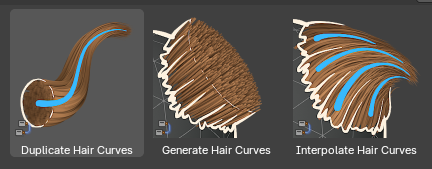
The curves object node groups contain methods to generate new hair strands.
| Entry | What it does |
|---|---|
| Duplicate Hair Curves | Duplicates hair curves a certain amount of times in the given radius. |
| Generate Hair Curves | Generates new hair curves on a surface mesh. |
| Interpolate Hair Curves | Interpolates existing guide curves on a surface. |
| Entry | What it does |
|---|---|
| Guide | Braid Hair Curves: Deforms existing hair curves into braids using guide curves. · Clump Hair Curves: Clumps together existing hair curves using guide curves. · Create Guide Index Map: This creates a new index map as an attribute that maps each curve to its nearest guide via index to assist in using an index field per hair cluster. · Curl Hair Curves: Deform existing hair curves into curls. |
| Read | Curve Info: Reads and gets the individual curve data as a field, including the index, curve ID, length, direction, random and surface UV. · Curve Root: Reads information and gets data from every curve’s root point. · Curve Segment: Reads information from each point in from every curve’s previous curve segment. · Curve Tip: Reads information and gets data from every curve’s tip point. · Curve Attachment Info: Reads information and gets data from the attach point regarding a surface mesh. |
| Utility | Attach Hair Curves to Surface: Attaches hair curves to a surface mesh. **Note:**Bare in mind you will need to parent the hair curves to a mesh before you can attach the curves to a surface mesh. · Redistribute Curve Points: Redistributes existing control points evenly along each curve. · Restore Curve Segment Length: Restore the length of each curve segment using a previous state after deformation. Consider this like a bypass node. |
Write
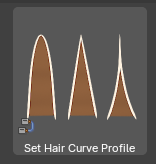
Set Hair Curve Profile
Set the radius attribute of hair curves according to a profile shape.
Normals
This category only contains one node for procedural autosmoothing of normals.
Smooth by Angle
Smooth normals by angle procedurally. Anything above a certain angle threshold will be marked as sharp.