

































































Asset Browser - Default Asset LIbrary
Bforartists comes with a default asset library – registered by addon. This is enabled by default. With this asset library you can find numerous default assets to get you up and running with your art quickly and…
Introduction
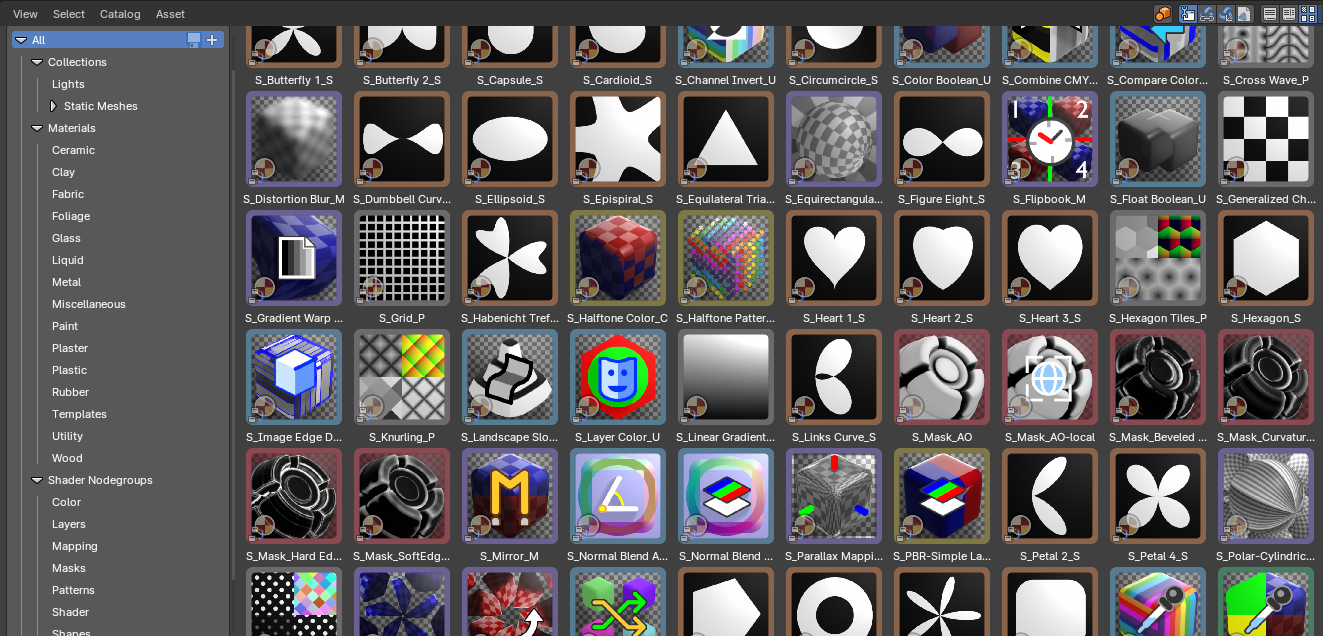
Bforartists comes with a default asset library – registered by addon. This is enabled by default. With this asset library you can find numerous default assets to get you up and running with your art quickly and efficiently.
The Asset Browser Library
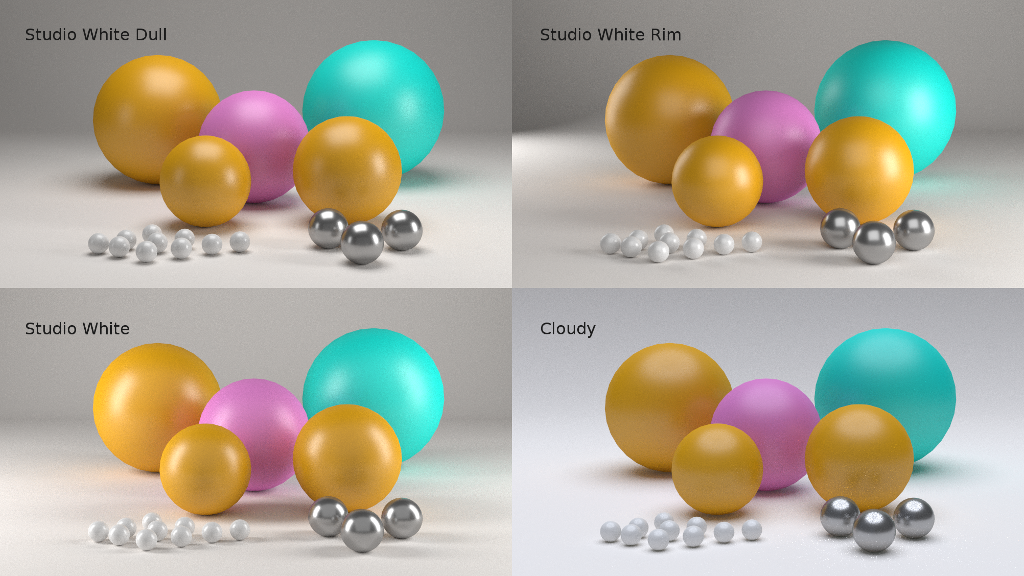
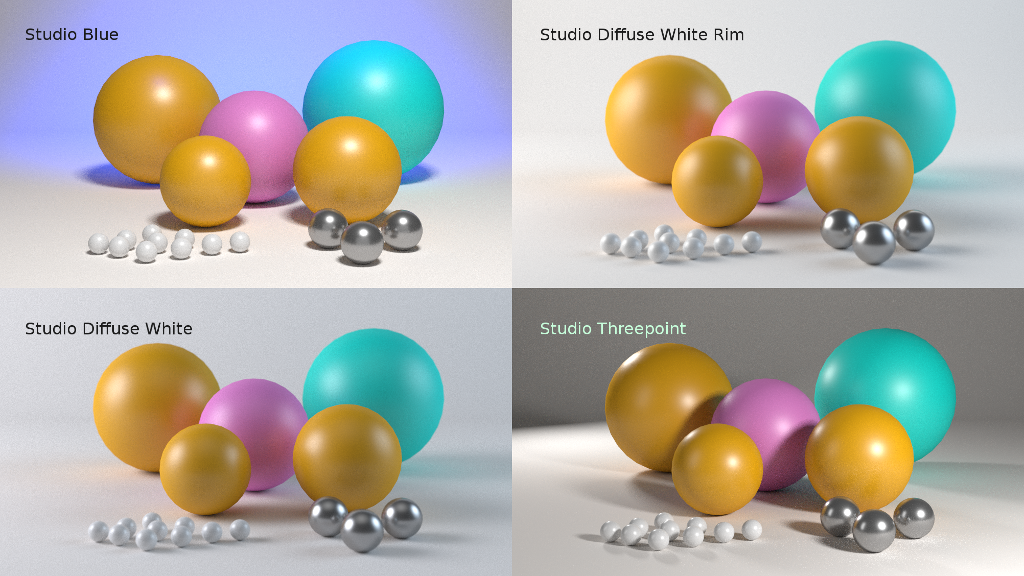
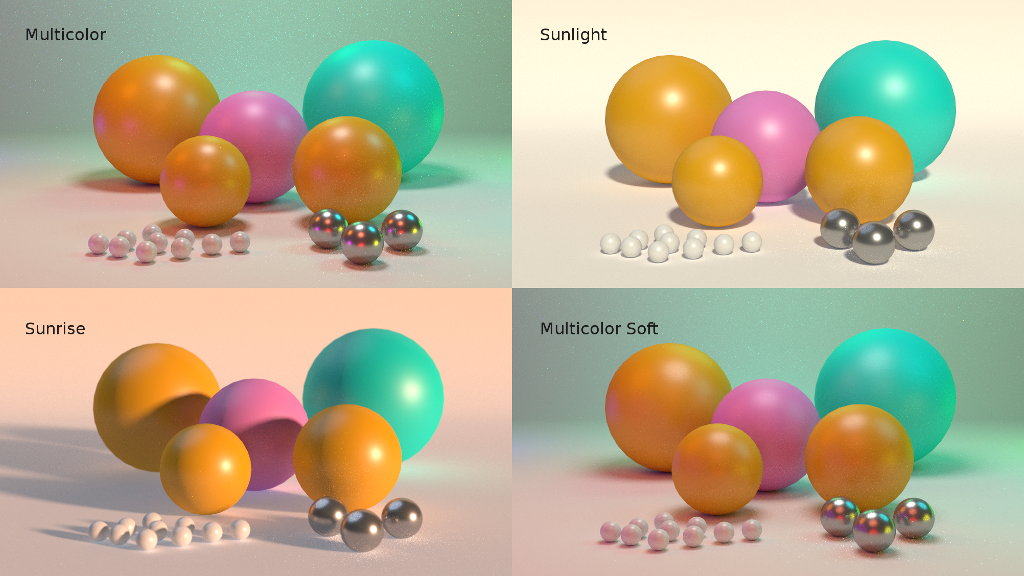
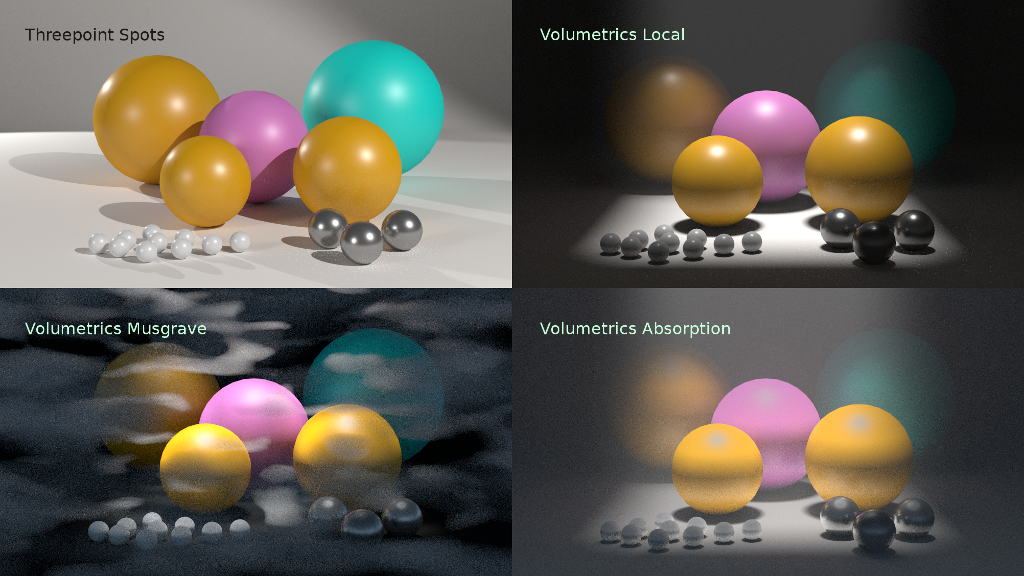
The Asset Browser is an editor in the Asset Workspace that gives you some standard lighting settings for the Cycles and Eevee renderer, obects in collections, node groups, materials and more. It contains for example the classical three-point setup. But also some basic volumetrics examples – or a shader ball or color checker reference stand.
The default library addon can be turned off in the User Preferences.
Note that the Eevee light setup is rudimentary. Eevee is a realtime render engine. To achieve more realistic results you may want to use Light probes, and bake the lights and shadows. This cannot be done by the addon though. Light probes requires a scene, light and object specific setup.
Library Contents
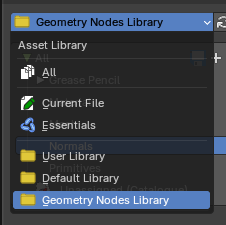
To select the Default Library, choose it from drop-down box that contains the libraries that comes with Bforartists. Here you can select what asset you want to load. You also have a Geometry Nodes Library.
The assets are grouped by categories.
Categories
- Collections
- Lights
- Static Meshes
- Backgrounds
- Utility
- Materials
- Ceramic
- Cloth
- Foilage
- Glass
- Liquids
- Metals
- Misc
- Paint
- Plastic
- Rubber
- Templates
- Utility
- Wood
- Shader nodegroups
- Color
- Layers
- Mapping
- Masks
- Patterns
- Shaders
- Shapes
- Utility
- Geometry Nodes
- Grease Pencil
- Operations
- Read
- Write
- Material
- Mesh
- Normals
- Primitives
<!-- -->
Simple Usage
Preparation
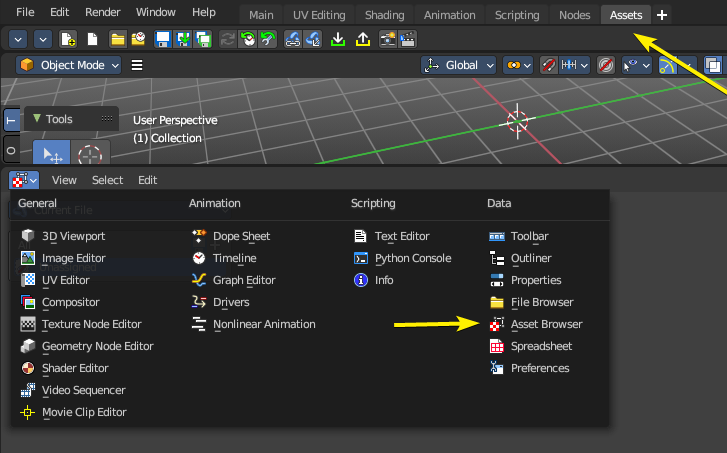
Select the Assets Workspace or alternatively change and editor by toggling the Hide Editor Type and changing it to the Asset Browser.
Once you have an asset browser open, select the Default Library from the drop down to the top left of the editor.
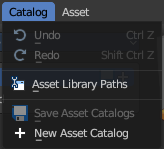
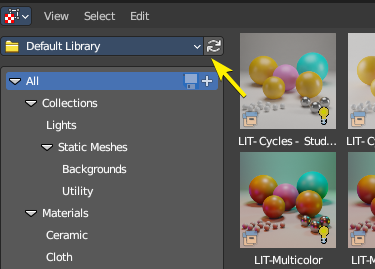
If you don’t see any assets, press the refresh icon.
Loading Assets
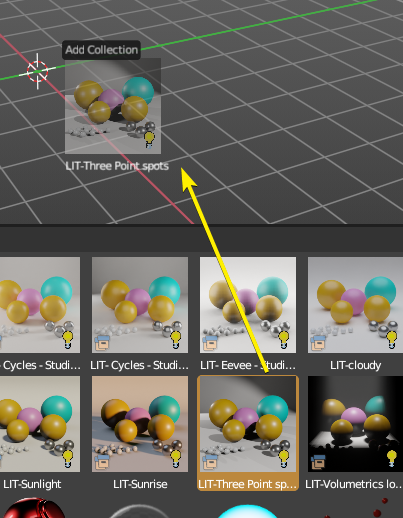
Click on any categories in the left sidebar, then click and drag on an item to then add it into either the Node editors or the 3D View.
The asset and editor context may influence where you can drag and drop. Example: A collection can only be added to the 3D Viewport, but a Node Group can only be added to the Node Editor in the correct mode (Shader, Geometry Nodes, etc)
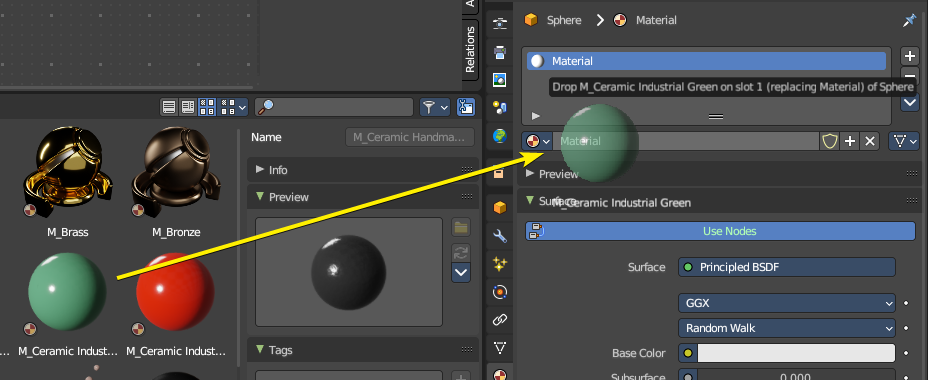
You can also drag and drop the assets onto data slots.
Preferences
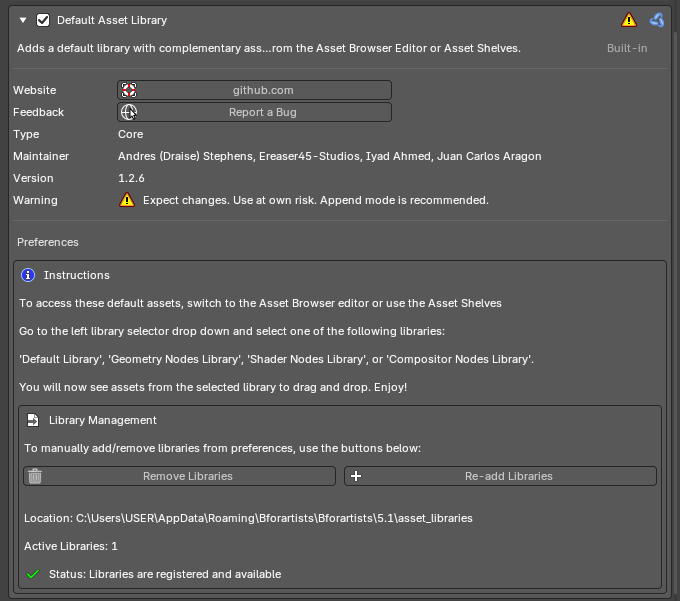
The Default Asset Library is an addon which comes with various functions like modular library management, additional operators and wizards and extended asset interfacing.
When you enable the addon, it will copy the asset library to a central library location.
Note: Bforartists ships with one asset library addon, but you can get support the project by purchasing individual asset library addons available from the Trinumedia sponsor.
| Entry | What it does |
|---|---|
| Instructions | This is a note on where to find the libraries, how to use them and what they are called. |
| Library Management | Contains operators to manually add/remove libraries from preferences. · Remove Libraries: Removes the addon libraries to the central library. If there are no other library addons used, this will remove all library files. · Re-add Libraries: Re-adds the addon libraries to the central library. |
Library Information
| Entry | What it does |
|---|---|
| Location | Shows the path of the central library. |
| Active Libraries | Shows how many addon libraries are used. |
Status
Shows if the addon library is registered and available.
Wizards
Triggering the Wizard
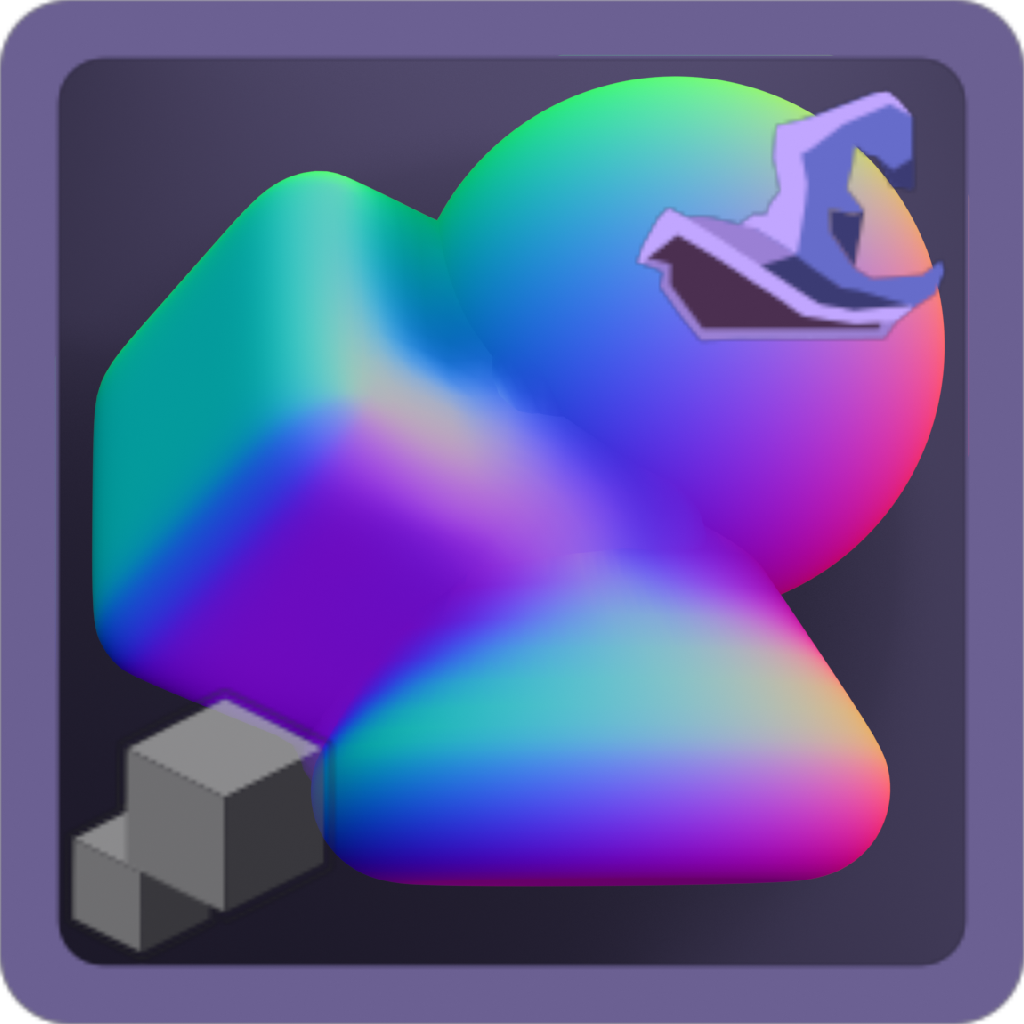
Smart assets contain a “Wizard” to help set the asset up. When you drag in an asset with a Wizard hat icon, this means the asset has a wizard enabled. After adding the Smart asset, the Wizard will popup a setup panel to help adjust quick settings to get the advanced asset running.
This wizard can also be used to run and re-run operations to ease the use of the asset.
Note: You can only trigger a wizard on a wizard enabled asset added or linked and overriden in the scene.
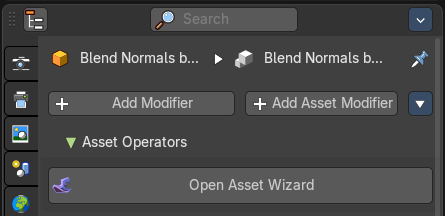
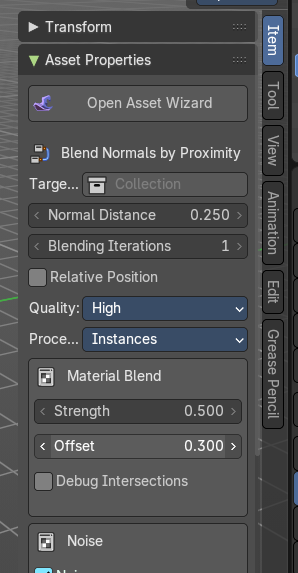
To re-trigger the wizard, you can go to the 3D View – Sidebar – Item tab – Asset Properties panel and run the “Open Asset Wizard” or use the Asset Operators in the asset modifier stack.
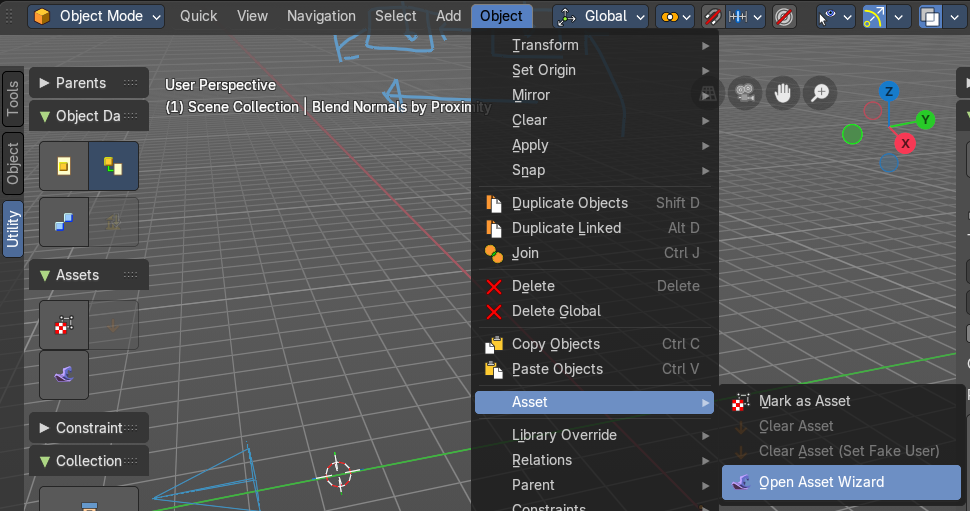
You can also go to the 3D View - Header – Object – Assets – Open Asset Wizard or use the Sidebar to re-trigger the asset.
Using the Sidebar to change asset properties
You can adjust Geometry Nodes Asset Modifier settings and common properties through slider properties and check boxes directly from the 3D View in the Sidebar.
You can modify numerical inputs for quick parameter changes by size, distance or angle.
Access these properties from the 3D View sidebar in the Item tab, in the Primitive Properties panel.
Note: This panel will only enable for specific assets like Primitives or Blend mesh by Proximity
| Entry | What it does |
|---|---|
| Open Asset Wizard | This will re-trigger the wizard for the selected asset. |
| Modifier Name | The selected asset name. |
| Modifier Properties | These are the asset properties also found in the Properties Editor in the Modifier stack. |
Default Library
Collections - Lights
Here you can get an overview how the result looks like for the different lighting set-ups. Note that just the Cycles results are showing here.
Be careful with the volumetrics examples. Especially the Musgrave example can render eons.
Collections – Static Meshes
This category contains static meshes with the prefix “SM_”, which are collections with objects and materials to be used in various situations.
Backgrounds
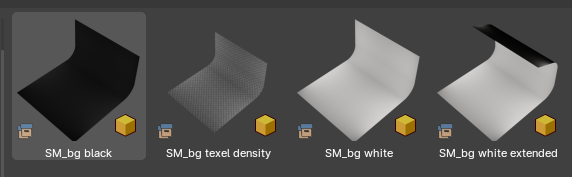
This category contains quick photographic backdrops.
Utility
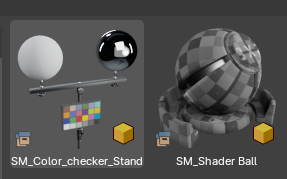
This category contains utility meshes for object scale, lighting and others, including a shader ball.
Curve
These are Geometry Nodes nodegroups for Curve and Curves objects.
Grease Pencil
This category contains Geometry Nodes nodegroups for Grease Pencil Objects, you can find them in the Geometry Nodes Add Curve menu.
Materials
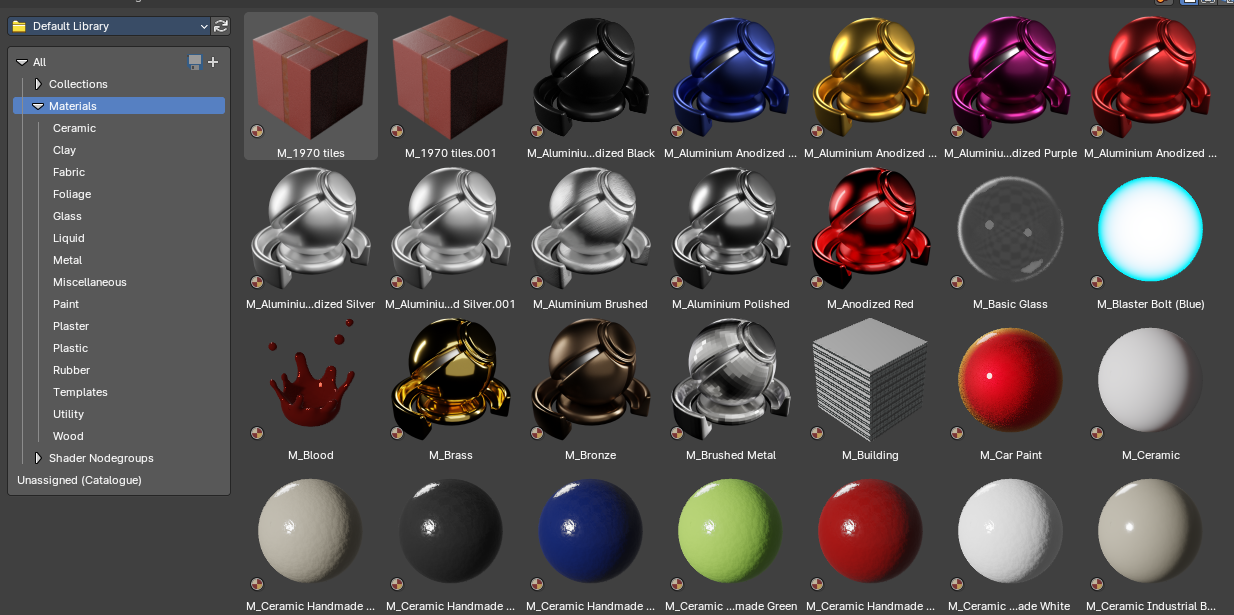
This category contains materials useful to quickly apply materials to your objects via drag and drop. You can then later modify the materials in the Properties Editor Materials tab or in the Shader Editor.
| Entry | What it does |
|---|---|
| Ceramic | Procedural ceramic materials |
| Clay | Procedural ceramic materials |
| Fabric | Procedural fabric materials |
| Foliage | Foilage materials |
| Glass | Procedural glass materials |
| Liquid | Procedural liquid materials |
| Metal | Procedural metal materials |
| Miscellaneous | Various materials for miscellaneous use cases |
| Paint | Procedural paint materials |
| Plaster | Procedural plaster materials |
| Plastic | Procedural plastic materials |
| Rubber | Procedural rubber materials |
| Templates | Material templates to help setup various material setups |
| Utility | Varopis utility materials |
| Wood | Procedural wood materials |
Shader Nodegroups
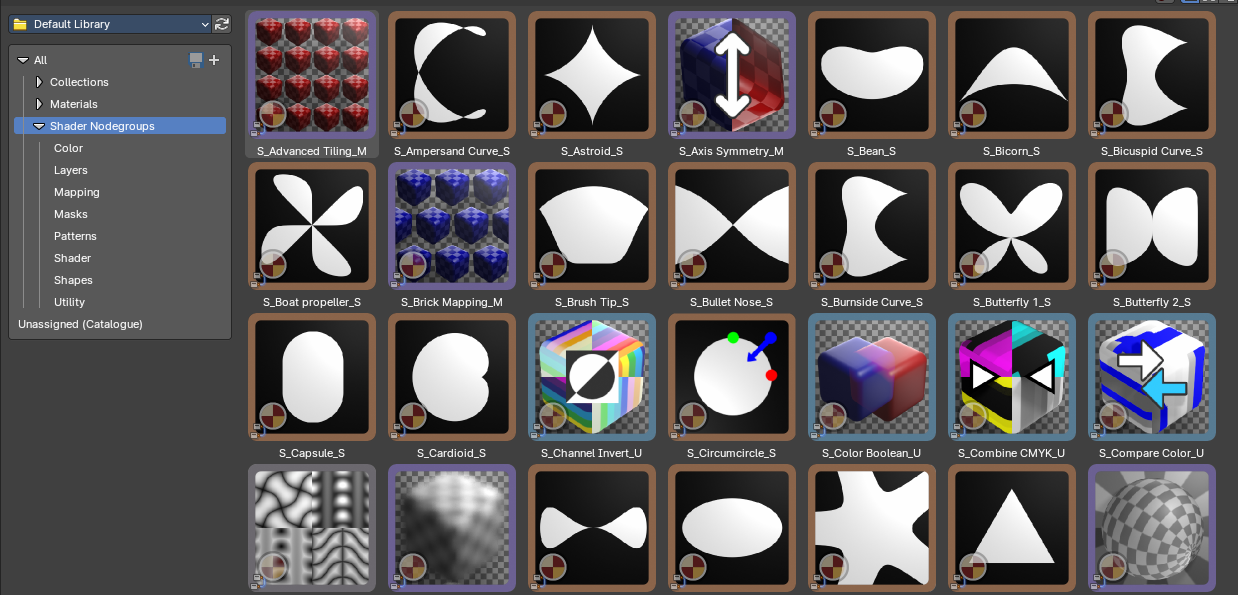
This category contains shader nodegroups useful to create procedural materials in the Shader Editor.
Color
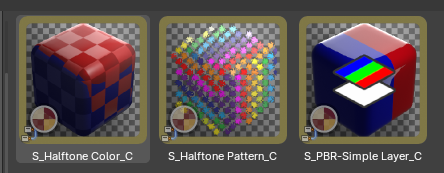
These nodegroups are used to define color halftone effects or a simple PBR layer mix node.
(Vector) Mapping
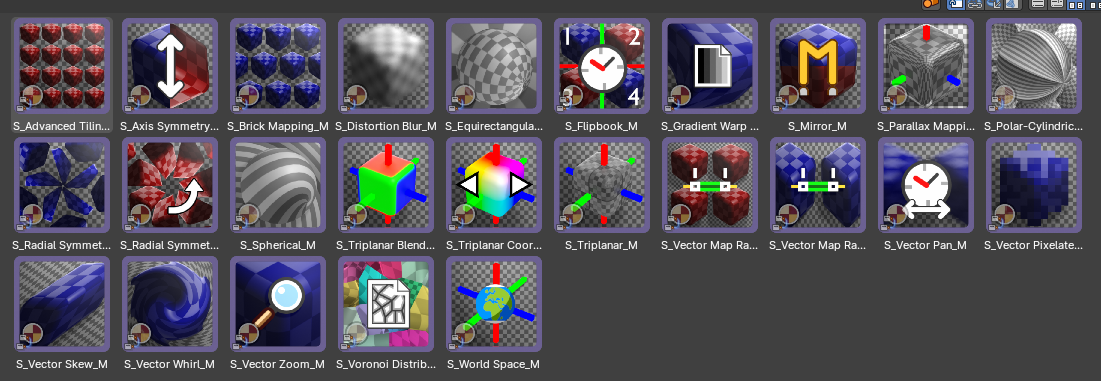
These nodegroups are used as vector UV mapping nodes to define vector interactions from various texture projections types, from tiling to deformations.
Masks

These nodegroups are useful to create masks for edgewear and other effects when layering materials or textures.
Most of these edge masks nodes work exclusively with Cycles, though one works with Eevee. They also contain edge noise, edge breakup and ambient occlusion masking for more control.
They work best when you bake the results as a texture mask to your meshes that have been unwrapped.
Patterns
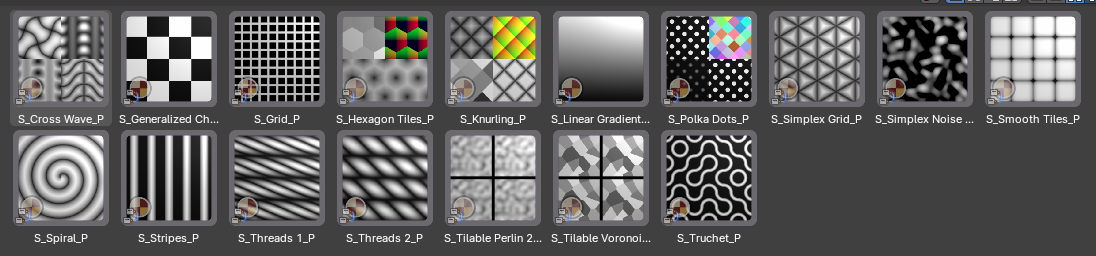
These nodegroups are useful to create procedural patterns for masks or textures in your materials. Each comes with their own set of parameters and data outputs, from UVs, tile position, random color, random values and more.
Shader
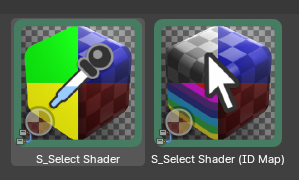
These nodegroups are useful to select shaders via ID or color switches.
Shapes
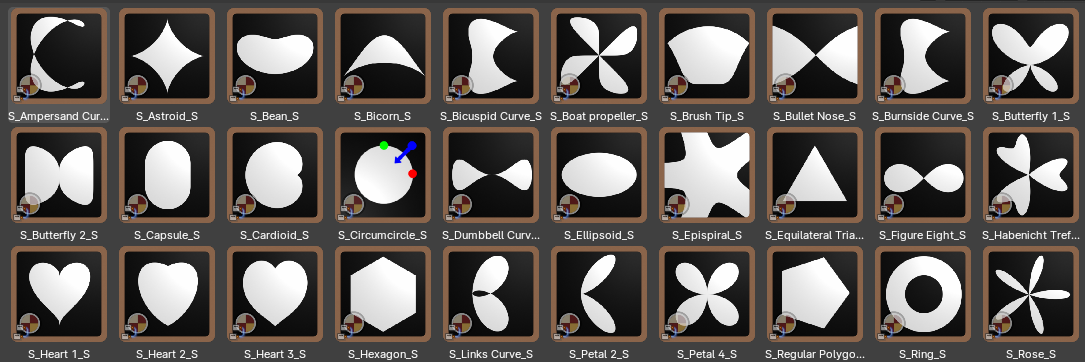
These nodegroups are procedural shapes that you can use with a combination of mapping and pattern nodegroups to then create masks or new patterns. Useful for creating new textures, brushes and motion graphics.
Utility
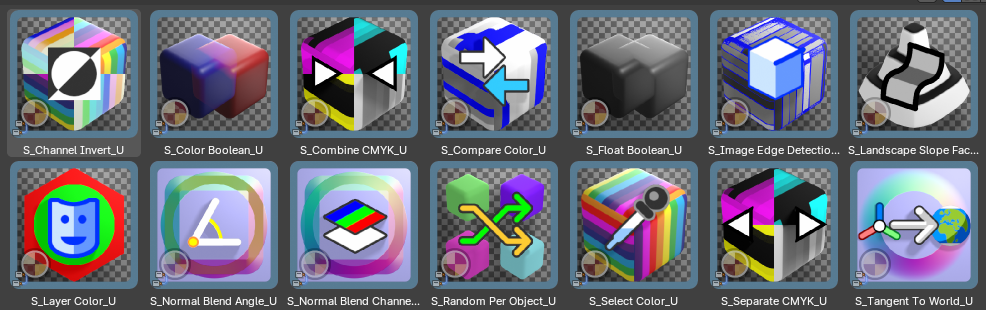
These nodegroups are useful to assist various miscellaneous tasks with shader nodes from normals, colour and masks.
Geometry Nodes Library
Grease Pencil
Operations

Delete Empty Layers
Removes all grease pencil layers that contain no strokes or data—helps performance.
Note: This is only available for the Node Editor asset shelf.
Read
Layer Size
Displays the resolution or size setting of selected grease pencil layers.
Note: This is only available for the Node Editor asset shelf.
Reveals fill material details for strokes in the selected grease pencil object.
Note: This is only available for the Node Editor asset shelf.
Shows stroke-related grease pencil information. Ideal for optimization or debugging.
Note: This is only available for the Node Editor asset shelf.
Write
Applies a consistent stroke thickness based on screen space (rather than object scale), helping ensure visual uniformity regardless of zoom or resolution. This depends on the Camera View.
Note: Available for the Node Editor and 3D View asset shelf as a modifier.
Controls edge softness or blending falloff of strokes. Enables more painterly or smooth transitions.
Note: Available for the Node Editor and 3D View asset shelf as a modifier.
Applies predefined color values to both stroke and fill channels of selected grease pencil elements.
Note: Available for the Node Editor and 3D View asset shelf as a modifier.
Adjusts transparency levels for stroke and fill independently. Useful for layering and compositing effects.
Note: Available for the Node Editor and 3D View asset shelf as a modifier.
Materials
Inherit Material
This uses the material in the Material tab of the Properties editor as a Geometry Nodes material override.
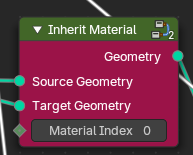
This utility transfers the first material slot from an assigned material from the parent object that holds the Geometry Nodes modifier object to the Geometry Nodes procedural geometry. It’s especially useful in workflows where instanced or procedural generated geometry needs to adopt top level material settings through top level manual assignment.
| Entry | What it does |
|---|---|
| Source Geometry | The source object material, typically the top level geometry of the parent object. |
| Target Geometry | The procedural geometry to pass the material to. |
| Material Index | Selects the material slot index. |
Mesh
Mesh Lines and Silhouette


Note: Available for the Node Editor and 3D View asset shelf as a modifier.
| Entry | What it does |
|---|---|
| Screenspace Radius | When enabled, line thickness is adjusted based on screen space, ensuring consistent appearance regardless of distance or object scale. This is based on the camera view only. |
| Overall Width | Controls both the silhouette and lines width with a general size control. |
Variation
Randomization
Introduces procedural noise into line generation for organic or sketchy effects.
Factor
Intensity of variation.
Scale / Detail / Lacunarity / Distortion / Roughness
Fine-tunes the procedural noise characteristics.
Weight Map
Customizes variation intensity via a vertex group.
| Entry | What it does |
|---|---|
| Vertex Group | Name of influencing vertex group |
| Offset | Shifts the vertex group weight and offsets the width of the inverse hull lines |
Inner Lines
Adds an inverse hull mesh to simulate lines across surface features to emphasize internal geometry.
Width
Controls thickness of inner lines.
Silhouette
Highlights mesh contours by drawing a backdrop mesh that has been flattened behind the camera angle. This creates a silhouette line or mesh. This is based on the camera view only.
| Entry | What it does |
|---|---|
| Width | Sets the silhouette line thickness. |
| Flatten Factor | Compresses and flattens the silhouette backdrop shape. Less values returns the backdrop silhouette mesh to a 3D shape. |
| Camera Offset | Shifts silhouette backdrop mesh closer or further away from the camera relative to the object position. |
| Polygonize | Enables silhouette line segmentation based on surface polygons by welding geometry by distance. · Factor: Controls degree of welding influence for polygonization. |
| Intersections | Adds silhouette strokes where geometry intersects or overlaps. · Width Offest: Sets the silhouette intersection line thickness. · Object: Selects the intersection object to draw lines · Use a Collection: Defines if the intersection should be defined by a collection · Collection: Selects the intersection collection to draw lines |
Weight Map Override
Applies custom width influence from a vertex groups. To use, select an existing vertex group to use, then use the Weight Paint mode to paint. Weight of 1.0 is maximum influence that displaces the width of the inverse hull lines or silhouette, and weight of 0.0 is minimum influence.
Factor
Strength of the effect of the weight map.
Color
| Entry | What it does |
|---|---|
| Silhouette Color | Sets color for silhouette backdrop mesh. |
| Inner Lines Color | Sets color for inner lines. |
| Use Silhouette Color | Forces internal lines to inherit silhouette color. |
| Material Override | Defines a custom material for material overrides. |
| Line Override | Applies material override to the inner mesh lines. |
| Silhouette Override | Applies override specifically to the silhouette backdrop mesh. |
Normals
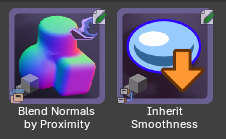
Blend Normals by Proximity
Adds an object that references a collection to merge all children mesh objects with blended normals and materials by proximity, through intersection distance and blur. This also displaces meshes at intersections.
This asset is ideal for smoothing transitions between intersecting surfaces, faking lighting continuity, or unifying shading across modular components.
Use
This contains a setup wizard to begin.
- Drag and drop the asset into the scene
- You will be prompted to select a target collection
- This will then convert the target collection into driver objects with optional bounding visibility, relative position and material blending – then it create a new mesh with blended normals.
- Now you can add new objects to the target collection to influence the new blended normals mesh.
- When you are ready, apply the modifier to remesh, start sculpting or modeling. The normals will remain on the applied mesh.
Target Collection
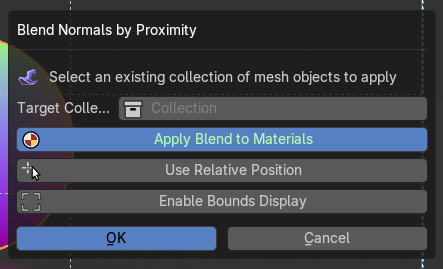
Specifies the collection of the group of objects used to influence the normal blending.
| Entry | What it does |
|---|---|
| Apply Blend to Materials | This applies an intersection gradient alpha to the target collection objects. This will iterate through all objects and materials and applies the alpha at the intersection. Note: If you add new materials or objects to the target collection, re-running the wizard will re-apply. If you turn it off and reapply the wizard, it will remove the material blend from all materials and objects in the target collection. |
| Use Relative Position | This will enable the relative position of the source target collection objects, making the new blended mesh snap to the original position. If you keep this off, the new blended mesh will spawn or move to it’s asset placement position. |
Enable Bounds Display
This will turn on Bounds display for all the objects in the target collection, useful to remove any z-fighting normals when using a Relative Position on the new blended normals mesh object.
Note: If you add new objects to the target collection, re-running the wizard will re-apply the visibility settings on the new objects.
If you turn it off and reapply the wizard, it will remove the Bounds display from all objects in the target collection.
Modifier Properties
| Entry | What it does |
|---|---|
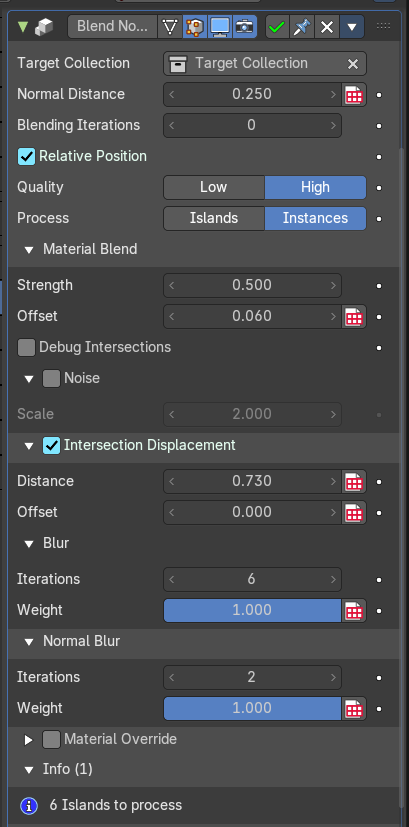
| Target Collection | Specifies the group of objects used to influence the normal blending. |
| Normal Distance | Sets the range within which intersecting geometry will contribute to the normal blending by proximity process. |
| Blending Iterations | Adds another blending iteration to the group of objects to assist in solving self-intersecting blending issues. This will affect performance as this repeats the operation. When enabled, calculates blending based on object-relative coordinates. Useful for maintaining orientation consistency with source objects from the target collection. |
Quality
This defines the quality of the normal blending which affects performance.
- High: Uses blending by proximity. Default. This can be low on performance if there are many islands or instances being evaluated.
- Low: Uses a “nuetral” normal at the intersections. This is more performant but less noticeable.
Material Blend
| Entry | What it does |
|---|---|
| Strength | Controls how strongly materials are blended at the intersections. |
| Offset | Shifts the blend region inward or outward from the intersection. Fine-tunes where the material transition begins. |
| Debug Intersections | Visualizes intersection zones for troubleshooting. Helpful for verifying blend boundaries or for using it to bake to a new texture. |
| Noise | Adds procedural noise to the blend region. Useful for organic or stylized transitions. · Scale: Controls the scale of the noise pattern. Higher values produce larger, more visible noise features. |
Intersection Displacement
Enables geometry displacement at intersection zones. Controls how intersection regions between meshes are offset and displaced before normal blending. Used to create bulges, dents, or organic merging effects
| Entry | What it does |
|---|---|
| Distance | The threshold for detecting intersections. This defines how far the geometry is displaced from its original surface. |
| Offset | Shifts the displacement region relative to the intersection. Moves vertices slightly to resolve overlap artifacts. |
| Blur | Softens the influence of blended normals across adjacent geometry · Iterations: Number of smoothing passes on the displacement. · Weight: Intensity of smoothing. Higher values lead to broader averaging. |
Normal Blur
Optional secondary blur targeting only normals.
Note: This only blurs normals at the intersections. Object normals are preserved.
| Entry | What it does |
|---|---|
| Iterations | Number of blur passes applied to normals. |
| Weight | Strength of normals blur smoothing. |
Material Override
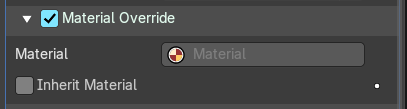
Toggles material overrides, otherwise it will inherit each objects from the target collections' material.
| Entry | What it does |
|---|---|
| Material | Selects the material for the material override. |
| Inherit Material | This toggles the use of the material in the Material tab of the Properties editor as the override. |
Info
Displays how many mesh islands are currently being blended. Useful for performance monitoring and debugging.
Inherit Smoothness
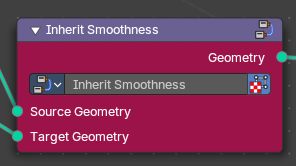
This utility transfers the smoothness (normals) of the parent object that holds the Geometry Nodes modifier object to the Geometry Nodes procedural geometry. It’s especially useful in workflows where instanced or procedural generated geometry needs to adopt top level smoothness settings through top level manual assignment.
| Entry | What it does |
|---|---|
| Source Geometry | The source object smoothness, typically the top level geometry of the parent object. |
| Target Geometry | The procedural geometry to pass the smoothness to. |
Primitives
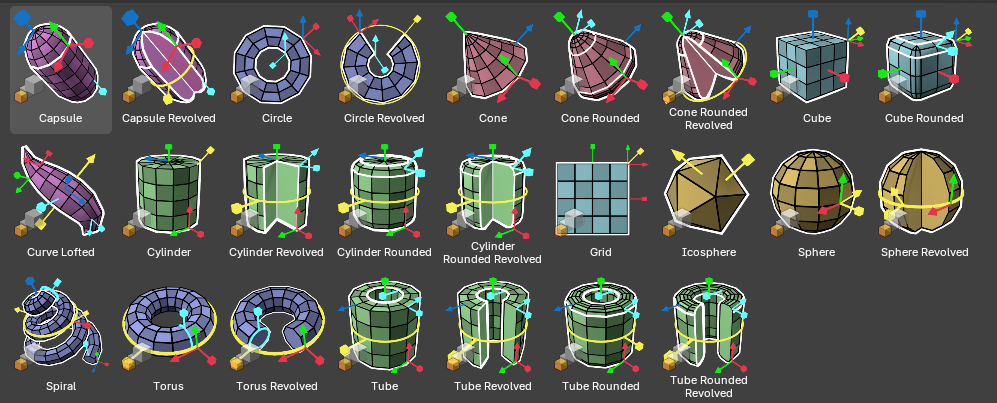
These smart primitives are procedural shapes with gizmos to control width, height, resolution, radius, revolutions angles, and other settings including bevel, bevel resolution and other controls.
Use
Using the Gizmos
When the modifier is selected, you can use gizmos directly in the viewport to adjust values of the primitives in an intuitive sense. They are color coded to specific functions.
Red/Green/Blue Square is XYZ scale respectively
Red/Green/Blue Arrow is XYZ loop resolution respectively
Primary Yellow
Circle: Revolve Angle
Square: Scale all axis’
Arrow: Adjust all loop resolutions
Secondary Cyan
Arrow: Bevel Resolution
Square: Bevel Scale
Circle: Twist
Using the Sidebar and Modifier properties
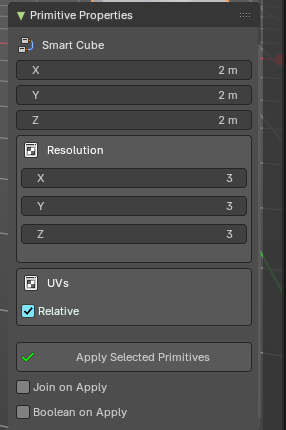
| Entry | What it does |
|---|---|
| Top-Level Properties | Adjust settings affecting all primitives with common properties through slider properties and check boxes Modify numerical inputs for quick parameter changes by size, distance or angle. Access these properties from the 3D View sidebar in the Item tab, in the Primitive Properties panel. |
| Bevel Properties | Set bevel depth and resolution. |
| Resolution Properties | Modify loop resolution Set subdivision detail |
| UV Properties | Enable relative scale UV's, when applicable Modify UV scaling and alignment (Coming soon) Modify UV type, relative or absolute (In Progress) |
Basic Shapes
| Entry | What it does |
|---|---|
| Cube | A standard six-sided shape, great for solid modeling. Includes relative Uvs and resolution gizmos. |
| Cube Rounded | A cube with softened edges for a more organic feel. |
| Sphere | A perfect round primitive, ideal for smooth surfaces. Includes relative resolution controls. |
| Icosphere | A low-poly spherical shape made of triangles, great for optimization with various levels of resolution. |
| Cone | A tapered shape with a circular base, useful for pointed structures. |
| Cone Rounded | A cone with a smoother, more organic tip. |
| Cylinder | A uniform circular primitive, essential for pipes and tubes. |
| Cylinder Rounded | A cylinder with softened edges for better transitions. |
| Tube | A hollow cylindrical primitive, great for mechanical parts. |
| Tube Rounded | A tube with smooth edges for a more natural look. |
Advanced Forms
| Entry | What it does |
|---|---|
| Capsule | A stretched sphere useful for stylized characters and smooth objects. |
| Capsule Revolved | A capsule rotated for unique geometry shaping. Includes the abilty to revolve around an angle. |
| Grid | A flat subdivided plane useful for ground surfaces and mesh guides. Includes relative Uvs. |
| Torus | A ring-shaped primitive, ideal for looped structures. |
| Torus Revolved | A torus rotated for specialized forms. Includes the abilty to revolve around an angle. |
| Spiral | A coiled shape, useful for decorative and mechanical designs. |
| Circle | A simple 2D shape for base geometry and cutouts. Includes stamped or path based UV's. |
| Circle Revolved | A circular shape rotated into a 3D form. Includes the abilty to revolve around an angle. |
| Curve Lofted | Generates complex surfaces using loftes curves with a central profile gizmo system. Includes taper, bend, swell and volume bevel controls. |
| Cylinder Revolved | A cylindrical shape rotated for varied effects. Includes the abilty to revolve around an angle. |
| Cylinder Rounded Revolved | A rounded cylinder adapted for more curvature. Includes the abilty to revolve around an angle. |
| Tube Revolved | A tube rotated for improved modeling flexibility. Includes the abilty to revolve around an angle. |
| Tube Rounded Revolved | A smoothed, rotated tube for streamlined designs. Includes the abilty to revolve around an angle. |
| Cone Rounded Revolved | A tapered primitive that blends sharpness with curvature. Includes the abilty to revolve around an angle. |
| Sphere Revolved | A sphere adjusted through rotation for unique formations. Includes the abilty to revolve around an angle. |