

































































Asset Browser
The Asset browser is an explorer dialog that allows you to store assets, and reuse them at a later point.
Asset Browser
The Asset browser is an explorer dialog that allows you to store assets, and reuse them at a later point.
Assets can be everything. Objects, scenes, grease pencil strokes and so on.
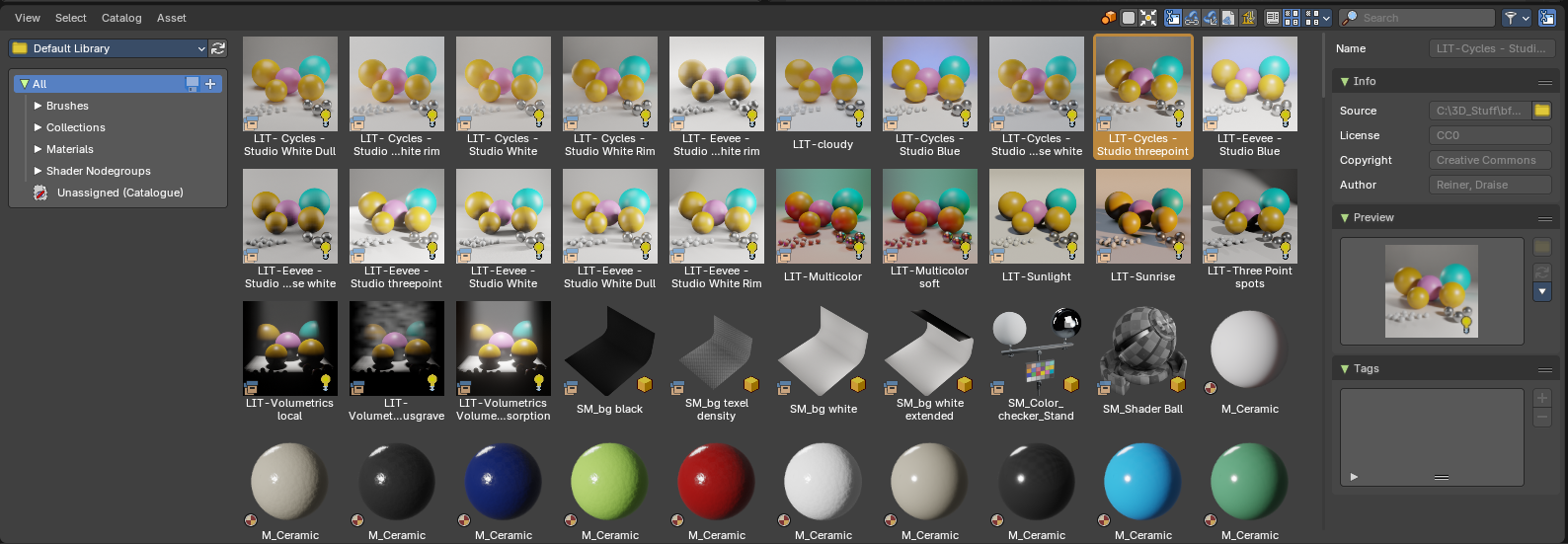
The asset browser interface is divided into several areas.
- Green: Header
- Blue: Categories
- Yellow: Sidebar
- Purple: Content area
How to
Asset handling
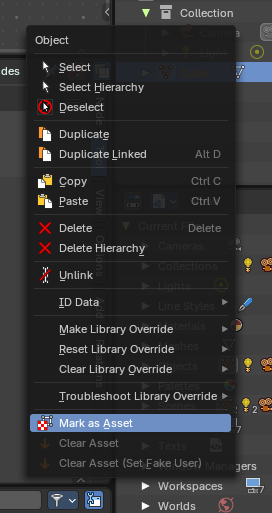
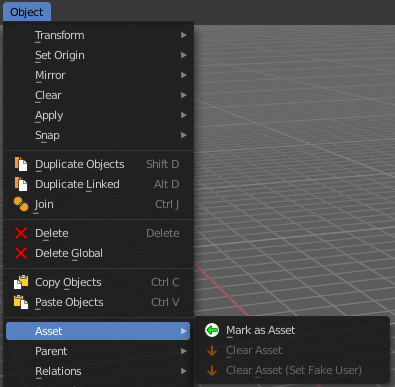
To insert or remove an asset you can use the right click on an object in the outliner and mark as asset. Alternatively, you can use the header object menu in the 3d View Editor to Mark Asset and Clear Asset.
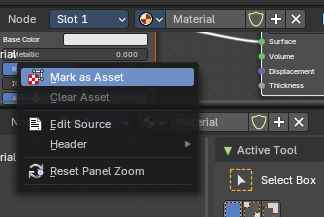
When you want to save a Material, World Shader, or Nodegroup, then you can also right click at the Data menu selector in the data dropdown property. This will also reveal a menu where you can Mark as Asset or Clear Asset.
When an Armature is in Pose Mode, Poses can be inserted using the Header menu entries.
Note: Dragging items into the browser is currently not supported. The other direction works though. You can drag assets from the browser into the 3d view.
Asset Library
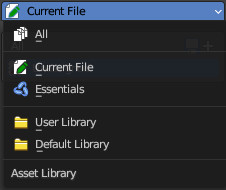
There are two ways to deal with assets. You can either store them in the current blend file for later use. This is the “Current file” method.
Or you can switch to “User Library” or other Default Libraries included with Bforartists, and/or create an external library from a fixed path.
If you’d like to view all, select the “All” category.
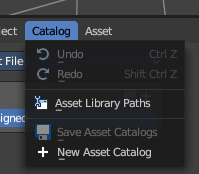
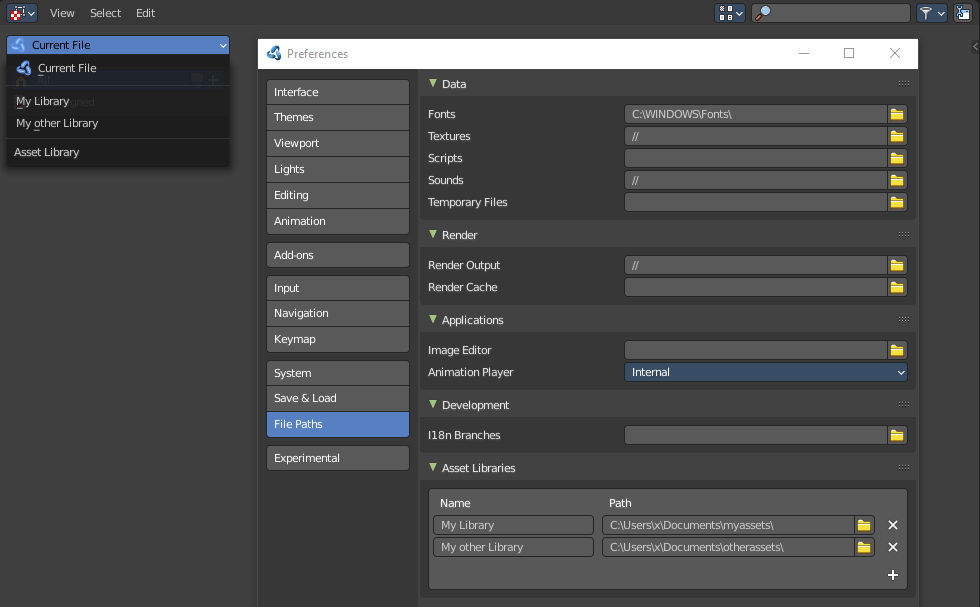
To setup your external library, go to Preferences > File Paths > Asset Libraries to add this path to your asset libraries then. You can also do the same from header menu Catalog > Asset Library Paths.
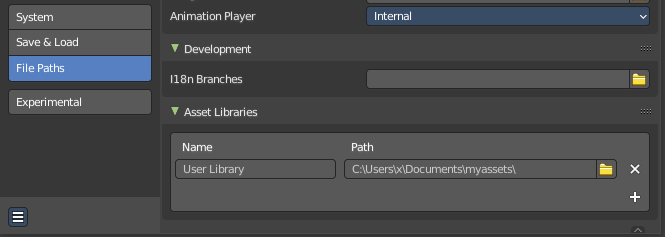
You can add more than one asset library from the preferences.
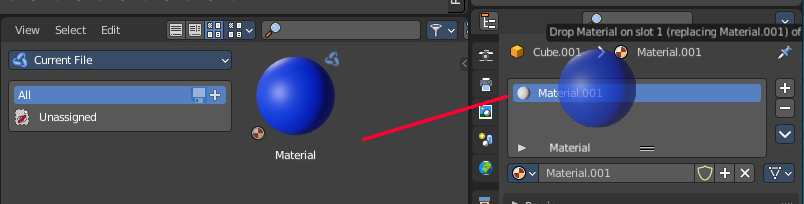
Drag & Drop of materials
Materials can be dragged directly at the material slots in the Properties Editor.
Header

There are several tools in the header to find. Menus, and a few options.
Header - View menu
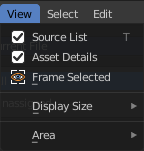
The view menu contains view related functionality.
| Entry | What it does |
|---|---|
| Source List | Shows or hides the tool shelf at the left side. |
| File Path | Please ignore. This entry is a bug. The asset browser shares the code with the file browser. |
| Frame Selected | Scrolls the selection into view. |
Display Size
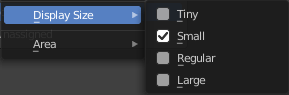
The display size for the assets.
Area Menu
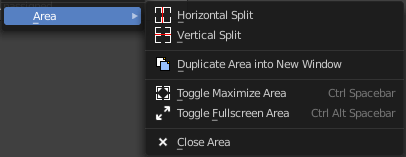
Area is a menu with window related settings.
| Entry | What it does |
|---|---|
| Horizontal Split | Splits the editor horizontally into two editors. |
| Vertical Split | Splits the editor vertically into two editors. |
| Duplicate Area into new Window | Creates a floating window out of the current editor. |
| Toggle Maximize Area | Displays the editor maximized with menus. To return to split view press hotkey Ctrl Up Arrow, or reuse the menu item in the View menu. |
| Toggle Fullscreen Area | Displays the editor maximized without menus. To return from the full screen view press hotkey Alt F10, or use the little button that appears up right when you move the mouse in this corner. |
| Close Area | Closes the editor. |
Header - Select menu
Select functionality.
Box Select
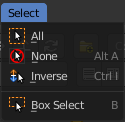
Allows you to box select files. Note that this is an old obsolete operator. You don't need to press the hotkey anymore for box select.
| Entry | What it does |
|---|---|
| Inverse | Inverts the selection. |
| None | Select none. |
| All | Select all. |
Header - Catalog menu
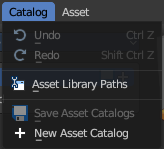
| Entry | What it does |
|---|---|
| Undo | Undo of the last edit operation. |
| Redo | Redo of the last edit operation. |
Asset Library Paths
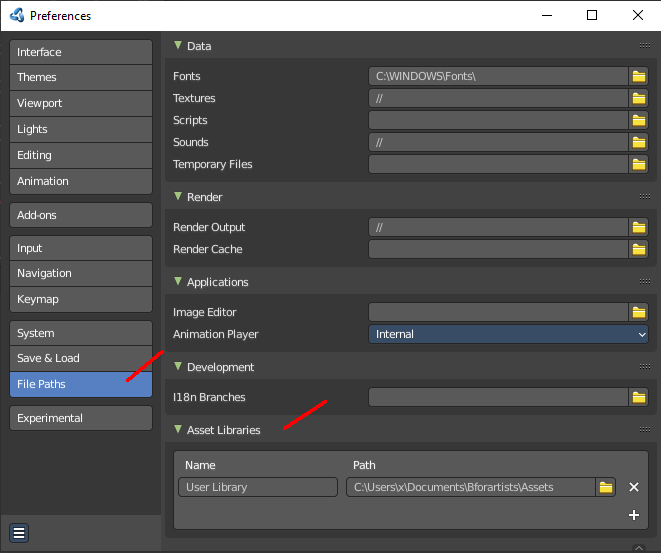
Opens the file browser at the Paths tab. Here you can show, edit, and add paths to new asset libraries.
| Entry | What it does |
|---|---|
| Save Asset Catalogs | Save all changed asset catalogs. |
| New Asset Catalog | Add a new asset catalog. |
Header - Asset menu
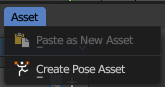
This menu contains asset related menu items.
Paste as new asset
Pastes a previously copied asset.
Create Pose Asset
Creates a pose asset from the selected armature.
Note: When you create a Pose Asset, it will capture what you see in the viewport from the active camera or view.
Use
To create a Pose Asset, follow these step:
- In the 3D View, select your Armature object and go into Pose Mode
- Select the bones you want to store as a pose
- In the Asset Browser Header Asset menu, use the operator Create Pose Asset
- This will create a Pose Asset in the Unassigned (Catalogue) category in the Current File.
- Click on the new Pose Asset in the Asset Shelf or Asset Browser to apply. Press and drag to apply with a slider strength.
- You can alternatively right click on the Pose Asset for alternative methods of applying the pose.
Header - Tools and Options

Drop Collections as Instances (Append/Link)

Drop the asset as instances of another object. When you are in Append mode, you can toggle if you want to append the collection as an instance. When in Link mode, you can toggle if you want to append the collection as an instance.
Note: Only usable with Collection assets
Drop Instance Collections at Origin
Drop the asset at mouse position or at the world origin in the 3d view.
Note: Only usable with Collection assets
Toggle Drop Collections as Instances (Follow Preferences)
Drop the asset as instances of another object. This toggles both append and link mode at the same time.
Note: Only usable with Collection assets
Import Method
Allows you to define how to import the assets.
| Entry | What it does |
|---|---|
| Follow Preferences | Use the import method as defined in the preferences. |
| Link | Link the asset at import. |
| Append | append the asset at import. |
Append (Reuse Data)
Append the asset at import. But avoid multiple copies of the asset.

Recommending using Pack instead.
You can go in the Preferences, in Developers Tools tab and enable No Packing to show Append (Reuse) back.
Pack

Import the asset as packed. Make it is unchanged modified, linked with the original data.
Link (Override)
Import the assets as linked library overrided data. This will only override the active hierarchy. The active hierarchy is defined by the last selected object of a collection or the armature.
To override all selected contents, use the Outliner Editor by right clicking on the asset and Overriding Selected and Content.
Display Mode
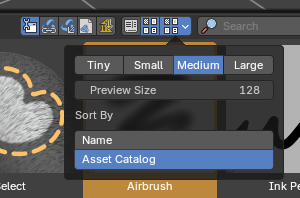
Allows you to switch between list view and thumbnail preview view.
| Entry | What it does |
|---|---|
| Horizontal List | Displays the content of the file browser as a horizontal list. |
| Thumbnails | Displays the content of the file browser as thumbnails. This is especially of use for images or blend files with thumbnail preview. |
Sort by Name
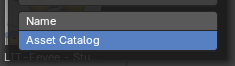
Sort assets by alphabetical order, ignoring catalog order.
Sort by Asset Catalog
Sort the assets list so that assets in the catalog are kept together in groups, then within a single catalog, the assets are ordered by name. The catalogs are in order of the flattened catalog hierarchy, from top to bottom.
Note: This is useful for large amount of assets to “group” catalogs of assets together.
Display mode options
Vertical / Horizontal List
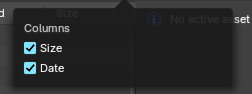
Shows the assets in a vertical list or in a column based horizontal list.
| Entry | What it does |
|---|---|
| Size | Toggles the column with size information. |
| Date | Toggles the column with date information. |
Thumbnails
Tiny / Small / Medium / Large Buttons
Preset display size of the thumbnails for the assets.
Size
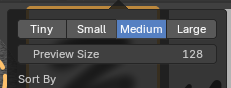
The display size of the thumbnails for the assets. The range for these thumbnails goes from tiny with 32 pixels up to large with 256 pixels.
Search
Name Filter. Allows you to search for specific files and folders.
Filter
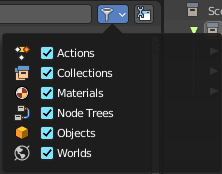
Allows you to filter the assets library in various ways. The menu items should be self explaining.
Toggle Region
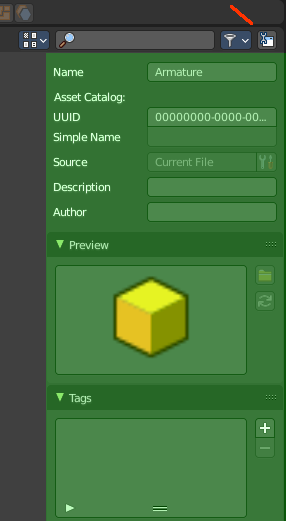
Toggles the sidebar at the right. The sidebar contains various im- and export settings for the single file types.
Drop collection as Instances
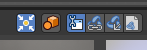
When it's on, you link collections as instances. When off, it links to scene. Default is off.
Drop collection at World Origin
When it's on, you link or append collections or collection as instances to world origin (center). When off, it links or appends to the mouse cursor. Default is off.
Note: When you link a collection to scene, not as an instance, and the world to origin is off, any concurring instances of the linked collection will have an offset. This is used to prevent any collection instance offsets to opt-in to linking in collections to scene at world origin, to later override or use as instance.
Import Method
| Entry | What it does |
|---|---|
| Follow Preferences | Use the import method set in the Preferences for this asset library, don't override it. |
| Link | Import the assets as linked data |
| Append | Import the assets as copied data, with no link to the original asset data |
| Append (Reuse Data) | Import the assets as copied data-block while avoiding multiple copies of nested, typically heavy data. For example the textures of a material asset, or the mesh of an object asset, don't have to be copied every time this asset is imported. The instances of the asset share the data instead. |
Tool shelf
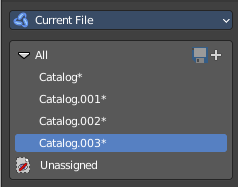
The toolshelf shows the different catalogs that you can use to store your assets.
These catalogs are currently disfunctional. You can just add or remove the categories. But not insert assets to it.
Asset Library chooser
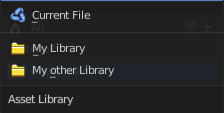
Here you can choose what asset library to use.
Current File
Uses the current Blend file as the asset library. All assets are stored into the current blend file. And this means that when you remove objects from the scene, then the assets in the assets library will also vanish.
User Library
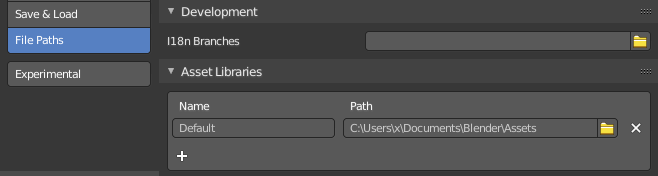
Uses the blend file in the path that is defined in the user preferences as the asset library.
Working with more than one blend file is currently not supported.
Refresh

With a user library you will get a refresh button besides the asset library chooser. Refreshes the content.
Asset Catalogs
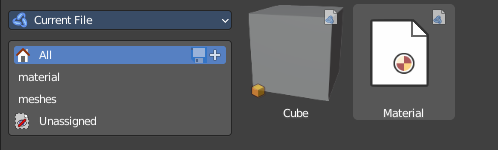
Asset catalogs allows you to organize your assets.
Note that asset catalogs does not work with the external asset libraries. Just with the asset library in the current file.
First save your file. The method does not work at a blend file that is not saved yet.
Then create your catalog, and name them.
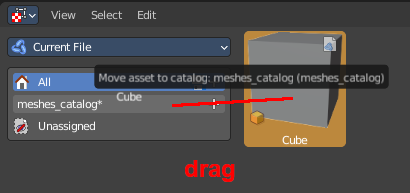
Then select one of your assets. And drag it onto the catalog that you want to add it to.
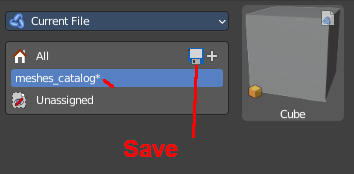
Finally, save the asset.
| Entry | What it does |
|---|---|
| Save Asset Catalogs | Saves the current asset catalog to file and make the changes permanent. |
| New Asset Catalog | Creates a new asset catalog. Asset catalogs can be nested too. |
Unassigned
The assets that are currently not in a catalog.
Asset catalog right click menus
Note that the Edit Source button is a developer feature.
Right clicking at the All item
Mark as asset
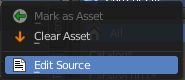
Marks the object as an asset. Dysfunctional in this context.
Clear Asset
Removes all assets.
Right clicking at one of the catalog items


Content depends if you have an asset selected or not.
| Entry | What it does |
|---|---|
| New Catalog | Creates a new nested catalog inside of the current catalog. |
| Delete catalog | Deletes the catalog and all of its childs. |
| Rename | Rename the current catalog. |
Mark as asset
Marks the object as an asset. Dysfunctional in this context.
Clear Asset
Removes all assets.
Sidebar
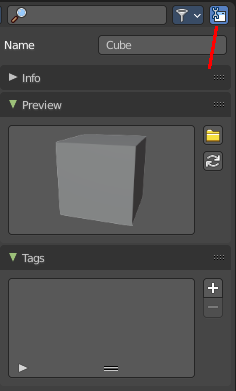
At the right side you will find the Sidebar. It is usually hidden. But can be revealed by a click at the litte triangle button, or with a click at the Toggle Region button in the header at the right.
Name
The name of the asset. Here you can also rename the asset. Note that the name of the asset in the view does not refresh immediately at the moment. You can force a refresh of it in the Preview panel by clicking at the Generate Preview button
Info Panel
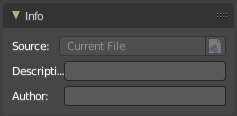
Some additional infos about the asset.
| Entry | What it does |
|---|---|
| Source | A source that can't be edited for the Blender developers. |
| Description | Add a description for the asset. |
| Author | Add the name of the author of the asset. |
Preview Panel
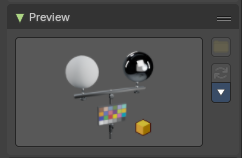
A preview of the asset. By default the same image that you see in the view when you create the asset.
| Entry | What it does |
|---|---|
| Load Custom Preview | Opens a file browser where you can choose a custom icon for this asset. |
| Generate Preview | Generates a preview icon from the content. Note that this will reset the custom icon. |
Preview Menu
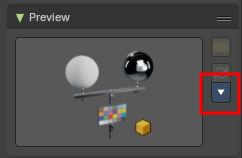
Render Active Object
Creates a preview for the currently active object.
Remove Preview
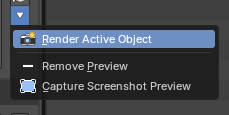
Removes the current preview for the selected asset.
Capture Screenshot Preview
Allows the user to create a new preview by selecting any region,
the user interface fades with a crosshair cursor, simply click and drag.
Tags Panel
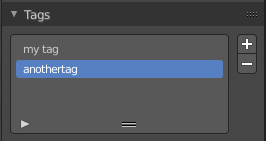
Enter custom tags for this asset. This tags allows you to sort your assets by tag.
Tags List
The list of the current tags.
Drag handler
Allows you to resize the list.
Search
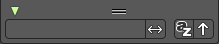
Search the list. This search can be expanded by clicking at the little triangle button down left.
| Entry | What it does |
|---|---|
| Add Asset Tag | Adds a tag to the tag list. This tag can be renamed in the list. |
| Remove Asset Tag | Removes the selected tag from the tag list. |
Asset Shelf Buttons Row
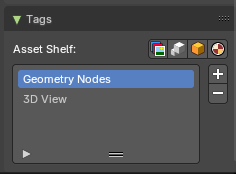
When you select a Node Group asset, you have an additional set of tags you can assign. These tags will define if the Node Group asset will show in the toolshelf in the Compositor, Geometry Nodes and Shader editor toolshelves, or in the 3D View.
Note: This row of quick tag buttons only show when you have a Node Group asset selected in the Asset Browser.
Compositor Tag

Assigns the “Compositor” tag to show the Node Group in the Compositor Asset Shelf in the footer of the Compositor editor.
Geometry Nodes Tag
Assigns the “Geometry Nodes” tag to show the Node Group in the Geometry Nodes Asset Shelf in the footer of the Geometry Nodes editor.
3D View Tag
Assigns the “Geometry Nodes” tag and the “3D View” tag to show the Node Group in the Geometry Nodes Asset Shelf in the footer of the Geometry Nodes editor and the 3D View Asset Shelf at the footer of the 3D View editor.
Note: Only Geometry Nodes can also be shown in the 3D View. You must assign the Node Group a Geometry Nodes tag before assigning a 3D View tag.
Shader Tag
Assigns the “Shader” tag to show the Node Group in the Shader Asset Shelf in the footer of the Shader editor.
Assets context menu
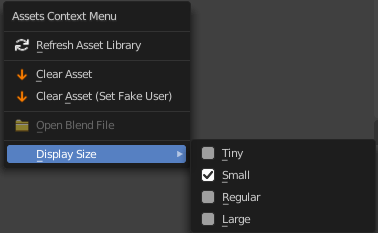
When you right click into the view then an Asset context menu opens.
| Entry | What it does |
|---|---|
| Refresh Asset Library | Refresh the file list. |
| Clear Asset | Removes the asset from the asset library. |
| Clear Asset ( Set Fake User) | Removes the asset from the asset library. But sets it to fake user, so that it remains in the scene. |
| Open Blend File | Opens the path for the blend file that contains the active asset. Just active with User Library. |
| Display Size | Set the display size of the file browser to four predefined sizes. |
Pose Assets context menu
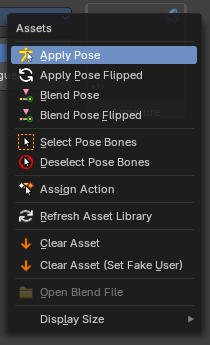
When you right click on a pose asset in the Asset Browser or 3D View Asset shelf, you get extra options to help apply the pose. To use them, make sure you have a compatible armature selected, are in Pose Mode and have the bones you’d like to pose selected.
Note: Pose action assets are single keyframe action clips marked as assets preview either from the NLA or the Dopesheet editors. Animation keyframe sequences cannot be marked as assets.
| Entry | What it does |
|---|---|
| Apply Pose | Apply the given pose action to the active rig. When you select this, this will apply the pose to selected bones. |
| Apply Pose Flipped | Apply the given pose action to the active rig with a flipped axis. When you select this, this will apply the flipped pose to selected bones. Flipping happens usually from bones labeled .L and .R |
Blend Pose
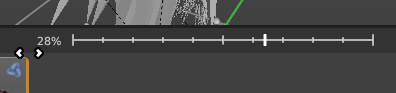
Blend the given pose action to the active rig. This is useful to interpolate from the original pose to the new pose. When using, you will see a slider in the asset browser header giving you a degree of blend.
| Entry | What it does |
|---|---|
| Blend Pose Flipped | Blends the selected bones with the flipped Pose asset. |
| Select Pose Bones | Select those bones used in this pose action. This will select all the necessary bones you need to apply the pose effectively. If you have no bones selected, the pose will not apply. Poses only apply to bones that are selected. |
| Deselect Pose Bones | Deselect those bones used in this pose action. This will ultimately clear the selection based on the pose action bones defined in the marked action clip. |
| Assign Action | Set the pose action as the active action on the active object. This will ultimately load the pose action animation clip to the Action Editor of the Dopesheet, allowing you to edit the pose. This only works in the source file with the marked poses. |