

































































Object Mode
In Object mode you will see mainly the general select and transform tools.
Tool Shelf - Object Mode
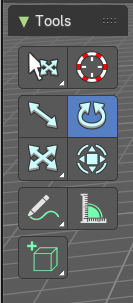
In Object mode you will see mainly the general select and transform tools.
Those tools will also appear in other modes like Edit mode. We will not cover it again there.
Select Tools Group
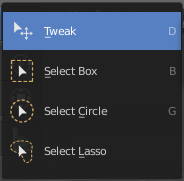
Tools with a triangle down right are a group of tools. Click and hold to reveal the content. Then choose the tool that you need.
Tweak
Allows you to select or tweak single elements by clicking at it.
Note that Tweak is a transform tool, and therefore contains the same modal hotkeys with further functionality like the regular transform tools.
Select Box
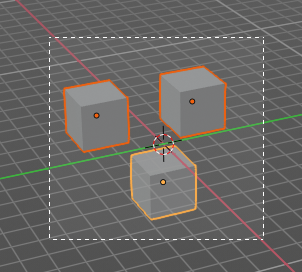
Draws a box to select several elements at once. Click at the start point, then drag.
Tool Settings
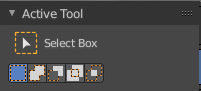
Mode
The available selection modes. The mode titles are pretty self explaining. So i won't go into detail here.
| Entry | What it does |
|---|---|
| Set a new selection | — |
| Extend existing selection | — |
| Subtract existing selection | — |
| Inverts existing selection | — |
| Intersect existing selection | — |
Select Circle
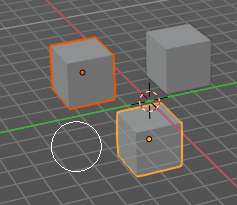
Draws a box to select several elements at once. Click at the start point, then drag.
Tool Settings
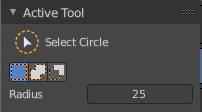
| Entry | What it does |
|---|---|
| Mode | The available selection modes. The mode titles are pretty self explaining. So i won't go into detail here. · Set a new selection · Extend existing selection · Subtract existing selection |
| Radius | The brush radius. |
Select Lasso
Draws a box to select several elements at once. Click at the start point, then drag.
Tool Settings
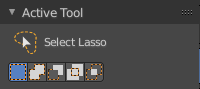
Mode
The available selection modes. The mode titles are pretty self explaining. So i won't go into detail here.
| Entry | What it does |
|---|---|
| Set a new selection | — |
| Extend existing selection | — |
| Subtract existing selection | — |
| Inverts existing selection | — |
| Intersect existing selection | — |
Cursor

The cursor tool allows you to move the 3d cursor around.
Tool Settings
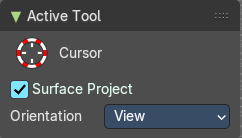
Surface Project
Project the 3D cursor onto the surface.
Orientation
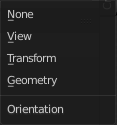
The 3d cursor can have different orientations. The menu items should be self explaining.
Move Rotate Scale Transform
The transformation tools.
Move

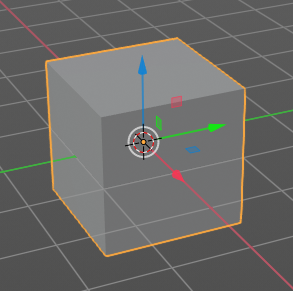
Activates the move tool. Activating the move tool also reveals a move widget at the object. This widget allows you to move the object around, by using the corresponding axis.
When you click at one of the square buttons at the icon, then you can move the object along the plane of the two adjacent axis. The rectangle buttons between the arrows allows you to move in direction of the blue and green arrows. This can also be done by clicking at the tip of the arrow and holding down shift. Then you can move the cube along the two other axis.
Snapping
Holding down Ctrl activates temporary global snapping.
Precision movement
When you hold down shift, then you will have a much slower but also much preciser movement.
Header Values

When you move your object then you will see some values in the header, which defines the current position of the object.
The value m stands for the default metric system. Meters. You can change the units in the Properties editor in the Scene properties in the Units panel. When you choose kilometers here then you will see a km instead m.

The value D stands for the distance of the current selected axis. This can also be two axis. Then you have two d values. The value in the brackets is then the direct distance to the starting point.
These values are always relative to the starting point. You always start with zero, regardless of the real world position.
Numerical Input
When you move the object, and hold down the mouse and type in a value, like 20, then the movement will be performed by the value that you have typed in. In this case by 20 units in direction of the selected axis.
Move without widget
You don't have to use the widget to move the object. You can also click aside of it, and drag the object around. The mouse turns into a move cursor. The standard behavior then is to move in screen space. When you want to move into a specific axis, then press X or Y or Z to limit the movement to this axis.
Limit Axis
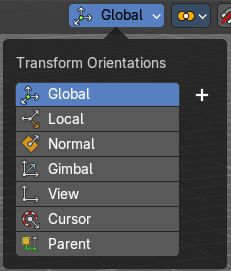
When you want to rotate a specific axis, then press X or Y or Z to limit the rotation to this axis. You usually start in global orientation. But you can change this in the Orientation settings.
By holding down the mouse button and pressing the X, Y or Z key twice you can toggle this to local. But also to other orientations. This depends in what orientation you start. With normal you can toggle that way between Normal and global.
This can be combined with the numerical input. Type in X, type in X again to use the local space, type in 20 to move by 20 units in local orientation. Release the mouse to confirm.
Tool Settings
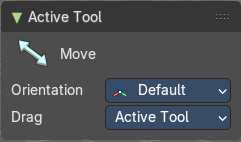
Orientation
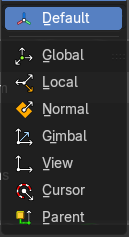
The widget can have different orientations. The menu items should be self explaining.
Drag
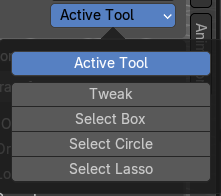
Define what kind of transform should happen when you click not at the widget but besides, and drag the mouse.
Last Operator Move
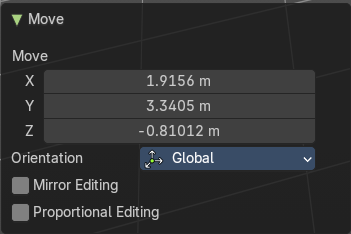
Move
Adjust in which directions you want to transform.
Orientation
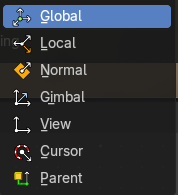
Choose the orientation.
Mirror Editing
Enable mirror editing.
Proportional editing
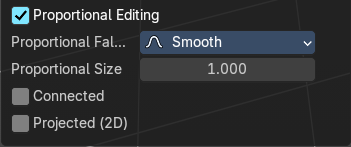
Enables proportional editing. Activating proportional editing reveals further settings.
| Entry | What it does |
|---|---|
| Proportional Falloff | Adjust the falloff methods. |
| Proportional Size | See and adjust the falloff radius. |
| Connected | The proportional falloff gets calculated for connected parts only. |
| Projected(2D) | The proportional falloff gets calculated in the screen space. Depth doesn't play a role. When it's in the radius, then it gets calculated. |
Rotate

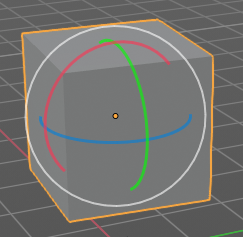
Activates the Rotate tool. Activating the move tool also reveals a rotate widget at the object. This widget allows you to rotate the object, by using the corresponding axis.
Snapping
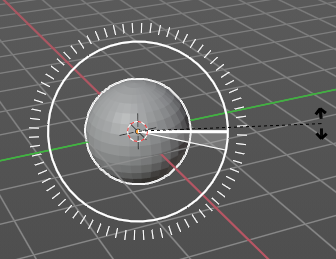
Holding down Ctrl activates temporary global snapping. It snaps then by 5 degrees steps.
When you use the white circle to rotate, then the widget also shows a division circle around the widget. This divisions shows even finer when you do precision rotation.
Precision rotation
When you hold down shift, then you will have a much slower but also much preciser rotation.
Header Values
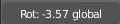
When you rotate your object then you will see some values in the header, which defines the current rotation of the object. The rotation is shown in degrees.
Numerical Input
When you rotate the object, and hold down the mouse and type in a value, like 20, then the rotation will be performed by the value that you have typed in. In this case by 20 degree around the selected axis.
Rotate without widget
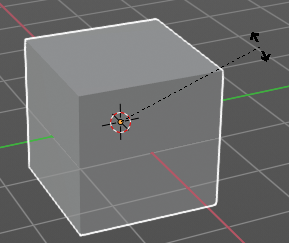
You don't have to use the widget to rotate the object. You can also click asides and drag the object around. A black arrow will appear. The standard behavior then is to rotate in viewport orientation.
Limit Axis

When you want to rotate a specific axis, then press X or Y or Z to limit the rotation to this axis. You usually start in global orientation. But you can change this in the Orientation settings.
By holding down the mouse button and pressing the X, Y or Z key twice you can toggle this to local. But also to other orientations. This depends in what orientation you start. With normal you can toggle that way between Normal and Global.
This can be combined with the numerical input. Type in X, type in X again to use the local space, type in 20 to rotate by 20 degree. Release the mouse to confirm.
Tool Settings
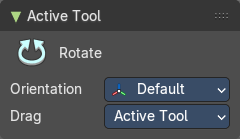
Orientation
The 3d cursor can have different orientations. The menu items should be self explaining.
Drag
Define what kind of transform should happen when you click not at the widget but besides, and drag the mouse.
Last Operator Rotate
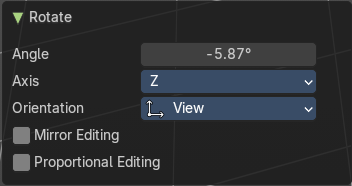
| Entry | What it does |
|---|---|
| Angle | The rotation. Attention, the actual world orientation and rotation does not matter here. It always starts with a value of zero, and rotates relative to this zero then. For the actual rotation values have a look in the sidebar in the transform panel. |
| Axis | Which axis to rotate. |
Orientation
Choose the orientation.
Mirror Editing
Enable mirror editing.
Proportional editing
Enables proportional editing. Activating proportional editing reveals further settings.
| Entry | What it does |
|---|---|
| Proportional Falloff | Adjust the falloff methods. |
| Proportional Size | See and adjust the falloff radius. |
| Connected | The proportional falloff gets calculated for connected parts only. |
| Projected(2D) | The proportional falloff gets calculated in the screen space. Depth doesn't play a role. When it's in the radius, then it gets calculated. |
Scale Tools Group
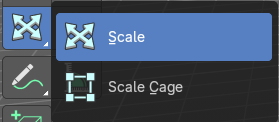
You can use two scale tools with different widget styles.
Scale
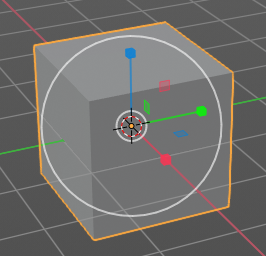
Activates the Scale tool. Activating the scale tool also reveals a traditional scale widget at the object. This widget allows you to scale the object, by using the corresponding axis. When you click at the outer white circle and drag, then you can scale the object uniformly.
The rectangle buttons between the arrows allows you to scale in direction of the adjacent arrows. This can also be done by clicking at the tip of the arrow and holding down shift. Then you can scale the cube along the two other axis.
| Entry | What it does |
|---|---|
| Snapping | Holding down Ctrl activates temporary global snapping. |
| Precision Scale | When you hold down shift, then you will have a much slower but also much preciser scale. |
Header Values

When you scale your object then you will see some values in the header, which defines the current scale of the object.
These values are always relative to the starting point. You always start with 1, regardless of the real world scale.
Numerical Input
When you scale the object, and hold down the mouse and type in a value, like 20, then the scale will be performed by the value that you have typed in. In this case by factor 20 along the selected axis.
Scale without widget
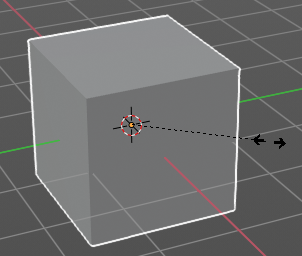
You don't have to use the widget to scale the object. You can also click asides and drag the object around. A black arrow will appear. The standard behavior then is to scale uniformly. When you want to scale into a specific axis, then press X or Y or Z to limit the scale to this axis.
Limit Axis
When you want to rotate a specific axis, then press X or Y or Z to limit the scale to this axis. You usually start in global orientation. But you can change this in the Orientation settings.
By holding down the mouse button and pressing the X, Y or Z key twice you can toggle this to local. But also to other orientations. This depends in what orientation you start. With normal you can toggle that way between Normal and Global.
This can be combined with the numerical input. Hold down mouse, type in X, type in X again to use the local space, type in 20 to scale by 20 units. Release the mouse to confirm.
Tool Settings
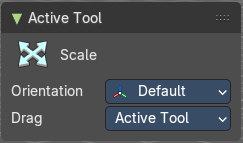
Orientation
The 3d cursor can have different orientations. The menu items should be self explaining.
Drag
Define what kind of transform should happen when you click not at the widget but besides, and drag the mouse.
Last Operator Resize
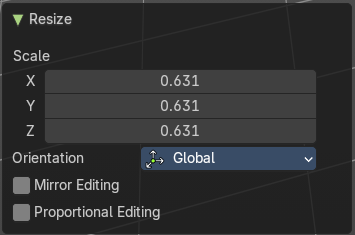
Scale
Adjust in which directions you want to transform.
Orientation
Choose the orientation.
Mirror Editing
Enable mirror editing.
Proportional editing
Enables proportional editing. Activating proportional editing reveals further settings.
| Entry | What it does |
|---|---|
| Proportional Falloff | Adjust the falloff methods. |
| Proportional Size | See and adjust the falloff radius. |
| Connected | The proportional falloff gets calculated for connected parts only. |
| Projected(2D) | The proportional falloff gets calculated in the screen space. Depth doesn't play a role. When it's in the radius, then it gets calculated. |
Scale Cage
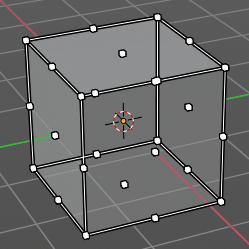
Activates the Scale tool. Activating the scale tool also reveals a scale widget in cage style at the object. This widget allows you to scale the object by clicking at the white handler points and drag them in the desired direction.
Snapping
Holding down Ctrl activates temporary global snapping.
Header Values
When you scale your object then you will see some values in the header, which defines the current scale of the object.
These values are always relative to the starting point. You always start with 1, regardless of the real world scale.
Scale without widget
You don't have to use the widget to scale the object. You can also click asides and drag the object around. A black arrow will appear. The standard behavior then is to scale uniformly. When you want to scale into a specific axis, then press X or Y or Z to limit the scale to this axis.
Limit Axis
When you want to rotate a specific axis, then press X or Y or Z to limit the rotation to this axis. You usually start in global orientation. But you can change this in the Orientation settings.
By holding down the mouse button and pressing the X, Y or Z key twice you can toggle this to local. But also to other orientations. This depends in what orientation you start. With normal you can toggle that way between Normal and Global.
Tool Settings
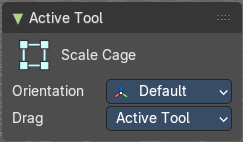
Orientation
The 3d cursor can have different orientations. The menu items should be self explaining.
Drag
What to do at dragging with the mouse with an active tool. Active Tool means the current tool is used then. When you choose Select Box then a mouse drag will rectangle select instead.
Last Operator Resize
Scale
Adjust in which directions you want to transform.
Orientation
Choose the orientation.
Mirror Editing
Enable mirror editing.
Proportional editing
Enables proportional editing. Activating proportional editing reveals further settings.
| Entry | What it does |
|---|---|
| Proportional Falloff | Adjust the falloff methods. |
| Proportional Size | See and adjust the falloff radius. |
| Connected | The proportional falloff gets calculated for connected parts only. |
| Projected(2D) | The proportional falloff gets calculated in the screen space. Depth doesn't play a role. When it's in the radius, then it gets calculated. |
Transform
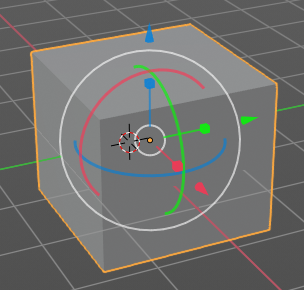
Transform reveals a multi transform widget with all three transform methods available at once. Move, Rotate and Scale.
The rules are the same than for the single tools, and also the last operators. Dependent of which widget part you pull here. So i won't go into detail again here.
Tool Settings
Drag Action
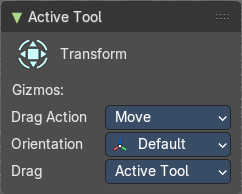
Define what kind of transform should happen when you click not at the widget but besides, and drag the mouse.
Orientation
The 3d cursor can have different orientations. The menu items should be self explaining.
Drag
What to do at dragging with the mouse with an active tool. Active Tool means the current tool is used then. When you choose Select Box then a mouse drag will rectangle select instead.
Modal Operators for the Transform tools
Every transform tool has a sub set of modal operators that extends the functionality. These modal operators are shown at the bottom in the info bar. Usually they are self explaining. But the transform tools contains a few tools that needs further explanation.
Note that these hotkeys are hardcoded, and cannot be changed in the keymap manager.
To use these tools you must start the transform operation by moving and holding the mouse. Then press one of the hotkeys to perform this operator.
General transform modal tools
Confirm

Left Mouse button confirms the tool.
| Entry | What it does |
|---|---|
| Cancel | Right mouse button cancels the operation |
| X Axis | Constraint the transformation to the X axis. |
| Y Axis | Constraint the transformation to the Y axis. |
| Z Axis | Constraint the transformation to the Z axis. |
| X Plane | Constraint the transformation to the X plane. You can transform in Y Z direction. |
| Y Plane | Constraint the transformation to the Y plane. You can transform in X Z direction. |
| Z Plane | Constraint the transformation to the Z plane. You can transform in Y Z direction. |
Sert Snap Base
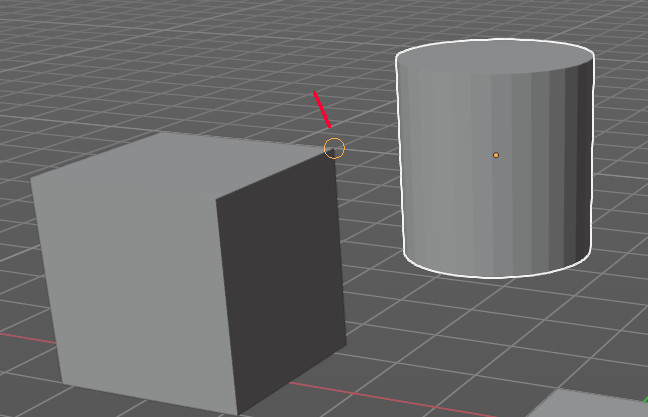
Usually the snap base is the center of the object. This tool allows you to move the snap base to another point. The corner of another mesh for example.
Hold down B and move the mouse to the location that you want to be the snap base. The new snap base will be displayed as an orange circle.
Pressing b again while in transformation will now snap the object to this new snap base.
Note that you cannot place this tool freely, it needs geometry to snap to.
| Entry | What it does |
|---|---|
| Snap Invert | Snap in incremental steps. |
| Snap Toggle | Ctrl + Tab toggles to snap in incremental steps. |
| Automatic Constraints | Displays all the three axis and allows you to snap to one of it to constraint the operation to this axis then. |
| Automatic Constraints Plane | Same as with Automatic Constraints, but this time you can snap to a plane to constraint the operation to this plane then. |
| Precision Mode | Activates the precision mode to allow much more accurate transform operations. |
| Entry | What it does |
|---|---|
| Move tool in Object mode | Rotate: Rotate around the chosen axis instead of moving the selection. When you didn't use one of the widget arrows then it rotates towards the mouse. · Resize: Resize along the chosen axis instead of moving the selection. When you didn't use one of the widget arrows then it scales towards the mouse. |
| Move Tool in Edit mode | — |
Vert/Edge Slide
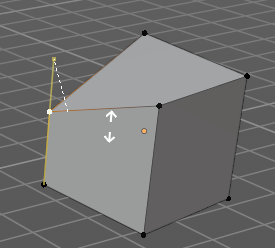
Edit Mode with the move tool. Slide the selected edges or vertices along their corner or face.
| Entry | What it does |
|---|---|
| Rotate | Rotate the selection around the chosen axis instead of moving the selection. When you didn't use one of the widget arrows then it rotates towards the mouse. |
| Resize | Resize the selection along the chosen axis instead of moving the selection. When you didn't use one of the widget arrows then it scales towards the mouse. |
| Entry | What it does |
|---|---|
| Rotate Tool in Object mode | Move: Move around the chosen axis instead of rotating the selection. When you didn't use one of the widget arrows then it moves towards the mouse. · Trackball: Use trackball rotation. · Resize: Resize along the chosen axis instead of moving the selection. When you didn't use one of the widget arrows then it scales towards the mouse. |
| Rotate Tool in Edit mode | Move: Move the selection around the chosen axis instead of rotating the selection. When you didn't use one of the widget arrows then it moves towards the mouse. · Trackball: Use trackball rotation. · Resize: Resize the selection along the chosen axis instead of moving the selection. When you didn't use one of the widget arrows then it scales towards the mouse. · Rotate Normals: Rotates the normals instead of the selection. Note that it might be a good idea to turn on display normals in the overlays. |
| Scale Tool in Object mode and Edit Mode | Move: Move around the chosen axis instead of scaling the selection. When you didn't use one of the widget arrows then it moves towards the mouse. · Rotate: Rotate around the chosen axis instead of scaling the selection. When you didn't use one of the widget arrows then it rotates towards the mouse. |
Annotate Tools group
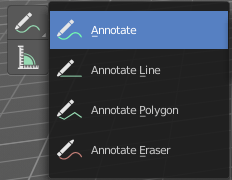
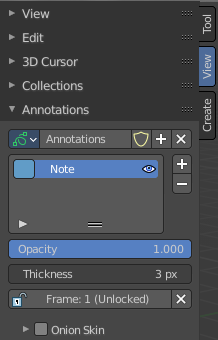
The annotation tool is available in multiple editors. With this tool you can write notes at the screen. The annotate tools is the little brother of the grease pencil objects.
Further settings for annotate can be found in the sidebar. Here you can also remove an annotation when you don't longer need it. And here you can also adjust the size of the stroke.
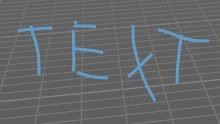
Annotate tool
Draw free-hand strokes in the main window.
Tool Settings
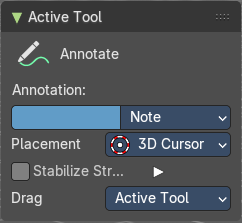
The tool settings for the Annotate tool.
Color
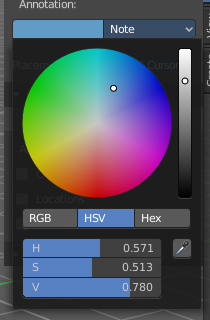
Clicking at the left color field reveals a color picker. Define the color for the annotation stroke.
Note
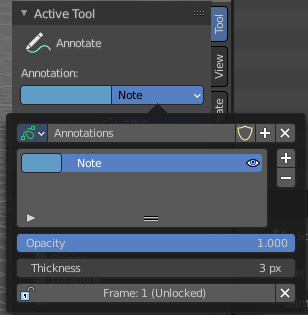
Clicking at the Note drop down box reveals a panel with further settings. It's the same content than in the annotations in the View tab.
Annotations list
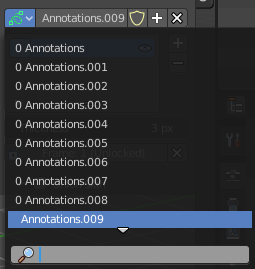
Add, remove and rename new annotations.
| Entry | What it does |
|---|---|
| Edit Box | The name of the current annotation. You can rename the annotation to your needs here. |
| Fake User | Assign a fake user to this annotation. Fake users is an odd concept to keep data in the scene even if it has no user somewhere. The fake user is then a dummy user so that the object is not deleted when saving the scene. |
| Add Annotation | Add a new annotation. |
| Remove Annotation | Delete the annotation. |
Active Layer Index
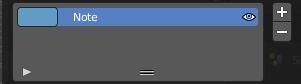
The list of annotation layers.
| Entry | What it does |
|---|---|
| Add Annotation Layer | Add a new annotation layer. |
| Remove Annotation Layer | Remove the selected annotation layer. |
Opacity
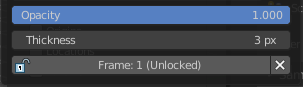
The opacity of the stroke.
| Entry | What it does |
|---|---|
| Thickness | The thickness of the annotation stroke. |
| Frame Locked/Unlocked | Lock frame displayed by current layer. This toggles whether the active layer is the only one that can be edited. |
| Delete Active Frame | Deletes the active frame from the active grease pencil layer. |
Placement
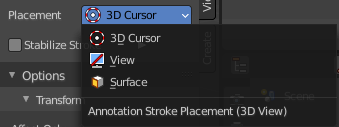
Define how annotation strokes are aligned in the 3d space.
Stabilize Stroke
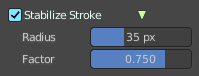
Helper to draw smooth and clean lines. Pressing shift inverts the effect.
| Entry | What it does |
|---|---|
| Radius | The radius for the stroke stabilization. |
| Factor | Stabilizer stroke factor. Higher values gives a smoother stroke. |
Drag
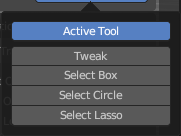
Define what kind of transform should happen when you click not at the widget but besides, and drag the mouse.
Annotate Line
Click and drag to create a line.
Tool Settings
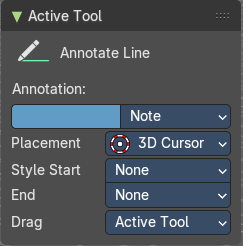
The tool settings for the Annotate tool.
Color
Clicking at the left color field reveals a color picker. Define the color for the annotation stroke.
Note
Clicking at the Note drop down box reveals a panel with further settings. It's the same content than in the annotations in the View tab.
Annotations list
Add, remove and rename new annotations.
| Entry | What it does |
|---|---|
| Edit Box | The name of the current annotation. You can rename the annotation to your needs here. |
| Fake User | Assign a fake user to this annotation. Fake users is an odd concept to keep data in the scene even if it has no user somewhere. The fake user is then a dummy user so that the object is not deleted when saving the scene. |
| Add Annotation | Add a new annotation. |
| Remove Annotation | Delete the annotation. |
Active Layer Index
The list of annotation layers.
| Entry | What it does |
|---|---|
| Add Annotation Layer | Add a new annotation layer. |
| Remove Annotation Layer | Remove the selected annotation layer. |
| Opacity | The opacity of the stroke. |
Thickness
The thickness of the annotation stroke.
| Entry | What it does |
|---|---|
| Frame Locked/Unlocked | Lock frame displayed by current layer. This toggles whether the active layer is the only one that can be edited. |
| Delete Active Frame | Deletes the active frame from the active grease pencil layer. |
Placement
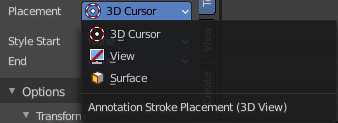
Define how annotation strokes are aligned in the 3d space.
Style Start
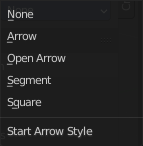
The stroke start style. With an arrow for example you place an arrow at the start of the stroke.
End
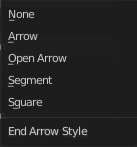
The stroke end style. With an arrow for example you place an arrow at the end of the stroke.
Drag
Define what kind of transform should happen when you click not at the widget but besides, and drag the mouse.
Annotate Polygon
Click multiple times to create multiple connected lines. The current polygon is finished when Esc or RMB is pressed.
Tool Settings
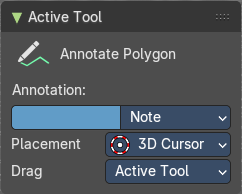
The tool settings for AnnotatePolygon.
Color
Clicking at the left color field reveals a color picker. Define the color for the annotation stroke.
Note
Clicking at the Note drop down box reveals a panel with further settings. It's the same content than in the annotations in the View tab.
Annotations list
Add, remove and rename new annotations.
| Entry | What it does |
|---|---|
| Edit Box | The name of the current annotation. You can rename the annotation to your needs here. |
| Fake User | Assign a fake user to this annotation. Fake users is an odd concept to keep data in the scene even if it has no user somewhere. The fake user is then a dummy user so that the object is not deleted when saving the scene. |
| Add Annotation | Add a new annotation. |
| Remove Annotation | Delete the annotation. |
Active Layer Index
The list of annotation layers.
| Entry | What it does |
|---|---|
| Add Annotation Layer | Add a new annotation layer. |
| Remove Annotation Layer | Remove the selected annotation layer. |
| Opacity | The opacity of the stroke. |
Thickness
The thickness of the annotation stroke.
Frame Locked/Unlocked
Lock frame displayed by current layer. This toggles whether the active layer is the only one that can be edited.
Delete Active Frame
Deletes the active frame from the active grease pencil layer.
Placement
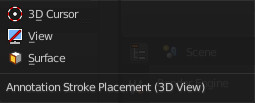
Define how annotation strokes are aligned in the 3d space.
Drag
Define what kind of transform should happen when you click not at the widget but besides, and drag the mouse.
Annotate Eraser
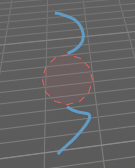
Click and drag to remove annotate lines.
Tool Settings
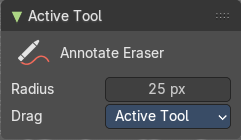
Radius
The radius of the eraser pencil.
Drag
Define what kind of transform should happen when you click not at the widget but besides, and drag the mouse.
Measure
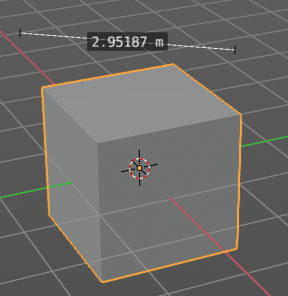
Measure allows you to draw measure lines into the view.
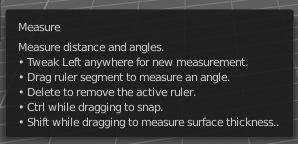
The measure tool has a few options, which are described in the tool tip.
New measure lines gets created by left clicking and dragging.
When you change the tool then the measure lines becomes visible. But they are not removed. When you activate the measure tool then they reappear.
Restrict to global axis
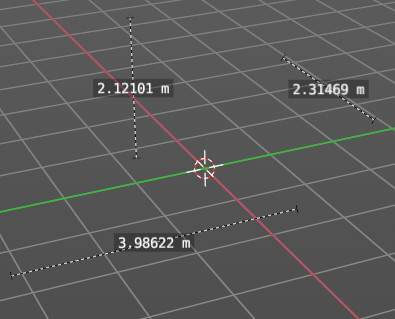
You can constraint the measure tool to a single global axis by pressing the corresponding X Y or Z key once while holding down the mouse.
To escape this constraint, press the axis key twice again.
Measuring angles
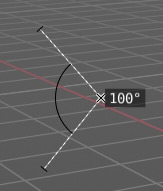
When you want to measure an angle, first create a straight measure line. Then grab it in the middle to drag out a new point at the line. Then align everything proper.
| Entry | What it does |
|---|---|
| Snapping | Holding down Ctrl activates temporary global snapping. |
| Delete measure lines | Select them and press delete. When you have selected an angle point then first this angle point gets deleted. You need to have to select an endpoint to make the whole stroke active. |
Primitives Add tools group
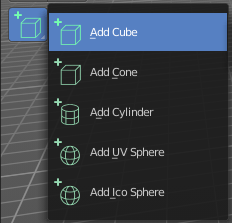
This tools appears in object and edit mode with the correct object types. The tools allows you to create primitives by dragging with the mouse. First you create a ground plane by dragging a rectangle. Then you release the mouse and drag the mouse upwards to create the third dimension of it. And a left click makes the object real then.
You can choose between five primitive types. Cube, Cone, Cylinder, UV Sphere and Icosphere.
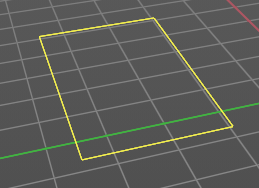
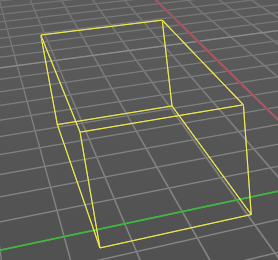
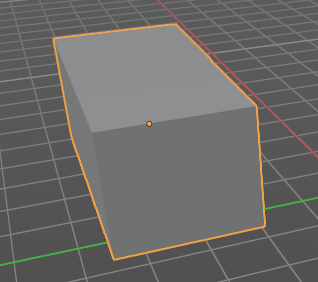
By default the ground plane starts to scale from one of the edges.
Holding down Alt key while dragging scales from the center instead of the default corner.
Holding down Shift key while dragging allows you to scale uniformly.
Holding down Ctrl while dragging snaps to other objects.
Add Cube
Adds a cube primitive.
Tool Settings
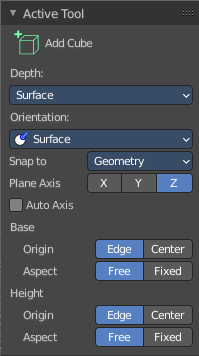
Depth
Position
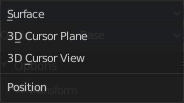
How to position the primitive.
| Entry | What it does |
|---|---|
| Surface | Start placing on the surface. The 3d cursor acts as a fallback. |
| 3D Cursor Plane | Start placement using a point that is projected at the selected axis at the 3d cursor position |
| 3D Cursor View | Start placement using the mouse cursor projected onto the view plane. |
Orientation
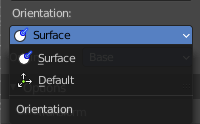
In which orientation the new object to create.
Snap To
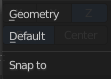
The target for snapping. Geometry snaps to existing mesh geometry. Default snaps to the ground.
Plane Axis

What plane axis to use.
Auto Axis
Select the closest axis when placing objects. Surface overrides.
Base
Origin
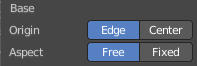
From where to scale the primitive. From one of its corners or from the center.
Aspect
Scale uniformly or in drag direction.
Height
Origin
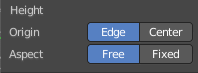
From where to scale the primitive. From one of its corners or from the center.
Aspect
Scale uniformly or in drag direction.
Last Operator Add Cube Panel
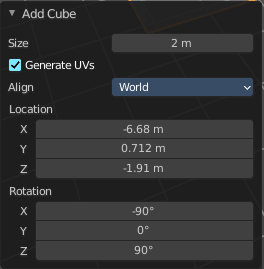
Size is in real the size of the Cube.
| Entry | What it does |
|---|---|
| Generate UV's | Creates UV's for this primitive. |
| Align to view | Aligns the geometry to the chosen view. World, View or 3D cursor. |
| Location | Defines the location of the Cube. |
| Rotation | defines the rotation of the Cube. |
Add Cone
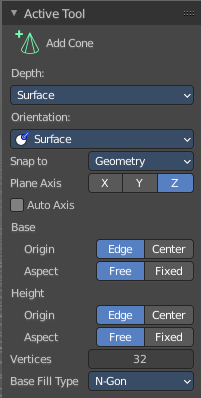
Adds a cone primitive.
Tool Settings
Depth
Position
How to position the primitive.
| Entry | What it does |
|---|---|
| Surface | Start placing on the surface. The 3d cursor acts as a fallback. |
| 3D Cursor Plane | Start placement using a point that is projected at the selected axis at the 3d cursor position |
| 3D Cursor View | Start placement using the mouse cursor projected onto the view plane. |
Orientation
In which orientation the new object to create.
Snap To
The target for snapping. Geometry snaps to existing mesh geometry. Default snaps to the ground.
Plane Axis
What plane axis to use.
Auto Axis
Select the closest axis when placing objects. Surface overrides.
Base
Origin
From where to scale the primitive. From one of its corners or from the center.
Aspect
Scale uniformly or in drag direction.
Height
Origin
From where to scale the primitive. From one of its corners or from the center.
Aspect
Scale uniformly or in drag direction.
Vertices
The number of vertices for the cone ground plane.
Base Fill Type
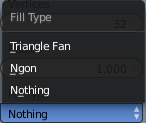
Defines how the Base face is filled.
Nothing means you have no base face.
N-Gon means that the base face is an N-Gon face.
Triangle Fan means that the base face is triangulated.
Last Operator Add Cone Panel
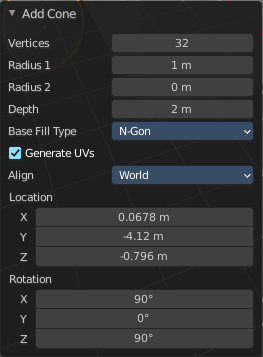
Vertices
Defines of how much vertices the circle is made.
Radius 1
Defines the base radius of the Cone.
Radius 2
Defines the top radius of the Cone.
Depth
Defines the length of the Cone.
| Entry | What it does |
|---|---|
| Base Fill Type | Defines how the Base face is filled. Nothing means you have no base face. N-Gon means that the base face is an N-Gon face. Triangle Fan means that the base face is triangulated. |
| Generate UV's | creates UV's for this primitive. |
| Align to view | Aligns the geometry to the chosen view. World, View or 3D cursor. |
| Location | Defines the location of the Cone. |
| Rotation | Defines the rotation of the Cone. |
Add Cylinder
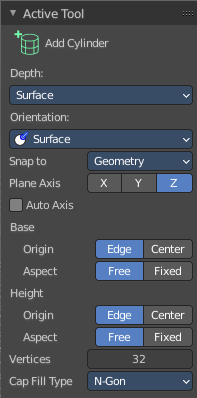
Adds a cylinder primitive.
Tool Settings
Depth
Position
How to position the primitive.
| Entry | What it does |
|---|---|
| Surface | Start placing on the surface. The 3d cursor acts as a fallback. |
| 3D Cursor Plane | Start placement using a point that is projected at the selected axis at the 3d cursor position |
| 3D Cursor View | Start placement using the mouse cursor projected onto the view plane. |
Orientation
In which orientation the new object to create.
Snap To
The target for snapping. Geometry snaps to existing mesh geometry. Default snaps to the ground.
Plane Axis
What plane axis to use.
Auto Axis
Select the closest axis when placing objects. Surface overrides.
Base
Origin
From where to scale the primitive. From one of its corners or from the center.
Aspect
Scale uniformly or in drag direction.
Height
Origin
From where to scale the primitive. From one of its corners or from the center.
Aspect
Scale uniformly or in drag direction.
Vertices
The number of vertices.
Cap Fill Type defines how the cap face is filled.
- Nothing means you have no face at the top and the bottom of the Cylinder.
- N-Gon means that the cap face is an N-Gon face.
- Triangle Fan means that the cap face is triangulated.
Last Operator Add Circle Panel
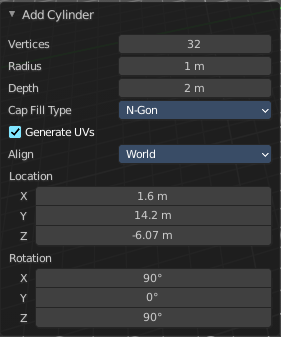
| Entry | What it does |
|---|---|
| Vertices | Defines of how much vertices the circle is made. |
| Radius | Defines the radius of the Cylinder. |
Depth
Defines the length of the Cylinder.
Cap Fill Type
defines how the cap face is filled.
Nothing means you have no face at the top and the bottom of the Cylinder.
N-Gon means that the cap face is an N-Gon face.
Triangle Fan means that the cap face is triangulated.
Generate UV's
Creates UV's for this primitive.
| Entry | What it does |
|---|---|
| Align to view | Aligns the geometry to the chosen view. World, View or 3D cursor. |
| Location | Defines the location of the Cylinder. |
| Rotation | Defines the rotation of the Cylinder. |
Add UV Sphere
Adds a UV sphere primitive.
Tool Settings
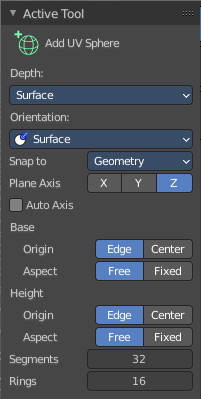
Depth
Position
How to position the primitive.
| Entry | What it does |
|---|---|
| Surface | Start placing on the surface. The 3d cursor acts as a fallback. |
| 3D Cursor Plane | Start placement using a point that is projected at the selected axis at the 3d cursor position |
| 3D Cursor View | Start placement using the mouse cursor projected onto the view plane. |
Orientation
In which orientation the new object to create.
Snap To
The target for snapping. Geometry snaps to existing mesh geometry. Default snaps to the ground.
Plane Axis
What plane axis to use.
Auto Axis
Select the closest axis when placing objects. Surface overrides.
Base
Origin
From where to scale the primitive. From one of its corners or from the center.
Aspect
Scale uniformly or in drag direction.
Height
Origin
From where to scale the primitive. From one of its corners or from the center.
Aspect
Scale uniformly or in drag direction.
| Entry | What it does |
|---|---|
| Segments | Defines of how much segments the sphere has vertically. |
| Rings | Defines how much rings the sphere has horizontally. |
Last Operator Add UV Sphere Panel
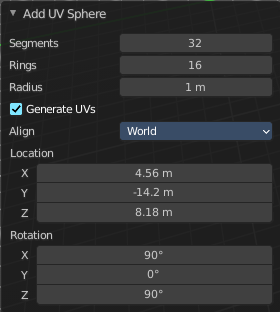
Segments defines of how much segments the sphere has vertically.
| Entry | What it does |
|---|---|
| Rings | Defines how much rings the sphere has horizontally. |
| Size | Defines the radius of the UV Sphere. |
| Generate UV's | Creates UV's for this primitive. |
| Align to view | Aligns the geometry to the chosen view. World, View or 3D cursor. |
| Location | Defines the location of the Sphere. |
| Rotation | Defines the rotation of the Sphere. |
Add Icosphere
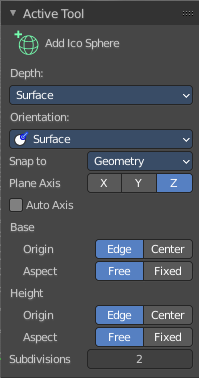
Adds an icosphere primitive.
Tool Settings
Depth
Position
How to position the primitive.
| Entry | What it does |
|---|---|
| Surface | Start placing on the surface. The 3d cursor acts as a fallback. |
| 3D Cursor Plane | Start placement using a point that is projected at the selected axis at the 3d cursor position |
| 3D Cursor View | Start placement using the mouse cursor projected onto the view plane. |
Orientation
In which orientation the new object to create.
Snap To
The target for snapping. Geometry snaps to existing mesh geometry. Default snaps to the ground.
Plane Axis
What plane axis to use.
Auto Axis
Select the closest axis when placing objects. Surface overrides.
Base
Origin
From where to scale the primitive. From one of its corners or from the center.
Aspect
Scale uniformly or in drag direction.
Height
Origin
From where to scale the primitive. From one of its corners or from the center.
Aspect
Scale uniformly or in drag direction.
Subdivisions
The subdivision level of the Ico Sphere.
Last Operator Add Ico Sphere Panel
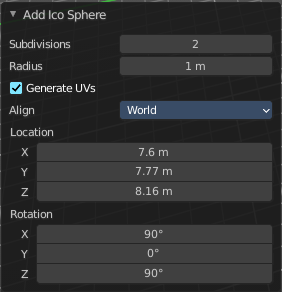
Subdivisions
Defines the subdivision level of the Ico Sphere.
Size
Defines the radius of the Ico Sphere.
Generate UV's
Creates UV's for this primitive.
Align to view
Aligns the geometry to the chosen view. World, View or 3D cursor.
Location
Defines the location of the Sphere.
Rotation
Defines the rotation of the Sphere.