

































































Metaball - Edit Mode
The Tweak, Select , 3D Cursor, Transform, Measure and Annotate tools at the end of the list are explained in the chapter 7.1.1 Editors - 3D View - Tool Shelf - Object Mode. We won't cover this tools again here.
Tool Shelf - Metaball - Edit Mode
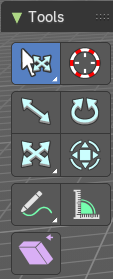
Tweak, Select, 3D Cursor, Transform, Measure and Annotate tools
The Tweak, Select , 3D Cursor, Transform, Measure and Annotate tools at the end of the list are explained in the chapter 7.1.1 Editors - 3D View - Tool Shelf - Object Mode. We won't cover this tools again here.
Shear
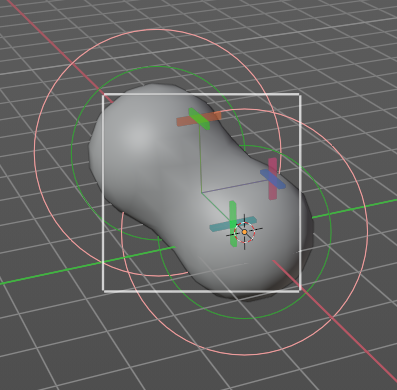
The shear tool allows you to shear the selected geometry. When you activate the tool, then a widget appears that allows you to pull in the desired direction.
The shear happens between the meta elements. This means you need more than one. And you need to select the meta elements first!
Tool Settings
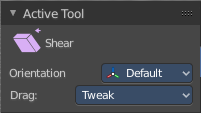
Orientation
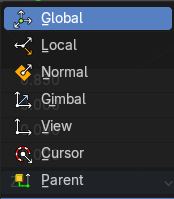
Choose the orientation for the shear action.
Drag
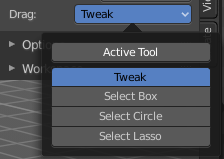
When you click at the widget of the active tool, then you perform the tool action. Adjust what should happen when you click outside of the widget, in the empty area.
| Entry | What it does |
|---|---|
| Active Tool | When you click off the widget then the click still does the same than clicking at the widget. It performs the active tool. |
| Tweak, Select Box, Circle and Lasso | When you choose this options then you will set the off click to the different select methods. Whereas tweak works more than a move tool then. Tweak is the default. |
Last Operator Shear
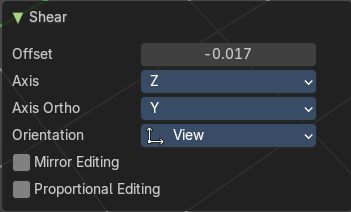
| Entry | What it does |
|---|---|
| Offset | Adjust an offset. |
| Axis | Defines one axis of the imaginary shear axis plane. |
Axis Ortho
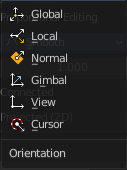
Defines the other axis of the imaginary shear axis plane.
| Entry | What it does |
|---|---|
| Orientation | Choose the orientation for the shear action. |
| Proportional editing | Enables proportional editing. Activating proportional editing reveals further settings. · Proportional Falloff: Adjust the falloff methods. · Proportional Size: See and adjust the falloff radius. · Connected: The proportional falloff gets calculated for connected parts only. · Projected(2D): The proportional falloff gets calculated in the screen space. Depth doesn't play a role. When it's in the radius, then it gets calculated. |