

































































Mesh - Weight Paint Mode
In Vertex Paint mode with a mesh object you will find mainly brushes in the tool shelf. Vertex painting allows you to paint the vertices of a mesh object with a specific color. This can then be used in various ways. As…
Tool Shelf - Mesh - Weight Paint Mode
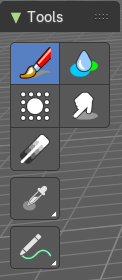
In Vertex Paint mode with a mesh object you will find mainly brushes in the tool shelf. Vertex painting allows you to paint the vertices of a mesh object with a specific color. This can then be used in various ways. As direct painting without any UV mapping. Or for some special calculations. There is a shader node that reads the vertex color values.
Transform and Annotate tools
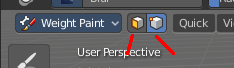
The transform and annotate tools at the end of the list are explained in the chapter 7.1.1 Editors - 3D View - Tool Shelf - Object Mode. We won't cover this tools again here.
The transform tools group shows when you activate Paint Mask or Vertex selection sub modes.
Brush cursor
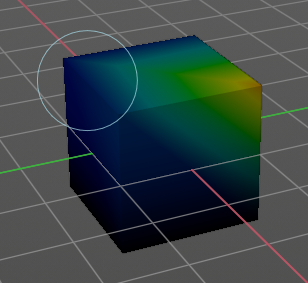
When you activate one of the brushes then the mouse cursor turns into a brush cursor. This cursor represents the size of the current brush. It does not align with the surface under the mouse. But always faces towards you.
Brushes settings
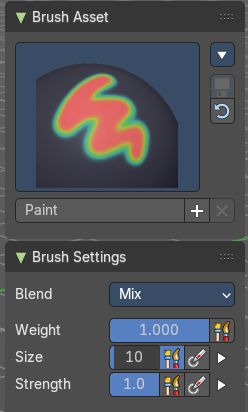
The different brushes settings can be found in the sidebar in the tools tab. Or in the properties editor in the Active Tool and Workspace settings tab. Or above the header area.
The different brushes settings in the Active Tool and Workspace settings are explained in the chapter 25.1.4 Editors - Properties Editor - Tools Tab - Vertex Paint Mode
We won't cover this chapters again, but just explain what the different brushes does.

Symmetry
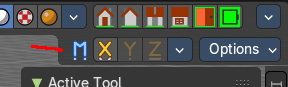
You can enable Symmetry painting up right in the header.
Hotkeys
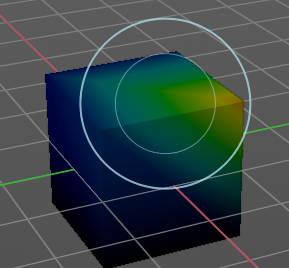
Pressing F allows you to change the brush size onscreen. Drag the mouse to increase or decrease the size. Left click applies the new size, right click cancels the resizing.
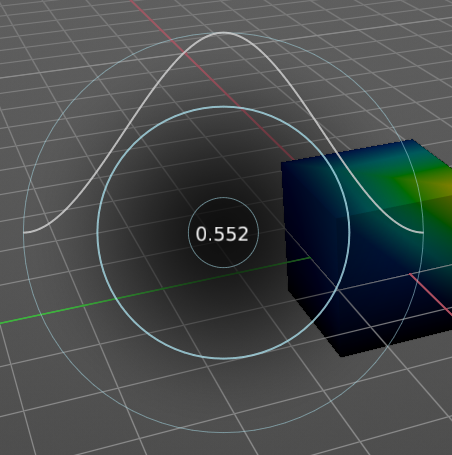
Pressing Shift F allows you to change the strength of the brush. Drag the mouse to increase or decrease the size. Left click applies the new size, right click cancels the resizing.
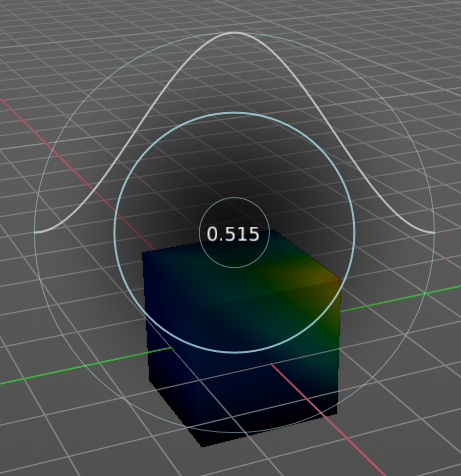
Pressing Ctrl F allows you to change the weight size onscreen. Drag the mouse to increase or decrease the size. Left click applies the new size, right click cancels the resizing.
Brush
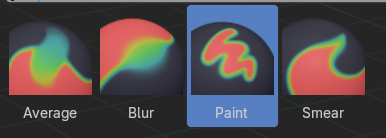
Paint brush.
| Entry | What it does |
|---|---|
| Blur | Smooths out the colors of adjacent vertices. In this mode the Color Value is ignored. The strength defines how much the colors are blurred. |
| Average | Smooths color by painting the average resulting color from all colors under the brush. |
| Smear | Smudges colors by grabbing the colors under the brush and “dragging” them. |
Gradient
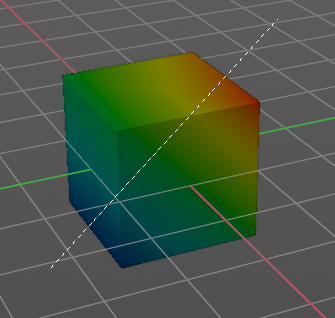
Allows you to draw a gradient between two defined points. The gradient gets drawn with the starting color at the start point, and the color for zero weight at the end point.
Tool Settings
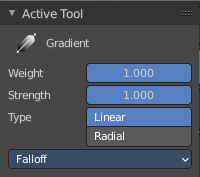
| Entry | What it does |
|---|---|
| Weight | The starting weight. |
| Strength | The strength with which it mixes with the existing weighting. |
| Type | Choose the gradient type. Linear or Radial. |
Falloff
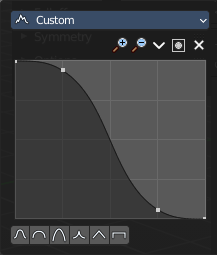
Allows you to adjust the falloff by a curve.
Curve Presets
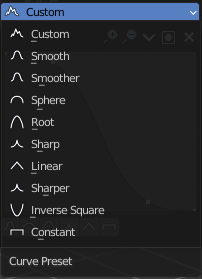
Curve presets to choose from.
Selecting Points
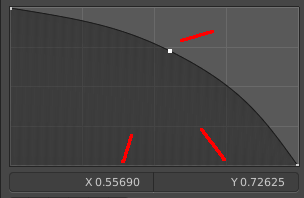
You can select curve points. This reveals two edit boxes for the x and y coordinate of this point.
Selected points can be moved around. Left click at them, hold the mouse button down and move them to a new location.
Adding Points
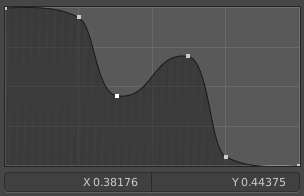
You can add new curve points by simply left clicking at the curve. Move the mouse to position them where you need it.
Navigation elements
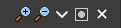
The navigation elements at the top are described from left to right.
| Entry | What it does |
|---|---|
| Zoom in and out | The two buttons with the magnifying glass at it zooms in and out in the curve window. |
| Tools | Tools is a menu where you can find some curve related tools. · Reset View: Resets the curve windows zoom. · Vector Handle: Set handle type to Vector. · Auto Handle: Set handle type to Auto. · Auto Clamped Handle: Set handle type to Auto Clamped. · Reset Curve: Resets the curve to the initial shape. |
Use Clipping
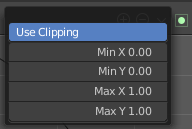
Clipping options. Set up clipping for the stroke. The blue button at the top turns clipping on or off.
Delete Points
Deletes the selected curve point.
Curve Presets
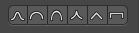
Predefined curve presets.
Last Operator Weight Gradient
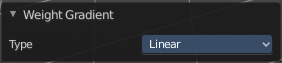
Type
Choose the gradient type. Linear or Radial.
Sample tools group
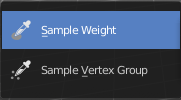
Sample Weight
Sets the actual weight value to the color under the mouse.

The mouse turns into a picker. When clicking at the mesh with that picker, the header shows the weight value of the weighting of the corresponding vertice under the mouse
Sample Vertex Group
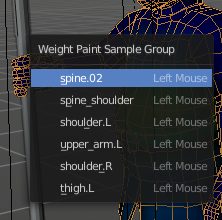
Opens a popup menu where you can select one of the vertex groups that are under the mouse.