

































































Mesh - Vertex Paint Mode
In Vertex Paint mode with a mesh object you will find mainly brushes in the tool shelf. Vetex painting allows you to paint the vertices of a mesh object with a specific color. This can then be used in various ways. As…
Tool Shelf - Mesh - Vertex Paint Mode
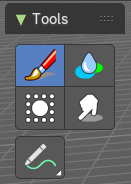
In Vertex Paint mode with a mesh object you will find mainly brushes in the tool shelf. Vetex painting allows you to paint the vertices of a mesh object with a specific color. This can then be used in various ways. As direct painting without any UV mapping. Or for some special calculations. There is a shader node that reads the vertex color values.
Annotate tools
The annotate tools at the end of the list are explained in the chapter 7.1.1 Editors - 3D View - Tool Shelf - Object Mode. We won't cover this tools again here.
Brush cursor
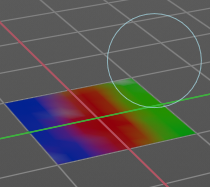
When you activate one of the brushes then the mouse cursor turns into a brush cursor. This cursor represents the size of the current brush. It does not align with the surface under the mouse. But always faces towards you.
Brushes settings
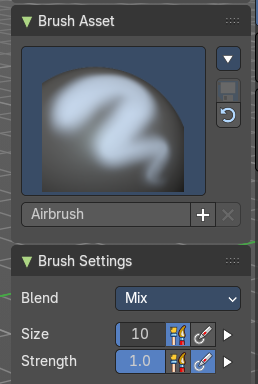
The different brushes settings can be found in the sidebar in the tools tab. Or in the properties editor in the Active Tool and Workspace settings tab. Or above the header area.
The different brushes settings in the Active Tool and Workspace settings are explained in the chapter 25.1.4 Editors - Properties Editor - Tools Tab - Vertex Paint Mode
We won't cover this chapters again, but just explain what the different brushes does.

Symmetry
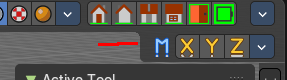
You can enable Symmetry painting up right in the header.
Hotkeys
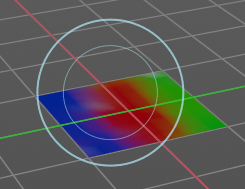
Pressing F allows you to change the brush size on-screen. Drag the mouse to increase or decrease the size. Left click applies the new size, right click cancels the resizing.
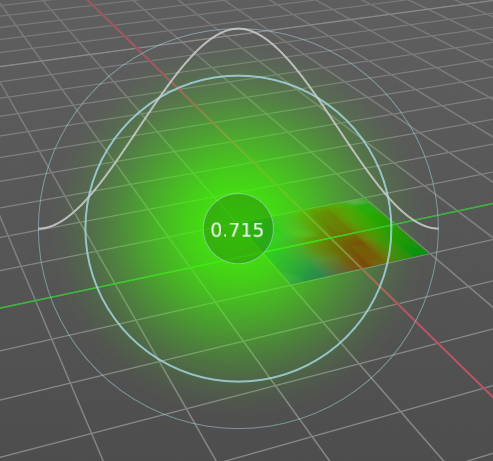
Pressing Shift F allows you to change the strength of the brush. Drag the mouse to increase or decrease the size. Left click applies the new size, right click cancels the resizing.
Brush
The Brush tool covers several paint brushes in the All panel. The names of the brushes are pretty self explaining. Blur, Average and Smear have each their own button in the toolshelf.

| Entry | What it does |
|---|---|
| Blur | Smooths out the colours of adjacent vertices. In this mode the Colour Value is ignored. The strength defines how much the colours are blurred. |
| Average | Smooths colour by painting the average resulting colour from all colours under the brush. |
| Smear | Smudges colours by grabbing the colours under the brush and “dragging” them. |