

































































Mesh - Sculpt Mode
In Sculpt mode with a mesh object you will find mainly brushes in the tool shelf. These toggle brush types and modes.
Tool Shelf - Mesh - Sculpt Mode
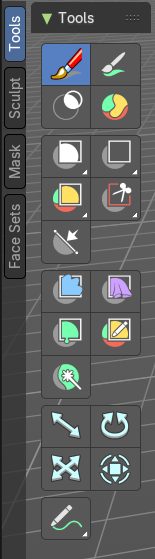
In Sculpt mode with a mesh object you will find mainly brushes in the tool shelf. These toggle brush types and modes.
Brush cursor
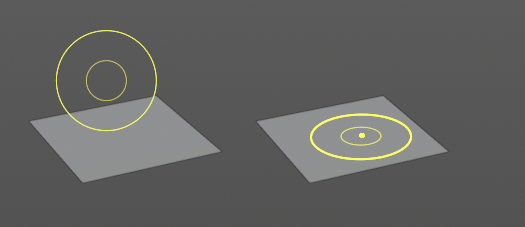
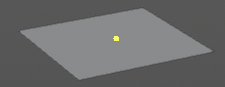
When you activate one of the brushes then the mouse cursor turns into a brush cursor. This cursor represents the size of the current brush. It aligns to the surface under the mouse. When you start to draw then the brush cursor will disappear except for one little yellow dot in the center.
Brushes settings
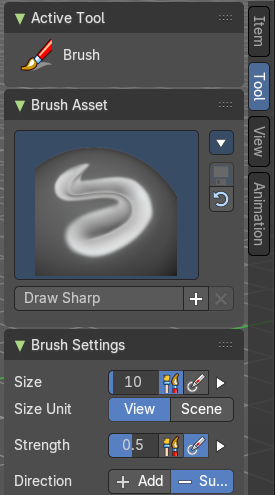
The different brushes settings can be found in the sidebar in the tools tab. Or in the properties editor in the Active Tool and Workspace settings tab. Or above the header area.
The different brushes settings in the Active Tool and Workspace settings are explained in the chapter 25.1 Editors - Properties Editor - Tools Tab.
We won't cover this chapters again, but just explain what the different brushes does.

Hotkeys
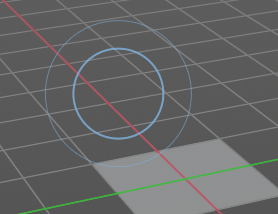
Pressing X allows you to change the brush size onscreen. Drag the mouse to increase or decrease the size. Left click applies the new size, right click cancels the resizing.
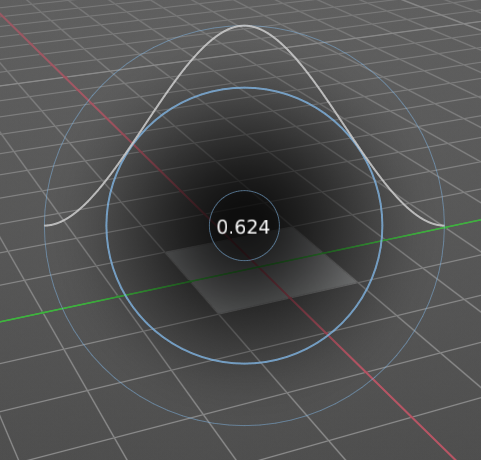
Pressing C allows you to change the strength of the brush. Drag the mouse to increase or decrease the size. Left click applies the new size, right click cancels the resizing.
Symmetry
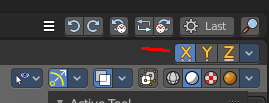
Note that the sculpting mode starts with Symmetry in X axis on. You can turn this off up right in the header.
Tool Shelf - Mesh - Sculpt Mode - Tools
| Entry | What it does |
|---|---|
| Brush | The Brush Tool in Sculpt Mode lets you change the shape of a mesh by painting directly on its surface. You can use different brush types to add detail, smooth areas, or make edits. Settings like strength, size, and falloff control how the brush affects the geometry. |
| Paint | Paint over vertex colors. Note that this feature is not supported when you work in Dynatopo. |
| Mask | Allows you to mask out specific parts of the mesh by painting it black. Black means no sculpt stroke possible in this area. In the Brush panel you can negate the effect. And remove the mask by repainting over it with Direction set to Subtract. The mask menu in the header provides you with further functionality like clear and invert the mask. |
Draw Face Sets
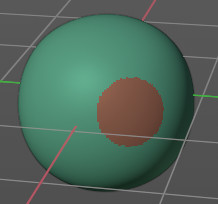
Allows you to draw so called faces set areas. It is some kind of a permanent mask. Every drawn face set gets a random color assigned. This face sets can then be manipulated with the Mesh Filter tool. Or you can use them to hide the parts away that you don't want to sculpt at the moment.
Holding Shift will relax or smooth the edges of the Face Sets.
Holding Ctrl will continue drawing the same Face Set as the one under the cursor.
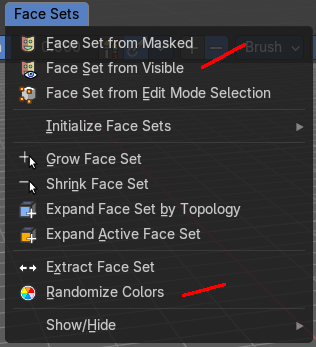
Once you have painted Face Sets, the Face Set beneath your mouse pointer can be hidden by pressing the H hotkey.
Hotkey Shift H hides all Face Sets but the one under your mouse pointer. See also the Face Sets menu.
To reset all face sets choose Face Sets from Visible in the Face Sets menu, followed by Randomize Color. This should clear all colors.
Box / Lasso / Line / Polyline Mask Group


Allows you to mask out specific parts of the mesh by selecting mesh parts, and mask them with black. Black means no sculpt stroke possible in this area.
This tools is, different from the mask brush not brushes, but select tools. Box mask and Lasso mask behaves like the general box and lasso select methods. To subtract hold down ctrl. Line mask selects along a line.
The mask menu in the header provides you with further functionality like clear and invert the mask.
Box Mask
Active Tool setting
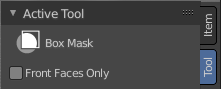
Front Faces only
Affect only the faces that points to the front.
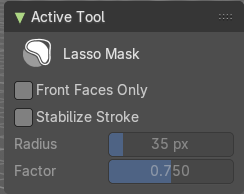
Lasso Mask
Active Tool setting
| Entry | What it does |
|---|---|
| Front Faces only | Affect only the faces that points to the front. |
| Stabilize Stroke | The selection lags behind the mouse, which makes the stroke smoother. · Radius: Minimum distance from last point before the selection continues. · Factor: Higher values gives a smoother stroke. |
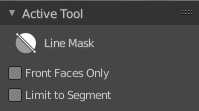
Line Mask
| Entry | What it does |
|---|---|
| Front Faces only | Affect only the faces that points to the front. |
| Limit to Segment | Line mask only. Affect only the current segment. |
Polyline Mask
Limit to Segment
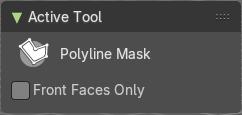
Line mask only. Affect only the current segment.
Box / Lasso / Line / Polyline Hide Group
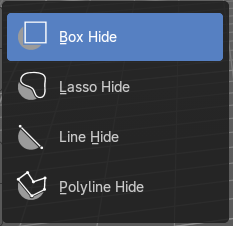
This tool allows you to box select parts of the mesh that gets hidden then. To reveal hidden mesh parts left click anywhere.
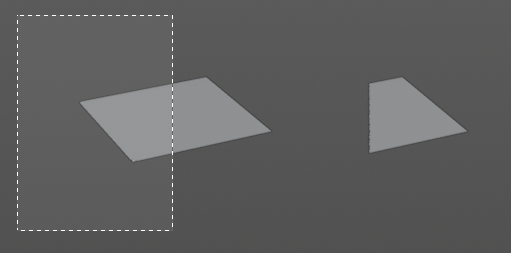
Box Hide
Active Tool setting
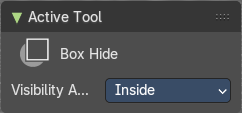
Visibility Area
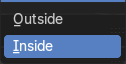
Hide inside the selection or outside the selection.
Lasso Hide
Active Tool setting
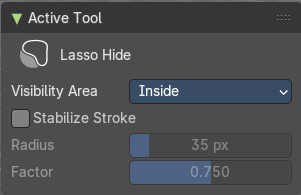
Visibility Area
Hide inside the selection or outside the selection.
Stabilize Stroke
The selection lags behind the mouse, which makes the stroke smoother.
| Entry | What it does |
|---|---|
| Radius | Minimum distance from last point before the selection continues. |
| Factor | Higher values gives a smoother stroke. |
Line Hide
Active Tool setting
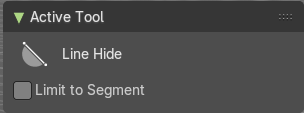
Limit to Segment
Limits the hide action to the selected segment.
Polyline Hide
Active Tool setting
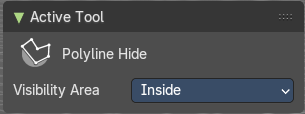
Visibility Area
Hide inside the selection or outside the selection.
Box / Lasso / Line / Polyline Faceset Group
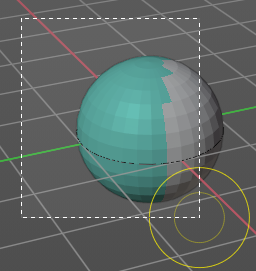
Allows to select faces and apply a face set to it.
Tool Settings
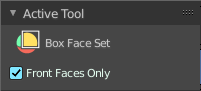
Box Face Set
Front faces only
Only affect the front faces.
Lasso Face Set
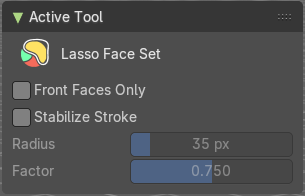
Lasso select an area of the mesh to apply a face set.
Stabilize Stroke
The selection lags behind the mouse, which makes the stroke smoother.
| Entry | What it does |
|---|---|
| Radius | Minimum distance from last point before the selection continues. |
| Factor | Higher values gives a smoother stroke. |
Line Face Set
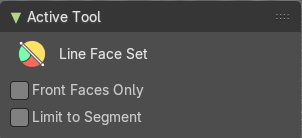
Front faces only
Only affect the front faces.
Limit to Segment
Limits the hide action to the selected segment.
Poly Line Face Set
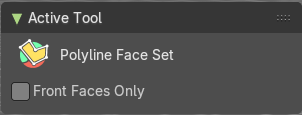
Front faces only
Only affect the front faces.
Box / Lasso / Line / Polyline Trim Group
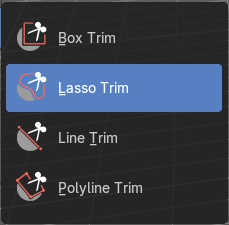
Trim the geometry with a rectangle or lasso.
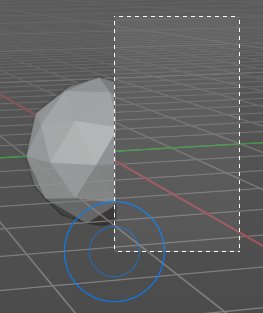
Box Trim
Tool Settings
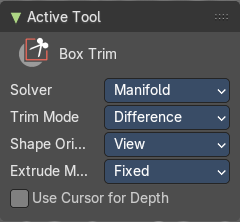
Solver
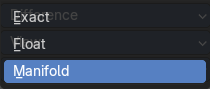
Choose the solver for the box trim.
Trim Mode
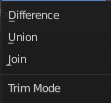
What trim method to choose. Trim uses a boolean method. You have the choice between difference, union and join.
Shape Orientation
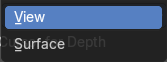
Use the orientation of the boolean aligned to the viewport or the surface.
Extrude Mode
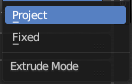
How to deal with extrude.
Use Cursor Depth
Use cursor location and radius for the dimensions and position of the trimming shape.
Lasso Trim
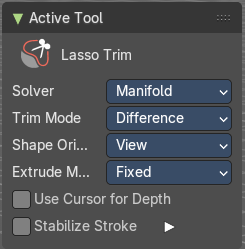
Tool Settings
Solver
Choose the solver for the box trim.
Trim Mode
What trim method to choose. Trim uses a boolean method. You have the choice between difference, union and join.
Shape Orientation
Use the orientation of the boolean aligned to the viewport or the surface.
Extrude Mode
How to deal with extrude.
Use Cursor Depth
Use cursor location and radius for the dimensions and position of the trimming shape.
Stabilize Stroke
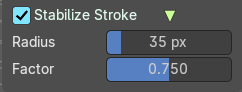
The selection lags behind the mouse, which makes the stroke smoother.
| Entry | What it does |
|---|---|
| Radius | Minimum distance from last point before the selection continues. |
| Factor | Higher values gives a smoother stroke. |
Line Trim
Tool Settings
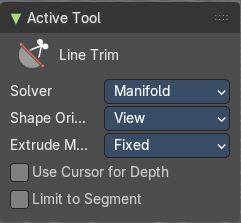
Solver
Choose the solver for the box trim.
Shape Orientation
Use the orientation of the boolean aligned to the viewport or the surface.
Extrude Mode
How to deal with extrude.
Use Cursor Depth
Use cursor location and radius for the dimensions and position of the trimming shape.
Limit to Segment
Limits the hide action to the selected segment.
Polygon Trim
Tool Settings
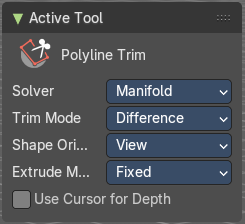
Solver
Choose the solver for the box trim.
Trim Mode
What trim method to choose. Trim uses a boolean method. You have the choice between difference, union and join.
Shape Orientation
Use the orientation of the boolean aligned to the viewport or the surface.
Extrude Mode
How to deal with extrude.
Use Cursor Depth
Use cursor location and radius for the dimensions and position of the trimming shape.
Line Project
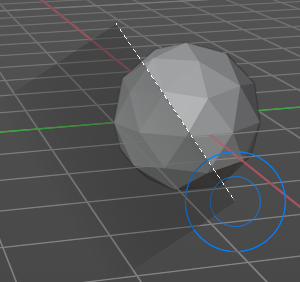
Cuts away part of the mesh along a line.
Tool Settings
Apply the action only to the current segment.
Mesh Filter
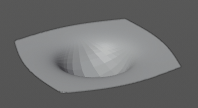
Apply a Mesh Filter Type. Mesh filters are something like deform modifiers.
Usage
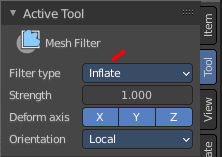
Choose the filter type that you want to apply in the Tool Settings panel. Then drag with the mouse to adjust the amount.
To work with Face Sets first tick Use Face Sets in the Active Tool panel. Then hover the mouse over the Face Set that you want to manipulate. Then drag with the mouse to adjust the amount.
You have to adjust everything beforehand. This tool has no last operator.
Adjust Last Operator Filter Mesh
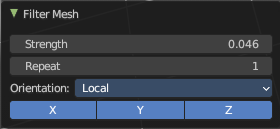
| Entry | What it does |
|---|---|
| Strength | Filter Strength. |
| Repeat | How many times to repeat the filter |
Orientation
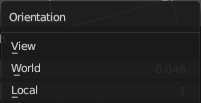
Orientation of the axis to limit the filter displacement.
Deform Axis
Which axis to affect by the deformation.
Tool Settings
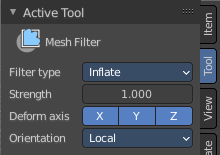
Filter Type

| Entry | What it does |
|---|---|
| Smooth | Smoothens the surface. |
| Scale | Scales the surface. |
| Inflate | Inflates the surface. |
| Sphere | Forms the surface to a sphere. |
| Random | Randomizes the vertices positions. |
| Relax | Relaxes the mesh. |
| Relax Face Sets | Smooth the edges of all face sets. |
Surface Smooth
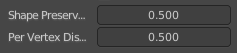
Smooth the surface of the mesh, preserving the volume.
| Entry | What it does |
|---|---|
| Shape preservation | How much of the original mesh is preserved when smoothing. |
| Per Vertex Displacement | How much the position of each individual vertex influences the final result. |
Sharpen
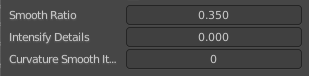
Sharpen the cavities of the mesh.
| Entry | What it does |
|---|---|
| Smooth Ratio | How much smoothing is applied to polished surface. |
| Intensity Details | How much creases and valleys are intensified. |
| Curvature Smooth Iterations | How smooth the resulting shape is. This feature ignores high frequency details. |
| Entry | What it does |
|---|---|
| Strength | The strength of the effect. |
| Deform Axis | Limit the effect to single world axis. |
Cloth Filter
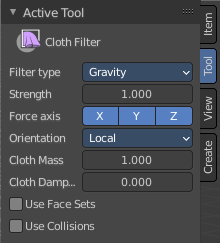
Applies a cloth filter type.
Choose the filter type that you want to apply in the Tool Settings panel. Then drag with the mouse to adjust the amount.
You have to adjust everything beforehand. This tool has no last operator.
Tool Settings
Filter Type

The cloth filter type.
| Entry | What it does |
|---|---|
| Strength | The filter strength. |
| Force Axis | Apply the force in the selected axis. |
Orientation
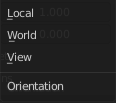
Orientation of the axis to limit the filter force. Local, World or View.
| Entry | What it does |
|---|---|
| Cloth Mass | Mass of each simulation particle |
| Cloth Damping | How much the applied forces are propagated through the cloth. |
| Use Face Sets | Use an existing face set under the mouse for the cloth filter brush. |
| Use Collisions | Collide with other collider objects in the scene. |
Color Filter
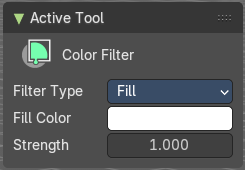
Applies a filter to modify the current sculpt vertex colors.
Tool Settings
Filter Type

What kind of filter to apply to the vertex colors.
| Entry | What it does |
|---|---|
| Fill Color | Just Filter Type Fill. Defines the fill color. |
| Strength | The strength of the filter. |
Edit Face Set
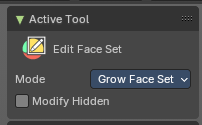
Allows you to grow or shrink the face set under the mouse.
Tool Settings
Mode
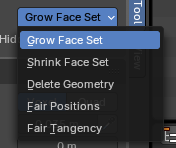 Grow Face Set: Grows the Face Sets boundary by one face based on mesh topology
- Shrink Face Set: Shrinks the Face Sets boundary by one face based on mesh topology
- Delete Geometry: Deletes the faces that are assigned to the Face Set
- Fair Positions
- Fair Tangency
Modify Hidden
Affect hidden face sets too.
Mask by Color
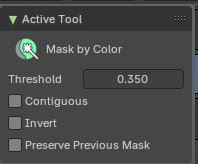
Creates a mask from the sculpt vertex colors under the mouse.
Tool Settings
| Entry | What it does |
|---|---|
| Threshold | How much changes in color affect the mask generation. Or in other words, the threshold after which the color gets count as an equal color to the current vertex color under the mouse to mask this color out. |
| Contiguous | Only mask out color parts that are connected. |
| Invert | Invert the generated mask. |
| Preserve Previous Mask | Add to or subtract from the current color mask. |
Transform tools & Annotate tools
The transform and annotate tools at the end of the list are explained in the chapter 7.1.1 Editors - 3D View - Tool Shelf - Object Mode. We won't cover these tools again here.