

































































Mesh - Edit Mode
In Edit mode with a mesh object you will find some polygon tools in the tool shelf.
Tool Shelf - Mesh - Edit Mode
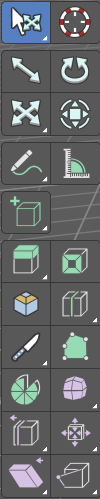
In Edit mode with a mesh object you will find some polygon tools in the tool shelf.
Tweak, Select, 3D Cursor, Transform, Annotate and Measure
The tweak, select and transform tools and the annotation and measure tool is already described in the chapter Object Mode. So we won't cover it here again. And start directly with the polygon tools.
Primitives Add Tools Group
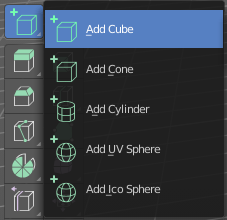
This chapter is already explained in the Editors - 3D View - Tool Shelf - Object Mode chapter. Please have a look in this chapter.
The only difference is that the created primitive will be part of the mesh that you are in edit mode with. And not an independent object.
Extrude tools group
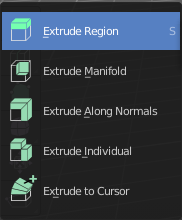
This group contains some extrude tools. A few more exotic ones can be found in the mesh menu.
There are some general settings, since they all have some move settings We will cover them all here for all of the tools.
| Entry | What it does |
|---|---|
| Snapping | Holding down Ctrl activates temporary global snapping. |
| Precision movement | When you hold down shift, then you will have a much slower but also much preciser movement. |
Header Values

When you move your object then you will see some values in the header, which defines the current position of the object.
The value m stands for the default metric system. Meters. You can change the units in the Properties editor in the Scene properties in the Units panel. When you choose kilometers here then you will see a km instead m.
The value D stands for the distance of the current selected axis. This can also be two axis. Then you have two d values. The value in the brackets is then the direct distance to the starting point.
These values are always relative to the starting point. You always start with zero, regardless of the real world position.
Move without Widget
You don't have to use the widget to move the object. You can also click aside of it, and drag the object around. The mouse turns into a move cursor. The standard behavior then is to move in screen space. When you want to move into a specific axis, then press X or Y or Z to limit the movement to this axis.
Limit Axis
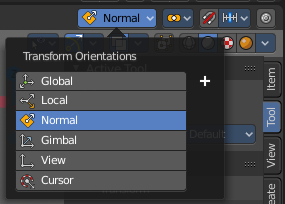

When you want to move along a specific axis, then press X or Y or Z to limit the movement to this axis. You usually start in global orientation. But you can change this in the Orientation settings.
By holding down the mouse button and pressing the X, Y or Z key twice you can toggle this to local. But also to other orientations. This depends in what orientation you start. With normal you can toggle that way between Normal and Global.
Extrude Region
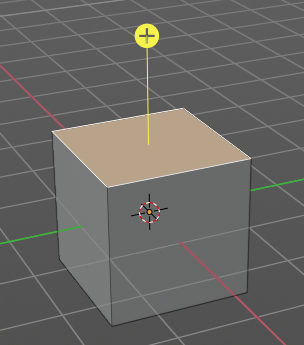
The Extrude Region tool extrudes by default along the vertex normals of the current selection. When it's more than one vertex, edge or face, then the middle will be used.
The method works the same in all Mesh select modes. Vertice, Edge and Face Mode.
When you activate the tool, then you will by default see a yellow widget at the selection. Drag it to extrude the selection.
Tool Settings
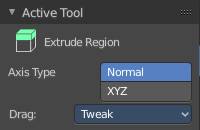
Axis Type
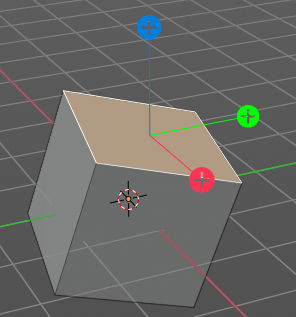
You can choose between the regular axis type. That's the yellow widget with just one handler. It always points in the direction of the muddled normals of the selection.
Or you can use the XYZ axis type. That's a handler with three axis. This widget can be aligned with the transform orientation methods.
Drag
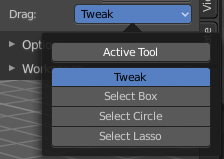
When you click at the widget of the active tool, then you perform the tool action. Adjust what should happen when you click outside of the widget, in the empty area.
| Entry | What it does |
|---|---|
| Active Tool | When you click off the widget then the click still does the same than clicking at the widget. It performs the active tool. |
| Tweak, Select Box, Circle and Lasso | When you choose this options then you will set the off click to the different select methods. Whereas tweak works more than a move tool then. Tweak is the default. |
Last Operator Extrude Region and Move

| Entry | What it does |
|---|---|
| Flip Normals | Flips the normals of the extruded faces. |
| Dissolve Orthogonal Edges | Dissolves orthogonal edges at extrusion. |
| Move X, Y Z | The position. Attention, the actual world orientation and rotation does not matter here. It always starts with a value of zero, and moves relative to this zero then. For the actual location values have a look in the sidebar in the transform panel. |
Orientation
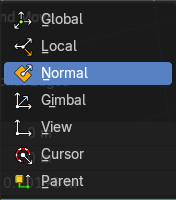
The widget can have different orientations. The menu items should be self explaining.
Mirror Editing
Enable mirror editing.
Proportional editing
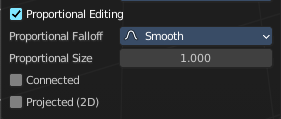
Enables proportional editing. Activating proportional editing reveals further settings.
| Entry | What it does |
|---|---|
| Proportional Falloff | Adjust the falloff methods. |
| Proportional Size | See and adjust the falloff radius. |
| Connected | The proportional falloff gets calculated for connected parts only. |
| Projected(2D) | The proportional falloff gets calculated in the screen space. Depth doesn't play a role. When it's in the radius, then it gets calculated. |
Extrude Manifold
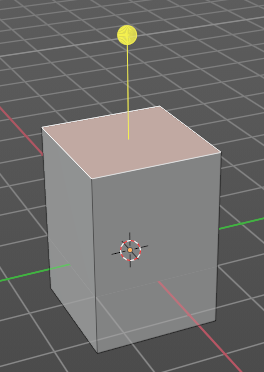
Extrude, dissolve Edges whose faces form a flat surface, and intersect new edges.
The method works the same in all Mesh select modes. Vertice, Edge and Face Mode.
Header Value

The extrude amount.
Tool Settings
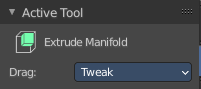
Drag
When you click at the widget of the active tool, then you perform the tool action. Adjust what should happen when you click outside of the widget, in the empty area.
| Entry | What it does |
|---|---|
| Active Tool | When you click off the widget then the click still does the same than clicking at the widget. It performs the active tool. |
| Tweak, Select Box, Circle and Lasso | When you choose this options then you will set the off click to the different select methods. Whereas tweak works more than a move tool then. Tweak is the default. |
Last Operator Extrude Manifold
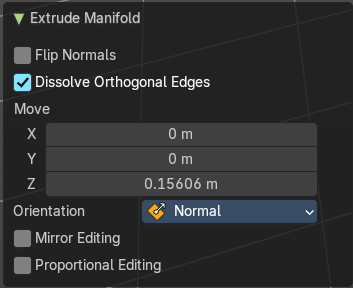
| Entry | What it does |
|---|---|
| Flip Normals | Flips the normals of the extruded faces. |
| Dissolve Orthogonal Edges | Dissolve edges that are at the same straight surface. |
| Move X, Y Z | The position. Attention, the actual world orientation and rotation does not matter here. It always starts with a value of zero, and moves relative to this zero then. For the actual location values have a look in the sidebar in the transform panel. |
Orientation
The widget can have different orientations. The menu items should be self explaining.
Mirror Editing
Enable mirror editing.
Proportional editing
Enables proportional editing. Activating proportional editing reveals further settings.
| Entry | What it does |
|---|---|
| Proportional Falloff | Adjust the falloff methods. |
| Proportional Size | See and adjust the falloff radius. |
| Connected | The proportional falloff gets calculated for connected parts only. |
| Projected(2D) | The proportional falloff gets calculated in the screen space. Depth doesn't play a role. When it's in the radius, then it gets calculated. |
Extrude Along Normals
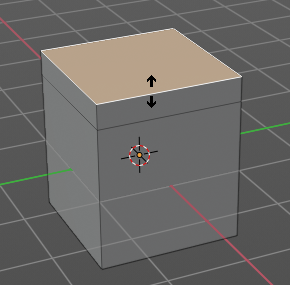
Extrudes the selection along local normals. You won't see a widget here. Simply drag.
The method works the same in all Mesh select modes. Vertice, Edge and Face Mode.
Header Value

This tool works like a shrink fatten extrude. And so you will see a corresponding set of values in the header.
Tool Settings
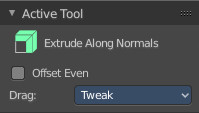
Offset Even
Scales the offset to give more even thickness. Without this checked the farer away faces will have a bigger extrude amount.
Drag
When you click at the widget of the active tool, then you perform the tool action. Adjust what should happen when you click outside of the widget, in the empty area.
| Entry | What it does |
|---|---|
| Active Tool | When you click off the widget then the click still does the same than clicking at the widget. It performs the active tool. |
| Tweak, Select Box, Circle and Lasso | When you choose this options then you will set the off click to the different select methods. Whereas tweak works more than a move tool then. Tweak is the default. |
Last Operator Extrude Region and Shrink/Fatten

| Entry | What it does |
|---|---|
| Flip Normals | Flips the normals of the extruded faces. |
| Dissolve Orthogonal Edges | Dissolves orthogonal edges at extrusion. |
| Offset | The current extrude amount. |
| Offset Even | Scales the offset to give more even thickness. Without this checked the farer away faces will have a bigger extrude amount. |
| Mirror Editing | Enable mirror editing. |
Proportional editing
Enables proportional editing. Activating proportional editing reveals further settings.
| Entry | What it does |
|---|---|
| Proportional Falloff | Adjust the falloff methods. |
| Proportional Size | See and adjust the falloff radius. |
| Connected | The proportional falloff gets calculated for connected parts only. |
| Projected(2D) | The proportional falloff gets calculated in the screen space. Depth doesn't play a role. When it's in the radius, then it gets calculated. |
Extrude Individual
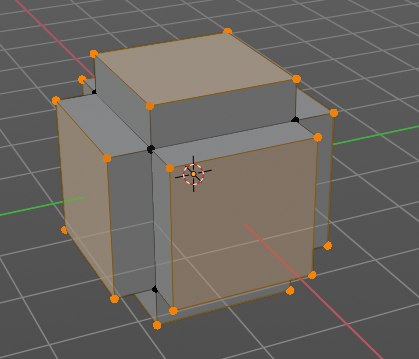
Extrudes the selection along local normals of each individual face. You won't see a widget here. Simply drag.
The method works the same in all Mesh select modes. Vertice, Edge and Face Mode.
Header Value
This tool works like a shrink fatten extrude. And so you will see a corresponding set of values in the header.
Tool Settings
Drag
When you click at the widget of the active tool, then you perform the tool action. Adjust what should happen when you click outside of the widget, in the empty area.
| Entry | What it does |
|---|---|
| Active Tool | When you click off the widget then the click still does the same than clicking at the widget. It performs the active tool. |
| Tweak, Select Box, Circle and Lasso | When you choose this options then you will set the off click to the different select methods. Whereas tweak works more than a move tool then. Tweak is the default. |
Last Operator Extrude Individual Faces and Move

| Entry | What it does |
|---|---|
| Offset | The current extrude amount. |
| Mirror Editing | Enable mirror editing. |
Proportional editing
Enables proportional editing. Activating proportional editing reveals further settings.
| Entry | What it does |
|---|---|
| Proportional Falloff | Adjust the falloff methods. |
| Proportional Size | See and adjust the falloff radius. |
| Connected | The proportional falloff gets calculated for connected parts only. |
| Projected(2D) | The proportional falloff gets calculated in the screen space. Depth doesn't play a role. When it's in the radius, then it gets calculated. |
Extrude to cursor
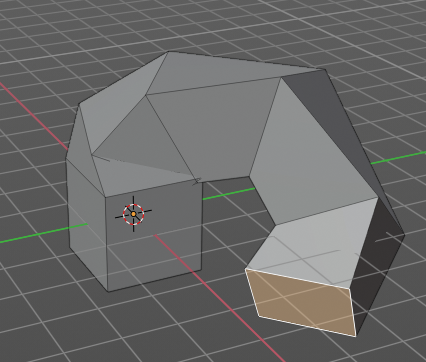
Extrudes the selection towards the mouse cursor by clicking at the target position. The extruded geometry will rotate towards the mouse pointer.
Tool Settings
Rotate Source
In theory this setting should rotate the source geometry too to achieve a better result. In practice this setting does nothing.
Inset Faces
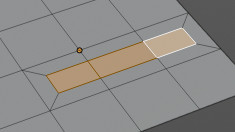
Inset insets edges into the selected faces. Think of it as an extrude inwards the face.
Activate the tool, drag the mouse. But carefully. The control is not the best. You better adjust the amount in the last operator.
Tool Settings
Outset
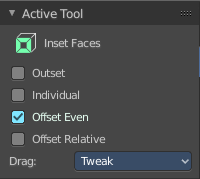
With outset ticked the Inset will not extrude inwards but outwards.
| Entry | What it does |
|---|---|
| Interpolate | Blend Face Data across the inset. |
| Offset Even | Scales the offset to give more even thickness. |
| Offset Relative | Scales the offset by surrounding geometry. |
Drag
When you click at the widget of the active tool, then you perform the tool action. Adjust what should happen when you click outside of the widget, in the empty area.
| Entry | What it does |
|---|---|
| Active Tool | When you click off the widget then the click still does the same than clicking at the widget. It performs the active tool. |
| Tweak, Select Box, Circle and Lasso | When you choose this options then you will set the off click to the different select methods. Whereas tweak works more than a move tool then. Tweak is the default. |
Last Operator Inset Faces
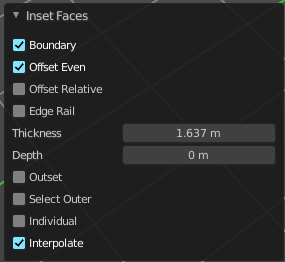
Boundary
With Boundary ticked you will get the connect edges in the corners. Without the edges ends straight.
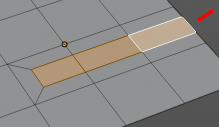
| Entry | What it does |
|---|---|
| Offset Even | Scales the offset to give more even thickness. |
| Offset Relative | Scales the offset by surrounding geometry. |
| Edge Rail | Inset the region along existing edges. |
| Thickness | Thickness adjusts the thickness of the inset geometry. |
| Depth | With depth you can bevel the inset geometry. It is then not longer co planar to the initial face. |
| Outset | With outset ticked the Inset will not extrude inwards but outwards. |
| Select Outer | With Select Outer the outer ring will be selected after the Inset. |
| Individual | Inset every face individually. |
| Interpolate | Blend Face Data across the inset. |
Bevel
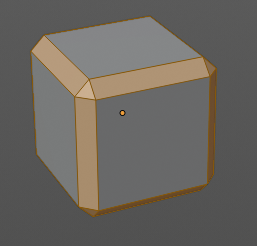
The Bevel Tool adds a bevel to the selected geometry.
Usage: first select the geometry that you want to bevel. Then activate the tool. Don't wonder that the mouse movement does nothing until you move the mouse really really far away. That's by design. Best is to adjust the amount in the Last Operator Bevel panel.
Tool Settings
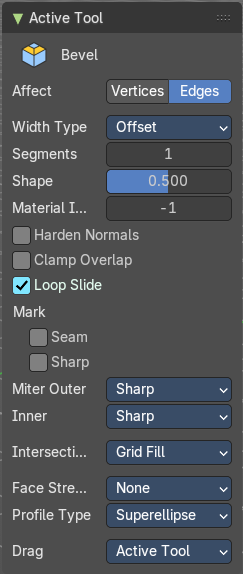
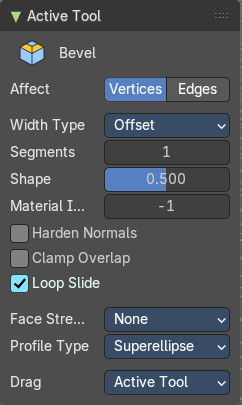
Affect
What geometry to bevel. Vertices or Edges.
Note that with Vertices some options are not available.
Width type
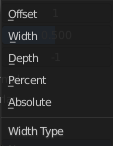
Which measure type to choose for the bevel action. Offset, Width, Depth or Percent.
Segments
How many segments gets created.
Shape
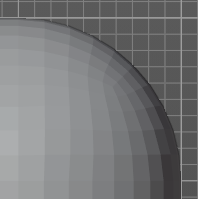
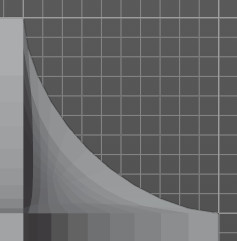
Controls the profile shape strength. A value close to 0 bends the roundness to inside. A value towards 1 bends the curve to outside. A value of 0.5 defines a radius around the center point of the bevel.
| Entry | What it does |
|---|---|
| Material Index | The material for bevel faces. -1 means to use the material from the adjacent faces. |
| Harden Normals | Match normals of new faces to adjacent faces. |
| Clamp Overlap | Do not allow beveled edges / vertices to overlap each other. |
| Loop Slide | Prefer sliding along edges to even widths. |
| Mark | Seam: Mark seam along beveled edges. · Sharp: Mark beveled edges as sharp. |
Miter outer
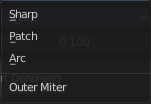
How the outer miter is set. Miter is how the bevel rounding at a corner is done.
Sharp
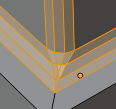
Creates a sharp miter.
Patch
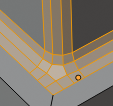
This replaces the outside vertex of a miter with 3 vertices. And uses a patch pattern there.
Arc
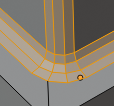
This replaces the vertex of a miter with 2 vertices, joined by an arc. A separate Spread parameter says how far to move the vertices away from their original position.
Miter Inner
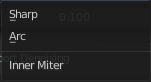
How the inner miter is set. Miter is how the bevel rounding at a corner is done.
Sharp
Creates a sharp miter.
Arc
This replaces the vertex of a miter with 2 vertices, joined by an arc. A separate Spread parameter says how far to move the vertices away from their original position.
Spread
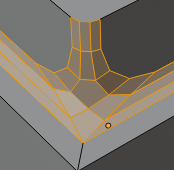
Belongs to inner miter method Arc. Adjust how strong the inner radius is bent.
Intersections
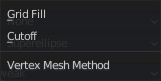
The method to use to create meshes at intersections. Bevel can create self intersecting geometry.
Face Strength Mode
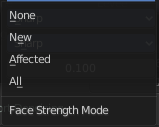
Set Face Strength on the faces involved in the bevel, according to the specified mode. This can be used in conjunction with a Weight Normals Modifier (with the Face Influence option checked).
| Entry | What it does |
|---|---|
| None | Do not set face strength. |
| New | Set the face strength of new faces along edges to Medium, and the face strength of new faces at vertices to Weak. |
| Affected | In addition to those set for the New case, also set the faces adjacent to new faces to have strength Strong. |
| All | In addition to those set for the Affected option, also set all the rest of the faces of the model to have strength Strong. |
Profile Type
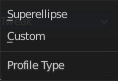
Which profile type to use. Super ellipse or Custom.
Custom Profile
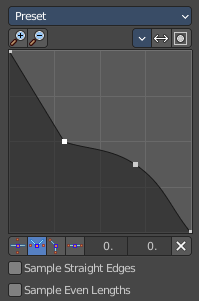
Choose and adjust a custom bevel profile. This feature needs more than one segment to work.
Preset
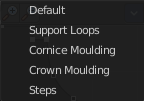
Choose some profile presets.
| Entry | What it does |
|---|---|
| Zoom in | Zooms into the curve view. |
| Zoom out | Zooms out of the curve view. |
Tools
Reset View
Resets the zoom factor of the curve view.
Reset Curve
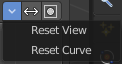
Resets the curve to the defaults. This means when you choose a curve preset to reset it to the values of the latest chosen preset.
| Entry | What it does |
|---|---|
| Reverse Path | The path gets reversed. The first point becomes the last and vice versa. |
| Toggle Profile Clipping | Toggles the profile clipping. |
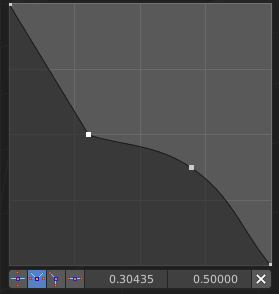
Curve view
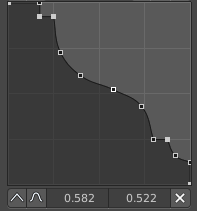
Adjust the profile curve.
Left click where no point is adds a new point. Left click at a point allows you to move it.
Holding down Shift while moving a node point activates precision movement.
Holding down ctrl while moving activates temporary snapping.
When a point is selected then the curve view reveals a sub menu at the bottom.
| Entry | What it does |
|---|---|
| Handle Type Auto Handle | Sets the handle type of this curve point to smooth. |
| Handle Type Vector Handle | Sets the handle type of this curve point to sharp. |
| Handle Type Free Handle | Sets the handle type of this curve to Free handles. The curve point has now two handles with which you can adjust the curve before and after the point each. |
| Handle Type Aligned Free Handle | Sets the handle type of this curve to Free handles. The curve point has now a handle with which you can adjust the curve. |
| X Y Values | The position of the currently selected curve point |
| Delete | Delete the selected curve point. |
| Entry | What it does |
|---|---|
| Sample Straight Edges | Sample edges with vector handles. |
| Sample Even Lengths | Sample edges with even lengths. |
Drag
When you click at the widget of the active tool, then you perform the tool action. Adjust what should happen when you click outside of the widget, in the empty area.
| Entry | What it does |
|---|---|
| Active Tool | When you click off the widget then the click still does the same than clicking at the widget. It performs the active tool. |
| Tweak, Select Box, Circle and Lasso | When you choose this options then you will set the off click to the different select methods. Whereas tweak works more than a move tool then. Tweak is the default. |
Last Operator Bevel
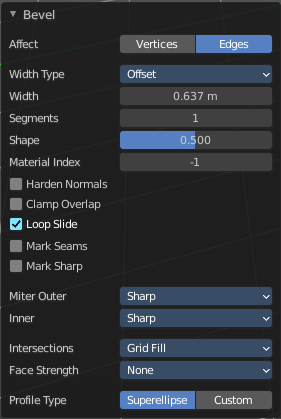
| Entry | What it does |
|---|---|
| Affect | What geometry to bevel. Vertices or Edges. |
| Width type | Which measure type to choose for the bevel action. Offset, Width, Depth or Percent. |
| Segments | How many segments gets created. |
Shape
Controls the profile shape strength. A value close to 0 bends the roundness to inside. A value towards 1 bends the curve to outside. A value of 0.5 defines a radius around the center point of the bevel.
| Entry | What it does |
|---|---|
| Material Index | The material for bevel faces. -1 means to use the material from the adjacent faces. |
| Harden Normals | Match normals of new faces to adjacent faces. |
| Clamp Overlap | Do not allow beveled geometry to overlap each other. |
| Loop Slide | Prefer slide along edge to even widths. |
| Mark Seams | Mark the edges of the new created geometry as seams. |
| Mark Sharp | Mark the edges of the new created geometry sharp. |
Outer Miter
How the outer miter is set. Miter is how the bevel rounding at a corner is done.
Sharp
Creates a sharp miter.
Patch
This replaces the outside vertex of a miter with 3 vertices. And uses a patch pattern there.
Arc
This replaces the vertex of a miter with 2 vertices, joined by an arc. A separate Spread parameter says how far to move the vertices away from their original position.
Inner Miter
How the inner miter is set. Miter is how the bevel rounding at a corner is done.
Sharp
Creates a sharp miter.
Arc
This replaces the vertex of a miter with 2 vertices, joined by an arc. A separate Spread parameter says how far to move the vertices away from their original position.
Spread
Belongs to inner miter method Arc. Adjust how strong the inner radius is bent.
Intersections
The method to use to create meshes at intersections. Bevel can create self intersecting geometry.
Face Strength Mode
Set Face Strength on the faces involved in the bevel, according to the specified mode. This can be used in conjunction with a Weight Normals Modifier (with the Face Influence option checked).
| Entry | What it does |
|---|---|
| None | Do not set face strength. |
| New | Set the face strength of new faces along edges to Medium, and the face strength of new faces at vertices to Weak. |
| Affected | In addition to those set for the New case, also set the faces adjacent to new faces to have strength Strong. |
| All | In addition to those set for the Affected option, also set all the rest of the faces of the model to have strength Strong. |
Profile Type

Which profile type to use. Super ellipse or Custom.
Profile Type Custom
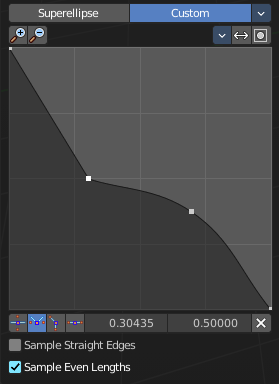
Choose and adjust a custom bevel profile. This feature needs more than one segment to work.
Preset
Choose some profile presets.
| Entry | What it does |
|---|---|
| Zoom in | Zooms into the curve view. |
| Zoom out | Zooms out of the curve view. |
Tools
Reset View
Resets the zoom factor of the curve view.
Reset Curve
Resets the curve to the defaults. This means when you choose a curve preset to reset it to the values of the latest chosen preset.
Reverse Path
The path gets reversed. The first point becomes the last and vice versa.
Toggle Profile Clipping
Toggles the profile clipping.
Curve view
Adjust the profile curve.
Left click where no point is adds a new point. Left click at a point allows you to move it.
Holding down Shift while moving a node point activates precision movement.
Holding down ctrl while moving activates temporary snapping.
When a point is selected then the curve view reveals a sub menu at the bottom.
| Entry | What it does |
|---|---|
| Handle Type Auto Handle | Sets the handle type of this curve point to smooth. |
| Handle Type Vector Handle | Sets the handle type of this curve point to sharp. |
| Handle Type Free Handle | Sets the handle type of this curve to Free handles. The curve point has now two handles with which you can adjust the curve before and after the point each. |
| Handle Type Aligned Free Handle | Sets the handle type of this curve to Free handles. The curve point has now a handle with which you can adjust the curve. |
| X Y Values | The position of the currently selected curve point |
| Delete | Delete the selected curve point. |
| Entry | What it does |
|---|---|
| Sample Straight Edges | Sample edges with vector handles. |
| Sample Even Lengths | Sample edges with even lengths. |
Loop Cut tools group
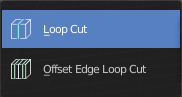
Loop Cut
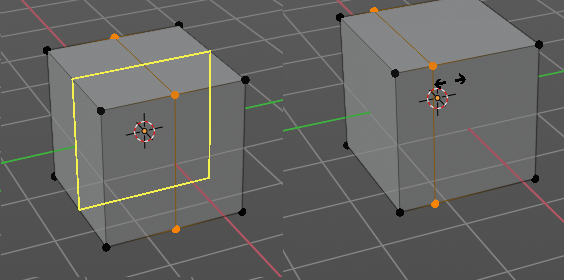
Loop Cut adds edge loops. When you hover with the mouse over the geometry then you will see a yellow line in the exact middle of the face(s). This is what will be the new cutted edge.
When you click once, then this edge gets created. When you click and hold, then you can move this edge to a new location.
Loop cut ignores selections. It will try to divide the face under the mouse, and continue the loop until it is closed, or until it cannot continue. At poles for example.
Tool Settings
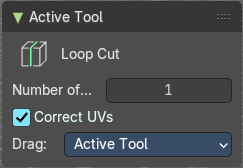
Number of Cuts
You can with one cut add more than one edge. Adjust the amount.

Note that here you need to adjust this setting before adding the loop. Note also that the yellow preview line will not show all added loops. But just the yellow line.
The settings remains its values as long as you don't close Bforartists and restart it.
Correct UV's
Correct the UV's when transforming the new added loop.
Drag
When you click at the widget of the active tool, then you perform the tool action. Adjust what should happen when you click outside of the widget, in the empty area.
| Entry | What it does |
|---|---|
| Active Tool | When you click off the widget then the click still does the same than clicking at the widget. It performs the active tool. |
| Tweak, Select Box, Circle and Lasso | When you choose this options then you will set the off click to the different select methods. Whereas tweak works more than a move tool then. Tweak is the default. |
Last Operator Loop Cut and Slide
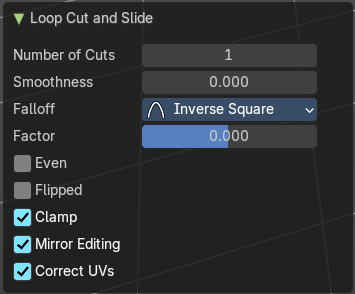
Note that all settings here just changes the latest added loop. Not all added loops in the current session.
Number of Cuts
The number of cuts that gets added. It can be more than one loop at once.
Smoothness
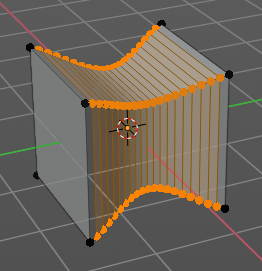
This value defines how smooth the loop cut gets added. From flat to bent.
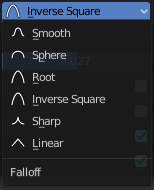
Falloff
Adjust the Falloff type for smoothness.
Factor
Change the center of the added loop.
| Entry | What it does |
|---|---|
| Even | Make the edge loop match the shape of the adjacent edge loop |
| Flipped | When Even mode is active, flips between the two adjacent edge loops. |
| Clamp | Clamp within the edge extend. |
| Mirror Editing | Enables mirror editing. |
| Correct UV's | Corrects the UV's when modifying the geometry. |
Offset Edge Loop Cut
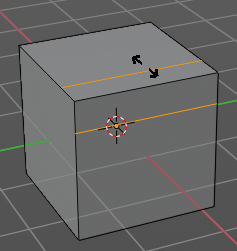
Slides the selected edge(s)
Usage: select the edges that you want to slide. Click to confirm.
You can adjust the sliding amount in the Last Operator Offset Edge Slide.
Last Operator Offset Edge Slide
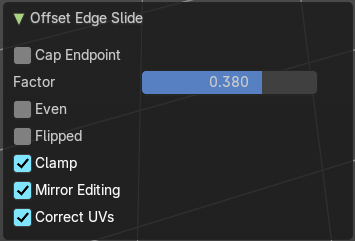
Cap Endpoint
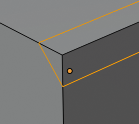
Cap Endpoint caps the loose edges.
| Entry | What it does |
|---|---|
| Edge Slide Factor | Adjust the slide amount. |
| Even | Make the edge loop match the shape of the adjacent edge loop |
| Flipped | When Even mode is active, flips between the two adjacent edge loops. |
| Clamp | Clamp within the edge extend. |
| Mirror Editing | Enables mirror editing. |
| Correct UV's | Corrects the UV's when modifying the geometry. |
Knife Tool Group
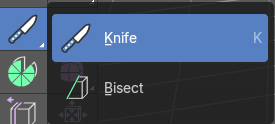
Knife tool
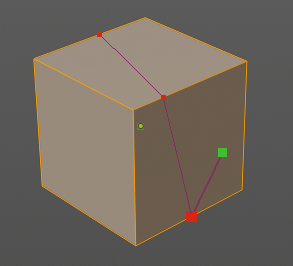
The Knife tool cuts the geometry, and adds edges. When it crosses existing geometry then it adds a vertice at the crossing point.
Usage: activate the tool, left click to define the starting point. This can also be a point in the middle of a face. But ideally you choose an existing vertice or an edge as the start and endpoints. The knife tool tries to snap to them when you get close with the mouse cursor.
When done press Enter or Spacebar to confirm. Right click abandons the operation.
When you create a vertice in the middle of a face, then the knife tool will try to connect this vertice by an existing vertice of this face when you confirm with spacebar.
The Knife tool can now cut through multiple objects in edit mode. You need to enter edit mode with these objects. Hold down shift to select the other objects ...
Hotkey functionality in the footer text

Have a look at the footer when you work with this tool. Here you will find further instructions and hotkeys.
Enter, Pad Enter, Spacebar - confirm
Esc key, RMB - cancel the operation
LMB start the cut
Double LMB - close the cut
E - create new cut
Ctrl or Shift while dragging - Snap to the middle of an edge
Z - cut through the whole geometry, also the backfaces.
MMB - pan the view.
Alt MMB - rotate the view.
S - activate the measure tools. Holding down S will cycle through the three measure modes. Only Distance, Only Angles and both distance and angle measurement.
A - activate the angle constraint.
Tool Settings
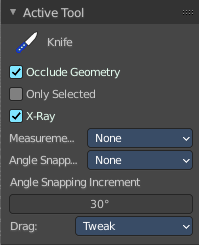
| Entry | What it does |
|---|---|
| Occlude Geometry | Just cut the visible geometry that points towards you. Not the backfaces. |
| Only Selected | Just cut through selected geometry. Not through not selected. |
| X-Ray | Show cuts through the geometry. |
Measurements
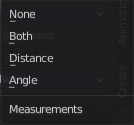
The measurements modes. The names should be self explaining.
Angle Snapping
Activate snap to angles. When active then the knife cut snaps to an angle either aligned to the screen or relative to the object.
Angle Snapping Increment
The snapping angle in case the angle snappping tool is active.
Drag
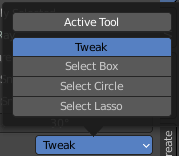
When you click at the widget of the active tool, then you perform the tool action. Adjust what should happen when you click outside of the widget, in the empty area.
| Entry | What it does |
|---|---|
| Active Tool | When you click off the widget then the click still does the same than clicking at the widget. It performs the active tool. |
| Tweak, Select Box, Circle and Lasso | When you choose this options then you will set the off click to the different select methods. Whereas tweak works more than a move tool then. Tweak is the default. |
Bisect
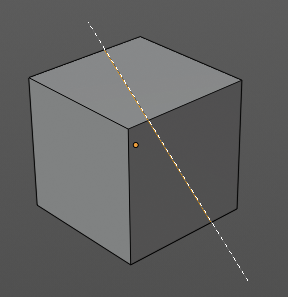
Bisect cuts geometry along a plane. This description is a bit misleading though. You simply cut through the whole geometry by defining a line. And the cut goes through the geometry from the current view.
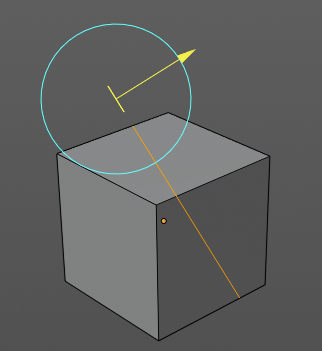
When you have set your cut and release the mouse then you reveal a widget with which you can move and rotate the cut. Clicking at the arrow and drag moves the cut. Clicking at the circle and drag rotates the cut.
Tool Settings
Fill
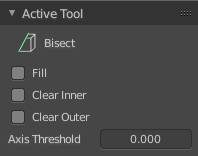
Fills the cut.
| Entry | What it does |
|---|---|
| Clear Inner | Removes the inner part of the face to cut. |
| Clear Outer | Removes the outer part of the face to cut. · Axis threshold: Axis threshold. |
Last Operator Bisect
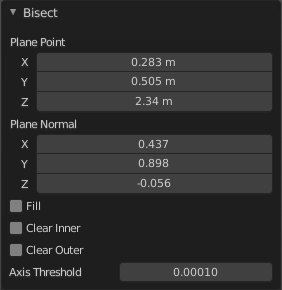
| Entry | What it does |
|---|---|
| Plane Point X , Y , Z | Defines the start point of the Bisect cut. |
| Plane Normal X , Y , Z | The direction in which the bisect points. |
| Fill | Fills the cut. |
| Clear Inner | Removes the inner part of the face to cut. |
| Clear Outer | Removes the outer part of the face to cut. |
| Axis threshold | Axis threshold. |
Poly Build
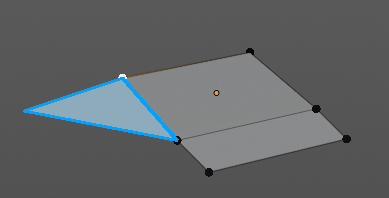
This tool extrudes out edges and faces from the border of existing open geometry.
The tool will not work at a cube, since here it cannot extrude out an existing polygon from a border. There is no border since the geometry is closed.
Usage:
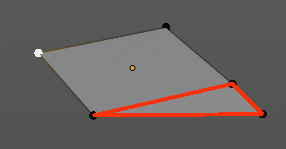
Move the mouse over an edge until it turns blue. Then you can left click and drag to extrude it out.
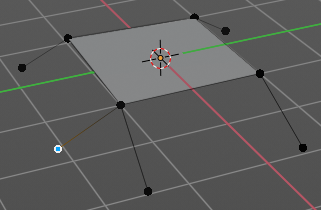
Holding ctrl and clicking will extrude the last selected element to the mouse cursor. To extrude out an edge from a vertice don't click with left mouse. This would create a polygon. But with right mouse button.
Holding down shift allows you to mark vertices, edges or polygons that you want to remove. By clicking the selected geometry will be deleted.
You can just work at one edge at a time.
Tool Settings
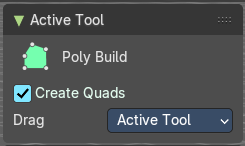
Create Quads
Create quad or tri geometry.
Drag
When you click at the widget of the active tool, then you perform the tool action. Adjust what should happen when you click outside of the widget, in the empty area.
| Entry | What it does |
|---|---|
| Active Tool | When you click off the widget then the click still does the same than clicking at the widget. It performs the active tool. |
| Tweak, Select Box, Circle and Lasso | When you choose this options then you will set the off click to the different select methods. Whereas tweak works more than a move tool then. Tweak is the default. |
Last Operator
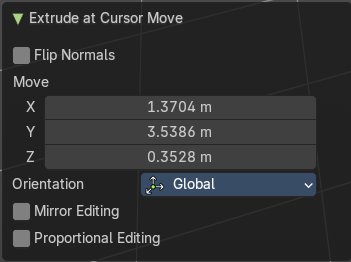
We have two last operators here, dependent of which method we use. Dragging out edges will reveal the Extrude At Cursor Move panel. Holding down Ctrl will reveal the Face at Cursor Move panel.
Extrude At Cursor Move panel
| Entry | What it does |
|---|---|
| Flip Normals | Flips the normals of the extruded faces. |
| Move X, Y Z | The position of the new created element. Attention, the actual world orientation and rotation does not matter here. It always starts with a value of zero, and moves relative to this zero then. For the actual location values have a look in the sidebar in the transform panel. |
Orientation
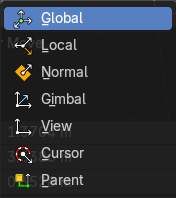
The widget can have different orientations. The menu items should be self explaining.
Mirror Editing
Enable Mirror Editing.
Face at Cursor Move panel
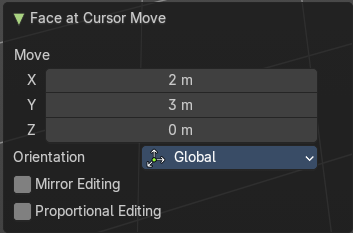
Move X, Y Z
The position of the new created element. Attention, the actual world orientation and rotation does not matter here. It always starts with a value of zero, and moves relative to this zero then. For the actual location values have a look in the sidebar in the transform panel.
Orientation
The widget can have different orientations. The menu items should be self explaining.
Mirror Editing
Enable Mirror Editing.
Proportional editing
Enables proportional editing. Activating proportional editing reveals further settings.
| Entry | What it does |
|---|---|
| Proportional Falloff | Adjust the falloff methods. |
| Proportional Size | See and adjust the falloff radius. |
| Connected | The proportional falloff gets calculated for connected parts only. |
| Projected(2D) | The proportional falloff gets calculated in the screen space. Depth doesn't play a role. When it's in the radius, then it gets calculated. |
Spin
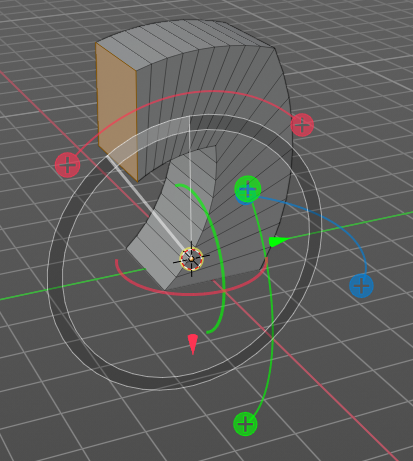
The Spin tool extrudes the selection and spins it by a defined amount and segments. This amount and number of segments can be adjusted.
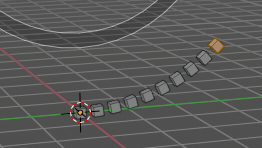
When you activate the tool then you reveal some widgets with various handlers.
You can spin vertices, edges and faces. And even whole closed objects.
Usage
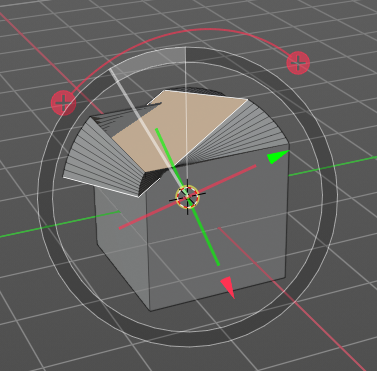
Select the geometry that you want to spin out. In our case we choose a face at a cube.
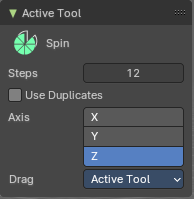
The first thing that you need to is to activate the correct Axis widget, which can be done in the Tool Settings. The ones with the big + buttons at the end defines in which direction the extrusion happens. And when you touch them then you start the spin extrusion. The rest of the widget functionality should be self explaining. You have handlers to pull and to rotate.
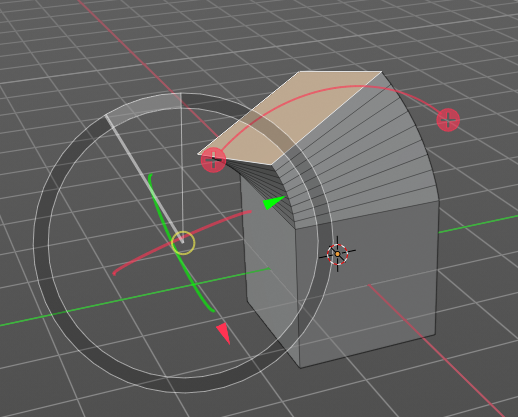
Hint, you activate all three axis widgets by holding down shift, and clicking at the axis buttons in the tool settings.
The second step is then to move the center of the spin to the desired location to get the rotation that you want. This can be done by the move handler. Or you click into the middle of the widget, at the white circle there, and drag it around.
For an accurate rotation around a single axis you should work in one of the orthographic views.
Tool Settings
| Entry | What it does |
|---|---|
| Steps | The number of divisions. |
| Use Duplicates | With duplicate checked the geometry gets duplicated instead of extruded. · Axis: Activates the axis handler to perform the spin operation. Hint, you activate all three axis widgets by holding down shift, and clicking at the axis buttons in the tool settings. |
Drag
When you click at the widget of the active tool, then you perform the tool action. Adjust what should happen when you click outside of the widget, in the empty area.
| Entry | What it does |
|---|---|
| Active Tool | When you click off the widget then the click still does the same than clicking at the widget. It performs the active tool. |
| Tweak, Select Box, Circle and Lasso | When you choose this options then you will set the off click to the different select methods. Whereas tweak works more than a move tool then. Tweak is the default. |
Last Operator Spin
Steps
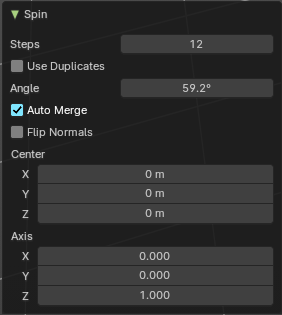
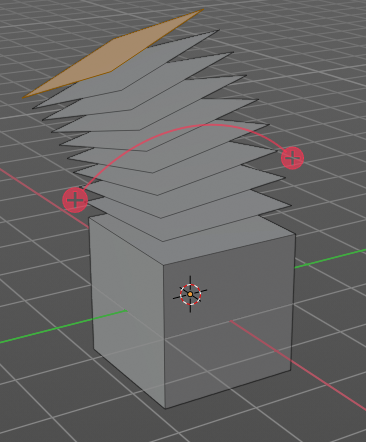
Steps is the number of segments.
| Entry | What it does |
|---|---|
| Duplicate | With duplicate checked the geometry gets duplicated instead of extruded. |
| Angle | Angle defines the angle of the spin. |
| Center X Y Z | The Center edit boxes defines the center of the radius for the spin operation. In our example the X value is set to 2, and the Z value is set to 1. |
| Axis X Y Z | Axis defines the extrude direction. With X and Z values you can twist the result. |
Smooth / Randomize Tools group
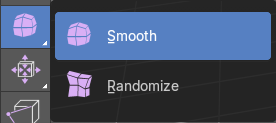
Smooth
Smoothens the selected vertices.
Usage
Activate the tool, move the mouse.
Tool Settings
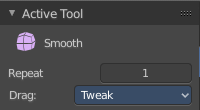
Repeat
How often the smoothing should be applied.
Drag
When you click at the widget of the active tool, then you perform the tool action. Adjust what should happen when you click outside of the widget, in the empty area.
| Entry | What it does |
|---|---|
| Active Tool | When you click off the widget then the click still does the same than clicking at the widget. It performs the active tool. |
| Tweak, Select Box, Circle and Lasso | When you choose this options then you will set the off click to the different select methods. Whereas tweak works more than a move tool then. Tweak is the default. |
Last Operator Smooth Vertices
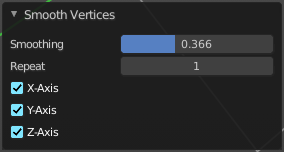
| Entry | What it does |
|---|---|
| Smoothing | The smoothing factor. |
| Repeat | How often the smoothing should be applied. |
| X Axis, Y Axis, Z Axis | Which axis to affect |
Randomize
Randomizes the selected vertices.
Usage
Activate the tool, move the mouse.
Tool Settings
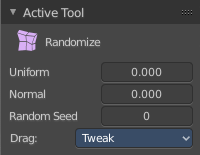
| Entry | What it does |
|---|---|
| Uniform | Uniform offset. The higher the value the more uniform the offset becomes. |
| Normal | Align the random offset to the normals. This is a factor. 0 means no offset but completely random vertices positions. 1 means completely aligned with the normal axis, and just along this normal axis. |
| Random Seed | The seed for the randomization. |
Drag
When you click at the widget of the active tool, then you perform the tool action. Adjust what should happen when you click outside of the widget, in the empty area.
| Entry | What it does |
|---|---|
| Active Tool | When you click off the widget then the click still does the same than clicking at the widget. It performs the active tool. |
| Tweak, Select Box, Circle and Lasso | When you choose this options then you will set the off click to the different select methods. Whereas tweak works more than a move tool then. Tweak is the default. |
Last Operator Smooth Vertices
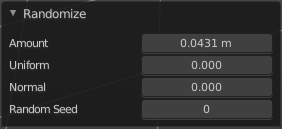
| Entry | What it does |
|---|---|
| Amount | The randomization amount. |
| Uniform | Uniform offset. The higher the value the more uniform the offset for all vertices becomes. |
| Normal | Align the random offset to the normals. This is a factor. 0 means no offset but completely random vertices positions. 1 means completely aligned with the normal axis, and just along this normal axis. |
| Random Seed | The seed for the randomization. |
Edge and Vertex Slide Tools Group
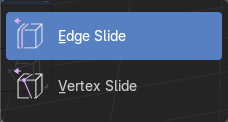
Edge Slide
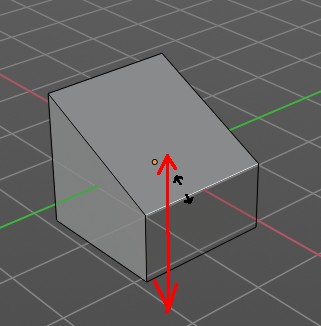
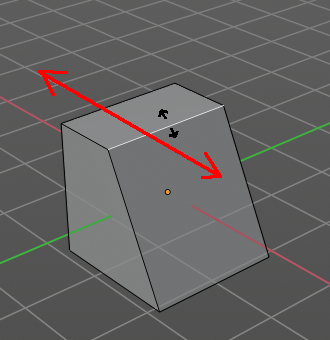
Edge Slide slides the selected edge along the face that it is part of. This is for the edge at a cube into two possible directions.
This tool requires to have at least one edge selected.
Header Values

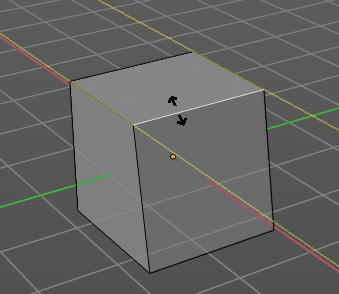
The header values shows you the current transformation. But also hints towards a hotkey.
Holding down Alt will allow you to slide the edges behind the limits of the guide edge. Yellow infinite guide lines appears.
Tool Settings
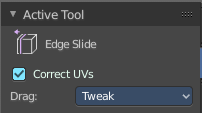
Correct UV's
Correct UV's corrects the UV's while editing the geometry.
Drag
When you click at the widget of the active tool, then you perform the tool action. Adjust what should happen when you click outside of the widget, in the empty area.
| Entry | What it does |
|---|---|
| Active Tool | When you click off the widget then the click still does the same than clicking at the widget. It performs the active tool. |
| Tweak, Select Box, Circle and Lasso | When you choose this options then you will set the off click to the different select methods. Whereas tweak works more than a move tool then. Tweak is the default. |
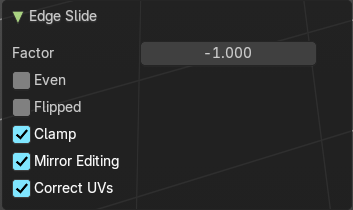
Last Operator Edge Slide
| Entry | What it does |
|---|---|
| Factor | Factor is a sliding box Adjust the slide strength numerically. The width of the face is the 0-1 range. |
| Even | Make the Edge loop match the shape of the adjacent edge loop. |
| Flipped | When Even Mode is active, flips between the two adjacent edge loops. |
| Clamp | Clamp within the edge extend. |
| Mirror Editing | Enables Mirror Editing. |
| Correct UV's | Correct UV's corrects the UV's while editing the geometry. |
Vertex Slide
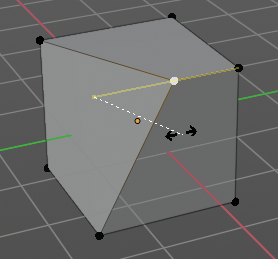
Vertex Slide slides the selected vertice along the edge that it is part of. This is for the corner vertice at a cube into three possible directions.
Header Values

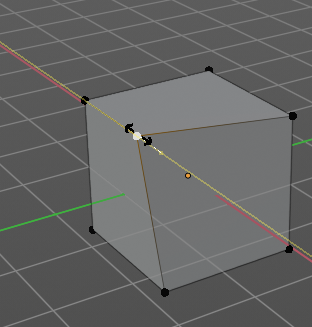
The header values shows you the current transformation. But also hints towards a hotkey.
Holding down Alt will allow you to slide the edges behind the limits of the guide edge. Yellow infinite guide lines appears.
Tool Settings
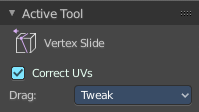
Correct UV's
Correct UV's corrects the UV's while editing the geometry.
Drag
When you click at the widget of the active tool, then you perform the tool action. Adjust what should happen when you click outside of the widget, in the empty area.
| Entry | What it does |
|---|---|
| Active Tool | When you click off the widget then the click still does the same than clicking at the widget. It performs the active tool. |
| Tweak, Select Box, Circle and Lasso | When you choose this options then you will set the off click to the different select methods. Whereas tweak works more than a move tool then. Tweak is the default. |
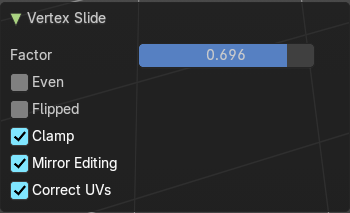
Last Operator Vertex Slide
| Entry | What it does |
|---|---|
| Factor | Factor is a sliding box Adjust the slide strength numerically. The width of the face is the 0-1 range. |
| Even | Make the Edge loop match the shape of the adjacent edge loop. |
| Flipped | When Even Mode is active, flips between the two adjacent edge loops. |
| Clamp | Clamp within the edge extend. |
| Mirror Editing | Enables Mirror Editing. |
| Correct UV's | Correct UV's corrects the UV's while editing the geometry. |
Shrink/Fatten / Push/Pull Tools Group
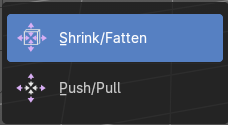
Shrink / Fatten
Shrink / Fatten shrinks or fattens the selection. The faces moves along the normals of the faces.
Header Values

The header values shows you the current transformation. But also hints towards a hotkey. Holding down Alt will turn off Even Thickness.
Tool Settings
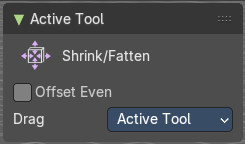
Offset Even
Scales the offset to give more even thickness. Without this checked the farer away faces will have a bigger extrude amount.
Drag
When you click at the widget of the active tool, then you perform the tool action. Adjust what should happen when you click outside of the widget, in the empty area.
| Entry | What it does |
|---|---|
| Active Tool | When you click off the widget then the click still does the same than clicking at the widget. It performs the active tool. |
| Tweak, Select Box, Circle and Lasso | When you choose this options then you will set the off click to the different select methods. Whereas tweak works more than a move tool then. Tweak is the default. |
Last Operator Shrink/Fatten
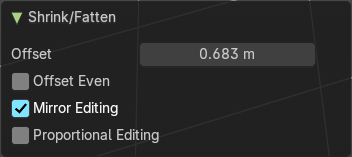
| Entry | What it does |
|---|---|
| Offset | The offset amount |
| Offset Even | Scales the offset to give more even thickness. Without this checked the farer away faces will have a bigger extrude amount. |
| Mirror Editing | Enables Mirror Editing. |
Proportional editing
Enables proportional editing. Activating proportional editing reveals further settings.
| Entry | What it does |
|---|---|
| Proportional Falloff | Adjust the falloff methods. |
| Proportional Size | See and adjust the falloff radius. |
| Connected | The proportional falloff gets calculated for connected parts only. |
| Projected(2D) | The proportional falloff gets calculated in the screen space. Depth doesn't play a role. When it's in the radius, then it gets calculated. |
Push/Pull
It pushes or pulls the selection relative to the center of the selection.
Header Values
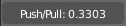
The header values shows you the current transformation.
Tool Settings
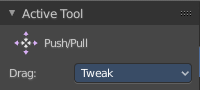
Offset Even
Scales the offset to give more even thickness. Without this checked the farer away faces will have a bigger extrude amount.
Drag
When you click at the widget of the active tool, then you perform the tool action. Adjust what should happen when you click outside of the widget, in the empty area.
| Entry | What it does |
|---|---|
| Active Tool | When you click off the widget then the click still does the same than clicking at the widget. It performs the active tool. |
| Tweak, Select Box, Circle and Lasso | When you choose this options then you will set the off click to the different select methods. Whereas tweak works more than a move tool then. Tweak is the default. |
Last Operator Push/Pull
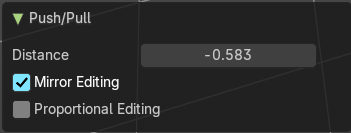
| Entry | What it does |
|---|---|
| Distance | The push pull amount |
| Mirror Editing | Enables Mirror Editing. |
Proportional editing
Enables proportional editing. Activating proportional editing reveals further settings.
| Entry | What it does |
|---|---|
| Proportional Falloff | Adjust the falloff methods. |
| Proportional Size | See and adjust the falloff radius. |
| Connected | The proportional falloff gets calculated for connected parts only. |
| Projected(2D) | The proportional falloff gets calculated in the screen space. Depth doesn't play a role. When it's in the radius, then it gets calculated. |
Shear and To Sphere Tools Group
Shear
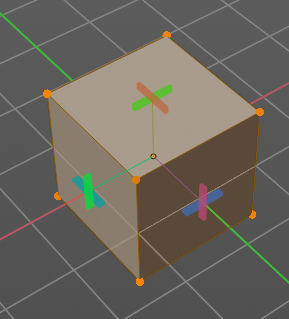
Shear shears the selection. When you activate the tool then you will reveal a widget. This widget allows you to shear the selection in all possible axis.
Tool Settings
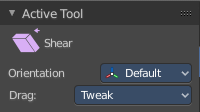
Orientation
Choose the orientation for the shear action.
Drag
When you click at the widget of the active tool, then you perform the tool action. Adjust what should happen when you click outside of the widget, in the empty area.
| Entry | What it does |
|---|---|
| Active Tool | When you click off the widget then the click still does the same than clicking at the widget. It performs the active tool. |
| Tweak, Select Box, Circle and Lasso | When you choose this options then you will set the off click to the different select methods. Whereas tweak works more than a move tool then. Tweak is the default. |
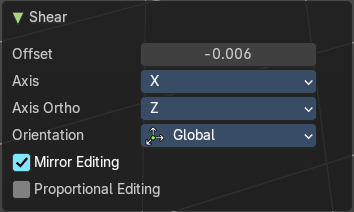
Last Operator Shear
| Entry | What it does |
|---|---|
| Offset | Adjust an offset. |
| Axis | Defines one axis of the imaginary shear axis plane. |
| Axis Ortho | Defines the other axis of the imaginary shear axis plane. |
Orientation
Choose the orientation for the shear action.
Mirror Editing
Enables Mirror Editing.
Proportional editing
Enables proportional editing. Activating proportional editing reveals further settings.
| Entry | What it does |
|---|---|
| Proportional Falloff | Adjust the falloff methods. |
| Proportional Size | See and adjust the falloff radius. |
| Connected | The proportional falloff gets calculated for connected parts only. |
| Projected(2D) | The proportional falloff gets calculated in the screen space. Depth doesn't play a role. When it's in the radius, then it gets calculated. |
To Sphere
Shapes a selection of objects into the shape of a sphere. The calculation happens with the object origins.
In Object mode this tools requires to have more than one object selected.
Usage
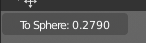
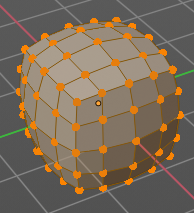
Select the vertices, activate the tool, then drag the mouse in the 3D viewport. In the header you will read the current factor then. Which tells you how close you are towards the sphere shape.
Last Operator To Sphere
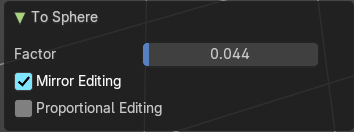
Factor
The factor to transform the selection into a shape form.
Mirror Editing
Enables Mirror Editing.
Proportional editing
Enables proportional editing. Activating proportional editing reveals further settings.
| Entry | What it does |
|---|---|
| Proportional Falloff | Adjust the falloff methods. |
| Proportional Size | See and adjust the falloff radius. |
| Connected | The proportional falloff gets calculated for connected parts only. |
| Projected(2D) | The proportional falloff gets calculated in the screen space. Depth doesn't play a role. When it's in the radius, then it gets calculated. |
Rip Tools Group
Rip Vertices
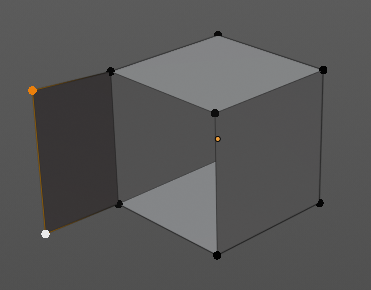
Rip splits the edges between the selected vertices. It creates two edges out of one.
This tool works similar to the Edge Split tool. It also selects the outer edges so that you immediately move them. Right click will snap them back to the initial space.
Tool Settings
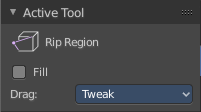
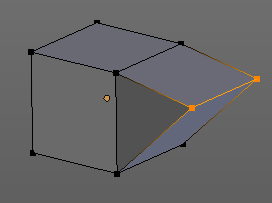
Fill
Fills the gap between the new edges when you move the geometry.
Drag
When you click at the widget of the active tool, then you perform the tool action. Adjust what should happen when you click outside of the widget, in the empty area.
| Entry | What it does |
|---|---|
| Active Tool | When you click off the widget then the click still does the same than clicking at the widget. It performs the active tool. |
| Tweak, Select Box, Circle and Lasso | When you choose this options then you will set the off click to the different select methods. Whereas tweak works more than a move tool then. Tweak is the default. |
Last Operator Rip
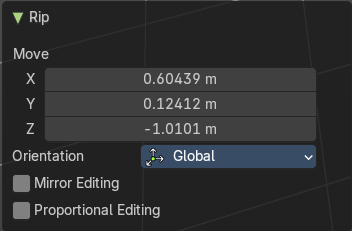
Move X , Y , Z
Adjust the position.
Constraint Axis
Limit the position relative to the source object.
Orientation
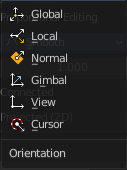
Orientation is a drop-down box. Choose the type of orientation for the mirroring action.
Mirror Editing
Enables Mirror Editing.
Proportional editing
Enables proportional editing. Activating proportional editing reveals further settings.
Proportional Falloff
Adjust the falloff methods.
| Entry | What it does |
|---|---|
| Proportional Size | See and adjust the falloff radius. |
| Connected | The proportional falloff gets calculated for connected parts only. |
| Projected(2D) | The proportional falloff gets calculated in the screen space. Depth doesn't play a role. When it's in the radius, then it gets calculated. |
Rip Edge
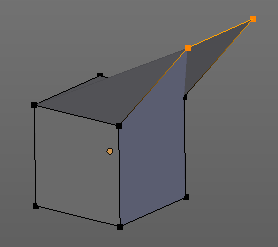
Rip Edge extrudes out the selected vertices. When you do this operation at an edge then you will create N-Gons that way.
Tool Settings
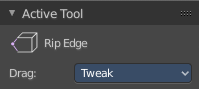
Drag
When you click at the widget of the active tool, then you perform the tool action. Adjust what should happen when you click outside of the widget, in the empty area.
| Entry | What it does |
|---|---|
| Active Tool | When you click off the widget then the click still does the same than clicking at the widget. It performs the active tool. |
| Tweak, Select Box, Circle and Lasso | When you choose this options then you will set the off click to the different select methods. Whereas tweak works more than a move tool then. Tweak is the default. |
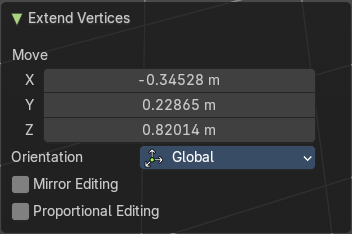
Last Operator Extend Vertices
| Entry | What it does |
|---|---|
| Move X , Y , Z | Adjust the position. |
| Constraint Axis | Limit the position relative to the source object. |
Orientation
Orientation is a drop-down box. Choose the type of orientation for the mirroring action.
| Entry | What it does |
|---|---|
| Mirror Editing | Enables Mirror Editing. |
| Proportional editing | Enables proportional editing. Activating proportional editing reveals further settings. · Proportional Falloff: Adjust the falloff methods. · Proportional Size: See and adjust the falloff radius. · Connected: The proportional falloff gets calculated for connected parts only. |
| Projected(2D) | The proportional falloff gets calculated in the screen space. Depth doesn't play a role. When it's in the radius, then it gets calculated. |