

































































Grease Pencil - Edit Mode
Here you can find tools to edit the curve geometry of the grease pencil strokes.
Tool Shelf - Grease Pencil - Edit Mode
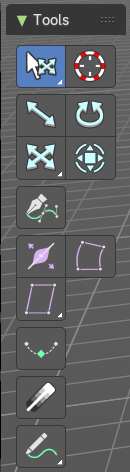
Here you can find tools to edit the curve geometry of the grease pencil strokes.
Tweak, Select, Transform, 3D Cursor Measure and Annotate tools
The tweak, select, transform, 3d cursor, measure and annotate tools at the end of the list are explained in the chapter 7.1.1 Editors - 3D View - Tool Shelf - Object Mode. We won't cover this tools again here.
Pen
Extrude selected curve points to the mouse click position.
Tool Settings
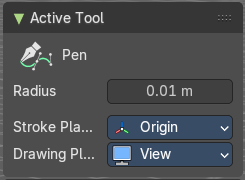
Radius
The thickness of the generated stroke.
Stroke Placement
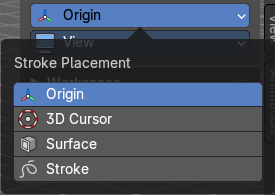
Where to place the stroke, relative to what element.
Drawing Plane
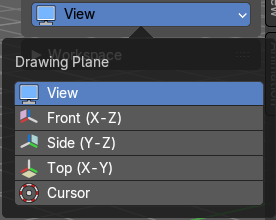
What view plane to use for drawing.
Radius
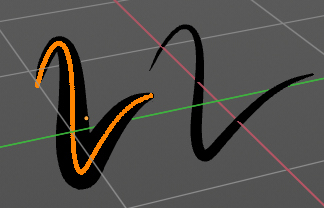
Bezier curves have a radius. This is displayed by the black lines that points away from the curve. The radius tool allows you to resize this radius.
Header Value

When you resize the curve radius then you will see a value in the header. It tells you the current scale factor. This factor always starts with 1.
Tool Settings
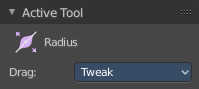
Drag
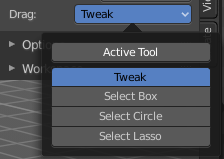
When you click at the widget of the active tool, then you perform the tool action. Adjust what should happen when you click outside of the widget, in the empty area.
| Entry | What it does |
|---|---|
| Active Tool | When you click off the widget then the click still does the same than clicking at the widget. It performs the active tool. |
| Tweak, Select Box, Circle and Lasso | When you choose this options then you will set the off click to the different select methods. Whereas tweak works more than a move tool then. Tweak is the default. |
Last Operator Transform
| Entry | What it does |
|---|---|
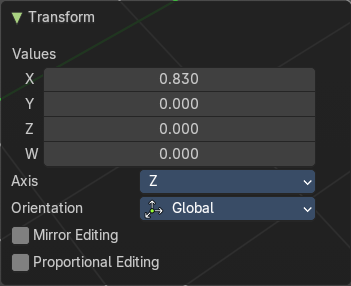
| Values X Y Z W | The axis to increase the radius. Just X has an effect with the curve radius. |
| Axis | The axis to use. This has no effect with a curve object. |
Orientation
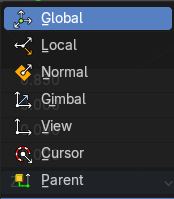
Adjust the orientation of the extrusion. It usually starts with Normal.
| Entry | What it does |
|---|---|
| Mirror Editing | Enable mirror editing. |
| Proportional editing | Enables proportional editing. Activating proportional editing reveals further settings. · Proportional Falloff: Adjust the falloff methods. · Proportional Size: See and adjust the falloff radius. · Connected: The proportional falloff gets calculated for connected parts only. · Projected(2D): The proportional falloff gets calculated in the screen space. Depth doesn't play a role. When it's in the radius, then it gets calculated. |
Bend
Bends the selection.
| Entry | What it does |
|---|---|
| Snapping | Holding down Ctrl activates temporary global snapping. |
| Precision movement | When you hold down shift, then you will have a much slower but also much preciser movement. |
Header Values

When you move the mouse then you will see some values in the header, which shows the current scale factor. This value is relative to the starting value, which always starts with 1.
Shear / To Sphere Tools group
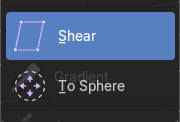
Shear
| Entry | What it does |
|---|---|
| Snapping | Holding down Ctrl activates temporary global snapping. |
| Precision movement | When you hold down shift, then you will have a much slower but also much preciser movement. |
Header Values

When you move the mouse then you will see some values in the header, which shows the current scale factor. This value is relative to the starting value, which always starts with 1.
Hotkeys
As shown in the header, you can press X or Y to set the shear axis.
Tool Settings
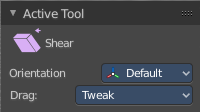
Orientation
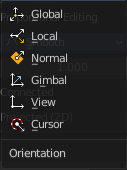
Choose the orientation for the shear action.
Drag
When you click at the widget of the active tool, then you perform the tool action. Adjust what should happen when you click outside of the widget, in the empty area.
| Entry | What it does |
|---|---|
| Active Tool | When you click off the widget then the click still does the same than clicking at the widget. It performs the active tool. |
| Tweak, Select Box, Circle and Lasso | When you choose this options then you will set the off click to the different select methods. Whereas tweak works more than a move tool then. Tweak is the default. |
Last Operator Shear
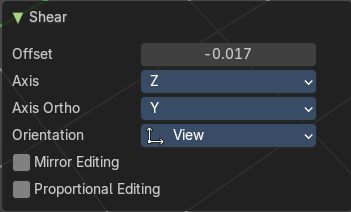
| Entry | What it does |
|---|---|
| Offset | Adjust an offset. |
| Axis | Defines one axis of the imaginary shear axis plane. |
Axis Ortho
Defines the other axis of the imaginary shear axis plane.
Orientation
Choose the orientation for the shear action.
| Entry | What it does |
|---|---|
| Mirror Editing | Enable mirror editing. |
| Proportional editing | Enables proportional editing. Activating proportional editing reveals further settings. · Proportional Falloff: Adjust the falloff methods. · Proportional Size: See and adjust the falloff radius. · Connected: The proportional falloff gets calculated for connected parts only. · Projected(2D): The proportional falloff gets calculated in the screen space. Depth doesn't play a role. When it's in the radius, then it gets calculated. |
To Sphere
Transforms the selection into a sphere shape.
| Entry | What it does |
|---|---|
| Snapping | Holding down Ctrl activates temporary global snapping. |
| Precision movement | When you hold down shift, then you will have a much slower but also much preciser movement. |
Header Values
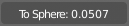
When you move the mouse then you will see some values in the header, which shows the current to sphere factor. This value is relative to the starting value, which always starts with 0.
Last Operator To Sphere
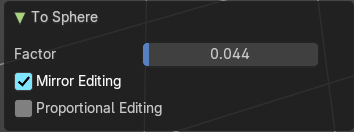
Factor
The factor to transform the selection into a shape form.
Mirror Editing
Enables Mirror Editing.
Proportional editing
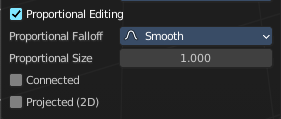
Enables proportional editing. Activating proportional editing reveals further settings.
| Entry | What it does |
|---|---|
| Proportional Falloff | Adjust the falloff methods. |
| Proportional Size | See and adjust the falloff radius. |
| Connected | The proportional falloff gets calculated for connected parts only. |
| Projected(2D) | The proportional falloff gets calculated in the screen space. Depth doesn't play a role. When it's in the radius, then it gets calculated. |
Interpolate
Interpolate grease pencil strokes between animation frames.
Active Tool panel
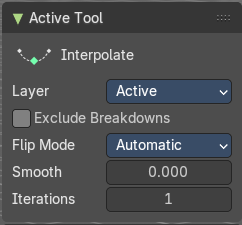
Layer
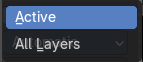
Layers included in the interpolation.
Exclude Breakdowns
Exclude existing breakdowns keyframes as interpolation extremes.
Flip Mode
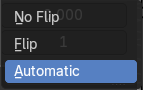
The method to invert destination stroke to match start and end with source stroke.
| Entry | What it does |
|---|---|
| Smooth | Amount of smoothing to apply to interpolate strokes, to reduce jitter and noise. |
| Iterations | Number of times to smooth newly created strokes. |
Gradient
Draw a line to set the fill material gradient for the selected stroke.