

































































Grease Pencil - Draw Mode
In Sculpt Mode you will mainly find draw tools in the tool shelf.
Tool Shelf - Grease Pencil - Draw Mode
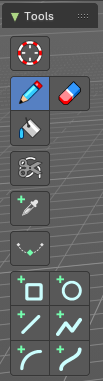
In Sculpt Mode you will mainly find draw tools in the tool shelf.
The brushes settings are covered in the chapter 7.3.12 Editors - 3D View - Sidebar - Tool Tab - Grease Pencil - Draw Mode
For the Annotate tools group see chapter 7.2.1 Editors - 3D View - Tool Shelf - Object Mode
3D Cursor Tool
The 3D cursor tool is explained in the chapter 7.2.1 Editors - 3D View - Tool Shelf - Object Mode. We won't cover this tool again here.
Footer

Some of the brushes and tools shows some further information in the footer.
Hotkeys
Some tools have some additional hotkey functionality. We will cover it one by one.
Brush

The Brush tool allows you to draw free-hand strokes. You paint with the left mouse. There are various brushes available.
Holding down Shift while drawing reveals a stabilizer widget which gives you more fine control over painting the stroke.
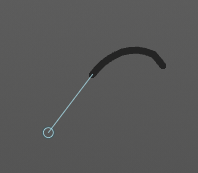
Holding down Alt while drawing ill allow you to draw straight horizontal or vertical lines.
Holding down Ctrl while drawing will turn the brush into an eraser brush.
Pressing B will allow you to box select stroke parts and delete them.
Draw Color
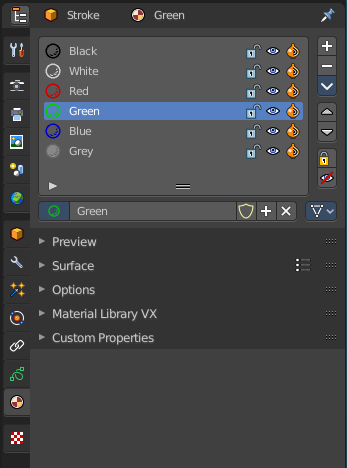
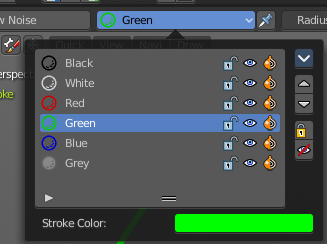
The Draw color is in real a material. To change the color you need to change the material. Or create one with the color that you need. The Grease Pencil Stroke object comes already with a few predefined colors. You can choose between them in the header tools area.
New materials can be created in the Properties editor in the Materials tab. You can also change the color of an existing material. But note that all previously drawn strokes will also change their color then. It is one material for one color.
Erase
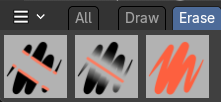
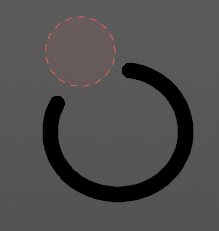
Erase stroke curve points under the mouse.
Fill
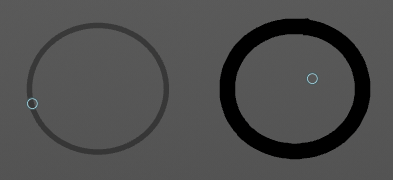
This tool does not fill, but extend strokes of closed strokes areas by click drag, coming from the border. For example, when you create a Bezier circle. When you then click in the inner area, drag the mouse and release it, then the outer line of this Bezier circle gets extended into the inner direction by the in the brush panel adjusted amount.
When you use this tool outside of closed geometry, then it draws a frame around the current view.
Shapes
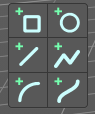
Allows to draw shapes like box and lines.
Box
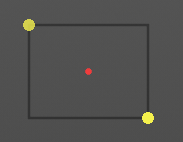
Draw rectangular shapes by click drag. Hold Shift to create square shapes. The handlers allows you to adjust the rectangle to your needs. Right mouse abandons the action. Pressing enter or middle mouse button confirms and makes the stroke real.
Circle
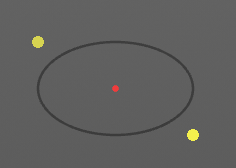
Draw oval shapes by click drag. Hold Shift to create square shapes. The handlers allows you to adjust the rectangle to your needs. Right mouse abandons the action. Pressing enter or middle mouse button confirms and makes the stroke real.
Line
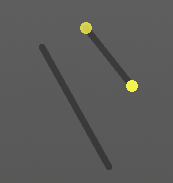
Draw straight lines by click drag. The yellow points are handlers that can be dragged around. Right mouse abandons the action. Pressing enter or middle mouse button confirms and makes the stroke real.
Hotkey E allows you to extrude the line.
Poly line
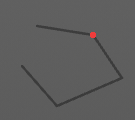
Draw straight lines by click drag. Clicking creates a new line in the polygon. Right mouse abandons the action. Pressing enter or middle mouse button confirms and makes the stroke real.
The polygon cannot be closed.
Arc
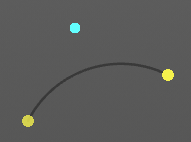
Draw simple arcs by click drag. The yellow points are handlers that can be dragged around. Right mouse abandons the action. Pressing enter or middle mouse button confirms and makes the stroke real.
Curve
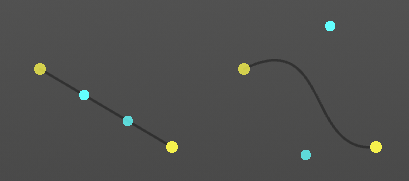
Draw complex Bezier style curves by click drag. First you create a straight line. The handlers allows you to deform the curve to your needs. Right mouse abandons the action. Pressing enter or middle mouse button confirms and makes the stroke real.
Trim
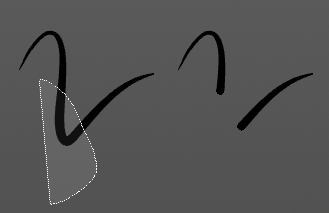
Lasso select delete tool. Erases stroke curve points in the selection.
Tool settings
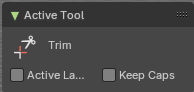
| Entry | What it does |
|---|---|
| Active Layer | Only edit the active layer of the object. |
| Keep Caps | Define if after cutting the stroke the cap of the cut side will be set as flat or keep them as they are. |
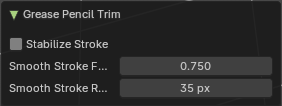
Adjust last operator Grease Pencil Trim
| Entry | What it does |
|---|---|
| Stabilize Stroke | Selection lags behind mouse, and follows a smoother path |
| Smooth Stroke Factor | Adjust the smoothness by a factor. Higher values gives smoother strokes. |
| Smooth Stroke Radius | Minimum distance from last point before selection continues. |
Eye Dropper
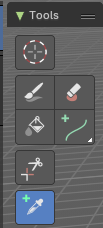
Pick a grease pencil material and make it the draw color. Dependant of the mode the picked color gets added to the material list. Or the palette. Which both shows when you are in the brush tool. Palette is in the sidebar then. Or is directly applied to the paint brush.
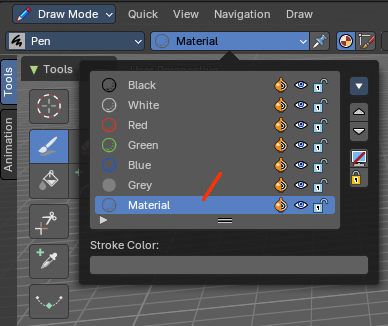
Tool settings
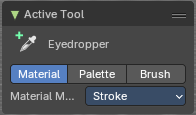
Material mode
Material mode
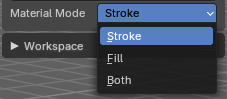
Pick the stroke color, the Fill color, or both.
Palette mode
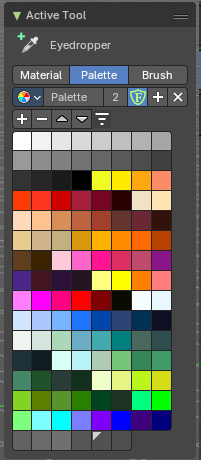
Add the color to a color palette.
Palette browser
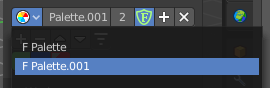
The button at the left opens a drop down list to choose between your palettes.
| Entry | What it does |
|---|---|
| Edit Box | Read the name of the currently active palette. You can also rename the palette here. A click into the edit box makes the name editable. |
| Number of users | See how many users the palette currently has. |
| Fake User | Fake User sets the element to have a fake user. Zero user data-blocks are normally not saved. But sometimes you want to force the data to be kept even when the data block has no user. |
| Add palette | Add a new palette. |
| Remove Palette | Clicking at this button removes the palette. Note that you need to save, close Bforartists and reload the blend file to remove the palette completely. |
| New Palette color | Adjust a color in the color picker. Then click at the add button to add this color to the palette. |
| Delete Palette color | Select the color in the palette, then click at the minus button to remove it. |
| Move Palette Color up and down | With these two buttons you can move the active color up or down in the palette. |
Sort By
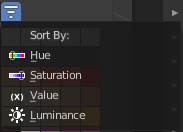
Sort the palette by different methods.
Palette Colors
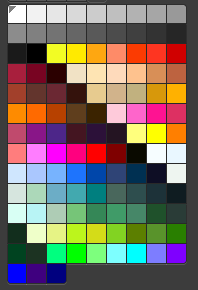
The actual list of the current palette colors. Click at one to make it the active one that gets used for painting.
Brush mode
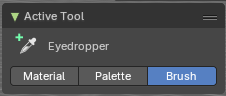
The picked color gets directly applied to the active brush.
Interpolate
Interpolate grease prencil strokes between frames. You need to have two frames to interpolate between.
Tool settings
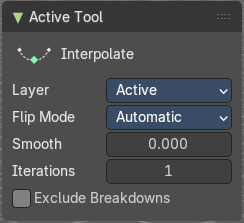
Layer
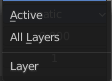
What layers to include in the interpolation.
Flip Mode
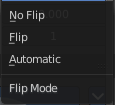
How to invert destination stroke to match start and end with source stroke.
| Entry | What it does |
|---|---|
| Smooth | Amount of smoothing to apply to interpolated strokes, to reduce jitter or noise. |
| Iterations | How often to smooth newly created strokes. |
| Excclude Breakdowns | Exclude existing breakdown keyframes as interpolation extremes. |