

































































Tool Shelf
Some editors have a tool shelf at the left. Here you can find and use various tools.
Tool Shelf
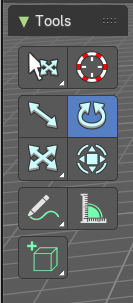
Some editors have a tool shelf at the left. Here you can find and use various tools.
Active Tool
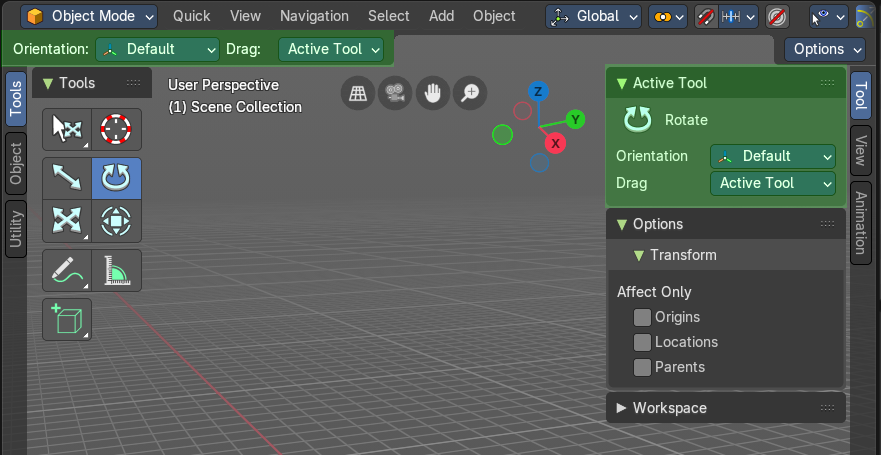
In the tool shelf there can just be one active tool in the tool shelf. An activated tool stays active as long as you don't change it. To deactivate the current tool you have to choose another tool. One of the select tools for example.
Tool Settings
When you activate a tool in the tool shelf then you will also reveal its tool settings. There are two locations where you can find the tool settings. In the header, and in the sidebar in the Tool tab. It's your choice with which panel you want to work.
Mode dependent content
The content of the tool shelf is changing depend and of the mode that you are in, and dependent of the object type. A mesh object in edit mode has another set of tools than a metaball. But there are some tools that are available in all modes. 3D Cursor, Select tools and Transform tools.
Tool tips
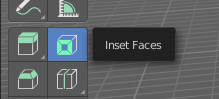
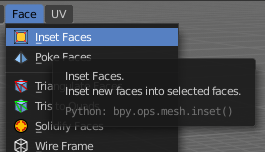
The new tool system works here and there different from the old tool system. It is one gigantic hack on top of the old tool system. Already the tool tips are different. It misses the Python strings. And some tools misses a proper description. The tool tips are separated from the operators.
Tool groups
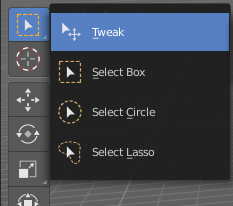

Some icons have a white small triangle down right. This indicates that this icon is part of a tool group. This group can be revealed by holding down the mouse until the popup reveals the hidden tools. You can then choose the needed tool in this group. And it will become the one that gets displayed.
Resizing the tool shelf
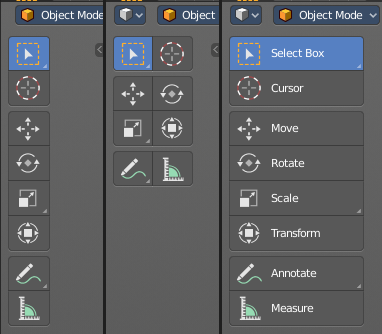
The tool shelf can be resized by dragging the border of it in and out.
You have the choice between one, two and three icon rows. And text and icon buttons.
Currently the default starts with two rows.
Switching Tools
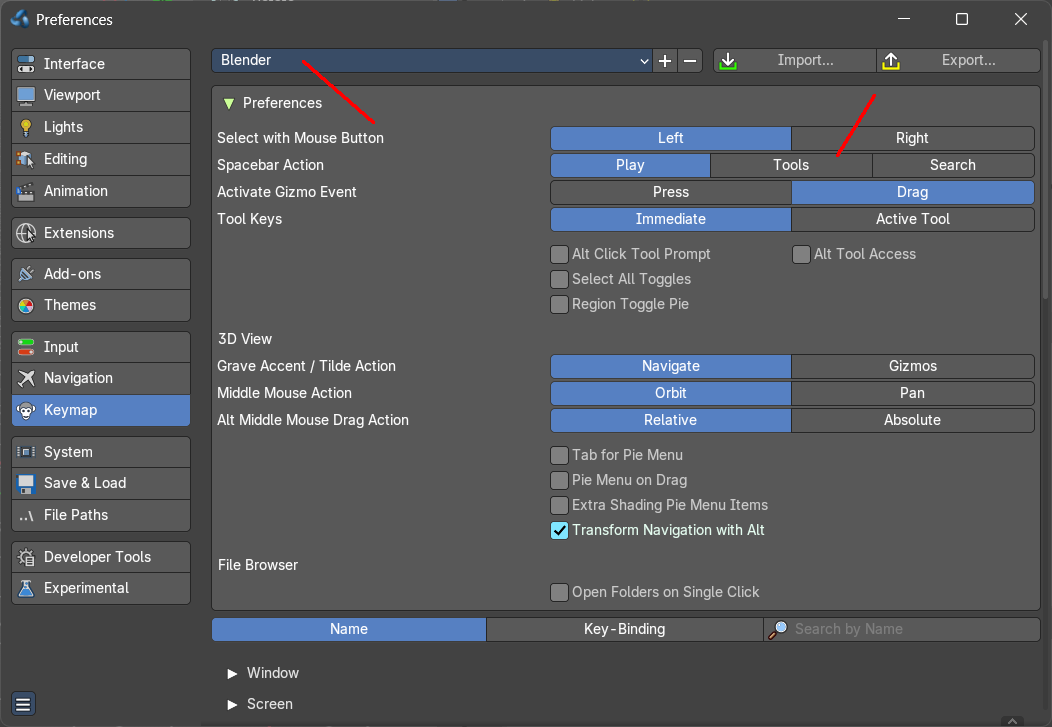
The Blender key map provides a way to call the tools from the tool shelf under the mouse in a popup menu. And with hotkeys. Even when they don't have a hotkey assigned in the toolbar yet.
Keyboard tool switching is not enabled by default. You need to set the key-map preference Space bar Action to Tools. And when you press space bar, then you will see the tool shelf content under the mouse. But with an hotkey assigned. And then you can use this hotkey in combination with the space bar to activate the tool
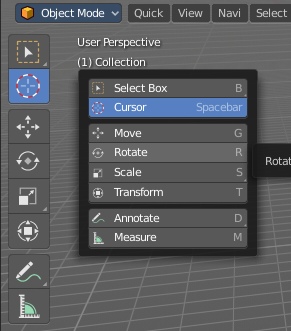
Spacebar-T for Transform, Spacebar-D for Annotate, Spacebar-M for measure, and so on.
The accelerator keys are displayed in the tool tips of the tools in the tool shelf. The hotkeys are hard coded. And are NOT the hotkeys for the tools in the tool shelf. But just the hotkeys in conjunction with the space bar menu!
Attention, this is not implemented in the Bforartists key map. This feature is just available in the Blender key map!
Cycling through Tools in groups
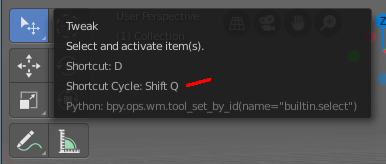
You can assign a hotkey to a group of tools, and then activate Cycle in the key map manager. This allows you to cycle through the tools in this group with the hotkey.
This is for example done with the Select tool group. The hotkey to cycle through the tools in the group shows in the tool tip.
Tool Shelf Tabs
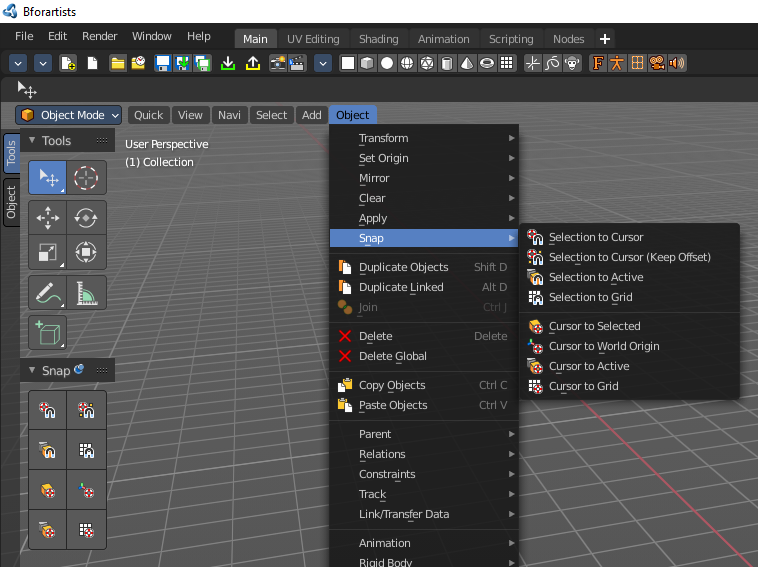
The tool shelf contains not only the new tool system tools. But contains also the old tools fom the text menus in the header in tabs. They are a double menu entry by design. This tabs are faster to access. They resize like the tool shelf tabs, and allows icon rows of one, two and three width, and also the display as text buttons.
You can also pin panels. This allows for example to display the snap tools below the regular tool shelf tools. So that you don't need to dig in the text menus all the time. When they are pinned, then they are in reach with one click.
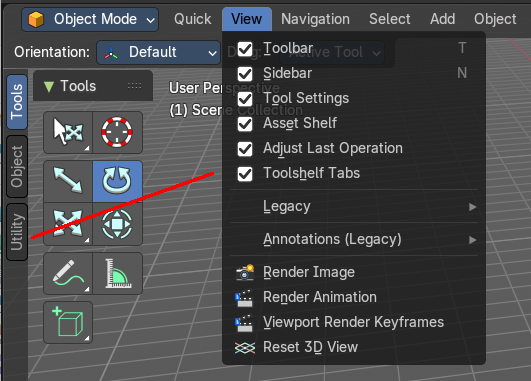
We won't explain the tools here, since they are already covered in the corresponding text menus.
You can turn the tabs off in the View menu if you don't want to work with this tool set.
Note that you need to adjust the width of the tool shelf manually afterwards since it does not automatically update the width of the tool shelf area.
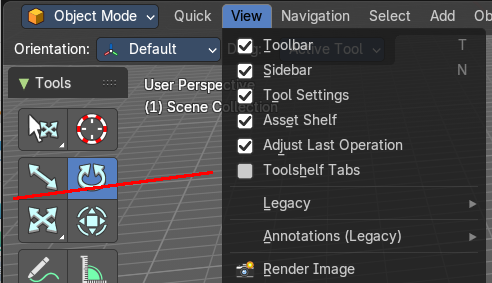
Note that you need to save the startup.blend to save the state of this checkbox. So be careful with modifications.