

































































Tool Tab - Mesh - Weight Paint Mode
The Tools tab in Weight Paint Mode provides you the tools to do weight painting at a mesh. Skinned characters for example.
Tools tab in Weight Paint Mode
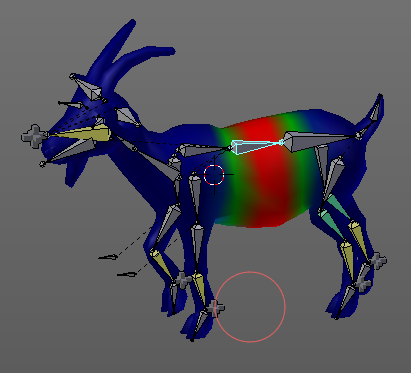
The Tools tab in Weight Paint Mode provides you the tools to do weight painting at a mesh. Skinned characters for example.
The vertices becomes a "weighting" assigned in this process. Means a per centage influence of the bone to a vertice. And under the hood you create vertex groups with the vertices that are assigned to the bones.
The amount of influence is defined by the weight paint color. Pure red has an influence value of 1. Pure blue has an influence value of 0. And the gradients between red and blue defines the in between steps in the 0-1 range. This is needed since there can be more than one bone influence and deform a vertice. Usually at the transition areas between two bones. The green areas in this shot.
The Weight Paint mode is just available for mesh objects.
Weight painting at characters
The main purpose for Weight painting is to weight the skin for characters. So that they deform proper when you pose your armature.
Skinning
To do weight painting at a character you first have to assign the mesh to the armature. This process is called skinning. The mesh becomes the "skin" for the skeleton.
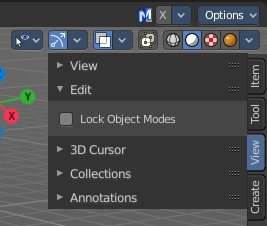
Let's do a quick run through skinning. You can skin in Object Mode. But also from Pose Mode. Lock Object Modes needs to be unticked to get it to work from Pose Mode, which it is by default. In case you have it on, untick it now.
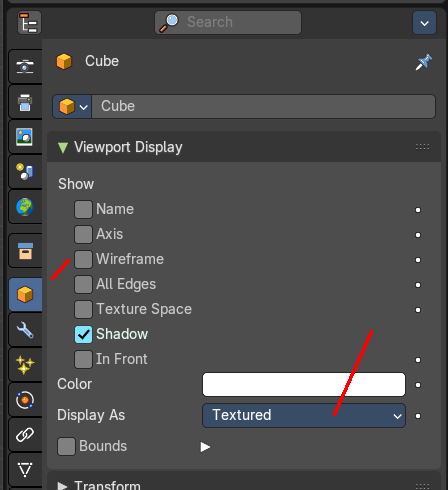
Create an object, create an armature
First we activate Display "in Front" for the armature. So that we can still see the armature inside of the mesh.
Position the mesh at its final location.
Now select the Mesh, hold down Shift key, and select the Armature. Both should be selected now.
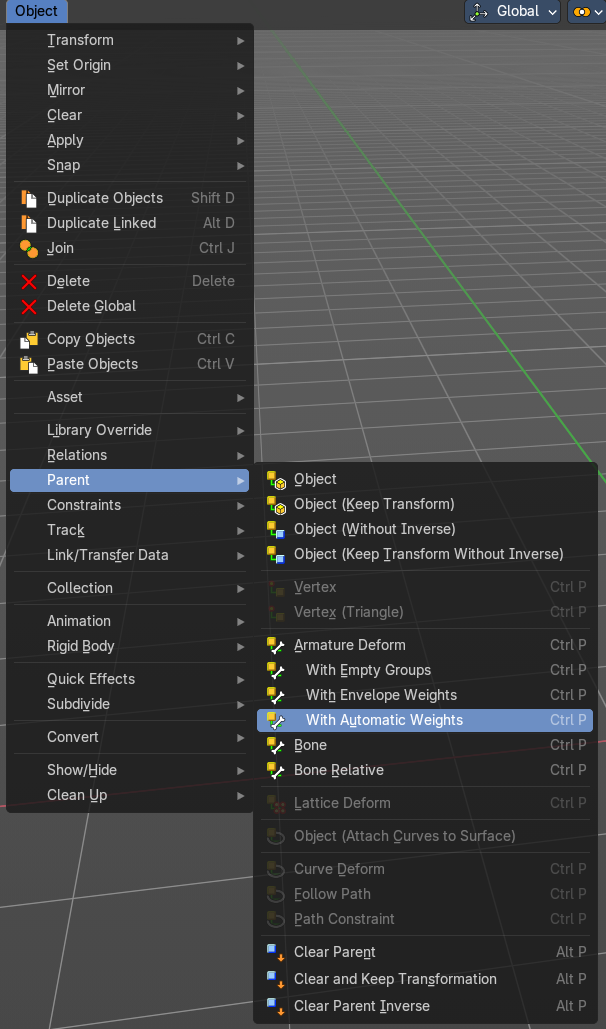
Dive into the Object menu in the header of the 3D view, and search for Parent, with automatic weights. You can also press the hotkey Ctrl P. This calls the parenting menu under the mouse position.
Here we choose "With Automatic Weights". Automatic weighting means that the bones grabs the nearest vertices within a given radius, and assigns them to this bone.
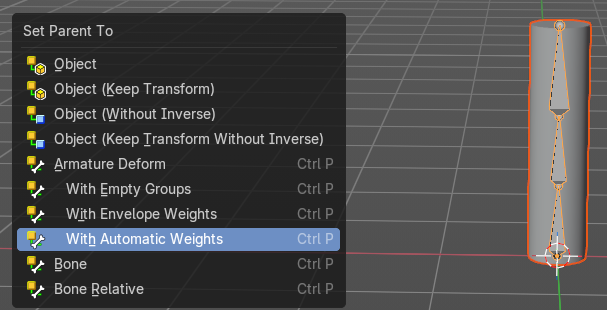
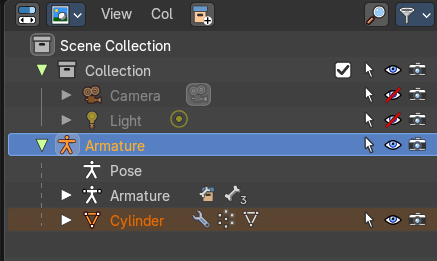
When everything went well then the mesh, in our case the Cylinder, is now part of the hierarchy of the armature.
And when you select the armature, and switch to Pose mode now, then you can already deform the mesh by posing the armature.
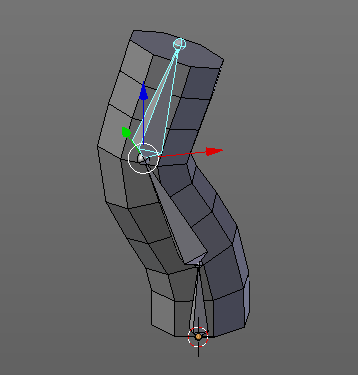
Enter and leave Weight painting
Weight painting should happen in Pose mode so that you can pose your mesh to see the resulting deforming.
When you simply select the mesh, and enter the weight paint mode, then you can weightpaint the mesh. However, you cannot change the bone. Since the armature is not selected.
So you need to select the armature too when you want to do weight painting. Select the armature, hold down shift, select the mesh, then enter weight paint mode.

When you do everything right then you will see a bone symbol in the header.
Face Selection Mode
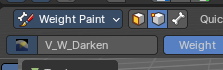
The face selection mode allows using selection operators to define a mask based on faces for weight painting. You can then use the weight paint brush tools and operators to assign new weight to the selection.
Vertex Selection Mode
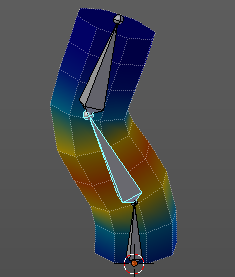
The vertex selection mode allows using selection operators to define a mask for based on vertex selection for weight painting. You can then use the weight paint brush tools and operators to assign new weight to the selection.
Bone Selection Mode
The weighting that gets displayed in the Bone Selection mode when you enter Weight Paint mode and the armature is in Pose mode. The last active bone defines which vertex group you will weight paint. With this method to define the bone to define where you want to weight paint and assign weight accordingly. You can also switch bones while in weight painting mode on the active mesh object.
To switch bones while weight painting, hold down Ctrl, and left click at the bone that you want to set active. Then the weighting for this bone gets displayed.
Be careful. You can select the bones in the hierarchy of the outliner. But it does not change the active bone to do the weightpainting. Even when it shows selected, the active bone for weightpainting is still unchanged. And another trap, you can change the active bone in the dropdown at the top. But this one does not change the selected bone. So best is to hold down Ctrl and left click to change the active bone.
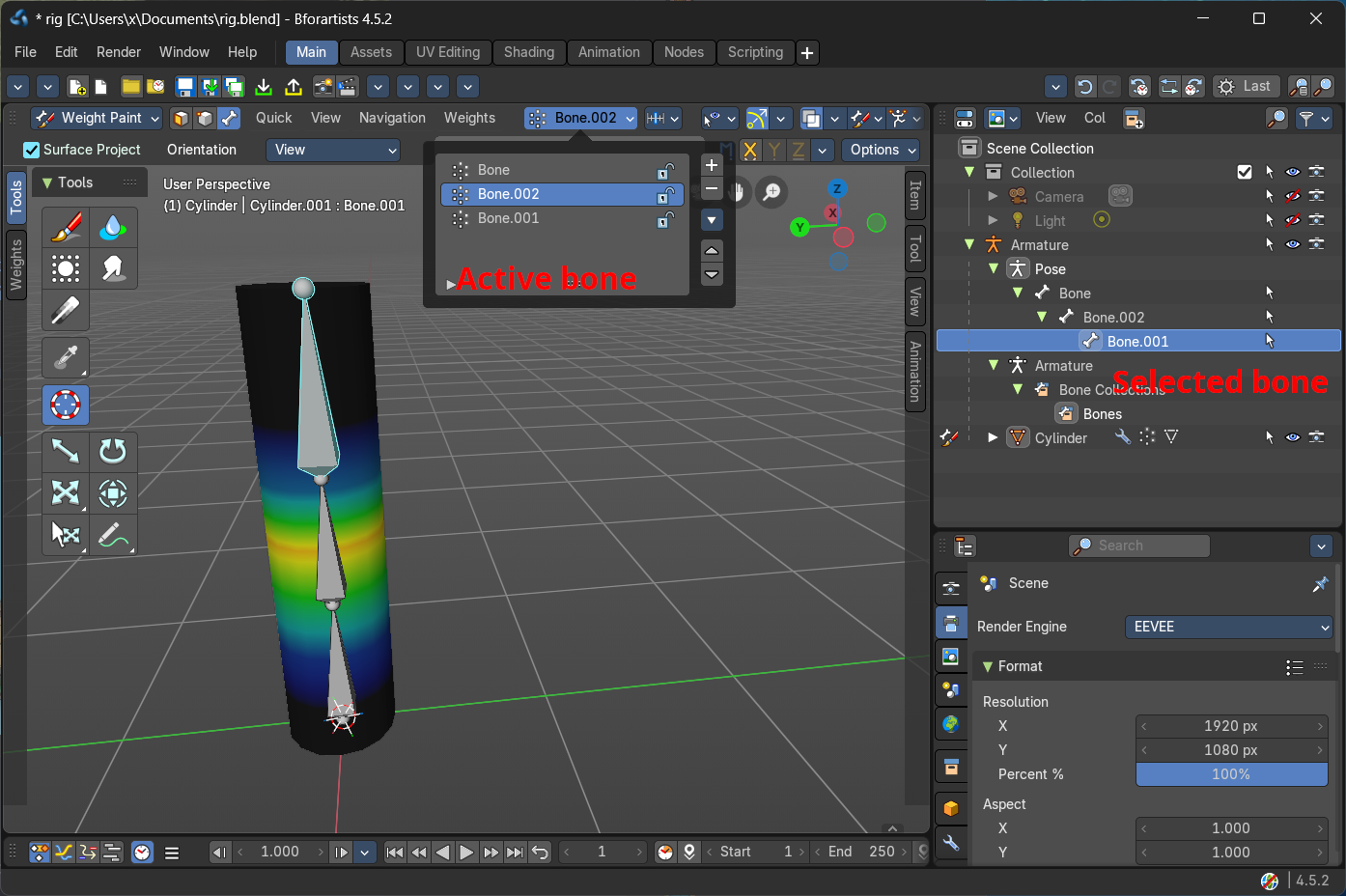
Weight painting a plain mesh
You can also do weight painting without an armature. Just at the pure mesh. In this case you just create the vertex groups for the mesh. And those vertex groups can be accessed in edit mode then for further usage. As shown in the shots below.


Weight painting in combination with particles
You can also combine weight painting with particles. To influence the density of hair for example. The weightmap can be assigned in the Vertex Groups panel in the Particles tab.

Brush Asset Panel
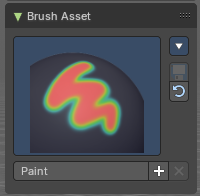
The Brush Asset Panel contains the different Brushes and some Brush settings. Choose and adjust your current active brush.
Browse Brush
The big image at the top is a dropdown box that allows you to choose a brush. Click at it, and you will see the different brushes. A click at one of the images will choose this brush then.
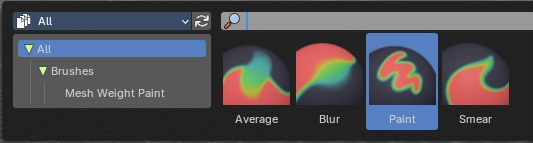
Brushes are assets. You can load them from different libraries if you want.
Brush Specials menu
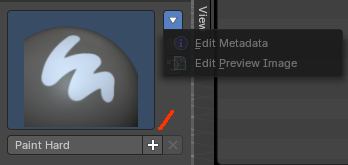
This menu becomes active when you create a new brush. Which can be done wiht the Plus button in the name property. This data cannot be changed for builtin system brushes.
Edit Metadata
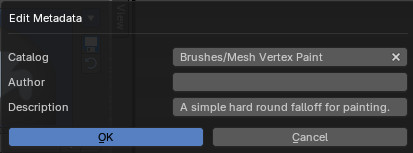
Calls a popup where you can adjust further informations and settings for the brush.
| Entry | What it does |
|---|---|
| Catalog | The asset catalog in which the brush is stored. |
| Author | The brush author. |
| Desctription | Add a description |
| OK / Cancel | Accept or decline the changes. |
| Edit Preview Image | Allows you to load a custom preview image. |
| Entry | What it does |
|---|---|
| Save Brush Asset | This button is just active with a custom brush. It saves all changes made at the brush settings into the current custom brush. |
| Revert Brush Asset | Reverts the brush settings to the default values of the brush in the asset library. |
Name

The edit box below the Image shows the name of the current active brush.
The + button allows you to add a new pencil with the current settings. Note that the brushes are NOT automatically saved when you close Bforartists. You need to save the brush asset. See above.
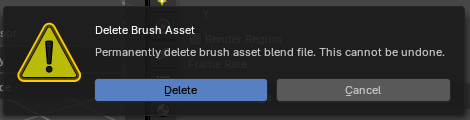
The X button deletes the brush from the brushes list and from the asset library. This button is just active with a custom brush. You will be prompted by a warning so that you don't accidentally remove the brush.
Brush Settings Panel
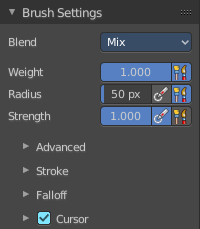
The Brush Settings Panel contains the Brush settings. The content differs, dependent of which brush you have chosen.
Blend
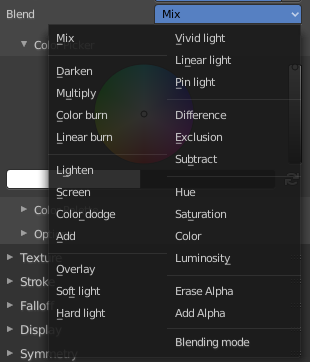
Define how the stroke will blend. You can choose between various blend modes.
| Entry | What it does |
|---|---|
| Weight | Adjust the strength of the weight painting. · Size Pressure: The first button behind the edit box enables tablet pressure sensitivity for radius. |
| Radius | The Radius edit box allows you to adjust the radius of the brush. The button behind the edit box enables tablet pressure sensitivity for radius. · Size Pressure: The first button behind the edit box enables tablet pressure sensitivity for radius. · Use Unified Radius: The second button behind the edit box enables global radius size. Any modification at the radius will also modify the radius value for other paint tools. |
| Strength | The Strength edit box allows you to adjust the strength of the brush. The button behind the edit box enables tablet pressure sensitivity for strength. · Size Pressure: The first button behind the edit box enables tablet pressure sensitivity for radius. · Use Unified Radius: The second button behind the edit box enables global radius size. Any modification at the radius will also modify the radius value for other paint tools. |
Brush Settings Panel - Advanced Sub panel
Brush Type
Displays the current brush type (e.g., **Draw, **Blur, Average, Smear)
Brush Settings Panel - Stroke Sub panel
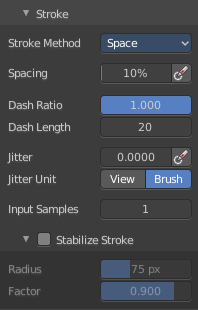
The Stroke panel contains settings to influence the behavior of the brush stroke. There are various stroke methods available. We will go through them one by one.
Stroke Panel with Stroke method Space
This is the default Stroke method. The sculpt stroke gets added continuously with given settings.
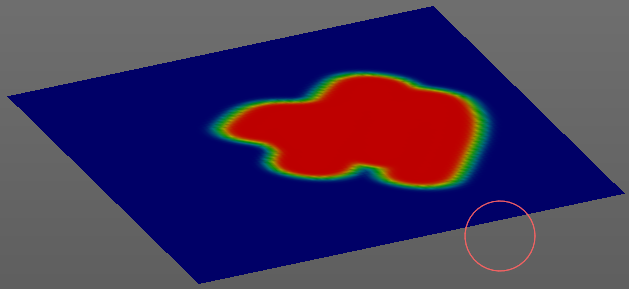
Spacing Edit Box
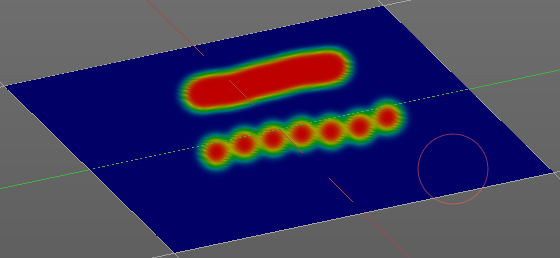
The drawing happens by mapping the pencil onto the mouse position. And when you move the mouse then the next mapping happens. Adjust the spacing after what mouse movement the next mapping should happen. The lower the value, the lower the distance between the single dots.
Spacing Pressure
The icon behind the edit box enables tablet pressure sensitivity for tablets.
| Entry | What it does |
|---|---|
| Dash Ratio | Ratio of samples in a cycle that the brush is enabled. |
| Dash Length | Length of a dash cycle measured in stroke samples. |
Jitter Edit Box
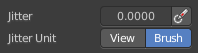
Add Jitter to the brush while painting.
| Entry | What it does |
|---|---|
| Jitter Pressure | The icon behind the edit box enables tablet pressure sensitivity for tablets. |
| Jitter Unit | If the jitter happens in screen space in pixels, or relative to the brush size. |
Input Samples Edit Box

Average multiple input samples together to smooth the brush stroke.
Stabilize Stroke
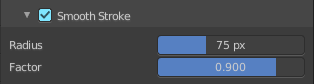
The brush lags behind the mouse position, and produces a much smoother stroke by that.
| Entry | What it does |
|---|---|
| Smooth Stroke Radius Edit Box | Is just active when Smooth Stroke is activated. Adjust the radius of the smoothing. |
| Smooth Stroke Factor Edit Box | Is just active when Smooth Stroke is activated. Adjust the factor of the smoothing. |
Stroke Panel with Stroke method Curve
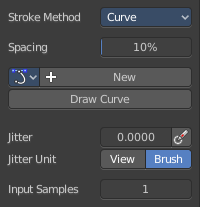
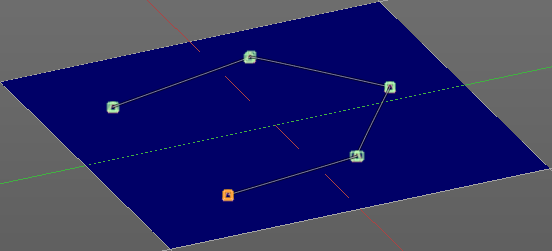
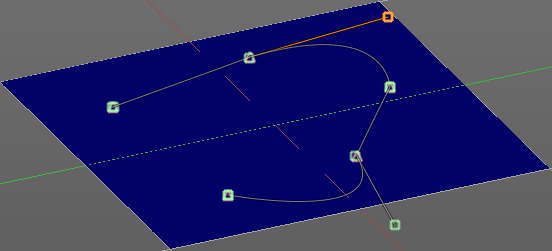
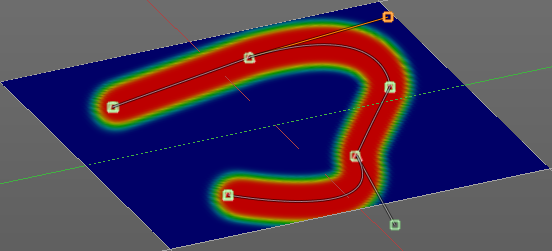
The Stroke method curve doesn't simply influence the way how the stroke is painted. It is a special method. First you draw a curve object by holding down ctrl and clicking with left mouse button. Then you tweak the curve. You can click at the curve point, and drag out handlers to make the curve points smooth.
Then you hit the Draw Curve button. And the curve gets drawn onto the surface.
Spacing Edit Box
The drawing happens by mapping the pencil onto the mouse position. And when you move the mouse then the next mapping happens. Adjust the spacing after what mouse movement the next mapping should happen. The lower the value, the lower the distance between the single dots.
The icon behind the edit box enables tablet pressure sensitivity for tablets.
Paint Curve edit box
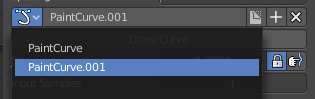
Here you set the active curve.
The first element is a drop down box where you will find your curves objects. You can have more than one.
The second element is the edit box that displays the active curve.
The number right of it, in this case 2, indicates how much number of users ( internally ) this brush uses. This means that this data block (the brush) shares currently settings with at least one other object. Most probably the parent brush where we have created it from. Click at the value to make this brush a single user. The button will vanish then.
F set the brush to have a fake user. Zero user data-blocks are normally not saved. But sometimes you want to force the data to be kept even when the data block has no user.
The + button allows you to add a new pencil with the current settings. Note that the brushes are NOT saved when you close Bforartists. You can save them into the current blend file. Or you can save the startup file. But be careful here. This saves everything else of the current state of Bforartists too.
The X button deletes the brush as the active one. It does NOT delete it from the brushes list.
Draw Curve Button
A click at it to turns the curve into a sculpt stroke.
Jitter Edit Box
Add Jitter to the brush while painting.
| Entry | What it does |
|---|---|
| Jitter Pressure | The icon behind the edit box enables tablet pressure sensitivity for tablets. |
| Jitter Unit | If the jitter happens in screen space in pixels, or relative to the brush size. |
| Input Samples Edit Box | Average multiple input samples together to smooth the brush stroke. |
Stroke Panel with Stroke method Line
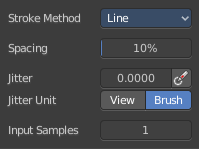
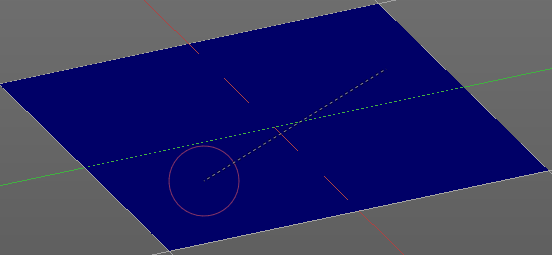
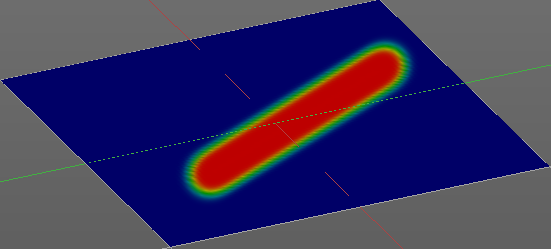
With Stroke method line you draw a line between a starting point and an endpoint. And when you release the mouse then the line gets sculpted.
Spacing Edit Box
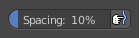
The sculpt drawing happens by mapping the pencil onto the mouse position. And when you move the mouse then the next mapping happens. Adjust the spacing after what mouse movement the next mapping should happen. The lower the value, the lower the distance between the single dots.
The icon behind the edit box enables tablet pressure sensitivity for tablets.
Jitter Edit Box
Add Jitter to the brush while painting.
| Entry | What it does |
|---|---|
| Jitter Pressure | The icon behind the edit box enables tablet pressure sensitivity for tablets. |
| Jitter Unit | If the jitter happens in screen space in pixels, or relative to the brush size. |
Input Samples Edit Box
Average multiple input samples together to smooth the brush stroke.
Stroke Panel with Stroke method Airbrush
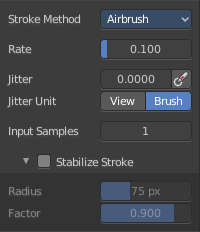
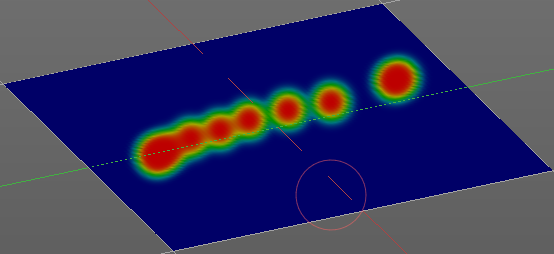
The stroke acts like an airbrush pencil. The dots gets sprayed randomly.
Rate Edit Box
Define the rate of the drawing.
Jitter Edit Box
Add Jitter to the brush while painting.
| Entry | What it does |
|---|---|
| Jitter Pressure | The icon behind the edit box enables tablet pressure sensitivity for tablets. |
| Jitter Unit | If the jitter happens in screen space in pixels, or relative to the brush size. |
Input Samples Edit Box
Average multiple input samples together to smooth the brush stroke.
Smooth Stroke
The brush lags behind the mouse position, and produces a much smoother stroke by that.
| Entry | What it does |
|---|---|
| Smooth Stroke Radius Edit Box | Is just active when Smooth Stroke is activated. Adjust the radius of the smoothing. |
| Smooth Stroke Factor Edit Box | Is just active when Smooth Stroke is activated. Adjust the factor of the smoothing. |
Stroke Panel with Stroke method Dots
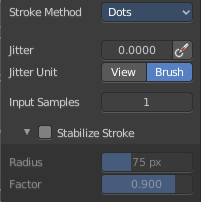
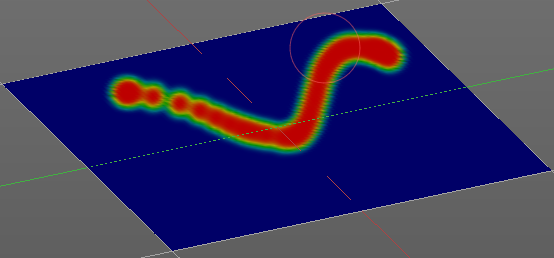
The stroke method Dots draws dots of the pencil onto the surface. The mapping happens from the current view. Means you will get distortions when your view is not aligned with the surface of the object.
Jitter Edit Box
Add Jitter to the brush while painting.
| Entry | What it does |
|---|---|
| Jitter Pressure | The icon behind the edit box enables tablet pressure sensitivity for tablets. |
| Jitter Unit | If the jitter happens in screen space in pixels, or relative to the brush size. |
Input Samples Edit Box
Average multiple input samples together to smooth the brush stroke.
Stabilize Stroke
The brush lags behind the mouse position, and produces a much smoother stroke by that.
| Entry | What it does |
|---|---|
| Smooth Stroke Radius Edit Box | Is just active when Smooth Stroke is activated. Adjust the radius of the smoothing. |
| Smooth Stroke Factor Edit Box | Is just active when Smooth Stroke is activated. Adjust the factor of the smoothing. |
Brush Settings Panel - Falloff Sub panel
The Falloff panel allows you to define different falloffs methods for the border of the brush.
Presets
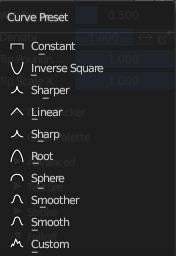
The different available falloff presets. The method custom allows you to define your own falloff. And reveals a curve panel.
Selecting Points
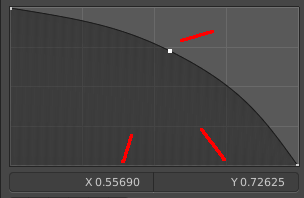
You can select curve points. This reveals two edit boxes for the x and y coordinate of this point.
Selected points can be moved around. Left click at them, hold the mouse button down and move them to a new location.
Adding Points
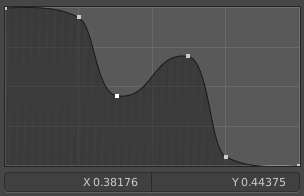
You can add new curve points by simply left clicking at the curve. Move the mouse to position them where you need it.
Navigation elements
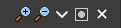
The navigation elements at the top are described from left to right.
| Entry | What it does |
|---|---|
| Zoom in and out | The two buttons with the magnifying glass at it zooms in and out in the curve window. |
| Tools | Tools is a menu where you can find some curve related tools. · Reset View: Resets the curve windows zoom. · Vector Handle: Set handle type to Vector. · Auto Handle: Set handle type to Auto. · Auto Clamped Handle: Set handle type to Auto Clamped. · Reset Curve: Resets the curve to the initial shape. |
Use Clipping
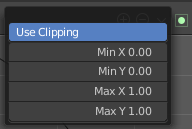
Clipping options. Set up clipping for the stroke. The blue button at the top turns clipping on or off.
Delete Points
Deletes the selected curve point.
Curve Presets
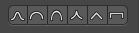
Predefined curve presets as a starting point.
Front Face Falloff
Angle
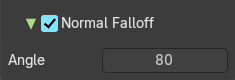
Adjust the angle.
Brush Settings Panel - Cursor Sub panel
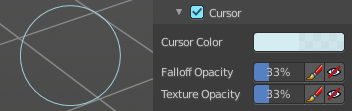
Adjust the color and appearance of the brush cursor to custom values.
Cursor Checkbox
Activate the custom settings.
Cursor Color
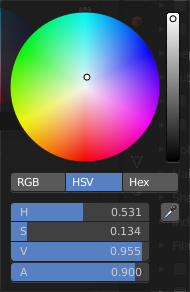
Choose another color for the brush cursor. Double clicking at the color field will open a color picker.
Falloff Opacity
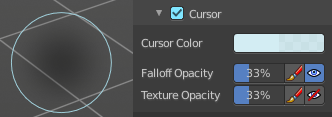
You can turn on the cursor overlay with the eye button at the end. The falloff opacity slider allows you to adjust the opacity of this cursor overlay.
| Entry | What it does |
|---|---|
| Override Overlay | Hide the Cursor Overlay when painting. |
| Use Cursor Overlay | Turn on Cursor Overlay. |
Texture Opacity
This is for the case when you paint with a texture brush. You can turn on the Texture overlay with the eye button at the end. The falloff opacity slider allows you to adjust the opacity of this cursor overlay.
| Entry | What it does |
|---|---|
| Override Overlay | Hide the Texture Overlay when painting. |
| Use Cursor Overlay | Turn on Texture Overlay. |
Symmetry Panel
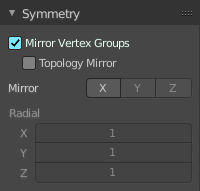
The same buttons plus the whole Symmetry Lock Panel as a drop down menu can also be found in the tool settings bar as icon buttons. This allows quicker access and better.
| Entry | What it does |
|---|---|
| Mirror Vertex Groups | Mirror the left/right vertex groups when painting. · Topology Mirror: Not available with Mirror Vertex Groups deactivated. Use topology based mirroring. Both sides of the mesh needs matching geometry. |
| Mirror | Mirror along given axis. With Mirror Vertex groups on you just can turn on or off the X axis. |
| Radial | Tiling. The number of times to repeat the strokes across the surface. Not available with Mirror Vertex Groups activated. |
Options Panel
Auto Normalize
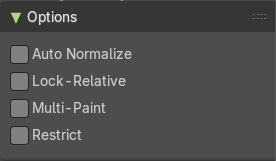
Ensure that all bone deforming vertex groups adds up to 1.0 while weight painting.
| Entry | What it does |
|---|---|
| Lock - Relative | Display bone-deforming groups as if all locked defom groups were deleted, and the remaining ones were re-normalized. |
| Multi Paint | Paint across the weights of all selected bones, maintaining their relative influence. |
| Restrict | Restrict painting to vertices in the group. |