

































































Tool Tab - Mesh - Sculpt Mode
Sculpting is a process to deform the geometry by using a brush. Mesh objects, Grease Pencil objects and Hair Curve objects can be sculpted. In this chapter we handle the mesh tools. Grease Pencil and Curve Objects have…
Tools Tab in Sculpt Mode
Sculpting is a process to deform the geometry by using a brush. Mesh objects, Grease Pencil objects and Hair Curve objects can be sculpted. In this chapter we handle the mesh tools. Grease Pencil and Curve Objects have their own chapter.
In Sculpt Mode you will mainly find settings for the different brushes, General settings, and brush specific settings. This settings can be found in different panels. The different brushes have different options and settings, dependent of which brush is selected. This brush specific options and settings are explained in the tool shelf chapter. Here we just cover the general panels with options and settings that exists for (nearly) all brushes.
The Sculpt Mode just exists for Mesh, Grease Pencil and Hair Curve objects.
Brush Asset Panel
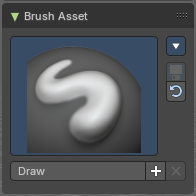
The Brush Asset Panel contains the different Brushes and some Brush settings. Choose and adjust your current active brush.
Browse Brush
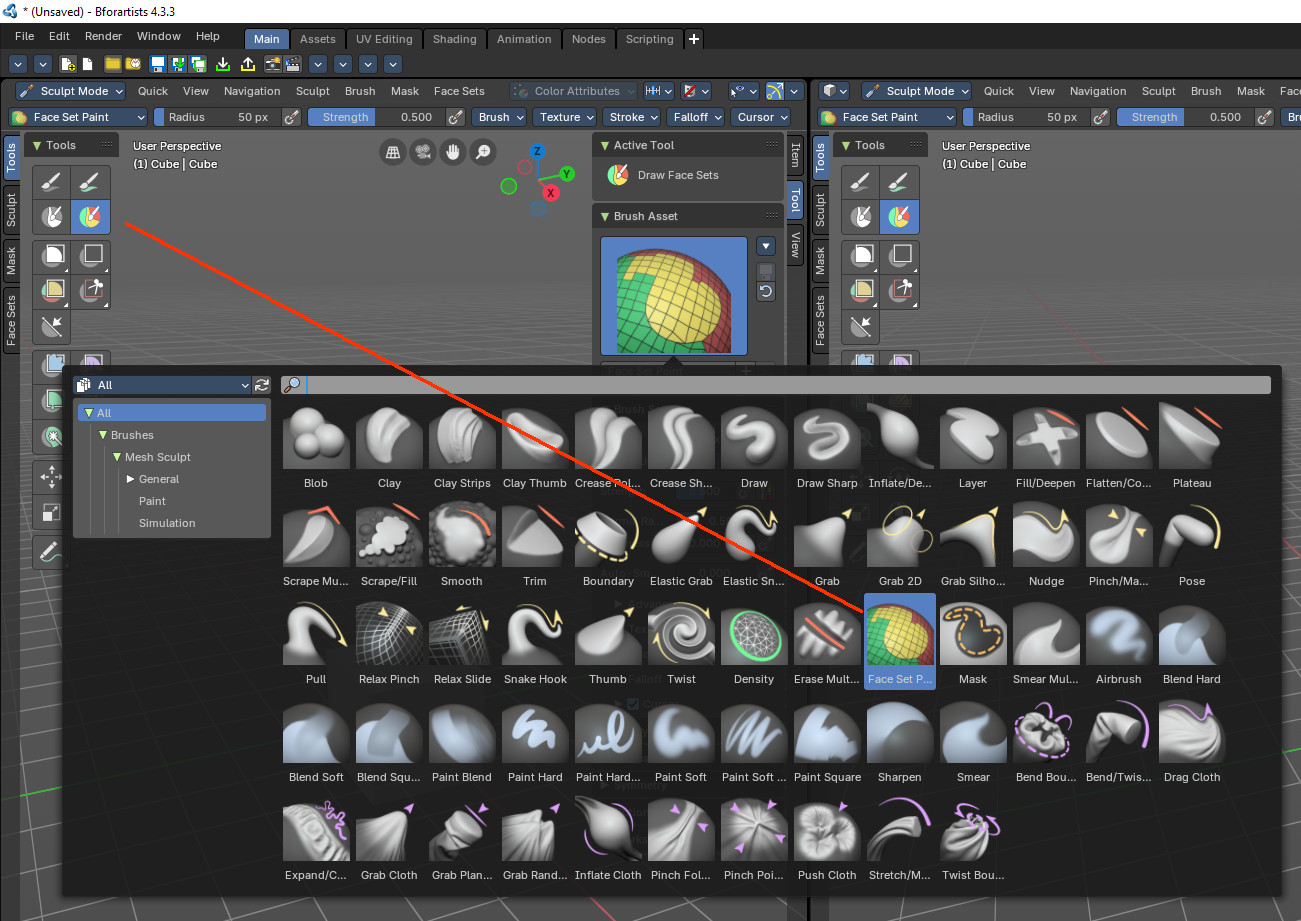
The big image at the top is a dropdown box that allows you to choose a brush. Click at it, and you will see the different brushes. A click at one of the images will choose this brush then.
Note that this browser shows all available brushes. Not only the ones that are meant for the current active tool in the tool shelf. And you might switch the tool by choosing another brush.
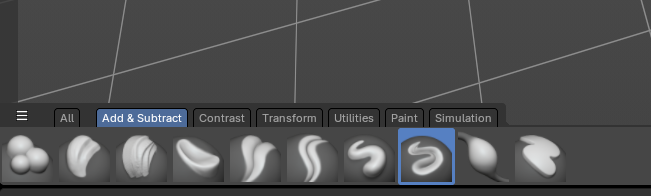
Brushes are assets. You can load them from different libraries if you want. Have a look at the brush asset browser at the bottom of the 3d view. Here the brushes are also categorized for easier access.
Brush Specials menu
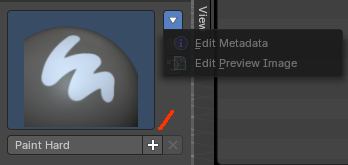
This menu becomes active when you create a new brush. Which can be done wiht the Plus button in the name property. This data cannot be changed for builtin system brushes.
Edit Metadata
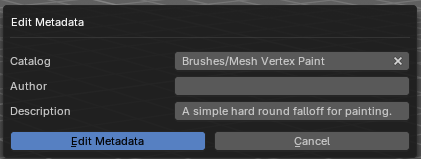
Calls a popup where you can adjust further informations and settings for the brush.
| Entry | What it does |
|---|---|
| Catalog | The asset catalog in which the brush is stored. |
| Author | The brush author. |
| Desctription | Add a description |
| OK / Cancel | Accept or decline the changes. |
| Edit Preview Image | Allows you to load a custom preview image. |
| Entry | What it does |
|---|---|
| Save Brush Asset | This button is just active with a custom brush. It saves all changes made at the brush settings into the current custom brush. |
| Revert Brush Asset | Reverts the brush settings to the default values of the brush in the asset library. |
Name

The edit box below the Image shows the name of the current active brush.
The + button allows you to add a new pencil with the current settings. Note that the brushes are NOT automatically saved when you close Bforartists. You need to save the brush asset. See above.
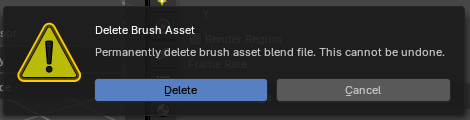
The X button deletes the brush from the brushes list and from the asset library. This button is just active with a custom brush. You will be prompted by a warning so that you don't accidentally remove the brush.
Brush Settings Panel
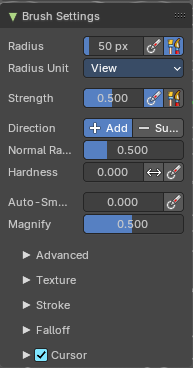
The Brush Settings Panel contains the Brush settings. The content differs, dependent of which brush you have chosen.
Brush Settings Panel - Common Settings
These settings can be found in all brushes.
Size
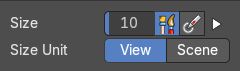
The Radius edit box allows you to adjust the radius of the brush.
Size Pressure
The first button behind the edit box enables tablet pressure sensitivity for radius.
Pressure Size Curve
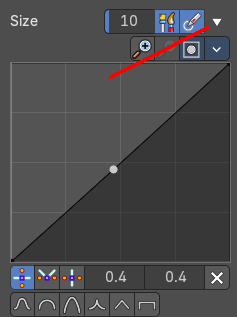
Behind the pressure size button there is a button to reveal the size pressure curve panel. When you activate Size Pressure for tablets, then the Size Pressure curve becomes active, and can be adjusted.
The pressure size curve allows you to adjust the falloff curve for the tablet pressure. It shows when Use Pressure is activated. The curve panel shows when clicking at the button.
Selecting Points
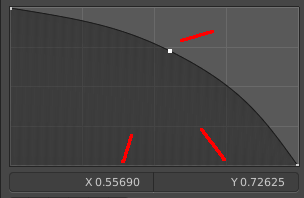
You can select curve points. This reveals two edit boxes for the x and y coordinate of this point.
Selected points can be moved around. Left click at them, hold the mouse button down and move them to a new location.
Adding Points
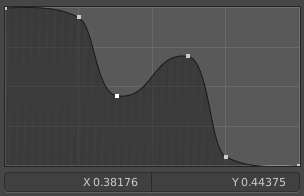
You can add new curve points by simply left clicking at the curve. Move the mouse to position them where you need it.
Navigation elements

| Entry | What it does |
|---|---|
| Zoom in | Zooms in. |
| Zoom out | Zooms out. |
Clipping options
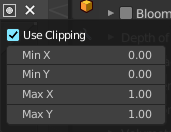
Set up clipping for the stroke.
Tools
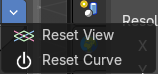
Tools is a menu where you can find some curve related tools.
| Entry | What it does |
|---|---|
| Reset View | Resets the curve windows zoom. |
| Reset Curve | Resets the curve to the initial shape. |
Handles

You can choose between Auto handle, Vector Handle and Auto Clamped.
Position X / Y
The position of the selectedc curve point.
Delete Points
Deletes the selected curve point.
Curve Presets

A curve preset to start with.
Use Unified Radius
The second button behind the edit box enables global radius size. Any modification at the radius will also modify the radius value for other paint tools.
Size Unit
Display the radius value in view units or in scene units. View units are by default in pixels, scene units in meters.
Strength

The Strength edit box allows you to adjust the strength of the brush.
Size Pressure
The first button behind the edit box enables tablet pressure sensitivity for radius.
Use Unified Radius
The second button behind the edit box enables global radius size. Any modification at the radius will also modify the radius value for other paint tools.
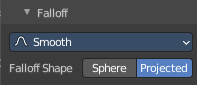
You need to have the fallof method set to Projected to activate the Front Faces Only checkbox.
Normal Radius

The ratio between the brush radius and the radius that is going to be used to sample the normal.
Hardness

How close the brush fallow starts from the edge of the brush.
| Entry | What it does |
|---|---|
| Invert Pressure for Hardness | Invert the modulation of pressure in hardness. |
| Use pressure for hardness | Tablet feature. Use pressure to modulate hardness. |
Autosmooth

The autosmooth edit box allows you to adjust the amount of smoothing that gets automatically applied to each stroke.
Use pressure for hardness
Tablet feature. Use pressure to modulate hardness.
Brush Settings Panel - Blob brush
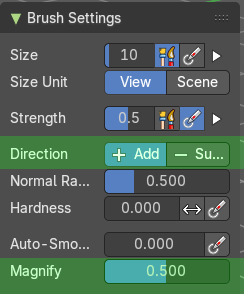
Add & subtract brushes for sculpting.
Direction Add / Subtract
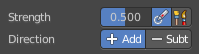
Add means the stroke adds to the geometry. Subtract means the stroke subtracts from the geometry.
Magnify

The Crease Brush Pinch Factor.
Brush Settings Panel - Clay brush
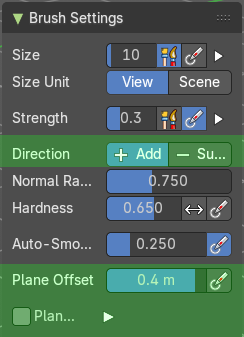
Add & subtract brushes for sculpting.
Direction Add / Subtract
Add means the stroke adds to the geometry. Subtract means the stroke subtracts from the geometry.
Plane Offset

Adjust the plane on which the brush acts towards or away from the objects surface. Sculpting with the Clay brush happens in a plane defined by the view you are in and the first vertices hit by the brush.
Plane Trim

Various brushes like Clay, Clay Thumb, Fill and Scrape brush. Enable Plane Trim. Sculpting with these brushes happens in a plane defined by the view you are in and the first vertices hit by the brush. The trim distance defines a limit above which vertices are not affected by the brush.
Brush Settings Panel - Clay Strips brush
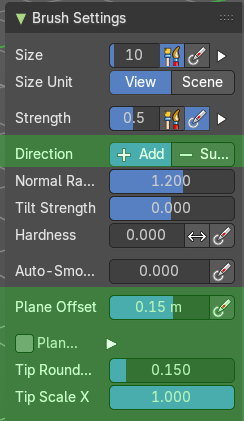
Add & subtract brushes for sculpting.
Direction Add / Subtract

Add means the stroke adds to the geometry. Subtract means the stroke subtracts from the geometry.
Plane Offset
Adjust the plane on which the brush acts towards or away from the objects surface. Sculpting with the Clay brush happens in a plane defined by the view you are in and the first vertices hit by the brush.
Plane Trim
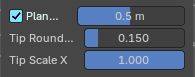
Various brushes like Clay, Clay Thumb, Fill and Scrape brush. Enable Plane Trim. Sculpting with these brushes happens in a plane defined by the view you are in and the first vertices hit by the brush. The trim distance defines a limit above which vertices are not affected by the brush.
Distance
Adjust the plane trim distance.
| Entry | What it does |
|---|---|
| Tip roundness | Roundness of the brush tip. |
| Tip Scale X | Scale of the tip in x direction. |
Brush Settings Panel - Clay Thumb brush
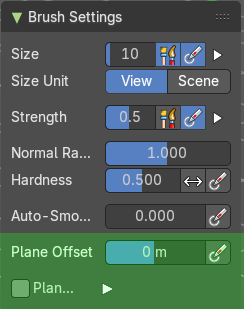
Add & subtract brushes for sculpting.
Plane Offset
Adjust the plane on which the brush acts towards or away from the objects surface. Sculpting with the Clay brush happens in a plane defined by the view you are in and the first vertices hit by the brush.
Plane Trim
Various brushes like Clay, Clay Thumb, Fill and Scrape brush. Enable Plane Trim. Sculpting with these brushes happens in a plane defined by the view you are in and the first vertices hit by the brush. The trim distance defines a limit above which vertices are not affected by the brush.
Distance
Adjust the plane trim distance.
Brush Settings Panel - Crease Polish brush
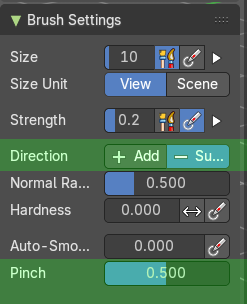
Add & subtract brushes for sculpting.
Direction Add / Subtract
Add means the stroke adds to the geometry. Subtract means the stroke subtracts from the geometry.
Pinch

The Crease Brush Pinch Factor.
Brush Settings Panel - Crease Sharp brush
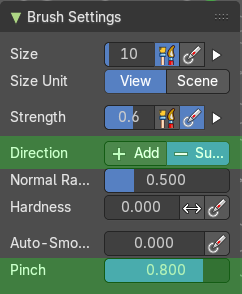
Add & subtract brushes for sculpting.
Direction Add / Subtract
Add means the stroke adds to the geometry. Subtract means the stroke subtracts from the geometry.
Pinch
The Crease Brush Pinch Factor.
Brush Settings Panel - Draw brush
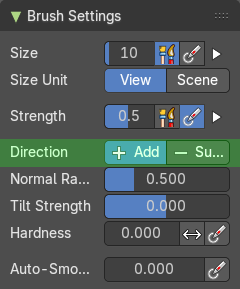
Add & subtract brushes for sculpting.
Direction Add / Subtract
Add means the stroke adds to the geometry. Subtract means the stroke subtracts from the geometry.
Brush Settings Panel - Draw Sharp brush
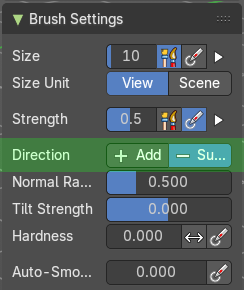
Add & subtract brushes for sculpting.
Direction Add / Subtract
Add means the stroke adds to the geometry. Subtract means the stroke subtracts from the geometry.
Brush Settings Panel - Inflate/Deflate brush
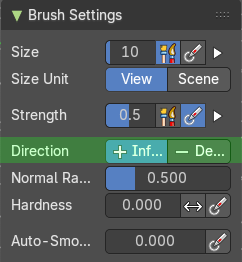
Contrast brushes for sculpting.
Direction Inflate / Deflate
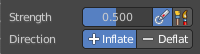
Add or subtract effect of the brush.
Brush Settings Panel - Layer brush
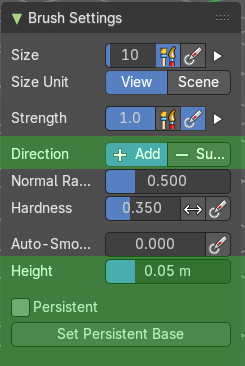
Contrast brushes for sculpting.
Direction Add / Subtract
Add means the stroke adds to the geometry. Subtract means the stroke subtracts from the geometry.
Height

Layer brush setting. The height that can be affected by the layer brush.
Persistent
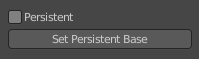
Layer brush setting. Sculpt on a persistent layer of the mesh.
Set Persistent Base
This button resets the base so that you can add another layer.
Brush Settings Panel - Fill/Deepen brush
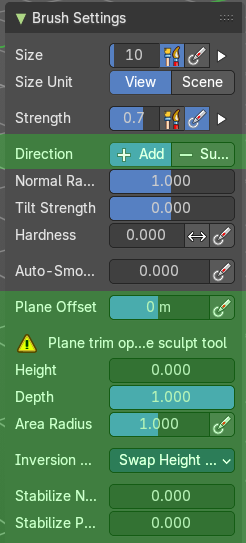
Contrast brushes for sculpting.
Direction Fill / Deepen
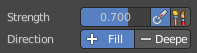
Add or subtract effect of the brush
Plane Offset
Adjust the plane on which the brush acts towards or away from the objects surface. Sculpting with the Clay brush happens in a plane defined by the view you are in and the first vertices hit by the brush.
Warning

Just a warning that the plane trim option is not available for this brush.
| Entry | What it does |
|---|---|
| Height | The maximum distance above the plane for affected vertices. Increasing the height affects vertices farther above the plane. |
| Depth | The maximum distance below the plane for affected vertices. Increasing the height affects vertices farther above the plane. |
| Area Radius | The ratio between the brush radius and the radius that is going to be used to sample the area center. · Size Pressure: Enables tablet pressure sensitivity for radius. |
Inversion Mode
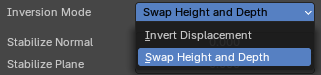
| Entry | What it does |
|---|---|
| Invert Displacement | Displace the vertice away from the plane. |
| Swap Height and Depth | Swaps the roles of height and depth. |
| Entry | What it does |
|---|---|
| Stabilize Normal | Stabilize the orientation of the brush plane. |
| Stabilize Plane | Stabilize the orientation of the brush plane. |
Brush Settings Panel - Flatten/Contrast brush
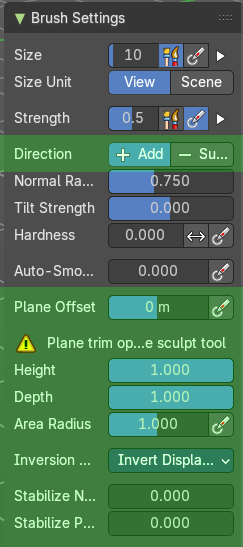
Contrast brushes for sculpting.
Direction Fill / Deepen
Add or subtract effect of the brush
Plane Offset
Adjust the plane on which the brush acts towards or away from the objects surface. Sculpting with the Clay brush happens in a plane defined by the view you are in and the first vertices hit by the brush.
Warning
Just a warning that the plane trim option is not available for this brush.
| Entry | What it does |
|---|---|
| Height | The maximum distance above the plane for affected vertices. Increasing the height affects vertices farther above the plane. |
| Depth | The maximum distance below the plane for affected vertices. Increasing the height affects vertices farther above the plane. |
| Area Radius | The ratio between the brush radius and the radius that is going to be used to sample the area center. · Size Pressure: Enables tablet pressure sensitivity for radius. |
Inversion Mode
| Entry | What it does |
|---|---|
| Invert Displacement | Displace the vertice away from the plane. |
| Swap Height and Depth | Swaps the roles of height and depth. |
| Entry | What it does |
|---|---|
| Stabilize Normal | Stabilize the orientation of the brush plane. |
| Stabilize Plane | Stabilize the orientation of the brush plane. |
Brush Settings Panel - Plateau brush
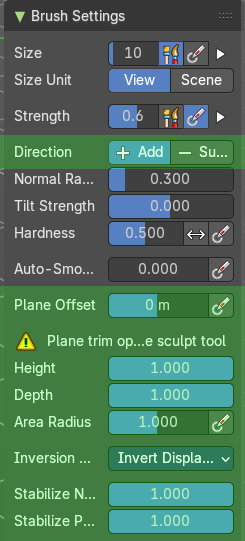
Contrast brushes for sculpting.
Direction Fill / Deepen
Add or subtract effect of the brush
Plane Offset
Adjust the plane on which the brush acts towards or away from the objects surface. Sculpting with the Clay brush happens in a plane defined by the view you are in and the first vertices hit by the brush.
Warning
Just a warning that the plane trim option is not available for this brush.
| Entry | What it does |
|---|---|
| Height | The maximum distance above the plane for affected vertices. Increasing the height affects vertices farther above the plane. |
| Depth | The maximum distance below the plane for affected vertices. Increasing the height affects vertices farther above the plane. |
| Area Radius | The ratio between the brush radius and the radius that is going to be used to sample the area center. · Size Pressure: Enables tablet pressure sensitivity for radius. |
Inversion Mode
| Entry | What it does |
|---|---|
| Invert Displacement | Displace the vertice away from the plane. |
| Swap Height and Depth | Swaps the roles of height and depth. |
| Entry | What it does |
|---|---|
| Stabilize Normal | Stabilize the orientation of the brush plane. |
| Stabilize Plane | Stabilize the orientation of the brush plane. |
Brush Settings Panel - Scrape Multi-plane brush
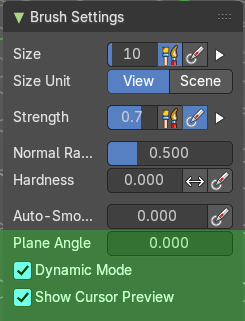
Contrast brushes for sculpting.
Plane Angle

Multiplane Scrape brush. The angles between the planes of the crease.
Dynamic Mode

Multiplane Scrape brush. Fit the angles during the stroke to fit the angles under the cursor.
Show Cursor Preview

Multiplane Scrape brush. Preview the plane scrapes in the cursor during the stroke.
Brush Settings Panel - Scrape/Fill brush
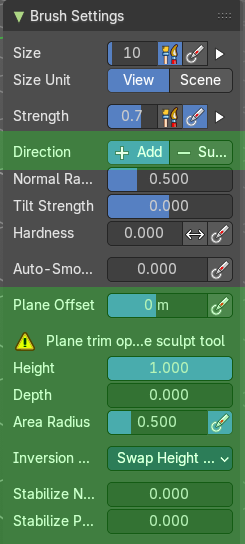
Contrast brushes for sculpting.
Direction Fill / Deepen
Add or subtract effect of the brush
Plane Offset
Adjust the plane on which the brush acts towards or away from the objects surface. Sculpting with the Clay brush happens in a plane defined by the view you are in and the first vertices hit by the brush.
Warning
Just a warning that the plane trim option is not available for this brush.
| Entry | What it does |
|---|---|
| Height | The maximum distance above the plane for affected vertices. Increasing the height affects vertices farther above the plane. |
| Depth | The maximum distance below the plane for affected vertices. Increasing the height affects vertices farther above the plane. |
| Area Radius | The ratio between the brush radius and the radius that is going to be used to sample the area center. · Size Pressure: Enables tablet pressure sensitivity for radius. |
Inversion Mode
| Entry | What it does |
|---|---|
| Invert Displacement | Displace the vertice away from the plane. |
| Swap Height and Depth | Swaps the roles of height and depth. |
| Entry | What it does |
|---|---|
| Stabilize Normal | Stabilize the orientation of the brush plane. |
| Stabilize Plane | Stabilize the orientation of the brush plane. |
Brush Settings Panel - Smooth brush
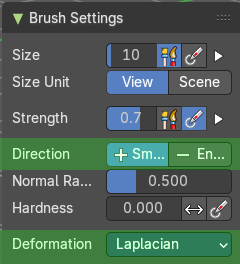
Contrast brushes for sculpting.
Direction Smooth / Enhance
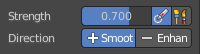
Smooth or enhance the surface detail.
Deformation
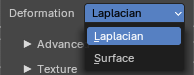
Smooth or enhance the surface detail.
| Entry | What it does |
|---|---|
| Laplacian | Smoothens the surface and the volume. |
| Surface | Smoothens the surface and preserves the volume. |
Brush Settings Panel - Trim brush
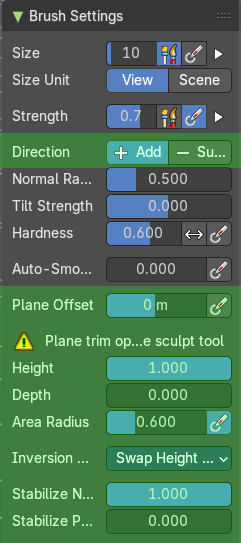
Contrast brushes for sculpting.
Direction Fill / Deepen
Add or subtract effect of the brush
Plane Offset
Adjust the plane on which the brush acts towards or away from the objects surface. Sculpting with the Clay brush happens in a plane defined by the view you are in and the first vertices hit by the brush.
Warning
Just a warning that the plane trim option is not available for this brush.
| Entry | What it does |
|---|---|
| Height | The maximum distance above the plane for affected vertices. Increasing the height affects vertices farther above the plane. |
| Depth | The maximum distance below the plane for affected vertices. Increasing the height affects vertices farther above the plane. |
| Area Radius | The ratio between the brush radius and the radius that is going to be used to sample the area center. · Size Pressure: Enables tablet pressure sensitivity for radius. |
Inversion Mode
| Entry | What it does |
|---|---|
| Invert Displacement | Displace the vertice away from the plane. |
| Swap Height and Depth | Swaps the roles of height and depth. |
| Entry | What it does |
|---|---|
| Stabilize Normal | Stabilize the orientation of the brush plane. |
| Stabilize Plane | Stabilize the orientation of the brush plane. |
Brush Settings Panel - Boundary brush
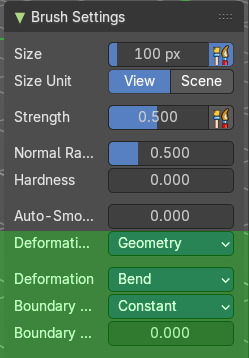
Transform brushes for sculpting.
Deformation Target
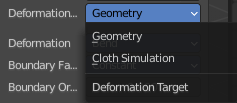
The deformation type to use.
Deformation
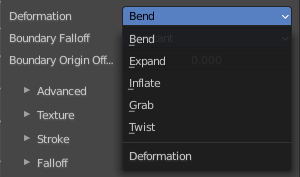
The deformation type to use.
Boundary Falloff
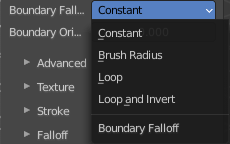
Boundary brush option. The falloff type.
Boundary Origin Offset

Boundary brush option. Offset of the boundary origin in relation to the brush radius.
Brush Settings Panel - Elastic Grab brush
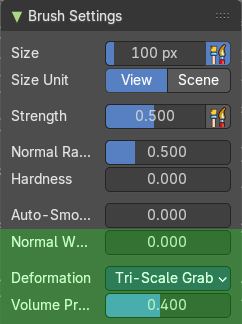
Transform brushes for sculpting.
Normal Weight

How much grab will pull vertexes out of surface during grab.
Deformation
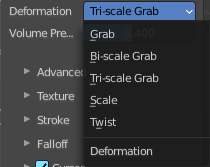
The deformation type to use.
Volume Preservation

Poisson ratio for elastic deform. The higher the value is the more the volume is kept. But leads to more bulging
Brush Settings Panel - Elastic Snake Hook brush
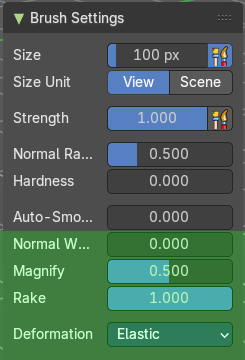
Transform brushes for sculpting.
Normal Weight
How much grab will pull vertexes out of surface during grab.
Magnify
The Crease Brush Pinch Factor.
Rake

How much grab will follow cursor rotation.
Deformation
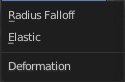
The deformation type.
Brush Settings Panel - Grab brush
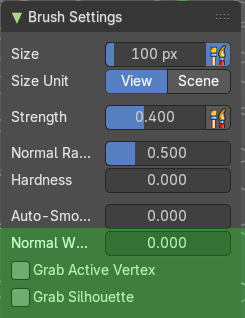
Transform brushes for sculpting.
Normal Weight
How much grab will pull vertexes out of surface during grab.
Grab active Vertex

Apply the maximum grab strength to the active vertex instead of the cursor position.
Grab Silhouette
Grab trying to automask the silhouette of the object.
Brush Settings Panel - Grab 2D brush
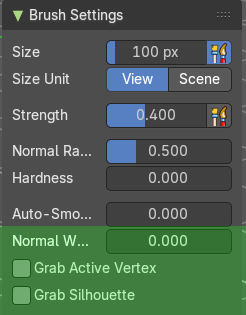
Transform brushes for sculpting.
Normal Weight
How much grab will pull vertexes out of surface during grab.
Grab active Vertex
Apply the maximum grab strength to the active vertex instead of the cursor position.
Grab Silhouette
Grab trying to automask the silhouette of the object.
Brush Settings Panel - Grab Silhouette brush
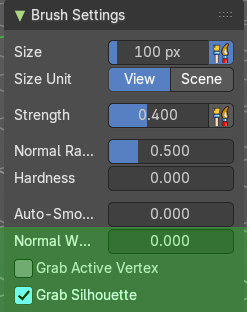
Transform brushes for sculpting.
Normal Weight
How much grab will pull vertexes out of surface during grab.
Grab active Vertex
Apply the maximum grab strength to the active vertex instead of the cursor position.
Grab Silhouette
Grab trying to automask the silhouette of the object.
Brush Settings Panel - Nudge brush
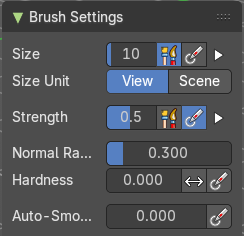
Transform brushes for sculpting.
Just standard settings.
Brush Settings Panel - Pinch/Magnify brush
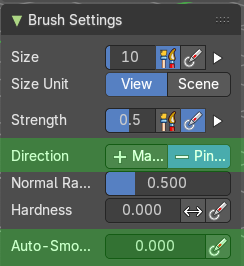
Transform brushes for sculpting.
Direction Magnify / Pinch
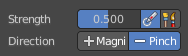
Add or subtract effect of the brush.
Autosmooth
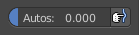
The autosmooth edit box allows you to adjust the amount of smoothing that gets automatically applied to each stroke. The button behind the edit box enables tablet pressure sensitivity for autosmooth.
Brush Settings Panel - Pose brush
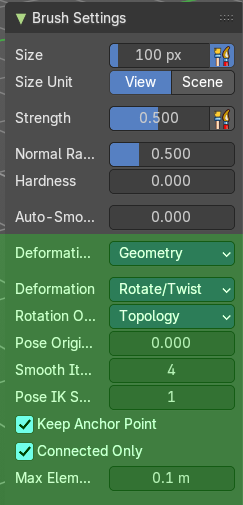
Transform brushes for sculpting.
Deformation Target
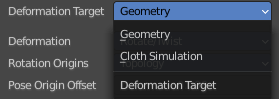
Pose Brush setting. How the deformation of the brush will affect the object.
Deformation
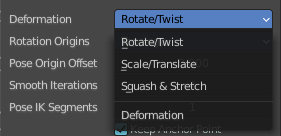
Pose Brush setting. Deformation type that is used in the brush.
Lock Rotation when scaling
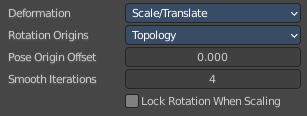
With Scale/Translate mode. Do not rotate the segment when using the scale deform mode.
Rotation Origins
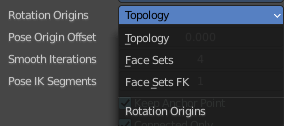
Pose Brush setting. Define the rotation origins.
Pose Origin Offset
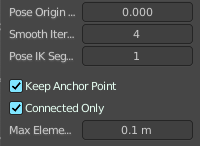
Pose Brush setting. Offset of the pose origin in relation to the brush radius.
| Entry | What it does |
|---|---|
| Smooth Iterations | Pose Brush setting. Smooth iterations applied after calculating the pose factor of each vertex. |
| Pose IK Segments | Pose Brush setting. Number of segments of the IK chain that will deform the mesh. |
| Keep Anchor Point | Pose Brush setting. Keep the position of the last segment in the IK chain fixed. |
| Connected only | Affect only topology connected elements. |
| Max Element Distance | Maximum distance to search for disconnected loose parts in the mesh. |
Brush Settings Panel - Pull brush
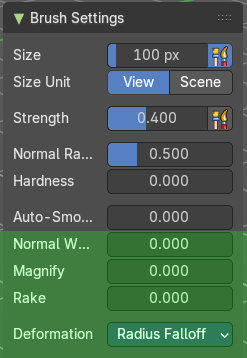
Transform brushes for sculpting.
Normal Weight
How much grab will pull vertexes out of surface during grab.
Magnify
The Crease Brush Pinch Factor.
Rake
How much grab will follow cursor rotation.
Deformation
The deformation type.
Brush Settings Panel - Relax Pinch brush
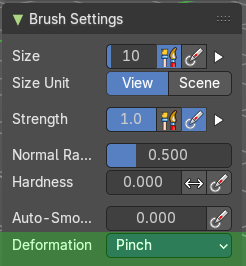
Transform brushes for sculpting.
Deformation
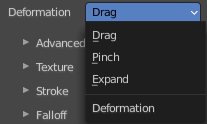
The deformation type to use.
Brush Settings Panel - Relax Slide brush
Transform brushes for sculpting.
Deformation
The deformation type to use.
Brush Settings Panel - Snake Hook brush
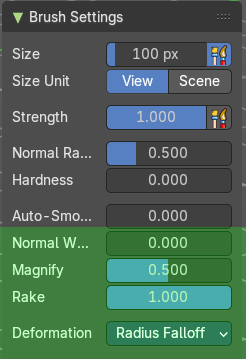
Transform brushes for sculpting.
Normal Weight
How much grab will pull vertexes out of surface during grab.
Magnify
The Crease Brush Pinch Factor.
Rake
How much grab will follow cursor rotation.
Deformation
The deformation type.
Brush Settings Panel - Thumb brush
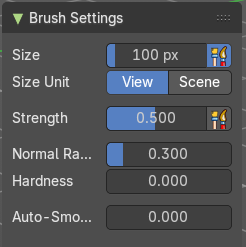
Transform brushes for sculpting.
Just standard settings.
Brush Settings Panel - Twist brush
Transform brushes for sculpting.
Just standard settings.
Brush Settings Panel - Density brush
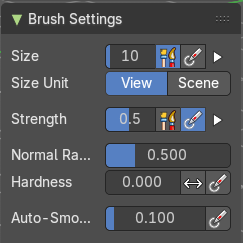
Utility brushes for sculpting.
Just standard settings.
Brush Settings Panel - Erase multires displacement brush
Utility brushes for sculpting.
Just standard settings.
Brush Settings Panel - Draw Face Sets brush
Utility brushes for sculpting.
Just standard settings.
Brush Settings Panel - Mask brush
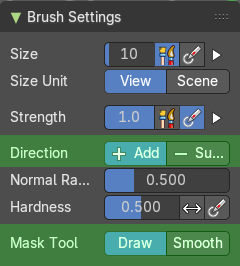
Utility brushes for sculpting.
Direction Add / Subtract
Add means the stroke adds to the geometry. Subtract means the stroke subtracts from the geometry.
Mask Tool
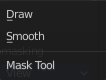

Draw or smooth the current mask.
Brush Settings Panel - Smear Multires Displacement brush
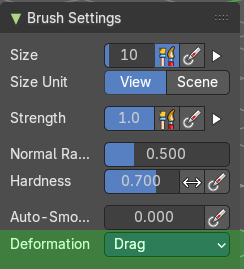
Utility brushes for sculpting.
Deformation
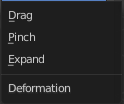
The deformation method for the smear.
Brush Settings Panel - Airbrush brush
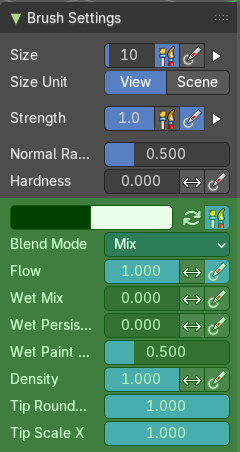
The airbrush brush allows you to vertex paint onto the sculpt mesh.
Primary / Secondary color

Set the primary and secondary color for painting.
Color picker
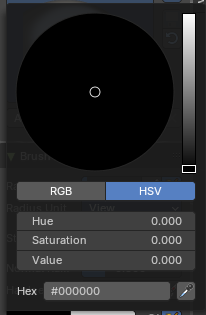
Clicking at one of the colors will reveal a color wheel where you can adjust your color.
| Entry | What it does |
|---|---|
| Swap Colors | Swaps the primary color with the secondary color. |
| Use Unified Color | The colors are shared across the brushes. |
Blend Mode
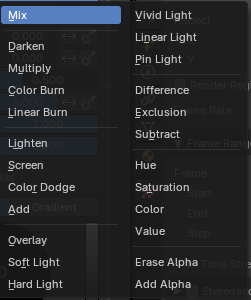
The blend mode of the brush. How the color is applied.
| Entry | What it does |
|---|---|
| Flow | Amount of color that is applied per stroke. · Invert pressure for flow: Invert the modulation of pressure. · Use pressure for flow: Use tablet pressure. |
| Wet Mix | Amount of color that is picked from the surface and mixed into the brush color. · Invert pressure for Wet Mix: Invert the modulation of pressure. · Use pressure for Wet Mix: Use tablet pressure. |
| Wet Persistence | Amount of wet paint that stays in the brush after applying paint at the surface. · Invert pressure for Wet Persistence: Invert the modulation of pressure. · Use pressure for Wet Persistence: Use tablet pressure. |
| Wet Paint Radius | Ratio between the brush ardius and the radius that is going to be used to sample the color to blend in wet paint. |
| Density | How dense the stroke is. |
| Tip roundness | Roundness of the brush tip. |
| Tip Scale X | Scale of the tip in x direction. |
Brush Settings Panel - Blend Hard brush
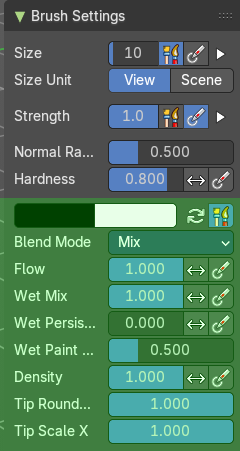
The blend hard brush allows you to vertex paint onto the sculpt mesh.
Primary / Secondary color
Set the primary and secondary color for painting.
Color picker
Clicking at one of the colors will reveal a color wheel where you can adjust your color.
| Entry | What it does |
|---|---|
| Swap Colors | Swaps the primary color with the secondary color. |
| Use Unified Color | The colors are shared across the brushes. |
Blend Mode
The blend mode of the brush. How the color is applied.
| Entry | What it does |
|---|---|
| Flow | Amount of color that is applied per stroke. · Invert pressure for flow: Invert the modulation of pressure. · Use pressure for flow: Use tablet pressure. |
| Wet Mix | Amount of color that is picked from the surface and mixed into the brush color. · Invert pressure for Wet Mix: Invert the modulation of pressure. · Use pressure for Wet Mix: Use tablet pressure. |
| Wet Persistence | Amount of wet paint that stays in the brush after applying paint at the surface. · Invert pressure for Wet Persistence: Invert the modulation of pressure. · Use pressure for Wet Persistence: Use tablet pressure. |
| Wet Paint Radius | Ratio between the brush ardius and the radius that is going to be used to sample the color to blend in wet paint. |
| Density | How dense the stroke is. |
| Tip roundness | Roundness of the brush tip. |
| Tip Scale X | — |
Brush Settings Panel - Blend Soft brush
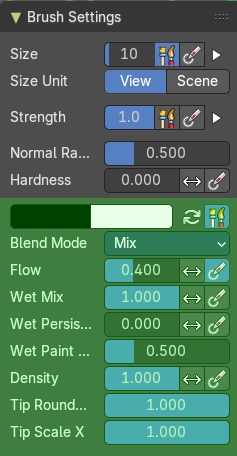
The blend soft brush allows you to vertex paint onto the sculpt mesh.
Primary / Secondary color
Set the primary and secondary color for painting.
Color picker
Clicking at one of the colors will reveal a color wheel where you can adjust your color.
| Entry | What it does |
|---|---|
| Swap Colors | Swaps the primary color with the secondary color. |
| Use Unified Color | The colors are shared across the brushes. |
Blend Mode
The blend mode of the brush. How the color is applied.
| Entry | What it does |
|---|---|
| Flow | Amount of color that is applied per stroke. · Invert pressure for flow: Invert the modulation of pressure. · Use pressure for flow: Use tablet pressure. |
| Wet Mix | Amount of color that is picked from the surface and mixed into the brush color. · Invert pressure for Wet Mix: Invert the modulation of pressure. · Use pressure for Wet Mix: Use tablet pressure. |
| Wet Persistence | Amount of wet paint that stays in the brush after applying paint at the surface. · Invert pressure for Wet Persistence: Invert the modulation of pressure. · Use pressure for Wet Persistence: Use tablet pressure. |
| Wet Paint Radius | Ratio between the brush ardius and the radius that is going to be used to sample the color to blend in wet paint. |
| Density | How dense the stroke is. |
| Tip roundness | Roundness of the brush tip. |
| Tip Scale X | The scale of the tip in X direction. |
Brush Settings Panel - Blend Square brush
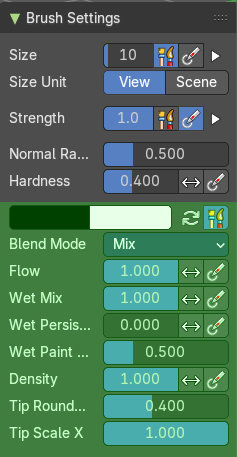
The blend square brush allows you to vertex paint onto the sculpt mesh.
Primary / Secondary color
Set the primary and secondary color for painting.
Color picker
Clicking at one of the colors will reveal a color wheel where you can adjust your color.
| Entry | What it does |
|---|---|
| Swap Colors | Swaps the primary color with the secondary color. |
| Use Unified Color | The colors are shared across the brushes. |
Blend Mode
The blend mode of the brush. How the color is applied.
| Entry | What it does |
|---|---|
| Flow | Amount of color that is applied per stroke. · Invert pressure for flow: Invert the modulation of pressure. · Use pressure for flow: Use tablet pressure. |
| Wet Mix | Amount of color that is picked from the surface and mixed into the brush color. · Invert pressure for Wet Mix: Invert the modulation of pressure. · Use pressure for Wet Mix: Use tablet pressure. |
| Wet Persistence | Amount of wet paint that stays in the brush after applying paint at the surface. · Invert pressure for Wet Persistence: Invert the modulation of pressure. · Use pressure for Wet Persistence: Use tablet pressure. |
| Wet Paint Radius | Ratio between the brush ardius and the radius that is going to be used to sample the color to blend in wet paint. |
| Density | How dense the stroke is. |
| Tip roundness | Roundness of the brush tip. |
| Tip Scale X | The scale of the tip in X direction. |
Brush Settings Panel - Paint Blend brush
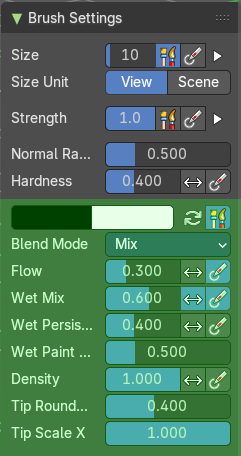
The paint blend brush allows you to vertex paint onto the sculpt mesh.
Primary / Secondary color
Set the primary and secondary color for painting.
Color picker
Clicking at one of the colors will reveal a color wheel where you can adjust your color.
| Entry | What it does |
|---|---|
| Swap Colors | Swaps the primary color with the secondary color. |
| Use Unified Color | The colors are shared across the brushes. |
Blend Mode
The blend mode of the brush. How the color is applied.
| Entry | What it does |
|---|---|
| Flow | Amount of color that is applied per stroke. · Invert pressure for flow: Invert the modulation of pressure. · Use pressure for flow: Use tablet pressure. |
| Wet Mix | Amount of color that is picked from the surface and mixed into the brush color. · Invert pressure for Wet Mix: Invert the modulation of pressure. · Use pressure for Wet Mix: Use tablet pressure. |
| Wet Persistence | Amount of wet paint that stays in the brush after applying paint at the surface. · Invert pressure for Wet Persistence: Invert the modulation of pressure. · Use pressure for Wet Persistence: Use tablet pressure. |
| Wet Paint Radius | Ratio between the brush ardius and the radius that is going to be used to sample the color to blend in wet paint. |
| Density | How dense the stroke is. |
| Tip roundness | Roundness of the brush tip. |
| Tip Scale X | The scale of the tip in X direction. |
Brush Settings Panel - Paint Hard brush
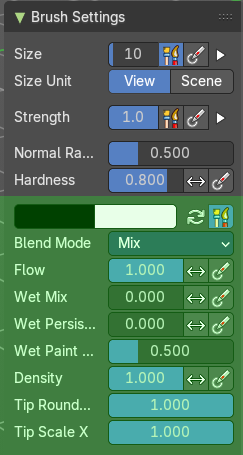
The paint hard brush allows you to vertex paint onto the sculpt mesh.
Primary / Secondary color
Set the primary and secondary color for painting.
Color picker
Clicking at one of the colors will reveal a color wheel where you can adjust your color.
| Entry | What it does |
|---|---|
| Swap Colors | Swaps the primary color with the secondary color. |
| Use Unified Color | The colors are shared across the brushes. |
Blend Mode
The blend mode of the brush. How the color is applied.
| Entry | What it does |
|---|---|
| Flow | Amount of color that is applied per stroke. · Invert pressure for flow: Invert the modulation of pressure. · Use pressure for flow: Use tablet pressure. |
| Wet Mix | Amount of color that is picked from the surface and mixed into the brush color. · Invert pressure for Wet Mix: Invert the modulation of pressure. · Use pressure for Wet Mix: Use tablet pressure. |
| Wet Persistence | Amount of wet paint that stays in the brush after applying paint at the surface. · Invert pressure for Wet Persistence: Invert the modulation of pressure. · Use pressure for Wet Persistence: Use tablet pressure. |
| Wet Paint Radius | Ratio between the brush ardius and the radius that is going to be used to sample the color to blend in wet paint. |
| Density | How dense the stroke is. |
| Tip roundness | Roundness of the brush tip. |
| Tip Scale X | The scale of the tip in X direction. |
Brush Settings Panel - Paint Hard Pressure brush
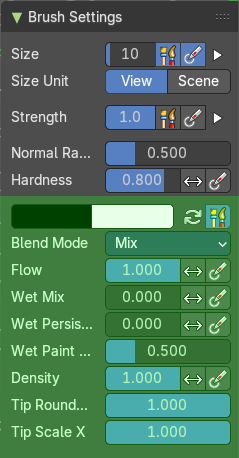
The paint hard pressure brush allows you to vertex paint onto the sculpt mesh.
Primary / Secondary color
Set the primary and secondary color for painting.
Color picker
Clicking at one of the colors will reveal a color wheel where you can adjust your color.
| Entry | What it does |
|---|---|
| Swap Colors | Swaps the primary color with the secondary color. |
| Use Unified Color | The colors are shared across the brushes. |
Blend Mode
The blend mode of the brush. How the color is applied.
| Entry | What it does |
|---|---|
| Flow | Amount of color that is applied per stroke. · Invert pressure for flow: Invert the modulation of pressure. · Use pressure for flow: Use tablet pressure. |
| Wet Mix | Amount of color that is picked from the surface and mixed into the brush color. · Invert pressure for Wet Mix: Invert the modulation of pressure. · Use pressure for Wet Mix: Use tablet pressure. |
| Wet Persistence | Amount of wet paint that stays in the brush after applying paint at the surface. · Invert pressure for Wet Persistence: Invert the modulation of pressure. · Use pressure for Wet Persistence: Use tablet pressure. |
| Wet Paint Radius | Ratio between the brush ardius and the radius that is going to be used to sample the color to blend in wet paint. |
| Density | How dense the stroke is. |
| Tip roundness | Roundness of the brush tip. |
| Tip Scale X | The scale of the tip in X direction. |
Brush Settings Panel - Paint Soft brush
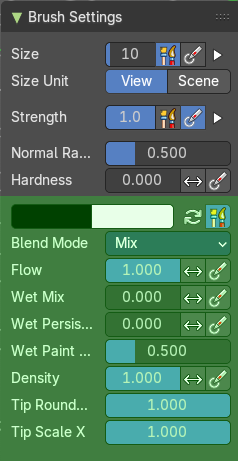
The airbrush brush allows you to vertex paint onto the sculpt mesh.
Primary / Secondary color
Set the primary and secondary color for painting.
Color picker
Clicking at one of the colors will reveal a color wheel where you can adjust your color.
| Entry | What it does |
|---|---|
| Swap Colors | Swaps the primary color with the secondary color. |
| Use Unified Color | The colors are shared across the brushes. |
Blend Mode
The blend mode of the brush. How the color is applied.
| Entry | What it does |
|---|---|
| Flow | Amount of color that is applied per stroke. · Invert pressure for flow: Invert the modulation of pressure. · Use pressure for flow: Use tablet pressure. |
| Wet Mix | Amount of color that is picked from the surface and mixed into the brush color. · Invert pressure for Wet Mix: Invert the modulation of pressure. · Use pressure for Wet Mix: Use tablet pressure. |
| Wet Persistence | Amount of wet paint that stays in the brush after applying paint at the surface. · Invert pressure for Wet Persistence: Invert the modulation of pressure. · Use pressure for Wet Persistence: Use tablet pressure. |
| Wet Paint Radius | Ratio between the brush ardius and the radius that is going to be used to sample the color to blend in wet paint. |
| Density | How dense the stroke is. |
| Tip roundness | Roundness of the brush tip. |
| Tip Scale X | The scale of the tip in X direction. |
Brush Settings Panel - Paint Soft Pressure brush
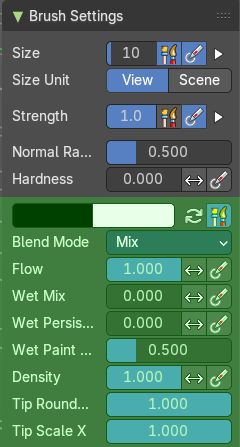
The Paint Soft Pressure brush allows you to vertex paint onto the sculpt mesh.
Primary / Secondary color
Set the primary and secondary color for painting.
Color picker
Clicking at one of the colors will reveal a color wheel where you can adjust your color.
| Entry | What it does |
|---|---|
| Swap Colors | Swaps the primary color with the secondary color. |
| Use Unified Color | The colors are shared across the brushes. |
Blend Mode
The blend mode of the brush. How the color is applied.
| Entry | What it does |
|---|---|
| Flow | Amount of color that is applied per stroke. · Invert pressure for flow: Invert the modulation of pressure. · Use pressure for flow: Use tablet pressure. |
| Wet Mix | Amount of color that is picked from the surface and mixed into the brush color. · Invert pressure for Wet Mix: Invert the modulation of pressure. · Use pressure for Wet Mix: Use tablet pressure. |
| Wet Persistence | Amount of wet paint that stays in the brush after applying paint at the surface. · Invert pressure for Wet Persistence: Invert the modulation of pressure. · Use pressure for Wet Persistence: Use tablet pressure. |
| Wet Paint Radius | Ratio between the brush ardius and the radius that is going to be used to sample the color to blend in wet paint. |
| Density | How dense the stroke is. |
| Tip roundness | Roundness of the brush tip. |
| Tip Scale X | The scale of the tip in X direction. |
Brush Settings Panel - Paint Square brush
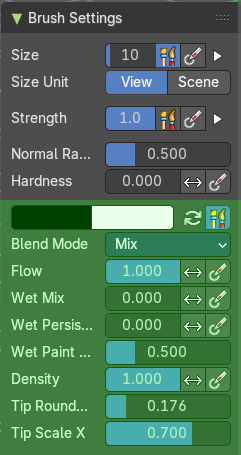
The Paint Square brush allows you to vertex paint onto the sculpt mesh.
Primary / Secondary color
Set the primary and secondary color for painting.
Color picker
Clicking at one of the colors will reveal a color wheel where you can adjust your color.
| Entry | What it does |
|---|---|
| Swap Colors | Swaps the primary color with the secondary color. |
| Use Unified Color | The colors are shared across the brushes. |
Blend Mode
The blend mode of the brush. How the color is applied.
| Entry | What it does |
|---|---|
| Flow | Amount of color that is applied per stroke. · Invert pressure for flow: Invert the modulation of pressure. · Use pressure for flow: Use tablet pressure. |
| Wet Mix | Amount of color that is picked from the surface and mixed into the brush color. · Invert pressure for Wet Mix: Invert the modulation of pressure. · Use pressure for Wet Mix: Use tablet pressure. |
| Wet Persistence | Amount of wet paint that stays in the brush after applying paint at the surface. · Invert pressure for Wet Persistence: Invert the modulation of pressure. · Use pressure for Wet Persistence: Use tablet pressure. |
| Wet Paint Radius | Ratio between the brush ardius and the radius that is going to be used to sample the color to blend in wet paint. |
| Density | How dense the stroke is. |
| Tip roundness | Roundness of the brush tip. |
| Tip Scale X | The scale of the tip in X direction. |
Brush Settings Panel - Sharpen brush
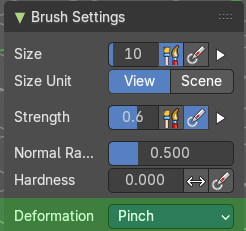
The Sharpen brush allows you to vertex paint onto the sculpt mesh.
Deformation
The deformation method for the smear.
Brush Settings Panel - Smear brush
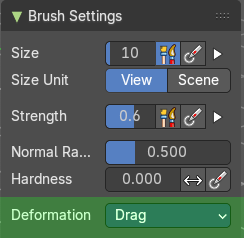
The Smear brush allows you to vertex paint onto the sculpt mesh.
Deformation
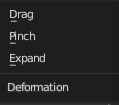
How to deform the smearing.
Brush Settings Panel - Bend Boundary Cloth brush
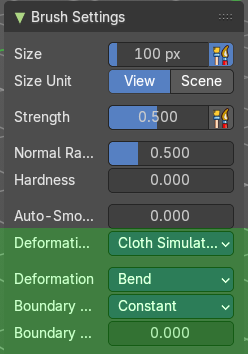
Simulation brushes allows you to sculpt and alter simulation data. To refine cloth simulations for example.
Deformation target
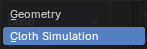
What data to affect. The simulation or the geometry.
Deformation
What kind of deformation to apply.
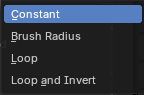
Boundary Falloff
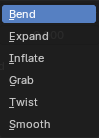
The boundary falloff method.
Boundary Origin Offset
Offset of the boundary origin in relation to the brush radius.
Brush Settings Panel - Bend/Twist Cloth brush
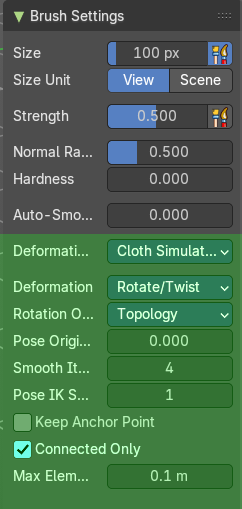
Simulation brushes allows you to sculpt and alter simulation data. To refine cloth simulations for example.
Deformation target
What data to affect. The simulation or the geometry.
Deformation
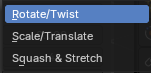
What kind of deformation to apply.
Rotation Origins
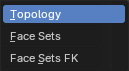
The point to bend or twist around.
| Entry | What it does |
|---|---|
| Pose Origin Offset | Offset of the boundary origin in relation to the brush radius. |
| Smooth iterations | Number of smoothing steps after calculating the pose factor of each vertex. |
| Pose IK Segments | Numer of segments of the inverse kinematics chjain that will deform the mesh. |
| Keep Anchor Point | Keep the position of the last segment in the ik chain fixed. |
| Connected only | Affect only topological connected geometry. |
| Max Element Distance | Maximum distance to search for disconnected loose parts in the mesh |
Brush Settings Panel - Drag Cloth brush
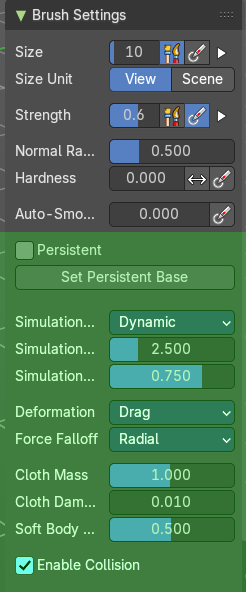
Simulation brushes allows you to sculpt and alter simulation data. To refine cloth simulations for example.
Persistent
Layer brush setting. Sculpt on a persistent layer of the mesh.
Set Persistent Base
This button resets the base so that you can add another layer.
Simulation Area
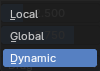
What data to affect. The simulation or the geometry.
| Entry | What it does |
|---|---|
| Simulation Limit | Factor to limit the cloth simulation effects. |
| Simulation Falloff | Area to apply the deformation falloff to the effects of the simulation. |
Deformation
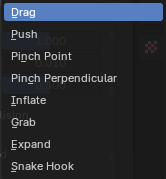
What kind of deformation.
Force Falloff
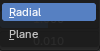
Brush shape to apply force.
| Entry | What it does |
|---|---|
| Cloth Mass | Mass of each simulation particle. |
| Cloth Damping | How much the applied forces are propagated through the cloth. |
| Soft Body Plasticity | How much the cloth preserves the original shap, acting as a softbody. |
| Enable Collision | Enable the collision with objects during the simulation. |
Brush Settings Panel - Expand/Contract Cloth brush
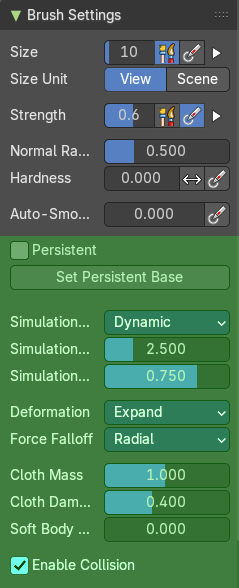
Simulation brushes allows you to sculpt and alter simulation data. To refine cloth simulations for example.
Persistent
Layer brush setting. Sculpt on a persistent layer of the mesh.
Set Persistent Base
This button resets the base so that you can add another layer.
Simulation Area
What data to affect. The simulation or the geometry.
| Entry | What it does |
|---|---|
| Simulation Limit | Factor to limit the cloth simulation effects. |
| Simulation Falloff | Area to apply the deformation falloff to the effects of the simulation. |
Deformation
What kind of deformation.
Force Falloff
Brush shape to apply force.
| Entry | What it does |
|---|---|
| Cloth Mass | Mass of each simulation particle. |
| Cloth Damping | How much the applied forces are propagated through the cloth. |
| Soft Body Plasticity | How much the cloth preserves the original shap, acting as a softbody. |
| Enable Collision | Enable the collision with objects during the simulation. |
Brush Settings Panel - Grab Cloth brush
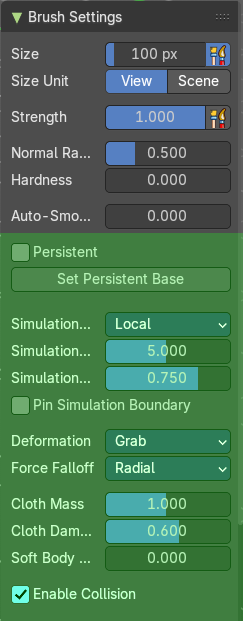
Simulation brushes allows you to sculpt and alter simulation data. To refine cloth simulations for example.
Persistent
Layer brush setting. Sculpt on a persistent layer of the mesh.
Set Persistent Base
This button resets the base so that you can add another layer.
Simulation Area
What data to affect. The simulation or the geometry.
| Entry | What it does |
|---|---|
| Simulation Limit | Factor to limit the cloth simulation effects. |
| Simulation Falloff | Area to apply the deformation falloff to the effects of the simulation. |
| Pin Simulation Boundary | Lock the position of the vertices in the simulation falloff area. This can help to avoid artifacts, and creates a softer transition with unaffected areas. |
Deformation
What kind of deformation.
Force Falloff
Brush shape to apply force.
| Entry | What it does |
|---|---|
| Cloth Mass | Mass of each simulation particle. |
| Cloth Damping | How much the applied forces are propagated through the cloth. |
| Soft Body Plasticity | How much the cloth preserves the original shap, acting as a softbody. |
| Enable Collision | Enable the collision with objects during the simulation. |
Brush Settings Panel - Grab Planar Cloth brush
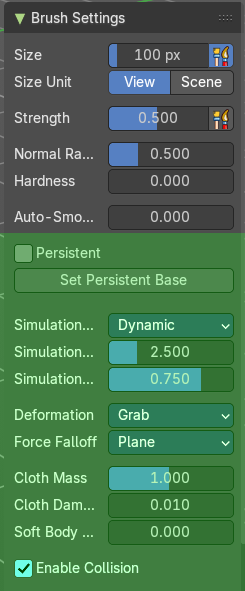
Simulation brushes allows you to sculpt and alter simulation data. To refine cloth simulations for example.
Persistent
Layer brush setting. Sculpt on a persistent layer of the mesh.
Set Persistent Base
This button resets the base so that you can add another layer.
Simulation Area
What data to affect. The simulation or the geometry.
| Entry | What it does |
|---|---|
| Simulation Limit | Factor to limit the cloth simulation effects. |
| Simulation Falloff | Area to apply the deformation falloff to the effects of the simulation. |
Deformation
What kind of deformation.
Force Falloff
Brush shape to apply force.
| Entry | What it does |
|---|---|
| Cloth Mass | Mass of each simulation particle. |
| Cloth Damping | How much the applied forces are propagated through the cloth. |
| Soft Body Plasticity | How much the cloth preserves the original shap, acting as a softbody. |
| Enable Collision | Enable the collision with objects during the simulation. |
Brush Settings Panel - Grab Random Cloth brush
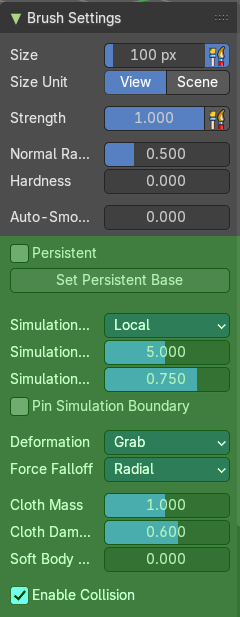
Simulation brushes allows you to sculpt and alter simulation data. To refine cloth simulations for example.
Persistent
Layer brush setting. Sculpt on a persistent layer of the mesh.
Set Persistent Base
This button resets the base so that you can add another layer.
Simulation Area
What data to affect. The simulation or the geometry.
| Entry | What it does |
|---|---|
| Simulation Limit | Factor to limit the cloth simulation effects. |
| Simulation Falloff | Area to apply the deformation falloff to the effects of the simulation. |
| Pin Simulation Boundary | Lock the position of the vertices in the simulation falloff area. This can help to avoid artifacts, and creates a softer transition with unaffected areas. |
Deformation
What kind of deformation.
Force Falloff
Brush shape to apply force.
| Entry | What it does |
|---|---|
| Cloth Mass | Mass of each simulation particle. |
| Cloth Damping | How much the applied forces are propagated through the cloth. |
| Soft Body Plasticity | How much the cloth preserves the original shap, acting as a softbody. |
| Enable Collision | Enable the collision with objects during the simulation. |
Brush Settings Panel - Inflate Cloth brush
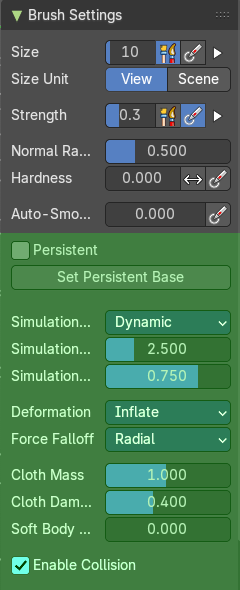
Simulation brushes allows you to sculpt and alter simulation data. To refine cloth simulations for example.
Persistent
Layer brush setting. Sculpt on a persistent layer of the mesh.
Set Persistent Base
This button resets the base so that you can add another layer.
Simulation Area
What data to affect. The simulation or the geometry.
| Entry | What it does |
|---|---|
| Simulation Limit | Factor to limit the cloth simulation effects. |
| Simulation Falloff | Area to apply the deformation falloff to the effects of the simulation. |
Deformation
What kind of deformation.
Force Falloff
Brush shape to apply force.
| Entry | What it does |
|---|---|
| Cloth Mass | Mass of each simulation particle. |
| Cloth Damping | How much the applied forces are propagated through the cloth. |
| Soft Body Plasticity | How much the cloth preserves the original shap, acting as a softbody. |
| Enable Collision | Enable the collision with objects during the simulation. |
Brush Settings Panel - Pinch Folds Cloth brush

Simulation brushes allows you to sculpt and alter simulation data. To refine cloth simulations for example.
Persistent
Layer brush setting. Sculpt on a persistent layer of the mesh.
Set Persistent Base
This button resets the base so that you can add another layer.
Simulation Area
What data to affect. The simulation or the geometry.
| Entry | What it does |
|---|---|
| Simulation Limit | Factor to limit the cloth simulation effects. |
| Simulation Falloff | Area to apply the deformation falloff to the effects of the simulation. |
Deformation
What kind of deformation.
Force Falloff
Brush shape to apply force.
| Entry | What it does |
|---|---|
| Cloth Mass | Mass of each simulation particle. |
| Cloth Damping | How much the applied forces are propagated through the cloth. |
| Soft Body Plasticity | How much the cloth preserves the original shap, acting as a softbody. |
| Enable Collision | Enable the collision with objects during the simulation. |
Brush Settings Panel - Pinch Point Cloth brush
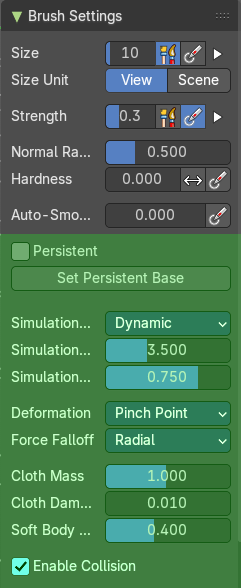
Simulation brushes allows you to sculpt and alter simulation data. To refine cloth simulations for example.
Persistent
Layer brush setting. Sculpt on a persistent layer of the mesh.
Set Persistent Base
This button resets the base so that you can add another layer.
Simulation Area
What data to affect. The simulation or the geometry.
| Entry | What it does |
|---|---|
| Simulation Limit | Factor to limit the cloth simulation effects. |
| Simulation Falloff | Area to apply the deformation falloff to the effects of the simulation. |
Deformation
What kind of deformation.
Force Falloff
Brush shape to apply force.
| Entry | What it does |
|---|---|
| Cloth Mass | Mass of each simulation particle. |
| Cloth Damping | How much the applied forces are propagated through the cloth. |
| Soft Body Plasticity | How much the cloth preserves the original shap, acting as a softbody. |
| Enable Collision | Enable the collision with objects during the simulation. |
Brush Settings Panel - Push Cloth brush
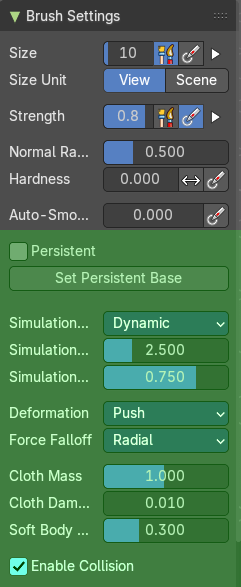
Simulation brushes allows you to sculpt and alter simulation data. To refine cloth simulations for example.
Persistent
Layer brush setting. Sculpt on a persistent layer of the mesh.
Set Persistent Base
This button resets the base so that you can add another layer.
Simulation Area
What data to affect. The simulation or the geometry.
| Entry | What it does |
|---|---|
| Simulation Limit | Factor to limit the cloth simulation effects. |
| Simulation Falloff | Area to apply the deformation falloff to the effects of the simulation. |
Deformation
What kind of deformation.
Force Falloff
Brush shape to apply force.
| Entry | What it does |
|---|---|
| Cloth Mass | Mass of each simulation particle. |
| Cloth Damping | How much the applied forces are propagated through the cloth. |
| Soft Body Plasticity | How much the cloth preserves the original shap, acting as a softbody. |
| Enable Collision | Enable the collision with objects during the simulation. |
Brush Settings Panel - Stretch/Move Cloth brush
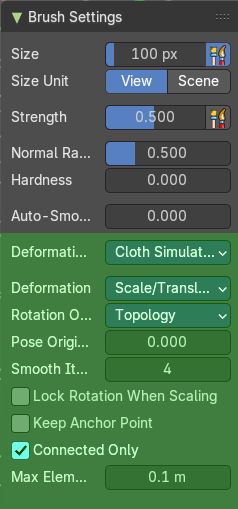
Simulation brushes allows you to sculpt and alter simulation data. To refine cloth simulations for example.
Deformation Target
The deformation type to use.
Deformation
The deformation type to use.
Rotation Origins
The point to bend or twist around.
| Entry | What it does |
|---|---|
| Pose Origin Offset | Offset of the boundary origin in relation to the brush radius. |
| Smooth iterations | Number of smoothing steps after calculating the pose factor of each vertex. |
| Lock Rotation When Scaling | Lock the rotation when scaling. |
| Keep Anchor Point | Keep the position of the last segment in the ik chain fixed. |
| Connected only | Affect only topological connected geometry. |
| Max Element Distance | Maximum distance to search for disconnected loose parts in the mesh. |
Brush Settings Panel - Twist Boundary Cloth brush

Simulation brushes allows you to sculpt and alter simulation data. To refine cloth simulations for example.
Deformation Target
The deformation type to use.
Deformation
The deformation type to use.
Boundary Falloff
The boundary falloff method.
Boundary Origin Offset
Offset of the boundary origin in relation to the brush radius.
Brush Settings Panel - Color Picker Sub panel
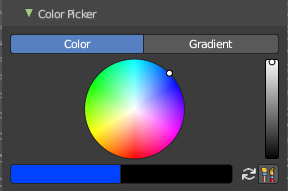
Paint brushes only. This sub panel is for the vertex painting paint tool. Define the primary and secondary color for the paint by a color picker and gradient dialog.
Mode
| Entry | What it does |
|---|---|
| Color / Gradient | Choose the color mode. |
| Color picker mode | Colorpicker: The color wheel of the color picker. · Primary / Secondary color: Set the primary and secondary color for painting. · Swap colors: Swap the primary with the secondary color. · Use Unified Color: Use the same color over all editors and modes. |
Gradient mode
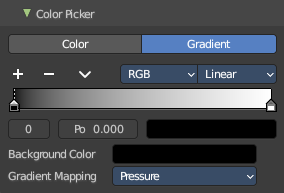
Allows you to paint gradients.
Color Ramp
Color Ramps enables the user to specify a range of colors based on color stops. The color between the color stops gets interpolated.
Controls
| Entry | What it does |
|---|---|
| + | Add a stop to your color ramp. The stop will be added after the selected one, in the middle to the next one. |
| - | Deletes the selected color stop from the list. |
Tools menu
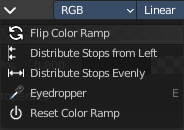
| Entry | What it does |
|---|---|
| Flip Color Ramp | Flips the gradient, inverting the values of the color ramp. |
| Distribute Stops from Left | Rearrange the stops so that every step has the same space to the right. |
| Distribute Stops Evenly | Space between all neighboring stops becomes equal. |
| Eyedropper (pipette icon) E | An Eyedropper to sample a color or gradient from the interface to be used in the color ramp. |
Reset Color Ramp
Resets the color ramp to its default state.
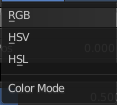
Color Mode
| Entry | What it does |
|---|---|
| RGB | Blends color by mixing each color channel and combining. |
| HSV/HSL | Blends colors by first converting to HSV or HSL, mixing, then combining again. This has the advantage of maintaining saturation between different hues, where RGB would de-saturate, this allows for a richer gradient. |
Interpolation
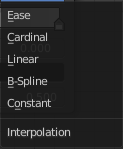
| Entry | What it does |
|---|---|
| Ease | Uses an Ease Interpolation for the color stops. |
| Cardinal | Uses a Cardinal Interpolation for the color stops. |
| Linear | Uses a Linear Interpolation for the color stops. |
| B-Spline | Uses a B-Spline Interpolation for the color stops. |
| Constant | Uses a Constant Interpolation for the color stops. |
Color Ramp

The color band. A click at one of the color stops makes it the active one. You can move the color stops by clicking at them and dragging them around.
Active Color Stop elements

Adjust the active color stop.
Choose active color stop
Choose the color stop by index.
Pos
The position of the active color stop. The range goes from 0.000 to 1.000
Color
The color of the active color stop. Click at it to change the color.
Background Color
The background color.
Gradient Mapping

How to paint the gradient.
Pressure
Paint the gradient by tablet pressure. Obviously you need a tablet for this.
Repeat
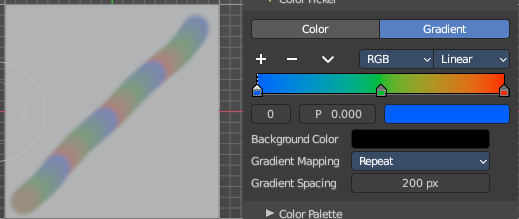
Paint the gradient by repeating the colors.
Gradient Spacing
The spacing between the colors in screen pixels. You need to have a gradient spacing higher than 0.
Clamp
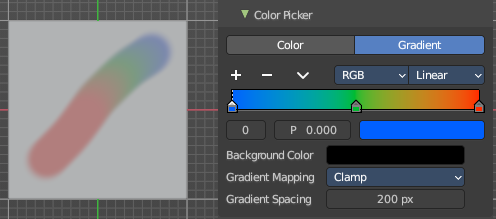
Paint the gradient from first color to last color, and then sticks with the last color. You need to have a gradient spacing higher than 0.
Gradient Spacing
The spacing between the colors in screen pixels.
Brush Settings Panel - Color Palette Sub panel
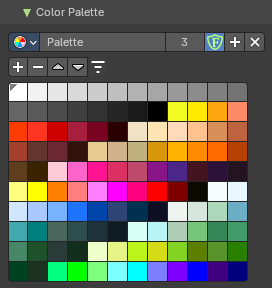
Paint brushes only. A color palette. There is a premade palette, and you can create your own palette of colors.
This sub panel just shows with the paint tool. Define a color palette to use for vertex painting.

Create a color palette for later reuse.
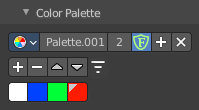
First create a new palette by clicking at New. Then adjust the color in the color picker. And then click at the add button to add this color to the palette.
To set the color picker to a palette color simply click at this palette color.
To remove a color from the palette, choose it, then click at the remove button. The active palette color that gets removed is the one with the triangle at it.
The color palette cannot be saved externally. It is part of the current blend file. You can however append color palettes from other blend files.
The currently active color is the one with the triangle at it.
The elements are explained from left to right.
Palette browser
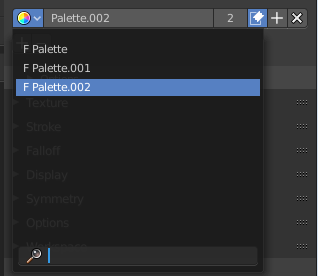
The button at the left opens a dropdown list. Choose between your palettes.
| Entry | What it does |
|---|---|
| Edit Box | The name of the currently active palette. You can also rename the palette here. A click into the edit box makes the name editable. |
| Number of users | See how many users the palette currently has. |
| Fake User | Fake User sets the element to have a fake user. Zero user data-blocks are normally not saved. But sometimes you want to force the data to be kept even when the data block has no user. |
| Add palette | Add a new palette. |
| Remove Palette | Clicking at this button removes the palette. Note that you need to save, close Bforartists and reload the blend file to remove the palette completely. |
| Add color | Adjust a color in the color picker. Then click at the add button to add this color to the palette. |
| Remove color | Select the color in the palette, then click at the minus button to remove it. |
Sort By
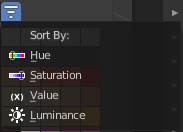
Sort the palette by the chosen method.
Brush Settings Panel - Advanced Sub panel
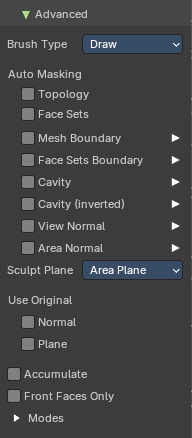
In this sub panel you can find the not so often used settings. They differ from brush to brush. Have a look at the tool tips.
Brush Type
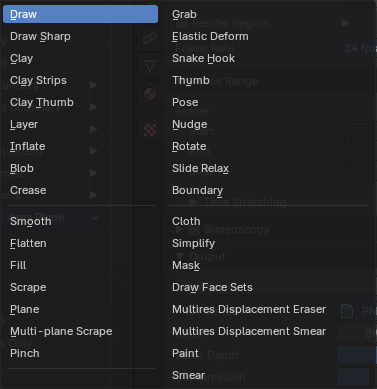
Dropdown box to display and to change the brush type. Note that the brush type is already given by the brush that you choose.
Automasking
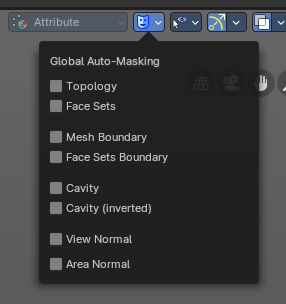
In this group of properties toggles you can define Auto-Masking settings per brush. The same content can also be found in the header. But here as global settings. **Note:**These override any brush Auto-Masking settings.
| Entry | What it does |
|---|---|
| Topology | Affect only vertices that are connected to the current active vertex under the brush. |
| Face Sets | Affect only vertices that share face sets with the active vertex. |
Mesh Boundary
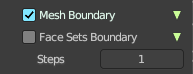
Do not affect non manifold boundary edges.
The setting that appears on activation and is valid for both, Mesh Boundary and Face Sets Boundary.
Face Sets Boundary
Do not affect vertices that belong to a face set boundary.
The setting that appears on activation and is valid for both, Mesh Boundary and Face Sets Boundary.
Cavity
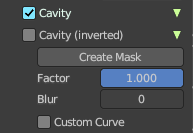
Do not affect vertices on peaks. This feature is based on the surface curvature.
The setting that appears on activation and is valid for both, Cavity, and Cavity (Inverted).
Cavity (Inverted)
Do not affect vertices in valleys. This feature is based on the surface curvature.
The setting that appears on activation and is valid for both, Cavity, and Cavity (Inverted).
| Entry | What it does |
|---|---|
| Create Mask | Creates a mask based on the curvature of the surface. |
| Factor | The contrast of the cavity mask. |
| Blur | The number of times the cavity mask is blurred |
Custom Curve
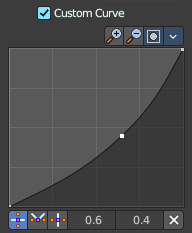
Use a custom falloff curve for the cavity mask.
Selecting Points
You can select curve points. This reveals two edit boxes for the x and y coordinate of this point.
Selected points can be moved around. Left click at them, hold the mouse button down and move them to a new location.
Adding Points
You can add new curve points by simply left clicking at the curve. Move the mouse to position them where you need it.
Navigation elements

The navigation elements at the top are described from left to right.
Zoom in and out
The two buttons with the magnifying glass at it zooms in and out in the curve window.
Clipping Options
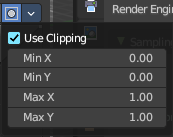
Set up clipping for the stroke.
Use Clipping
Turns clipping on or off.
Min and Max X Y
The values for the clipping area.
View Normal
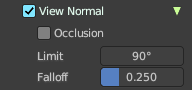
Affect only vertices with a normal that faces the viewer.
| Entry | What it does |
|---|---|
| Occlusion | Only affect vertices that are not occluded by other faces. With Occlusion on the Limit and Falloff options are not available. |
| Limit | View normal limit. The range of angles that will be affected. |
| Falloff | Extend the angular range with a falloff gradient. |
Area Normal
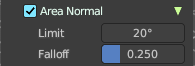
Affect only vertices with a similar normal to where the stroke starts.
| Entry | What it does |
|---|---|
| Limit | Area normal limit. The range of angles that will be affected. |
| Falloff | Extend the angular range with a falloff gradient. |
Sculpt Plane

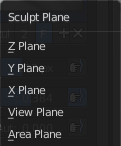
The sculpt plane defines how the sculpting is aligned. It is a dropdown box. Choose different methods. By default the Area Plane gets used.
| Entry | What it does |
|---|---|
| Use Original | Normal: When ticked keep using normal of the surface where the stroke was initiated. · Plane: When ticked keep using plane origin of the surface where the stroke was initiated. |
| Accumulate | Accumulate stroke daubts on top of each other. · Front Faces Only: The brush only affects the vertices that faces the viewer. Projected Falloff Only. |
Modes
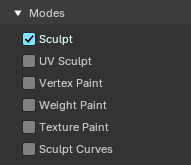
In which mode this brush will be available
Brush Settings Panel - Texture Subpanel
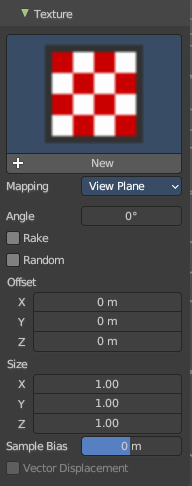
The Texture panel allows you to sculpt with textures. This allows you for example to grab a foto from some fish scales, and simply sculpt them into the surface of your object by using this image as a pencil. Or as a blueprint where you calk through ( Stencil method ).
Note that the following shots are made with Symmetry off and without Brush falloff. Since they disturbed.
Symmetry can be turned off a few panels deeper in the Symmetry panel.
Browse Texture to be linked
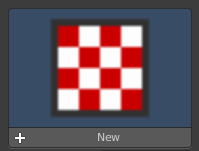
The image at the top of the panel is a image browser. Choose a texture that you can choose for sculpting then. You can also have more than one image loaded at once.
Adding a texture
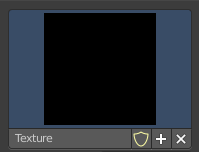
The way to add the texture here is a bit more complicated. And not done with clicking at the New button.
First click at the New button below the image. This will create a new texture slot. This slot is still empty, it displays black.
We need to load the texture in this slot. This must be done in the Properties editor in the Textures tab.
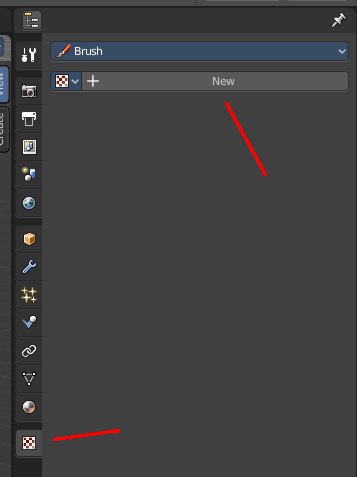
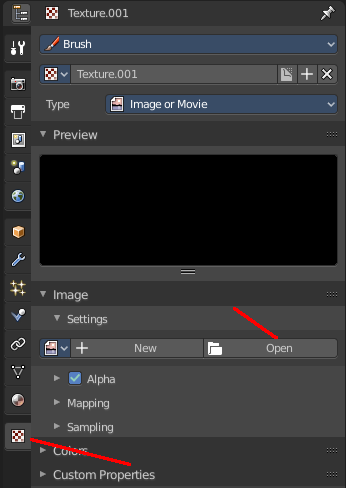
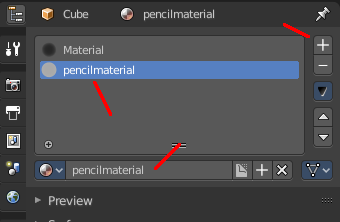
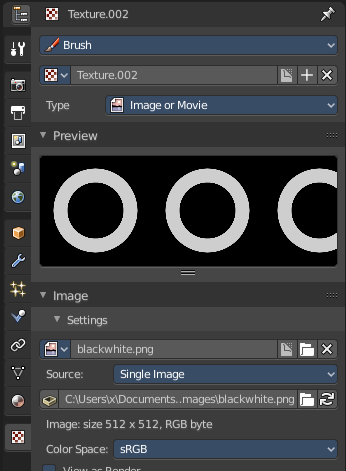
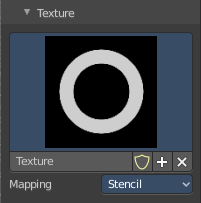
And when you switch back to the Tools tab, then the texture finally shows in the Texture panel in the Tool Shelf. And we can use it.
Texture Edit box

The Texture edit box is the edit box below the Image browser. When there's no image loaded then it displays the New button. When there's a image (or more) loaded, then you will see the name of the current texture.
The Fake User button turns this texture into a data block with a fake user. Means it will exists even when there is no data connected to it anymore.
The + Button adds another texture slot. Note that you will have to load a texture too, as explained above.
The X button deletes the texture slot.
Brush Mapping
Our texture can be mapped in different methods. The Brush mapping is a drop down box. Choose this different brush mapping methods.
The settings vary. So we will go through them by the different brush mapping methods.
Brush Mapping with mapping method View Plane and Area Plane
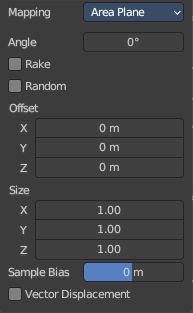
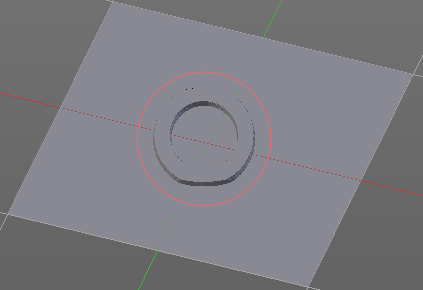
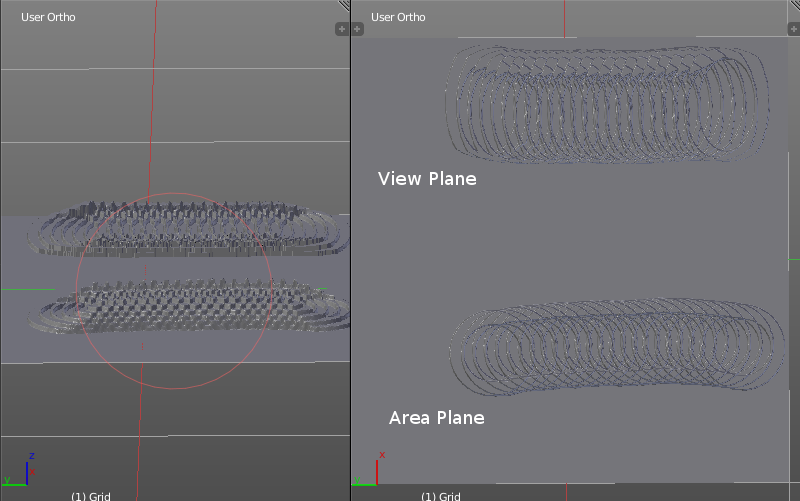
The brush mapping method View Plane maps the brush onto the surface of the object, calculating the mapping from the current view. The result may be distorted when the view does not align with the surface of the object.
The brush mapping method Area Plane maps the brush onto the surface of the object, calculating the mapping from the current view. The result is not distorted.
Angle edit box
Adjust the angle of the brush.
| Entry | What it does |
|---|---|
| Rake | The angle follows the direction of the brush stroke. |
| Random | The brush angle gets set random. |
| Random edit box | Becomes visible when you tick Random. Adjust the maximum value of the random angle. |
| Offset | Fine tune the offset of the texture in the brush. |
| Size | Fine tune the size of the texture in the brush. |
| Sample Bias | Add to or subtract from the amount that gets added by the brush texture. |
| Vector Displacement | Just Area Plane. Handles each pixel color as an individual vector for displacement. |
Brush Mapping with mapping method Tiled
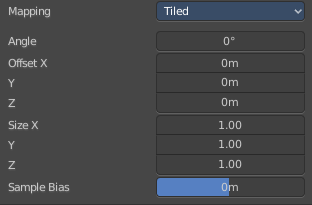
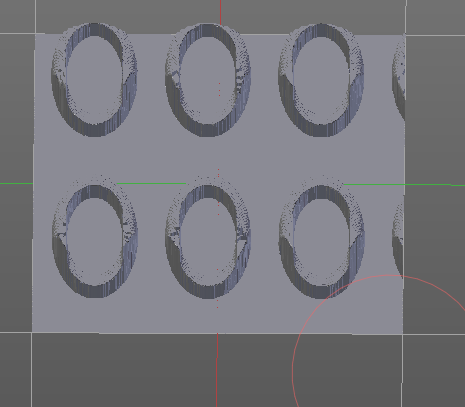
The brush mapping method View Plane maps the brush onto the surface of the object, and tiles the pencil onto the surface. The mapping happens from the View plane. Means you get distortions when you sculpt from an angle.
| Entry | What it does |
|---|---|
| Angle edit box | Adjust the angle of the brush. |
| Offset | Fine tune the offset of the texture in the brush. |
| Size | Fine tune the size of the texture in the brush. |
| Sample Bias | Add to or subtract from the amount that gets added by the brush texture. |
Brush Mapping with mapping method 3D
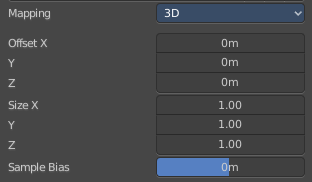
The brush mapping method View Plane and Area Plane sculpts where the pencil is. The method 3D sculpts at the initial position of the pencil, as long as you don't release the mouse. The mapping happens from the View plane. Means you get distortions when you sculpt from an angle.
Offset
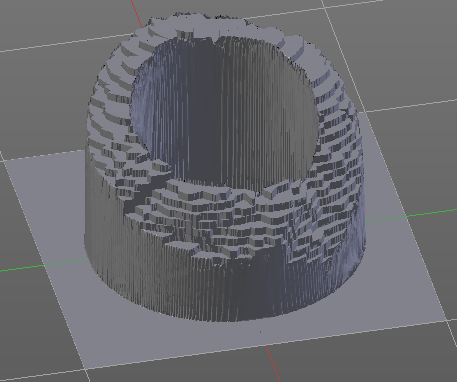
Fine tune the offset of the texture in the brush.
| Entry | What it does |
|---|---|
| Size | Fine tune the size of the texture in the brush. |
| Sample Bias | Add to or subtract from the amount that gets added by the brush texture. |
Brush Mapping with mapping method Random
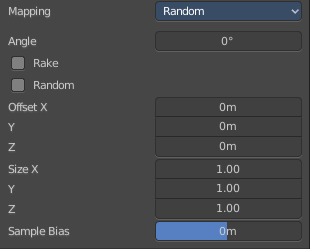
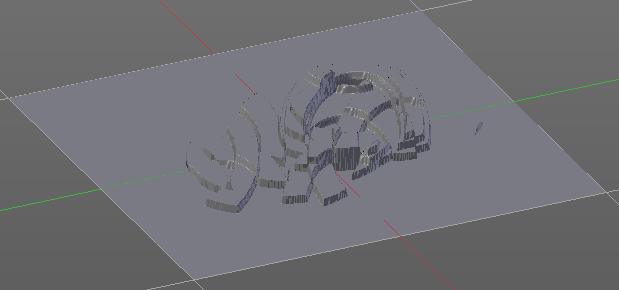
The brush mapping method Random randomizes the texture position of the pencil texture. And so it sculpts random fragments of the pencil.
| Entry | What it does |
|---|---|
| Angle edit box | Adjust the angle of the brush. |
| Rake | The angle follows the direction of the brush stroke. |
| Random | The brush angle gets set random. |
| Random edit box | Becomes visible when you tick Random. Adjust the maximum value of the random angle. |
| Offset | Fine tune the offset of the texture in the brush. |
| Size | Fine tune the size of the texture in the brush. |
| Sample Bias | Add to or subtract from the amount that gets added by the brush texture. |
Brush Mapping with mapping method Stencil
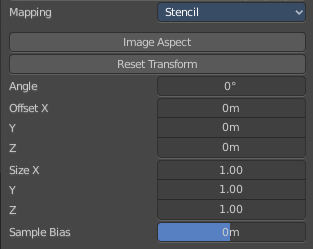
The former methods uses the textures for the brush. The method Stencil works different. You have your texture displayed in the workspace above the object, and you paint this texture onto your object with your pencil strokes.
Note that the texture in the 3d space is just visible when you are with the mouse over the viewport.
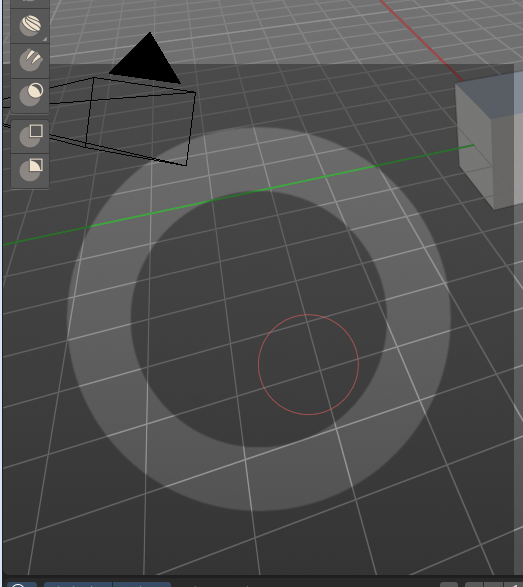
Image Aspect
Adjust the stencil size to fit to the image aspect ratio.
Angle edit box

Adjust the angle of the brush. The button at the end allows you to set the radius by dragging the mouse. This should be done in the viewport and with the hotkey. This button is just a visible reminder.
Offset
Fine tune the offset of the texture in the brush.
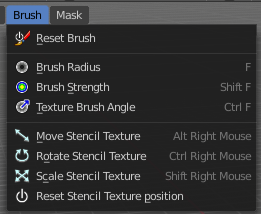
Stencil Texture Controls
You can find the controls to modify the position, rotation and scale of the stencil texture in the Brush menu in the 3D view. This happens by Hotkeys.
Brush Settings Panel - Stroke Sub panel
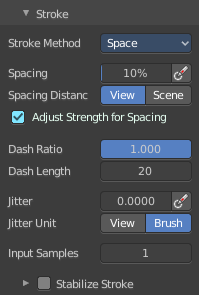
The Stroke panel contains settings to influence the behavior of the brush stroke. There are various stroke methods available. We will go through them one by one.
Stroke Panel with Stroke method Space
This is the default Stroke method. The sculpt stroke gets added continuously with given settings.
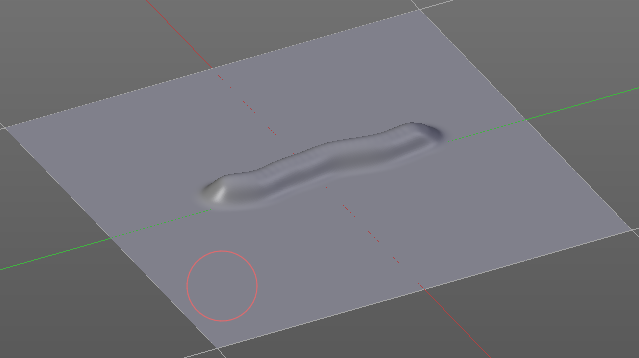
Spacing Edit Box
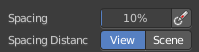
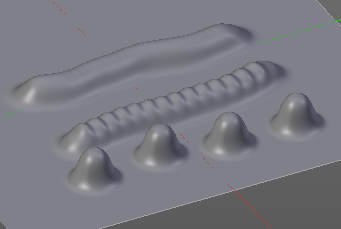
The sculpt drawing happens by mapping the pencil onto the mouse position. And when you move the mouse then the next mapping happens. Adjust the spacing after what mouse movement the next mapping should happen. The lower the value, the lower the distance between the single dots.
| Entry | What it does |
|---|---|
| Spacing Pressure | The icon behind the edit box enables tablet pressure sensitivity for tablets. |
| Spacing Distance | If the spacing happens in View or in Scene distance. |
Adjust Strength for Spacing

Automatically adjust the strength to give consistent results for different spacing.
| Entry | What it does |
|---|---|
| Dash Ratio | Ratio of samples in a cycle that the brush is enabled. |
| Dash Length | Length of a dash cycle measured in stroke samples. |
Jitter Edit Box
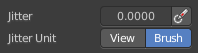
Add Jitter to the brush while painting.
| Entry | What it does |
|---|---|
| Jitter Pressure | The icon behind the edit box enables tablet pressure sensitivity for tablets. |
| Jitter Unit | If the jitter happens in screen space in pixels, or relative to the brush size. |
| Input Samples Edit Box | Average multiple input samples together to smooth the brush stroke. |
StabilizeStroke
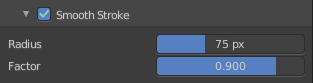
When activated then the brush lags behind the mouse position, and produces a much smoother stroke by that. It is a sub panel with two settings.
| Entry | What it does |
|---|---|
| Smooth Stroke Radius Edit Box | Adjust the radius of the smoothing. |
| Smooth Stroke Factor Edit Box | Adjust the factor of the smoothing. |
Stroke Panel with Stroke method Curve
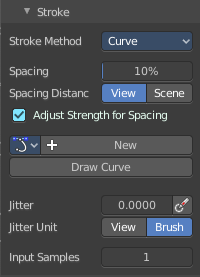
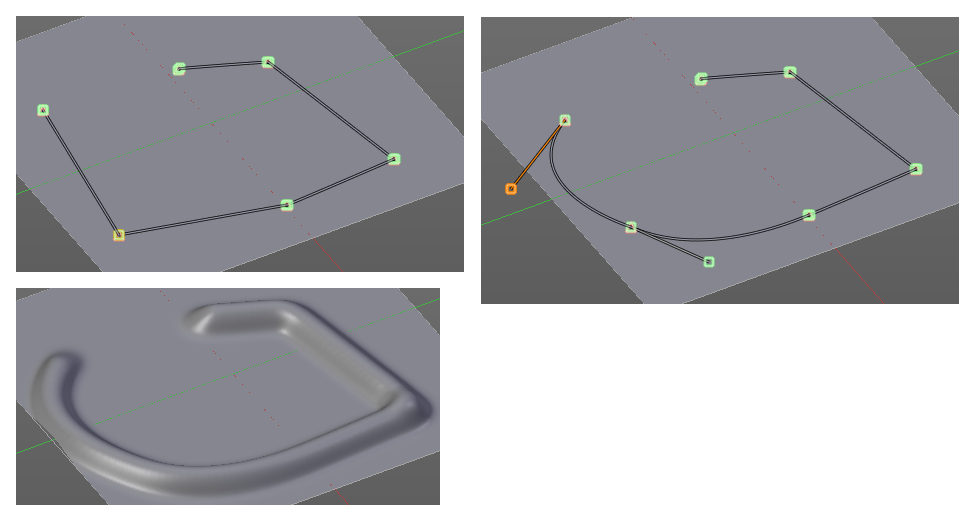
The Stroke method curve doesn't simply influence the way how the stroke is painted.
It is a special method. First you draw a curve object by holding down ctrl and clicking with left mouse button. Then you tweak the curve. You can click at the curve point, and drag out handlers to make the curve points smooth.
Then you hit the Draw Curve button. And the curve gets sculpted.
Spacing Edit Box
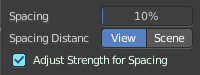
The sculpt drawing happens by mapping the pencil onto the mouse position. And when you move the mouse then the next mapping happens. Adjust the spacing after what mouse movement the next mapping should happen. The lower the value, the lower the distance between the single dots.
The icon behind the edit box enables tablet pressure sensitivity for tablets.
| Entry | What it does |
|---|---|
| Spacing Distance | If the spacing happens in View or in Scene distance. |
| Adjust Strength for Spacing | Automatically adjust the strength to give consistent results for different spacing. |
Paint Curve edit box
Here you set the active curve.
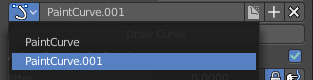
The first element is a drop down box where you will find your curves objects. You can have more than one.
The second element is the edit box that displays the active curve.
Fake User set the brush to have a fake user. Zero user data-blocks are normally not saved. But sometimes you want to force the data to be kept even when the data block has no user.
The + button allows you to add a new pencil with the current settings. Note that the brushes are NOT saved when you close Bforartists. You can save them into the current blend file. Or you can save the startup file. But be careful here. This saves everything else of the current state of Bforartists too.
The X button deletes the brush as the active one. It does NOT delete it from the brushes list.
Draw Curve Button
A click at it to turns the curve into a sculpt stroke.
Jitter Edit Box
Add Jitter to the brush while painting.
| Entry | What it does |
|---|---|
| Jitter Pressure | The icon behind the edit box enables tablet pressure sensitivity for tablets. |
| Jitter Unit | If the jitter happens in screen space in pixels, or relative to the brush size. |
Input Samples Edit Box

Average multiple input samples together to smooth the brush stroke.
Stroke Panel with Stroke method Line
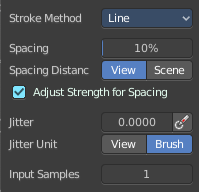
With Stroke method line you draw a line between a starting point and an endpoint. And when you release the mouse then the line gets sculpted.
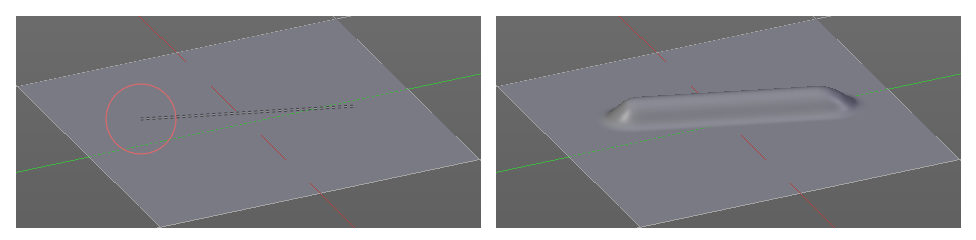
Spacing Edit Box
The sculpt drawing happens by mapping the pencil onto the mouse position. And when you move the mouse then the next mapping happens. Adjust the spacing after what mouse movement the next mapping should happen. The lower the value, the lower the distance between the single dots.
The icon behind the edit box enables tablet pressure sensitivity for tablets.
| Entry | What it does |
|---|---|
| Spacing Distance | If the spacing happens in View or in Scene distance. |
| Adjust Strength for Spacing | Automatically adjust the strength to give consistent results for different spacing. |
Jitter Edit Box
Add Jitter to the brush while painting.
| Entry | What it does |
|---|---|
| Jitter Pressure | The icon behind the edit box enables tablet pressure sensitivity for tablets. |
| Jitter Unit | If the jitter happens in screen space in pixels, or relative to the brush size. |
Input Samples Edit Box
Average multiple input samples together to smooth the brush stroke.
Stroke Panel with Stroke method Airbrush
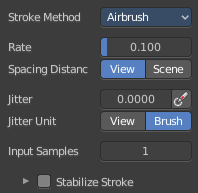
The sculpt stroke acts like an airbrush pencil. The dots gets placed randomly.
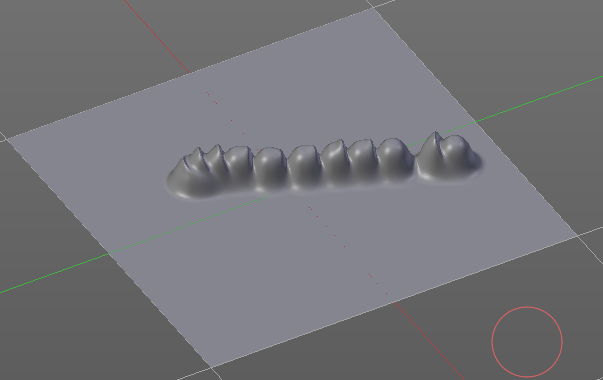
Rate Edit Box
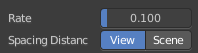
Define the rate of the drawing.
Spacing Distance
If the spacing happens in View or in Scene distance.
Jitter Edit Box
Add Jitter to the brush while painting.
| Entry | What it does |
|---|---|
| Jitter Pressure | The icon behind the edit box enables tablet pressure sensitivity for tablets. |
| Jitter Unit | If the jitter happens in screen space in pixels, or relative to the brush size. |
Input Samples Edit Box
Average multiple input samples together to smooth the brush stroke.
Stabilize Stroke
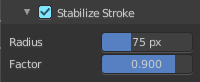
When activated then the brush lags behind the mouse position, and produces a much smoother stroke by that. Smooth stroke has two settings.
| Entry | What it does |
|---|---|
| Smooth Stroke Radius Edit Box | Adjust the radius of the smoothing. |
| Smooth Stroke Factor Edit Box | Is just active when Smooth Stroke is activated. Adjust the factor of the smoothing. |
Stroke Panel with Stroke method Anchored
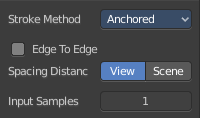
Click and drag to place a dot and to scale it.
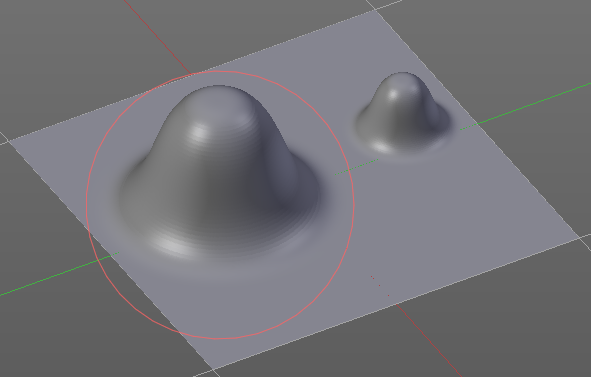
Edge to Edge
Without Edge to Edge the scaling happens from the center of the brush. With edge to edge the scaling happens from the edge of the brush.
Spacing Distance
If the spacing happens in View or in Scene distance.
Input Samples Edit Box
Average multiple input samples together to smooth the brush stroke.
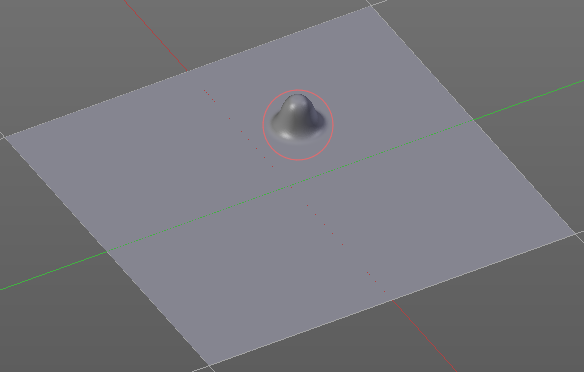
Stroke Panel with Stroke method Drag dot
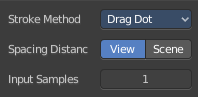
Click and drag to place a dot.
Spacing Distance
If the spacing happens in View or in Scene distance.
Input Samples Edit Box
Average multiple input samples together to smooth the brush stroke.
Stroke Panel with Stroke method dot
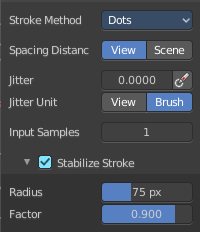
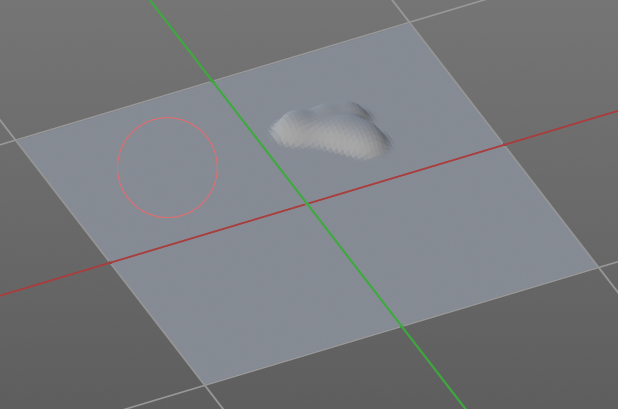
Spacing Distance
If the spacing happens in View or in Scene distance.
Jitter Edit Box
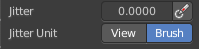
Add Jitter to the brush while painting.
The icon behind the edit box enables tablet pressure sensitivity for tablets.
Jitter Unit
Jitter in screen space or relative to the brush size.
Input Samples Edit Box
Average multiple input samples together to smooth the brush stroke.
Stabilize Stroke
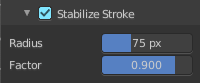
When activated then the brush lags behind the mouse position, and produces a much smoother stroke by that. Smooth stroke has two settings.
| Entry | What it does |
|---|---|
| Smooth Stroke Radius Edit Box | Adjust the radius of the smoothing. |
| Smooth Stroke Factor Edit Box | Adjust the factor of the smoothing. |
Brush Settings Panel - Falloff Sub panel
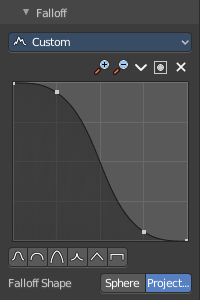
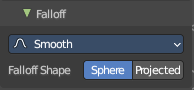
The Falloff panel allows you to define different falloffs methods for the border of the brush.
Presets
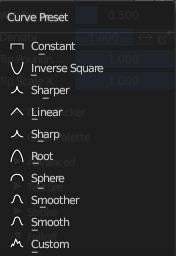
The different available falloff presets. The method custom allows you to define your own falloff. And reveals a curve panel.
Selecting Points
You can select curve points. This reveals two edit boxes for the x and y coordinate of this point.
Selected points can be moved around. Left click at them, hold the mouse button down and move them to a new location.
Adding Points
You can add new curve points by simply left clicking at the curve. Move the mouse to position them where you need it.
Navigation elements
The navigation elements at the top are described from left to right.
| Entry | What it does |
|---|---|
| Zoom in and out | The two buttons with the magnifying glass at it zooms in and out in the curve window. |
| Tools | Tools is a menu where you can find some curve related tools. · Reset View: Resets the curve windows zoom. · Vector Handle: Set handle type to Vector. · Auto Handle: Set handle type to Auto. · Auto Clamped Handle: Set handle type to Auto Clamped. · Reset Curve: Resets the curve to the initial shape. |
Use Clipping
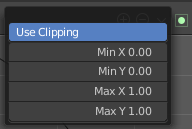
Clipping options. Set up clipping for the stroke. The blue button at the top turns clipping on or off.
Delete Points
Deletes the selected curve point.
Curve Presets
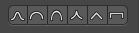
Predefined curve presets as a starting point.
Falloff Shape

Use projected or spherical falloff.
Brush Settings Panel - Cursor Sub panel
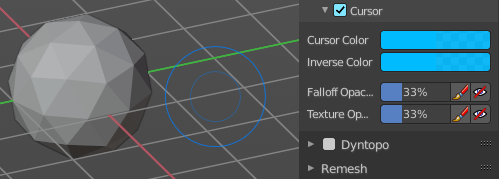
Change the appearance of the brush cursor.
| Entry | What it does |
|---|---|
| Cursor checkbox in header | Show or hide the brush cursor. |
| Cursor Color | The cursor color with add operations. |
| Inverse Color | The cursor color with subtract operations. |
Falloff Opacity
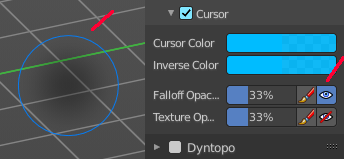
You can turn on the cursor overlay with the eye button at the end. The falloff opacity slider allows you to adjust the opacity of this cursor overlay.
| Entry | What it does |
|---|---|
| Override Overlay | Hide the Cursor Overlay when painting. |
| Use Cursor Overlay | Turn on Cursor Overlay. |
Texture Opacity
This is for the case when you paint with a texture brush. You can turn on the Texture overlay with the eye button at the end. The falloff opacity slider allows you to adjust the opacity of this cursor overlay.
| Entry | What it does |
|---|---|
| Override Overlay | Hide the Texture Overlay when painting. |
| Use Cursor Overlay | Turn on Texture Overlay. |
Dyntopo Panel
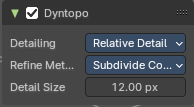
Dyntopo stands for Dynamic Topology Sculpting.
Without Dyntopo you just deform the existing geometry. With Dyntopo geometry gets subdivided when needed. This makes it possible to sculpt complex shapes out of a block.
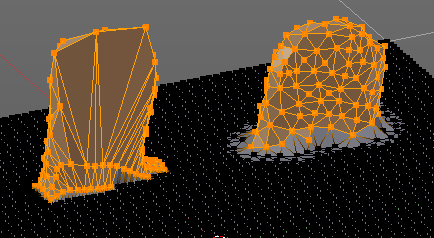
Left without Dyntopo, right with Dyntopo.
Note: Some brushes are incompatible with Dyntopo.
Brushes that are incompatible are the Grab brush, Rotate brush, Thumb brush, Layer brush, Smooth brush (including alt-key smoothing with a different brush) and Mask brush.
The topology will also not update if the stroke mode is Anchored or Drag Dot.
Detailing
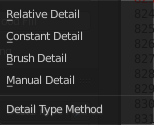
Define the Detail Type method.
| Entry | What it does |
|---|---|
| Relative Detail | Mesh Detail is relative to brush size and detail size |
| Brush Detail | Mesh Detail is relative to brush radius. |
| Constant Detail | Mesh detail is constant in object space according to detail size. |
| Manual Detail | Mesh detail does not change on each stroke. But just on flood fill |
Refine method
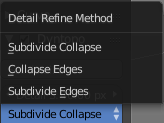
Define the Detail refine method.
| Entry | What it does |
|---|---|
| Subdivide Collapse | Both methods in one. Subdivide long edges to add mesh detail where needed. And collapse short edges to remove mesh detail where possible. |
| Collapse Edges | Collapse short edges to remove mesh detail where possible. |
| Subdivide Edges | Subdivide long edges to add mesh detail where needed. |
Resolution

The Resolution defines how fine the subdivision will be.
The edit box below does the same. But with a slider, and without visible feedback in form of a widget.
Sample detail size picker
This pipette allows you to pick the current resolution from a mesh.
To activate the tool, hover with the mouse over the mesh and left click to apply.
Note: This work in the Constant and Manual methods exclusively.
Remesh Panel
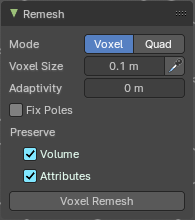
You may create a sculpt mesh that has ways too many polygons. Or too many polygons at one area, and not enough polygons at another area. Remeshing recreates the mesh geometry, with a more uniform topology.
Remesh does not work with Dyntopo enabled. You need to turn it off for remeshing.
Mode
The Remesher in Sculpt mode uses the Voxel remesher by default. When you want to remesh with the Quadriflow method, then switch to Quad remesher. Quad remesher has no further options.
| Entry | What it does |
|---|---|
| Voxel Size | Adjust the density of the new created geometry · Sample Detail Size: With this picker you can pick the density from an area of your mesh. |
| Adaptivity | Reduces the final face count by simplifying geometry where detail is not needed. This method uses tris. A value greater than 0 disables the Fix Poles feature. |
| Fix Poles | Produce less poles and a better topology flow. |
| Smooth Normals | Smooths the normals of the result. |
| Preserve | Volume: Tries to preserves the volume of the original mesh. · Attributes: Keep existing paint masks, face sets, vertex color and other generic mesh attributes on the new mesh. |
| Voxel Remesh / Quadriflow Remesh | Starts the remesh operation. |
Symmetry Panel
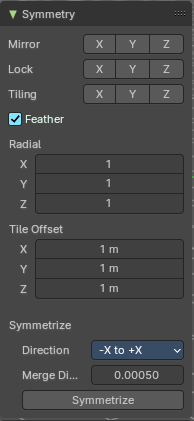
The Symmetry Lock panel contains tools around symmetry and lock features. Here you can turn on or off mirroring along axis, etc.
Mirror
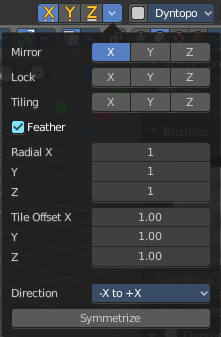
Mirror sculpt along activated axis. By default the mirroring is activated around X axis.
The same buttons plus the whole Symmetry Lock Panel as a drop down menu can also be found in the tool settings bar as icon buttons. This allows quicker access and better visual control which mirror axis is currently active.
| Entry | What it does |
|---|---|
| Lock | Disallow vertices movement in locked axis direction. |
| Tiling | Produces a mesh that is tilable in the activated directions. |
| Feather | Reduce the strength of the brush where it overlaps symmetrical daubs. |
Radial
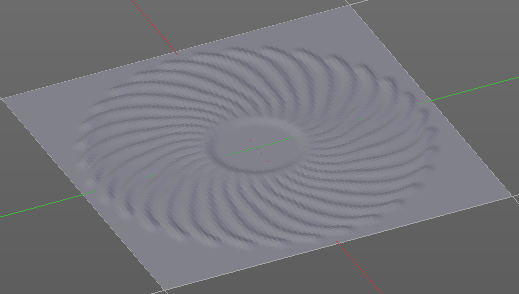
Adjust the repeating across some axis. For example, when you change Z to 32, then you can draw 32 segments simultaneously around the Z axis instead of
just one, distributed around the Z axis.
Tile Offset
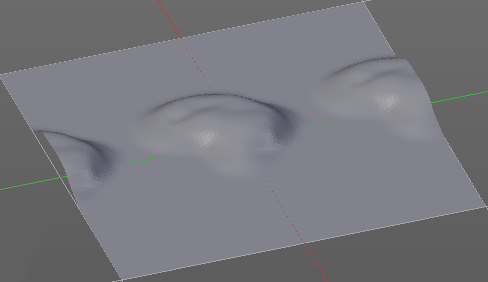
Adjust the offset of the tiling.
Symmetrize
| Entry | What it does |
|---|---|
| Direction | The direction in which the mirroring happens. |
| Merge Distance | The distance to merge vertices with symmetrizing. |
| Symmetrize | Symmetrize the topology modifications. |
Options Panel
Display
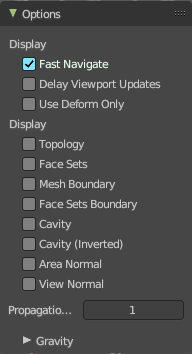
| Entry | What it does |
|---|---|
| Fast Navigate | For Multires, show Low Res mesh when navigating. |
| Delay Viewport Updates | Update the geometry when it enters the view. This enables a faster viewport navigation. |
| Use Deform only | Use only deformation modifiers ( The other constructive modifiers except multi-resolution gets temporary disabled) |
Display
| Entry | What it does |
|---|---|
| Topology | Affect only vertices connected to the active vertex under the brush. |
| Face Sets | Affect only vertices that share face sets with the active vertex. |
| Mesh Boundary | Do not affect non manifold boundary edges. |
| Face Sets Boundary | Do not affect vertices that belongs to a face set boundary. |
| Cavity | Do not affect vertices at the peaks. Based on the surface curvature. |
| Cavity ( Inverted) | Do not affect vertices in the valleys. Based on the surface curvature. |
| Area Normal | Affect only vertices with a similar normal to where the stroke starts. |
| View Normal | Affect only vertices with a normal that faces to the view. |
| Propagation Steps | Distance where boundary edge automasking is going to protect vertices from the fully masked edge. |
Gravity sub panel
A panel with the gravity settings. Add gravity after each stroke.
| Entry | What it does |
|---|---|
| Factor | The factor slider defines the amount. |
| Orientation | Here you define an object that gets used to determine the gravity from. The Z axis of this object gets used. |