

































































Tool Tab - Grease Pencil - Weight Paint Mode
The Tools tab in Weight Paint Mode provides you the tools to do weight painting at a mesh. Skinned characters for example. Also grease pencil strokes can be skinned to a skeleton. In Weight Paint Mode you can weight…
Grease Pencil - Weight Paint Mode
The Tools tab in Weight Paint Mode provides you the tools to do weight painting at a mesh. Skinned characters for example. Also grease pencil strokes can be skinned to a skeleton. In Weight Paint Mode you can weight paint your strokes.
Brush Asset Panel
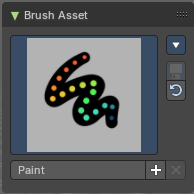
The Brush Asset Panel contains the different Brushes and some Brush settings. Choose and adjust your current active brush.
Browse Brush
The big image at the top is a dropdown box that allows you to choose a brush. Click at it, and you will see the different brushes. A click at one of the images will choose this brush then.
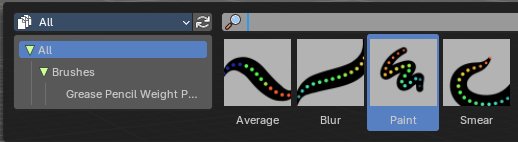
Brushes are assets. You can load them from different libraries if you want.
Brush Specials menu
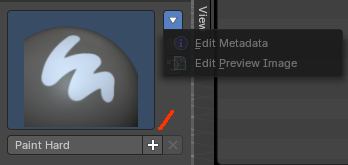
This menu becomes active when you create a new brush. Which can be done wiht the Plus button in the name property. This data cannot be changed for builtin system brushes.
Edit Metadata
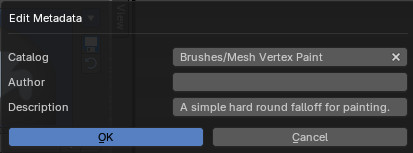
Calls a popup where you can adjust further informations and settings for the brush.
| Entry | What it does |
|---|---|
| Catalog | The asset catalog in which the brush is stored. |
| Author | The brush author. |
| Desctription | Add a description |
| OK / Cancel | Accept or decline the changes. |
| Edit Preview Image | Allows you to load a custom preview image. |
| Entry | What it does |
|---|---|
| Save Brush Asset | This button is just active with a custom brush. It saves all changes made at the brush settings into the current custom brush. |
| Revert Brush Asset | Reverts the brush settings to the default values of the brush in the asset library. |
Name

The edit box below the Image shows the name of the current active brush.
The + button allows you to add a new pencil with the current settings. Note that the brushes are NOT automatically saved when you close Bforartists. You need to save the brush asset. See above.
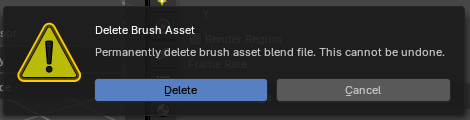
The X button deletes the brush from the brushes list and from the asset library. This button is just active with a custom brush. You will be prompted by a warning so that you don't accidentally remove the brush.
Brush Settings Panel
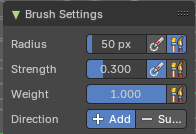
The Brush Settings Panel contains the Brush settings. The content differs, dependent of which brush you have chosen.
| Entry | What it does |
|---|---|
| Use unified Size | The size is shared across the brushes. |
| Size Pressure | Enable tablet pressure sensity. |
Brush Settings Panel - Average brush
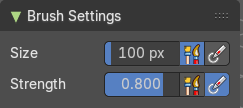
Smoothens the weight to an average value.
| Entry | What it does |
|---|---|
| Size | The Size of the brush. |
| Strength | The strength of the brush. |
Brush Settings Panel - Blur brush
Blurs the weight.
| Entry | What it does |
|---|---|
| Size | The Size of the brush. |
| Strength | The strength of the brush. |
Brush Settings Panel - Paint brush
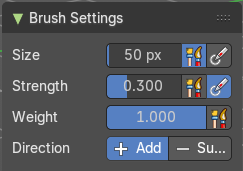
Paints the weight with the current value.
| Entry | What it does |
|---|---|
| Size | The Size of the brush. |
| Strength | The strength of the brush. |
| Weight | The target weight. Everything below gets added towards this value. Everything above gets subtracted from this value. Usually you work with the maximum value of 1. |
| Direction | Add or subtract the weight. |
Brush Settings Panel - Smear brush
A smear brush.
| Entry | What it does |
|---|---|
| Size | The Size of the brush. |
| Strength | The strength of the brush. |
Brush settings panel - Cursor Sub panel
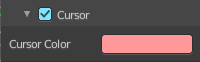
| Entry | What it does |
|---|---|
| Show Brush | Show the brush icon when painting. |
| Color | The brush icon color. |
Brush settings panel - Falloff Sub panel
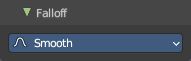
Adjust the falloff of the brush.
Curve Presets
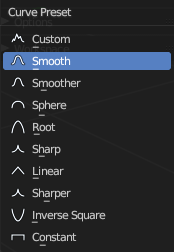
A dropdown menu where you can choose predefined falloff curves.
Options Panel
Auto Normalize
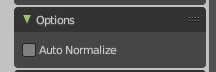
Ensure that all bone deforming vertex groups adds up to 1.0 while weight painting.