

































































Tool Tab - Grease Pencil - Draw Mode
Just the grease Pencil object has a Draw mode.
Draw Mode
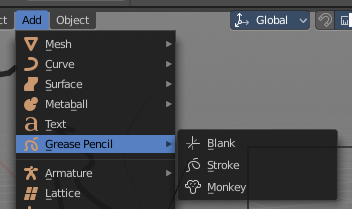
Just the grease Pencil object has a Draw mode.
The Grease Pencil Object allows you to draw in 2D in the workspace.
It starts as an object type. By switching into paint mode it becomes a paint feature. And editing turns it into a curve or a mesh object then.
In the Tools tab you will find all the options and settings for drawing and manipulating the grease pencil object, means your drawing.
The type Blank allows you to draw strokes.
The type Stroke allows you to draw filled forms.
The type Monkey is just an example object.
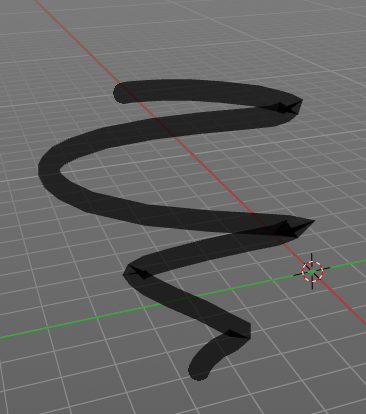
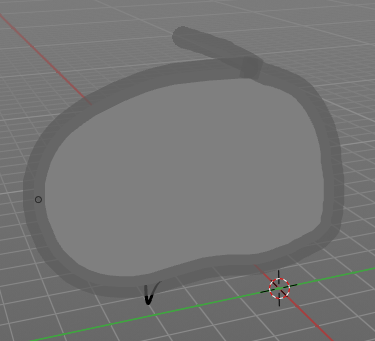
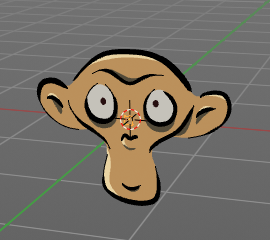
Brush Asset Panel
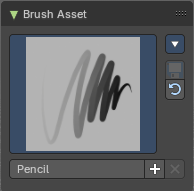
The Brush Asset Panel contains the different Brushes and some Brush settings. Choose and adjust your current active brush.
Browse Brush
The big image at the top is a dropdown box that allows you to choose a brush. Click at it, and you will see the different brushes. A click at one of the images will choose this brush then.

Brushes are assets. You can load them from different libraries if you want.
Brush Specials menu
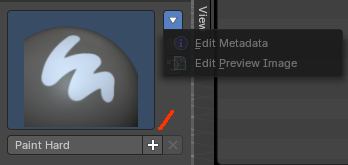
This menu becomes active when you create a new brush. Which can be done wiht the Plus button in the name property. This data cannot be changed for builtin system brushes.
Edit Metadata
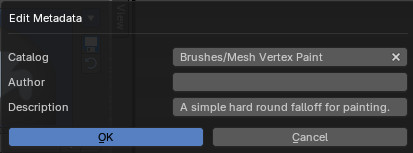
Calls a popup where you can adjust further informations and settings for the brush.
| Entry | What it does |
|---|---|
| Catalog | The asset catalog in which the brush is stored. |
| Author | The brush author. |
| Desctription | Add a description |
| OK / Cancel | Accept or decline the changes. |
| Edit Preview Image | Allows you to load a custom preview image. |
| Entry | What it does |
|---|---|
| Save Brush Asset | This button is just active with a custom brush. It saves all changes made at the brush settings into the current custom brush. |
| Revert Brush Asset | Reverts the brush settings to the default values of the brush in the asset library. |
Name

The edit box below the Image shows the name of the current active brush.
The + button allows you to add a new pencil with the current settings. Note that the brushes are NOT automatically saved when you close Bforartists. You need to save the brush asset. See above.
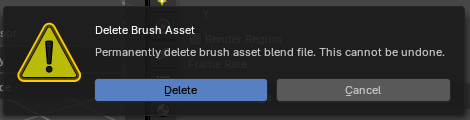
The X button deletes the brush from the brushes list and from the asset library. This button is just active with a custom brush. You will be prompted by a warning so that you don't accidentally remove the brush.
Brush Settings Panel
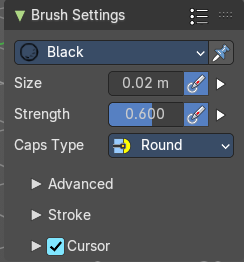
Header - Add Brush Preset
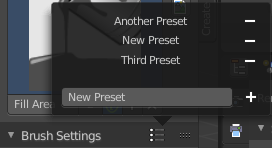
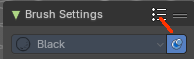
In the header is a brush preset menu where you can store and load custom brush presets. The dialog should be self explaining. In the edit box you type in the name of your new preset. And with clicking at the + button the new preset gets stored. Existing presets can be removed by clicking at the - button at the right side of the preset.
Material Browser
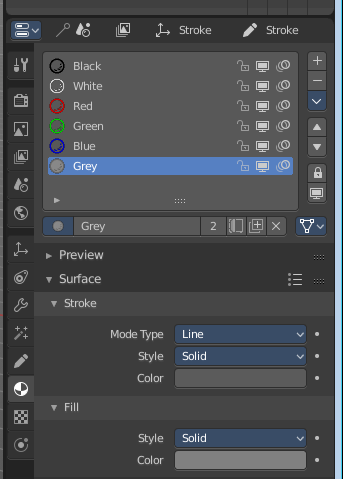
This browser is just active when the Keep material assigned to Brush Pin is activated.
The colors for the grease pencil are materials each. For the grease pencil type Blank you will just have one color available. For this type you have to create new materials in the material tab first when you need more colors. But the other two types, strokes and monkey, comes with a few base materials already. Which can be found in the Materials tab.
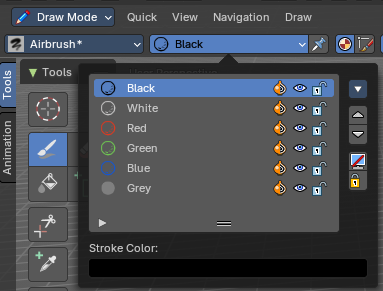
The tool settings above the header shows this panel too. And here you can quickly change the color of a material. It is explained in the chapter Materials Tab.
Drop down box
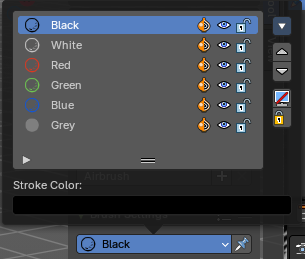
Choose another material to draw with.
Brush Settings Panel - Draw brushes
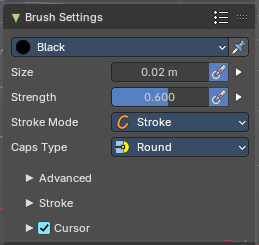
Airbrush, Ink Pen, Ink Pen Rough, Marker Bold, Marker Chisel, Pen, Pencil, Pencil Soft and Tint.

Note that not all draw brushes have curve settings for radius and strength.
Size
The size edit box allows you to adjust the size of the brush.
Use unified size
The size is shared across the brushes.
Use Pressure
The button behind the edit box enables tablet pressure sensitivity for radius.
Pressure Size Curve
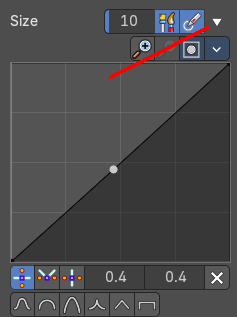
Behind the pressure size button there is a button to reveal the size pressure curve panel. When you activate Size Pressure for tablets, then the Size Pressure curve becomes active, and can be adjusted.
The pressure size curve allows you to adjust the falloff curve for the tablet pressure. It shows when Use Pressure is activated. The curve panel shows when clicking at the button.
Selecting Points
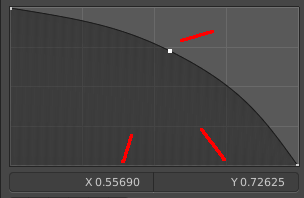
You can select curve points. This reveals two edit boxes for the x and y coordinate of this point.
Selected points can be moved around. Left click at them, hold the mouse button down and move them to a new location.
Adding Points
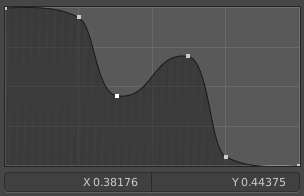
You can add new curve points by simply left clicking at the curve. Move the mouse to position them where you need it.
Navigation elements
| Entry | What it does |
|---|---|
| Zoom in | Zooms in. |
| Zoom out | Zooms out. |
Clipping options
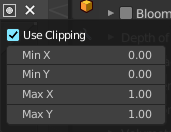
Set up clipping for the stroke.
Tools
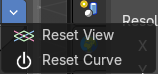
Tools is a menu where you can find some curve related tools.
| Entry | What it does |
|---|---|
| Reset View | Resets the curve windows zoom. |
| Reset Curve | Resets the curve to the initial shape. |
Handles

You can choose between Auto handle, Vector Handle and Auto Clamped.
| Entry | What it does |
|---|---|
| Position X / Y | The position of the selectedc curve point. |
| Delete Points | Deletes the selected curve point. |
Curve Presets

A curve preset to start with.
Strength
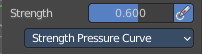
The Strength edit box allows you to adjust the strength of the brush.
Use unified size
The size is shared across the brushes.
Use Pressure
The button behind the edit box enables tablet pressure sensitivity for strength.
Pressure Size Curve
Behind the pressure size button there is a button to reveal the size pressure curve panel. When you activate Size Pressure for tablets, then the Size Pressure curve becomes active, and can be adjusted.
The pressure size curve allows you to adjust the falloff curve for the tablet pressure. It shows when Use Pressure is activated. The curve panel shows when clicking at the button.
Selecting Points
You can select curve points. This reveals two edit boxes for the x and y coordinate of this point.
Selected points can be moved around. Left click at them, hold the mouse button down and move them to a new location.
Adding Points
You can add new curve points by simply left clicking at the curve. Move the mouse to position them where you need it.
Navigation elements
| Entry | What it does |
|---|---|
| Zoom in | Zooms in. |
| Zoom out | Zooms out. |
Clipping options
Set up clipping for the stroke.
Tools
Tools is a menu where you can find some curve related tools.
| Entry | What it does |
|---|---|
| Reset View | Resets the curve windows zoom. |
| Reset Curve | Resets the curve to the initial shape. |
Handles
You can choose between Auto handle, Vector Handle and Auto Clamped.
| Entry | What it does |
|---|---|
| Position X / Y | The position of the selectedc curve point. |
| Delete Points | Deletes the selected curve point. |
Curve Presets
A curve preset to start with.
Stroke Method
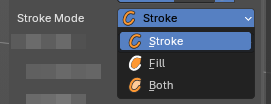
Controls how Grease Pencil strokes are treated during editing and rendering. Useful for defining whether strokes act as outlines, fills, or both, depending on the drawing workflow
Stroke1

Points are interpreted as line strokes only. Produces visible outlines without fill regions. Best for sketching, inking, or line-based animation.
| Entry | What it does |
|---|---|
| Fill | Points are interpreted as fill regions only. Creates solid shapes without visible outlines. Useful for coloring, shading, or shape-based animation. |
| Both | Points contribute to both stroke outlines and fill regions. Produces combined line + fill geometry. Ideal for workflows where outlines and fills need to remain linked. |
Caps Type
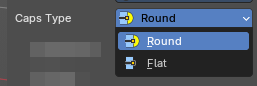
Controls the shape of stroke endpoints (caps). Useful for defining whether strokes end with rounded tips or flat edges, affecting both aesthetics and readability in drawings.
| Entry | What it does |
|---|---|
| Round | Ends strokes with a smooth, circular cap. Creates softer, organic-looking stroke endings. Ideal for calligraphy, sketching, or expressive linework. |
| Flat | Ends strokes with a straight, cut-off edge. Produces sharp, mechanical-looking stroke endings. Useful for technical drawings, graphic styles, or when clean edges are required. |
Brush Settings Panel - Draw brushes - Advanced Sub panel
Airbrush, Ink Pen, Ink Pen Rough, Marker Bold, Marker Chisel, Pen, Pencil, Pencil Soft and Tint.
Radius Unit
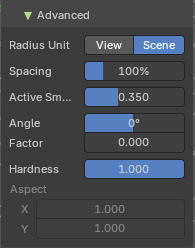
Measure the brush size relative to view or scene.
| Entry | What it does |
|---|---|
| Spacing | Spacing between brush daubs. Calculated as a percentage of brush diameter. |
| Active Smooth | The amount of smoothing while drawing. |
| Angle | Direction of the stroke at which the brush gives the maximal thickness. 0 degree for horoizontal. |
| Factor | Reduction of the brush thickness when stroke is perpendicular to the angle direction. Calculated by a factor. |
| Hardness | The hardness falloff from the center of dot and box strokes. 1 means a solid stroke. |
| Aspect | Read only. And unfortunately also not to modify. The width and height of the alpha gradient, means the brush shape. |
Brush Settings Panel - Draw brushes - Stroke Sub panel
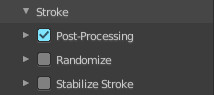
Airbrush, Ink Pen, Ink Pen Rough, Marker Bold, Marker Chisel, Pen, Pencil, Pencil Soft and Tint.
Here you will find some further stroke related settings. It has three sub sections. Post Processing, Randomize and Stabilize Stroke.
Post Processing
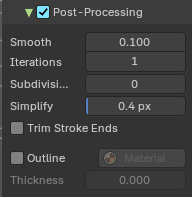
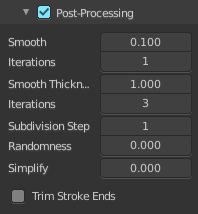
Here you find some post processing settings for new strokes.
| Entry | What it does |
|---|---|
| Smooth | The smooth amount to reduce jittering. |
| Iterations | Number of iterations to smooth new created strokes. |
| Iterations | Number of iterations to smooth new created strokes. |
| Subdivision Steps | Number of subdivisions of new created strokes |
| Simplify | Simplify new created strokes. |
| Trim Stroke Ends | Trim intersecting stroke ends. |
| Outline | Convert stroke to perimeter. This tool requires an active camera in the scene. · Material: Material used for the secondary uses for this brush. · Thickness: The thickness of the outline stroke, relative to the current brush thickness. |
Randomize
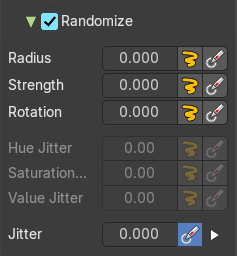
Adds variation to the brush color per stroke or while drawing a stroke.
Radius
Randomize the pressure.
| Entry | What it does |
|---|---|
| Stroke Randomization | Use randomness per stroke, instead of while drawing a stroke. This will define a new random value when you draw a new stroke. |
| Use Pressure | Uses the brush pressure to define how random the influence will be. Maximum pressure is maximum randomization. |
Pressure Size Curve
Behind the pressure size button there is a button to reveal the size pressure curve panel. When you activate Size Pressure for tablets, then the Size Pressure curve becomes active, and can be adjusted.
The pressure size curve allows you to adjust the falloff curve for the tablet pressure. It shows when Use Pressure is activated. The curve panel shows when clicking at the button.
Selecting Points
You can select curve points. This reveals two edit boxes for the x and y coordinate of this point.
Selected points can be moved around. Left click at them, hold the mouse button down and move them to a new location.
Adding Points
You can add new curve points by simply left clicking at the curve. Move the mouse to position them where you need it.
Navigation elements
| Entry | What it does |
|---|---|
| Zoom in | Zooms in. |
| Zoom out | Zooms out. |
Clipping options
Set up clipping for the stroke.
Tools
Tools is a menu where you can find some curve related tools.
| Entry | What it does |
|---|---|
| Reset View | Resets the curve windows zoom. |
| Reset Curve | Resets the curve to the initial shape. |
Handles
You can choose between Auto handle, Vector Handle and Auto Clamped.
| Entry | What it does |
|---|---|
| Position X / Y | The position of the selectedc curve point. |
| Delete Points | Deletes the selected curve point. |
Curve Presets
A curve preset to start with.
Strength
Randomize the strength.
| Entry | What it does |
|---|---|
| Stroke Randomization | Use randomness per stroke, instead of while drawing a stroke. This will define a new random value when you draw a new stroke. |
| Use Pressure | Uses the brush pressure to define how random the influence will be. Maximum pressure is maximum randomization. |
Pressure Size Curve
Behind the pressure size button there is a button to reveal the size pressure curve panel. When you activate Size Pressure for tablets, then the Size Pressure curve becomes active, and can be adjusted.
The pressure size curve allows you to adjust the falloff curve for the tablet pressure. It shows when Use Pressure is activated. The curve panel shows when clicking at the button.
Selecting Points
You can select curve points. This reveals two edit boxes for the x and y coordinate of this point.
Selected points can be moved around. Left click at them, hold the mouse button down and move them to a new location.
Adding Points
You can add new curve points by simply left clicking at the curve. Move the mouse to position them where you need it.
Navigation elements
| Entry | What it does |
|---|---|
| Zoom in | Zooms in. |
| Zoom out | Zooms out. |
Clipping options
Set up clipping for the stroke.
Tools
Tools is a menu where you can find some curve related tools.
| Entry | What it does |
|---|---|
| Reset View | Resets the curve windows zoom. |
| Reset Curve | Resets the curve to the initial shape. |
Handles
You can choose between Auto handle, Vector Handle and Auto Clamped.
| Entry | What it does |
|---|---|
| Position X / Y | The position of the selectedc curve point. |
| Delete Points | Deletes the selected curve point. |
Curve Presets
A curve preset to start with.
Rotation
Randomize the rotation.
| Entry | What it does |
|---|---|
| Stroke Randomization | Use randomness per stroke, instead of while drawing a stroke. This will define a new random value when you draw a new stroke. |
| Use Pressure | Uses the brush pressure to define how random the influence will be. Maximum pressure is maximum randomization. |
Pressure Size Curve
Behind the pressure size button there is a button to reveal the size pressure curve panel. When you activate Size Pressure for tablets, then the Size Pressure curve becomes active, and can be adjusted.
The pressure size curve allows you to adjust the falloff curve for the tablet pressure. It shows when Use Pressure is activated. The curve panel shows when clicking at the button.
Selecting Points
You can select curve points. This reveals two edit boxes for the x and y coordinate of this point.
Selected points can be moved around. Left click at them, hold the mouse button down and move them to a new location.
Adding Points
You can add new curve points by simply left clicking at the curve. Move the mouse to position them where you need it.
Navigation elements
| Entry | What it does |
|---|---|
| Zoom in | Zooms in. |
| Zoom out | Zooms out. |
Clipping options
Set up clipping for the stroke.
Tools
Tools is a menu where you can find some curve related tools.
| Entry | What it does |
|---|---|
| Reset View | Resets the curve windows zoom. |
| Reset Curve | Resets the curve to the initial shape. |
Handles
You can choose between Auto handle, Vector Handle and Auto Clamped.
| Entry | What it does |
|---|---|
| Position X / Y | The position of the selectedc curve point. |
| Delete Points | Deletes the selected curve point. |
Curve Presets
A curve preset to start with.
Hue
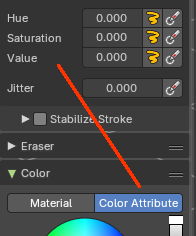
Shifts the base color across the color wheel. You need to be in color attribute mode.
| Entry | What it does |
|---|---|
| Stroke Randomization | Use randomness per stroke, instead of while drawing a stroke. This will define a new random value when you draw a new stroke. |
| Use Pressure | Uses the brush pressure to define how random the influence will be. Maximum pressure is maximum randomization. |
Saturation
Randomize original saturation. Adjusts the intensity of the color. You need to be in color attribute mode.
| Entry | What it does |
|---|---|
| Stroke Randomization | Use randomness per stroke, instead of while drawing a stroke. This will define a new random value when you draw a new stroke. |
| Use Pressure | Uses the brush pressure to define how random the influence will be. Maximum pressure is maximum randomization. |
Pressure Size Curve
Behind the pressure size button there is a button to reveal the size pressure curve panel. When you activate Size Pressure for tablets, then the Size Pressure curve becomes active, and can be adjusted.
The pressure size curve allows you to adjust the falloff curve for the tablet pressure. It shows when Use Pressure is activated. The curve panel shows when clicking at the button.
Selecting Points
You can select curve points. This reveals two edit boxes for the x and y coordinate of this point.
Selected points can be moved around. Left click at them, hold the mouse button down and move them to a new location.
Adding Points
You can add new curve points by simply left clicking at the curve. Move the mouse to position them where you need it.
Navigation elements
| Entry | What it does |
|---|---|
| Zoom in | Zooms in. |
| Zoom out | Zooms out. |
Clipping options
Set up clipping for the stroke.
Tools
Tools is a menu where you can find some curve related tools.
| Entry | What it does |
|---|---|
| Reset View | Resets the curve windows zoom. |
| Reset Curve | Resets the curve to the initial shape. |
Handles
You can choose between Auto handle, Vector Handle and Auto Clamped.
| Entry | What it does |
|---|---|
| Position X / Y | The position of the selectedc curve point. |
| Delete Points | Deletes the selected curve point. |
Curve Presets
A curve preset to start with.
Value Jitter
Randomize original value. Modifies the brightness of the stroke. You need to be in color attribute mode.
| Entry | What it does |
|---|---|
| Stroke Randomization | Use randomness per stroke, instead of while drawing a stroke. This will define a new random value when you draw a new stroke. |
| Use Pressure | Uses the brush pressure to define how random the influence will be. Maximum pressure is maximum randomization. |
Pressure Size Curve
Behind the pressure size button there is a button to reveal the size pressure curve panel. When you activate Size Pressure for tablets, then the Size Pressure curve becomes active, and can be adjusted.
The pressure size curve allows you to adjust the falloff curve for the tablet pressure. It shows when Use Pressure is activated. The curve panel shows when clicking at the button.
Selecting Points
You can select curve points. This reveals two edit boxes for the x and y coordinate of this point.
Selected points can be moved around. Left click at them, hold the mouse button down and move them to a new location.
Adding Points
You can add new curve points by simply left clicking at the curve. Move the mouse to position them where you need it.
Navigation elements
| Entry | What it does |
|---|---|
| Zoom in | Zooms in. |
| Zoom out | Zooms out. |
Clipping options
Set up clipping for the stroke.
Tools
Tools is a menu where you can find some curve related tools.
| Entry | What it does |
|---|---|
| Reset View | Resets the curve windows zoom. |
| Reset Curve | Resets the curve to the initial shape. |
Handles
You can choose between Auto handle, Vector Handle and Auto Clamped.
| Entry | What it does |
|---|---|
| Position X / Y | The position of the selectedc curve point. |
| Delete Points | Deletes the selected curve point. |
Curve Presets
A curve preset to start with.
Jitter
Add Jitter.
Use Pressure
The button behind the edit box enables tablet pressure sensitivity.
Pressure Size Curve
Behind the pressure size button there is a button to reveal the size pressure curve panel. When you activate Size Pressure for tablets, then the Size Pressure curve becomes active, and can be adjusted.
The pressure size curve allows you to adjust the falloff curve for the tablet pressure. It shows when Use Pressure is activated. The curve panel shows when clicking at the button.
Selecting Points
You can select curve points. This reveals two edit boxes for the x and y coordinate of this point.
Selected points can be moved around. Left click at them, hold the mouse button down and move them to a new location.
Adding Points
You can add new curve points by simply left clicking at the curve. Move the mouse to position them where you need it.
Navigation elements
| Entry | What it does |
|---|---|
| Zoom in | Zooms in. |
| Zoom out | Zooms out. |
Clipping options
Set up clipping for the stroke.
Tools
Tools is a menu where you can find some curve related tools.
| Entry | What it does |
|---|---|
| Reset View | Resets the curve windows zoom. |
| Reset Curve | Resets the curve to the initial shape. |
Handles
You can choose between Auto handle, Vector Handle and Auto Clamped.
| Entry | What it does |
|---|---|
| Position X / Y | The position of the selectedc curve point. |
| Delete Points | Deletes the selected curve point. |
Curve Presets
A curve preset to start with.
Stabilize Stroke subpanel
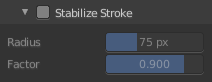
Draw lines with a delay to allow smooth strokes.
| Entry | What it does |
|---|---|
| Radius | The minimum distance from last point before the stroke continues. |
| Factor | Smooth stroke factor. Higher values gives smoother stroke. |
Brush Settings Panel - Erase
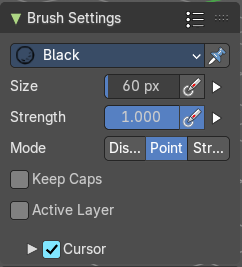
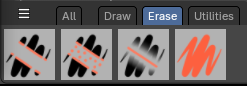
Eraser hard, Eraser Point, Eraser Soft, Eraser Stroke
Size
The Radius edit box allows you to adjust the radius of the brush.
Use Pressure
The button behind the edit box enables tablet pressure sensitivity for radius.
Pressure Size Curve
Behind the pressure size button there is a button to reveal the size pressure curve panel. When you activate Size Pressure for tablets, then the Size Pressure curve becomes active, and can be adjusted.
The pressure size curve allows you to adjust the falloff curve for the tablet pressure. It shows when Use Pressure is activated. The curve panel shows when clicking at the button.
Selecting Points
You can select curve points. This reveals two edit boxes for the x and y coordinate of this point.
Selected points can be moved around. Left click at them, hold the mouse button down and move them to a new location.
Adding Points
You can add new curve points by simply left clicking at the curve. Move the mouse to position them where you need it.
Navigation elements
| Entry | What it does |
|---|---|
| Zoom in | Zooms in. |
| Zoom out | Zooms out. |
Clipping options
Set up clipping for the stroke.
Tools
Tools is a menu where you can find some curve related tools.
| Entry | What it does |
|---|---|
| Reset View | Resets the curve windows zoom. |
| Reset Curve | Resets the curve to the initial shape. |
Handles
You can choose between Auto handle, Vector Handle and Auto Clamped.
| Entry | What it does |
|---|---|
| Position X / Y | The position of the selectedc curve point. |
| Delete Points | Deletes the selected curve point. |
Curve Presets
A curve preset to start with.
Strength
The Strength edit box allows you to adjust the strength of the brush.
Use Pressure
The button behind the edit box enables tablet pressure sensitivity for strength.
Pressure Size Curve
Behind the pressure size button there is a button to reveal the size pressure curve panel. When you activate Size Pressure for tablets, then the Size Pressure curve becomes active, and can be adjusted.
The pressure size curve allows you to adjust the falloff curve for the tablet pressure. It shows when Use Pressure is activated. The curve panel shows when clicking at the button.
Selecting Points
You can select curve points. This reveals two edit boxes for the x and y coordinate of this point.
Selected points can be moved around. Left click at them, hold the mouse button down and move them to a new location.
Adding Points
You can add new curve points by simply left clicking at the curve. Move the mouse to position them where you need it.
Navigation elements
| Entry | What it does |
|---|---|
| Zoom in | Zooms in. |
| Zoom out | Zooms out. |
Clipping options
Set up clipping for the stroke.
Tools
Tools is a menu where you can find some curve related tools.
| Entry | What it does |
|---|---|
| Reset View | Resets the curve windows zoom. |
| Reset Curve | Resets the curve to the initial shape. |
Handles
You can choose between Auto handle, Vector Handle and Auto Clamped.
| Entry | What it does |
|---|---|
| Position X / Y | The position of the selectedc curve point. |
| Delete Points | Deletes the selected curve point. |
Curve Presets
A curve preset to start with.
| Entry | What it does |
|---|---|
| Keep Caps | Keep the caps as they are. Do not flatten them. |
| Active Layer | Only edit the active layer of the object. |
Brush Settings Panel - Fill
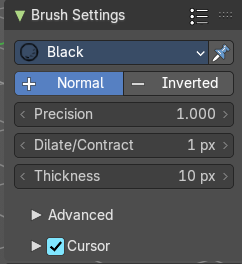
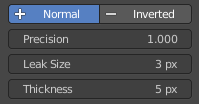
Note that the Fill tool does not fill an existing stroke like you would expect. It extends existing strokes with closed areas, or the border.
| Entry | What it does |
|---|---|
| Direction | The fill direction. Fill Normal or Inverted. |
| Precision | Factor for fill boundary accuracy. Higher values are more accurate but slower. |
| Leak Size | Size in pixels to consider the leak closed. |
| Thickness | The thickness of the new created stroke drawn with the fill tool around existing strokes or the border. |
Brush Settings Panel - Fill - Advanced Sub panel
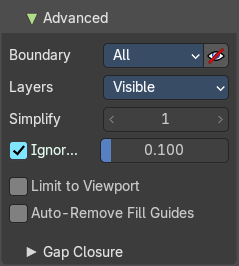
Boundary
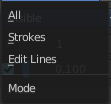
The mode to draw the boundary lines.
Layers
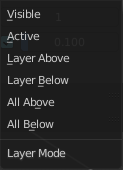
What layers to use as boundaries.
| Entry | What it does |
|---|---|
| Simplify | Number of simplify steps. Large values reduces Fill accuracy. |
| Ignore Transparency | Show transparent lines to use as boundary for filling. |
| Limit to Viewport | Threshold to consider a color as transparent for filling. |
| Auto-Remove Fill Guides | Automatically remove fill guide strokes after filling. |
Gap closure sub panel
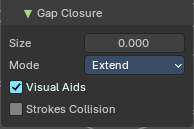
Size
Strokes end extension for closing gaps. A value of zero disables the feature.
Mode
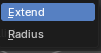
| Entry | What it does |
|---|---|
| Extend | Extend strokes in straight lines. |
| Radius | Connect endpoints that are close together. |
| Entry | What it does |
|---|---|
| Visual Aids | Show help lines for stroke extension. |
| Stroke Collision | Check if extend lines collides with the strokes. |
Color Panel
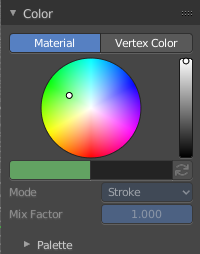
The default grease pencil color is based at materials. And then this panel is greyed out and dysfunctional. But you can also choose to work with vertex colors instead. And then all the color panel features becomes activated.
Material / Vertex Color
Choose if you want to work with material based colors or with vertex colors. Turn it to vertex colors to activate the features.

This can also be done in the tool settings in the header.
Color picker
Define the color for your brush.
| Entry | What it does |
|---|---|
| Active color | The active color is the left one. When you click the button with the two arrows down right then you can swap the color with the secondary color. Then this secondary color becomes the primary color, and is active. A click at one of the color fields will open a more detailed color dialog, to Set up the color by using rgb, hsv and hex colors and with value sliders. |
| Brush colors flip | Flips the primary color with the secondary color. |
Mode
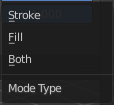
How the vertex color is applied.
Mix Factor
Factor used to mix the vertex color to get final color.
Color Panel - Palette sub panel
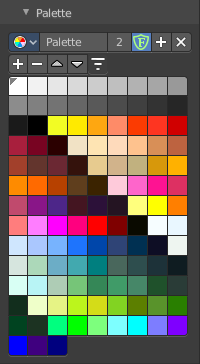
Here you will find a predefined color palette, and here you can create a color palette for later reuse.
The color palette cannot be saved externally. It is part of the current blend file. You can however append color palettes from other blend files.
The currently active color is the one with the triangle at it.
The elements are explained from left to right and from top to bottom.
Palette browser
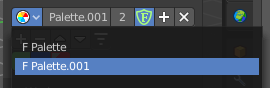
The button at the left opens a drop down list to choose between your palettes.
| Entry | What it does |
|---|---|
| Edit Box | Read the name of the currently active palette. You can also rename the palette here. A click into the edit box makes the name editable. |
| Number of users | See how many users the palette currently has. |
| Fake User | Fake User sets the element to have a fake user. Zero user data-blocks are normally not saved. But sometimes you want to force the data to be kept even when the data block has no user. |
| Add palette | Add a new palette. |
| Remove Palette | Clicking at this button removes the palette. Note that you need to save, close Bforartists and reload the blend file to remove the palette completely. |
| New Palette color | Adjust a color in the color picker. Then click at the add button to add this color to the palette. |
| Delete Palette color | Select the color in the palette, then click at the minus button to remove it. |
| Move Palette Color up and down | With these two buttons you can move the active color up or down in the palette. |
Sort By
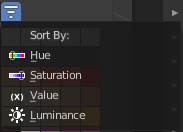
Sort the palette by different methods.
Palette Colors
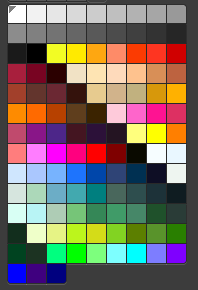
The actual list of the current palette colors. Click at one to make it the active one that gets used for painting.