

































































Tool Tab - Edit Mode
Many object types can be edited in edit mode. Mesh objects, armature, text object and so on. In this chapter we will go through all the object types in edit mode. But just a few object types have really relevant…
Tools Tab in Edit Mode
Many object types can be edited in edit mode. Mesh objects, armature, text object and so on. In this chapter we will go through all the object types in edit mode. But just a few object types have really relevant settings in the tools tab in edit mode. Mesh Objects. All kind of curve objects. And the Armature.
For the rest of the editable object types the tools tab stays blank.
Mesh Object - Options Panel
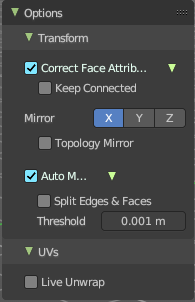
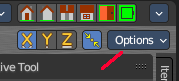
This panel contains some mesh specific settings. It can also be found in the header.
Transform sub panel
| Entry | What it does |
|---|---|
| Correct Face Attributes | Correct data such as UV's and vertex colors when transforming. · Keep Connected: During the face attributes correction merge attributes connected to the same vertex. |
| Mirror | Mirror Editing. The same mirror buttons can also be found in the tool settings bar as icon buttons. This allows quicker access and better visual control which mirror axis is currently active. · Topology Mirror: Use Topology based mirroring. This checkbox shows when you have selected a mirror axis. |
| Auto Merge | Automatically merge vertices that are close to each other. The same checkbox can also be found in the tool settings bar as an icon button. This allows quicker access and better visual control which mirror axis is currently active. · Split Edges and Faces: When mirror editing then split edges and faces automatically. · Threshold: Limit for removing duplicates and 'Auto Merge'. |
UV subpanel
Live Unwrap Edge Path
Changing an edges seam in the 3d view recalculates the UV unwrap.
Armature - Armature Options panel

X Axis Mirror
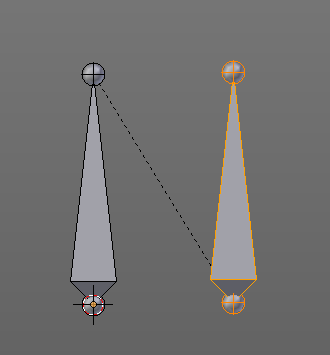
X Axis Mirror is made to sync the right side of a symmetrical armature with the left side of a symmetrical armature. Means you can create just one half of a skeleton. And then simply mirror it over to the other half. And any further changes that you do at the one side will also apply to the other side of the armature. This includes the whole FK IK setup. And can save you lots of work therefore.
The same checkbox can also be found in the tool settings bar as an icon button. This allows quicker access and better visual control which mirror axis is currently active.
Workflow
To get X Axis mirror to work requires a bit preparation work.
Create an armature, with some bones at the one side. Like this. The 3D cursor needs to be at 0/0/0. The left bone is in the middle. Think of it as the backbone. The right bone has an offset, and shall represent our right side of the armature.
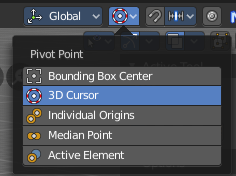
Change the Pivot Point in the Header to 3D Cursor. Important step. We want to mirror around the 3D Cursor.
Now select the right side of the armature. Border select is one fast way. But NOT the bone in the middle, which is our backbone. We don't want to mirror this one too.
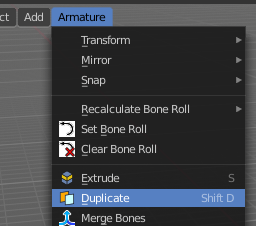
Duplicate what we have selected. And click immediately to leave the duplicate mode. Or you will pull the duplicated part around. Which is not what we want.
Next we will scale our new created armature part by -1 to mirror it over to the other side. Activate Scale, don't move the mouse, but type immediately in X for the axis and -1 for the scale factor.
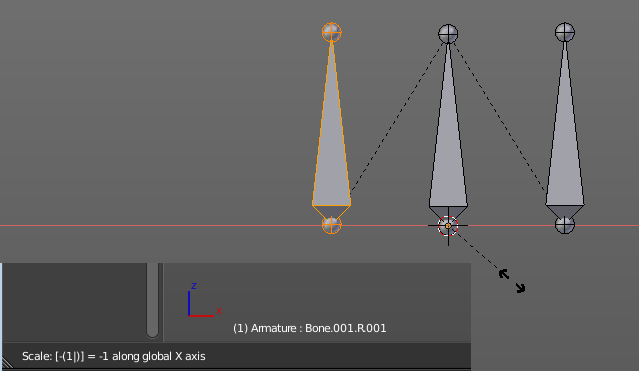
This will create our mirrored armature part.
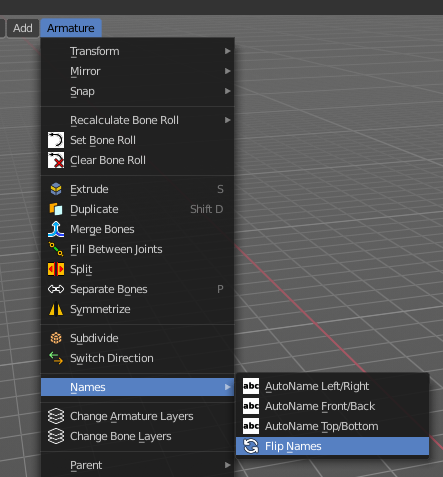
Next important step is to Flip Names. This renames the mirrored bones. Bone.001.R becomes without this step Bone.001.R.001. With rename we get Bone.001.L
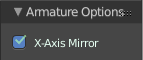
And now we are finally arrived at X Axis Mirror. Tick it.
Now you should be able to modify the one side of the armature, and the other side will be modified too. This includes as told above also FK IK set-ups that you do in Pose mode.