

































































View Menu
The View menu contains all View related tools. The range goes from tools to maximize the current window across align view tools up to rendering related tools for the viewport like Render Border.
View Menu
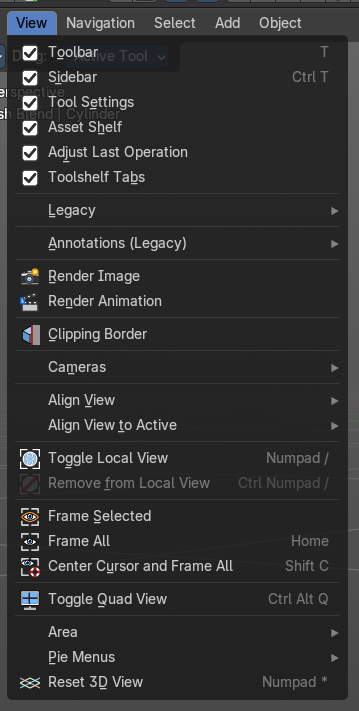
The View menu contains all View related tools. The range goes from tools to maximize the current window across align view tools up to rendering related tools for the viewport like Render Border.
Toolbar
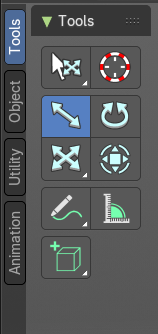
Shows or hides the toolbar at the left in the 3D view.
Sidebar
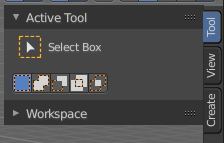
Shows or hides the sidebar at the right in the 3D view.
Tool Settings

Shows or hides the tool settings above the header in the 3D view.
Asset Shelf

Shows or hides the asset shelf at the bottom of the 3d view.
Adjust Last Operation
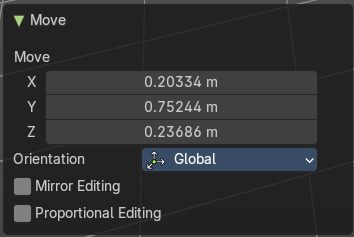
Shows or hides the Adjust Last Operation panel down left in the 3D view.
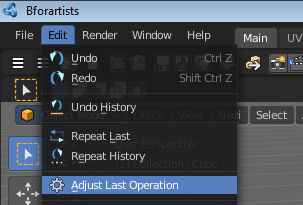
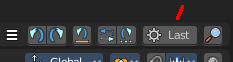
Note that the Adjust Last Operation panel can also be called from the edit menu at the top. And from the toolbar at the right. Here you can also add a hotkey to call it with a hotkey.
Tool Shelf Tabs
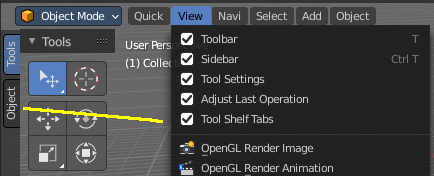
Shows or hides the tool shelf tabs. This tool shelf tabs contains tools from the header menus, and are a double menu entry by design. Here you can turn them off if you don't want to work with this tool set.
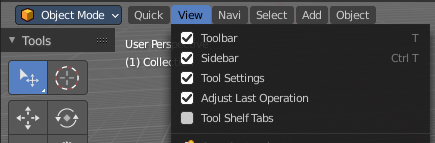
Note that you need to adjust the width of the tool shelf manually afterwards since it does not automatically update the width of the tool shelf area.
Note that you need to save the startup.blend to save the state of this checkbox.
Legacy

Set 3D Cursor
The old legacy operator to set the position of the 3D cursor in the viewport. This method is especially with rigging the much faster method. So we keep this operator. It is up to you if you want to work with the old operator or with the tool in the tool shelf.
Hotkey only tool. The menu entry just exists to show that this operator exists!
Annotations (Legacy)
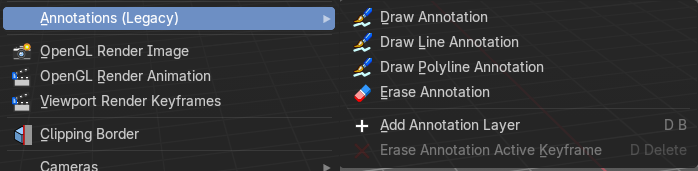
This group of operators is useful to take notes without changing tool-shelf operators. These notes can be colored in the View tab of the Property Shelf. Each layer is a single color. You can also animate the notes with keyframes, editable in the dopesheet. d
Note: These are legacy operators, meaning they are equally available in the Toolshelf as a modal operator.
| Entry | What it does |
|---|---|
| Draw Annotation | Starts the annotation free hand draw tool in the editor. |
| Draw Line Annotation | Starts the annotation line draw tool to draw straight lines in the editor. |
| Draw Polyline Annotation | Starts the annotation Polyline draw tool in the editor which allows to draw multiple connected straight lines in the editor. |
| Erase Annotation | Starts the annotation erase tool in the editor which erases any strokes in the editor. |
| Add Annotation Layer | Starts a new annotation layer. |
| Erase Annotation Active Keyframe | Erases the active keyframe of the annotation. |
Render Image
Renders an Image, using the Viewport renderer. This can be useful for preview renderings.
Note: Note that this menu item is a double menu entry. The same menu item exists in the Render menu in the Info Header. But this is required when you work with more than one 3D view. When you use the entry in the Render menu, then it picks an arbitrary 3D view. When you use the menu entry in the 3D view, then it renders from this 3D view.
Render Animation
Renders an animation, using the Viewport renderer. This can be useful for preview renderings.
Note: Note that this menu item is a double menu entry. The same menu item exists in the Render menu in the Info Header. But this is required when you work with more than one 3D view. When you use the entry in the Render menu, then it picks an arbitrary 3D view. When you use the menu entry in the 3D view, then it renders from this 3D view.
Clipping Border
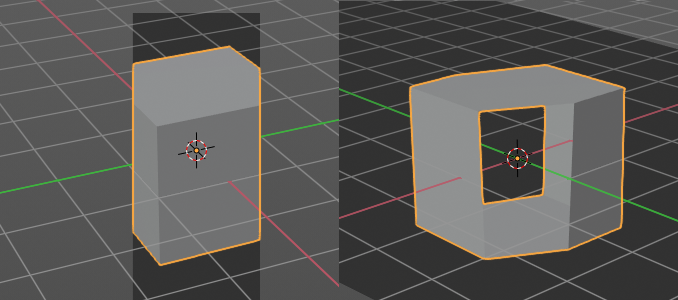
With clipping you can draw a rectangle that excludes the display of everything outside of this rectangle. That way you can look inside the geometry when you rotate the viewport. To clear the clipping use the tool again. It is a toggle.
Render Region
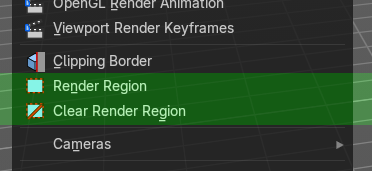
Note: Cycles only!
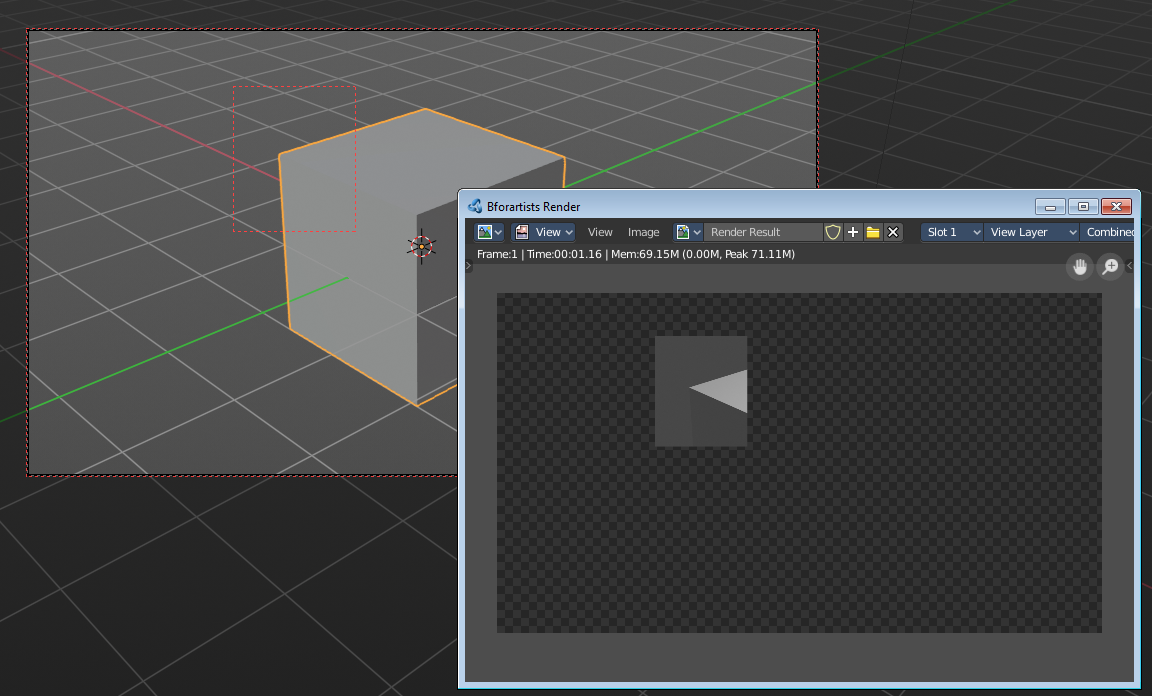
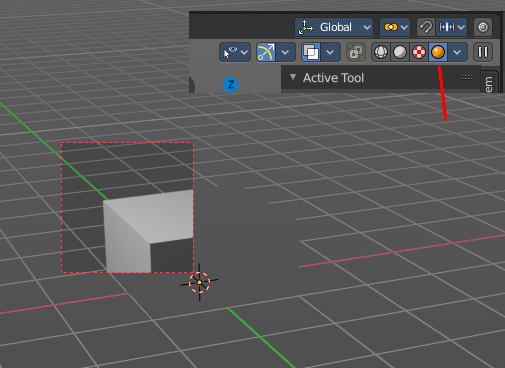
With the Render Region tool you can drag a rectangle at the viewport to define a portion of the screen to render. The benefit here is to have much faster preview renderings. You just render what you want to judge, and not the whole image.
It has two use cases. The one is with the rendering through the camera. Just what is marked gets rendered. The other is directly in the viewport, with the Viewport shading method Rendered. Render border works with all renderers.
You can have both render border cases active at the same time. When you remove it then just the render border from the current case gets deleted. Either you are in camera view, or you are in viewport view.
Clear Render Region
Removes the Render Region rectangle from the viewport.
Cameras sub menu

| Entry | What it does |
|---|---|
| Set Active Object as Camera | With this tool you can set any object to be the active camera where you render from. |
| Set Active Camera | Set the current camera as the active camera. |
| Active Camera | Switches to Camera view and back to Viewport Camera. |
Frame camera bounds
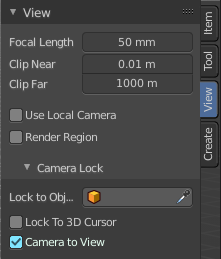
It centers the camera to view.
This tool is of use when you are in camera view. Else it is greyed out and inactive. There is a Grey passepartout around the camera view. It can be that this passepartout does not fit into the viewport. It can be too big or too small. And so you might want to zoom out or in.
Normally when you are in camera view, then you zoom in or out the view with the zoom tool. Not this passepartout. But with lock camera off you can zoom the passepartout to reach geometry that is not in the camera view.
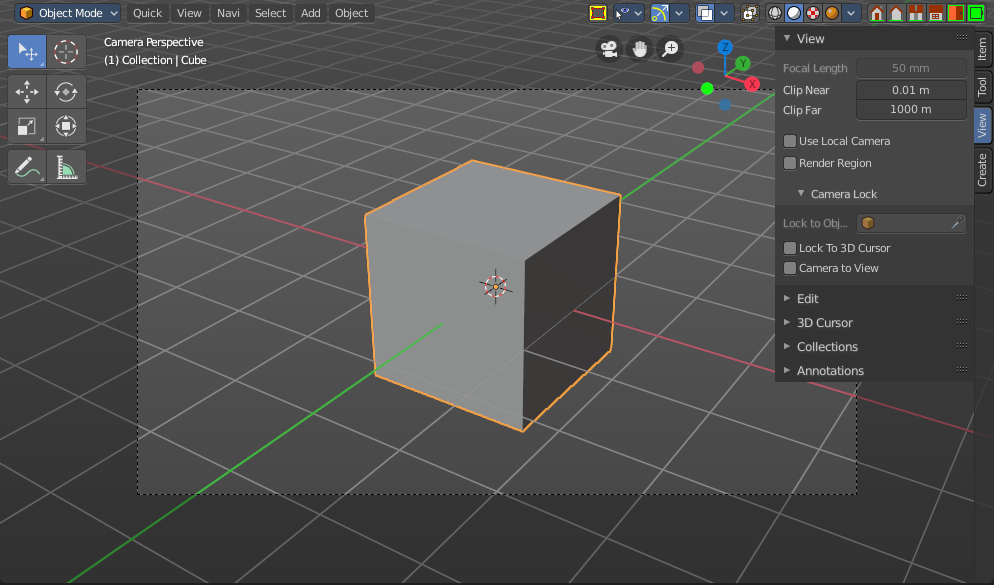
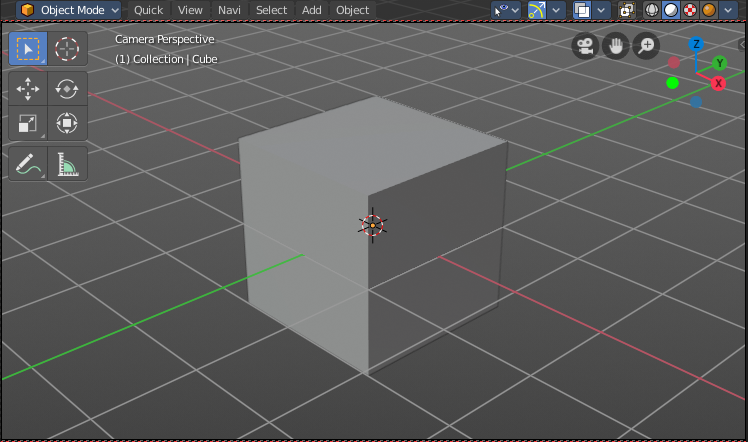
The other way is Frame camera bounds. It fits the camera view into the viewport.
Align View
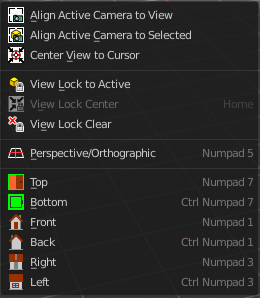
Align View is a menu where you can choose between different view align methods. The view gets aligned at the world coordinates. Here we also find a few more align methods.
| Entry | What it does |
|---|---|
| Align Active Camera to View | Aligns the active camera to the current view. This means you can navigate with the viewport camera, select the render camera, and align it with this tool, so that the render camera has the same position and angle than the viewport camera. |
| Align Active Camera to Selected | Aligns the active camera to the current selected object. This means you can navigate with the viewport camera, select the render camera, and align it with this tool, so that the render camera has the same position and angle than the selected object. |
| Center View to Cursor | Centers the view at the 3D cursor position. |
| View Lock to Active | Locks the view to the currently active object. |
| View Lock Center | Centers the view to the currently active and locked object. This tool is just active when you have performed a View Lock to Active before. |
| View Lock Clear | Removes the View Lock to Active from the object. |
| Perspective/Orthographic | Toggles between perspectivic and orthographic view in the 3D viewport. Perspectivic view acts like a real camera with the perspectivic distortions. Orthographic view acts like a mathematical display of an object, without distortions. |
| Top, Bottom, etc. | Switches to Top view, Bottom View, etc. |
Align View to Active
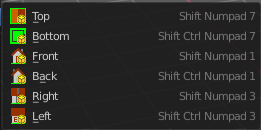
Align View to Active is a menu where you can choose between different view align methods. The view gets aligned relative to the rotation of the currently active object. Not in World coordinates. The menu items should be self explaining. So we won't list them one by one.
Toggle Local View
Toggle Local View zooms in or out until the Selection is displayed fitting in the viewport. And hides all other objects but the Selection.
Remove from local View
It can be that you select more than one object, and switch to local view. Then you decide that one of the objects is in the way. With remove from local view you can remove this object without to leave the local view.
This menu item is greyed out when you are not in local view.
Frame Selected / Frame Last Stroke
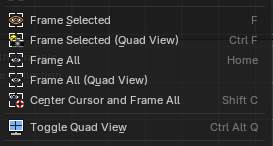
Zooms in or out in the 3d viewport until the Selection is displayed fitting in the viewport.
When in Sulpt, Vertex Paint, Weight Paint, and Texture Paint mode, this will Frame Last Stroke of the brush.
| Entry | What it does |
|---|---|
| Frame Selected (Quad View) | Just with Quad view. Zooms in or out in the 3d viewport until the Selection is displayed fitting in the viewport of all four views. |
| Frame All | Zooms in or out in the 3d viewport until all objects in the scene are displayed fitting in the viewport. |
Frame All (Quad View)
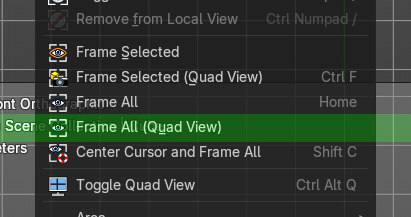
Just with Quad view. Zooms in or out in the 3d viewport until all objects in the scene are displayed fitting in the viewport of all four views.
Center Cursor and Frame All
Center Cursor and View all centers the 3D Cursor at 0/0/0, and zooms in or out in the 3d viewport until all objects in the scene are displayed fitting in the viewport.
Toggle Quad view
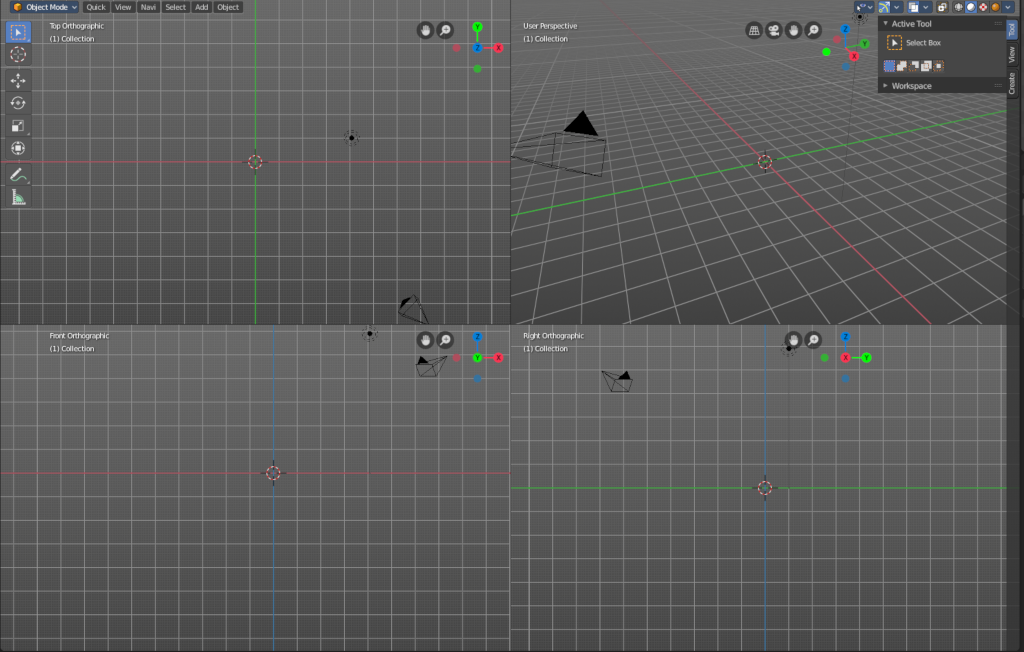
Displays the 3D View divided into four split screen parts. Note that the orthographic views cannot be switched in this mode. They remain orthographic, you cannot rotate them.
To return to single view reuse the menu item in the View menu.
Area
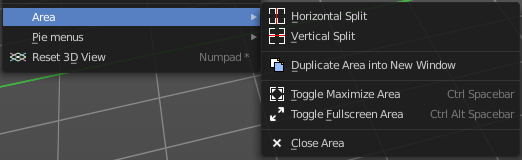
This menu contains general view functionality. And exists in most other editor types too.
| Entry | What it does |
|---|---|
| Horizontal Split | Splits the current view horizontally into two independent editor windows. |
| Vertical Split | Splits the current view vertically into two independent editor windows. |
Duplicate Area into New Window
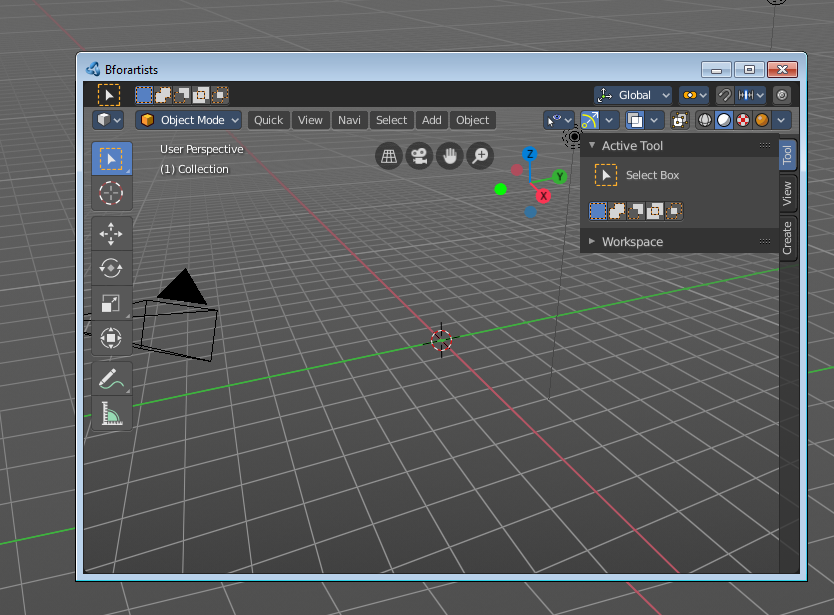
Duplicate Area into New Window makes the selected editor window floating. You can then drag it around at the monitor. It is not connected with the rest of the UI anymore.
A separated window cannot be merged into the main window again. You have to close it when not longer needed.
| Entry | What it does |
|---|---|
| Toggle Maximize Area | Displays the editor maximized with menus. To return from the maximized view press hotkey Ctrl + Space bar. Or reuse the menu item in the area menu. |
| Toggle Full screen Area | Displays the editor maximized without menus. To return from the full screen view press hotkey Ctrl + Alt + Space bar. |
| Close Area | Closes the area window. |
Pie menus
Lists the available pie menus, and gives you the ability to read the hotkeys and assign own hotkeys.
A pie menu is a radial array of operators that can be used with gestures to quickly use common operators or properties.
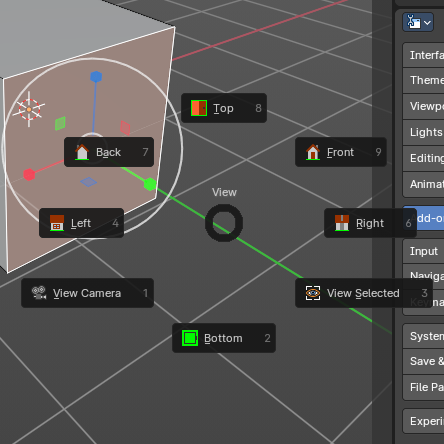
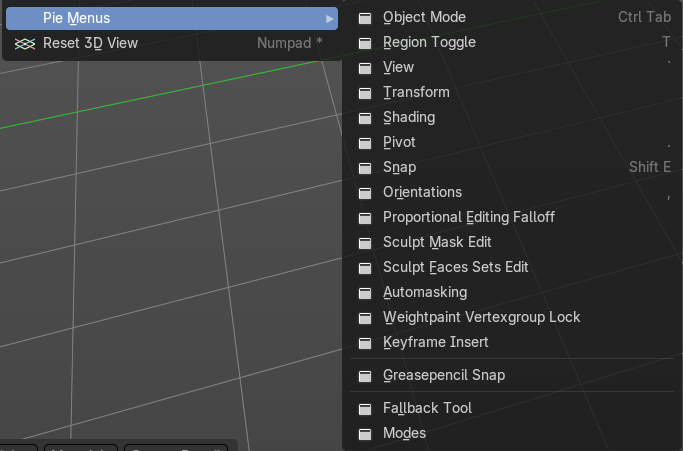
Reset 3D View
Resets the 3D view to the defaults.
Note that this is an add-on, and can be turned off in the addons section of the preferences.