

































































Select Menu
The Select menu provides you with all functionality around selecting. The content differs, dependent in which mode you are, and what object type you have selected. Some select functionality is very special for just one…
Select menu
The Select menu provides you with all functionality around selecting. The content differs, dependent in which mode you are, and what object type you have selected. Some select functionality is very special for just one object type in one special mode. But not every mode has a select menu.
Object Mode - Select menu
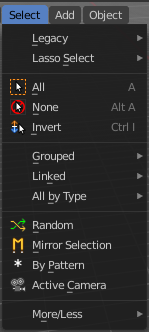
The select menu in Object mode is for all object types equal. It provides you with several selection methods.
Legacy

The legacy sub menu contains tools that exists in the tool shelf already. It's the old way to do things. Different to the tools in the tool shelf, these tools are usually modal. And performs once. You have to call them again in case you want to repeat the tool.
| Entry | What it does |
|---|---|
| Box select | Draw a rectangle to select everything inside of the rectangle. It automatically adds to the current selection. Holding down shift subtracts from the selection. |
| Circle select | Brush select content. The radius of the brush can be adjusted by holding down left mouse button and using the scroll wheel or the + or - button at the numpad. It automatically adds to the current selection. Holding down shift subtracts from the selection. To exit the circle select tool click with the right mouse button. |
Lasso Select
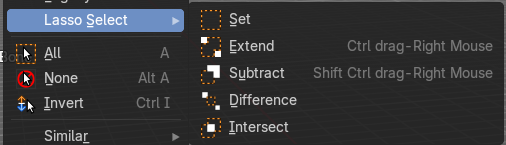
A sub menu with the available lasso select modes.
| Entry | What it does |
|---|---|
| All | Select everything. |
| None | Select nothing. |
| Inverse | Invert the current selection. |
Grouped
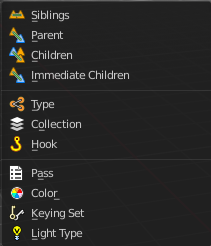
Select different types of objects within the group. It requires to have a group selected.
The menu items are pretty self explaining. So we won't go into detail here.
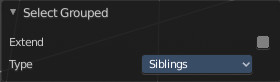
Last Operator Select Grouped
| Entry | What it does |
|---|---|
| Extend | Extends existing selection instead of deselecting everything first. |
| Type | Type is a drop-down list choose the Linked type again. |
Linked
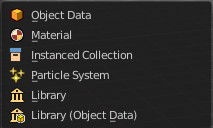
Linked is a menu select different types.
Select all objects that shares a common data-block with the active object. Select Linked uses the active object as a basis to select all others.
| Entry | What it does |
|---|---|
| Object Data | Selects every object that is linked to the same Object Data. |
| Material | Selects every object that is linked to the same material data-block. |
| Instanced Collection | Selects every object that is linked to the instanced collection. |
| Particle System | Selects all objects that use the same Particle System. |
| Library | Selects all objects that are in the same Library. |
| Library (Object Data) | Selects all objects that are in the same Library and limited to object data. |
All by Type
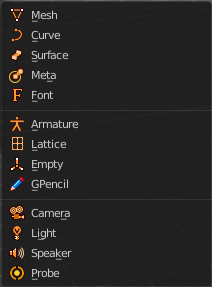
Select objects of a specific type.
The menu items are pretty self explaining. So we won't cover every single menu item here.
Last Operator Select By Type
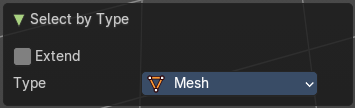
| Entry | What it does |
|---|---|
| Extend | With this option activated the selection does not clear before performing the selection operation, but extends. This means when you have a mesh object selected, and want to select all objects by type curve, then the mesh object is still selected. Without Extend just the curve objects are selected. The mesh object gets deselected. |
| Type | Type is a drop-down box choose the object type to select again. |
Random
Selects random objects.
Last Operator Select Random
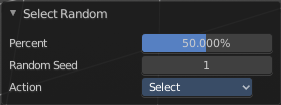
| Entry | What it does |
|---|---|
| Percent | The Percentage of objects that should be selected randomly. |
| Random Seed | The Seed for the random number generator. |
| Action | Action is a drop-down box choose if you want to select or to deselect random. |
Mirror Selection
Select the mirrored parts of an object. For example for L.Sword it selects R.Sword.
Last Operator Select Mirror
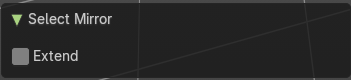
Extend
Extends existing selection instead of deselecting everything first.
By Pattern
Selects all objects whose name matches the entered string. For missing parts you need to add an asterix.
For example, you have four cubes in the scene. Cube, Cube.001, Cube.002 and mycube3. Then the term " Cube " will just select the first cube. While the term " Cube* " will select the first three. And " *cube* " will select all four.
Supported wild-cards:
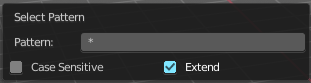
* matches everything
? matches any single character[abc] matches characters in “abc”[!abc] match any character not in “abc”
The tool operates immediately at entering the string.
| Entry | What it does |
|---|---|
| Pattern | Type in your string. |
| Case Sensitive | When ticked then the string comparison happens by taking upper and lower letters into account. |
Extend
Extends existing selection instead of deselecting everything first.
Last Operator Select Pattern
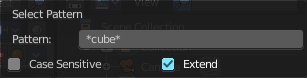
The Last Operator Select Pattern contains the same menu items than the pop-up. So see above. Also, it does not appear in the 3D view. But when you call it from the edit menu or with hotkey.
Active Camera
Selects the active camera.
More/ Less
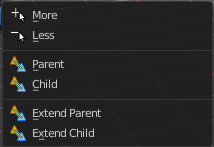
| Entry | What it does |
|---|---|
| More | More requires to have a parent or child relationship. It expands the selection. |
| Less | Less requires to have a parent or child relationship. It reduces the selection. |
| Parent | Parent requires to have a parent or child relationship. It selects the parent object of the currently selected object(s). |
| Child | Child requires to have a parent or child relationship. It selects the child object(s) of the currently selected object(s). |
| Parent extended | Parent extended requires to have a parent or child relationship. It selects the parent object of the currently selected object(s). But keeps the active object in the selection, even when it's not currently selected. |
| Child Extended | Child Extended requires to have a parent or child relationship. It selects the child object(s) of the currently selected object(s). But keeps the active object in the selection, even when it's not currently selected. |
Mesh - Edit Mode
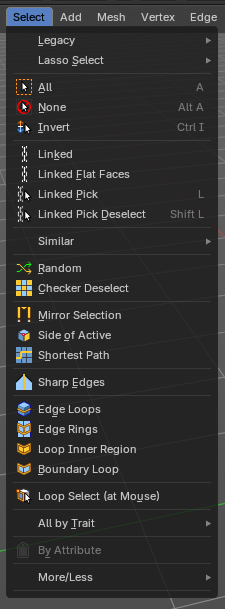
The select menu for a mesh object in Edit mode.
A few tools here acts different, dependent in which mesh select mode you are. For example, when you are in mesh select method vertices, then the Random operator picks random vertices.
So you might want to check the mesh select mode when something does not work in an expected way.

Legacy
The legacy sub menu contains tools that exists in the tool shelf already. It's the old way to do things. Different to the tools in the tool shelf, these tools are usually modal. And performs once. You have to call them again in case you want to repeat the tool.
| Entry | What it does |
|---|---|
| Box select | Draw a rectangle to select everything inside of the rectangle. It automatically adds to the current selection. Holding down shift subtracts from the selection. |
| Circle select | Brush select content. The radius of the brush can be adjusted by holding down left mouse button and using the scroll wheel or the + or - button at the numpad. It automatically adds to the current selection. Holding down shift subtracts from the selection. To exit the circle select tool click with the right mouse button. |
Lasso Select
A sub menu with the available lasso select modes.
| Entry | What it does |
|---|---|
| All | Select everything. |
| None | Select nothing. |
| Invert | Invert the current selection. |
Linked
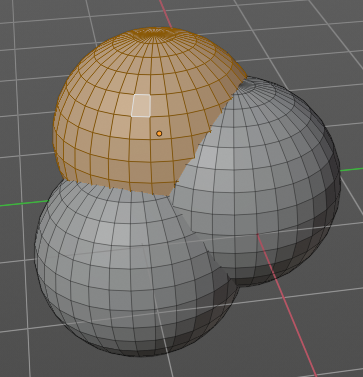
Select the geometry that is directly linked with the current geometry. You can for example have a mesh with several closed sub meshes. Those sub meshes. are not linked together, but are part of the object.
Last Operator Select Linked All
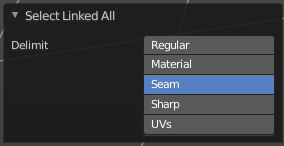
Delimit
Add a limit to the selection. For example, just select up to the next seam.
Linked Flat Faces
Select the geometry that is co planar to the current selection. It works also in other selection modes, but you need to have face geometry selected.
Last Operator Select Linked Flat Faces
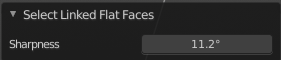
Adjust the angle up to which a face counts as co planar.
Linked Pick
Same as with Linked. But works with what is under the mouse cursor.
Linked Pick Deselect
Same as with Linked. But works with what is under the mouse cursor. And deselects the selection.
Last Operator Select Linked
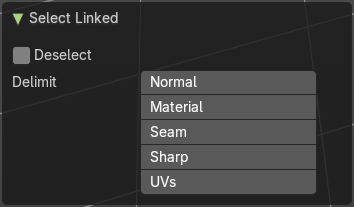
| Entry | What it does |
|---|---|
| Deselect | Select or deselect. |
| Delimit | Add a limit to the selection. For example, just select up to the next seam. |
Similar
Select geometry based on how similar certain properties are to it. The methods changes, dependent in which mesh selection mode you are. There is a pitfall with having more than one mesh selection method selected. Then you just get the face regions type presented. Vertices, Edges, Faces, more than one ...
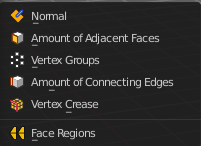
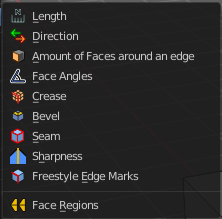
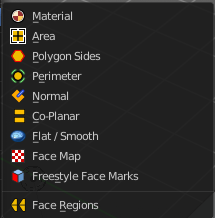

Last Operator Select Similar
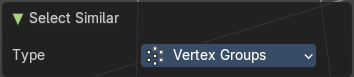
The last operator changes, dependant of the method.
Type
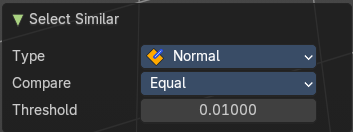
Choose the select similar method again.
| Entry | What it does |
|---|---|
| Compare | Compare with method less, greater or equal. |
| Threshold | Adjust the threshold value after which the element counts as similar. |
Random
Selects a random group of vertices, edges, or faces, dependent of the mesh selection method.
Last Operator Select Random
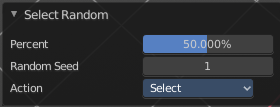
| Entry | What it does |
|---|---|
| Percent | How much percent will be random selected. |
| Random Seed | The random seed value. |
| Action | Select or deselect. |
Checker Deselect
Deselect alternating faces, edges or vertices to create a checker like pattern. The result is dependent of the mesh selection method.
Last Operator Checker Deselect
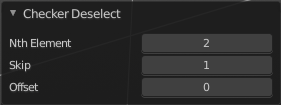
| Entry | What it does |
|---|---|
| Nth Element | Define how much elements gets unchecked. With 2 you have a checker board pattern. Every second element gets deselected. |
| Skip | Skip elements before the checker algorithm deselects again. |
| Offset | Offset the deselected elements. |
Mirror selection
Requires to have a symmetrical mesh. Selects the mirrored mesh parts from a selection.
Last Operator Select Mirror
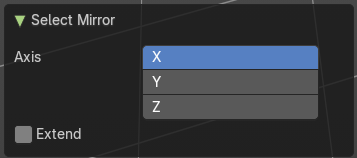
| Entry | What it does |
|---|---|
| Axis | The world axis to mirror at. |
| Extend | Keep the current selection. Without extend the current selection gets deselected. |
Side of Active
Selects all mesh data in direction of a single axis, starting from the current selection.
Last Operator Side of Active
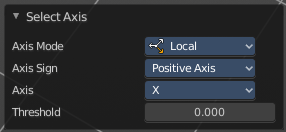
Axis mode
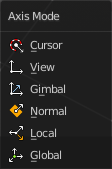
The axis orientation to work with.
Axis Sign
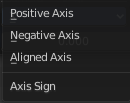
In which direction to work form the current selection.
Axis
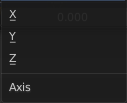
The axis to work with.
Threshold
Define a threshold to extend the selection.
Shortest Path
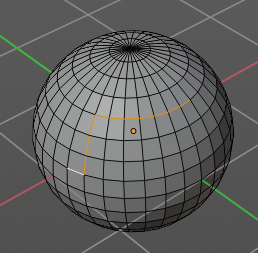
Select the shortest edge path between two selected mesh elements. This can be vertices, edges or faces. A start and an end point must be selected.
Last Operator Select shortest path
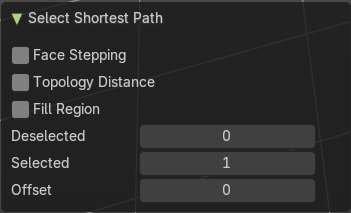
Face Stepping
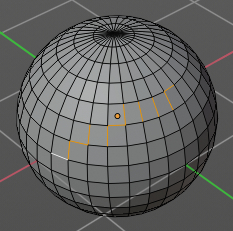
Traverse connected faces.
Topology Distance

Find the minimum number of steps instead of the shortest distance.
Fill Region
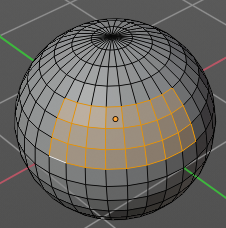
Select the region faces too.
Nth Element
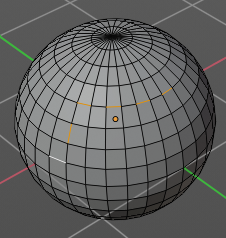
Don't select the whole path, but just every nth element of it.
| Entry | What it does |
|---|---|
| Skip | This is connected to nth element. Number of elements to skip at once. |
| Offset | This is connected to nth element. Start with an offset. |
Sharp Edges
Select all edges that are marked as sharp.
Last Operator Select Sharp Edges
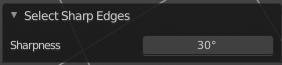
Sharpness
The angle after which a sharp edge gets selected.
Edge Loop
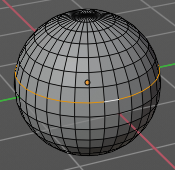
Selects a loop of edges from a selected edge. The method stops at poles. That's vertices where three or more than four edges comes together. At a UV sphere the north and south pole ...
Last Operator Multi Select Loops
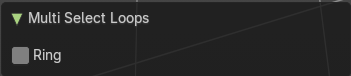
Ring
Select edge ring instead of edge loop.
Edge Ring
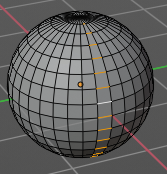
Selects edges parallel to a selected edge in the same ring of faces. The method stops at poles. That's vertices where three or more than four edges comes together. At a UV sphere the north and south pole ...
Last Operator Multi Select Loops
Ring
Select edge ring instead of edge loop.
Loop Inner-Region
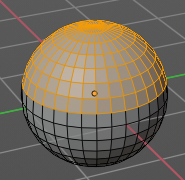
Select everything that is enclosed by an edge loop. When the loop is not closed, then it might select everything ...
By default the smaller enclosed part gets selected. The Inner-Region.
Last Operator Select Loop Inner-Region
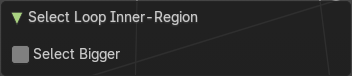
Select Bigger
Select the bigger enclosed part instead of the smaller enclosed part.
Boundary Loop
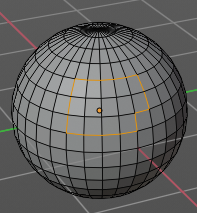
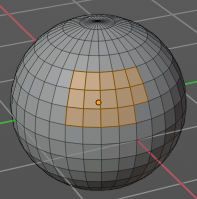
Select the edges that encloses a selection of faces.
Loop Select Pick
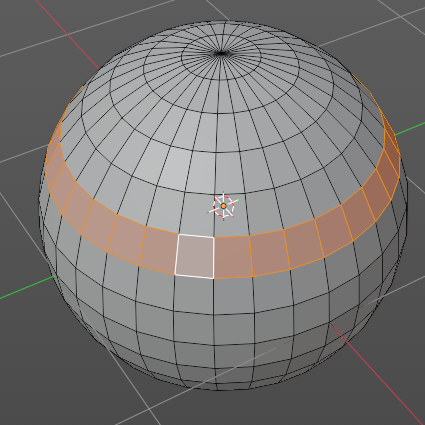
Quickly selects a loop of connected edges or faces using a single click.
Ideal for selecting edge loops, face rings, or structured mesh flows during modeling.
Hold Alt and click with Left Mouse Button (LMB) on an edge or face.
The operator automatically detects and selects the shortest loop path based on mesh topology.
If you hold Shift + Alt, you can add loops.
Note: This is a* mouse-only operator*; it does not appear in menus.
Last Operator Select Loop
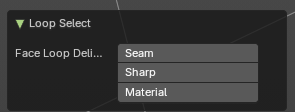
Face Loop Delimiter
Controls how face loops are detected and selected based on edge properties. Useful for refining loop selection behavior when working with complex or stylized geometry.
| Entry | What it does |
|---|---|
| Seam | When enabled, loop selection stops at UV seams. Useful for selecting loops that respect texture boundaries or unwrap logic. |
| Sharp | When enabled, loop selection stops at sharp edges. Ideal for isolating loops along hard surface transitions or shading splits. |
| Material | When enabled, loop selection stops at material boundaries. Useful for selecting loops within a single material zone or across multi-material meshes. |
All by Trait sub menu
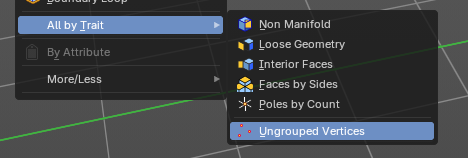
Non Manifold
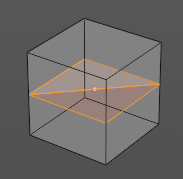
Select non manifold geometry. Enclosed faces inside of a geometry for example.
Last Operator Select Non-Manifold
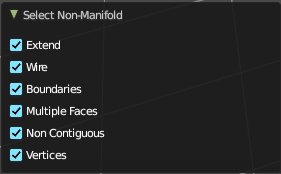
What exact kind of non manifold geometry should be selected. The options names should be self explaining.
Loose Geometry
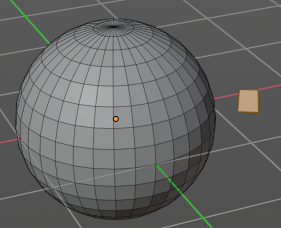
Selects loose geometry.
Last Operator Select Loose Geometry
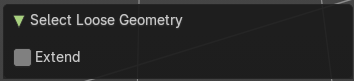
Extend
Extend the current selection.
Interior Faces
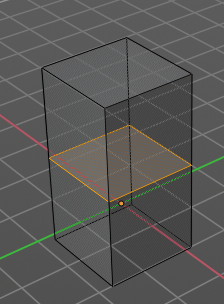
Select faces where all edges have more than 2 faces. In the picture here we have inlaying faces by joining two cubes together, then merge the vertices by distance. So the two faces from the former two cubes are now interior faces. That's usually unwanted geometry that you want to select and to remove.
Faces by Sides
Selects faces that has the same number of edges, or better said vertices. Tris, quads, N-gons.
Last Operator Select Faces by Side
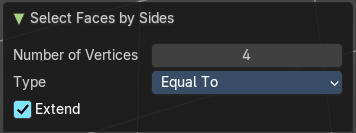
Sharpness
Extend the current selection.
Number of vertices

How many numbers of vertices the face should have. 4 is a quad.
| Entry | What it does |
|---|---|
| Type | Selection type. |
| Extend | Extend the current selection. |
Poles by count
Select poles. A pole is a vertice where more than four edges meet.
Last Operator Select by Pole Count
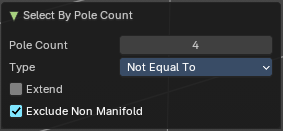
Pole count
What value to compare the vertice and its edges to. The number four here is the non pole value. Everything different will be treaten as a pole.
Type
How to compare to the pole count value.
| Entry | What it does |
|---|---|
| Extend | Extend the current selection. |
| Exclude Non Manifold | Exclude non manifold geometry from the calculation. |
Ungrouped Vertices
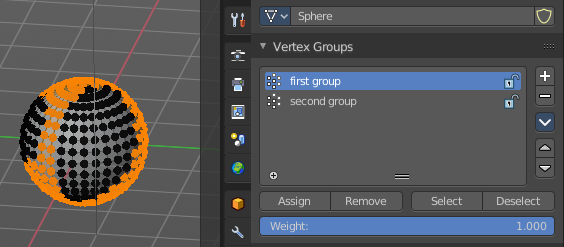
This operator selects all vertices in a mesh that are not assigned to any vertex group. It’s especially useful in rigging, weight painting, and cleanup workflows where ungrouped vertices can cause deformation issues or be overlooked during asset preparation.
Last Operator Select Ungrouped
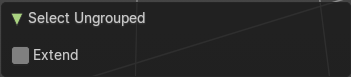
Extend
Extends the current selection.
Select by Attribute
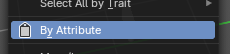
This operator selects elements based on the active boolean attribute. Useful for selection of boolean attributes set by Geometry Nodes.
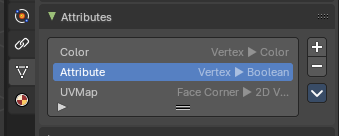
To use, make sure you have a boolean attribute assigned and selected in the Properties Editor - Mesh Data – Attributes tab.
More / Less
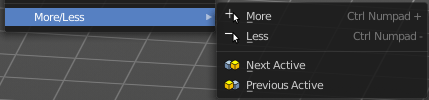
| Entry | What it does |
|---|---|
| More | Extends the current selection. |
| Less | Reduces the current selection. |
Next Active
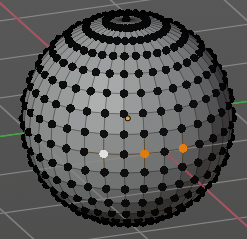
Selects the next active element. For example, when you have two vertices selected, then the next vertice in the row with the same distance will be selected as the next active.
Previous Active
Like next active, but deselects in the other direction down to the first selected vertice with every step.
Mesh - Vertex and Weight Paint Mode
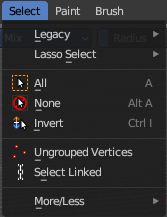
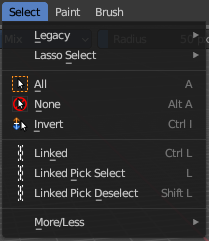
This select menu shows with the sub modes Paint Mask and Vertex Selection in vertex paint mode and weight paint mode.
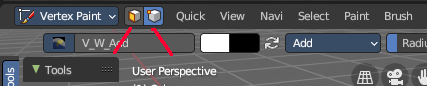
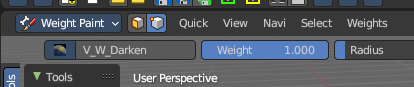
Legacy
The legacy sub menu contains tools that exists in the tool shelf already. It's the old way to do things. Different to the tools in the tool shelf, these tools are usually modal. And performs once. You have to call them again in case you want to repeat the tool.
| Entry | What it does |
|---|---|
| Box select | Draw a rectangle to select everything inside of the rectangle. It automatically adds to the current selection. Holding down shift subtracts from the selection. |
| Circle select | Brush select content. The radius of the brush can be adjusted by holding down left mouse button and using the scroll wheel or the + or - button at the numpad. It automatically adds to the current selection. Holding down shift subtracts from the selection. To exit the circle select tool click with the right mouse button. |
Lasso Select
A sub menu with the available lasso select modes.
| Entry | What it does |
|---|---|
| All | Select everything. |
| None | Select nothing. |
| Invert | Invert the current selection. |
| Ungrouped Vertices | Vertex Selection Mode. Select vertices that does not belong to a group. |
Select Linked
Vertex Selection Mode. Select the geometry that is directly linked with the current geometry. You can for example have a mesh with several closed sub meshes. Those sub meshes. are not linked together, but are part of the object.
Last Operator Select Linked All
Delimit
Add a limit to the selection. For example, just select up to the next seam.
| Entry | What it does |
|---|---|
| Linked | Paint Mask mode. Select linked faces. Mouse only tool. |
| Linked Pick Select | Paint Mask mode. Select linked faces. Mouse only tool. |
| Linked Pick Deselect | Paint Mask mode. Deselect linked faces. Mouse only tool. |
More/Less Sub-menu

| Entry | What it does |
|---|---|
| More | Icrease the selection. |
| Less | Decrease the selection. |
Mesh - Texture Paint Mode
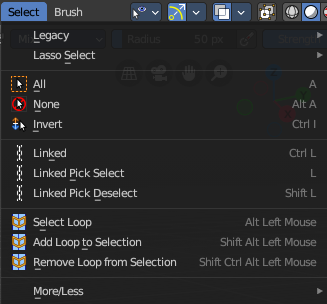
This select menu shows with the sub mode Paint Mask.
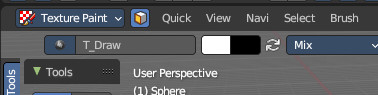
Legacy
The legacy sub menu contains tools that exists in the tool shelf already. It's the old way to do things. Different to the tools in the tool shelf, these tools are usually modal. And performs once. You have to call them again in case you want to repeat the tool.
| Entry | What it does |
|---|---|
| Box select | Draw a rectangle to select everything inside of the rectangle. It automatically adds to the current selection. Holding down shift subtracts from the selection. |
| Circle select | Brush select content. The radius of the brush can be adjusted by holding down left mouse button and using the scroll wheel or the + or - button at the numpad. It automatically adds to the current selection. Holding down shift subtracts from the selection. To exit the circle select tool click with the right mouse button. |
Lasso Select
A sub menu with the available lasso select modes.
| Entry | What it does |
|---|---|
| All | Select everything. |
| None | Select nothing. |
| Invert | Invert the current selection. |
| Ungrouped Vertices | Vertex Selection Mode. Select vertices that does not belong to a group. |
Select Linked
Vertex Selection Mode. Select the geometry that is directly linked with the current geometry. You can for example have a mesh with several closed sub meshes. Those sub meshes. are not linked together, but are part of the object.
Last Operator Select Linked All
Delimit
Add a limit to the selection. For example, just select up to the next seam.
| Entry | What it does |
|---|---|
| Linked | Paint Mask mode. Select linked faces. Mouse only tool. |
| Linked Pick Select | Paint Mask mode. Select linked faces. Mouse only tool. |
| Linked Pick Deselect | Paint Mask mode. Deselect linked faces. Mouse only tool. |
| Select Loop | Selects a face loop. Mouse operator. The result is dependant of thhe face under the mouse. So please use the mouse. |
| Add Loop to Selection | Adds a face loop to an existing selection. Mouse operator. The result is dependant of thhe face under the mouse. So please use the mouse. |
| Remove Loop from Selection | Subtracts a face loop from an existing selection. Mouse operator. The result is dependant of thhe face under the mouse. So please use the mouse. |
More/Less submenu
| Entry | What it does |
|---|---|
| More | Icrease the selection. |
| Less | Decrease the selection. |
Curve Object - Edit Mode
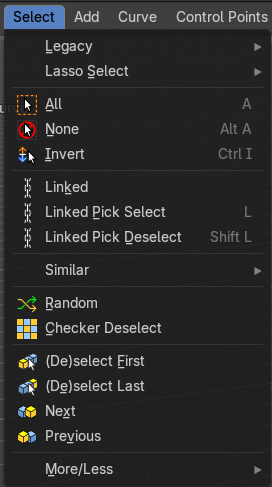
Legacy
The legacy sub menu contains tools that exists in the tool shelf already. It's the old way to do things. Different to the tools in the tool shelf, these tools are usually modal. And performs once. You have to call them again in case you want to repeat the tool.
| Entry | What it does |
|---|---|
| Box select | Draw a rectangle to select everything inside of the rectangle. It automatically adds to the current selection. Holding down shift subtracts from the selection. |
| Circle select | Brush select content. The radius of the brush can be adjusted by holding down left mouse button and using the scroll wheel or the + or - button at the numpad. It automatically adds to the current selection. Holding down shift subtracts from the selection. To exit the circle select tool click with the right mouse button. |
Lasso Select
A sub menu with the available lasso select modes.
| Entry | What it does |
|---|---|
| All | Select everything. |
| None | Select nothing. |
| Invert | Invert the current selection. |
Linked
Select the geometry that is directly linked with the current geometry. You can for example have a mesh with several closed sub meshes. Those sub meshes. are not linked together, but are part of the object.
Last Operator Select Linked All
Delimit
Add a limit to the selection. For example, just select up to the next seam.
Linked Pick Select
Same as with Linked. But works with what is under the mouse cursor.
Linked Pick Deselect
Same as with Linked. But works with what is under the mouse cursor. And deselects the selection.
Last Operator Select Linked
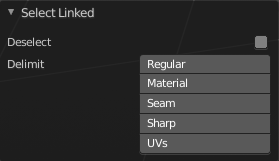
| Entry | What it does |
|---|---|
| Deselect | Select or deselect. |
| Delimit | Add a limit to the selection. For example, just select up to the next seam. |
Similar
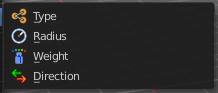
Select curve geometry based on how similar certain properties are to it.
Last Operator Select Similar
Type
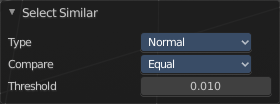
Choose the select similar method again.
| Entry | What it does |
|---|---|
| Compare | Compare with method less, greater or equal. |
| Threshold | Adjust the threshold value after which the element counts as similar. |
Random
Selects a random group of curve points.
Last Operator Select Random
| Entry | What it does |
|---|---|
| Percent | How much percent will be random selected. |
| Random Seed | The random seed value. |
| Action | Select or deselect. |
Checker Deselect
Deselect alternating curve points.
Last Operator Checker Deselect
| Entry | What it does |
|---|---|
| Nth Element | Define how much elements gets unchecked. With 2 you have a checker board pattern. Every second element gets deselected. |
| Skip | Skip elements before the checker algorithm deselects again. |
| Offset | Offset the deselected elements. |
| Entry | What it does |
|---|---|
| De/Select First | Select or deselect first curve point. |
| De/Select Last | Select or deselect last curve point. |
| Next Active | Selects the next active element. For example, when you have two vertices selected, then the next vertice in the row with the same distance will be selected as the next active. |
| Previous Active | Like next active, but deselects in the other direction down to the first selected vertice with every step. |
| Sub menu More / Less | More: Extends the current selection. · Less: Reduces the current selection. |
Surface Object - Edit Mode
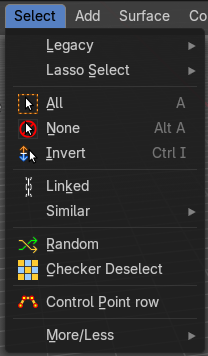
Legacy
The legacy sub menu contains tools that exists in the tool shelf already. It's the old way to do things. Different to the tools in the tool shelf, these tools are usually modal. And performs once. You have to call them again in case you want to repeat the tool.
| Entry | What it does |
|---|---|
| Box select | Draw a rectangle to select everything inside of the rectangle. It automatically adds to the current selection. Holding down shift subtracts from the selection. |
| Circle select | Brush select content. The radius of the brush can be adjusted by holding down left mouse button and using the scroll wheel or the + or - button at the numpad. It automatically adds to the current selection. Holding down shift subtracts from the selection. To exit the circle select tool click with the right mouse button. |
Lasso Select
A sub menu with the available lasso select modes.
| Entry | What it does |
|---|---|
| All | Select everything. |
| None | Select nothing. |
| Inverse | Invert the current selection. |
Linked
Select the geometry that is directly linked with the current geometry. You can for example have a mesh with several closed sub meshes. Those sub meshes are not linked together, but are part of the object.
Last Operator Select Linked All
Delimit
Add a limit to the selection. For example, just select up to the next seam.
Similar
Select curve geometry based on how similar certain properties are to it.
Last Operator Select Similar
Type
Choose the select similar method again.
| Entry | What it does |
|---|---|
| Compare | Compare with method less, greater or equal. |
| Threshold | Adjust the threshold value after which the element counts as similar. |
Random
Selects a random group of control points.
Last Operator Select Random
| Entry | What it does |
|---|---|
| Percent | How much percent will be random selected. |
| Random Seed | The random seed value. |
| Action | Select or deselect. |
Checker Deselect
Deselect alternating control points.
Last Operator Checker Deselect
| Entry | What it does |
|---|---|
| Nth Element | Define how much elements gets unchecked. With 2 you have a checker board pattern. Every second element gets deselected. |
| Skip | Skip elements before the checker algorithm deselects again. |
| Offset | Offset the deselected elements. |
| Entry | What it does |
|---|---|
| Control Point Row | Selects a row of control points, including the active one. |
| Sub menu More / Less | More: Extends the current selection. · Less: Reduces the current selection. |
Metaball Object - Edit Mode
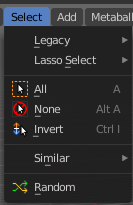
Legacy
The legacy sub menu contains tools that exists in the tool shelf already. It's the old way to do things. Different to the tools in the tool shelf, these tools are usually modal. And performs once. You have to call them again in case you want to repeat the tool.
| Entry | What it does |
|---|---|
| Box select | Draw a rectangle to select everything inside of the rectangle. It automatically adds to the current selection. Holding down shift subtracts from the selection. |
| Circle select | Brush select content. The radius of the brush can be adjusted by holding down left mouse button and using the scroll wheel or the + or - button at the numpad. It automatically adds to the current selection. Holding down shift subtracts from the selection. To exit the circle select tool click with the right mouse button. |
Lasso Select
A sub menu with the available lasso select modes.
| Entry | What it does |
|---|---|
| All | Select everything. |
| None | Select nothing. |
| Inverse | Invert the current selection. |
Similar
Select metaball geometry based on how similar certain properties are to it.
Last Operator Select Similar
Type
Choose the select similar method again.
| Entry | What it does |
|---|---|
| Compare | Compare with method less, greater or equal. |
| Threshold | Adjust the threshold value after which the element counts as similar. |
Random
Selects a random metaball element.
Last Operator Select Random
| Entry | What it does |
|---|---|
| Percent | How much percent will be random selected. |
| Random Seed | The random seed value. |
| Action | Select or deselect. |
Text Object - Edit Mode
All
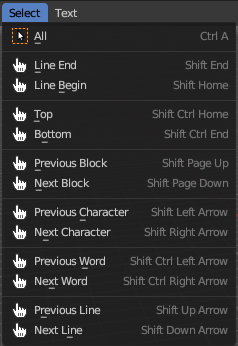
Select everything.
Line End, Line Begin, etc.
Select corresponding element.
Point Cloud Object - Edit Mode
All
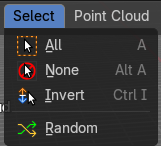
Select everything.
| Entry | What it does |
|---|---|
| None | Select nothing. |
| Invert | Invert the current selection. |
Random
Selects random elements.
Last Operator Select Random
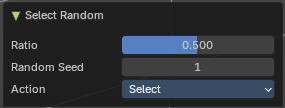
| Entry | What it does |
|---|---|
| Ratio | The ratio of objects that should be selected randomly. |
| Random Seed | The Seed for the random number generator. |
| Action | Action is a drop-down box choose if you want to select or to deselect random. |
Grease Pencil Object - Edit Mode, Vertex Paint Mode
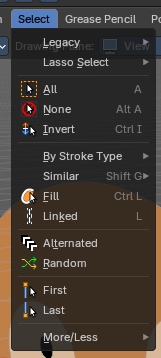
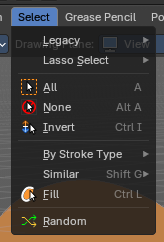
This is the select menu for the grease pencil object. The content changes dependent of the Select mode, either in Vertex or Stroke mode.
Legacy
The legacy sub menu contains tools that exists in the tool shelf already. It's the old way to do things. Different to the tools in the tool shelf, these tools are usually modal. And performs once. You have to call them again in case you want to repeat the tool.
| Entry | What it does |
|---|---|
| Box select | Draw a rectangle to select everything inside of the rectangle. It automatically adds to the current selection. Holding down shift subtracts from the selection. |
| Circle select | Brush select content. The radius of the brush can be adjusted by holding down left mouse button and using the scroll wheel or the + or - button at the numpad. It automatically adds to the current selection. Holding down shift subtracts from the selection. To exit the circle select tool click with the right mouse button. |
Lasso Select – Sub Menu
A sub menu with the available lasso select modes.
| Entry | What it does |
|---|---|
| All | Select everything. |
| None | Select nothing. |
| Inverse | Invert the current selection. |
By Stroke Type – Sub Menu

Filters and selects points based on their stroke type.
Useful for quickly isolating either line strokes or fill regions when editing complex Grease Pencil drawings.
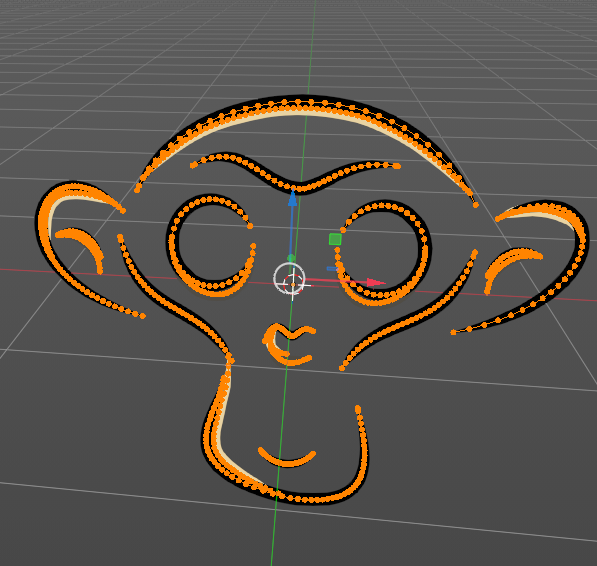
Stroke
Selects only points that belong to stroke outlines.
Ideal for editing linework separately from fills.
Commonly used in cleanup, inking, or when adjusting contours.
Fill
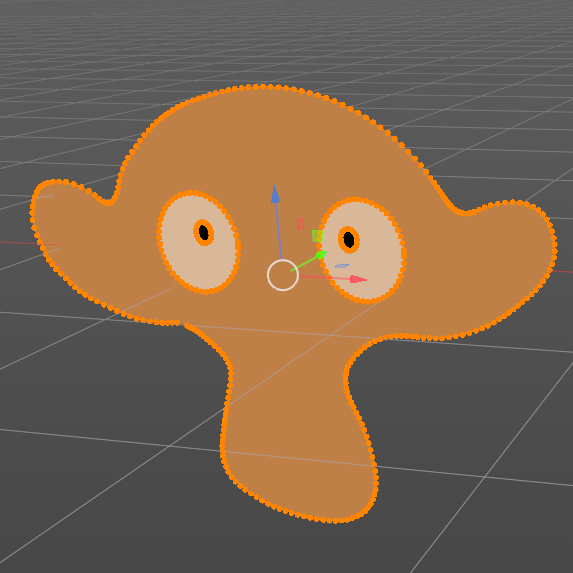
Selects only points that belong to filled regions.
Useful for editing shapes, color areas, or solid regions independently.
Helps separate fill geometry from outline strokes.
Last Operator Select by Stroke Type
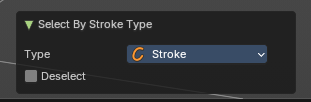
| Entry | What it does |
|---|---|
| Type | Dropdown to choose which stroke type to select: – Stroke: selects outline points. – Fill: selects fill region points. |
| Deselect | Checkbox that inverts the action |
Select Similar – Sub Menu
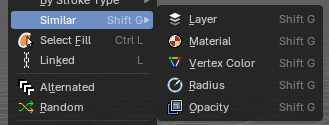
Select equal elements by the chosen method.
| Entry | What it does |
|---|---|
| Layer | Selects all vertices that belong to the same Grease Pencil layer as the active vertex. Useful for layer-based editing and organization. |
| Material | Selects vertices assigned to the same material. Ideal for isolating strokes by color or shading style. |
| Vertex Color | Selects vertices with matching vertex color attributes. Useful for color-based editing in complex drawings. |
| Radius | Selects vertices with a similar point radius (thickness). Helps isolate strokes with consistent line weight. |
| Opacity | Selects vertices with similar opacity values. Useful for editing transparency effects or semi-opaque strokes. |
Last Operator Select Similar
Mode
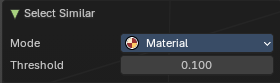
The selection mode.
Threshold
How equal it really needs to be to count as equal.
Fill
Selects all vertices that belong to fill regions of Grease Pencil strokes. Useful for isolating and editing filled shapes separately from outline strokes
Linked
Select the geometry that is directly linked with the current geometry. You can for example have a mesh with several closed sub meshes. Those sub meshes. are not linked together, but are part of the object.
Last Operator Select Linked All
Delimit
Add a limit to the selection. For example, just select up to the next seam.
Alternated
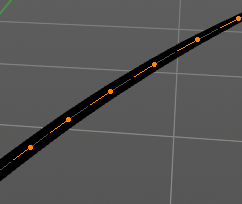
Select every second element.
Last Operator Alternated
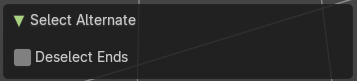
Deselect Ends
The end points are always unselected.
Random
Selects random elements.
Last Operator Select Random
| Entry | What it does |
|---|---|
| Ratio | The ratio of objects that should be selected randomly. |
| Random Seed | The Seed for the random number generator. |
| Action | Action is a drop-down box choose if you want to select or to deselect random. |
First
Select the first element in the stroke.
Last
Select the last element in the stroke.
Last Operator Select Ends
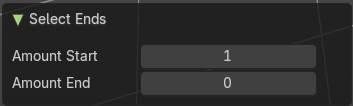
The last operator Select Ends is valid for both, the first and last operator.
| Entry | What it does |
|---|---|
| Amount Start | Number of points to select from the start. |
| Amount End | Number of points to select from the end. |
More / Less – Sub Menu
| Entry | What it does |
|---|---|
| More | Extends the current selection. |
| Less | Reduces the current selection. |
Armature Object - Edit Mode
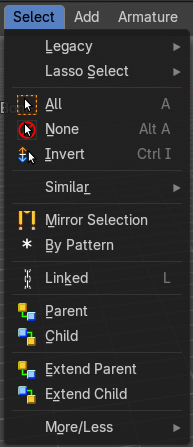
Legacy
The legacy sub menu contains tools that exists in the tool shelf already. It's the old way to do things. Different to the tools in the tool shelf, these tools are usually modal. And performs once. You have to call them again in case you want to repeat the tool.
| Entry | What it does |
|---|---|
| Box select | Draw a rectangle to select everything inside of the rectangle. It automatically adds to the current selection. Holding down shift subtracts from the selection. |
| Circle select | Brush select content. The radius of the brush can be adjusted by holding down left mouse button and using the scroll wheel or the + or - button at the numpad. It automatically adds to the current selection. Holding down shift subtracts from the selection. To exit the circle select tool click with the right mouse button. |
Lasso Select
A sub menu with the available lasso select modes.
| Entry | What it does |
|---|---|
| All | Select everything. |
| None | Select nothing. |
| Inverse | Invert the current selection. |
Similar
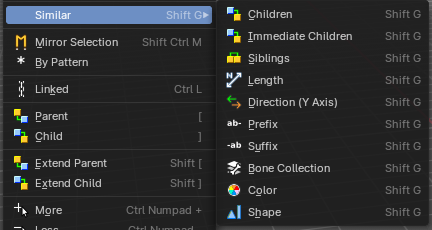
Select armature bones based on how similar certain properties are to it.
Most methods are self explaining. Immediate children selects just the direct children of the active object, while Children selects everything downwards the hierarchy.
Last Operator Select Similar
Type
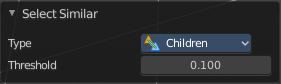
Choose the select similar method again.
| Entry | What it does |
|---|---|
| Compare | Compare with method less, greater or equal. |
| Threshold | Adjust the threshold value after which the element counts as similar. |
Mirror Selection
Select the mirrored parts of an object. For example for L.bone it selects R.bone.
Last Operator Select Mirror
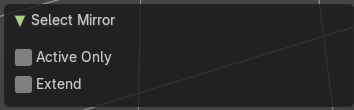
| Entry | What it does |
|---|---|
| Active Only | Only operate at the active bone. |
| Extend | Extends existing selection instead of deselecting everything first. |
By Pattern
Selects all objects whose name matches the entered string. For missing parts you need to add an asterix.
For example, you have four cubes in the scene. Cube, Cube.001, Cube.002 and mycube3. Then the term " Cube " will just select the first cube. While the term " Cube* " will select the first three. And " *cube* " will select all four.
Supported wild-cards:
* matches everything
? matches any single character[abc] matches characters in “abc”[!abc] match any character not in “abc”
The tool operates immediately at entering the string.
| Entry | What it does |
|---|---|
| Pattern | Type in your string. |
| Case Sensitive | When ticked then the string comparison happens by taking upper and lower letters into account. |
| Extend | Extends existing selection instead of deselecting everything first. |
Last Operator Select Pattern
The Last Operator Select Pattern contains the same menu items than the pop-up. So see above. Also, it does not appear in the 3D view. But when you call it from the edit menu or with hotkey.
Linked
Select all bones linked by parent.
Last Operator Select Linked All
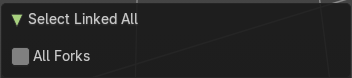
All Forks
Follow forks in the parents chain. Means select upwards too.
| Entry | What it does |
|---|---|
| Parent | Parent requires to have a parent or child relationship. It selects the parent object of the currently selected object(s). |
| Child | Child requires to have a parent or child relationship. It selects the child object(s) of the currently selected object(s). |
| Extend Parent | Extend Parent requires to have a parent or child relationship. It selects the parent object of the currently selected object(s). But keeps the active object in the selection, even when it's not currently selected. |
| Extend Child | Extend Child requires to have a parent or child relationship. It selects the child object(s) of the currently selected object(s). But keeps the active object in the selection, even when it's not currently selected. |
| Sub menu More / Less | More: More requires to have a parent or child relationship. It expands the selection. · Less: Less requires to have a parent or child relationship. It reduces the selection. |
Armature Object - Pose Mode
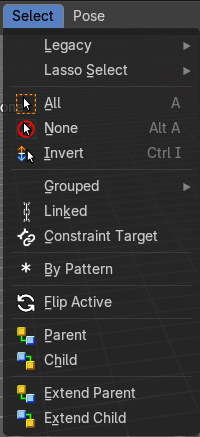
Legacy
The legacy sub menu contains tools that exists in the tool shelf already. It's the old way to do things. Different to the tools in the tool shelf, these tools are usually modal. And performs once. You have to call them again in case you want to repeat the tool.
| Entry | What it does |
|---|---|
| Box select | Draw a rectangle to select everything inside of the rectangle. It automatically adds to the current selection. Holding down shift subtracts from the selection. |
| Circle select | Brush select content. The radius of the brush can be adjusted by holding down left mouse button and using the scroll wheel or the + or - button at the numpad. It automatically adds to the current selection. Holding down shift subtracts from the selection. To exit the circle select tool click with the right mouse button. |
Lasso Select
A sub menu with the available lasso select modes.
| Entry | What it does |
|---|---|
| All | Select everything. |
| None | Select nothing. |
| Inverse | Invert the current selection. |
Grouped
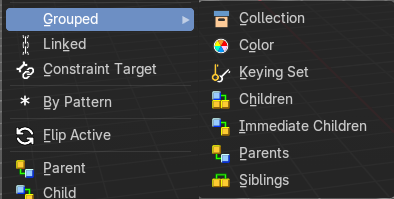
Select grouped bones by type. Items should be self explaining.
| Entry | What it does |
|---|---|
| Linked | Select all bones that are either parent or child of the selected bone. |
| Constraint Targets | Select the bones used as targets for the currently selected bone. |
By Pattern
Selects all objects whose name matches the entered string. For missing parts you need to add an asterix.
For example, you have four cubes in the scene. Cube, Cube.001, Cube.002 and mycube3. Then the term " Cube " will just select the first cube. While the term " Cube* " will select the first three. And " *cube* " will select all four.
Supported wild-cards:
* matches everything
? matches any single character[abc] matches characters in “abc”[!abc] match any character not in “abc”
The tool operates immediately at entering the string.
| Entry | What it does |
|---|---|
| Pattern | Type in your string. |
| Case Sensitive | When ticked then the string comparison happens by taking upper and lower letters into account. |
| Extend | Extends existing selection instead of deselecting everything first. |
Last Operator Select Pattern
The Last Operator Select Pattern contains the same menu items than the pop-up. So see above. Also, it does not appear in the 3D view. But when you call it from the edit menu or with hotkey.
Flip Active
Mirrors the bone selection. Works with an armature with mirrored parts.
Last Operator Flip Active/Selected Bone
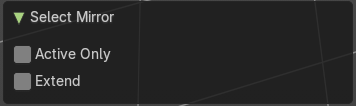
| Entry | What it does |
|---|---|
| Active Only | Only select the mirror part of the active bone. |
| Extend | Extend the current selection. |
| Entry | What it does |
|---|---|
| Parent | Parent requires to have a parent or child relationship. It selects the parent object of the currently selected object(s). |
| Child | Child requires to have a parent or child relationship. It selects the child object(s) of the currently selected object(s). |
| Extend Parent | Extend Parent requires to have a parent or child relationship. It selects the parent object of the currently selected object(s). But keeps the active object in the selection, even when it's not currently selected. |
| Extend Child | Extend Child requires to have a parent or child relationship. It selects the child object(s) of the currently selected object(s). But keeps the active object in the selection, even when it's not currently selected. |
Lattice Object - Edit Mode
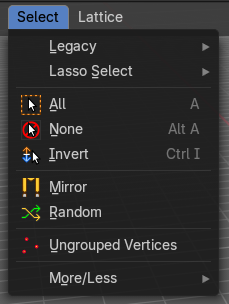
Legacy
The legacy sub menu contains tools that exists in the tool shelf already. It's the old way to do things. Different to the tools in the tool shelf, these tools are usually modal. And performs once. You have to call them again in case you want to repeat the tool.
| Entry | What it does |
|---|---|
| Box select | Draw a rectangle to select everything inside of the rectangle. It automatically adds to the current selection. Holding down shift subtracts from the selection. |
| Circle select | Brush select content. The radius of the brush can be adjusted by holding down left mouse button and using the scroll wheel or the + or - button at the numpad. It automatically adds to the current selection. Holding down shift subtracts from the selection. To exit the circle select tool click with the right mouse button. |
Lasso Select
A sub menu with the available lasso select modes.
| Entry | What it does |
|---|---|
| All | Select everything. |
| None | Select nothing. |
| Inverse | Invert the current selection. |
Mirror
Select the mirrored parts to the current selection.
Last Operator Select Mirror
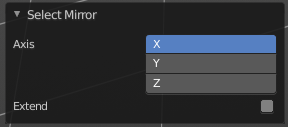
| Entry | What it does |
|---|---|
| Axis | Choose the world axis to mirror at. |
| Extend | Extends existing selection instead of deselecting everything first. |
Ungrouped Verts
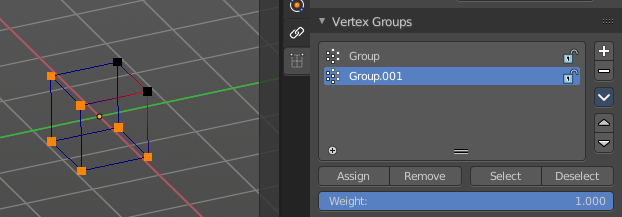
Selects ungrouped Vertices. Requires to have at least one vertex group assigned.
Last Operator Select Ungrouped
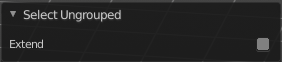
Extend
Extends the current selection instead of deselecting everything first.
Sub menu More / Less
| Entry | What it does |
|---|---|
| More | Extends the current selection. |
| Less | Reduces the current selection. |
Particles - Particle Mode
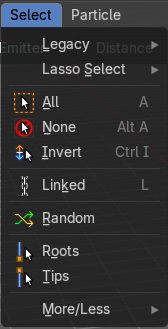
Legacy
The legacy sub menu contains tools that exists in the tool shelf already. It's the old way to do things. Different to the tools in the tool shelf, these tools are usually modal. And performs once. You have to call them again in case you want to repeat the tool.
| Entry | What it does |
|---|---|
| Box select | Draw a rectangle to select everything inside of the rectangle. It automatically adds to the current selection. Holding down shift subtracts from the selection. |
| Circle select | Brush select content. The radius of the brush can be adjusted by holding down left mouse button and using the scroll wheel or the + or - button at the numpad. It automatically adds to the current selection. Holding down shift subtracts from the selection. To exit the circle select tool click with the right mouse button. |
Lasso Select
A sub menu with the available lasso select modes.
| Entry | What it does |
|---|---|
| All | Select everything. |
| None | Select nothing. |
| Inverse | Invert the current selection. |
| Linked | Selects the linked particles. |
Random
Selects random particles.
Last Operator Select Random
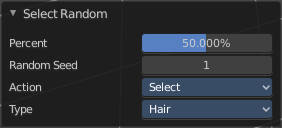
| Entry | What it does |
|---|---|
| Percent | The Percentage of objects that should be selected randomly. |
| Random Seed | The Seed for the random number generator. |
| Action | Action is a drop-down box choose if you want to select or to deselect random. |
| Type | Select the whole hair, or hair points. |
More / Less sub menu
| Entry | What it does |
|---|---|
| More | Extends the current selection. |
| Less | Reduces the current selection. |
Hair Curve – Edit Mode
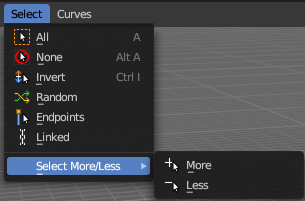
The (Empty) Hair Curve object in the Edit mode has a select menu. Here you can select existing curves in different ways to mask selections for tool shelf operators. Selected curves are editable, deselected curves are locked from editing and are visually opaque with dark gray in the 3D View editor.
All
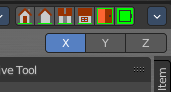
Selects all the control points of the hair strands.
If you want a want a symmetrical haircut, tick X Mirror in the Symmetry panel or in the Header to the top right.
| Entry | What it does |
|---|---|
| None | Deselects all the control points of the hair curves. |
| Invert | Deselects all the control points of the hair curves. |
| Random | Randomizes existing selection or creates a new random selection of control points of the hair curves. |
| Endpoints | Selects the end points of the control points of the hair curves. |
| Linked | Select linked control points. |
| Select More/Less submenu | More: Extends the current selection. · Less: Reduces the current selection. |
Hair Curve – Sculpt Mode

The (Empty) Hair Curve object in the Sculpt mode has a select menu. Here you can select existing curves in different ways to mask selections for tool shelf operators. Selected curves are editable, deselected curves are locked from editing and are visually opaque with dark gray in the 3D View editor.
All
Selects all the control points of the hair strands.
If you want a want a symmetrical haircut, tick X Mirror in the Symmetry panel or in the Header to the top right.
| Entry | What it does |
|---|---|
| None | Deselects all the control points of the hair curves. |
| Invert | Deselects all the control points of the hair curves. |
| Random | Randomizes existing selection or creates a new random selection of control points of the hair curves. |
| Endpoints | Selects the end points of the control points of the hair curves. |
| Grow | Select curves which are close to curves that are selected already. |