

































































Point Cloud - Edit mode - Point Cloud menu
7.1.28 Editors - 3D Viewport - Header - Point Cloud - Edit mode - Point Cloud menu
7.1.28 Editors - 3D Viewport - Header - Point Cloud - Edit mode - Point Cloud menu
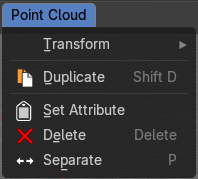
Edit Mode - Point Cloud Menu
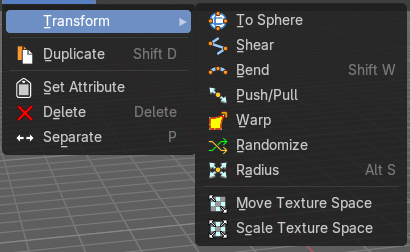
Transform sub menu
The transform sub menu contains functionality for some kind of transformations.
To Sphere
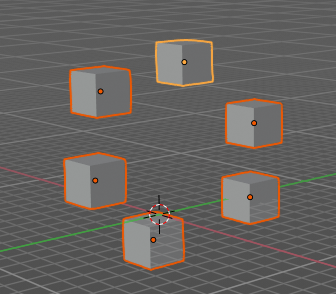
Shapes a selection into the shape of a sphere. The calculation happens with the object origins.
Usage
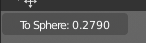
Select the objects, activate the tool, then drag the mouse in the 3D viewport. In the header you will read the current factor then. Which tells you how close you are towards the sphere shape.
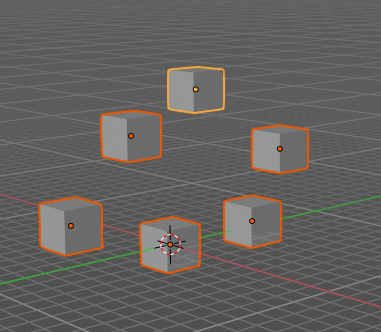
Last Operator To Sphere
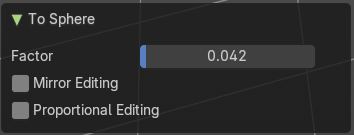
| Entry | What it does |
|---|---|
| Factor | The factor to transform the selection into a shape form. |
| Mirror Editing | Enable mirror editing. |
Proportional editing
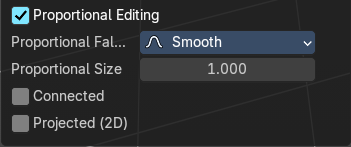
Enables proportional editing. Activating proportional editing reveals further settings.
| Entry | What it does |
|---|---|
| Proportional Falloff | Adjust the falloff methods. |
| Proportional Size | See and adjust the falloff radius. |
| Connected | The proportional falloff gets calculated for connected parts only. |
| Projected(2D) | The proportional falloff gets calculated in the screen space. Depth doesn't play a role. When it's in the radius, then it gets calculated. |
Shear
Shear shears the selection.
In Object mode this tools requires to have more than one object selected.
The shear tool works along a imaginary 2d plane. The shear axis controls if the items are sheared along the x or the y axes of this plane. This is the plane along which the transformation happens. You can shear along the x or the y axis of this plane.
To make things even more complicated, the orientation of this imaginary plane is defined by the Axis and Axis Ortho items below.
Last Operator Shear
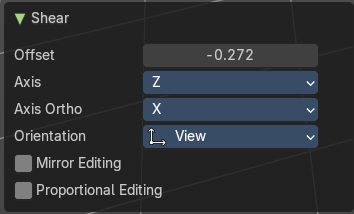
Offset
Adjust an offset.
Axis
Defines one axis of the imaginary shear axis plane.
Axis Ortho
Defines the other axis of the imaginary shear axis plane.
| Entry | What it does |
|---|---|
| Orientation | Choose the orientation for the shear action. |
| Mirror Editing | Enable mirror editing. |
Proportional editing
Enables proportional editing. Activating proportional editing reveals further settings.
| Entry | What it does |
|---|---|
| Proportional Falloff | Adjust the falloff methods. |
| Proportional Size | See and adjust the falloff radius. |
| Connected | The proportional falloff gets calculated for connected parts only. |
| Projected(2D) | The proportional falloff gets calculated in the screen space. Depth doesn't play a role. When it's in the radius, then it gets calculated. |
Bend
Bends the selection.
Push/Pull
It pushes or pulls the object positions relative to the center of the selection.
In Object mode this tool requires to have more than one object selected.
Last Operator Push/Pull
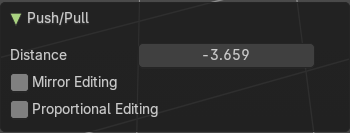
| Entry | What it does |
|---|---|
| Distance | Adjust the distance of influence of the tool. |
| Mirror Editing | Enable mirror editing. |
Proportional editing
Enables proportional editing. Activating proportional editing reveals further settings.
| Entry | What it does |
|---|---|
| Proportional Falloff | Adjust the falloff methods. |
| Proportional Size | See and adjust the falloff radius. |
| Connected | The proportional falloff gets calculated for connected parts only. |
| Projected(2D) | The proportional falloff gets calculated in the screen space. Depth doesn't play a role. When it's in the radius, then it gets calculated. |
Warp
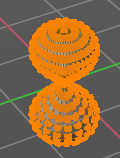
Warps a selection between two defined points. This also works with curves.
Last operator Warp
| Entry | What it does |
|---|---|
| Warp Angle | The strength of the warp effect. |
| Offset Angle | An offset angle to bend side wards. |
Min
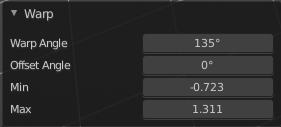
The start point.
Max
The end point.
Randomize
This tool allows randomizes the positions of the selected vertices.
Last Operator Randomize
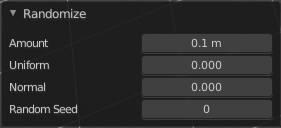
| Entry | What it does |
|---|---|
| Amount | Adjust the amount. |
| Uniform | The uniform offset distance. |
| Normal | Align the offset direction to the normals. |
| Random Seed | The seed value for randomization. |
Radius
Scales the selected geometry of a curve along its normals. Transform orientation and Pivot point gets ignored.
A positive value pushes the vertices outwards. A negative value pushes the vertices inwards.
The curve needs to have geometry !
Last Operator Transform
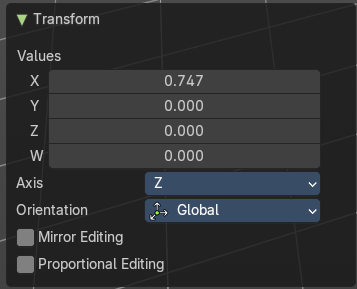
Values
The transform values.
Axis
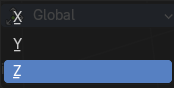
The transform axis.
Orientation
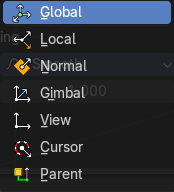
Choose the orientation.
| Entry | What it does |
|---|---|
| Mirror Editing | Enable Mirror Editing. |
| Proportional editing | Enables proportional editing. Activating proportional editing reveals further settings. · Proportional Falloff: Adjust the falloff methods. · Proportional Size: See and adjust the falloff radius. · Connected: The proportional falloff gets calculated for connected parts only. · Projected(2D): The proportional falloff gets calculated in the screen space. Depth doesn't play a role. When it's in the radius, then it gets calculated. |
Move Texture Space
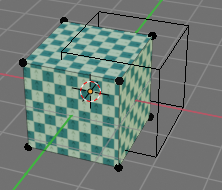
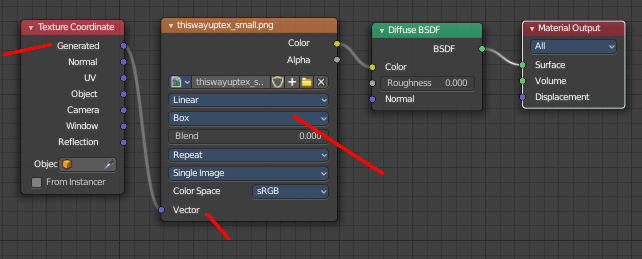
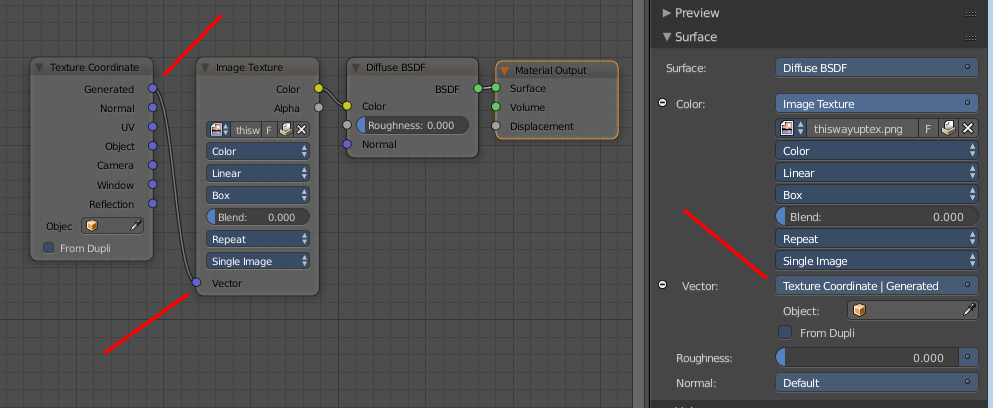
This tool relies at the move tool. With the difference that it moves the texture space instead of the object. It has also a very special use case, and just works with a material with a Texture Coordinate / Generated node. And requires to have the shading at Material or Rendered to see a result in the viewport.

In the viewport you will see the UV cage in black color. In the header you will see the values for the current position of the UV cage.
Note that once done and applied, there is no way to reset the UV cage back to zero. When you repeat the operation, then the values will start at 0 again. Even when the UV cage is already offset.
Last Operator Move
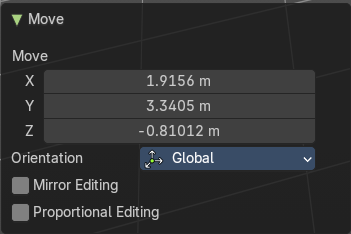
Move
Adjust in which directions you want to transform.
Orientation
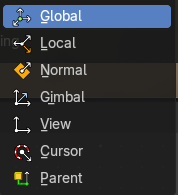
Choose the orientation.
Mirror Editing
Enable mirror editing.
Proportional editing
Enables proportional editing. Activating proportional editing reveals further settings.
| Entry | What it does |
|---|---|
| Proportional Falloff | Adjust the falloff methods. |
| Proportional Size | See and adjust the falloff radius. |
| Connected | The proportional falloff gets calculated for connected parts only. |
| Projected(2D) | The proportional falloff gets calculated in the screen space. Depth doesn't play a role. When it's in the radius, then it gets calculated. |
Scale Texture Space
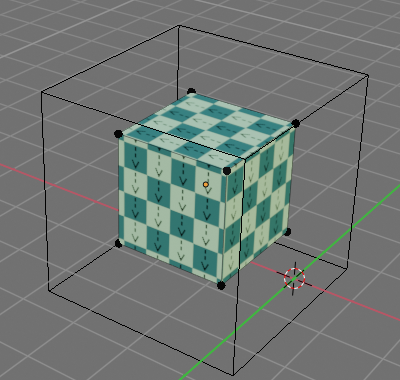
Scale Texture space is similar to the Move texture Space. With the only difference that it scales the UV space instead of moving it.
This tool relies at the scale tool. With the difference that it scales the texture space instead of the object. It has also a very special use case, and just works with a material with a Texture Coordinate / Generated node. And requires to have the shading at Material or Rendered to see a result in the viewport.
In the viewport you will see the UV cage in black color. In the header you will see the values for the current position of the UV cage.
Note that once done and applied, there is no way to reset the UV cage back to zero. When you repeat the operation, then the values will start at 0 again. Even when the UV cage is already offset.
Last Operator Resize
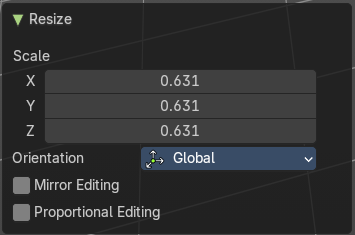
Scale
Adjust in which directions you want to transform.
Orientation
Choose the orientation.
Mirror Editing
Enable mirror editing.
Proportional editing
Enables proportional editing. Activating proportional editing reveals further settings.
| Entry | What it does |
|---|---|
| Proportional Falloff | Adjust the falloff methods. |
| Proportional Size | See and adjust the falloff radius. |
| Connected | The proportional falloff gets calculated for connected parts only. |
| Projected(2D) | The proportional falloff gets calculated in the screen space. Depth doesn't play a role. When it's in the radius, then it gets calculated. |
Set Dimensions
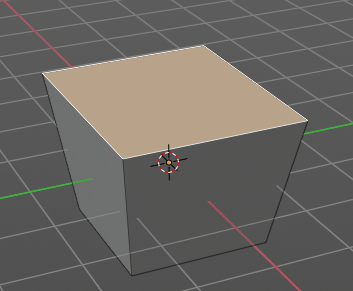
Edit Mode Only!
Normally all scale operations in Bforartists are relative to the current selection and dimensions. And you always start with a relative value of 1.
Set dimensions allows to scale mesh selections in absolute world values. No matter how the initial values are. The new values gets set in the Last Operator.
Set dimensions is an add-on. You can turn it off in the add-ons section of the user preferences when you want.
Last Operator Set Dimensions
New Dimensions
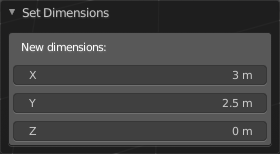
When you activate the tool then you will see the world coordinates of the selection. Change the values to other world coordinates.
Point Cloud menu
Duplicate
Duplicates the current selection. This can be a single control point or a whole curve.
The copy sticks to the mouse until you release it. A Right click while moving will reset the position of the duplicate. The duplicated part will be part of the same object.
When you drag the duplicate around you will see the position values in the header.
Last Operator Duplicate
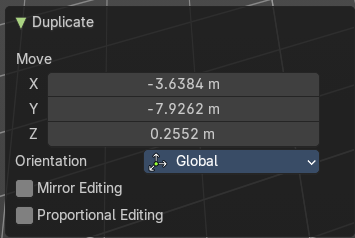
Move X , Y , Z
Orientation
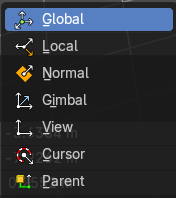
Choose the orientation.
| Entry | What it does |
|---|---|
| Mirror Editing | Mirror editing. |
| Proportional editing | Enables proportional editing. Activating proportional editing reveals further settings. · Proportional Falloff: Adjust the falloff methods. · Proportional Size: See and adjust the falloff radius. · Connected: The proportional falloff gets calculated for connected parts only. · Projected(2D): The proportional falloff gets calculated in the screen space. Depth doesn't play a role. When it's in the radius, then it gets calculated. |
Set Attribute
Set values of the active attribute for selected elements.
Last Operator Set Attribute
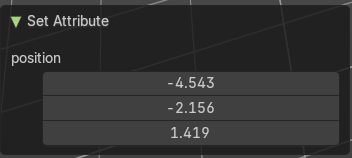
position X , Y , Z
| Entry | What it does |
|---|---|
| Delete | Deletes the selected element. |
| Separate | Separates the selection and makes a new object out of it. |