

































































Object menu
The object menu in Object mode provides you with tools to work at Object level.
Object menu
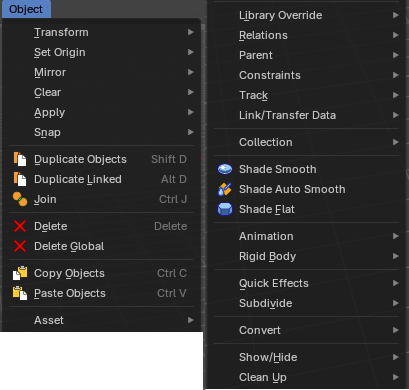
The object menu in Object mode provides you with tools to work at Object level.
It contains things like undo redo, copy and paste, delete and other general tools. But also some object specific tools, like the Convert to menu. Or Transform items, and many more.
There are lots of tools in this menu. And some content just shows with specific object types. So we will divide it into sub chapters.
Transform
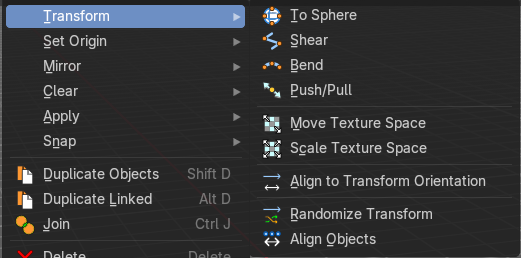
The transform sub menu contains functionality for some kind of transformations.
To Sphere
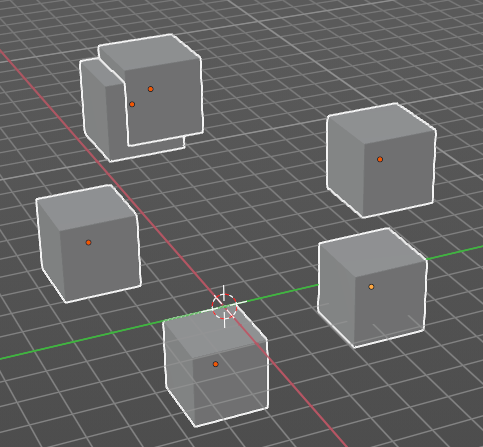
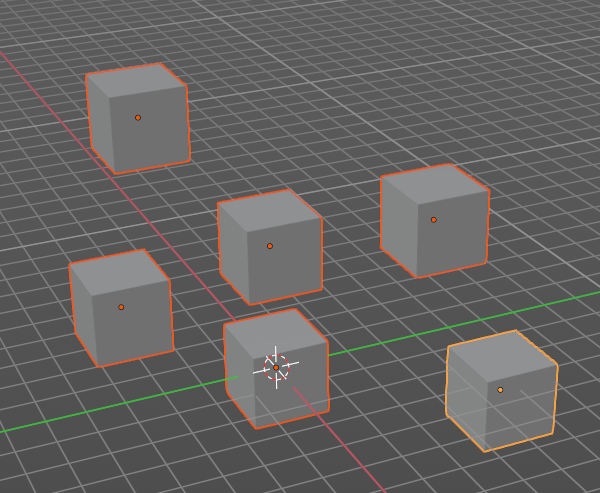
Shapes a selection of objects into the shape of a sphere. The calculation happens with the object origins.
In Object mode this tools requires to have more than one object selected.
Usage
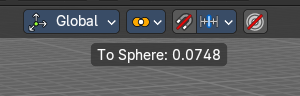
Select the objects, activate the tool, then drag the mouse in the 3D viewport. In the header you will read the current factor then. Which tells you how close you are towards the sphere shape.
Last Operator To Sphere
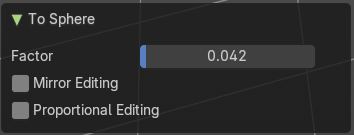
| Entry | What it does |
|---|---|
| Factor | The factor to transform the selection into a shape form. |
| Mirror Editing | Enable mirror editing. |
Proportional editing
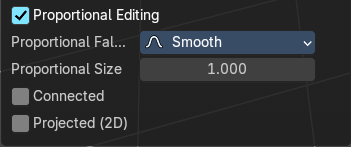
Enables proportional editing. Activating proportional editing reveals further settings.
| Entry | What it does |
|---|---|
| Proportional Falloff | Adjust the falloff methods. |
| Proportional Size | See and adjust the falloff radius. |
| Connected | The proportional falloff gets calculated for connected parts only. |
| Projected(2D) | The proportional falloff gets calculated in the screen space. Depth doesn't play a role. When it's in the radius, then it gets calculated. |
Shear
Shear shears the selection.
In Object mode this tools requires to have more than one object selected.
The shear tool works along a imaginary 2d plane. The shear axis controls if the items are sheared along the x or the y axes of this plane. This is the plane along which the transformation happens. You can shear along the x or the y axis of this plane.
To make things even more complicated, the orientation of this imaginary plane is defined by the Axis and Axis Ortho items below.
Last Operator Shear
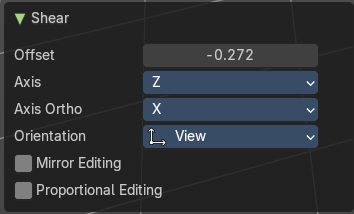
Offset
Adjust an offset.
Axis
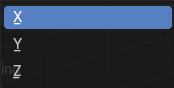
Defines one axis of the imaginary shear axis plane.
Axis Ortho
Defines the other axis of the imaginary shear axis plane.
| Entry | What it does |
|---|---|
| Orientation | Choose the orientation for the shear action. |
| Mirror Editing | Enable mirror editing. |
Proportional editing
Enables proportional editing. Activating proportional editing reveals further settings.
| Entry | What it does |
|---|---|
| Proportional Falloff | Adjust the falloff methods. |
| Proportional Size | See and adjust the falloff radius. |
| Connected | The proportional falloff gets calculated for connected parts only. |
| Projected(2D) | The proportional falloff gets calculated in the screen space. Depth doesn't play a role. When it's in the radius, then it gets calculated. |
Bend
Bends the selection.
In Object mode this tools requires to have more than one object selected.
Push/Pull
It pushes or pulls the object positions relative to the center of the selection.
In Object mode this tool requires to have more than one object selected.
Last Operator Push/Pull
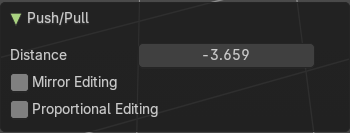
| Entry | What it does |
|---|---|
| Distance | Adjust the distance of influence of the tool. |
| Mirror Editing | Enable mirror editing. |
Proportional editing
Enables proportional editing. Activating proportional editing reveals further settings.
| Entry | What it does |
|---|---|
| Proportional Falloff | Adjust the falloff methods. |
| Proportional Size | See and adjust the falloff radius. |
| Connected | The proportional falloff gets calculated for connected parts only. |
| Projected(2D) | The proportional falloff gets calculated in the screen space. Depth doesn't play a role. When it's in the radius, then it gets calculated. |
Move Texture Space
This tool relies at the move tool. With the difference that it moves the texture space instead of the object. It has also a very special use case, and just works with a material with a Texture Coordinate / Generated node. And requires to have the shading at Material or Rendered to see a result in the viewport.
The yellow cage represents the texture space. The actual UV mapping does not change.
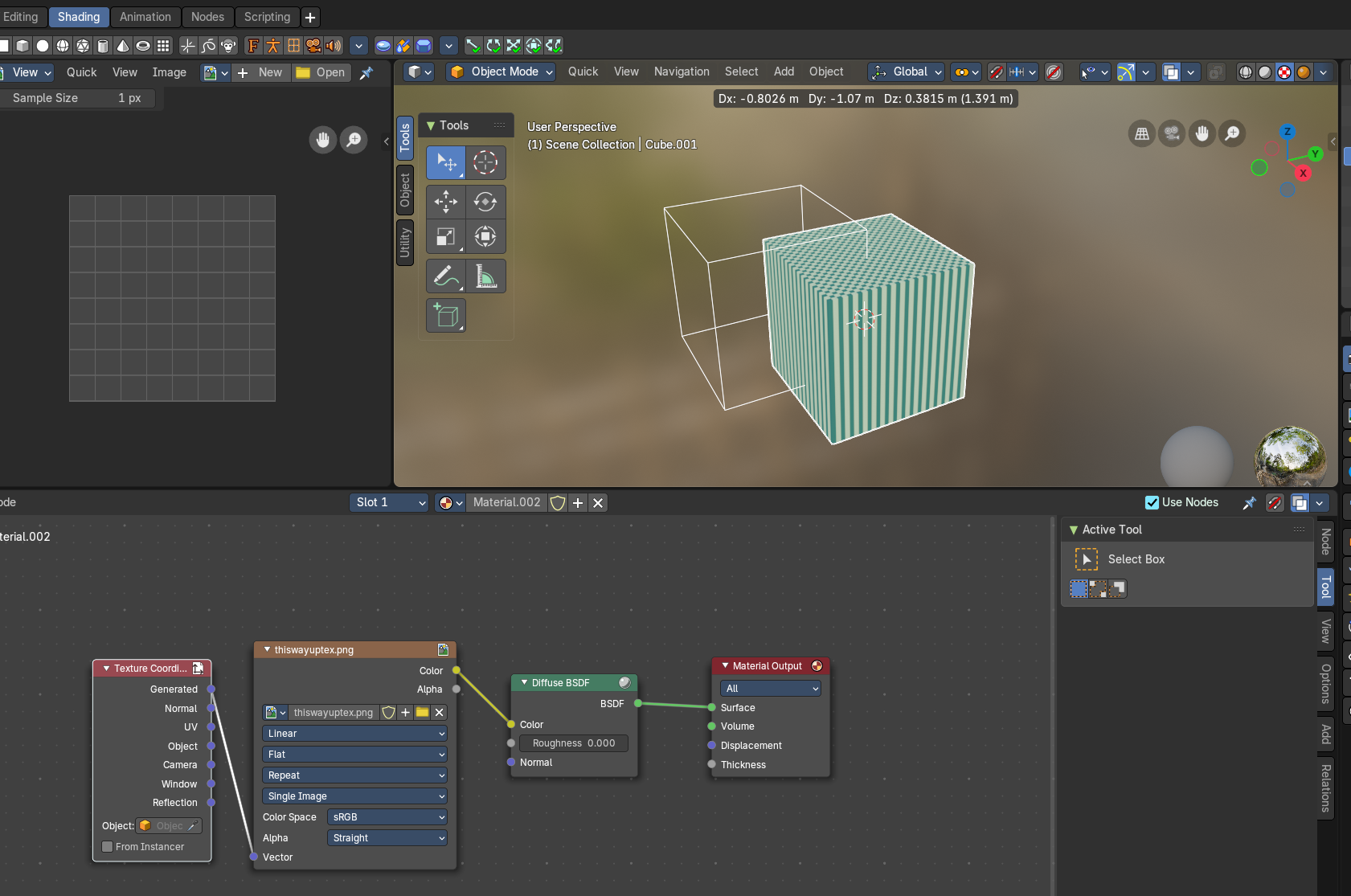
Last Operator Move
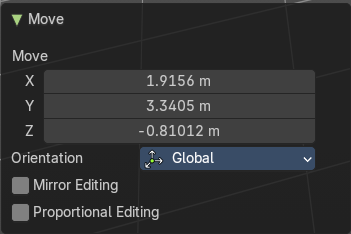
Move
Adjust in which directions you want to transform.
Orientation
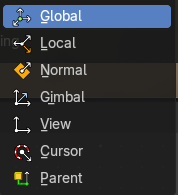
Choose the orientation.
Mirror Editing
Enable mirror editing.
Proportional editing
Enables proportional editing. Activating proportional editing reveals further settings.
| Entry | What it does |
|---|---|
| Proportional Falloff | Adjust the falloff methods. |
| Proportional Size | See and adjust the falloff radius. |
| Connected | The proportional falloff gets calculated for connected parts only. |
| Projected(2D) | The proportional falloff gets calculated in the screen space. Depth doesn't play a role. When it's in the radius, then it gets calculated. |
Scale Texture Space
Scale Texture space is similar to the Move texture Space. With the only difference that it scales the UV space instead of moving it.
Last Operator Resize
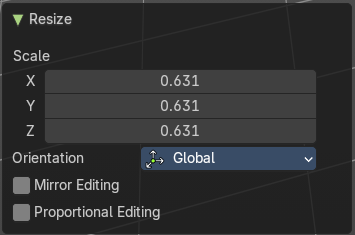
Scale
Adjust in which directions you want to transform.
Orientation
Choose the orientation.
Mirror Editing
Enable mirror editing.
Proportional editing
Enables proportional editing. Activating proportional editing reveals further settings.
| Entry | What it does |
|---|---|
| Proportional Falloff | Adjust the falloff methods. |
| Proportional Size | See and adjust the falloff radius. |
| Connected | The proportional falloff gets calculated for connected parts only. |
| Projected(2D) | The proportional falloff gets calculated in the screen space. Depth doesn't play a role. When it's in the radius, then it gets calculated. |
Align to Transform Orientation
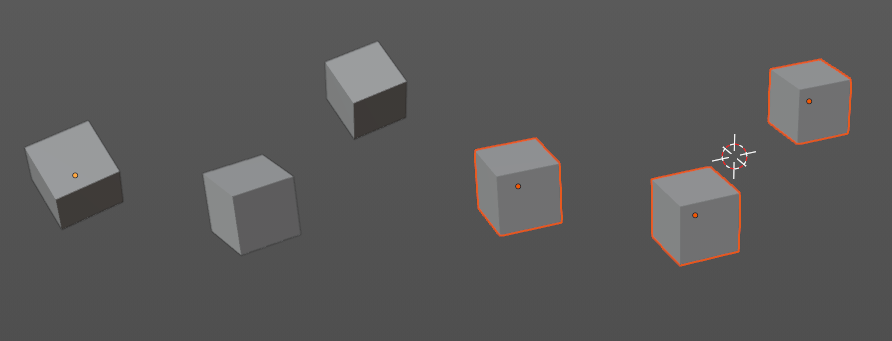
Align to Transform Orientation rotates the selected objects so that their local orientation matches the active transform orientation in the Transform orientation panel or the Orientation selection in the Transform Operator panels.
For example when you have a few cubes that are rotated differently, then perform align to transform orientation with Global coordinates, then the cubes rotations gets set back to 0/0/0
Last Operator Transform
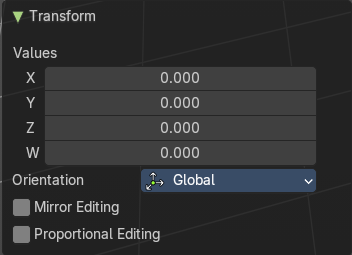
| Entry | What it does |
|---|---|
| Values | These values can't be edited. The tool aligns to zero, so the values turns to zero. |
| Axis | These values doesn't matter. Changing them does nothing. |
Orientation
Choose the orientation in which the transform should happen.
Mirror Editing
Enable mirror editing.
Proportional editing
Enables proportional editing. Activating proportional editing reveals further settings.
| Entry | What it does |
|---|---|
| Proportional Falloff | Adjust the falloff methods. |
| Proportional Size | See and adjust the falloff radius. |
| Connected | The proportional falloff gets calculated for connected parts only. |
| Projected(2D) | The proportional falloff gets calculated in the screen space. Depth doesn't play a role. When it's in the radius, then it gets calculated. |
Randomize Transform
This tool allows to randomize position rotation and scale of selected objects. Each object gets threaten individually by a random value.
It starts with zeroed values. You need to adjust the values in the last operator.
Last Operator Randomize Transform
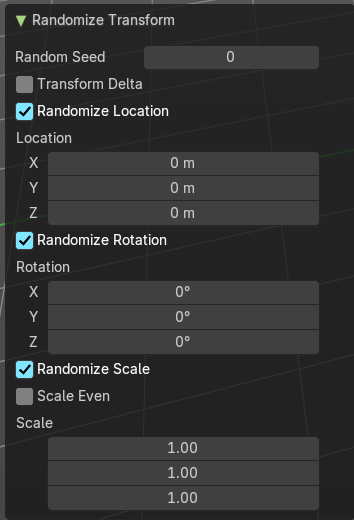
| Entry | What it does |
|---|---|
| Random Seed | Adjust the random seed value. |
| Transform Delta | Randomize Delta transform values instead of the regular transform values. |
| Randomize Location checkbox | With this checkbox ticked the location of the selected objects gets randomize |
| Location edit boxes | Adjust the strength of the transform for the single axis. |
| Randomize Rotation checkbox | With this checkbox ticked the rotation of the selected objects gets randomize |
| Rotation edit boxes | Adjust the strength of the transform for the single axis. |
| Randomize Scale checkbox | With this checkbox ticked the scale of the selected objects gets randomized. |
| Scale Even | Use the same scale values for all axis. |
| Scale edit boxes | Adjust the strength of the transform for the single axis. |
Align Objects
Align Objects allows you to align the selected objects in various ways. You need to adjust the settings in the Last operator panel. The align operation happens in world coordinates.
Last Operator Align Objects
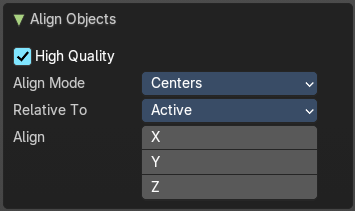
High Quality
When ticked the calculation gets performed in a higher precision.
Align Mode
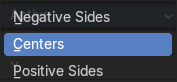
Align Mode is a drop-down box choose between different align modes.
Relative To
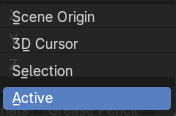
Relative to is a drop-down box. Here you adjust in what method the alignment happens.
Relative to the active object, to the center of selection, to the 3D cursor or to the scene origin.
Align
Turn on or off the single axis for the align operation.
Set Origin
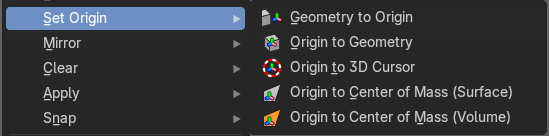
Set origin sets the origin of the selected objects to a chosen location.
| Entry | What it does |
|---|---|
| Geometry to Origin | Sets the geometry to origin. |
| Origin to Geometry | Sets the origin to geometry. |
| Origin to 3D cursor | Sets the origin to the 3D cursor. |
| Origin to Center of Mass(Surface) | Sets the origin to the center of mass, calculating it from the center of the surface area. |
Origin to Center of Mass(Volume)
Sets the origin to the center of mass, calculating from the center of the Volume. It must be manifold geometry with consistent normals.
Last Operator Set Origin
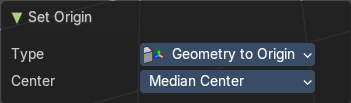
The last operator is the same for all set origin methods.
Type
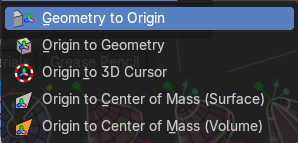
Choose the method again.
Center
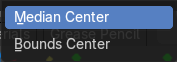
Use the median center or the bounds center for calculation.
Mirror
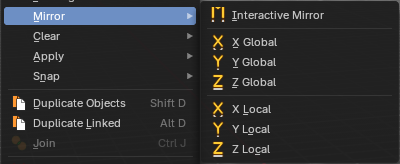
Mirrors the selection.
Interactive Mirror
Mirrors the selection.
Usage:
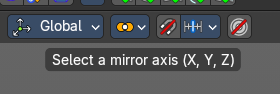
Activate the tool. In the header you will now see further instructions. Which is: type in the axis at which you want to mirror. Interactive mirroring starts in Global space. You can change the orientation in the last operator.
X Y Z Global
Mirrors along the global axis.
X Y Z Local
Mirrors along the object axis.
Last Operator Mirror
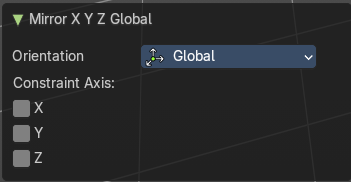
Orientation
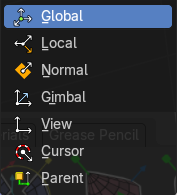
Choose the orientation in which the transform should happen.
Constraint Axis
Constraint the mirroring to the selected axis.
Clear
Clear
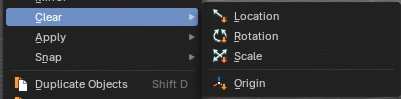
Clear Transform is a menu where you can clear the transform for location, rotation, scale and Origin. Clear means in this conjunction that the values gets reset.
When you have for example a cube at X 5, and clear the location, then the cube gets positioned at position X 0.
Location
Resets the location of the selected object(s).
Last Operator Clear Location
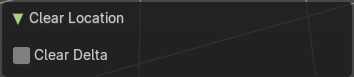
Clear Delta
With Clear Delta ticked it clears the delta transform instead of the transform.
Rotation
Resets the rotation of the selected object(s).
Last Operator Clear Rotation
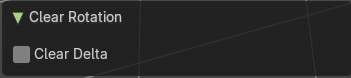
Clear Delta
With Clear Delta ticked it clears the delta transform instead of the transform.
Scale
Resets the scaling of the selected object(s).
Last Operator Clear Scale
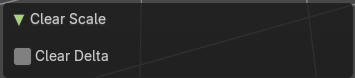
Clear Delta
With Clear Delta ticked it clears the delta transform instead of the transform.
Origin
Clear Origin requires to have a parent child relationship selected. It sets the child object to the position of the parent object.
Apply
Apply
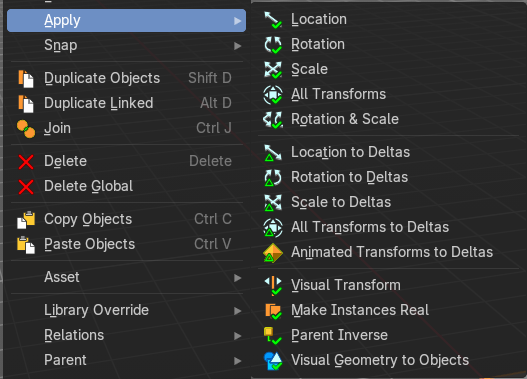
Apply is a menu where you can apply transforms in various combinations. For example, when you create a cube, then move it to let's say 3, then apply the location, then the origin gets set to 0. The position is "applied". Of special Interest is apply scale, since it resets the scale factor to 1.
Note: Apply only works with single user objects. And it does* *not apply to pose position, animation curves or constraints. These tools should be used before rigging and animation.
Location, Rotation, Scale, All Transforms and Rotation&Scale
This applies the location, rotation and scale of the object.
Last Operator Apply Object Transform
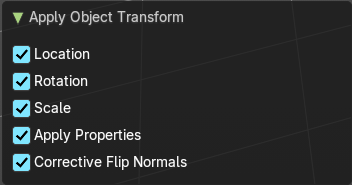
| Entry | What it does |
|---|---|
| Location | Applies the position, and resets origin to 0 |
| Rotation | Applies the rotation. |
| Scale | Applies the Scale. |
| Apply Properties | Properties such as Curve Vertex Radius. Font Size and bone envelope gets applied. |
| Corrective Flip Normals | Invert normals for negative scaled objects. |
Location, Rotation, Scale and All Transforms to Deltas
Transforms are absolute to the world coordinates. Delta Transforms are relative to the current transformation.
The delta transform values can be found in the Object properties, in the Delta Transform Panel.
Example use case:
- Key frame a object rotation from 0 to 90 degrees. Rotate the object by 45 degrees. When you play the animation it will still rotate from 0 to 90 degrees.
- Now key frame a delta rotation from 0 to 90 degrees and rotate the object by 45 degrees. When you playback the animation it will rotate from 45 to 135 degrees now. (a 90 degree difference from the current state)
Last Operator Transforms to Deltas
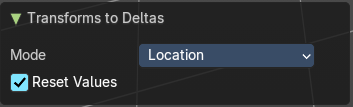
Mode
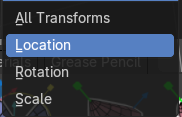
Mode is a drop-down box choose the transform mode again.
Reset Values
Clears the transform values after transferring to Deltas.
Animated Transform to Deltas
Converts the “normal” transformation animations to Delta transforms. This tool requires to have key frames at the object.
Visual Transform
Applies (set) the result of a constraint, and applies this back to the Object’s location, rotation and scale.
Make Instances Real
Make Instances real makes any duplicates attached to this Object real so that they can be edited.
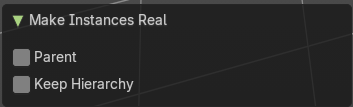
Last Operator Make Instances Real
| Entry | What it does |
|---|---|
| Parent | Parent newly created objects to the original duplicator. |
| Keep Hierarchy | Keep Parent Child relationship. |
Parent Inverse
Applies the objects parent inverse to its data.
Visual Geometry and Join
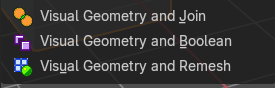
Converts evaluated visual geometry and instanced data from the modifier stack in the Properties Editor into editable scene objects and collections and joins them into one mesh.
Note: These operators are from the Default Asset Library addon
Visual Geometry and Boolean
Converts evaluated visual geometry and instanced data from the modifier stack in the Properties Editor into editable scene objects and collections and joins them into one mesh with boolean union operators.
Note: These operators are from the Default Asset Library addon
Visual Geometry and Remesh
Converts evaluated visual geometry and instanced data from the modifier stack in the Properties Editor into editable scene objects and collections and joins them with remesh settings into one mesh.
Note: These operators are from the Default Asset Library addon
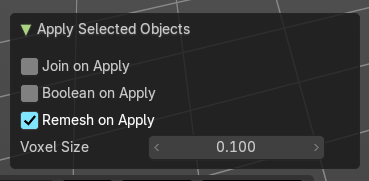
Last operator Apply Selected Objects
| Entry | What it does |
|---|---|
| Join on Apply | Applies and joins the selected meshes into one mesh. |
| Boolean on Apply | Applies and joins the selected meshes into one mesh with boolean union operators. |
| Remesh on Apply | Applies and joins the selected meshes into one mesh with a voxel remesh operator. |
| Voxel Size | Changes the resolution of the Voxel Size of the new remesh operator. |
Snap
Selection to Cursor
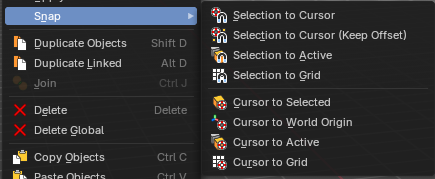
Snaps the currently selected object(s) to the cursor location.
Selection to Cursor(Keep Offset)
Snaps the currently selected object(s) to the cursor location, but keeps the offset of the selected objects to each other. Means the center of the current selection goes to cursor position. Not every individual object.
Last operator Snap Selection to Cursor
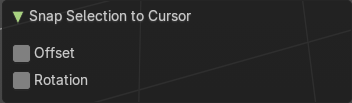
| Entry | What it does |
|---|---|
| Offset | Keep the offset of the selected objects to each other. |
| Rotation | Rotate the selection to match cursor. |
| Entry | What it does |
|---|---|
| Selection to Active | Snaps the currently selected object(s) to the active object. |
| Selection to Grid | Snaps the currently selected object(s) to the nearest grid point. |
| Cursor to Selected | Moves the cursor to the center of the selected object(s). |
| Cursor to World Origin | Moves the cursor to the world origin. |
| Cursor to Active | Moves the cursor to the center of the active object. |
| Cursor to Grid | Moves the cursor to the nearest grid point. |
From Duplicate ... to Paste
Duplicate Objects
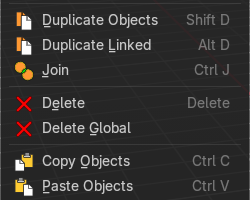
Duplicates selected objects. The copy is completely independent. All containing data gets duplicated too. And you can edit the object instances completely independent. then.
You are automatically in grab mode, and so you can easily move the object out of position. Which is sometimes wanted, since you can position the duplicate then. But sometimes this is unwanted. A right click after releasing the mouse lets the object snap back into its creation position.
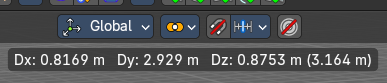
When you drag the duplicate around you will see the position values in the header.
Last Operator Duplicate
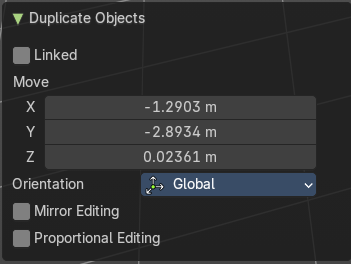
| Entry | What it does |
|---|---|
| Duplicate Objects | Linked: With this option ticked the duplication happens with linked data. |
| Move X , Y , Z | The Position of the duplicated object. |
Orientation
Orientation is a drop-down box choose the type of orientation for the duplicate action.
Mirror Editing
Enable mirror editing.
Proportional editing
Enables proportional editing. Activating proportional editing reveals further settings.
| Entry | What it does |
|---|---|
| Proportional Falloff | Adjust the falloff methods. |
| Proportional Size | See and adjust the falloff radius. |
| Connected | The proportional falloff gets calculated for connected parts only. |
| Projected(2D) | The proportional falloff. |
Duplicate Linked
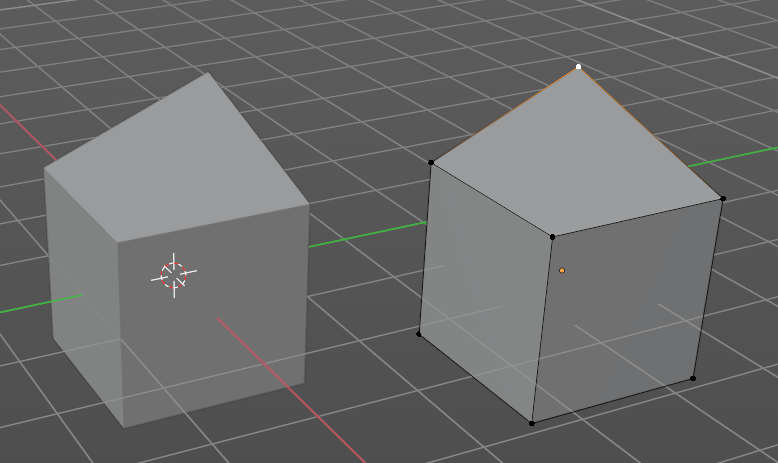
Duplicates selected objects. The instance has its own transforms. But the duplicate shares some data with the first instance. This means when you for example edit the mesh of one of the instances, then the other instance gets modified too. As you can see this in the screenshot. Here you can also see that the mesh name is the same. The object name is different though.
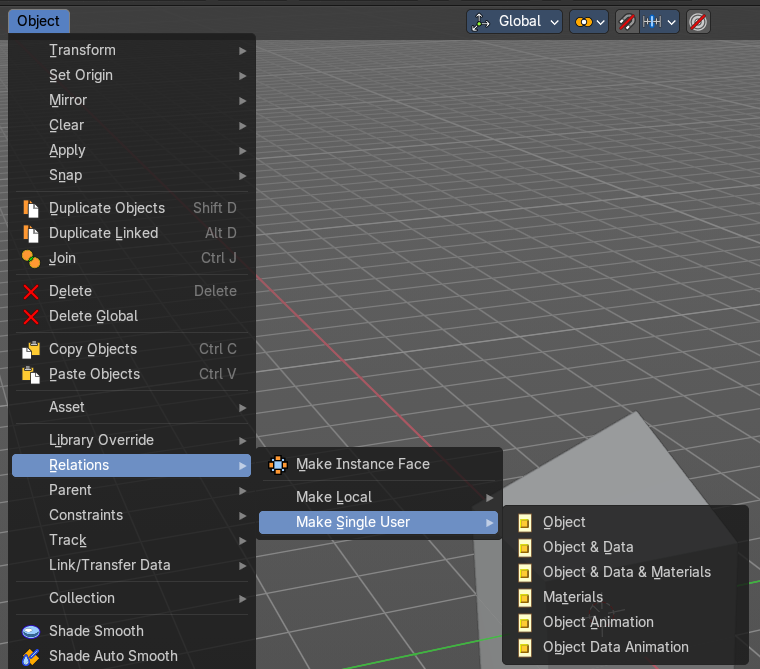
If you want to make changes to an object in the new linked duplicate independently of the original object, then you will have to manually make the object a “single-user” . This can be done in the Object menu. Choose what attached data you want to make single user.
When you duplicate an object, then you are automatically in grab mode. And so you can easily move the object out of position. which is sometimes wanted, since you can position the duplicate then. But sometimes this is unwanted. A right click after releasing the mouse lets the object snap back into its creation position.
Duplicate linked instances the object data.
Explanation: Each Bforartists object type (mesh, lamp, curve, camera etc.) is composed from two parts: an* Object and Object Data (sometimes abbreviated to ObData*):Object** - Holds information about the position, rotation and size of a particular element.
Object Data - Holds everything else. For example. Meshes stores geometry, material lists, vertex groups, etc. . Cameras stores focal length, depth of field, sensor size, etc. .
Each object has a link to its associated object-data, and a single object-data, like a material, may be shared by many objects.
Last Operator Duplicate Linked
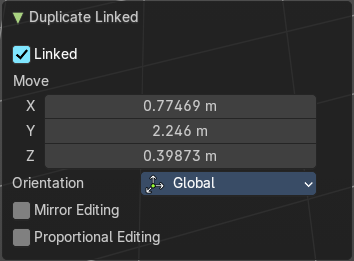
| Entry | What it does |
|---|---|
| Duplicate Objects | Linked: With this option ticked the duplication happens with linked data. |
| Move X, Y, Z | The Position of the duplicated object. |
Orientation
Orientation is a drop-down box choose the type of orientation for the duplicate action.
Mirror Editing
Enable mirror editing.
Proportional editing
Enables proportional editing. Activating proportional editing reveals further settings.
| Entry | What it does |
|---|---|
| Proportional Falloff | Adjust the falloff methods. |
| Proportional Size | See and adjust the falloff radius. |
| Connected | The proportional falloff gets calculated for connected parts only. |
| Projected(2D) | — |
| Entry | What it does |
|---|---|
| Join | Joins two independent objects together and makes them one object. This works with mesh objects and with curve objects. What does not work is to try to join mesh objects with curve objects. They are of different type. |
| Delete | Delete deletes the selected object(s). |
| Delete Global | It can be that you have more than one scene open. Delete deletes the selected object(s) in all scenes. |
| Copy | Copies the selected object(s). |
Paste
Pastes copied object(s).
Last Operator Paste Objects
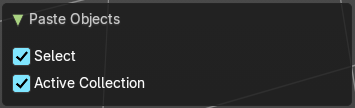
| Entry | What it does |
|---|---|
| Select | Select pasted object(s). |
| Active Collection | Put the pasted objects into the active collection. |
Asset

Asset related menu.
| Entry | What it does |
|---|---|
| Mark as asset | Marks the selected object as an asset. It will be inserted in the asset library. |
| Clear Asset | Removes the selected object from the asset library. |
| Clear Asset( Set Fake User) | Removes the selected object from the asset library. But adds a fake user to it, so that it remains in the scene. |
Library Override
Make

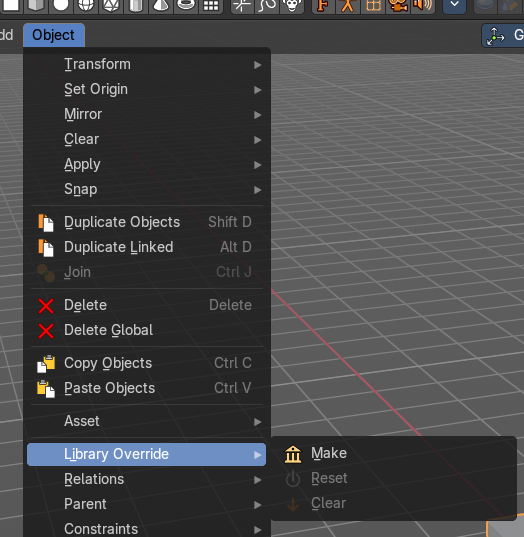
Add a local library override to this collection or selected object.
This tool works different from Add Override in the outliner. It iterates through the hierarchy of objects and collections based on the selection. And tries to override everything linked.
To work properly, it is important that all the collections needed by the character are children of the root object Both, linked and instantiated. Otherwise the automated overriding may fail.
Library Overrides is the new system designed to replace and supersede Proxies. Most types of linked data-blocks can be overridden, and the properties of those overrides can then be edited. When the library data change, unmodified properties of the override one will be updated accordingly.
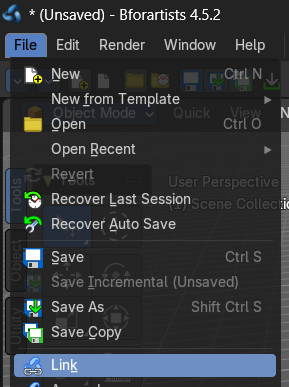
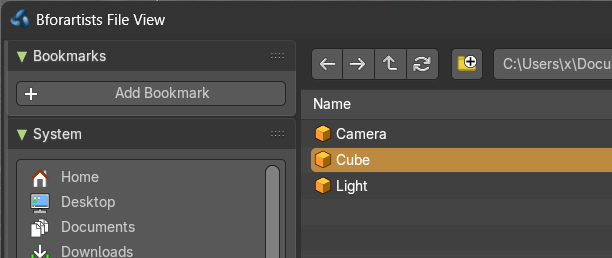
You need to link a collection or object from another file for example to set the Make Library Override tool active.
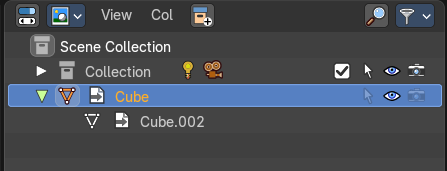
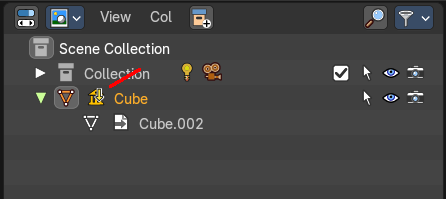
Assets with a library override have the override icon in the outliner.
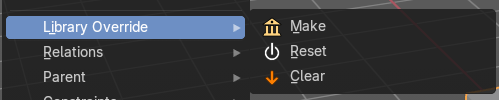
| Entry | What it does |
|---|---|
| Reset | Resets the active library override to their initial state. |
| Clear | Delete the selected local overrides and relink their usages to the linked data if possible. Else reset them and mark them as not editable. |
Relations

This sub menu contains relations related functionality.
Make Instance Face
Make Instance Face, formerly Make Dupli Face, is a relict from the past, when there was no instancing or parenting feature available in Blender. When you turn an object into a Dupli Face object, then this object becomes an instancing container for this object. All objects in this container just exists once in ram when you duplicate it. No matter how often you duplicate it. This allows to plant whole forests without to run into a memory problem. Since the tree object just loads once into ram. And gets just drawn at different screen positions then.
Usage:
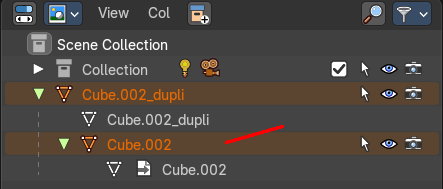
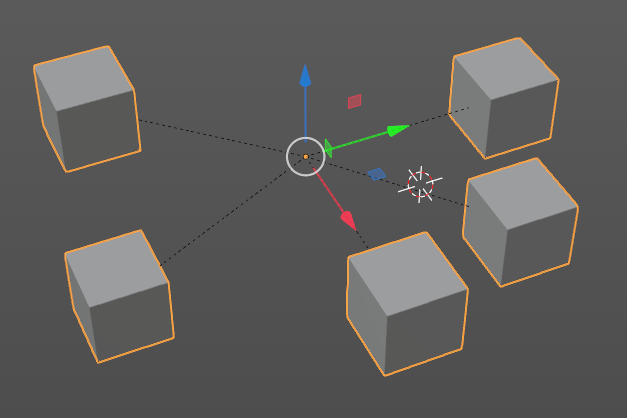
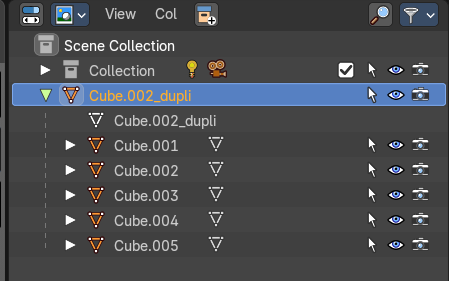
Create an object. Make Instance Face. The name will be extended by a _dupli term.
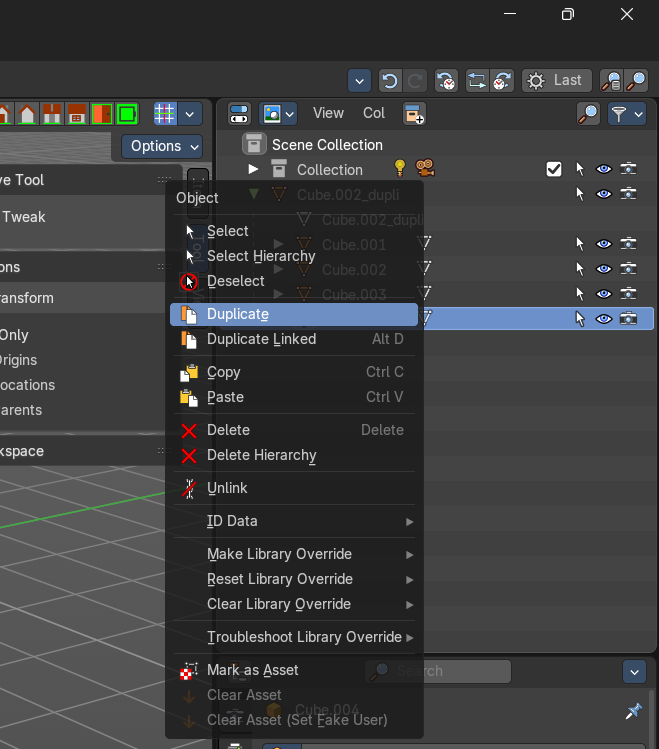
Now in the outliner go into the hierarchy of the dupli object. And duplicate the Cube.001 object inside of it. This is the parent object that you can duplicate. You will see that the duplicated copies will now be connected by a dotted line with the parent object.
Make Local

You need to have a linked object for that. Make library linked data blocks local to this file. The link to the library object will be lost. And the object acts like you would have created it in the current scene.
There are four different methods available. With which you can also make the dependencies of the library object local. Materials for example.
Make Single User
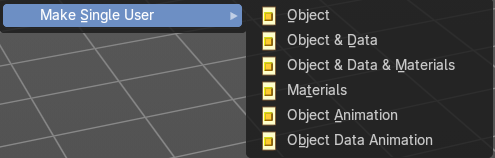
Make linked data local to each object. Additionally, it can also make single-user copies of its dependencies, like meshes, curves, materials, animations…
Parent
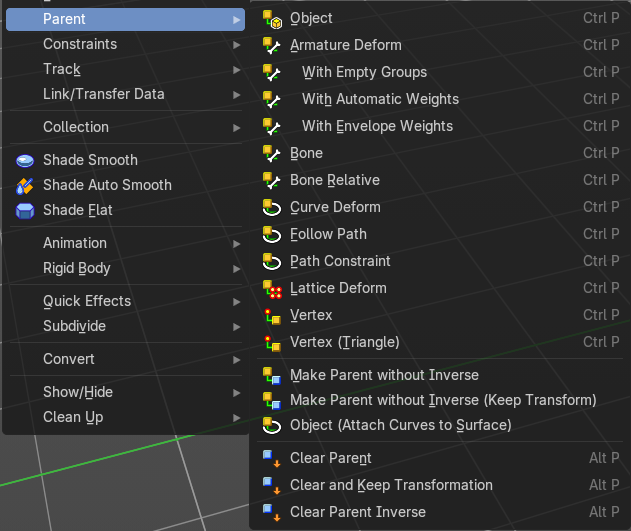
The parent menu provides you with all parenting methods at object level.
To use parenting you first have to select the source object, hold down shift, then select the target object so that both are selected. This also works in the outliner (here you can also simply hold down shift and drag the source object at the target object to make it a child). The source object becomes the child object then.
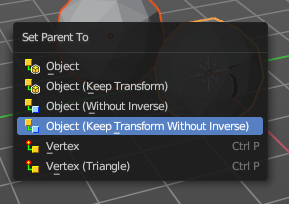
The methods are object type dependent. The armature methods requires to have a mesh and an armature. The path methods a curve. The available methods for the current selection can also be found out by pressing the hotkey ctrl P. This calls the parenting menu with just the available methods.
| Entry | What it does |
|---|---|
| Object | Sets the parent to selected object. |
| Object ( Keep Transform) | Sets the parent to selected object, but applies all transform before the operation. |
| Object (Without Inverse) | Set the object’s parenting without setting the inverse parent correction. This preserves all transforms before the operation. |
Object (Keep Transform Without Inverse)
Set the object’s parenting without setting the inverse parent connections and applies all transform before the operation.
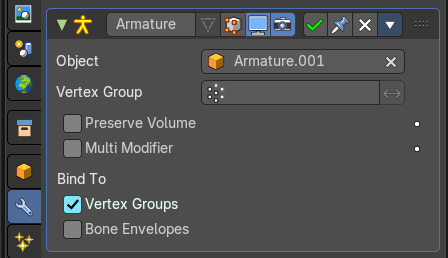
Armature parenting creates an armature modifier at the mesh object.
| Entry | What it does |
|---|---|
| Armature Deform | Sets the parent to selected Armature. |
| With empty Groups | Sets the parent to selected Armature, using empty groups. |
| With Envelope Weights | Sets the parent to selected Armature, using envelope weights |
| With automatic Weights | Sets the parent to selected Armature, with automatic weights. |
| Bone | Sets the parent absolute to selected Bone. |
| Bone Relative | Sets the parent relative to selected Bone. |
Curve Deform
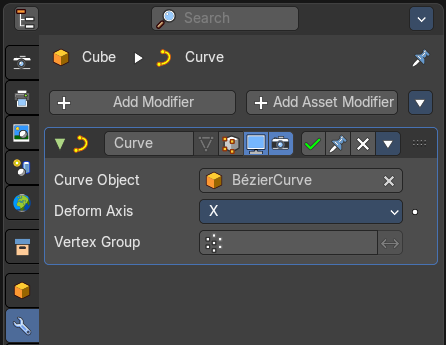
Curve Deform allows you to deform a mesh by a curve shape. It adds a curve modifier at the mesh.
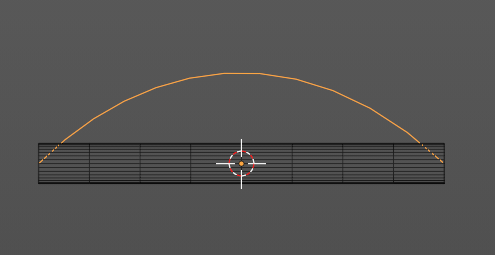
Usage:
Create a curve. Bend it in edit mode to your needs.
Create a mesh. I have for demonstration purposes created a cylinder with several subdivisions.
Select the mesh, hold down shift, select the curve.
Choose curve deform.
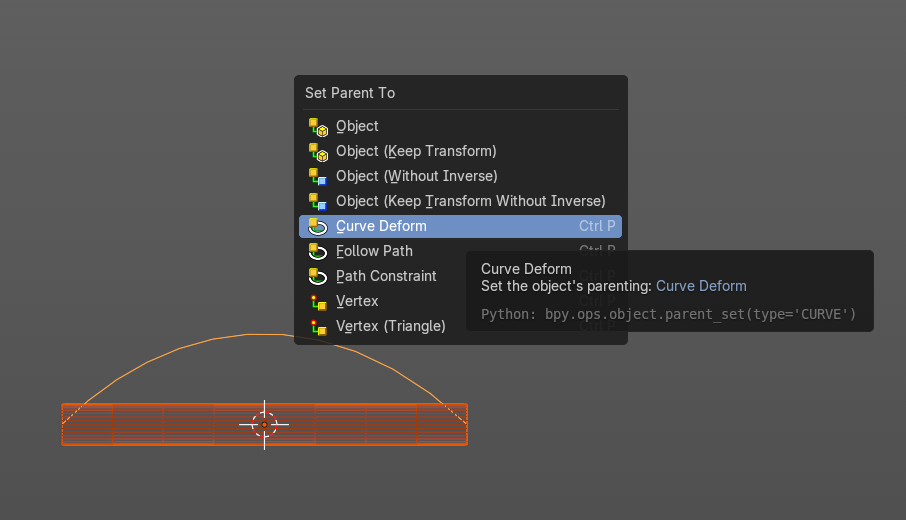
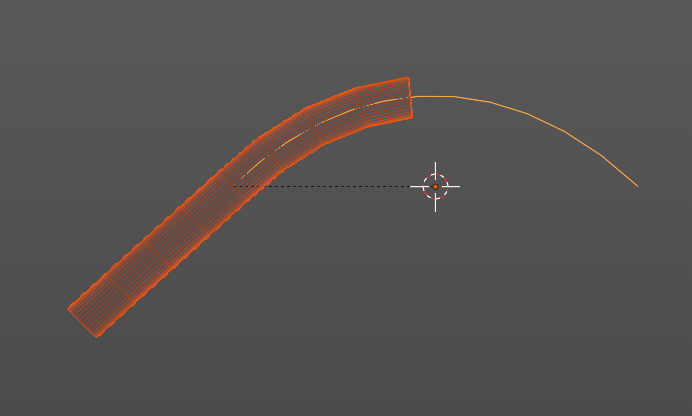
To demonstrate the only pitfall, by parenting, the center of the object goes to the start point of the curve. So you better put the origin at the bottom of the cylinder before parenting.
Follow Path
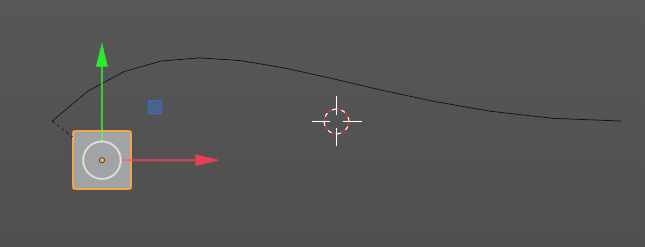
Attaches an object to a curve. The curve then gets used to animate the object position. Every vertice of the curve is one key frame.
Create a curve, create an object, hold down shift and select the curve, make parent ...
Take care of the position and rotation of the object before parenting it to the curve. It influences how the object behaves.
There is a constraint with the same name and functionality. But parenting with follow path will not create such a constraint.
Path Constraint
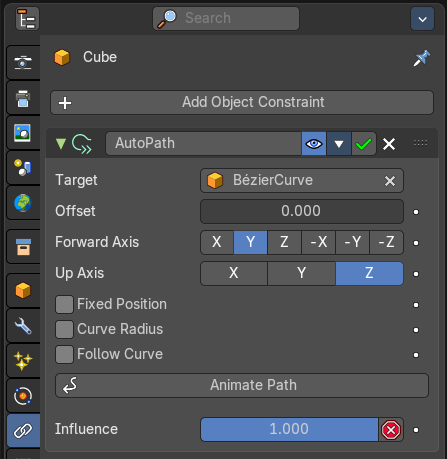
Path constraint adds a AutoPath constraint at the mesh object, which is most probably a wrong labeled path constraint. It is not documented by the Blender developers.
Create a curve, create an object, hold down shift and select the curve, make parent ...
Take care of the position and rotation of the object before parenting it to the curve. It influences how the object behaves.
Lattice Deform
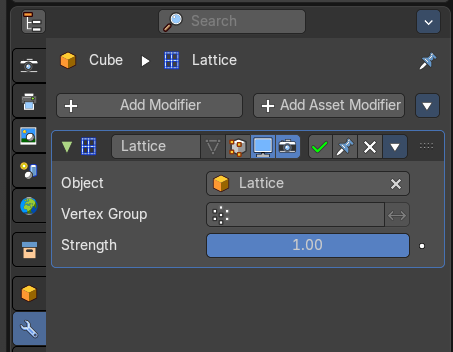
Parents a lattice object to the object.
You need a lattice object and a mesh object. Lattice deformations just works with mesh objects.
Create a lattice, create an object, hold down shift and select the lattice, make parent ...
Parent the mesh object to the lattice object with method Lattice Deform. A Lattice Deform constraint will be added at the mesh object.
Take care of the position and size of the lattice object. It influences how the deformation works.
Enter Edit Mode with the lattice object. Deform it. The mesh object will follow the deformation.
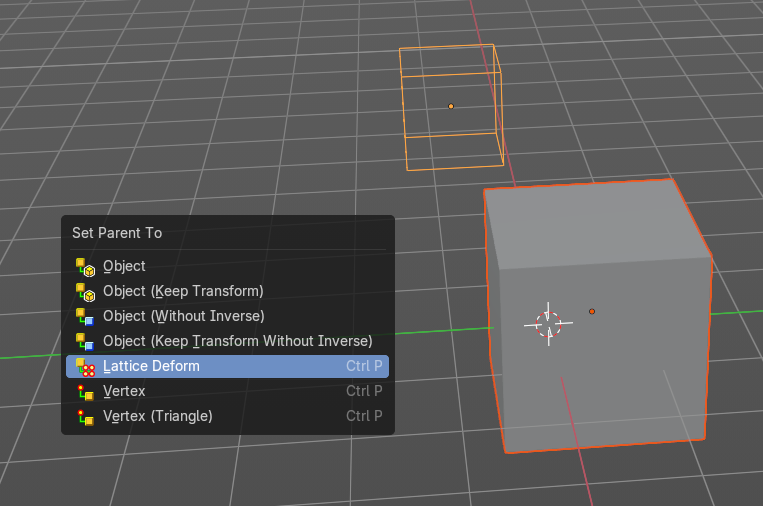
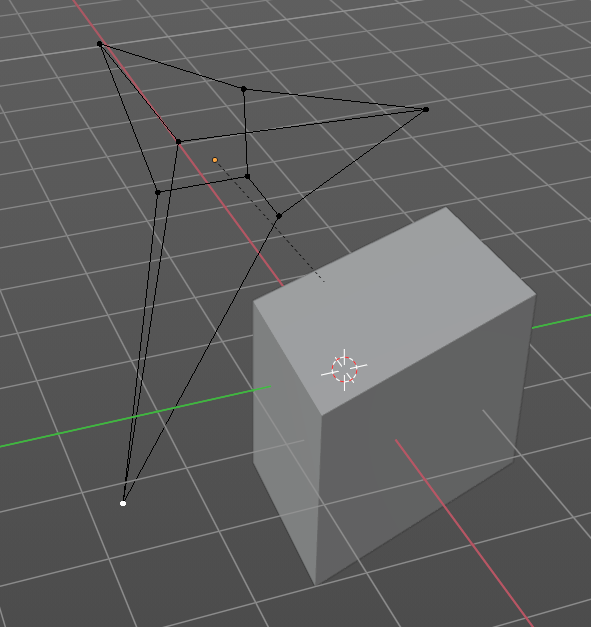
Vertex
Vertex parents the current object to a vertex of the target object. The vertex will be chosen automatically, it's the
closest vertice of the parent object. When you want to assign the object to a specific vertice, then you have to do
The vertex parenting in Edit mode. You need to have an object type that has vertices. Mesh or curve.
Create a mesh or curve object, create an object, hold down shift and select the mesh object, make parent ...
Vertex (Triangle)
Vertex (Triangle) parents the current object to a face of the target object. The face will be chosen automatically.
It's the closest face of the parent object. When you want to assign the object to a specific face, then you have to
Do the vertex parenting in Edit mode. You need to have an object type that has vertices. Mesh or curve.
Create a mesh or curve object, create an object, hold down shift and select the mesh object, make parent ...
Last Operator Make Parent
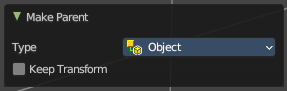
Type
Choose the make parent method again. This last operator counts for most of the parent actions.
Keep Transform
Apply transform before parenting.
| Entry | What it does |
|---|---|
| Object (Without Inverse) | With normal parenting the child object keeps its world transformation. Without inverse parenting the child object uses the coordinate system of the parent object. As one of the effects you will see that the child objects will jump to the origin of the parent object when parenting. |
| Object (Keep Transform Without Inverse) | Set the object’s parenting without setting the inverse parent connections and applies all transform before the operation. Without inverse parenting the child object uses the coordinate system of the parent object. By keeping the transform, the origin of the parent and child object stay in position. |
| Object (Attach Curves to Surface) | Parent a Hair Curve to the surface of a new object. |
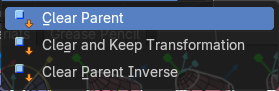
Clear Parent
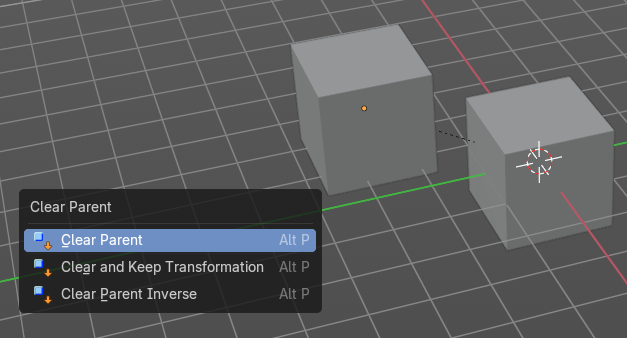
Clear Parent clears the parent relation completely, including involved modifiers.
Clear and Keep Transformation
Clear Parent clears the parent relation completely, including involved modifiers.
But keeps the current visual transformation.
Clear Parent Inverse
Clear Parent Inverse resets the transform corrections applied to the parenting relationship. It does not remove
the parenting itself.
Last Operator Clear Parent
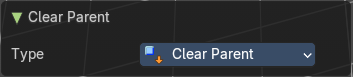
Type
Change the type of clearing.
Constraints

The constraints menu contains some functionality that could also be done in the constraints tab in the Properties editor. Those buttons provides a quicker access though.
Constraints provides you with various limitation methods connected to a target object. For example, you can limit the X position of an object to the X position of the target object. And when you move the target object, then the object will change its X position too.
Add Constraints ( With Targets)
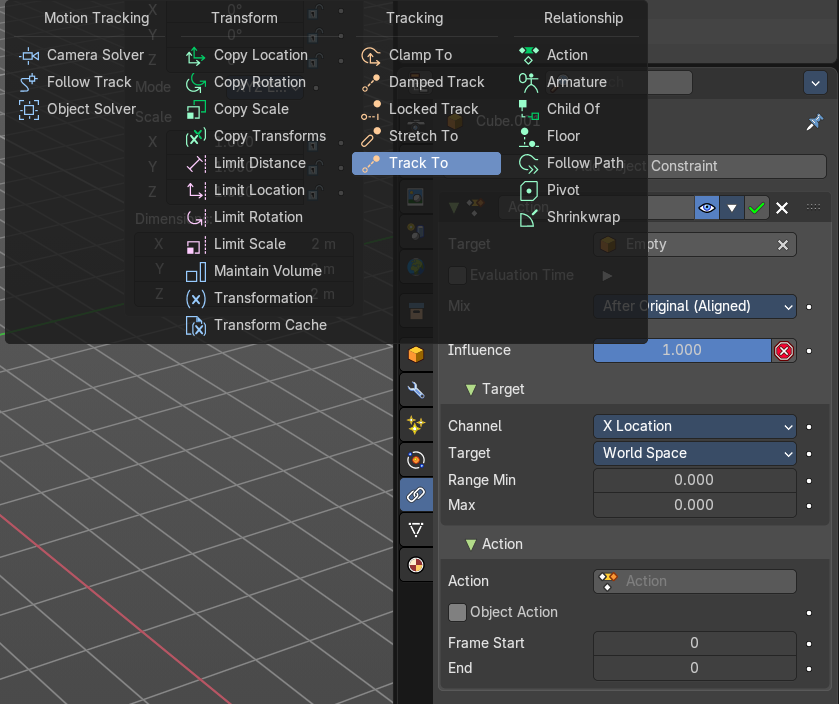
Add Constraints ( With Targets) calls a menu choose the constraints type. It's the same content than in the Constraints tab in the Properties editor.
We will not explain every single constraint type here. Please have a look at the constraint types in the manual part for the Properties editor.
Usage:
Select the target object. Hold down Shift key. Now select the object where you want to add the constraints to. Both should be selected. Then choose the constraints type in the menu that you want to add.
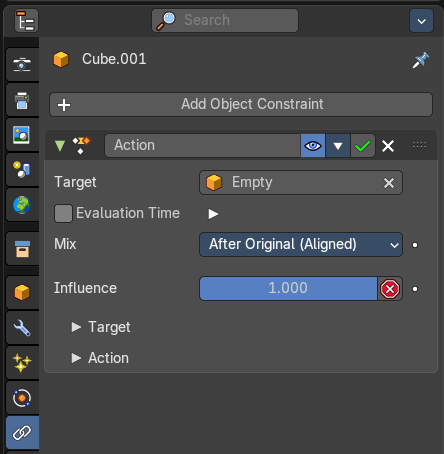
As a result a constraints panel gets created in the Constraints tab in the Properties editor. Tweak the settings further if required. In our example we wanted to limit the X axis. So we added a Copy Location constraint, and unticked Y and Z axis. And when we move the cube around then the sphere will follow in X axis. But not in Y and Z.
In the 3D view a dotted line indicates the relationship.
Last Operator Add Constraints (with Target)
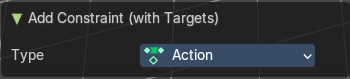
Type
Type is a drop-down box choose the constraints type again.
| Entry | What it does |
|---|---|
| Copy Constraints to Selected Objects | Copy Constraints to Selected Objects copies a constraint from one object to another. Useage: Select the object where you want to copy the constraint to. Hold down Shift and select the object with the constraint. Both should be selected. Then click at Copy Constraints to Selected Objects. This copies the constraint to the object. |
| Clear Object Constraints | Removes all constraints from the object. |
Track
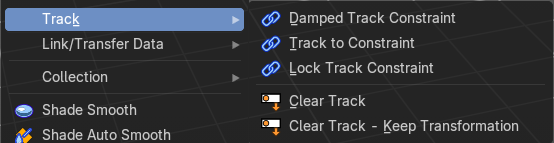
Track constraints are constraints. And adding them could also be done in the constraints tab in the Properties editor. Those buttons provides a quicker access though.
Damped Track Constraint
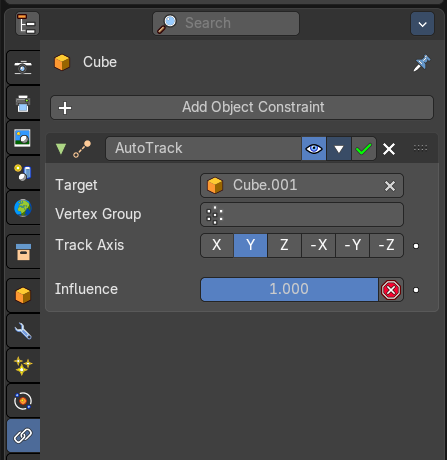
The Damped Track constraint constrains one local axis of the owner to always point towards Target. It is a Look At constraint.
Usage: select the source object, hold down shift, select the target object, add Damped Track Constraint.
The wrong constraint name called AutoTrack is a Blender bug.
Track to Constraint
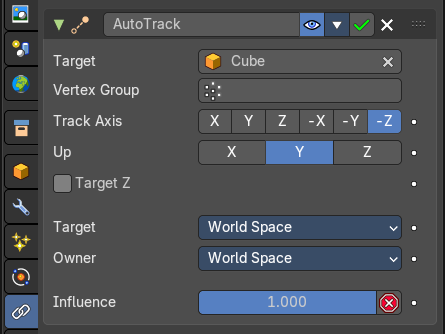
This constraint is similar to Damped Track constraints, but provides some more control.
Usage: select the source object, hold down shift, select the target object, add Damped Track Constraint. Constraint will be added at source object.
The wrong constraint name called AutoTrack is a Blender bug.
Lock Track Constraint
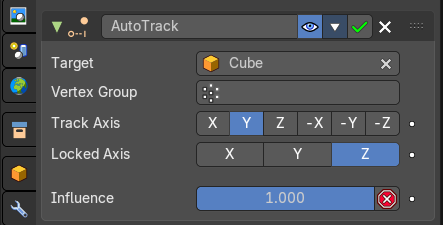
The Locked Track constraint is basically a Track To constraint. But with a locked axis. Means an axis that cannot rotate. So the constraint can just follow in one defined axis.
The wrong constraint name called AutoTrack is a Blender bug.
Usage: select the source object, hold down shift, select the target object, add Track Constraint. Constraint will be added at source object.
Clear Track
You need to have a Track constraint applied. It removes the track constraint.
Clear Track - Keep Transformation
This menu item is just relevant when you have a Track constraint applied. Removes the track constraint. But keeps the current position.
Last Operator Clear track
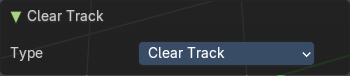
Type
Type is a drop-down box choose between Clear Track and Clear Track Keep Transformation.
Link / Transfer Data
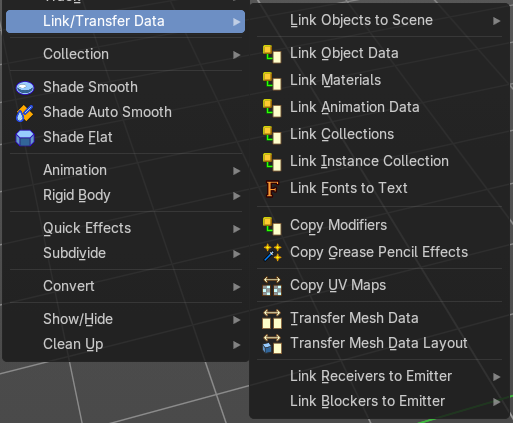
Links objects between scenes or data of the active object to all selected objects. In some case (i.e. Object Data, Modifier) the target objects must be of the same type than the active one or capable of receiving the data. If targets already have some data linked to them, it will be unlinked first.
Link Objects to Scene
In Bforartists you can have more than one scene in the blend file. See Scenes tab. The make links menu allows you to link or copy objects between those scenes.
Object to Scene makes the selected object available in the chosen scene. This makes the object exist in two different scenes at once, including position and animation data.
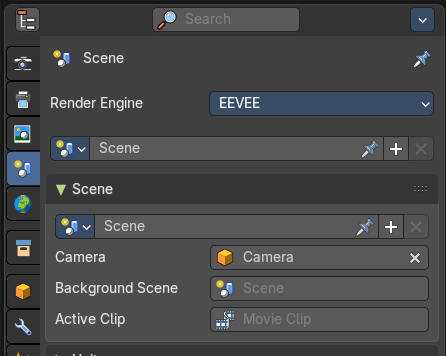
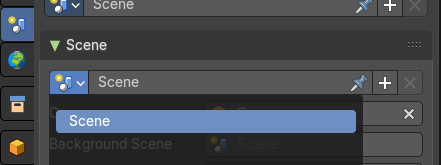

When you want the object not to be shared across two scenes anymore, then you have to make it single user again, which can be done in the relations menu.
From Link Object Data to Copy Grease Pencil Effects
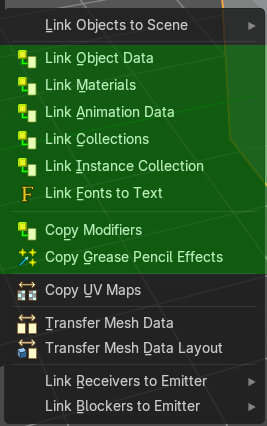
Link items links the specific data blocks between selected objects.
Copy Modifiers and Copy Grease Pencil Effects transfers over the modifiers or grease pencil effects.
Select the source object, hold down shift, select the target objects. Perform the action.
Last Operator Link / Tranfer Data
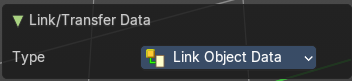
Type
Choose the data type again that you want to transfer or copy
Copy UV Maps
Copies the UV map from one object to another. If the selected object doesn’t have any UV maps, then it is created. The Objects must be of type mesh and must have a matching topology.
Select the source object, hold down shift, select the target object. Perform Transfer UV Map.
Transfer Mesh Data
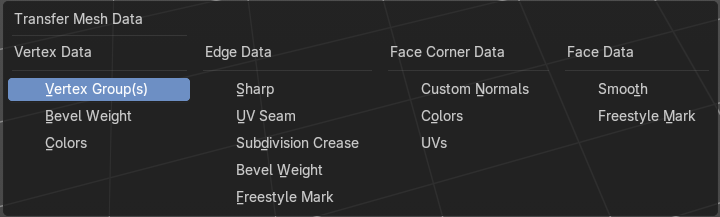
Transfers mesh data from active to selected object.
Select the object that you want to copy the data to, hold down shift, select the source object with the modifications at it. Choose Transfer Mesh Data. A popup with the available methods will appear. Choose what you want to do.
The caveat here is that the operator works in object mode. When you switch modes then the operator quits. And so you can't check if the UV seam transfer for example arrives as it should. This means that you sometimes end in trial and error with the last operator setting until you have your desired result.
Last Operator Transfer Mesh Data
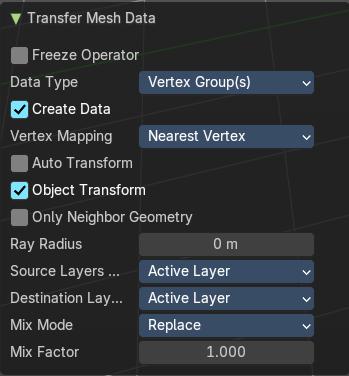
The last operator changes its content, dependant of the data type.
Freeze Operator
Prevent changes to settings to re-run the operator. This is useful if you are editing several settings at once with heavy geometry.
Data Type
The popup from above. Choose again what you want to do.
Data type Vertrex Data, Vertex Group(s)
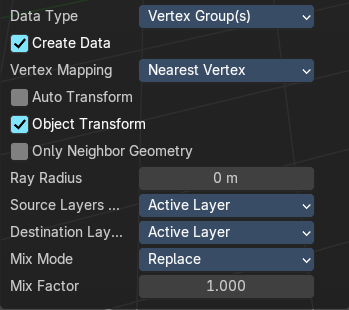
Create Data
Add data layers on destination meshes if needed.
Vertex Mapping
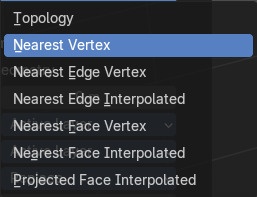
Edge mapping determines how edge data gets transferred.
| Entry | What it does |
|---|---|
| Auto Transform | Automatically compute transformation to geht the best possible match between source and destination meshes. |
| Object Transform | Evaluate the transform in global space. |
| Only Neighbour Geometry | Source elements must be closer than the max distance. · Max distance: Maximum allowed distance between source element and target element. |
| Ray Radius | Width of rays. |
Source Layer
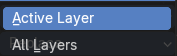
Which layers to transfer.
Destination Layer
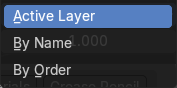
How to match source and destination layer.
Mix Mode
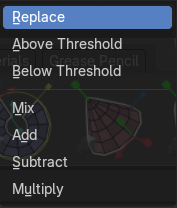
How to mix source data with destination data.
Mix Factor
Mix factor to apply data to destination mesh.
Data type Bevel Weight
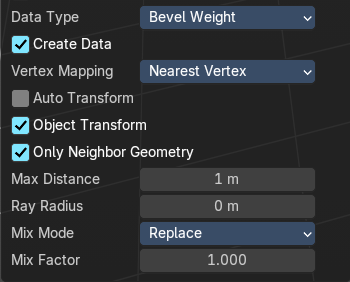
Create Data
Add data layers on destination meshes if needed.
Vertex Mapping
Edge mapping determines how edge data gets transferred.
| Entry | What it does |
|---|---|
| Auto Transform | Automatically compute transformation to geht the best possible match between source and destination meshes. |
| Object Transform | Evaluate the transform in global space. |
| Only Neighbour Geometry | Source elements must be closer than the max distance. · Max distance: Maximum allowed distance between source element and target element. |
| Ray Radius | Width of rays. |
Mix Mode

How to mix source data with destination data.
Mix Factor
Mix factor to apply data to destination mesh.
Data type Vertex Data, Colors
| Entry | What it does |
|---|---|
| Create Data | Add data layers on destination meshes if needed. |
| Auto Transform | Automatically compute transformation to geht the best possible match between source and destination meshes. |
| Object Transform | Evaluate the transform in global space. |
Only Neighbour Geometry

Source elements must be closer than the max distance.
Ray Radius
Width of rays.
Source Layer
Which layers to transfer.
Destination Layer
How to match source and destination layer.
Mix Mode
How to mix source data with destination data.
Mix Factor
Mix factor to apply data to destination mesh.
Data type Edge data ( Sharp, UV Seam, Subdivision Crease, Bevel Weight, Freestyle Mark)
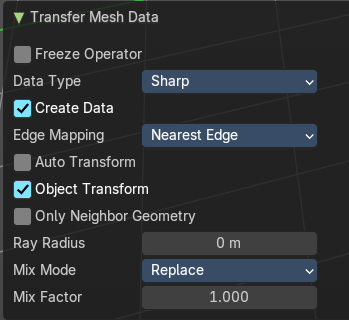
Create Data
Add data layers on destination meshes if needed.
Edge Mapping
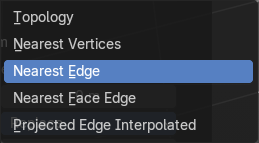
The method used to map source edges to destination edges.
| Entry | What it does |
|---|---|
| Auto Transform | Automatically compute transformation to geht the best possible match between source and destination meshes. |
| Object Transform | Evaluate the transform in global space. |
Only Neighbour Geometry
Source elements must be closer than the max distance.
Ray Radius
Width of rays.
Mix Mode
How to mix source data with destination data.
Mix Factor
Mix factor to apply data to destination mesh.
Data type Face Corner Data, Custom Normals
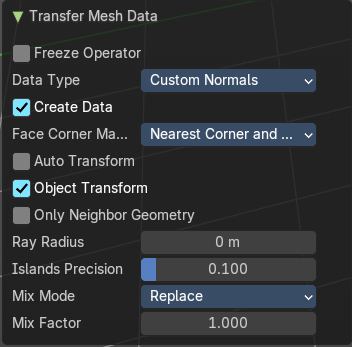
Create Data
Add data layers on destination meshes if needed.
Face corner mapping
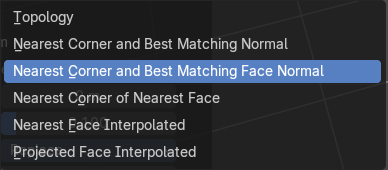
The method used to map source face’s corners to destination corners.
| Entry | What it does |
|---|---|
| Auto Transform | Automatically compute transformation to geht the best possible match between source and destination meshes. |
| Object Transform | Evaluate the transform in global space. |
Only Neighbour Geometry
Source elements must be closer than the max distance.
| Entry | What it does |
|---|---|
| Ray Radius | Width of rays. |
| Island Precision | Factor to control the island handling. Higher values gives better results. |
Mix Mode
How to mix source data with destination data.
Mix Factor
Mix factor to apply data to destination mesh.
Data type Face Corner Data, Colors

| Entry | What it does |
|---|---|
| Create Data | Add data layers on destination meshes if needed. |
| Auto Transform | Automatically compute transformation to geht the best possible match between source and destination meshes. |
| Object Transform | Evaluate the transform in global space. |
Only Neighbour Geometry
Source elements must be closer than the max distance.
| Entry | What it does |
|---|---|
| Ray Radius | Width of rays. |
| Island Precision | Factor to control the island handling. Higher values gives better results. |
Source Layer
Which layers to transfer.
Destination Layer
How to match source and destination layer.
Mix Mode
How to mix source data with destination data.
Mix Factor
Mix factor to apply data to destination mesh.
Data type Face Corner Data, UV
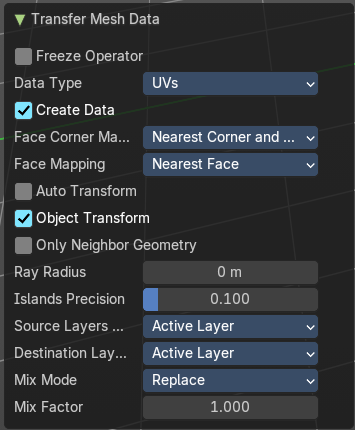
Create Data
Add data layers on destination meshes if needed.
Face corner mapping
The method used to map source face’s corners to destination corners.
Face mapping
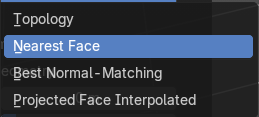
Method used to map source faces to destination faces.
| Entry | What it does |
|---|---|
| Auto Transform | Automatically compute transformation to geht the best possible match between source and destination meshes. |
| Object Transform | Evaluate the transform in global space. |
Only Neighbour Geometry
Source elements must be closer than the max distance.
| Entry | What it does |
|---|---|
| Ray Radius | Width of rays. |
| Island Precision | Factor to control the island handling. Higher values gives better results. |
Source Layer
Which layers to transfer.
Destination Layer
How to match source and destination layer.
Mix Mode
How to mix source data with destination data.
Mix Factor
Mix factor to apply data to destination mesh.
Data type Face Data , (Smooth, Freestyle Mark)
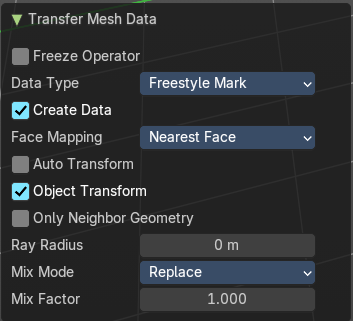
Create Data
Add data layers on destination meshes if needed.
Face mapping
Method used to map source faces to destination faces.
| Entry | What it does |
|---|---|
| Auto Transform | Automatically compute transformation to geht the best possible match between source and destination meshes. |
| Object Transform | Evaluate the transform in global space. |
Only Neighbour Geometry
Source elements must be closer than the max distance.
Ray Radius
Width of rays.
Mix Mode
How to mix source data with destination data.
Mix Factor
Mix factor to apply data to destination mesh.
Transfer Mesh Data Layout
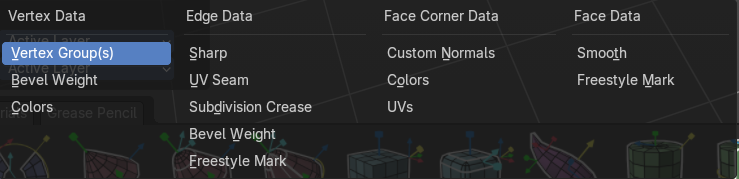
Transfers the layout of data layer(s) from active to selected meshes.
Select the object that you want to copy the data to, hold down shift, select the source object with the modifications at it. Choose Transfer Mesh Data Layout. A popup with the available methods will appear. Choose what you want to do.
The menu has basically the same menu items like Transfer Mesh Data. The difference is in what you can do in the last operator. It transfers the whole data layer.
Last Operator Transfer Mesh Data Layout
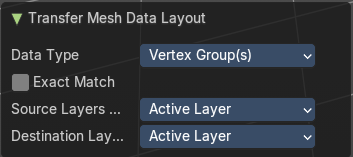
| Entry | What it does |
|---|---|
| Data Type | Choose again what you want to do. |
| Exact Match | Also Delete some data layers from destination if necessary, so that it matches the source exactly. |
Source Layers Selection
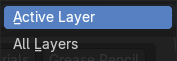
Which layers to transfer, in case of multi-layer types.
| Entry | What it does |
|---|---|
| Mygroup | Mygroup is in this case a vertex group i have created for demonstration purposes. |
| Active Layer | Only transfer the active data layer. |
| All Layers | Transfer all data layers. |
Destination Layers Matching
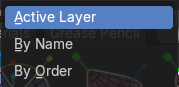
How to match source and destination layers.
| Entry | What it does |
|---|---|
| By Name | Match target data layers to affect by name. |
| By Order | Match target data layers to affect by order (indices). |
| Active Layer | Only transfer the active data layer. |
Link Receivers to Emitter sub menu

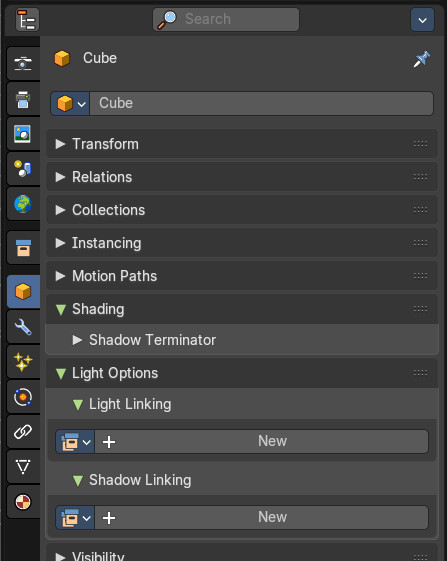
This feature is connected to the light linking in the properties editor. Emitter is the light, receiver is the object that receives the light then.
It allows you to turn off or on to receive lights from a specific light.
Workflow:
Select a light.
In the properties editor create a light linking group.
Then from the outliner, drag in the objects that you want to link to the light.
These objects are now the receivers. Select one.
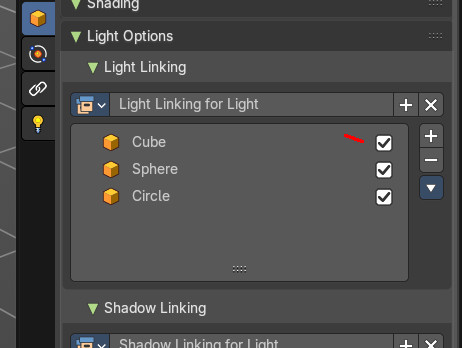
The toggles behind the objects in the group is what you can control with include and exlcude from the object menu. Include is on, exclude is off.
| Entry | What it does |
|---|---|
| Include | Include selected receivers to receive light from the active emitter. |
| Exclude | Include selected receivers to receive light from the active emitter. |
Link Blockers to Emitter sub menu
This feature is connected to the light linking in the properties editor. Emitter is the light, receiver is the object that receives the light then.
Workflow:
Select a light.
In the properties editor create a Shadow linking group.
Then from the outliner, drag in the objects that you want to link to the light.
These objects are now the Blockers.
| Entry | What it does |
|---|---|
| Include | Include selected blockers to cast shadows from the active emitter. |
| Exclude | Exclude selected blockers to cast shadows from the active emitter. |
Collection
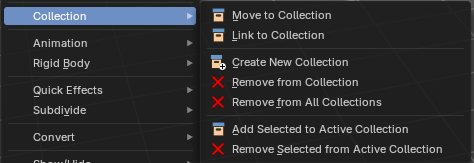
Move to Collection
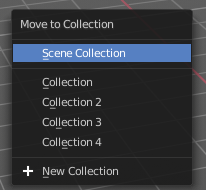
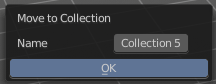
Moves the selected object to a collection. The object is removed from the collection it was in. And moved to the target collection.
By clicking at this menu item a popup will appear to choose the new collection. Allows also to create a new collection. Once done, the object will be moved to this new created collection.
Last Operator Move to Collection
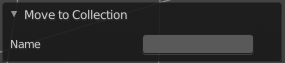
Name
Set a name for your new collection. When you haven't created a new collection, then this name stays blank.
Link to Collection
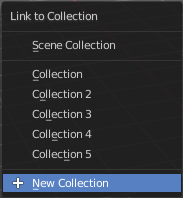
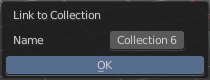
Links the object to a collection. The object remains in the collection it was in.
By clicking at this menu item a popup will appear to choose the collection. Here you can also create a new collection. Once done, the object will be linked to this new created collection.
Last Operator Link to Collection
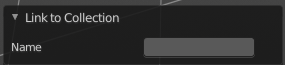
Name
Set a name for your new collection. When you haven't created a new collection, then this name stays blank.
| Entry | What it does |
|---|---|
| Remove From Collection | Objects can be in more than one collection. Remove from collection removes the selected object from the current collection. When the object is in no collection anymore, then it gets removed. |
| Remove From all Unlinked Collections | Objects can be in more than one collection. Remove from all unlinked collection removes the selected object from all unlinked collections. When the object is in no collection anymore, then it gets removed. |
| Add selected To Active Collection | Objects can be in more than one collection. Adds the selected object to the active collection. |
| Remove Selected From Active Collection | Objects can be in more than one collection. Removes the selected object from the active collection. When the object is in no collection anymore, then it gets removed. |
Shade Smooth, Shade Smooth and Shade Flat
Shade Smooth
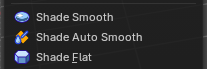
Shows with a mesh object. Sets the shading for the object to smooth. Smooth means that the sharp edges are no longer seen.
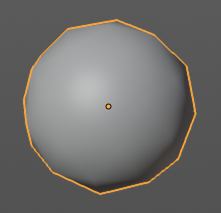
Shade Auto Smooth
Sets the shading for the object to smooth with Autosmooth activated. Autosmooth means that sharp edges above an angle threshold will have sharp faceted faces, meanwhile angles under the threshold will be smooth.
Last Operator Shade Smooth by angle
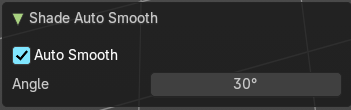
Auto Smooth
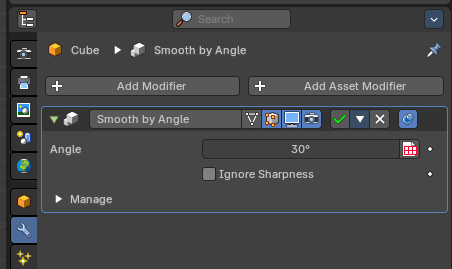
Creates a auto smooth modifier for auto smoothing in the modifier stack. Where you can adjust the settings at any further step. Else it applies the current auto smooth to the mesh normals.
Angle
Maximum angle between face normals that will be considered as smooth.
Shade Flat
Sets the shading for the object to flat. Flat means that every face of the object shows faceted, with a sharp edge.
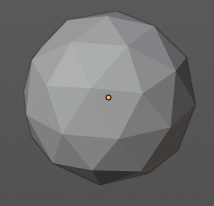
Animation
Insert Keyframe
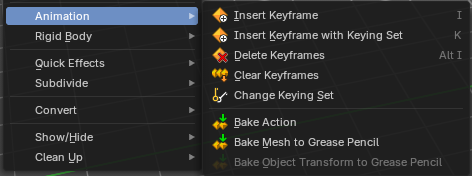
Inserts a key frame.
When your object does have a active keying set, then a click at the button inserts the key frame directly. When a keying set is missing then you will see a Insert Key frame menu choose the keying method.
Insert Keyframe with keying set
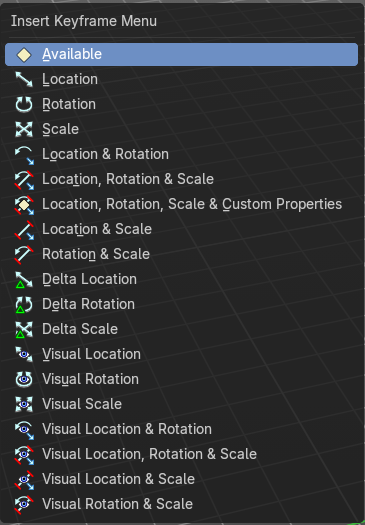
Calls the insert keyframe menu.
The keying set defines what kind of key frames gets recorded. When you start with an animation, and your object does not have a keying set yet, then you will be prompted with a menu choose the proper keying set. The Insert Key frame menu.
Note that this just adds a keying set to the current key frame. And not to the whole object. That's why the keying set menu down right stays empty when you add a key frame this way. And the insert keyframe menu also misses the Whole Character keying set.
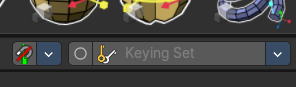
Delete Key frame
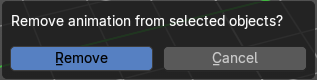
Removes the current active key frame for the selected object. You will get a confirmation dialogue.
Clear Key frames
Clears all animation, and removes all key frames for the selected object.
Change Keying set
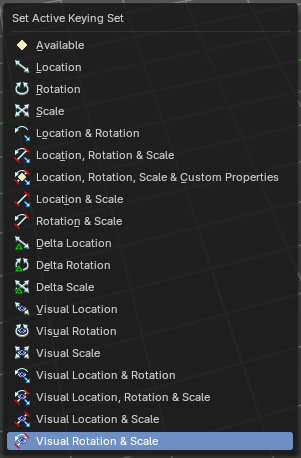
Calls the set active keying set menu in which you can change the active keying set.
Bake Action
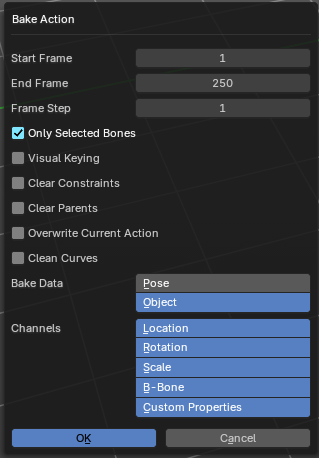
Bake Action bakes the object animation to a new action. Bake action calls a panel adjust the settings for the new action.
The upcoming panel has the same settings than the last operator panel.
Last Operator Bake Action
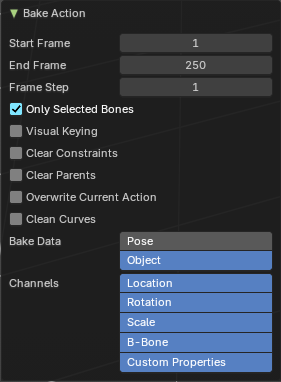
| Entry | What it does |
|---|---|
| Start Frame | Defines the start frame for baking. |
| End Frame | Defines the end frame for baking. |
| Frame Step | Defines the frame step for baking. |
| Only Selected Bones | Pose Baking only. |
| Visual Keying | Key frame from the final transform. |
| Clear Constraints | Remove all constraints from keyed objects / bones, and do visual keying. |
| Clear Parents | Bake animation onto the object, then clear parents (objects only) |
| Overwrite current Action | Bake Action into current action instead of creating a new one. |
| Clean Curves | After baking curves, remove redundant keys. |
| Bake Data | Which data transformations to bake to. You have the choice between Pose and Object here. |
| Channels | Which channels to bake to. |
Bake Mesh to Grease Pencil
Bakes mesh animation to grease pencil strokes.
Bake Mesh Animation to Grease Pencil
When you use the Bake Mesh to Grease Pencil tool then a menu pops up with further settings.
| Entry | What it does |
|---|---|
| Target Object | Target grease pencil object. Leave emtpy to create a new stroke. |
| Start Frame | The start frame of the animation. |
| End Frame | The end frame of the animation. |
| Step | Step between generated frames. |
| Thickness | The thickness of the grease pencil stroke. |
| Threshold Angle | Threshold to determine the end of the strokes. |
| Stroke Offset | Stroke offset from fill. |
| Only Seam Edges | Convert only seam edges. |
| Export Faces | Export faces as filled strokes. |
| Only Selected Keyframes | Convert only selected keyframes. |
| Target Frame | The destination frame. |
| Projection Type | How to project the grease pencil stroke. |
| OK | Accept the settings. |
Last Operator Bake Mesh Animation to Grease Pencil
In the last operator you can again adjust the settings. It is the same settings than in the settings dialog. So we won't cover it again.
Bake Object Transform to Grease Pencil
Bakes grease pencil object transforms into single grease pencil keyframes. You need to have a keyframe animation recorded already. The result can then be found in the dopesheet editor in grease pencil mode.
When you perform this tool then an option panel will open up.
Bake Transform to Grease Pencil panel
| Entry | What it does |
|---|---|
| Start Frame | The start frame to calculate. |
| End Frame | The end frame to calculate. Step The steps between generated frames |
| Only selected Keyframes | Convert only selected keyframes. |
| Target Frame | The destination frame. |
| Projection Type | If the grease pencil object should be reprojected, and with what method. |
Last Operator Bake Transform to Grease Pencil panel
The last operator contains the same settings than the settings panel.
Replace Action
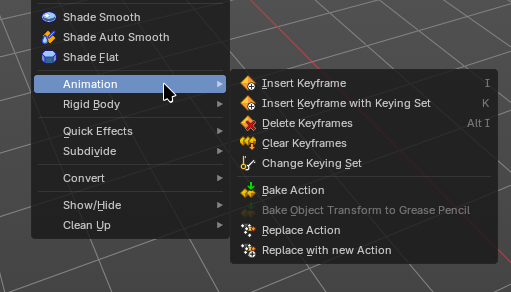
Swap all users of one action to another one. The normal action slot assignment rules apply. This ignores the NLA and Action Constraints
Replace Action New
Swap all users of one action to a new action. This ignores the NLA and Action Constraints
Rigid Body
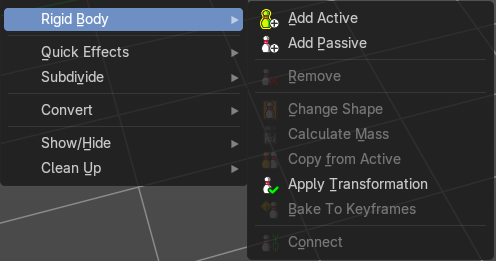
Rigid Bodies belongs to physics. And can be added and modified in the physics tab in the Properties editor. This menu items here is just a quick way to add and modify the most basic things from within the 3D view.
The greyed out menu items becomes active when a rigid body is at the object.
Add Active
Add Active adds a rigid body to the selected object. The type of this rigid body is active. This is useful for any
actively moving object. Characters, bullets, etc.
Add Passive
Add Active adds a rigid body to the selected object. The type of this rigid body is passive. This is useful for any static object, like ground for example.
Last Operator Add Rigid bodies
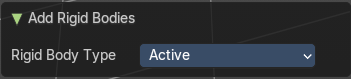
The rigid body type is a drop-down box choose if the type of the rigid body is active or passive.
Remove
Remove simply removes the rigid body from the current object.
Change shape
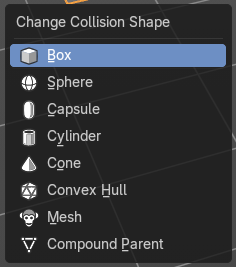
Change Shape opens a pop-up menu change the shape of your rigid body.
Last Operator Change Collision shape
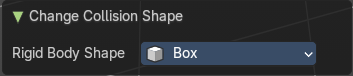
Rigid Body Shape is a pop-up menu change the shape of your rigid body again.
Calculate Mass
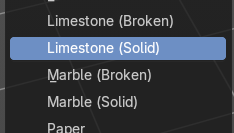
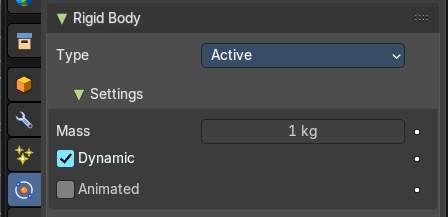
Calculate Mass does NOT calculate the mass. But gives you a long pop-up menu list choose between different predefined mass set-ups. The corresponding value will then be set in the physics settings in the Rigid Body settings.
Last Operator Calculate Mass
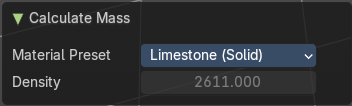
| Entry | What it does |
|---|---|
| Material Preset | Material Preset is a pop-up menu choose the type of preset again. |
| Density | Set a custom density for the material preset. |
Quick Effects
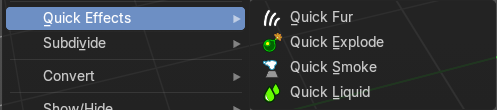
The quick effects menu contains some predefined basic Particle effects. They can be tweaked further in the Properties editor then.
You need to have a mesh object selected.
Quick Fur
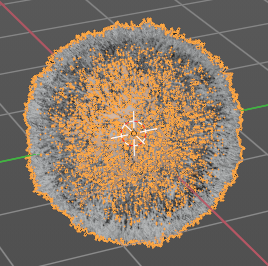
Adds a particle system with Fur settings.
Adust last operator Quick Fur
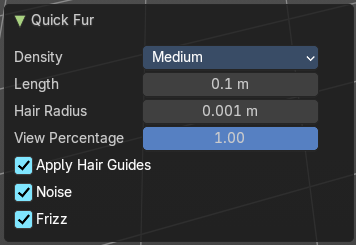
Density
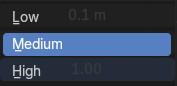
You can choose between low, medium and high.
| Entry | What it does |
|---|---|
| Length | The length of the fur. |
| Hair Radius | the diameter of the hair. |
| View Percentage | Adjust the density in the viewport. |
| Apply Hair Guides | Apply the hair guides. |
| Noise | Add noise to make the result more irregular. |
| Frizz | Add frizz to make the result more irregular. |
Quick Explode
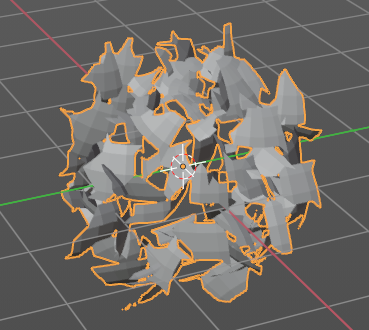
Adds a particle system that lets the selected object explode into pieces.
Hit play to play the animation.
Adust last operator Quick Explode
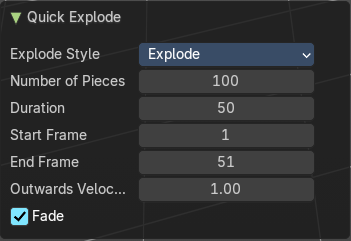
Explode Style
Explode
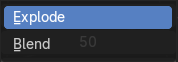
Explodes the current object.
Blend
Blends into another object. You need to have two objects selected.
| Entry | What it does |
|---|---|
| Number of Pieces | How much fragments the explosion should generate. |
| Duration | The duration of the animation. |
| Start Frame | The start frame of the animation. |
| End Frame | The end frame of the animation. |
| Outwards Velocity | The strength of the force that pushes the fragments around. |
| Fade | Fade the pieces over time. |
Quick Smoke
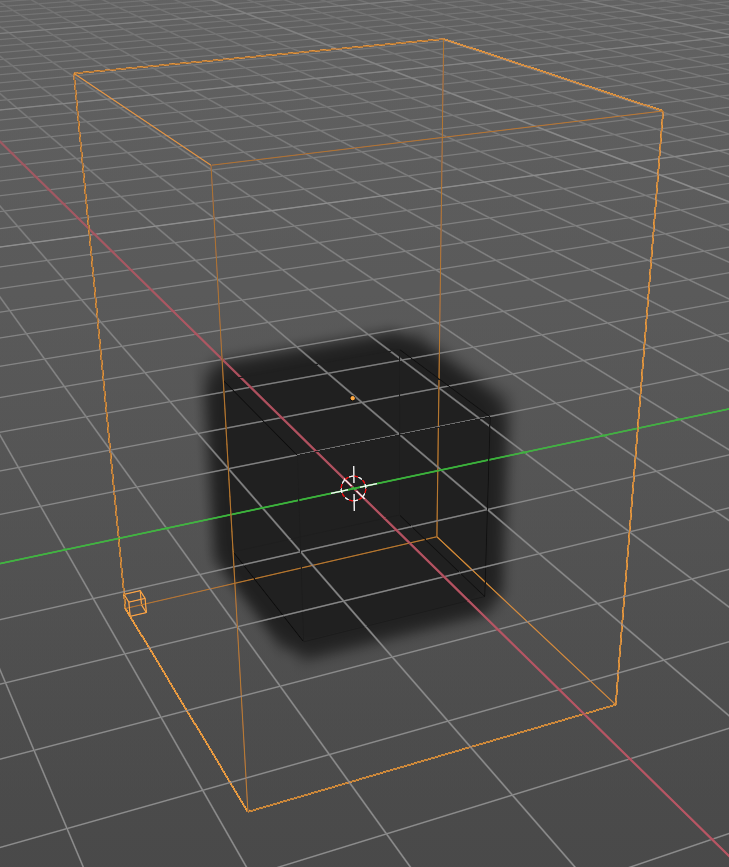
Adds a particle system with a simple smoke.
Hit play to play the animation.
Adust last operator Quick Smoke
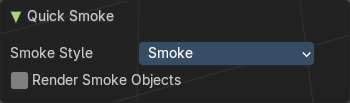
Smoke Style
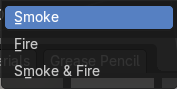
The smoke style. Just the smoke, just fire, or both.
Render Smoke Objects
Render the parent geometry
Quick Liquid
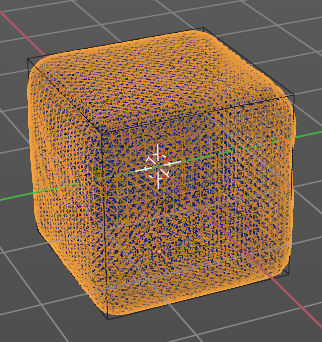
Adds a particle system with liquid settings. Note that the viewport rendering jumps to wireframe so that you can see the geometry.
Hit play to play the animation.
Adust last operator Quick Liquid
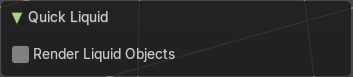
Render Liquid Objects
Render the parent geometry.
Subdivide
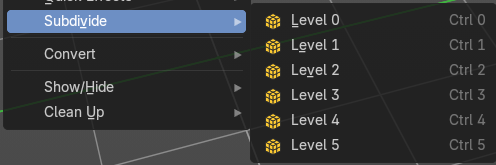
Subdivide is a menu where you can quickly set the subdivision level of the selection. What it does is to add a SDS modifier in the Properties Editor if required. And set the SDS level to the needed value. Crtrl 0 sets SDS to level 0. Ctrl 1 sets SDS level to 1 , and so on.
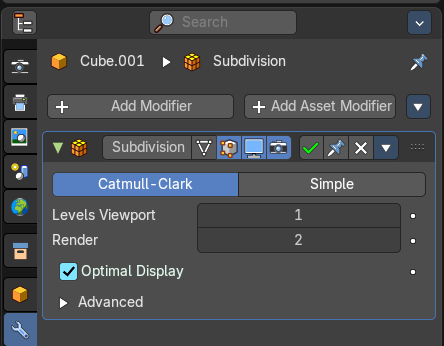
SDS happens at Object mode level. Even when you apply it in the Edit Mode! And it happens at the whole object.
Last Operator Subdivision Set
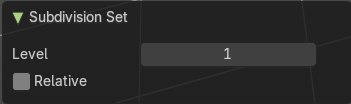
| Entry | What it does |
|---|---|
| Level | Adjust the SDS level. |
| Relative | Applies the Subsurf Level as an offset relative to the current level. |
Convert to
Convert to is a menu to convert object types to other object types. Not every object type can be converted to every object type though. A mesh cannot be converted to a grease pencil for example.
Note that different objects shows different content.
General
Mesh
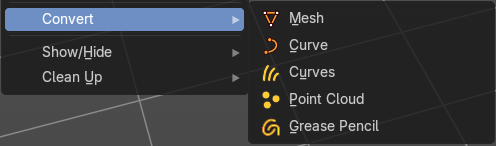
Converts a selected object to a Mesh Object.
| Entry | What it does |
|---|---|
| Curve | Converts a selected object to a Curve Object. |
| Curves | Converts a selected curve to a Hair curves object. |
| Point Cloud | Converts a selected object to a Point Cloud Object. |
| Grease Pencil | Converts a selected curve to a grease pencil stroke. |
Image object
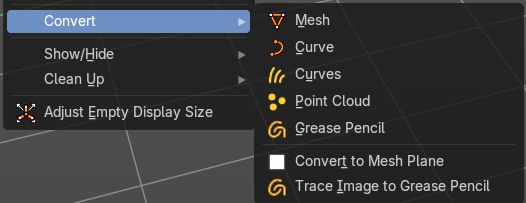
| Entry | What it does |
|---|---|
| Convert to Mesh Plane | Converts a selected image object to a mesh plane. |
| Trace Image to Grease Pencil | Extract Grease Pencil strokes from an image. |
Hair curve
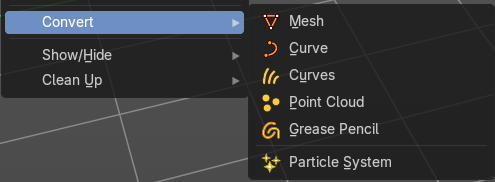
Particle System
Convert a curves hair object to a particle system.
Last Operator Convert to
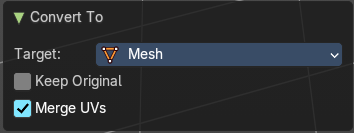
Target
Target is a drop-down box that allows you to choose the convert method again.
Target Point Cloud, Mesh, Curve
Keep Original
With this option ticked the original object gets kept. And a new object gets created.
Merge UV’s
Merge UV coordinates that share a vertex to account for imprecision in some modifiers.
Show/Hide
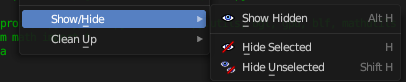
Sub-menu with shows or hide selection, unselected or hidden operators.
Show Hidden
Makes all geometry in the scene visible again.
Hide Selected
Hides the selected geometry.
Last Operator Hide Selected
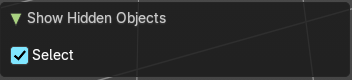
Select
Select revealed objects.
Clean Up
Sub-Menu with clean up operators to help do some house keeping when it comes to vertex groups, weights and material slots.
Clean Vertex Groups
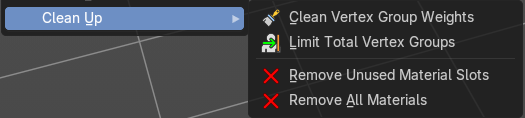
Remove vertex assignments that are not required. This will delete any zero influence vertex groups.
| Entry | What it does |
|---|---|
| Limit Total Vertex Groups | Limit deform weights associated with a vertex to a specified number by removing lowest weights. This will set a total amount of vertex group influences per vertice. |
| Remove Unused Material Slots | Removed unused material slots on the selected object. |
| Remove All Materials | Removes all materials on the selected object. |