

































































Navigation Menu
The Navigation menu provides you with all tools around viewport navigation. It is available in all modes.
All Modes - Navigation Menu
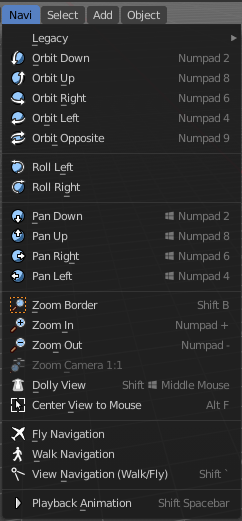
The Navigation menu provides you with all tools around viewport navigation. It is available in all modes.
Legacy

The legacy menu contains operators from the old tool system that already exists in the tool shelf and uses the new tool system.
Move
Activates the old move tool. The old move tool does not show a widget!
Note that the hotkey for this tool is not displayed correctly. But can't be fixed by us. The hotkey is ctrl W
| Entry | What it does |
|---|---|
| Snapping | Holding down Ctrl activates temporary global snapping. |
| Precision movement | When you hold down shift, then you will have a much slower but also much preciser movement. |
Header Values

When you move your object then you will see some values in the header, which defines the current position of the object.
The value m stands for the default metric system. Meters. You can change the units in the Properties editor in the Scene properties in the Units panel. When you choose kilometers here then you will see a km instead m.

The value D stands for the distance of the current selected axis. This can also be two axis. Then you have two d values. The value in the brackets is then the direct distance to the starting point.
These values are always relative to the starting point. You always start with zero, regardless of the real world position.
Numerical Input
When you move the object, and hold down the mouse and type in a value, like 20, then the movement will be performed by the value that you have typed in. In this case by 20 units in direction of the selected axis.
Limit Axis
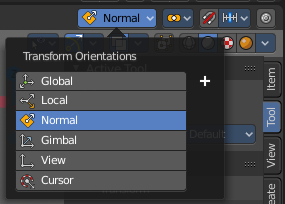
When you want to rotate a specific axis, then press X or Y or Z to limit the rotation to this axis. You usually start in global orientation. But you can change this in the Orientation settings.
By holding down the mouse button and pressing the X, Y or Z key twice you can toggle this to local. But also to other orientations. This depends in what orientation you start. With normal you can toggle that way between Normal and global.
This can be combined with the numerical input. Type in X, type in X again to use the local space, type in 20 to move by 20 units in local orientation. Release the mouse to confirm.
Orientation
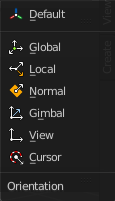
The widget can have different orientations. The menu items should be self explaining.
Last Operator Move
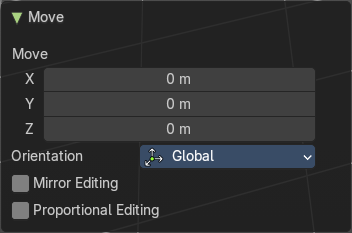
Move X, Y Z
The position. Attention, the actual world orientation and rotation does not matter here. It always starts with a value of zero, and moves relative to this zero then. For the actual location values have a look in the sidebar in the transform panel.
Orientation
The widget can have different orientations. The menu items should be self explaining.
Mirror Editing
Enables mirror editing.
Proportional editing
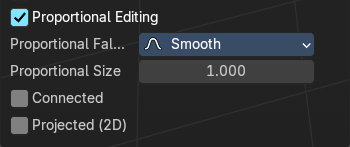
Enables proportional editing. Activating proportional editing reveals further settings.
| Entry | What it does |
|---|---|
| Proportional Falloff | Adjust the falloff methods. |
| Proportional Size | See and adjust the falloff radius. |
| Connected | The proportional falloff gets calculated for connected parts only. |
| Projected(2D) | The proportional falloff gets calculated in the screen space. Depth doesn't play a role. When it's in the radius, then it gets calculated. |
Rotate
Activates the old Rotate tool. This tool has no widget!
Snapping
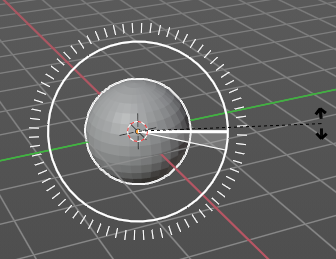
Holding down Ctrl activates temporary global snapping. It snaps then by 5 degrees steps.
When you use the white circle to rotate, then the widget also shows a division circle around the widget. This divisions shows even finer when you do precision rotation.
Precision rotation
When you hold down shift, then you will have a much slower but also much preciser rotation.
Header Values
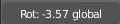
When you rotate your object then you will see some values in the header, which defines the current rotation of the object. The rotation is shown in degrees.
Numerical Input
When you rotate the object, and hold down the mouse and type in a value, like 20, then the rotation will be performed by the value that you have typed in. In this case by 20 degree around the selected axis.
Limit Axis

When you want to rotate a specific axis, then press X or Y or Z to limit the rotation to this axis. You usually start in global orientation. But you can change this in the Orientation settings.
By holding down the mouse button and pressing the X, Y or Z key twice you can toggle this to local. But also to other orientations. This depends in what orientation you start. With normal you can toggle that way between Normal and Global.
This can be combined with the numerical input. Type in X, type in X again to use the local space, type in 20 to rotate by 20 degree. Release the mouse to confirm.
Orientation
The 3d cursor can have different orientations. The menu items should be self explaining.
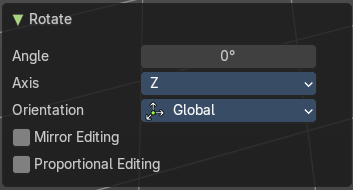
Last Operator Rotate
| Entry | What it does |
|---|---|
| Angle | The rotation. Attention, the actual world orientation and rotation does not matter here. It always starts with a value of zero, and rotates relative to this zero then. For the actual rotation values have a look in the sidebar in the transform panel. |
| Axis | Which axis to rotate. |
Orientation
The widget can have different orientations. The menu items should be self explaining.
Mirror Editing
Enables mirror editing.
Proportional editing
Enables proportional editing. Activating proportional editing reveals further settings.
| Entry | What it does |
|---|---|
| Proportional Falloff | Adjust the falloff methods. |
| Proportional Size | See and adjust the falloff radius. |
| Connected | The proportional falloff gets calculated for connected parts only. |
| Projected(2D) | The proportional falloff gets calculated in the screen space. Depth doesn't play a role. When it's in the radius, then it gets calculated. |
Scale
Activates the old Scale tool. This tool has no widget!
| Entry | What it does |
|---|---|
| Snapping | Holding down Ctrl activates temporary global snapping. |
| Precision Scale | When you hold down shift, then you will have a much slower but also much preciser scale. |
Header Values

When you scale your object then you will see some values in the header, which defines the current scale of the object.
These values are always relative to the starting point. You always start with 1, regardless of the real world scale.
Numerical Input
When you scale the object, and hold down the mouse and type in a value, like 20, then the scale will be performed by the value that you have typed in. In this case by factor 20 along the selected axis.
Limit Axis
When you want to rotate a specific axis, then press X or Y or Z to limit the scale to this axis. You usually start in global orientation. But you can change this in the Orientation settings.
By holding down the mouse button and pressing the X, Y or Z key twice you can toggle this to local. But also to other orientations. This depends in what orientation you start. With normal you can toggle that way between Normal and Global.
This can be combined with the numerical input. Hold down mouse, type in X, type in X again to use the local space, type in 20 to scale by 20 units. Release the mouse to confirm.
Orientation
The 3d cursor can have different orientations. The menu items should be self explaining.
Last Operator Resize
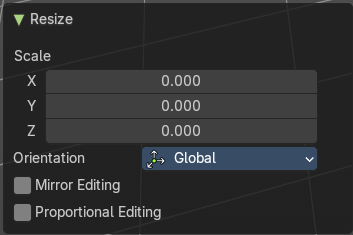
| Entry | What it does |
|---|---|
| Angle | The rotation. Attention, the actual world orientation and rotation does not matter here. It always starts with a value of zero, and rotates relative to this zero then. For the actual rotation values have a look in the sidebar in the transform panel. |
| Axis | Which axis to rotate. |
Orientation
The widget can have different orientations. The menu items should be self explaining.
Mirror Editing
Enables mirror editing.
Proportional editing
Enables proportional editing. Activating proportional editing reveals further settings.
| Entry | What it does |
|---|---|
| Proportional Falloff | Adjust the falloff methods. |
| Proportional Size | See and adjust the falloff radius. |
| Connected | The proportional falloff gets calculated for connected parts only. |
| Projected(2D) | The proportional falloff gets calculated in the screen space. Depth doesn't play a role. When it's in the radius, then it gets calculated. |
| Entry | What it does |
|---|---|
| Orbit Down | Orbits downwards. |
| Orbit Up | Orbits upwards. |
| Orbit Right | Orbits to the right. |
| Orbit Left | Orbits to the left. |
| Orbit Opposite | Rotates the view by 180 degree. |
| Roll Left | Rolls the viewport counter clockwise. |
| Roll Right | Rolls the viewport clockwise. |
| Pan Down | Pans the viewpoint downwards. The scene moves up. |
| Pan Up | Pans the viewpoint upwards. The scene moves down. |
| Pan Right | Pans the viewpoint to the right. The scene moves to the left. |
| Pan Left | Pans the viewpoint to the left. The scene moves to the right. |
| Zoom Region | Draws a rectangle and zooms then to fit the size of this rectangle. Zooming in is done with drawing the rectangle with left mouse button. Zooming out is done with drawing the rectangle with middle mouse button. |
| Zoom In | Zooms into the viewport. Works also in camera view. |
| Zoom Out | Zooms out of the viewport. Works also in camera view. |
| Zoom Camera 1:1 | Zooms the camera fitting to match the render output size by factor 1:1 |
| Dolly View | Dolly View is a special zoom mode. Be careful with this navigation method, you can easily trap yourself to not zoom able anymore! |
| Center View to Mouse | Centers the view to the current mouse position. |
| Fly Navigation | Switches to Fly navigation. In this view mode the camera acts like an air plane. Right click leaves the fly mode. |
| Walk Navigation | Switches to Walk Navigation. In this view mode the camera acts like a player in a first person shooter. Gravity will pull you down, The ground grid is the ground. And you can move around with WASD keys. Right click leaves the walk mode. |
| View Navigation | Switches to View Navigation Mode. In this view mode the view gets rotated moved and scaled from the Camera view point. Right Click leaves the view mode. |
| Playback Animation | Plays back an existing animation. |