

































































Mesh - Weight Paint mode - Weights menu
Weights the vertices from the connected bone envelopes. And takes the distance to the bone envelope into account.
Weight Paint Mode - Weights Menu
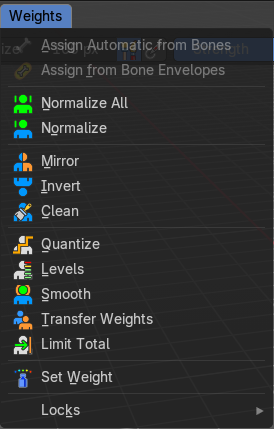
Assign from Bone Envelopes
Weights the vertices from the connected bone envelopes. And takes the distance to the bone envelope into account.
Assign Automatic from Bones
Weights the vertices connected with the bone. And takes the distance to the bone into account.
Last Operator Weight from Bones
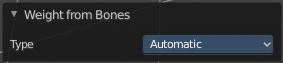
This last operator is the same for both tools. Assign Automatic from Bones, and Assign from Bone Envelopes.
Type
Choose if you want to Assign from Bone Envelopes, or from Bones.
Normalize All
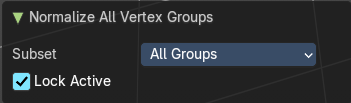
Normalize all normalizes the weight of all Vertex groups so that the values for the single vertices in the sum is 1.
Last Operator Normalize all
| Entry | What it does |
|---|---|
| Subset | Subset is a drop-down menu choose the Subset method. |
| Lock Active | Normalize just the other groups. Not the active group. |
Normalize
Normalize normalizes the weight of the current selected Vertex group so that the values for the single vertices in the sum is 1. Means when there is influence from other groups, then those values are kept, but the one for the current group gets lowered so that the sum is 1.
Mirror
Mirror Vertex Group mirrors Vertex Groups and flips weights and/or names. It only edits selected Vertices. It flips when both sides are selected. Otherwise it copies from Unselected.
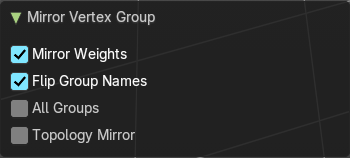
Last Operator Mirror Vertex Group
| Entry | What it does |
|---|---|
| Mirror Weights | With Mirror Weights ticked it mirrors the weights. |
| Flip Group Names | With Flip Group Names ticked it flips the Group names |
| All Groups | Mirrors all Vertex Groups. |
| Topology Mirror | Uses topology based mirroring. This requires matching mirrored topology. |
Invert
Invert inverts the weight painting for the selected vertex group.
Last Operator Invert Vertex Group
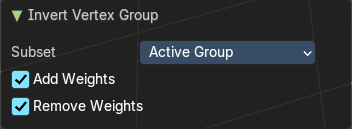
Subset
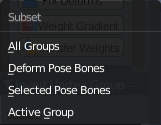
Subset is a drop-down menu choose the Subset method.
| Entry | What it does |
|---|---|
| Add Weights | Add Vertices from Groups that have zero Weighting before inverting. |
| Remove Weights | Remove Vertices from Groups that have zero weight after inverting. |
Clean
Removes Vertex group assignments that are not required from the active vertex group.
Last Operator Clean Vertex Group
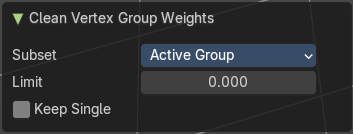
Subset
Subset is a drop-down menu choose the Subset method.
Limit
Remove weights that are below or equal to the limit value.
Keep Single
Keep Vertices assigned to at least one vertex group when cleaning.
Quantize
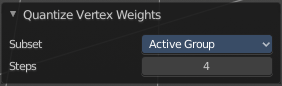
Quantize quantizes the weight paint values. It starts with 4 steps. With a step of 1 you have a single vertex color, no matter how you have painted it before.
Last Operator Quantize Vertex Weights
| Entry | What it does |
|---|---|
| Subset | Subset is a drop-down menu choose the Subset method. |
| Steps | Here you adjust in how many steps the weight paint colors should be divided. |
Levels
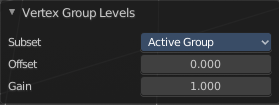
Adds some offset to the Weight paint, and multiplys it with some gain.
Last Operator Levels
Subset
Subset is a drop-down menu choose the Subset method.
Offset
Here you adjust the offset.
Gain
Here you adjust the gain.
Smooth
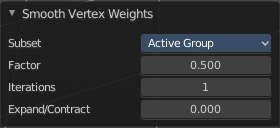
Smooths the weight for selected vertices.
Last Operator Smooth Vertex Weights
Subset
Subset is a drop-down menu choose the Subset method.
Factor
Here you adjust the factor.
| Entry | What it does |
|---|---|
| Iterations | Here you adjust how many iterations you use. |
| Expand/Contract | Expand or contract the weights. |
Transfer Weights
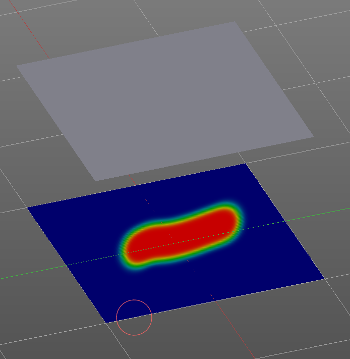
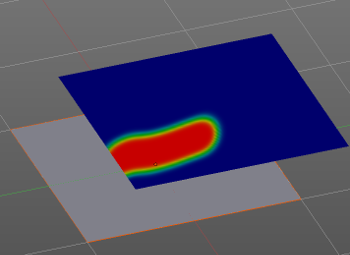
Transfer weights allows you to transfer weights from one object to another object in the same space. For example to copy the weight of a body shape to a covering cloth.
Usage
Make sure the target part is at its location.
In Object mode Select the source object(s). Then shift click to select the target object too. This makes the target object the active object
Switch to Weight Paint mode.
Click the Transfer Weight Button, and the weighting should be transferred to the target object.
You can adjust the result in the Last Operator Transfer Mesh Data panel.
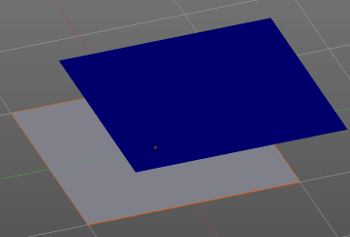
Last Operator Transfer Mesh Data
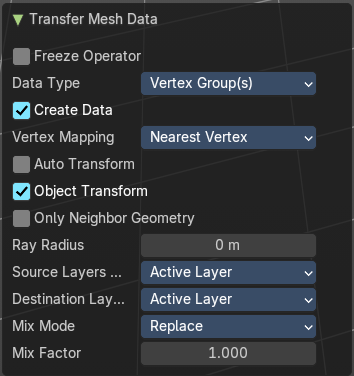
Freeze Operator
Prevent the operator to rerun when you tweak the settings. So that you can tweak many settings at once, then untick to run the operator again.
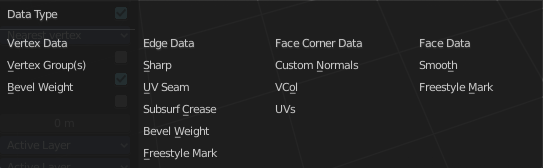
Data Type
A drop down box choose the data type to work with.
Create Data
Add Data layers on target object if needed.
Vertex Mapping
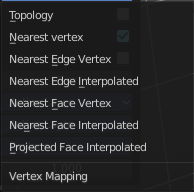
A drop down box choose the vertex mapping method.
| Entry | What it does |
|---|---|
| Auto Transform | Automatically compute transformation to get the best possible match between source and target object. |
| Object Transform | Calculate the objects in Global space. Unticked means the transfer happens from and to the origin of the objects. |
| Only Neighbor Geometry | Source Objects must be closer than given distance to the target objects. |
Ray Radius
The ray distance for Only Neighbor Geometry.
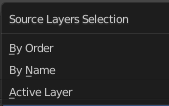
Source Layers Selection
A drop down box choose the Source Layer selection method.
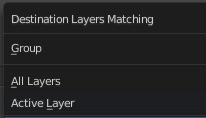
Destination Layers Matching
A drop down box choose the Destination Layers matching.
Mix Mode
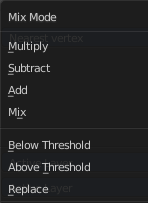
A drop down box choose the mix mode. That's how the mapping gets transferred into the target object.
Mix Factor
The strength of the chosen mix mode.
Limit Total
Limit the number of deform weights for a vertex by removing the lowest weights. For example when five vertex groups are assigned to one vertice, and you set the limit to 4, then the vertice will just be assigned to the four vertex groups with the highest weight. This is useful for game content where the game engine has a limit for how much bones can be connected to one vertice.
Last Operator Limit Number of Weights
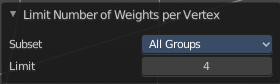
| Entry | What it does |
|---|---|
| Subset | A drop down box choose to work with the Active Group or All Groups. |
| Limit | Set the limit. |
Set Weight
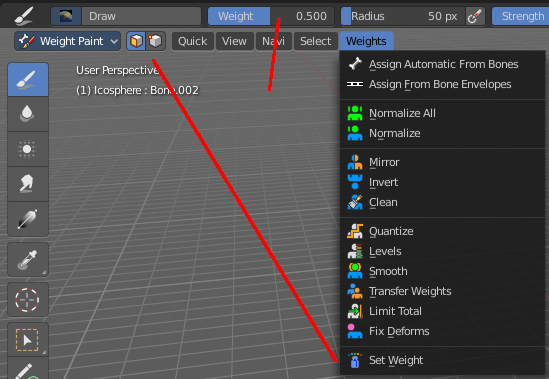
This tool is just active when you have either Face Selection Masking or Vertex Selection Masking activated.
The tool fills the selection with the current active weight color that you have adjusted in the Brush panel in the Tools tab in the Tool shelf.
Locks
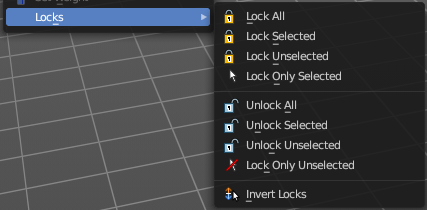
Locks is a sub menu with which you can modify the vertex group locks in the properties editor.
The names should be self explaining.
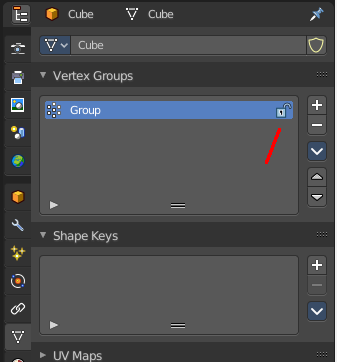
Last Operator Change Lock
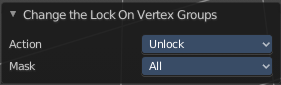
Action
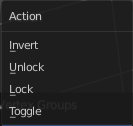
Choose the locking method again.
Mask
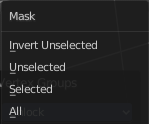
Choose what vertex groups should be affected.