

































































Mesh - Edit Mode - Vertex Menu
The Vertex menu just exists for mesh objects. It provides you with tools that are designed to modify vertices.
Edit Mode - Vertex Menu
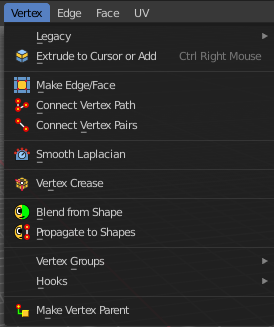
The Vertex menu just exists for mesh objects. It provides you with tools that are designed to modify vertices.
Legacy
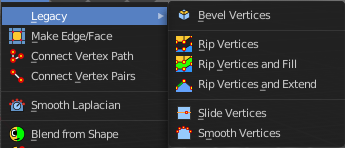
The legacy sub menu contains tools that exists in the tool shelf already. It's the old way to do things. Different to the tools in the tool shelf, these tools are usually modal. And performs once. You have to call them again in case you want to repeat the tool.
Bevel
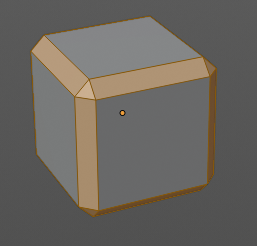
The Bevel Tool adds a bevel to the selected geometry.
Usage: first select the geometry that you want to bevel. Then activate the tool. Don't wonder that the mouse movement does nothing until you move the mouse really really far away. That's by design. Best is to adjust the amount in the Last Operator Bevel panel.
Last Operator Bevel
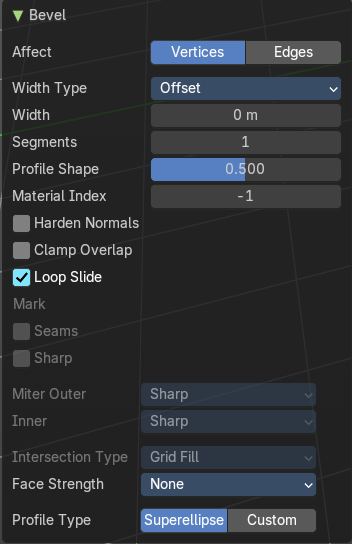
Affect
What geometry to bevel. Vertices or Edges.
Width type
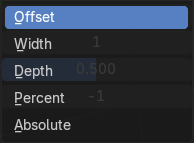
Which measure type to choose for the bevel action. Offset, Width, Depth or Percent.
Segments
How many segments gets created.
Profile Shape
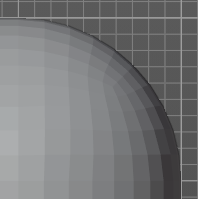
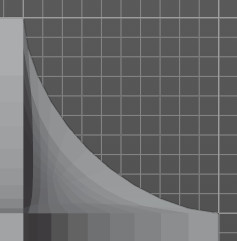
Controls the profile shape strength. A value close to 0 bends the roundness to inside. A value towards 1 bends the curve to outside. A value of 0.5 defines a radius around the center point of the bevel.
| Entry | What it does |
|---|---|
| Material Index | The material for bevel faces. -1 means to use the material from the adjacent faces. |
| Harden Normals | Match normals of new faces to adjacent faces. |
| Clamp Overlap | Do not allow beveled geometry to overlap each other. |
| Loop Slide | Prefer slide along edge to even widths. |
| Mark Seams | Mark the edges of the new created geometry as seams. |
| Mark Sharp | Mark the edges of the new created geometry sharp. |
Miter Outer
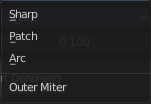
How the outer miter is set. Miter is how the bevel rounding at a corner is done.
Sharp
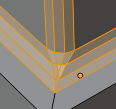
Creates a sharp miter.
Patch
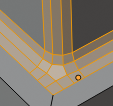
This replaces the outside vertex of a miter with 3 vertices. And uses a patch pattern there.
Arc
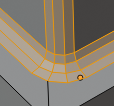
This replaces the vertex of a miter with 2 vertices, joined by an arc. A separate Spread parameter says how far to move the vertices away from their original position.
Inner
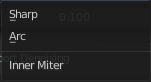
How the inner miter is set. Miter is how the bevel rounding at a corner is done.
Sharp
Creates a sharp miter.
Arc
This replaces the vertex of a miter with 2 vertices, joined by an arc. A separate Spread parameter says how far to move the vertices away from their original position.
Intersection Type
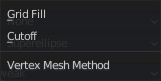
The method to use to create meshes at intersections. Bevel can create self intersecting geometry.
Face Strength
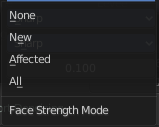
Set Face Strength on the faces involved in the bevel, according to the specified mode. This can be used in conjunction with a Weight Normals Modifier (with the Face Influence option checked).
| Entry | What it does |
|---|---|
| None | Do not set face strength. |
| New | Set the face strength of new faces along edges to Medium, and the face strength of new faces at vertices to Weak. |
| Affected | In addition to those set for the New case, also set the faces adjacent to new faces to have strength Strong. |
| All | In addition to those set for the Affected option, also set all the rest of the faces of the model to have strength Strong. |
Profile Type
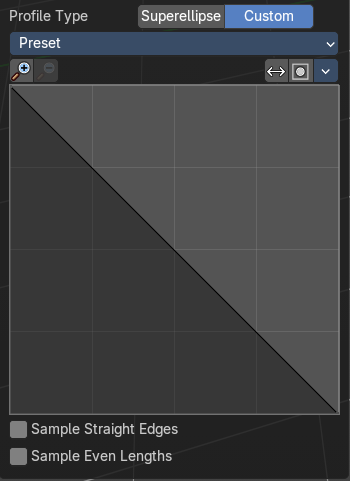
The profile type.
Superellipse
Uses a mathematically smooth curve for bevel profiles
Custom
Allows manual control of the bevel profile shape via a curve widget.
Presets
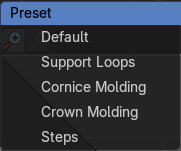
Curve presets.
Navigation elements
| Entry | What it does |
|---|---|
| Zoom in and out | The two buttons with the magnifying glass at it zooms in and out in the curve window. |
| Reverse Path | Reverses the curve path. |
| Toggle Profile Clipping | Turns the profile clipping on or off. |
Tools menu
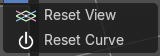
| Entry | What it does |
|---|---|
| Reset View | Resets the curve windows zoom. |
| Reset Curve | Resets the curve to the initial shape. |
Handler and node position

When you select a node, then the handler and node position tools shows below the curve window.
| Entry | What it does |
|---|---|
| Sample straigt edges | Sample edges with vector handles. |
| Sample even length | Sample edges with even lengths. |
Rip Vertices
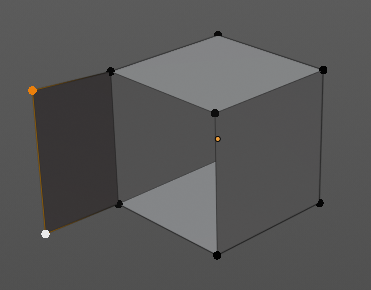
Rip splits the edges between the selected vertices. It creates two edges out of one.
This tool works similar to the Edge Split tool. It also selects the outer edges so that you immediately move them. Right click will snap them back to the initial space.
Last Operator Rip
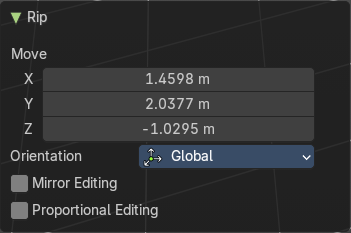
Move X , Y , Z
Adjust the position.
Orientation
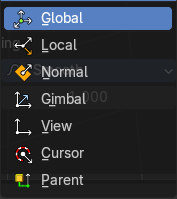
Orientation is a drop-down box. Choose the type of orientation for the mirroring action.
Mirror Editing
Enable mirror editing.
Proportional editing
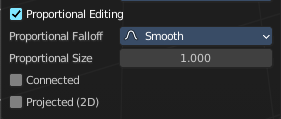
Enables proportional editing. Activating proportional editing reveals further settings.
Proportional Falloff
Adjust the falloff methods.
| Entry | What it does |
|---|---|
| Proportional Size | See and adjust the falloff radius. |
| Connected | The proportional falloff gets calculated for connected parts only. |
| Projected(2D) | The proportional falloff gets calculated in the screen space. Depth doesn't play a role. When it's in the radius, then it gets calculated. |
Rip Vertices and Fill
Rip splits the edges between the selected vertices. It creates two edges out of one. But fills the gap.
The last operator is the same than for the rip vertices tool above.
Rip Vertices and Extend
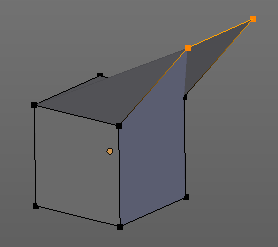
This tool is the same tool than the Rip Edge tool from the tool shelf.
Rip Vertices and Extend extrudes out the selected vertices. When you do this operation at an edge then you will create N-Gons that way.
Last Operator Extend Vertices
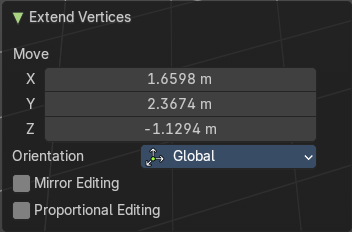
Move X , Y , Z
Adjust the position.
Orientation
Orientation is a drop-down box. Choose the type of orientation for the mirroring action.
| Entry | What it does |
|---|---|
| Mirror Editing | Enable mirror editing. |
| Proportional editing | Enables proportional editing. Activating proportional editing reveals further settings. · Proportional Falloff: Adjust the falloff methods. · Proportional Size: See and adjust the falloff radius. · Connected: The proportional falloff gets calculated for connected parts only. |
| Projected(2D) | The proportional falloff gets calculated in the screen space. Depth doesn't play a role. When it's in the radius, then it gets calculated. |
Slide Vertices
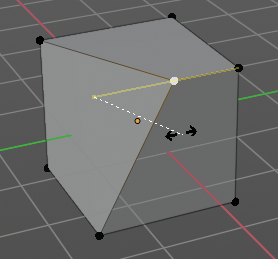
Same tool than the Vertex Slide in the Tool Shelf. Vertex Slide slides the selected vertice along the edge that it is part of. This is for the corner vertice at a cube into three possible directions.
Last Operator Vertex Slide
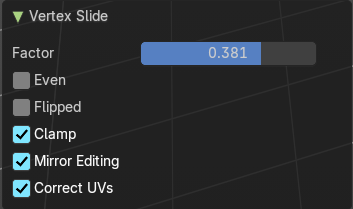
| Entry | What it does |
|---|---|
| Factor | Factor is a sliding box Adjust the slide strength numerically. The width of the face is the 0-1 range. |
| Even | Make the Edge loop match the shape of the adjacent edge loop. |
| Flipped | When Even Mode is active, flips between the two adjacent edge loops. |
| Clamp | Clamp within the edge extend. |
| Mirror Editing | Enable mirror editing. |
| Correct UV's | Correct UV's corrects the UV's while editing the geometry. |
Smooth Vertices
Same tool than in the tool shelf. Smoothens the selected vertices.
Last Operator Smooth Vertices
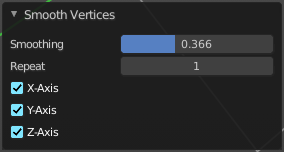
| Entry | What it does |
|---|---|
| Smoothing | The smoothing factor. |
| Repeat | How often the smoothing should be applied. |
| X Axis, Y Axis, Z Axis | Which axis to affect. |
Extrude to Cursor or Add
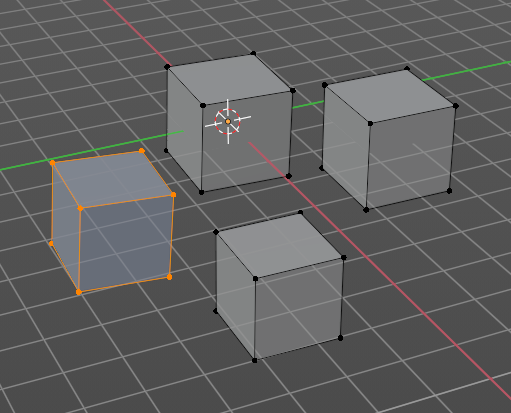
Extrude to the mouse position.
Howto: activate the tool. then right click into the workspace by holding down the ctrl key.
In the header you will see a message that the tool waits for input.
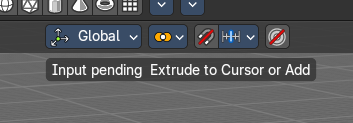
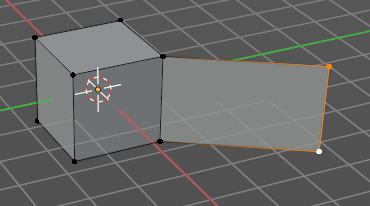
This tool has two functionalities. If the whole geometry is selected, then it creates a copy of the geometry at the mouse position, randomly rotated by a small amount. If just elements are selected, then it extrudes this element to the mouse position.
Make Edge/Face
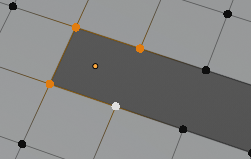
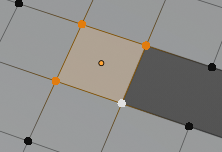
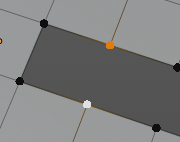
Adds a face when you have edges selected. And Edges when you have Vertices selected. It's a Bridge tool.
You can have either the one method or the other. When you select two adjacent vertices, then you select the edge too. And the tool works in edge mode then. In this case just the possible faces gets created. Not edges between single vertices.
First select the edges or Vertices that you want to bridge. Then click the New Edge/Face from Vertices Button.
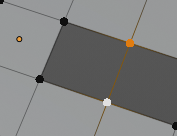
Connect Vertex Path
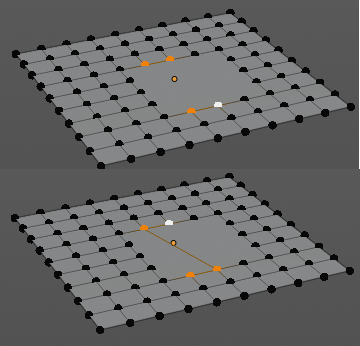
Connect Vertex path connects selected vertices, but takes the vertex order into account in which you selected the vertices. It just creates edges between vertices that are not connected in this order.
Connect Vertex Pair
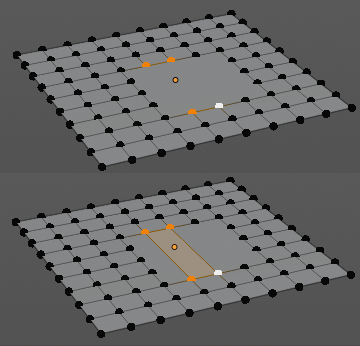
Connect Vertex pair connects selected vertices and makes a face of the pairs.
Smooth Laplacian
Laplacian Smooth Vertex smooths out the angles between the selected vertices. It is a tool to reduce noise at the mesh. It works a bit different than the normal Smooth Vertex tool. And gives a different result. The Laplacian method allows you to preserve the volume, and to adjust border smoothing.
Last Operator Laplacian Smooth Vertex
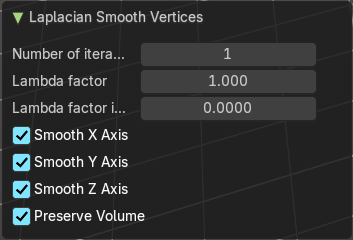
| Entry | What it does |
|---|---|
| Number of Iterations | Number of Iterations is the number of iterations that the smoothing action gets repeated. With 1 the smoothing is just performed once. With 10 it is performed ten times. |
| Lambda Factor | Lambda Factor is the strength of the smoothing. |
| Lambda Factor in border | Lambda Factor is the strength of the smoothing in border areas. |
| Smooth Axis | The Smooth Axis check boxes allows you to limit the smoothing to specific world axis. |
| Preserve Volume | Preserve Volume preserves the volume of the object. |
Vertex Crease
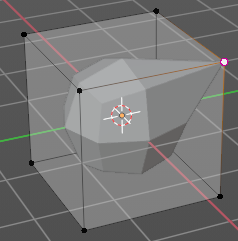
When you use a Subdivision Surface Modifier, then you can define the sharpness of selected vertices with this tool. Crease vertices will be marked colored in edit mode.
You will see a value in the header that indicates the current strength when you activate the tool. Move with the mouse to increase or decrease the value. Or type in a value while you are in this mode. You can also scale into negative range.
A negative crease value will subtract from the current active crease value in case it exists already from a former crease operation. A Crease value of -1 removes the crease from this edge.
Last Operator Vertex Crease
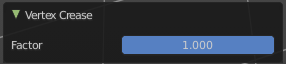
Factor
Adjust the crease factor.
Blend from Shape
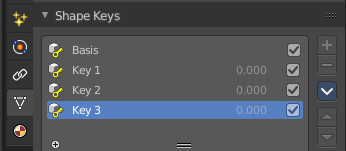
This tool requires to have a shape key at the mesh. It blends the selected shape key into the mesh.
Last Operator Blend from Shape
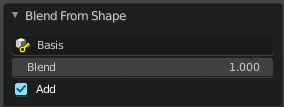
| Entry | What it does |
|---|---|
| Drop-down box | Define which shape key should be used. |
| Blend edit box | Adjust the blend factor between the current shape and the shape that you want to blend here. |
| Add | Add to blend shape instead of blending in. |
Propagate to Shapes
This tool requires to have a shape key at the mesh. It applies the current vertex locations for the selected vertices to all other shape keys at the mesh.
Vertex Groups
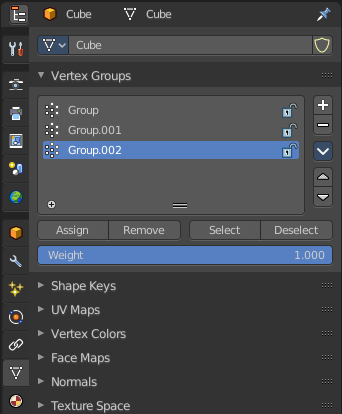
Vertex groups is a menu around vertex group functionality. The vertex groups can be found in the Object data tab in the Properties editor.
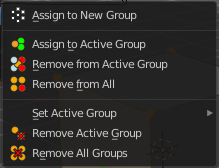
When there is no vertex group assigned yet then you can only see one menu item. The Assign To New Group button.
Once you have a vertex group assigned you will see the full functionality.
| Entry | What it does |
|---|---|
| Assign to New Group | Assigns the mesh selection to a new vertex group. |
| Assign to active Group | Assigns the mesh selection to the currently active vertex group. |
| Remove from Active Group | Removes the mesh selection from the currently active vertex group. |
| Remove from All | Removes the mesh selection from all vertex groups. |
Set Active Group

Select a vertex group to be the active one.
| Entry | What it does |
|---|---|
| Remove Active Group | Removes the currently active vertex group. |
| Remove All Groups | Removes all vertex groups from the mesh. |
Hooks
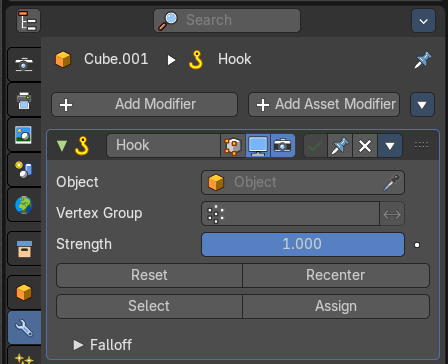
Hooks is a menu with tools around the hook modifier. You could also adjust the hook modifier from the Properties editor. But the menu items are more accessible.
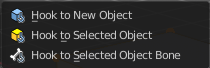
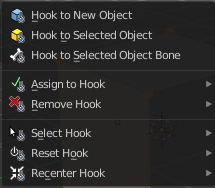
When there is no hook modifier at the mesh then you just see three menu items. When there is minimum one hook modifier applied, then you will see an extended menu.
Hook to New Object
Creates a new Hook Modifier for the active object and assigns it to the selected vertices. It also creates an empty at the center of those vertices, which are hooked to it.
Hook to Selected Object
Does the same as Hook to New Object, but instead of hooking the vertices to a new empty, it hooks them to the selected object (if it exists). There should be only one selected object (besides the mesh being edited).
Last Operator Hook to Selected Object
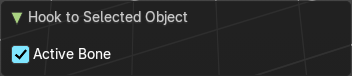
Active Bone
Hook to the object(s) of the active bone.
| Entry | What it does |
|---|---|
| Hook to Selected Object Bone | Does the same as Hook to New Object. B**ut it sets the last selected bone in the also selected armature as a target. |
| Assign to Hook | Assign the selected vertices to the chosen hook modifier. Existing hooks gets overwritten. One vertex can be assigned to more than one hook. |
| Remove Hook | Removes the chosen Hook Modifier from the object. |
| Select Hook | Selects all vertices assigned to the chosen Hook Modifier. |
| Reset Hook | Resets the chosen Hook Modifier. |
| Recenter Hook | Recenter the Hook Modifier. |
Make Vertex Parent
Parents another object to the selected vertice(s).
Workflow:
In Object mode select the object that you want to parent to a vertex. Shift select the parent object so that both are selected. Enter Edit mode. Then select one vertex for a single point. Or three for an area. Then click the Make Vertex Parent button to make the relation.