

































































Mesh - Edit mode - UV menu
Here you find the uv mapping methods and some further functionality. You use it best in the U Editing layout. There you can see the result in the UV Editor then.
Edit Mode - UV Menu
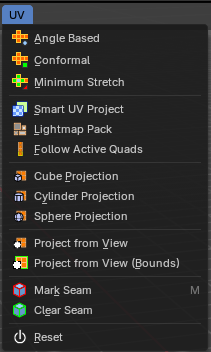
Here you find the uv mapping methods and some further functionality. You use it best in the U Editing layout. There you can see the result in the UV Editor then.
The UV menu is just available for Mesh objects.
| Entry | What it does |
|---|---|
| Angle Based | Unwraps the selected geometry with the method Angle based. ABF stands for Angle Based Flattening. ABF can give a bit better result than LSCM when unwrapping organic shapes. |
| Conformal | Unwraps the selected geometry with the method LSCM, which is the short for Least Square Conformal Mapping. LSCM can give a bit better results than ABF with geometric shapes. |
Minimum Stretch
Unwraps the selected geometry with the method SLIM, which is a “state-of-the-art” iterative UV unwrapping algorithm.
Last Operator Unwrap
Method
Method is a drop down box where you can choose the unwrap method.
Method Angle based + Conformal
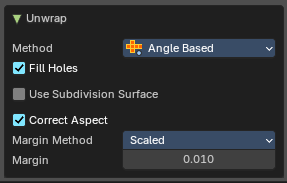
Unwrap ABF and Unwrap LSCM shares the same Last Operator.
Method
Method is a drop down box where you can choose between Unwrap method Angle Based and Conformal.
Fill Holes
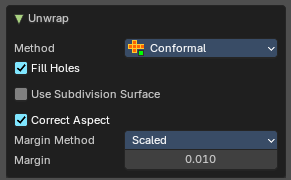
Fill holes in the mesh before unwrapping.
| Entry | What it does |
|---|---|
| Use Subdivision Surface | Unwraps an existing Subdivision Modifier. You need to add a Subdivision Modifier first. |
| Correct Aspect | Take the Image Aspect Ratio into account. |
Margin Method
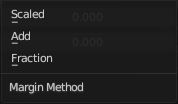
| Entry | What it does |
|---|---|
| Scaled | Use the scale of existing UV to multiply margin. |
| Add | Just add the margin and ignore any existing UV. |
| Fraction | Specify a precise fraction of specific UV. |
Margin
The distance between the single UV patches.
Method Minimum Stretch
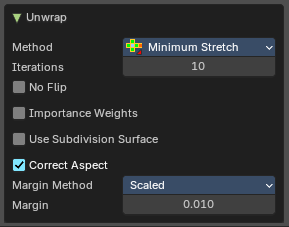
Iterations
Number of iterations.
| Entry | What it does |
|---|---|
| No Flip | Prevent flipping UV's |
| Importance Weight | Take per vertex importance weights into account. |
| Use Subdivision Surface | Unwraps an existing Subdivision Modifier. You need to add a Subdivision Modifier first. |
| Correct Aspect | Take the Image Aspect Ratio into account. |
Margin Method
| Entry | What it does |
|---|---|
| Scaled | Use the scale of existing UV to multiply margin. |
| Add | Just add the margin and ignore any existing UV. |
| Fraction | Specify a precise fraction of specific UV. |
Margin
The distance between the single UV patches.
Smart UV Project
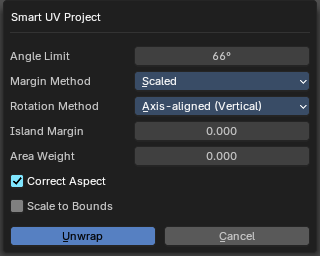
Smart UV Project projects the UV mapping from different angles.
Smart UV Project Settings dialogue
Angle Limit
The Angle Limit defines after which angle the mapping happens from the next side. With an angle of 66 you have around six sides to map from. The calculation is 360/66.
Margin Method
| Entry | What it does |
|---|---|
| Scaled | Use the scale of existing UV to multiply margin. |
| Add | Just add the margin and ignore any existing UV. |
| Fraction | Specify a precise fraction of specific UV. |
Rotation Method
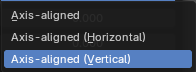
How to rotate islands.
| Entry | What it does |
|---|---|
| Island Margin | Island Margin defines the distance between the UV patches. |
| Area Weight | Weight Projection Vector by faces with larger areas. |
| Correct Aspect | Take the Image Aspect Ratio into account. |
Last Operator Smart UV Project
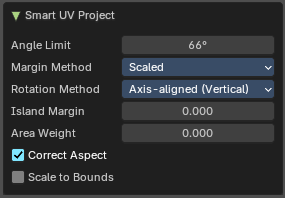
The Last Operator for Smart UV Project contains the same settings than the Smart UV Project Settings dialogue.
Lightmap Pack
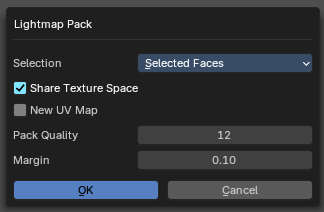
Lightmap Pack maps each face individually, and puts the result into the UV space. Without margin.
Lightmap Pack has no Last Operator.
Settings
| Entry | What it does |
|---|---|
| Selection | Selection is a drop-down box where you can choose what will be packed, either Selected Faces or All Faces. |
| Share Tex Space | Map all objects into one lightmap. |
| New UV Map | Create a new UV map for every new mesh. |
| Pack Quality | The pack quality. |
| Margin | The distance between the single UV patches. |
Follow Active Quads
Follow Active quads maps UV coordinates starting from an active face, and maps all adjacent faces in quad shape then. This way you can for example unwrap a pipe or a road. You first need to have a face selected. Then select everything. And then click at Follow Active Quads.
Settings
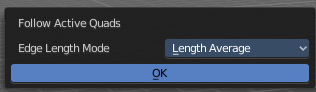
Edge Length Mode
Edge Length Mode is a drop-down box where you can choose the Length method.
Last Operator Follow Active Quads
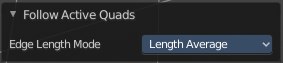
The Last Operator contains the same settings than the Settings dialogue.
Cube Projection
Cube Projection maps the mesh from six sides, means cubic.
Last Operator Cube Projection
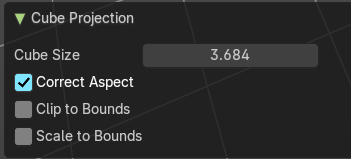
| Entry | What it does |
|---|---|
| Cube Size | Cube Size defines the size of the UV mesh in the UV space. |
| Correct Aspect | Take Image Aspect ratio into account. |
| Clip to Bounds | Clip UV Coordinates to bounds after unwrapping. |
| Scale to Bounds | Scale UV Coordinates to bounds after unwrapping. |
Cylinder Projection
Cylinder Projection tries to map the geometry cylindric.
Last Operator Cylinder Projection
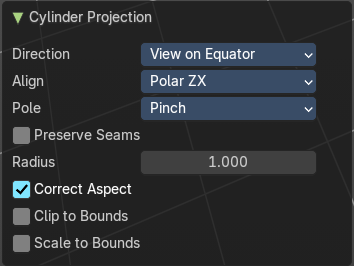
Direction
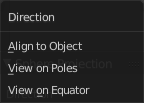
Direction is a drop-down box where you can choose in which direction the spherical projection will be mapped.
Align
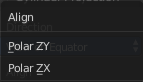
Align is a drop-down box where you can choose the Align method.
Pole
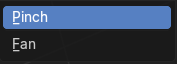
How to handle the faces at the poles.
| Entry | What it does |
|---|---|
| Preserve Seams | Keep existing seams intact. |
| Radius | Radius defines the Polar size of the UV mesh in the UV space. |
| Correct Aspect | Take Image Aspect ratio into account. |
| Clip to Bounds | Clip UV Coordinates to bounds after unwrapping. |
| Scale to Bounds | Scale UV Coordinates to bounds after unwrapping. |
Sphere Projection
Sphere Projection tries to map the geometry spherical.
Last Operator Sphere Projection
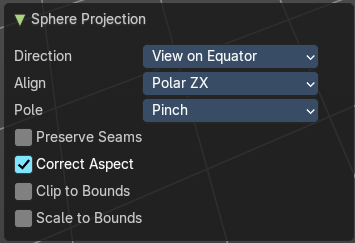
Direction
Direction is a drop-down box where you can choose in which direction the spherical projection will be mapped.
Align
Align is a drop-down box where you can choose the Align method.
Pole
How to handle the faces at the poles.
| Entry | What it does |
|---|---|
| Preserve Seams | Keep existing seams intact. |
| Correct Aspect | Take Image Aspect ratio into account. |
| Clip to Bounds | Clip UV Coordinates to bounds after unwrapping. |
| Scale to Bounds | Scale UV Coordinates to bounds after unwrapping. |
Project from View
Project from View projects the UV from the current 3D view.
Last Operator Project from View
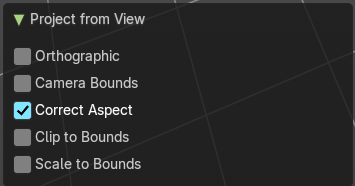
| Entry | What it does |
|---|---|
| Orthographic | User orthographic projection. |
| Camera Bounds | Map UV's to the camera region taking resolution and aspect into account. |
| Correct Aspect | Take Image Aspect ratio into account. |
| Clip to Bounds | Clip UV Coordinates to bounds after unwrapping. |
| Scale to Bounds | Scale UV Coordinates to bounds after unwrapping. |
Project from View (Bounds)
Project from View projects the UV from the current 3D view.
Same as Project from View, but with Scale to Bounds ticked in the Last operator. And so it scales to the bounds.
Mark Seam
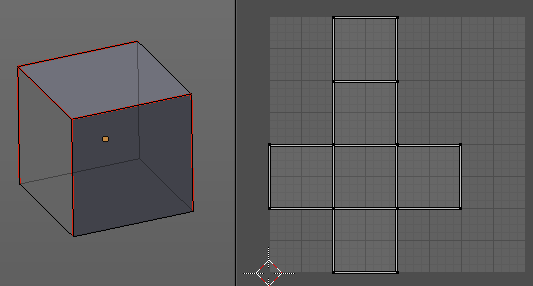
The unwrap algorithms Angle based and Conformal requires to have edges marked as seams. Think of it as a cutting pattern for a trouser for example. Such a trouser is also made of fabric patterns.
Same goes for the UV patches when you use Angle based or conformal unwrapping. You need to cut your mesh into parts and mark edges as seams, so that the algorithm knows where the seams are.
Mark seam marks the currently selected edge(s) as a seam. Seam edges will be displayed as red in the 3D viewport.
| Entry | What it does |
|---|---|
| Clear Seam | Clear seam removes the seam from the currently selected edge(s). |
| Reset | Resets the UV Projection. |