

































































Mesh - Edit mode - Edge Menu
The legacy sub menu contains tools that exists in the tool shelf already. It's the old way to do things. Different to the tools in the tool shelf, these tools are usually modal. And performs once. You have to call them…
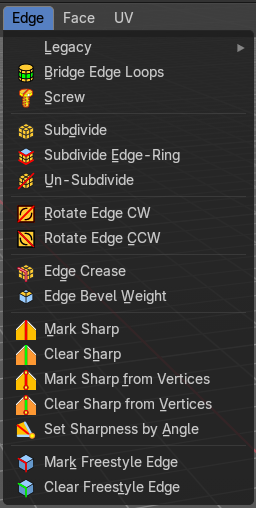
Edit Mode - Edge Menu
Legacy
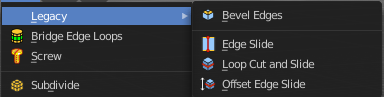
The legacy sub menu contains tools that exists in the tool shelf already. It's the old way to do things. Different to the tools in the tool shelf, these tools are usually modal. And performs once. You have to call them again in case you want to repeat the tool.
Bevel Edges
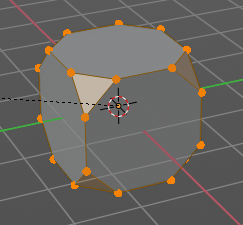
The Bevel Tool adds a bevel to the selected Edges.
Usage: first select the geometry that you want to bevel. Then activate the tool and drag the mouse. You need to drag quite a bit outwards until you see an effect. So don't wonder when the mouse movement seem to do nothing. You can also adjust the amount in the Last Operator Bevel panel afterwards.
In the header you can see further advice. And the current values for the bevel.

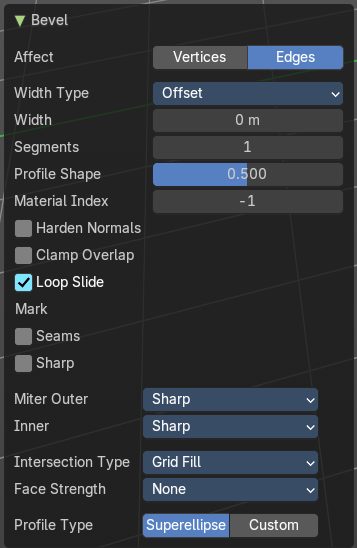
Last Operator Bevel
Width type
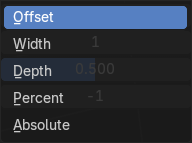
Width Type is a drop-down box choose the Amount type for the bevel action.
| Entry | What it does |
|---|---|
| Offset | Amount is offset of new edges from original. |
| Width | Amount is width of new face. |
| Depth | Amount is perpendicular distance from original edge to bevel face |
| Percent | Controls the Profile shape. 0.5 means round. |
| Absolute | Amount is absolute distance along adjacent edge. |
| Harden Normals | Match normals to new faces of adjacent faces. |
| Clamp Overlap | Do not allow beveled geometry to overlap each other. |
| Loop Slide | Prefer slide along edge to even widths. |
| Mark Seams | Mark seams along the beveled edges. |
| Mark Sharp | Mark the beveled edges sharp. |
Miter Outer
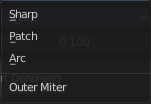
How the outer miter is set. Miter is how the bevel rounding at a corner is done.
Sharp
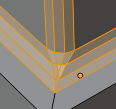
Creates a sharp miter.
Patch
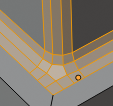
This replaces the outside vertex of a miter with 3 vertices. And uses a patch pattern there.
Arc
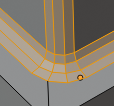
This replaces the vertex of a miter with 2 vertices, joined by an arc. A separate Spread parameter says how far to move the vertices away from their original position.
Miter Inner
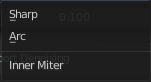
How the inner miter is set. Miter is how the bevel rounding at a corner is done.
Sharp
Creates a sharp miter.
Arc
This replaces the vertex of a miter with 2 vertices, joined by an arc. A separate Spread parameter says how far to move the vertices away from their original position.
Spread
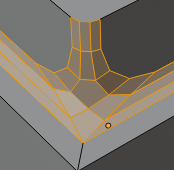
Belongs to inner miter method Arc. Adjust how strong the inner radius is bent.
Intersection type
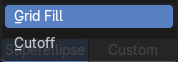
The method used to create geometry at intersections.
Face Strength
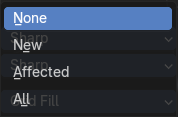
Wether to set face strength, and which faces to set the strength at.
Profile Type
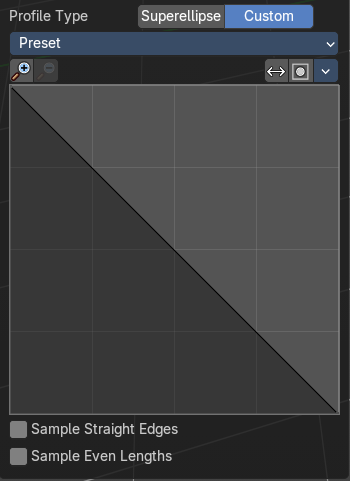
The profile type.
Superellipse
Uses a mathematically smooth curve for bevel profiles
Custom
Allows manual control of the bevel profile shape via a curve widget.
Presets
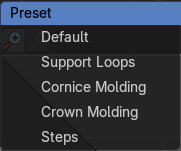
Curve presets.
Navigation elements
| Entry | What it does |
|---|---|
| Zoom in and out | The two buttons with the magnifying glass at it zooms in and out in the curve window. |
| Reverse Path | Reverses the curve path. |
| Toggle Profile Clipping | Turns the profile clipping on or off. |
Tools menu
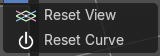
| Entry | What it does |
|---|---|
| Reset View | Resets the curve windows zoom. |
| Reset Curve | Resets the curve to the initial shape. |
Curve view
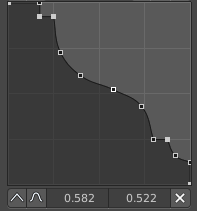
Adjust the profile curve.
Left click where no point is adds a new point. Left click at a point allows you to move it.
Holding down Shift while moving a node point activates precision movement.
Holding down ctrl while moving activates temporary snapping.
When a point is selected then the curve view reveals a sub menu at the bottom.
Handler and node position

When you select a node, then the handler and node position tools shows below the curve window.
| Entry | What it does |
|---|---|
| Handle Type Auto Handle | Sets the handle type of this curve point to smooth. |
| Handle Type Vector Handle | Sets the handle type of this curve point to sharp. |
| Handle Type Free Handle | Sets the handle type of this curve to Free handles. The curve point has now two handles with which you can adjust the curve before and after the point each. |
| Handle Type Aligned Free Handle | Sets the handle type of this curve to Free handles. The curve point has now a handle with which you can adjust the curve. |
| X Y Values | The position of the currently selected curve point |
| Entry | What it does |
|---|---|
| Sample straigt edges | Sample edges with vector handles. |
| Sample even length | Sample edges with even lengths. |
Edge Slide
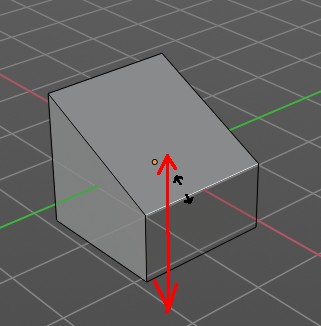
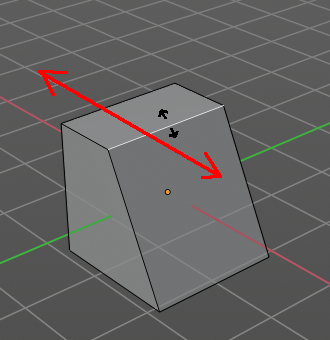
Same tool than in the tool shelf. Edge Slide slides the selected edge along the face that it is part of. This is for the edge at a cube into two possible directions.
This tool requires to have at least one edge selected.
Header Values

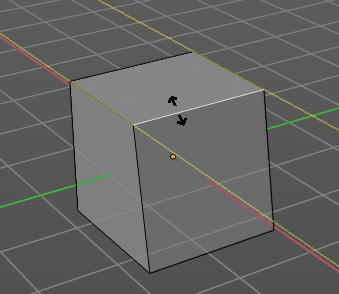
The header values shows you the current transformation. But also hints towards a hotkey.
Holding down Alt will allow you to slide the edges behind the limits of the guide edge. Yellow infinite guide lines appears.
Last Operator Edge Slide
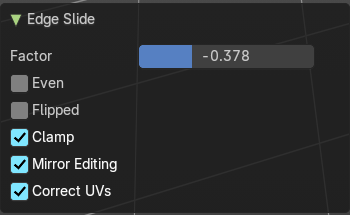
| Entry | What it does |
|---|---|
| Factor | Factor is a sliding box Adjust the slide strength numerically. The width of the face is the 0-1 range. |
| Even | Make the Edge loop match the shape of the adjacent edge loop. |
| Flipped | When Even Mode is active, flips between the two adjacent edge loops. |
| Clamp | Clamp within the edge extend. |
| Mirror Editing | Enables mirror editing. |
| Correct UV's | Correct UV's corrects the UV's while editing the geometry. |
Loop Cut and Slide
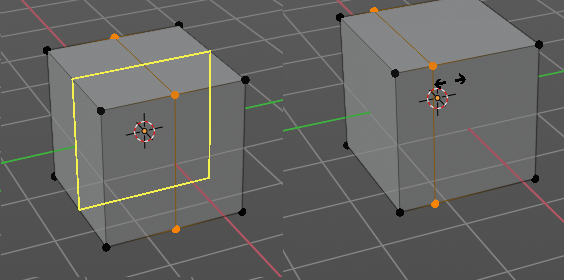
Loop Cut and Slide adds edge loops to divide faces
When you click once, then this edge gets created. When you click and hold, then you can move this edge to a new location.
Loop cut and Slide ignores selections. It will try to divide the face under the mouse, and continue the loop until it is closed, or until it cannot continue.
Last Operator Loop Cut and Slide
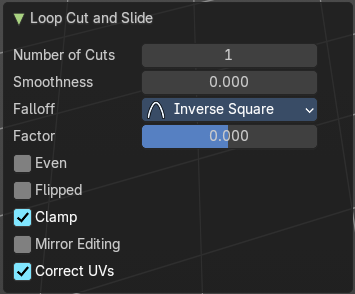
Note that all settings here just changes the latest added loop. Not all added loops in the current session.
Number of Cuts
The number of cuts that gets added. It can be more than one loop at once.
Smoothness
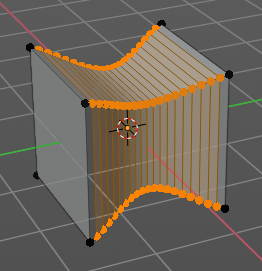
This value defines how smooth the loop cut gets added. From flat to bent.
Falloff
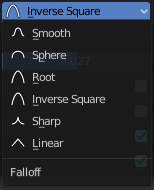
Adjust the Falloff type for smoothness.
| Entry | What it does |
|---|---|
| Factor | Change the center of the added loop. |
| Even | Make the edge loop match the shape of the adjacent edge loop |
| Flipped | When Even mode is active, flips between the two adjacent edge loops. |
| Clamp | Clamp within the edge extend. |
| Mirror Editing | Enable mirror editing. |
| Correct UV's | Corrects the UV's when modifying the geometry. |
Offset Edge Slide
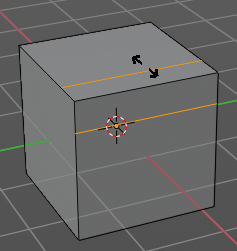
The tool is called Offset Edge Loop Cut in the tool shelf. Slides the selected edge(s).
Usage: select the edges that you want to slide. Click to confirm.
You can adjust the sliding amount in the Last Operator Offset Edge Slide.
Last Operator Offset Edge Slide
Cap Endpoint
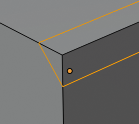
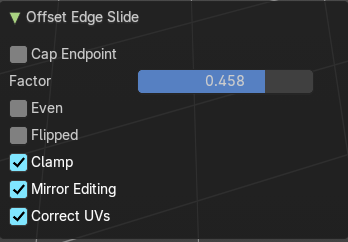
Cap Endpoint caps the loose edges.
| Entry | What it does |
|---|---|
| Edge Slide Factor | Adjust the slide amount. |
| Even | Make the edge loop match the shape of the adjacent edge loop |
| Flipped | When Even mode is active, flips between the two adjacent edge loops. |
| Clamp | Clamp within the edge extend. |
Mirror Editing
Enable mirror editing.
Correct UV's
Corrects the UV's when modifying the geometry.
Bridge Edge loops
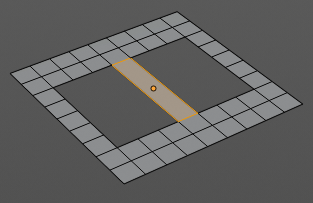
The Bridge edge loops tool bridges selected edges, and adds a polygon between them. You need to have at least two edges selected.
Last Operator Bridge Edge loops
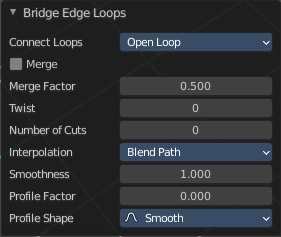
Connect Loops
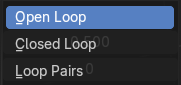
Choose the method how to deal with bridging multiple loops.
| Entry | What it does |
|---|---|
| Merge | With merge ticked it will not create a bridge face, but merge the selected edges. · Merge Factor: The merge factor determines at which distance between the selected edges the merge happens. 0.5 is the middle of the selected edges. |
| Twist | The twist offset for closed loops. |
| Number of Cuts | Adds cuts to the bridge face. |
Interpolation
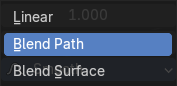
Choose the interpolation mode for the cuts.
| Entry | What it does |
|---|---|
| Smoothness | Adjust the smoothness for the cuts. |
| Profile Factor | Adjust the profile factor for the cuts. |
Profile shape
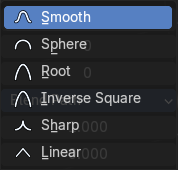
Adjust the profile shape for the cuts.
Subdivide
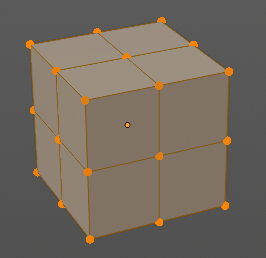
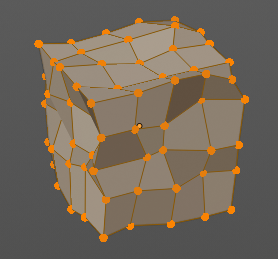
Subdivide divides the selected edges. It subdivides the involved faces too, and can create new vertices.
A more unknown functionality is that it can also randomize the result with the Fractal slider in the Last operator panel.
Last Operator Subdivide
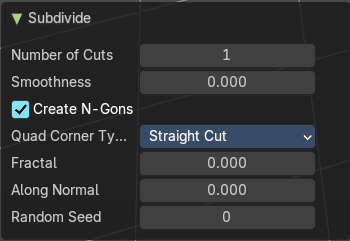
Number of Cuts
The number of cuts defines the amount of subdivisions.
Smoothness
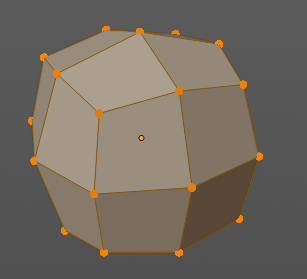
This value defines how smooth the subdivision result is. From flat to bent.
Create N-Gons
Create N-Gons if required. Else subdividing N-Gons creates Tris.
Quad Corner Type
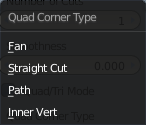
Adjust the corner type.
| Entry | What it does |
|---|---|
| Fractal | Randomize the selected vertices. |
| Along Normal | When randomized, this value defines how strong the subdivision follows the normals of the initial vertices. |
| Random Seed | Randomizing value for fractal randomizing. |
Subdivide Edge ring
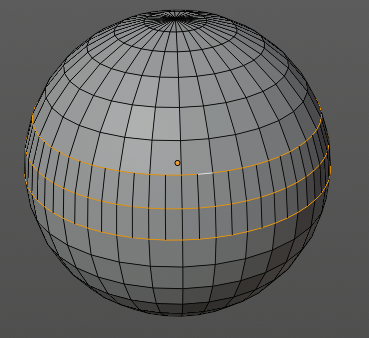
Subdivides the selected edge ring(s).
Last Operator Subdivide Edge ring
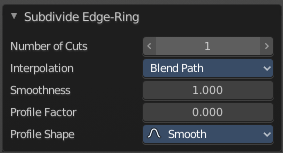
| Entry | What it does |
|---|---|
| Number of Cuts | Adjust the number of cuts for the subdivision. |
| Interpolation | Choose an interpolation method for the new geometry. Linear ends in an equal division and a flat result. Blend Surface interpolates the surrounding geometry. And can end in a curvy result. |
Smoothness
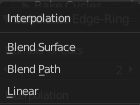
The Smoothness factor for the interpolation.
Profile Factor
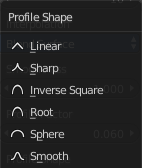
The profile strength.
Profile Shape
A drop-down box where you can define a profile for the generated geometry.
Un-Subdivide
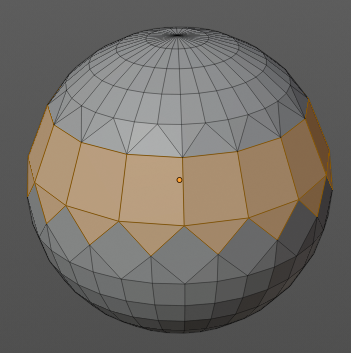
Decimates the geometry by trying to make one quad out of four quads. But can also end in Tris where this is not possible.
Last Operator Un-Subdivide
Iterations
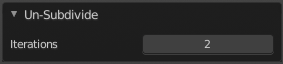
Number of iterations. This means how deep the calculation should go. One level of SDS, two levels, three levels, etc.. Down to the point where you cannot decimate any geometry anymore.
Rotate Edge CW
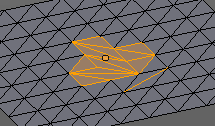
Rotate Edge rotates the selected edge clockwise.
Rotate Edge CCW
Rotate Edge rotates the selected edge counter clockwise.
Last Operator Rotate Selected Edge
Counter Clockwise
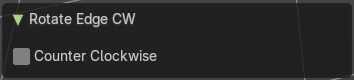
Rotate selected edges counter clockwise.
Edge Crease
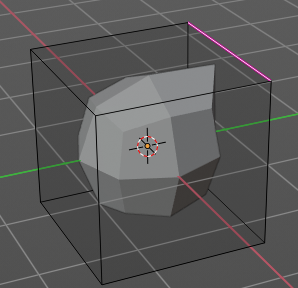
When you use a Subdivision Surface Modifier, then you can define the sharpness of selected edges with this tool. Crease edges will be marked colored in edit mode.
You will see a value in the header that indicates the current strength when you activate the tool. Move with the mouse to increase or decrease the value. Or type in a value while you are in this mode. You can also scale into negative range.
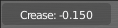
A negative crease value will subtract from the current active crease value in case it exists already from a former crease operation. A Crease value of -1 removes the crease from this edge.
Last Operator Edge Crease
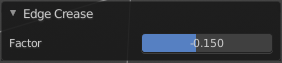
Factor
Adjust the crease factor.
Edge Bevel Weight
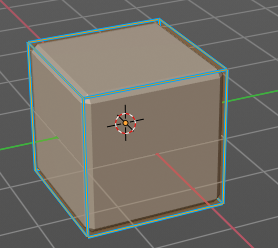
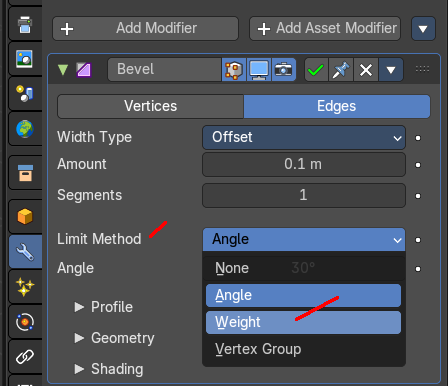
This tool adjusts the edge bevel weight for selected edges when you use the Bevel modifier at the mesh.
You need to have set the limit method to Weight. This way you can achieve a bevel weight for every individual selected edge if you want, and achieve different bevel strengths at the mesh.
You will see a value in the header that indicates the current strength when you activate the tool. Move with the mouse to increase or decrease the value. Or type in a value while you are in this mode. You can also scale into negative range.

A negative Edge Bevel Weight value will subtract from the current active crease value in case it exists already from a former crease operation. An Edge Bevel Weight value of -1 removes the weight from this edge.
Last Operator Edge Bevel Weight
Factor
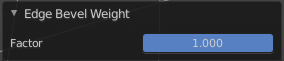
Adjust the Edge Bevel Weight factor.
Mark Sharp
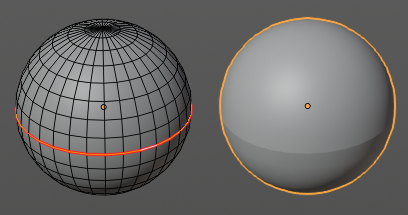
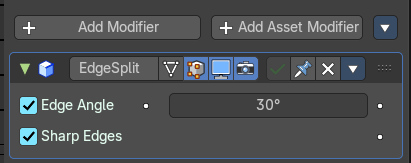
Mark Sharp is a tool that you need for the Edge Split modifier. Marked edges are displayed and rendered as sharp edges.
Last Operator Mark Sharp
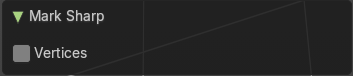
Vertices
Calculate by the selected vertices instead of edges to mark the edges.
Clear Sharp
Clears formerly as sharp marked selected edges.
Last Operator Mark Sharp
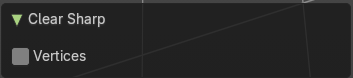
Vertices
Calculate by the selected vertices instead of edges to mark the edges.
| Entry | What it does |
|---|---|
| Mark Sharp from Vertices | Same as Mark Sharp, but with Vertices already ticked in the Adjust Last Operation panel. The calculation happens from the selected vertices instead of the selected edges. |
| Clear Sharp from Vertice | Same as Clear Sharp, but with Vertices already ticked in the Adjust Last Operation panel. The calculation happens from the selected vertices instead of the selected edges. the selected edges as Freestyle feature edges. |
Set Sharpness by Angle
Set edge sharpness based on the angle between neighboring faces.
Last Operator Set Sharpness by Angle
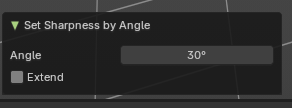
| Entry | What it does |
|---|---|
| Angle | Sets the angle the sharp edges will be defined by. Any edge angle over this angle will be marked. |
| Extend | Add new sharp edges without clearing the existing sharp edges. |
Mark Freestyle Edge
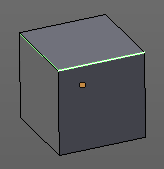
Freestyle is a comic renderer that is included in Bforartists. Mark Freestyle Edges marks
Clear Freestyle Edge
Freestyle is a comic renderer that is included in Bforartists. Clear Freestyle Edges unmarks the selected edges as Freestyle feature edges.