

































































Header tools and Options
The header in the 3D view contains various menus and tools. This chapter here is about the tools, modes and options elements in the header.
Introduction
The header in the 3D view contains various menus and tools. This chapter here is about the tools, modes and options elements in the header.
The text menus are covered in a own chapter each. They vary too much, dependent of mode and object type.
Mode Drop-down Box
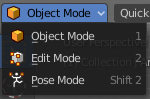
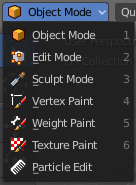
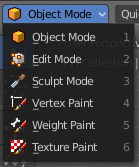
The Mode drop-down box allows you to switch between the different modes.
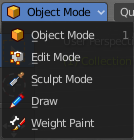
Modes are object states that allows you to edit and manipulate objects at different levels with different tool sets and goals. The sculpt mode for example allows you to sculpt a mesh object. Edit Mode allows to manipulate the mesh of the object, and so on.
The available modes can differ from object to object. An armature for example has an additional pose mode. And when you work with a grease pencil object, then several grease pencil modes becomes available.
| Entry | What it does |
|---|---|
| Object Mode | This mode allows to manipulate objects at Object level. Like move it around, rotate it, etc. This mode is available for all object types. |
| Edit Mode | The edit mode allows to edit the object. With a mesh object this means that you are able to modify and to change the geometry. With an armature you build your skeleton. And with a text object you can type in text, and choose the font etc. Not all objects has an edit mode. |
| Sculpt Mode | In this mode you can sculpt the mesh. This mode is available for mesh and grease pencil objects. |
| Vertex Paint | Vertex Paint is a mesh object only mode. In this mode you can paint vertices with colors. |
| Weight Paint | In this mode you can adjust weight painting for an armature for example. But Weight Painted mesh objects can also be used in conjunction with particles. Also a grease pencil stroke can be weight painted. |
| Texture Paint | Weight Paint is a mesh object only mode. In this mode you can paint at the texture of a mesh directly. This mode requires to have a working UV mapping and a texture at the mesh object. |
| Edit Strokes | Edit Strokes is a Grease Pencil only mode. It allows to manipulate the curves at a mesh level. |
| Particle Edit | Particle edit is a Particle System mode only. When you apply a particle system to a mesh object then this mode becomes available. It allows you to manipulate the particle system at a mesh level. You can comb hair particles for example. |
| Draw | Draw is a grease pencil object only mode. In this mode you draw grease pencil strokes. |
Mesh Object Sub Modes
The different modes can have some sub modes. For example different selection methods in mesh edit mode. Or a mask mode for texture painting. The sub mode settings can be found right from the Modes drop down box.
Edit Mode - Mesh Select Modes

When you enter the edit mode with a mesh object then you will see the mesh select modes. They allows you to switch between the three available selection modes Vertice select, Edge Select and Face Select.
Vertex Select allows you to select vertices.
Edge Select allows you to select edges.
Face select allows you to select faces.
The mesh display changes, dependent of the mode. When you have for example select vertices active, then the vertices highlights at the mesh.
You can have more than one mode active by shift clicking at the other mesh select modes.
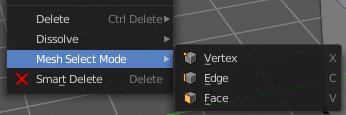
The standard Bforartists has hotkeys to switch between the modes. X, C and V. You cannot see or edit them at the header element. There is however a sub menu in the mesh menu, called Mesh Select Mode. Here you can see and edit the hotkeys.
Vertex Paint - Mask and Vertex Selection

Paint Mask
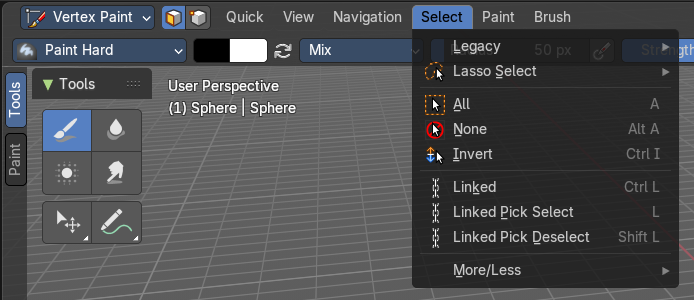
When you activate this tool then you reveal a Select menu in the header. And you can select the mesh parts that you want to manipulate. Note that you may first want to deselect all. By default everything is selected ...
The select menu is explained in the chapter Vertex Paint modes. The menu items should be pretty self explaining though.
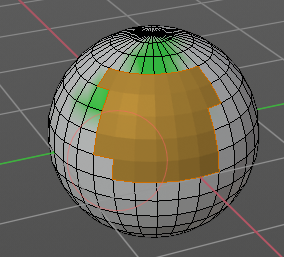
When you have selected a part of the mesh, then you can just paint the faces at this selected part. The edges are the border.
Vertex Selection
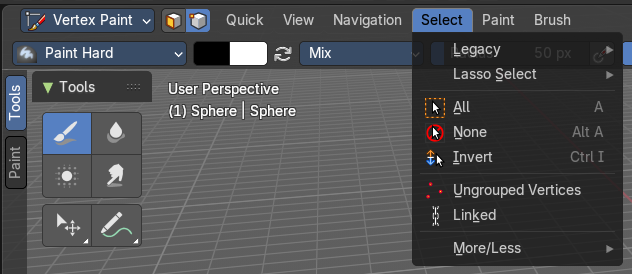
When you activate this tool then you reveal a Select menu in the header. And you can select the mesh parts that you want to manipulate. This tool is meant for Weight Painting. And so the mesh displays the vertices too.
Note that you may first want to deselect all. By default everything is selected ...
The select menu is explained in the chapter Vertex Paint modes. The menu items should be pretty self explaining though.
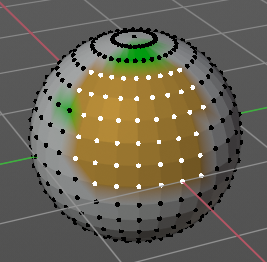
When you have selected a part of the mesh, then you can just paint the vertices at this selected part. The difference to the Paint mask method is that here the edges are not the border of the color. But there is a gradient between the vertices.
Weight Paint - Mask and Vertex Selection

Paint Mask
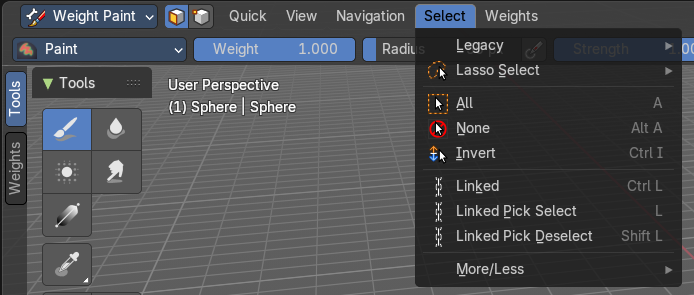
Mesh Object.
When you activate this tool then you reveal a Select menu in the header. And you can select the mesh parts that you want to manipulate. Note that you may first want to deselect all. By default everything is selected ...
The select menu is explained in the chapter Vertex Paint modes. The menu items should be pretty self explaining though.
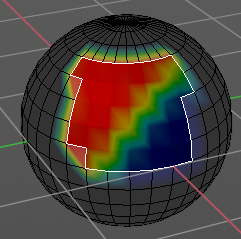
When you have selected a part of the mesh, then you can just paint the faces at this selected part. The edges are the border.
Vertex Selection
Mesh Object.
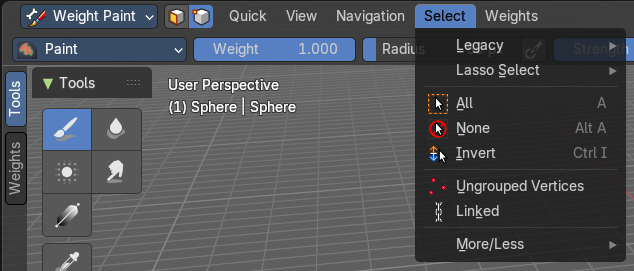
When you activate this tool then you reveal a Select menu in the header. And you can select the mesh parts that you want to manipulate. This tool is meant for Weight Painting. And so the mesh displays the vertices too.
Note that you may first want to deselect all. By default everything is selected ...
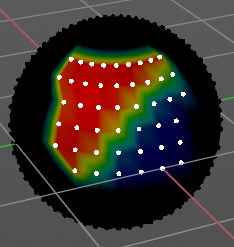
The select menu is explained in the chapter Vertex Paint modes. The menu items should be pretty self explaining though.
When you have selected a part of the mesh, then you can just paint the vertices at this selected part. There is no real difference to the faces method. The selection is the same.
Texture Paint - Mask Selection
Paint Mask
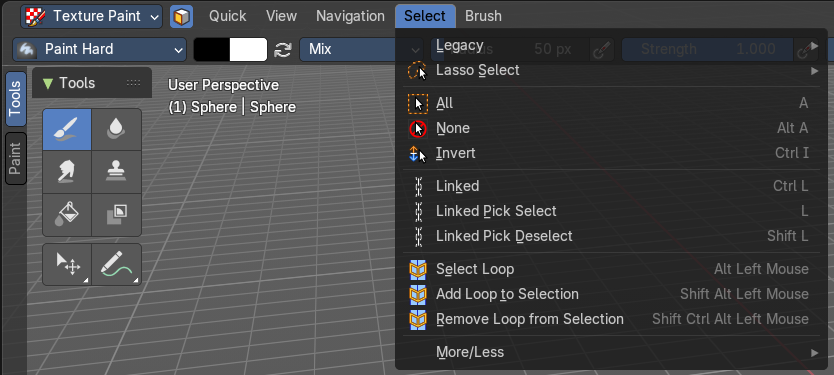
Mesh Object.
When you activate this tool then you reveal a Select menu in the header. And you can select the mesh parts that you want to manipulate. Note that you may first want to deselect all. By default everything is selected ...
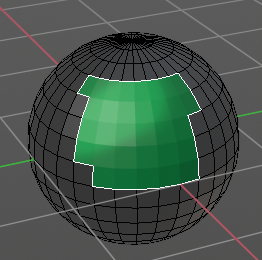
The select menu is explained in the chapter Vertex Paint modes. The menu items should be pretty self explaining though.
When you have selected a part of the mesh, then you can just paint the faces at this selected part. The edges are the border.
Particle Edit - Select Modes

Mesh Object with a particle system. You can just have one method active at a time.
Path
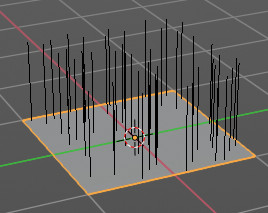
No key points are visible, you can select/deselect only all particles.
Point
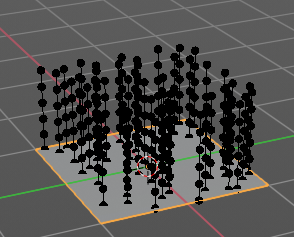
You can see, select and edit all key points of the particle paths.
Tip
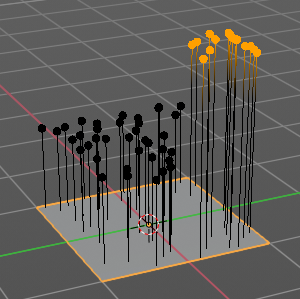
You can only see, select and edit the tip of the particles. This includes the brushes. The comb brush is a special case here. The other pat key points bends of course still in this mode. But affected by the brush is just the tip key.
Grease Pencil Sub Modes
The different modes can have some sub modes. For example different selection methods in mesh edit mode. Or a mask mode for texture painting. The sub mode settings can be found right from the Modes drop down box.
Edit Mode

The edit mode allows you to edit the grease pencil strokes.
Select Modes
You can only have one method active at a time.
Select Only Points
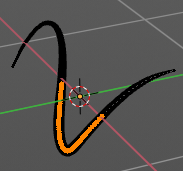
When you for example border select some points of the stroke, then just this points gets selected.
Select all Stroke Points
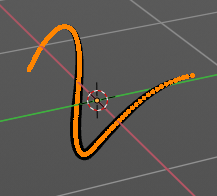
When you for example border select some points of the stroke, then the whole stroke gets selected.
Select all Stroke Points between other strokes
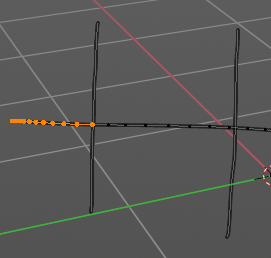
When you for example border select some points of the stroke, and this stroke crosses another stroke, then the part of the stroke up to the crossing point gets selected.
Multi-frame
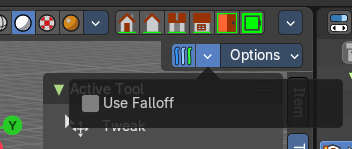
When this mode is active, then you can edit strokes from multiple grease pencil frames at once. The key frames must be selected to be included.
Use Falloff
Multi frame has a setting, which becomes visible when the mode is active.
Use Falloff when edit in Multi frame mode to compute brush effect by frame.
Sculpt Mode

The sculpt mode allows you to sculpt the grease pencil strokes.
| Entry | What it does |
|---|---|
| Selection Mask Points | Just the selected vertices gets sculpted. |
| Selection Mask Strokes | Just the selected strokes gets sculpted. |
| Selection Mask other strokes | Only sculpt selected stroke points between other strokes. |
Multi-frame
When this mode is active, then you can edit strokes from multiple grease pencil frames at once. The key frames must be selected to be included.
Use Falloff
Multi frame has a setting, which becomes visible when the mode is active.
Use Falloff when edit in Multi frame mode to compute brush effect by frame.
View
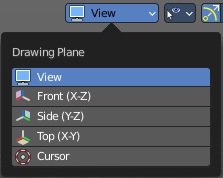
Relative to which plane to draw the strokes. Default orientation is view.
Draw Mode

The draw mode is the mode in which you draw the grease pencil strokes.
Origin
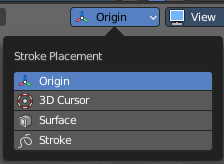
Where the stroke is placed.
View
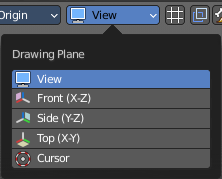
Relative to which plane to draw the strokes. Default orientation is view.
Multi-frame
When this mode is active, then you can edit strokes from multiple grease pencil frames at once. The key frames must be selected to be included.
| Entry | What it does |
|---|---|
| Use Additive Drawing | When creating new frames, then the strokes from the previous or active frame gets included as the base for the new stroke. |
| Automerge | Join last drawn strokes by distance with previous strokes in the active layer. |
| Add Weight Data for new strokes | Add Weight data for new strokes, according to the current vertex group and weight. When no vertex group is selected, then no weight is added. |
| Draw Strokes on Back | Usually a new stroke is drawn on top of existing strokes. Draw Strokes on Back adds the new strokes below the existing strokes. |
Weight Paint Mode
Multi frame
When this mode is active, then you can edit strokes from multiple grease pencil frames at once. The key frames must be selected to be included.
Use Falloff
Multi frame has a setting, which becomes visible when the mode is active.
Use Falloff when edit in Multi frame mode to compute brush effect by frame.
Vertex Paint Mode

Select Modes
You can only have one method active at a time.
Select Only Points
When you for example border select some points of the stroke, then just this points gets selected.
Select all Stroke Points
When you for example border select some points of the stroke, then the whole stroke gets selected.
Select all Stroke Points between other strokes
When you for example border select some points of the stroke, and this stroke crosses another stroke, then the part of the stroke up to the crossing point gets selected.
Multi frame
When this mode is active, then you can edit strokes from multiple grease pencil frames at once. The key frames must be selected to be included.
Use Falloff
Multi frame has a setting, which becomes visible when the mode is active.
Use Falloff when edit in Multi frame mode to compute brush effect by frame.
Geometry Node Group Tools
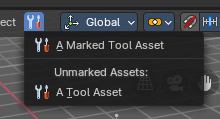
This header button menu with the tool icon is a container for Geometry Node Groups that have been set as “Tools” in the Geometry Nodes editor. These are act-once operators that now can be placed in the Geometry Node Group Tools or in custom entries in the 3D View header entries.
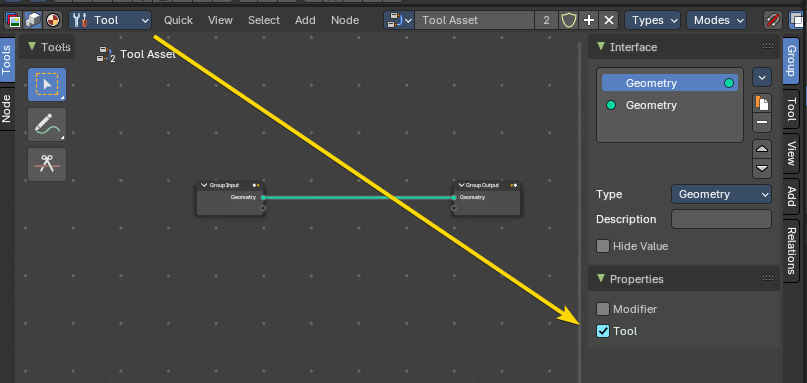
Example: here the Geometry Nodes has be switched to the Tool mode, and the node group Properites have been set to Tool. This node group will now show in the Geometry Node Group Tools header menu.
Marked Assets
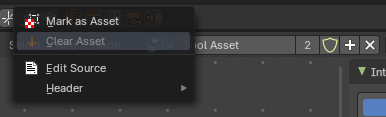
A marked Geometry Nodes node group set as an asset and a tool will display here. To mark, right click on the geometry node selector in the Geometry Nodes editor, and mark as asset.
Unmarked Assets
A local unmarked Geometry Nodes node group set as a tool will display under the “Unmarked Assets:” label.
Marked Assets with assigned Asset Browser Category
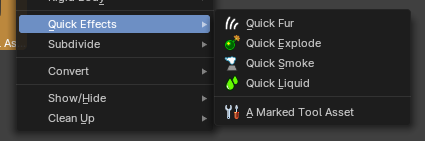
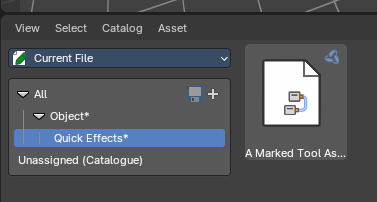
A marked node group set as a tool and as an asset and assigned to an Asset Browser category with the same category structure as the menu entry names will display as nested act-once operators.
Example: This is a marked-as-asset geometry node group with the name “A Marked Tool Asset” in the category “Object” then sub-category “Quick Effects”.
Object settings

The object settings just appears when the Tool Settings are hidden. This can be done in the View menu.
Transform Orientations
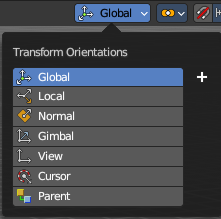
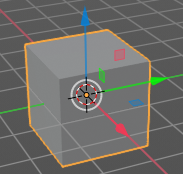
You can display Transform Manipulators at your object or selection by activating them in the tool shelf. They allow you to scale, rotate or move objects by grabbing their controls, and moving your mouse in the corresponding axis. The widget can be oriented in different ways by using another method in this drop down box. The names should be self explaining.
| Entry | What it does |
|---|---|
| View | The transform orientation aligns to the current view. |
| Gimbal | Aligns each axis to the Euler rotation axis as used for input. |
| Normal | This is of interest for bones for example. Aligns the transformation axis to average normal of the selected elements. Bone Y axis for Pose mode. |
| Local | Uses the local orientation of the selected elements. |
| Global | Uses the global orientation for the selected elements. |
| Cursor | Uses the orientation of the 3D cursor. |
| Parent | Uses the orientation of the parent object. |
Create Orientation
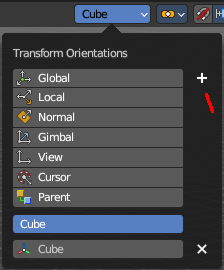
The create orientation button at the right adds a new orientation from the current mode and view. You can rename it.
This view is scene specific only. It does save and load with the current scene. But you cannot transfer it into another scene. When you create a new scene then this custom orientation is gone.
You can create more than one user orientation.
Last Operator Create Orientation
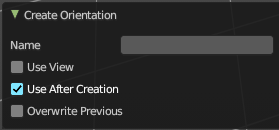
Create Orientation has some settings.
| Entry | What it does |
|---|---|
| Name | Rename the orientation. |
| Use View | Use the current view instead of the active object to create the new orientation. |
| Use after creation | Use this orientation after creation. |
| Overwrite Previous | Overwrite previous created orientation in case it has the same name. |
Transform Pivot Point
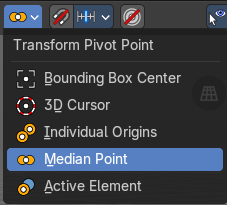
The Pivot Point is the center of your object or your selection. When you rotate or scale an object, or a group of vertices/edges/faces, you may want to shift the pivot point in 3D space. The names should be self explaining.
| Entry | What it does |
|---|---|
| Bounding Box Center | Pivot around the bounding box center of selected objects. |
| 3D Cursor | Pivot around the 3D cursor. |
| Individual Origins | Pivot around the center of each individual object. |
| Median Point | Pivot around the median point of selected objects. |
| Active Element | Pivot around the active element. |
Snapping
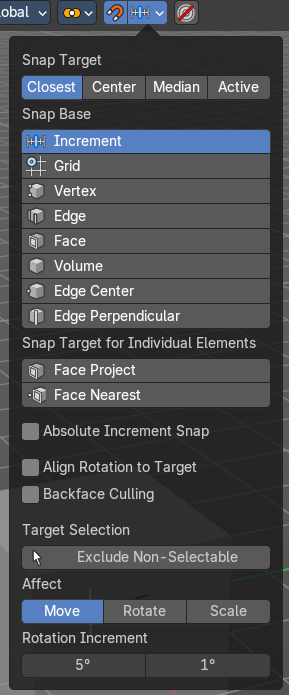
Activate snapping when transforming an element.
Snapping can be temporarily activated by holding Ctrl key. So no need to turn snapping on and off all the time.
You can snap to various scene elements in Object, Edit and Pose mode. And you can activate more than one snapping method by holding down Ctrl and clicking at the next snapping element.
Multiple Snap Targets
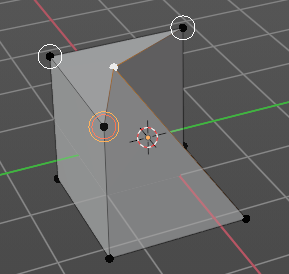
When you move the mouse with snapping on and the element to snap selected (This does not work with holding Ctrl), then you can press hotkey A to mark the current snapping point, then proceed to mark as many other snapping points as you wish. And the element that you want to snap will then be in the center of these marked snapping points. Marked snapping points will have a circle around.
Marking a point more than once will give it more weight in the averaged location.
Snap Target
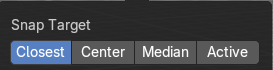
Which part to snap onto the target.
| Entry | What it does |
|---|---|
| Closest | Snap closest point onto the target. |
| Center | Snap transformation center onto the target. |
| Median | Snap median onto the target. |
| Active | Snap active onto the target. |
Snap to
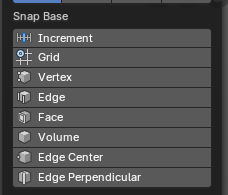
To which part of the target to snap.
| Entry | What it does |
|---|---|
| Increment | Incremental grid snapping. In Orthographic view the snapping increment changes depending on zoom level. **Note:**You can selected multiple by holding down the Shift key and selecting additional snap base modes. |
| Grid | Snap to a grid. |
| Vertex | Snap to a vertice. |
| Edge | Snap to an edge. |
| Face | Snap to a face. |
| Volume | Snaps to regions within the volume of the first object found below the mouse cursor. |
| Edge Center | Snaps to the center of an edge. |
| Edge Perpendicular | Snap to the nearest point of an edge. |
Snap Target for Individual Elements
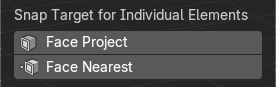
Type of element for individual transformed elements to snap to.
| Entry | What it does |
|---|---|
| Face Project | Snap by projecting onto faces. |
| Face Nearest | Snap to nearest point on faces. |
Snap Peel Object
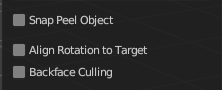
Only available with the Snap to Method Volume. Consider objects as whole when finding a volume center.
Snap to Same Target
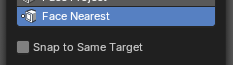
Only available with the Snap Face Nearest. Snap only to target that the source was initially near.
Absolute Increment Snap

Only available with Increment Snap mode, this will allow an absolute grid alignment while translating (based on the pivot center)
Align Rotation to Target

Align rotation with the snapping target.
Back face Culling
Exclude back facing geometry from snapping.
Target Selection
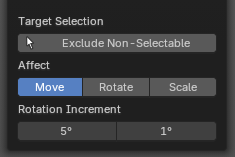
Align rotation with the snapping target.
Exclude Non-Selectable
Snap only onto objects that are selectable. This will ignore any objects that have been marked as un-selectable from the Outliner Editor.
| Entry | What it does |
|---|---|
| Affect | Adjust what transform methods should be affected by snapping. **Note:**You can selected multiple by holding down the SHIFT key and selecting additional transforms. · Move: Move the affected by snapping settings. · Rotate: Rotate the affected by snapping settings. · Scale: Scale the affected by snapping settings. |
| Rotation Increment | Snap in adjustable incremental steps. · Rotation Increment Slider: Angle used for rotation increments in the 3D editors. · Precision Rotation Increment Slider: Precision angle used for rotation increments in the 3D editors. |
Proportional Editing
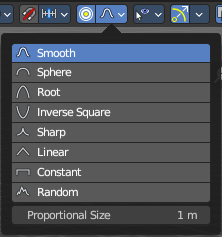
Enables proportional editing.
Proportional Editing is a way of transforming selected elements (such as vertices) while having that transformation affect other nearby elements with a falloff. For example, moving a single vertex will move unselected vertices within a given range. And the falloff means that selected vertices that are closer to the selected vertex will move more than those farther from it.
Settings
The settings appears when you activate Proportional Editing. Choose between different falloff methods for the proportional editing.
Proportional Size
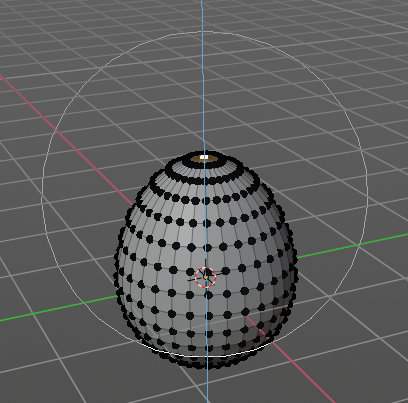
The influence of the proportional editing is defined by a radius. It is by default one standard unit.
You can change the influence radius for proportional editing with the mouse wheel or the Page up Page down arrows while keeping the mouse button pressed down and do the translation.

The exact radius value can be read in the header while transformation.
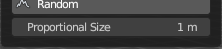
And it can also be read and edited at the Proportional Size slider in the Proportional Editing panel.
Last Operator Proportional Editing
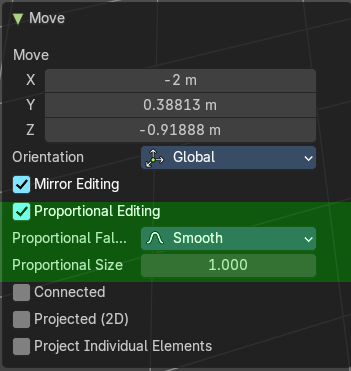
When you translate an object, move it around or rotate or scale it, then the last operator contains also proportional editing settings.
| Entry | What it does |
|---|---|
| Proportional Editing | Enable proportional editing. |
| Proportional Falloff | Adjust the falloff methods again. |
| Proportional Size | Adjust the falloff radius. Note that the white circle is not displayed when using this slider. |
| Connected | The proportional falloff gets calculated for connected parts only. |
| Projected(2D) | In depth direction along the view the radius is ignored. It selects as deep as there is something to select. |
Selectability & Visibility
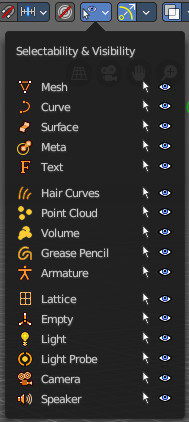
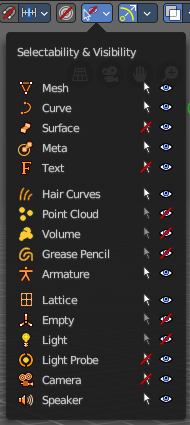
In this drop down box you can set specific elements in the scene to either not selectable or invisible.
When the elements are invisible then they are also not selectable.
When you have set some objects to not selectable or invisible, then the icon in the menu header changes.
Viewport Gizmo
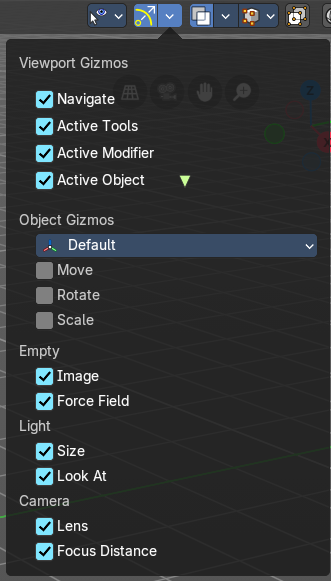
This menu allows you to adjust what gizmos shows. The button at the left turns them all off or on.
Show Gizmo
Shows or hides all available gizmos at once.
Gizmo Options
Turn on or off specific widgets.
Viewport Gizmos
Navigate
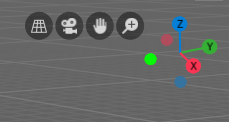
Turn on or off the navigate widget. The navigate gizmo is the block of buttons and the widget up right.
Active Tools
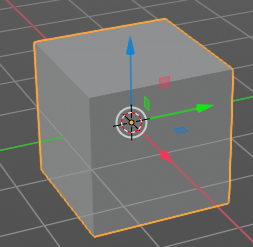
Turn on or off the active tool widget. When you activate one of the transformation buttons in the tool shelf, then a gizmo will appear at the object.
Active Modifier
Toggles the gizmos for the active Geometry Nodes modifier assets.
Active Object
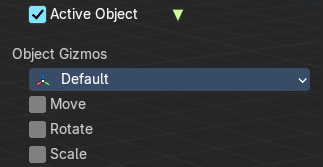
Turn on or off the Object Gizmos. The Object Gizmos is an extra set of translate gizmos, similar to the active tool widget that shows when you activate one of the transform buttons in the tool shelf. These alternatively show the transform gizmos as permanent gizmos as long as you don't have another tool selected that overrides this widget.
Object Gizmos
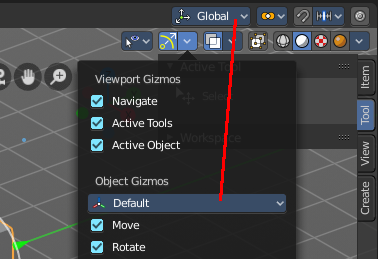
Transformation Orientation
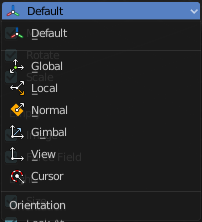
Adjust the orientation of the widget. By default it uses the transform orientation from the viewport. This set can override the transform orientation.
You can have all transform methods on at once.
Move
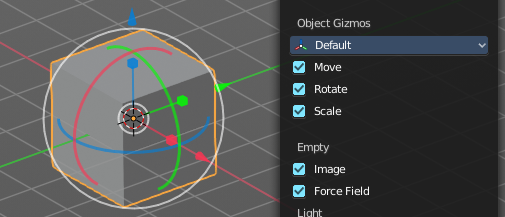
Shows the move part of the widget.
| Entry | What it does |
|---|---|
| Rotate | Shows the rotate part of the widget. |
| Scale | Shows the scale part of the widget. |
Empty
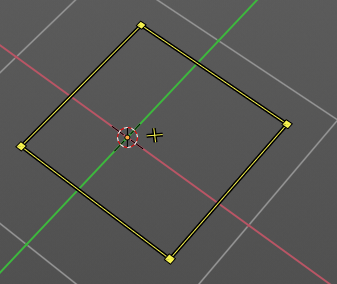
Image
Shows the transform gizmo at an empty of type Image. You need to hover with the mouse over the object to reveal the yellow gizmo.
Force Field
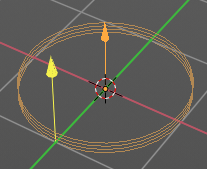
Some force field types have a gizmo. Shows the transform gizmo at a force field.
Light
| Entry | What it does |
|---|---|
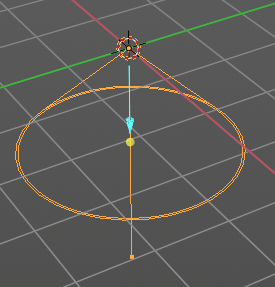
| Size | Show the gizmo to adjust the size of lights. That's the blue arrow here. |
| Look At | Show the gizmo to adjust the direction of the light. That's the yellow dot in the middle of the circle. |
Camera
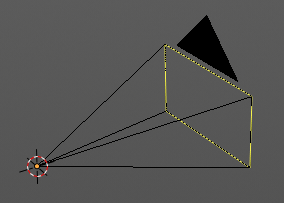
Lens
Show the gizmo to adjust the lens and orthographic size. The yellow square.
Focus Distance
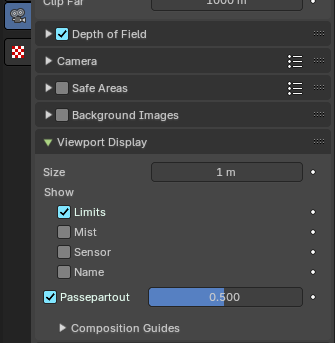
Shows the gizmo to adjust the focus distance.
You first need to turn on the Limits gizmo in the camera settings in the Viewport Display panel. Then you can turn off the focus distance gizmo part with Focus Distance.
Mesh Object - Sculpt mode
Color attributes panel
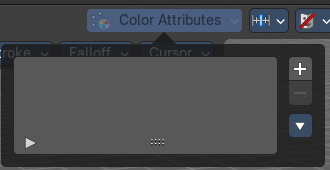
This panel also exists in the properties editor.
Currently this panel is greyed out and dysfunctional in Sculpt mode. It is WIP.
Global Auto Masking
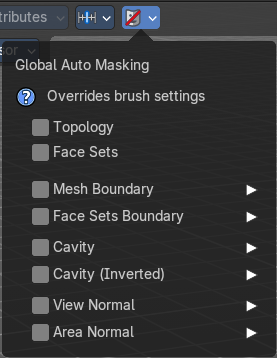
These override all brush settings, but you can also set these auto masking features per brush.
| Entry | What it does |
|---|---|
| Topology | Affect only vertices that are connected to the current active vertex under the brush. |
| Face Sets | Affect only vertices that share face sets with the active vertex. |
Mesh Boundary
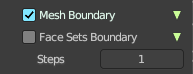
Do not affect non manifold boundary edges.
The setting that appears on activation and is valid for both, Mesh Boundary and Face Sets Boundary.
Face Sets Boundary
Do not affect vertices that belong to a face set boundary.
The setting that appears on activation and is valid for both, Mesh Boundary and Face Sets Boundary.
Steps
Distance where boundary edge automasking is going to protect vertices from the fully masked edge.
Cavity
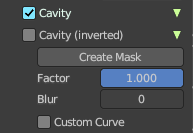
Do not affect vertices on peaks. This feature is based on the surface curvature.
The setting that appears on activation and is valid for both, Cavity, and Cavity (Inverted).
Cavity (Inverted)
Do not affect vertices in valleys. This feature is based on the surface curvature.
The setting that appears on activation and is valid for both, Cavity, and Cavity (Inverted).
| Entry | What it does |
|---|---|
| Create Mask | Creates a mask based on the curvature of the surface. |
| Factor | The contrast of the cavity mask. |
| Blur | The number of times the cavity mask is blurred |
Custom Curve
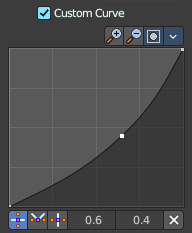
Use a custom falloff curve for the cavity mask.
Selecting Points
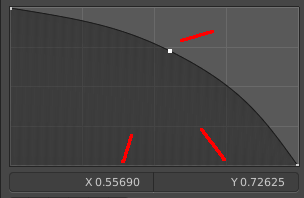
You can select curve points. This reveals two edit boxes for the x and y coordinate of this point.
Selected points can be moved around. Left click at them, hold the mouse button down and move them to a new location.
Adding Points
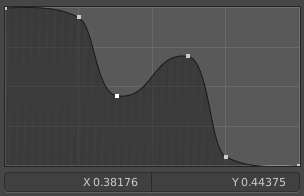
You can add new curve points by simply left clicking at the curve. Move the mouse to position them where you need it.
Navigation elements

The navigation elements at the top are described from left to right.
Zoom in and out
The two buttons with the magnifying glass at it zooms in and out in the curve window.
Clipping Options
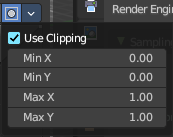
Set up clipping for the stroke.
Use Clipping
Turns clipping on or off.
| Entry | What it does |
|---|---|
| Min and Max X Y | The values for the clipping area. |
| Tools | Tools is a menu where you can find some curve related tools. · Reset View: Resets the curve windows zoom. · Extend horizontal: Extends the curve before the first curve point and after the last curve point horizontally. · Extend extrapolated: Extends the curve before the first curve point and after the last curve point extrapolated. · Reset Curve: Resets the curve to the initial shape. |
Handle Types

Sets the handle type for the current selected curve point.
X Y Position
The position of the current active curve point.
Delete Points
Deletes the current active curve point.
View Normal
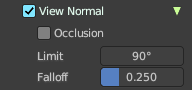
Affect only vertices with a normal that faces the viewer.
| Entry | What it does |
|---|---|
| Occlusion | Only affect vertices that are not occluded by other faces. With Occlusion on the Limit and Falloff options are not available. |
| Limit | View normal limit. The range of angles that will be affected. |
| Falloff | Extend the angular range with a falloff gradient. |
Area Normal
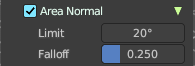
Affect only vertices with a similar normal to where the stroke starts.
| Entry | What it does |
|---|---|
| Limit | Area normal limit. The range of angles that will be affected. |
| Falloff | Extend the angular range with a falloff gradient. |
Mesh Object - Vertex Paint mode
Color Attributes panel
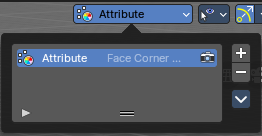
This panel also exists in the properties editor.
In vertex paint mode and sculpt mode you can paint vertices of a mesh with a color. This will create a vertex color index. You can see and manage this vertex color indexes in the Vertex Colors panel.
Vertex colors can for example be used to mix shaders together. Or also directly render them. In the shader editor color attributes can be used by the Attribute node.
A mesh can have more than one vertex color index and type. But just one index can be the active one.
Active Color Index
A List of the vertex color indexes for this mesh.
| Entry | What it does |
|---|---|
| Color index name | The name of the vertex color index. It can be renamed by double clicking at it. |
| Active Render | Set this vertex color index as the one to render. Just one vertex color index can be active at a time. But you can use another vertex color index in a material. |
| Drag Handler | The two vertical lines at the end is a handler with which you can expand the list. |
| Search Field | You can expand a search field at the bottom of the list. Type in your term and hit enter to filter for your term. · Invert: Exclude the search term instead of searching for it. · Sort by Name: Sort the List by name. |
| Add + | Create a vertex color index. |
Add Color Attribute Popup
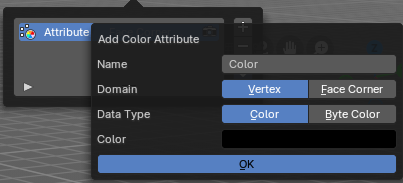
Name
The name of the color attribute index.
Domain
The domain of the color attribute.
- Vertex stores the color attribute data in the vertices of the mesh data
- Face Corner stores the color attribute data in the face corners of the mesh data
Data Type
The the color attribute type.
- Color stores RGBA color 32-bit floating point values
- Byte Color stores RGBA color 32-bit positive integer values
| Entry | What it does |
|---|---|
| Color | The Default fill colour |
| Ok | Confirm to apply |
Remove -
Delete the selected vertex color index.
Adjust last operator Add Color Attribute
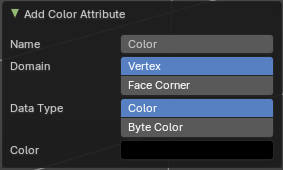
This is basically the same content as above. Minus the OK button.
Specials menu
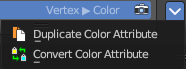
Duplicate Color Attribute
Duplicates the selected color attribute.
Convert Color Attribute
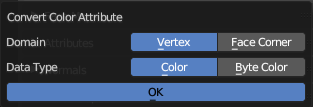
Convert a color attribute domain and data type. This tool calls a popup where you can choose what to convert.
Mesh Object - Weight Paint mode
Vertex Groups
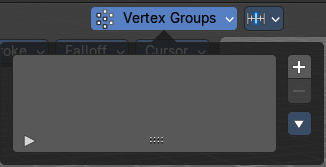
This panel also exists in the properties editor.
A Vertex group is a group of vertices, a selection of the mesh. It is for example used to weight a specific mesh part to a bone. Or to control the growth of hair particles.
This panel allows you to manage and edit vertex groups. Weight painting creates vertex groups automatically.
In Edit mode this panel shows some further controls.
Vertex groups exists for mesh and lattice objects.
Active Vertex Group list
A List of the vertex groups for this mesh.
| Entry | What it does |
|---|---|
| Group name | The name of the group. It can be renamed by double clicking at it. |
| Lock | The lock icon at the end of a group name locks the group from being editable. |
| Drag Handler | The two vertical lines at the end is a handler with which you can expand the list. |
| Search Field | You can expand a search field at the bottom of the list. Type in your term and hit enter to filter for your term. · Invert: Exclude the search term instead of searching for it. · Sort by Name: Sort the List by name. |
| Entry | What it does |
|---|---|
| Add + | Create an empty vertex group. |
| Remove - | Deletes the active vertex group. |
Specials menu
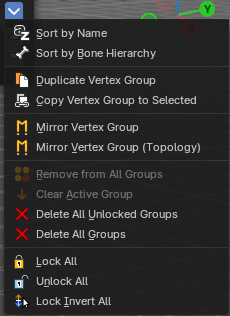
| Entry | What it does |
|---|---|
| Sort by Name | Sorts the vertex groups alphabetically by name. |
| Sort by Bone Hierarchy | Sorts the vertex groups by the hierarchy of the assigned bones. |
Duplicate Vertex Group
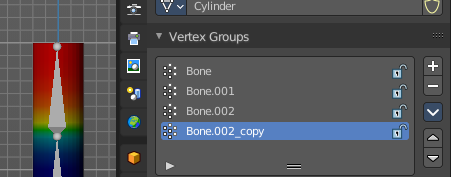
Add a copy of the active vertex group as a new group. The new group will be named like the original group with “_copy” appended at the end of its name. And it will contain associations to exactly the same vertices with the exact same weights as in the source vertex group.
| Entry | What it does |
|---|---|
| Copy Vertex Group to Selected | Copy all vertex groups to other selected objects provided they have matching indices (typically this is true for copies of the mesh which are only deformed and not otherwise edited). |
| Mirror Vertex Group | Mirrors weights and/or flips group names from one side of a symmetrical mesh to the other. Only mirroring along local X axis is supported. Vertices that have no corresponding vertex on the other side will not be affected. Note, the weights are not transferred to the corresponding opposite bone weight group. |
| Mirror Vertex Group (Topology) | Performs the Mirror Vertex Group with the Topology Mirror option enabled. |
| Remove from All Groups | Unassigns the selected vertices from all groups. Even locked. |
| Clear Active Group | Remove all assigned vertices from the active group. The group is made empty. Note that the vertices may still be assigned to other vertex groups of the object. This feature does not affect locked groups. |
| Delete All Unlocked Groups | Remove all vertex groups from the object that are not locked. |
| Delete All Groups | Remove all vertex groups from the object. |
| Lock All | Lock all groups. |
| Unlock All | Unlock all groups. |
| Lock Invert All | Invert group locks. |
Move Vertex Group Up / Down

Moves the selected vertex group up or down in the list.
Mesh Object - Texture Paint mode
Texture Slots
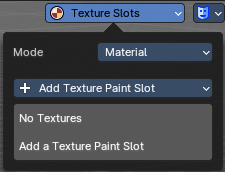
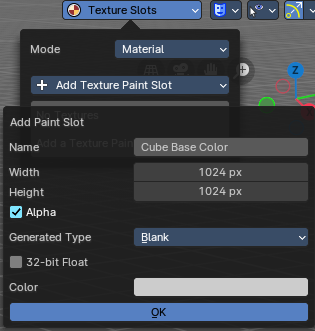
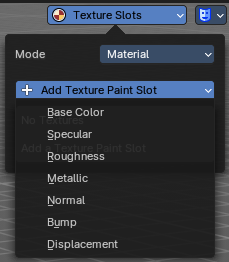
The texture slots panel allows you to manage the textures that you use for texture painting. When the mesh doesn't have a texture yet to paint at, then you get a hint about a missing texture. No Textures. The Add Texture Paint Slot button allows you to add one. Base Color allows you to create a diffuse map.
Mode
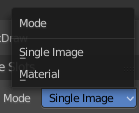
Choose in which mode you want to paint. Single Image just works with a single image, without any material.
Material works with a material and a texture. The texture is here part of the material.
Add Texture Paint Slot
Here you can choose what type of texture you want to add for texture painting.
The texture gets added to the shader, and connected to the correct node. A base color is meant for diffuse, and so it connects with the base color slot.
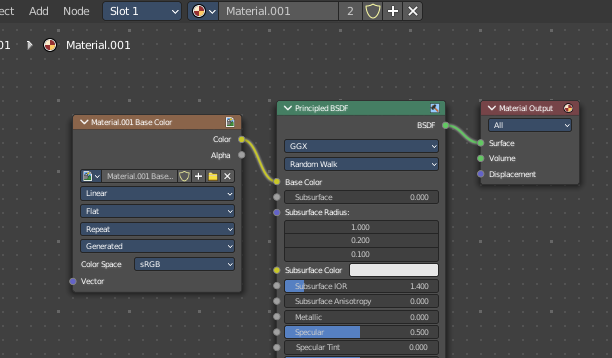
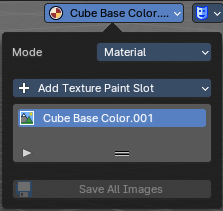
Paint Slot with mode Material
| Entry | What it does |
|---|---|
| Material Paint Slot | A list of the available paint slot materials. |
| Add Texture Paint Slot | The + button at the right. Add more materials to the Material Paint Slot. |
Paint Slot with Mode Single Image
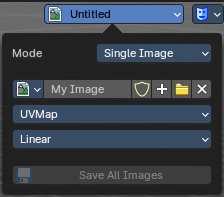
Image List
A list of the available images, which allows you choose one in case one exists.
New/Open

When no image is loaded then you can create a new image here, or load a new image.
Edit Box
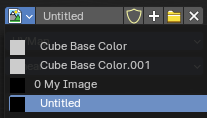
See the name of the image, and edit the name.
| Entry | What it does |
|---|---|
| Fake User | When enabled then this image will be stored internally. But not the painted changes at it!! |
| New Image | Create a new image. |
| Open Image | Open an image |
| Unlink Data Block | Delete the Image when saving the scene, closing and reopening Bforartists. Note that the number of Users must be zero. Or the image comes back. |
UV Map
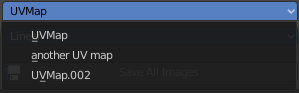
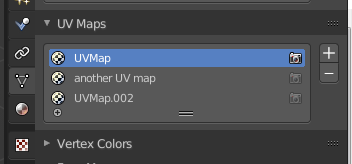
Choose a UV map to work with. Usually there is just one. But there can be more than one UV map. You can add and manage more in the Object data tab in the UV Map panel.
Interpolation
Set the interpolation type. Linear or Closest.
Save all Images
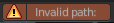
Saves all images. Internal images needs to be saved manually first. They don't have a path yet to which they could be saved. You will get an invalid path warning.
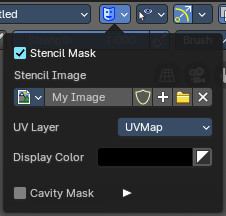
Stencil Mask
Stencil mask allows mask painting with a stencil map. It is a sub menu tab. In expanded state it shows the falloff curve, which can be edited.
Activate Stencil map
Activates the stencil map.
Stencil Image

Choose or load your stencil texture.
Texture browser
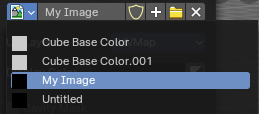
Here you will find a list of currently loaded textures.
Edit Box
The currently active stencil texture.
The number right of it, in this case 2, indicates how much number of users ( internally ) this brush uses. This means that this data block (the brush) shares currently settings with at least one other object. Most probably the parent brush where we have created it from. Click at the value to make this brush a single user. The button will vanish then.
The shield icon button set the brush to have a fake user. Zero user data-blocks are normally not saved. But sometimes you want to force the data to be kept even when the data block has no user.
The + button allows you to add a new pencil with the current settings. Note that the brushes are NOT saved when you close Bforartists. You can save them into the current blend file. Or you can save the startup file. But be careful here. This saves everything else of the current state of Bforartists too.
The X button deletes the brush as the active one. It does NOT delete it from the brushes list.
UV Layer
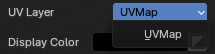
At which UV map the stencil texture is active.
Display Color
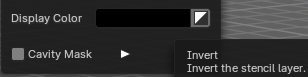
The stencil color in the viewport.
Invert the stencil color
Inverts the stencil color.
Cavity Mask
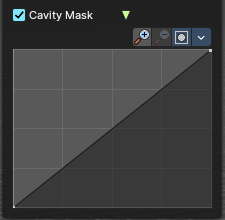
Cavity mask allows mask painting according to mesh geometry cavity. It is a sub menu tab. In expanded state it shows the falloff curve, which can be edited.
| Entry | What it does |
|---|---|
| Activate Cavity mask | Activates the Cavity mask. |
| Navigation elements | The navigation elements at the top are described from left to right. |
| Zoom in and out | The two buttons with the magnifying glass at it zooms in and out in the curve window. |
| Zoom in and out | The two buttons with the magnifying glass at it zooms in and out in the curve window. |
| Tools | Tools is a menu where you can find some curve related tools. · Reset View: Resets the curve windows zoom. · Reset Curve: Resets the curve to the initial shape. |
Use Clipping
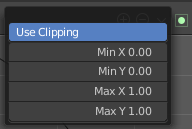
Clipping options. Set up clipping for the stroke.
Vector Handle
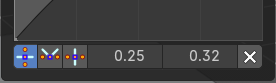
Set handle type to Vector.
| Entry | What it does |
|---|---|
| Auto Handle | Set handle type to Auto. |
| Auto Clamped Handle | Set handle type to Auto Clamped. |
| X / Y | The x and y position of the selected point. |
| Delete Points | Deletes selected curve points. |
Curve Object - Edit Mode
Set Handle Type
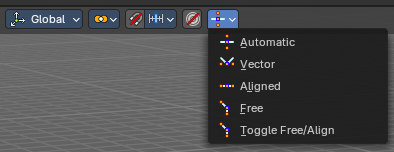
Handles defines the type of handle for the control points of the curve. You have the choice between Auto, Vector, Align and Free. And the Last Operator gives you a fifth possibility to toggle between Free and Align.
| Entry | What it does |
|---|---|
| Auto | Auto aligns the handles automatically. |
| Vector | Set Handle type to Vector. |
| Align | Set Handle type to Align. |
Free
Set Handle type to Free.
Toggle Free/Aligned
Toggle Free/Aligned.
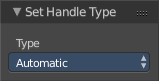
Last Operator Set Handle Type
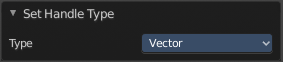
Type
Type is a drop-down box where you can set the handle type. You have the choice between Auto, Vector, Align, Free. And the fifth possibility toggles between Free and Align.
Viewport Overlays - all modes
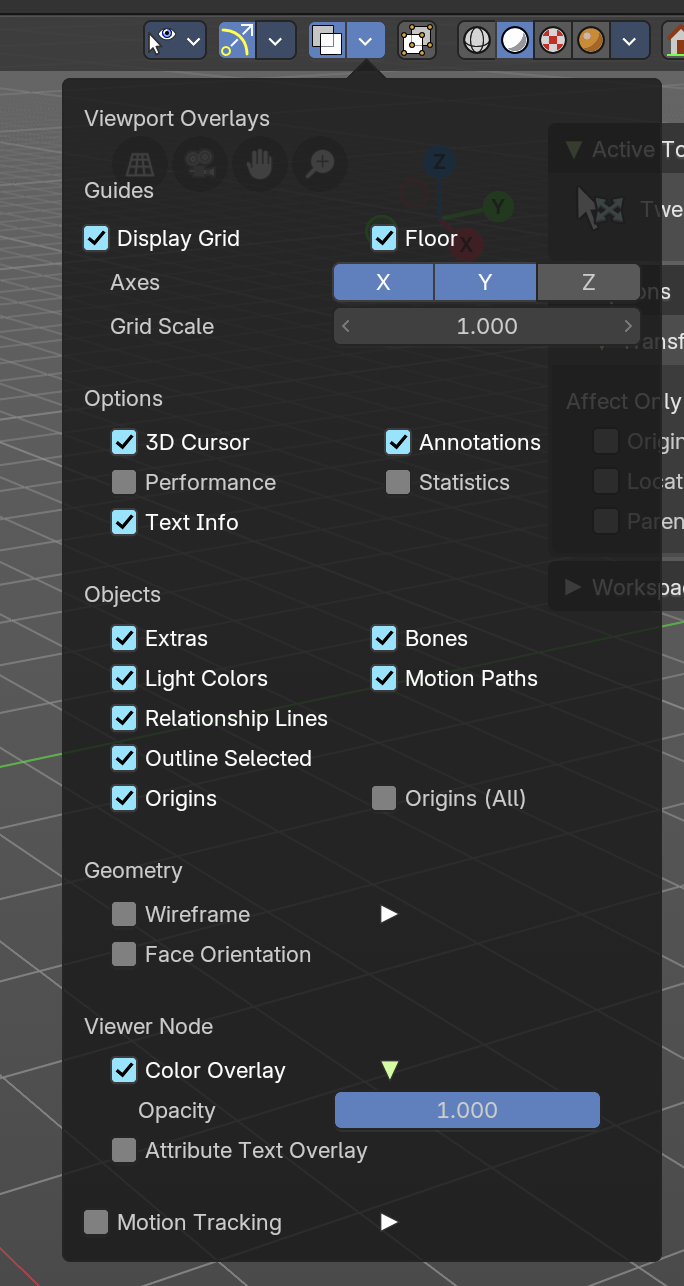
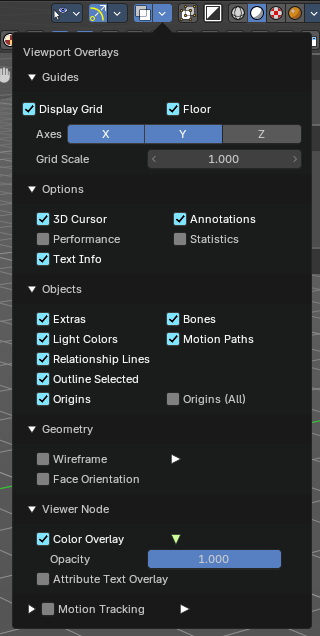
Turn on or off all overlays. This includes the ground grid, things like relationship lines, and several other elements in the viewport. Some content is available in all modes. Some content is changing, dependent of the mode you are in. In Edit mode with a mesh object you will get some normal functionality for example.
Guides
| Entry | What it does |
|---|---|
| Grid | Show the whole ground grid, including axes. You can also show the grid in orthographic mode of the viewport. |
| Floor | Show the ground grid, the white part of it. |
Axes
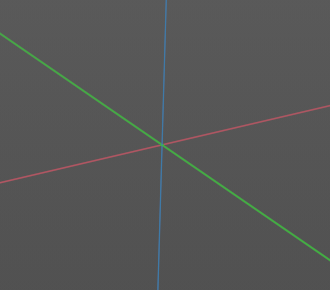
Show the colored axis lines in the 3d view
( now works in both perspective / orthographic Views).
Scale
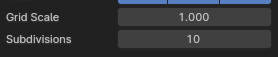
Scale the ground grid. This works in perspective and orthographic view.
Subdivisions
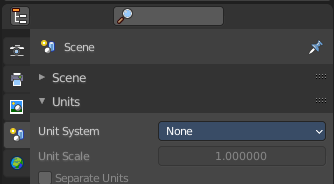
Subdivisions just shows with a Unit system of None. It allows you to subdivide the ground grid.
Options
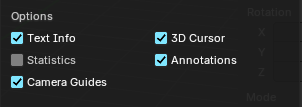
Text Info
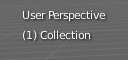
In the upper left corner of the 3D view there is a text info string, which can be hidden here. It tells you in what view you are, what is selected, and things like frames per second when you play an animation
Annotations
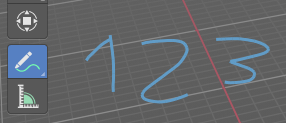
Show or hide annotations. Annotations can be drawn at the 3D View with the annotation tool in the tool shelf.
Statistics
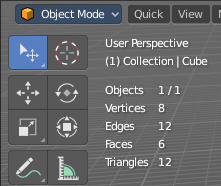
Displays statistical informations in the upper left corner of the 3d viewport. Object count, vertices, and so on.
3D Cursor

Show or hide the 3D cursor. That's the white red circle in the center of the viewport.
Camera Guides
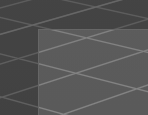
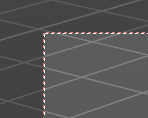
Just in Camera mode.
Display the dotted line around the inside of the passepartout.
Objects
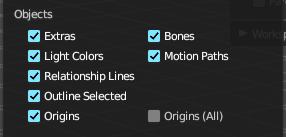
Extras
Show or hide object details. Including things like empty wires like lights, cameras, and other visual guides.
Light Colors
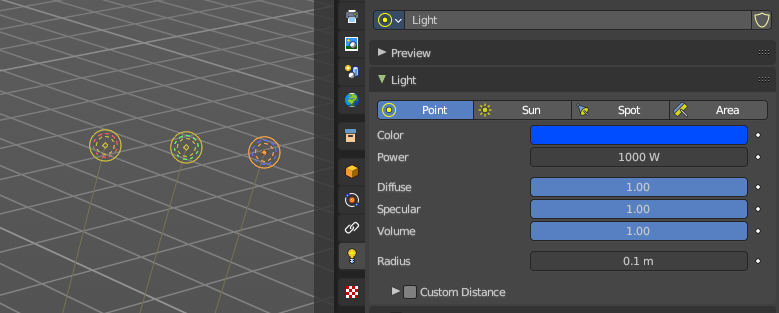
Displays the light widget in the color of the light.
Relationship Lines
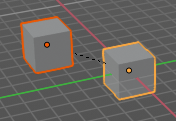
Show or hide relationship lines. When you for example parent one object to another then you will see a dotted line. The relationship line.
Outline Selected
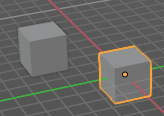
Show the selected object with an outline
Bones
Show or hide bones.
Motion Paths
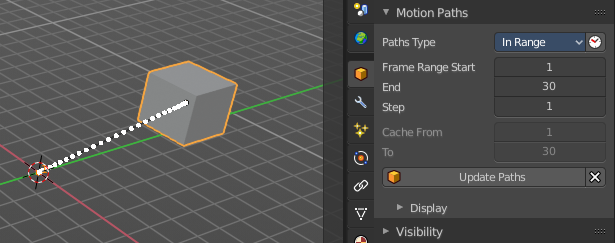
Show or hide motion paths. Motion paths can be calculated in the Motion Paths panel. You need an animation for that.
Origins
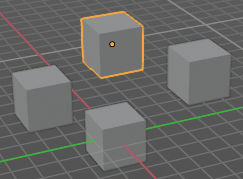
Show or hide the origin of the selected object. The origin is the center point of the object, and represented by an orange dot.
Origins(All)
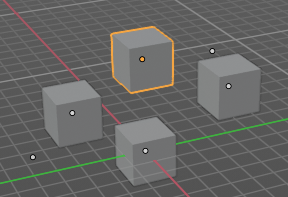
Show or hide the origin of all objects. Even from hidden ones. The not selected objects shows the center point with a white dot.
Geometry
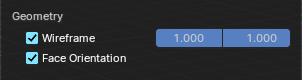
Geometry related settings.
Wire frame
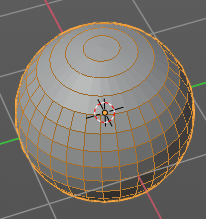
Show the wire frame in object mode.
| Entry | What it does |
|---|---|
| Wireframe Threshold | With a wire frame value of 1 all edges are drawn. The lower the value, the more edges will disappear. |
| Opacity | The opacity of the displayed edges. |
Face Orientation
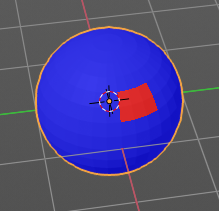
This mode allows to check for faces with flipped normals, which cannot be seen with the defaults. Blue is pointing outwards, red is pointing inwards.
Fade inactive Geometry
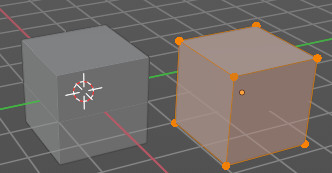
Edit mode feature, does not show in other modes. Fades the not active geometry, the not selected scene objects, towards a plain grey. In Object mode this setting has no effect.
Viewer Node
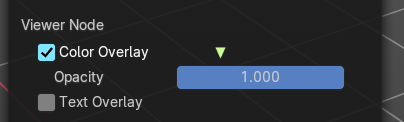
Viewer node related settings.
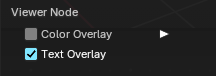
Color Overlay
Enable color overlay in viewport for geometry attributes that are connected to an enabled Geometry Nodes’ viewer node.
Opacity
The opacity of the color overlay mentioned above.
Text Overlay
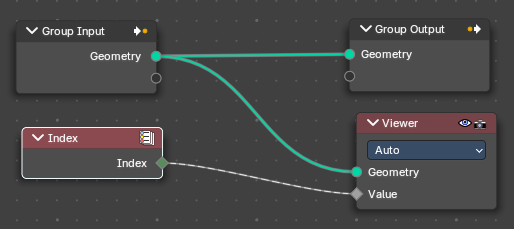
Show geometry attribute values that are connected to an enabled Geometry Nodes’ viewer node as text in viewport. This option just shows when you have geometry nodes at the object, and there is a viewer node in the tree. Example with index values:
Motion Tracking
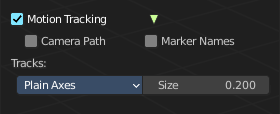
Motion tracking related settings. When you turn it on, then some further options appears. These features just shows before you bake the solution. Not with the resolved solution.
| Entry | What it does |
|---|---|
| Camera Path | Shows the camera path. |
| Marker Names | Shows the marker names. |
Track display type
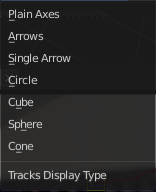
How to display the tracks.
Track size
Adjust the display size of the tracks of reconstructed data
Viewport Overlays - Mesh Object - Edit Mode
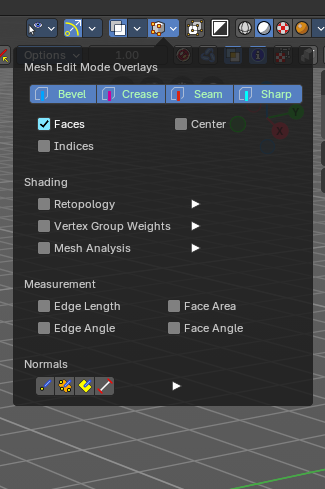
The Viewport Overlays panel shows different content, dependent of mode and object type. This is with mesh object in edit mode.
Mesh Edit Mode Overlays
| Entry | What it does |
|---|---|
| Bevel | Display weights created for the Bevel Modifier. |
| Crease | Display edges marked with a crease for the Subdivision Surface Modifier. |
| Seam | Display the UV unwrapping seams. |
| Sharp | Display sharp edges, used with the edge split modifier. |
| Faces | Highlight faces by using a face overlay that applies to both selected and unselected faces. This affects all selection modes. |
| Center | Show face-center points in solid shading modes. This is disabled in wireframe and xray mode. Only affects face-select mode. |
Indices
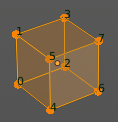
Display the indices of selected vertices, edges and faces at the mesh.
Shading
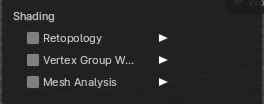
Retopology

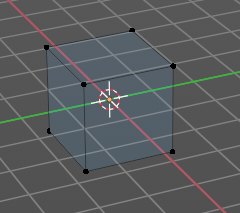
Hides the solid mesh and offset the overlay towards the view to make retopology easier. The selection is occluded by inactive geometry. You have to enable X-ray.
Vertex Groups Weights

Display weights in Edit Mode. When you activate this feature then further options appears.
Zero Weights
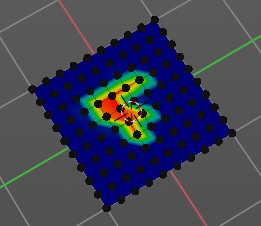
None
Don't show the vertices with zero weights with a specific color. They appear blue like vertices with a very low weighting.
Active
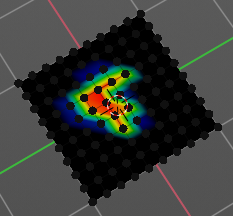
Zero weights vertices are shown with a black color in the active vertex group.
All
Zero weights vertices are shown with a black color in all vertex groups of the mesh.
Mesh Analysis
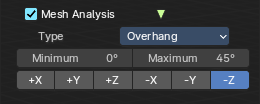
Show the mesh analysis overlay and settings. Note that editing may be slow with mesh analysis tools on. And modifiers can make trouble.
Type
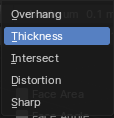
The mesh analysis type.
Overhang
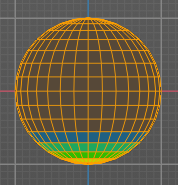
Extrusion 3D printers have a physical limit to the overhang that can be printed. The Overhang type shows the overhang in different ways. Angle and axis can be adjusted.
| Entry | What it does |
|---|---|
| Minimum/Maximum | Minimum/Maximum angle to display. |
| Axis | Choose which angle to calculate. |
Thickness
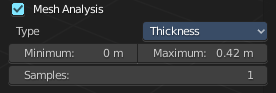
3D Printers have a limited wall-thickness. Too thin areas cannot be printed. This mode displays thin areas as red.
Minimum/Maximum
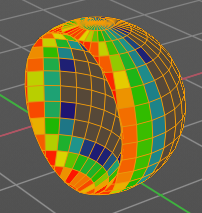
Minimum/Maximum thickness to display.
Samples
The number of samples to use to calculate the thickness.
Intersections

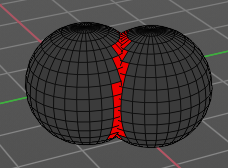
A mesh can be made of more than one closed sub mesh. Join two spheres and you have one mesh with two closed sub meshes. Such intersections can be a problem with printing. Intersect marks intersecting areas with red.
Distortion
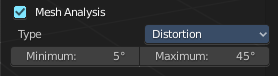
Marks distorted faces.
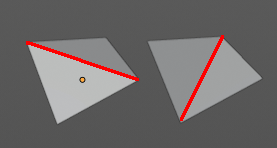
Distorted geometry, means uneven quads or N-gons, can cause problems with printing. Since the triangulation of a distorted quad or N-gon is undefined. And printing works with tris. With a quad there are already two solutions in which direction the edge to triangulate the face can point.
Minimum/Maximum
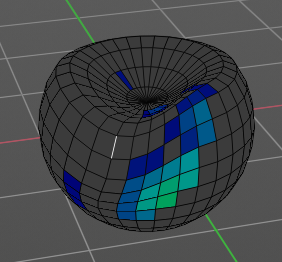
Adjust the minimum and maximum values after which a face gets displayed as distorted.
Sharp Edges
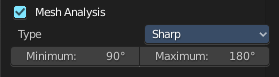
Similar to wall-thickness, sharp edges can be too thin to be able to print.
Minimum/Maximum
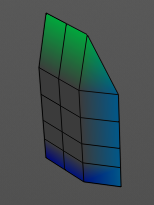
Adjust the minimum and maximum values after which an edge gets displayed as sharp.
Measurement

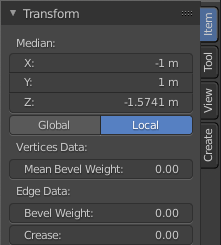
Shows measure values at the selected elements. The units are displayed as chosen in the preferences. These values respects global/ local in the transform panel. And so the values can differ when you have scaled the mesh in object mode, and the scaling is not applied yet. Use Global to take the object scale into account.
Edge Length
Shows the length of selected edges.
Edge Angle
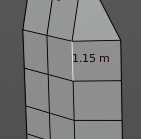
Shows the angle of selected edges between two faces.
| Entry | What it does |
|---|---|
| Face Area | Show the area of selected faces. |
| Face Angle | Show the angle of selected face corners. |
Normals
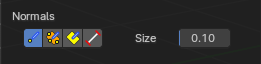
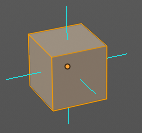
Show the normals for the chosen elements. They will be displayed as lines.
| Entry | What it does |
|---|---|
| Display vertex normals | Displays the normals of the vertices |
| Display split normals | Displays the per vertex face normals |
| Display normals | Displays the face normals. |
Constant Screen Size Normals
Display the normals either in size relative to the object. Or constant to the screen size.

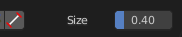
Relative to the object is measured in object units. Absolute to the screen size is measued in pixels.
Size
Adjust the length of the line that represents the normal.
Freestyle

Freestyle is the line renderer integrated into Bforartists. For freestyle you can mark edges and faces.
| Entry | What it does |
|---|---|
| Edge Marks | Display Freestyle edge marks, used with the Freestyle renderer. |
| Face Marks | Display Freestyle face marks, used with the Freestyle renderer. |
Viewport Overlays - Mesh Object - Sculpt Mode
Show Mask
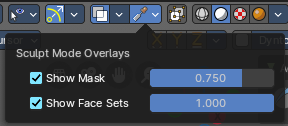
Show mask as overlay on object. The opacity of the overlay can be controlled by the slider.
Show Face Sets
Show face sets as overlay on object. The opacity of the overlay can be controlled by the slider.
Viewport Overlays - Mesh Object - Vertex Paint Mode
Opacity
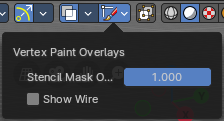
How strong the painted color gets shown.
Show Wire
Display the wire at the mesh. Normally the wire is hidden.
Viewport Overlays - Mesh Object - Weight Paint Mode
Opacity
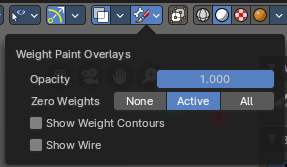
The opacity of the color overlay.
Zero Weights
None
Don't show the vertices with zero weights with a specific color. They appear blue like vertices with a very low weighting.
Active
Zero weights vertices are shown with a black color in the active vertex group.
All
Zero weights vertices are shown with a black color in all vertex groups of the mesh.
Show Weight Contours
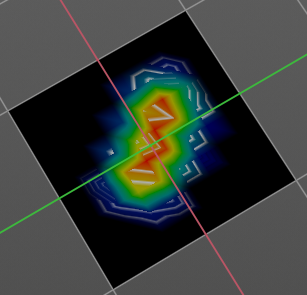
Show contour lines formed by points with the same interpolated weight.
Show Wire
Display the wire at the mesh. Normally the wire is hidden.
Show Bone X Ray
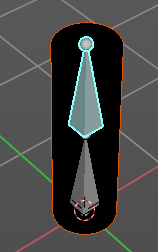
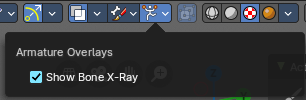
This prop just shows when you have both, the bone and the mesh object selected by holding down shift, and switch to weight paint.
This has in general the same effect than draw in front. It shows the bones on top of the mesh geometry.
Viewport Overlays - Mesh Object - Texture Paint Mode
Stencil Opacity
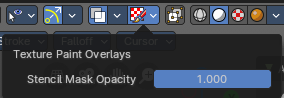
How strong the painted color gets shown.
Viewport Overlays - Hair Object - Sculpt Mode
Selection Opacity
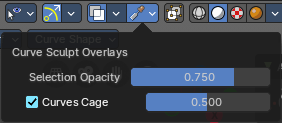
How solid not selected curves are displayed. Note that you can't make them fully transparent.
Curves Cage
Highlight the selected curves.
Cage Opacity
How strong selected curves are highlighted.
Viewport Overlays - Armature in Pose Mode
Show Bone X Ray
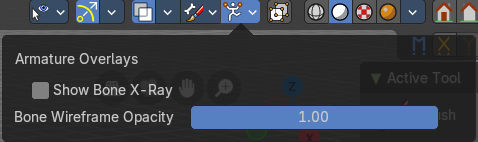
This has in general nearly the same effect than draw in front. It shows the bones on top of the mesh geometry. But you can fade the mesh geometry to black.
Bone Wireframe Opacity
The maximum opacity of bones in wireframe display mode.
Viewport Overlays - Grease Pencil
In Object Mode
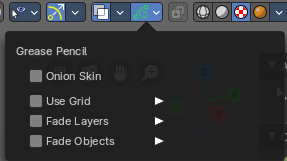
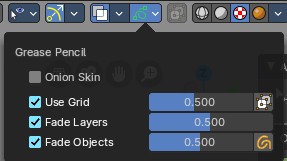
Onion Skin
Show ghosts of the key frames before and after the current frame.
Canvas
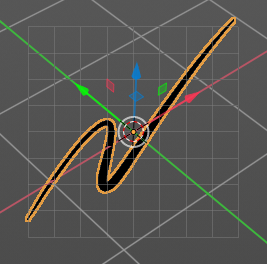
Display a grid over Grease Pencil drawing plane. The opacity of the grid can be controlled with a slider.
Canvas X Ray
Show the grid in front of the stroke.
Fade Layers
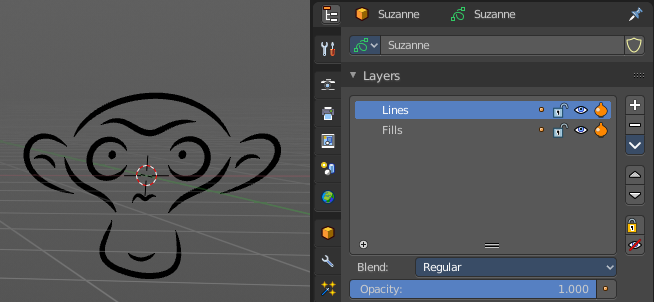
Controls the opacity of the not selected layers in the current grease pencil object.
I have set the fade layers opacity to 1 here. When you select the other layer, then the inner part becomes visible again, and the black outlines hides.
Fade Objects
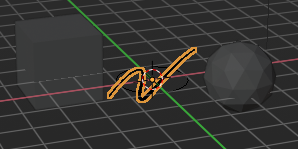
Fades everything in the viewport but the grease pencil color to black.
Fade Grease Pencil Objects
Fades the not active grease pencil objects to black too.
In Edit Mode
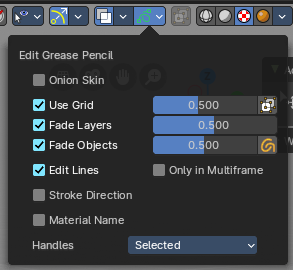
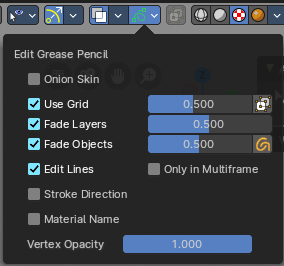
Onion Skin
Show ghosts of the key frames before and after the current frame.
Canvas
Display a grid over Grease Pencil drawing plane. The opacity of the grid can be controlled with a slider.
Canvas X Ray
Show the grid in front of the stroke.
Fade Layers
Control the opacity of the not selected layers in the current grease pencil object.
I have set the fade layers opacity to 1 here. When you select the other layer, then the inner part becomes visible again, and the black outlines hides.
| Entry | What it does |
|---|---|
| Fade Objects | Fades everything in the viewport but the grease pencil color to black. · Fade Grease Pencil Objects: Fades the not active grease pencil objects to black too. |
| Edit Lines | Show the edges of the curve when editing strokes. |
Stroke Direction
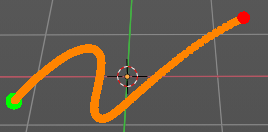
Shows a red and a green dot at the end of the stroke. Green dot is start. Red dot is end.
Only in multi frame
Only show edges of the curve while in multi frame edition.
Material Name
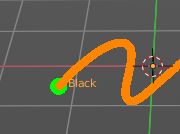
Displays the material name at the start of the stroke.
Vertex Opacity
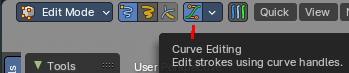
With Curve Editing off. How strong the selected vertices of the stroke shows.
Handles
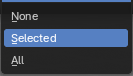
With Curve Editing on. Limit the display of curve handles in edit mode.
| Entry | What it does |
|---|---|
| None | Don't limit the handles. |
| Selected | Just limit the selected handles. |
| All | Limit all handles. |
In Sculpt and Weight paint Mode


Onion Skin
Show ghosts of the key frames before and after the current frame.
Canvas
Display a grid over Grease Pencil drawing plane. The opacity of the grid can be controlled with a slider.
Canvas X Ray
Show the grid in front of the stroke.
Fade Layers
Control the opacity of the not selected layers in the current grease pencil object.
I have set the fade layers opacity to 1 here. When you select the other layer, then the inner part becomes visible again, and the black outlines hides.
| Entry | What it does |
|---|---|
| Fade Objects | Fades everything in the viewport but the grease pencil color to black. · Fade Grease Pencil Objects: Fades the not active grease pencil objects to black too. |
| Edit Lines | Show the edges of the curve when editing strokes. |
| Only in multi frame | Only show edges of the curve while in multi frame edition. |
| Vertex Opacity | Sculpt mode only. How strong the selected vertices of the stroke shows. |
In Draw Mode
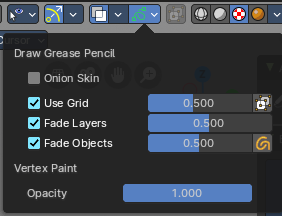
Onion Skin
Show ghosts of the key frames before and after the current frame.
Canvas
Display a grid over Grease Pencil drawing plane. The opacity of the grid can be controlled with a slider.
Canvas X Ray
Show the grid in front of the stroke.
Fade Layers
Control the opacity of the not selected layers in the current grease pencil object.
I have set the fade layers opacity to 1 here. When you select the other layer, then the inner part becomes visible again, and the black outlines hides.
| Entry | What it does |
|---|---|
| Fade Objects | Fades everything in the viewport but the grease pencil color to black. · Fade Grease Pencil Objects: Fades the not active grease pencil objects to black too. |
| Vertex Opacity | How strong the selected vertices of the stroke shows. |
In Vertex Paint mode
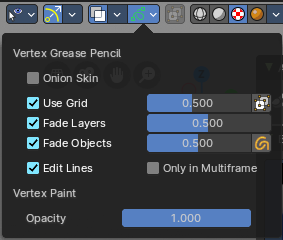
Onion Skin
Show ghosts of the key frames before and after the current frame.
Use Grid
Display a grid over Grease Pencil drawing plane. The opacity of the grid can be controlled with a slider.
Canvas X Ray
Show the grid in front of the stroke.
Fade Layers
Control the opacity of the not selected layers in the current grease pencil object.
I have set the fade layers opacity to 1 here. When you select the other layer, then the inner part becomes visible again, and the black outlines hides.
| Entry | What it does |
|---|---|
| Fade Objects | Fades everything in the viewport but the grease pencil color to black. · Fade Grease Pencil Objects: Fades the not active grease pencil objects to black too. |
| Edit Lines | Show the edges of the curve when editing strokes. |
| Only in multi frame | Only show edges of the curve while in multi frame edition. |
| Vertex Opacity | How strong the selected vertices of the stroke shows. |
| Opacity | The vertex paint opacity. |
Viewport Shading

At the very right of the header you can find the viewport shading settings. Here you adjust the display of the viewport. The order goes from left to right.
Show X Ray
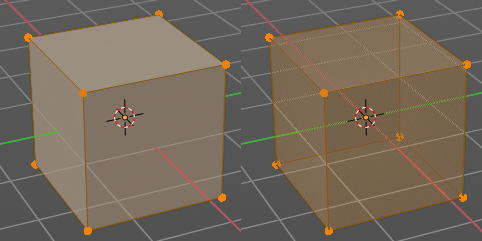
This viewport setting is connected with the viewport shading. It allows you to show and edit the back geometry. Or hide it, so that you can just edit the geometry that points forwards.
Viewport Shading
Defines how geometry gets displayed in the viewport.
| Entry | What it does |
|---|---|
| Wire frame | Displays the content in the viewport as Wire frame. |
| Solid | Displays the content in the viewport with a solid white color. |
| Material | Displays the content in the viewport with all material settings and with OpenGL rendering. Note that this does not exist when you choose the Workbench renderer. |
| Rendered | Displays the content in the viewport like you would have rendered it. This mode is dependent of what render engine you have currently active. |
Viewport Shading Settings
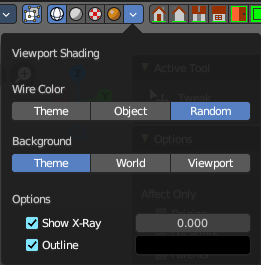
The viewport shading panel. Its settings changes, dependent of which viewport shading mode you have activated. And provides you with further settings for it.
Viewport Shading Settings with Wire frame
Color
Single
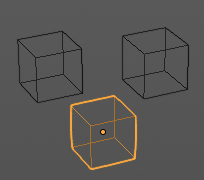
The selected object gets highlighted. The wire frame is the color of the selection outline. The not selected objects shows a black wire frame.
Object
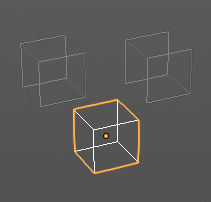
The selected object gets highlighted. The wire frame is white. The not selected objects shows a Grey wire frame.
Random
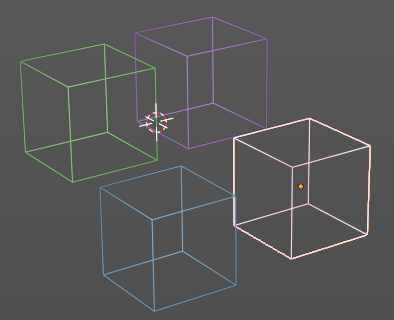
The selected object gets highlighted. The wire frame is a random wire frame color. The not selected objects shows a random wire frame color. You cannot influence this random color. It is random.
Background
| Entry | What it does |
|---|---|
| Theme | Uses the viewport background color as defined in the theme. |
| World | Uses the world background color as the viewport background color. |
Viewport
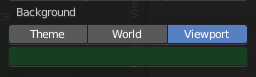
Defines a custom color for the viewport background color.
Options
Show X Ray
This viewport setting is connected with the viewport shading. It allows you to show and edit the back geometry. Or hide it, so that you can just edit the geometry that points forwards.
| Entry | What it does |
|---|---|
| X Ray Alpha | Adjust the amount of transparency. |
| Outline | Show the not selected objects with an outline. |
| Outline Color | Defines the color of the outline for not selected objects. |
Viewport shading Settings with Solid
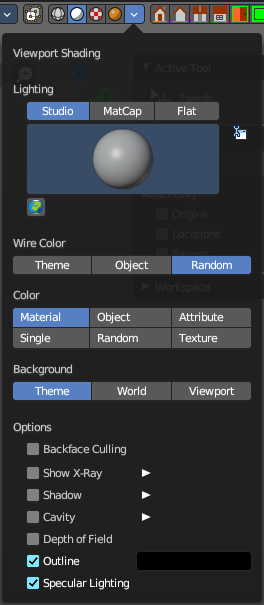
Lighting
Choose between different lighting methods.
Note that this methods are not for rendering the scene. This lighting methods are meant to light the viewport.
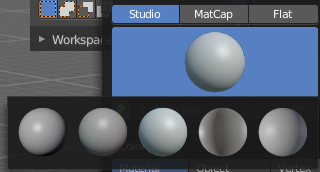
Studio
Uses a studio setup lighting. You can choose between several studio light setups in the library menu below. This library menu is a box with a preview of the currently active light setup.
| Entry | What it does |
|---|---|
| World Space Lighting | Make the lighting fixed to the world. And not follow the camera when you rotate around the scene. |
| Rotation | The rotation of the light setup. This edit box is just active when you use World Space Lighting. |
Show Light Preferences
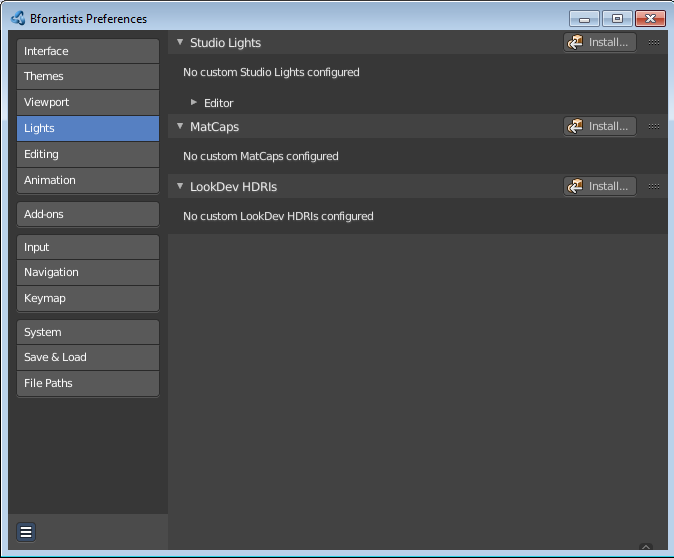
At the right of the drop down box you will see a tiny button. It will open the preferences, where you can edit the existing studio light setups, or add new Studio light setups. This chapter is explained in the preferences manual part.
Wire Color
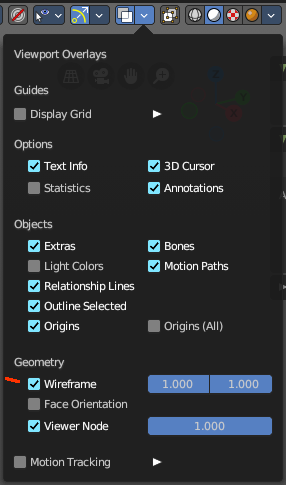
Allows you to display the wire color in different colors. Note that you need to have Wireframe display activated in the Viewport Overlays to see this effect.
Theme
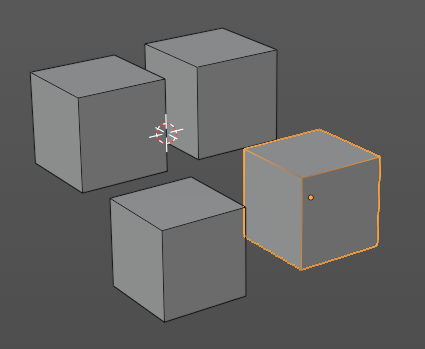
Displays the wireframe color as defined in the theme.
Object
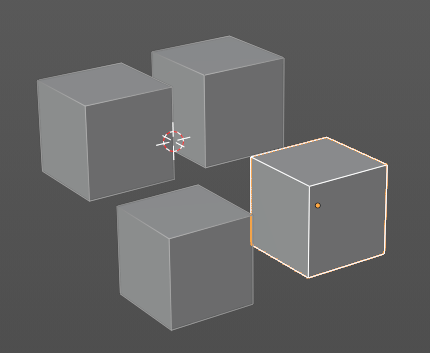
Displays the wireframe color object based.
Random
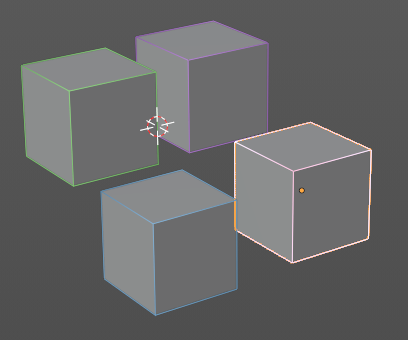
Displays the wireframe color in a random color.
Color
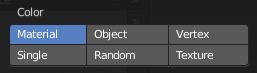
Influence how the objects in the scene are colored. Just one setting can be active at one time.
| Entry | What it does |
|---|---|
| Material | Uses the color of the material, in case a material is assigned to the object(s). |
| Object | Uses the Object color. |
| Vertex | Shows the vertex colors in case vertex colors exists. |
Single
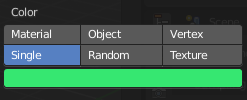
Define a custom color. A color picker box appears when you activate single.
| Entry | What it does |
|---|---|
| Random | Colors the objects with a random color |
| Texture | Shows the texture in case a material with a texture is assigned to the object(s). |
Background
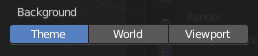
Define the look of the viewport background
| Entry | What it does |
|---|---|
| Theme | Uses the background as defined in the theme. |
| World | Uses the background as defined in the world settings of the scene. |
Viewport
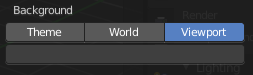
Use a custom color. When you activate this setting, then a color picker field appears, adjust a custom color.
Options
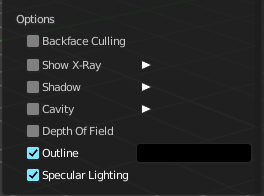
Back face Culling
Use back face culling to hide backsides of faces.
Show X Ray
This viewport setting is connected with the viewport shading. It allows you to show and edit the back geometry. Or hide it, so that you can just see and edit the geometry that points forwards.
Note that you can either have Show X Ray active. Or Shadow and Cavity.
X Ray Alpha
Adjust the strength of the transparency effect.
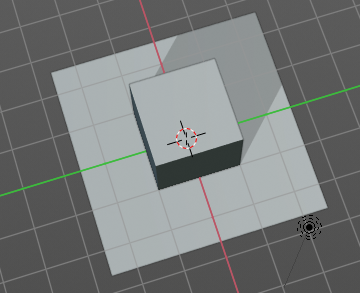
Shadow

Cast a shadow. Note that the shadow casting light is not part of the chosen studio light. It is an independent light.
Shadow Intensity
Here you adjust the strength of the shadow. Higher value means darker shadow.
Light Settings
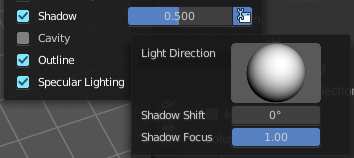
Adjust some settings of the light.
| Entry | What it does |
|---|---|
| Light Direction | Click into the field and drag the mouse to change the direction of the light that casts the shadow. |
| Shadow Shift | The shadow termination angle. This can be used to minimize self shadowing artifacts. |
| Shadow Focus | The shadow hardness. It controls the falloff near the edge of the shadow. |
Cavity
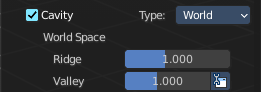
Show Cavity. Cavity highlights ridges and valleys in the scene geometry. When you activate this setting, then further settings appears.
Type
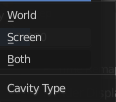
The method how to calculate the cavity. In worlds pace, in screen space. Or in both.
World
Draw the cavity shading in world space.
World Space / Ridge Valley
Factor for the cavity ridges and valleys.
Shading Options
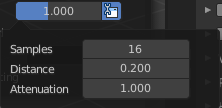
Adjust samples, distance and attenuation for the cavity ridges and valleys.
Screen
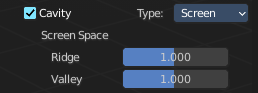
Draw the cavity shading in Screen space.
Screen Space / Ridge Valley
Factor for the curvature ridges and valleys.
Both
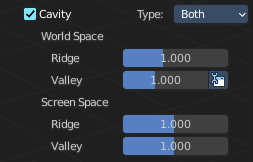
Draw the cavity shading in both, World Space and Screen space.
Settings see above.
| Entry | What it does |
|---|---|
| Depth of Field | Use depth of field for the viewport. It uses the values from the active camera. |
| Outline | Show the not selected objects with an outline. · Outline Color: Define the color of the outline for not selected objects. |
| Specular Lighting | Render specular highlights. |
Matcap
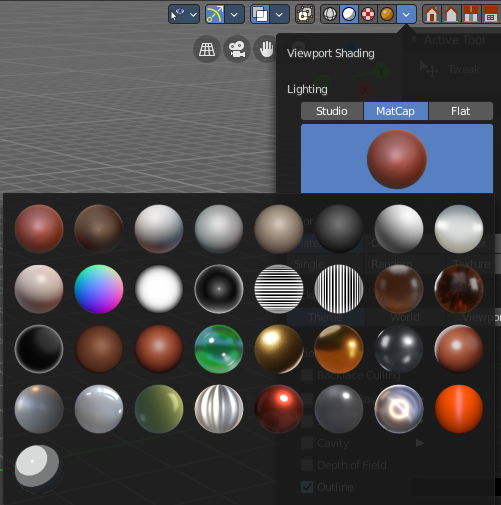
Matcap stands for material capture. With Matcap you use a special matcap shader at the mesh. This shader is usually something colorful, which makes for example sculpting easier.
You can choose between several matcap setups in the library menu below. This library menu is a box with a preview of the currently active matcap setup.
Show Light Preferences
At the right of the library menu box you will see a tiny button. It will open the preferences, where you can edit the existing studio light setups, or add new Studio light setups. This chapter is explained in the preferences manual part.
Flip Matcap
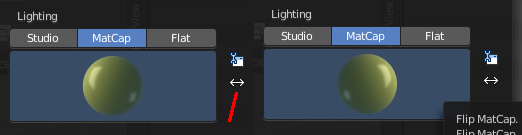
Some matcaps have a direction from which the light comes. With Flip Matcap you can flip this direction.
Color
Influence how the objects in the scene are colored. Just one setting can be active at one time.
| Entry | What it does |
|---|---|
| Material | Uses the color of the material, in case a material is assigned to the object(s). |
| Object | Uses the Object color. |
| Vertex | Shows the vertex colors in case vertex colors exists. |
Single
Define a custom color. A color picker box appears when you activate single.
| Entry | What it does |
|---|---|
| Random | Colors the objects with a random color |
| Texture | Shows the texture in case a material with a texture is assigned to the object(s). |
Background
This defines the look of the viewport background
| Entry | What it does |
|---|---|
| Theme | Uses the background as defined in the theme. |
| World | Uses the background as defined in the world settings of the scene. |
Viewport
Use a custom color. When you activate this setting, then a color picker field appears, adjust a custom color.
Options
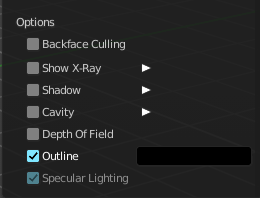
Back face Culling
Use back face culling to hide backsides of faces.
Show X Ray
This viewport setting is connected with the viewport shading. It allows you to show and edit the back geometry. Or hide it, so that you can just see and edit the geometry that points forwards.
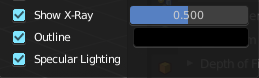
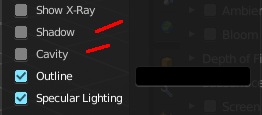
Note that you can either have Show X Ray active. Or Shadow and Cavity. When activating Show X Ray, the other two options will be hidden.
X Ray Alpha
Adjust the strength of the transparency effect.
Shadow
Cast a shadow. Note that the shadow casting light is not part of the chosen studio light. It is an independent light.
Shadow Intensity
Here you adjust the strength of the shadow. Higher value means darker shadow.
Light Settings
Adjust some settings of the light.
| Entry | What it does |
|---|---|
| Light Direction | Click into the field and drag the mouse to change the direction of the light that casts the shadow. |
| Shadow Shift | The shadow termination angle. This can be used to minimize self shadowing artifacts. |
| Shadow Focus | The shadow hardness. It controls the falloff near the edge of the shadow. |
Cavity
Show Cavity. Cavity highlights ridges and valleys in the scene geometry. When you activate this setting, then further settings appears.
Type
The method how to calculate the cavity. In worlds pace, in screen space. Or in both.
World
Draw the cavity shading in world space.
World Space / Ridge Valley
Factor for the cavity ridges and valleys.
Shading Options
Adjust samples, distance and attenuation for the cavity ridges and valleys.
Screen
Draw the cavity shading in Screen space.
Screen Space / Ridge Valley
Factor for the curvature ridges and valleys.
Both
Draw the cavity shading in both, World Space and Screen space.
Settings see above.
| Entry | What it does |
|---|---|
| Outline | Show the not selected objects with an outline. · Outline Color: Define the color of the outline for not selected objects. |
| Specular Lighting | Render specular highlights. |
Flat
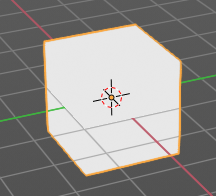
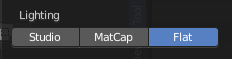
Lights the objects plain white.
Color
Influence how the objects in the scene are colored. Just one setting can be active at one time.
| Entry | What it does |
|---|---|
| Material | Uses the color of the material, in case a material is assigned to the object(s). |
| Object | Uses the Object color. |
| Vertex | Shows the vertex colors in case vertex colors exists. |
Single
Define a custom color. A color picker box appears when you activate single.
| Entry | What it does |
|---|---|
| Random | Colors the objects with a random color |
| Texture | Shows the texture in case a material with a texture is assigned to the object(s). |
Background
Define the look of the viewport background.
| Entry | What it does |
|---|---|
| Theme | Uses the background as defined in the theme. |
| World | Uses the background as defined in the world settings of the scene. |
Viewport
Use a custom color. When you activate this setting, then a color picker field appears, adjust a custom color.
Options
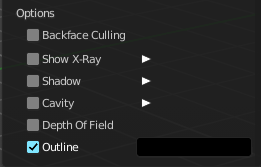
Back face Culling
Use back face culling to hide backsides of faces.
Show X Ray
This viewport setting is connected with the viewport shading. It allows you to show and edit the back geometry. Or hide it, so that you can just see and edit the geometry that points forwards.
Note that you can either have Show X Ray active. Or Shadow and Cavity. When activating Show X Ray, the other two options will be hidden.
X Ray Alpha
Adjust the strength of the transparency effect.
Shadow
Cast a shadow. Note that the shadow casting light is not part of the chosen studio light. It is an independent light.
Shadow Intensity
Here you adjust the strength of the shadow. Higher value means darker shadow.
Light Settings
Adjust some settings of the light.
| Entry | What it does |
|---|---|
| Light Direction | Click into the field and drag the mouse to change the direction of the light that casts the shadow. |
| Shadow Shift | The shadow termination angle. This can be used to minimize self shadowing artifacts. |
| Shadow Focus | The shadow hardness. It controls the falloff near the edge of the shadow. |
Cavity
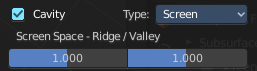
Show Cavity. Cavity highlights ridges and valleys in the scene geometry. When you activate this setting, then further settings appears.
Type
The method how to calculate the cavity. In worlds pace, in screen space. Or in both.
World
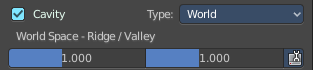
Draw the cavity shading in world space.
World Space / Ridge Valley
Factor for the cavity ridges and valleys.
Shading Options
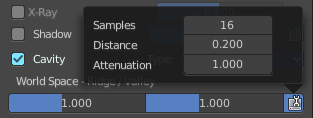
Adjust samples, distance and attenuation for the cavity ridges and valleys.
Screen
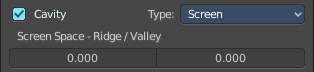
Draw the cavity shading in Screen space.
Screen Space / Ridge Valley
Factor for the curvature ridges and valleys.
Both
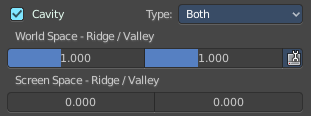
Draw the cavity shading in both, World Space and Screen space.
Settings see above.
| Entry | What it does |
|---|---|
| Outline | Show the not selected objects with an outline. · Outline Color: This defines the color of the outline for not selected objects. |
| Specular Lighting | Render specular highlights. |
Viewport Shading with Material Preview
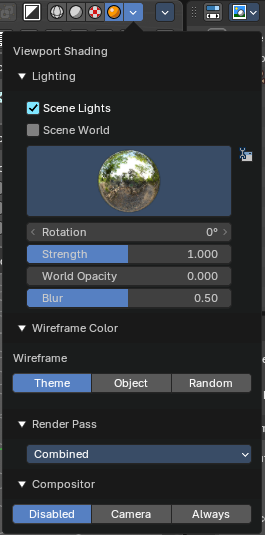
In this mode you can use a hdr file to light the scene.
This mode is just available with Cycles and Eevee renderer. Workspace renderer does not have this mode.
| Entry | What it does |
|---|---|
| Lighting | — |
| Scene Lights | Use the scene lights instead of the hdr to light the scene. |
| Scene World | Use the scene world to light the scene. This turns off the hdr. And the further options are not longer available. |
HDR File Browser
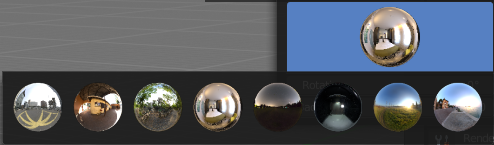
Pick a hdr file to light the world with.
Show light preferences
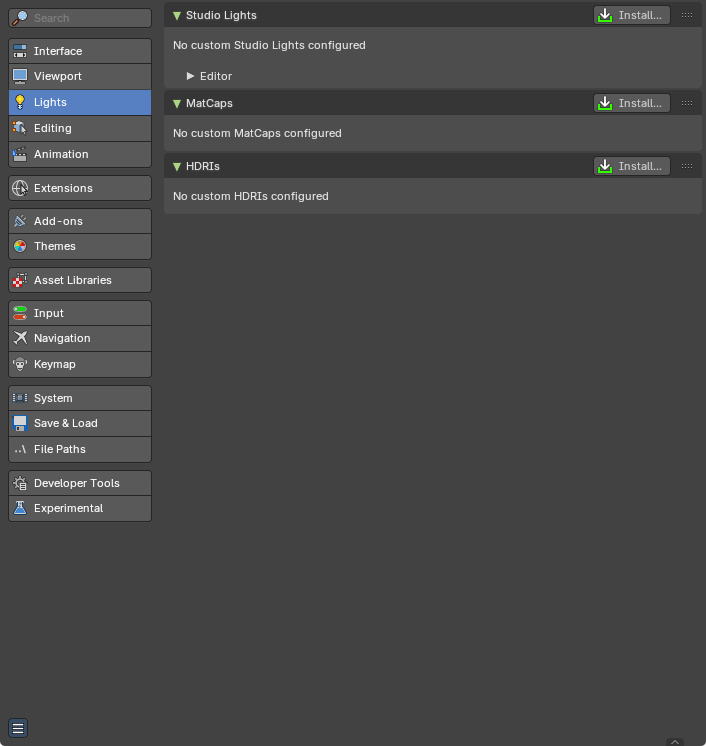
At the right of the library menu box you will see a tiny button. It will open the preferences, where you can edit the existing studio light setups, or add new Studio light setups. This chapter is explained in the preferences manual part.
| Entry | What it does |
|---|---|
| World Space Lighting | Make the hdr rotation fixed, and not follow the camera. |
| Rotation | The rotation of the hdr file. |
| Background | Show the studio light in the background. The higher the value the more the studio light gets mixed into the hdr. |
| World Opacity | Show the studio light in the background |
| Blur | The blur factor. |
Wire Color
Allows you to display the wire color in different colors. Note that you need to have Wireframe display activated in the Viewport Overlays to see this effect.
Theme
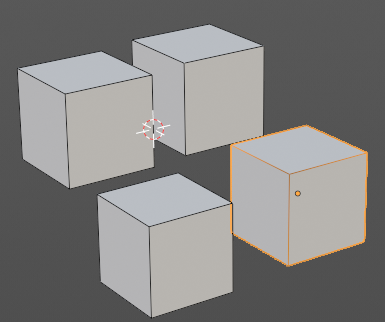
Displays the wireframe color as defined in the theme.
Object
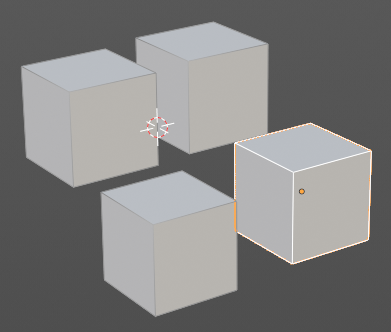
Displays the wireframe color object based.
Random
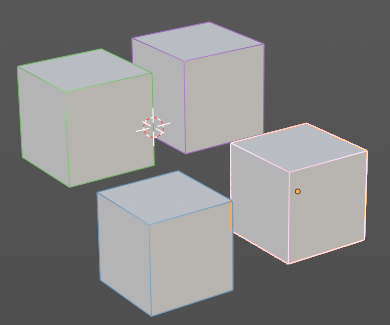
Displays the wireframe color in a random color.
Render Pass
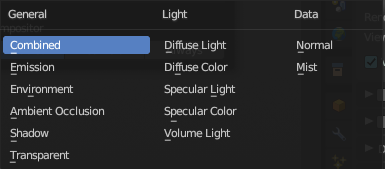
Choose what render passes to calculate.
Compositor
Alllows you to display the compositor result in the viewport. Note that you need to have a active compositor node setup for this to work.
| Entry | What it does |
|---|---|
| Disabled | To display the compositor result in the viewport is disabled. |
| Camera | Displays the compositor result when you are in camera view. |
| Always | Always displays the compositor result. |
Viewport Shading with Rendered
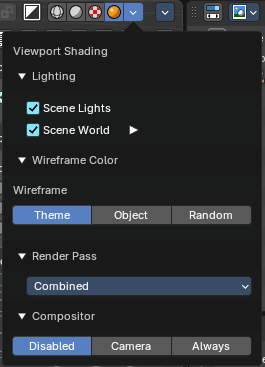
With rendered shading the viewport uses the renderer settings of the chosen render engine. Workbench has no specific shading settings here. And the panel is empty. Cycles and Eeevee have some further settings.
Lighting
Scene Lights
Render lights and light probes in the scene.
Scene World
Use scene world for lighting. When you turn off Scene World then you reveal further settings.
| Entry | What it does |
|---|---|
| Studiolight Preview | Displays the current active hdri file to light the scene. A click at the display allows you to pick another hdri file. · Show Light preferences: Opens the light preferences in the preferences where you can pick more hdri files. |
| Rotation | The rotation of the studio light. |
| Strength | The strength of the studio light. |
| World Opacity | The opacity of the hdri. |
| Blur | Eevee. Blur the studiolight in the background. |
Wire Color
Allows you to display the wire color in different colors. Note that you need to have Wireframe display activated in the Viewport Overlays to see this effect.
Theme
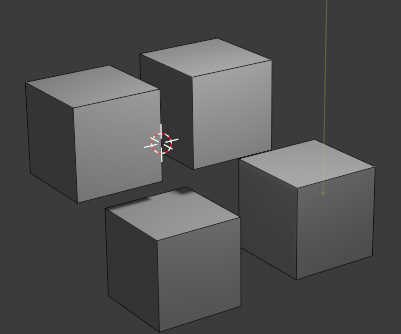
Displays the wireframe color as defined in the theme.
Object
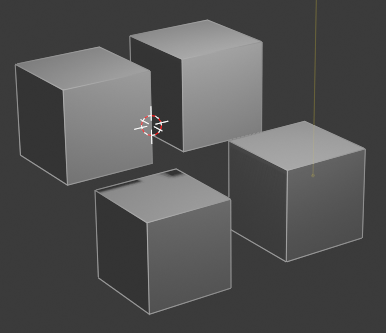
Displays the wireframe color object based.
Random
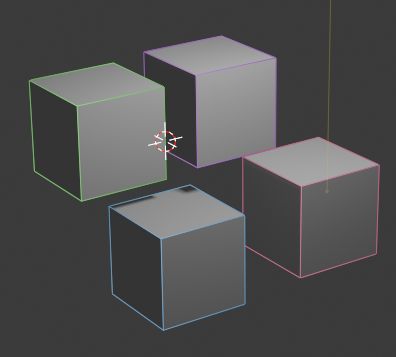
Displays the wireframe color in a random color.
Render Pass
Choose what render passes to calculate.
Compositor
Alllows you to display the compositor result in the viewport. Note that you need to have a active compositor node setup for this to work.
| Entry | What it does |
|---|---|
| Disabled | To display the compositor result in the viewport is disabled. |
| Camera | Displays the compositor result when you are in camera view. |
| Always | Always displays the compositor result. |
Pause Preview
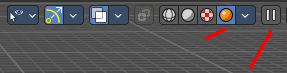
When you choose the Cycles renderer and set the viewport shading mode to rendered, then it reveals one more button at the right. Pause Preview pauses the rendering in the viewport when Cycles is chosen as the viewport renderer.
Align View Buttons

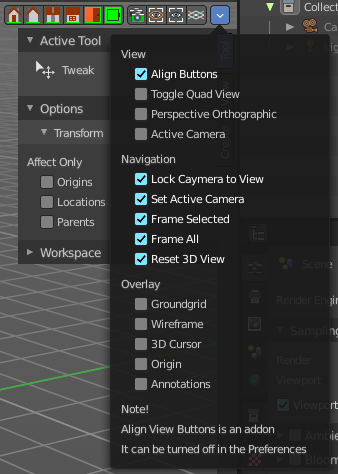
Align View Buttons is an addon. The buttons allows you to align the view to the orthographic views. And brings further functionality from the View menu and other hard to reach locations.
The content is all a double entry by purpose, to have these buttons at the top hierarchical position for quick access. And it is already described at the original UI position. So we won't go into detail here.
This addon can be turned off in the Preferences.
Grease Pencil - all modes - Layer Panel
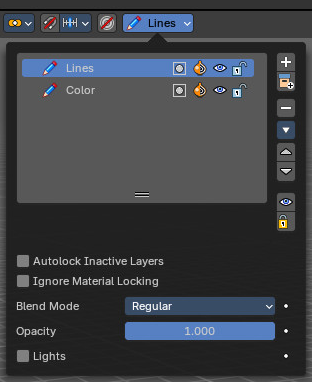
This panel shows in most of the modes. It is the same content than the Layers panel in the Object Data Properties.
Layer list
| Entry | What it does |
|---|---|
| Layer name | The name of the layer. |
| Mask Layer | Toggle the Masks visibility in the layer. |
| Onion Skinning | Toggle the use the layer for Onion Skinning. |
| Viewport/Render Visibility | Toggle layer visibility in the viewport and in render. |
| Lock | Toggle layer from being editable. |
Search Field

You can expand a search field at the bottom of the list. Type in your term and hit enter to filter for your term.
| Entry | What it does |
|---|---|
| Add new layer | Adds a new layer. |
| Remove layer | Removes the selected layer. |
Layer Specials
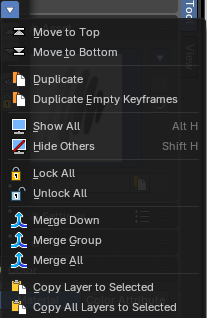
| Entry | What it does |
|---|---|
| Move to Top | Moves the selected layer to the top of the list. |
| Move to Bottom | Moves the selected layer to the bottom of the list. |
| Duplicate Layer | Makes an exact copy of the selected layer appending a number to differentiate its name. |
| Duplicate Empty Keyframes | Makes a copy of the active grease pencil layer. |
| Show All | Turns on the visibility of every layer in the list. |
| Hide Others | Turns off the visibility of every layer in the list except the active one. |
| Lock All | Locks edition of all the layers in the list |
| Unlock All | Unlocks edition of all the layers in the list. |
| Merge Down | Merge the selected layer with the layer below, the new layer keeps the name of the lower layer. |
| Merge Group | Merge the selected layer in the active group with the layer below, the new layer keeps the name of the lower layer. |
| Merge All | Merge the selected layer with all other layers. |
| Copy Layer to Selected | Makes a copy of the layer and move it to the selected Grease Pencil object. |
| Copy all Layers to Selected | Makes a copy of all layers and moves it to the selected Grease Pencil object. |
| Entry | What it does |
|---|---|
| Reorder Layer up/down | Moves the selected layer up or down in the list. |
| Isolate Layers | Hide and lock the layer. |
| Isolate Layers | Lock the layer. |
| Autolock inactive layer | Locks automatically the edition of every layer in the list except the active one. This way you avoid to make unwanted changes in other layers without the need to lock them every time. |
| Igonre Material Locking | Allow editing strokes even if they use locked materials. |
Blend mode
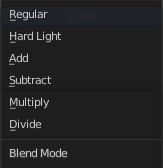
The layer blending operation to perform. See Color Blend Modes.
| Entry | What it does |
|---|---|
| Opacity | Used to set the opacity of the layer. |
| Lights | When enabled, the layer is affected by lights. |
Grease Pencil - Options Panel
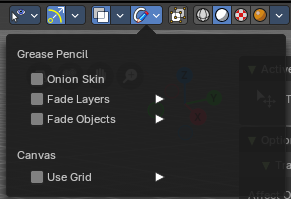
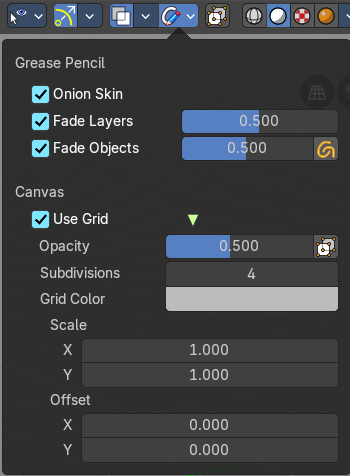
Options for the use of the grease pencil.
Grease Pencil - all modes
| Entry | What it does |
|---|---|
| Onion Skin | Use onion skinning. Onion skinning shows ghosts of the keyframes before and after the current position. |
| Fade Layers | Fade all layers except the active one. · Opacity: The fading opacity. |
| Fade Objects | Fade all objects except the active one. · Opacity: The fading opacity. · Fade Grease Pencil Objects: Fade also all Grease Pencil Objects except the active one. |
Canvas
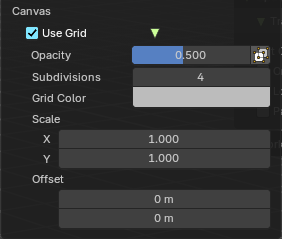
Use Grid
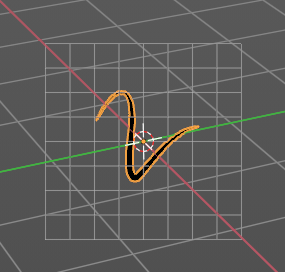
Use a reference grid behind the grease pencil.
| Entry | What it does |
|---|---|
| Opacity | The opacity of the grid. |
| Canvas X Ray | Show the canvas in front of the grease pencil. |
| Subdivisions | How much subdivisions the grid has. |
| Grid Color | The grid color. |
| Scale X , Y | The size of the grid. |
| Offset | The offset of the grid. |
Grease Pencil - Edit mode
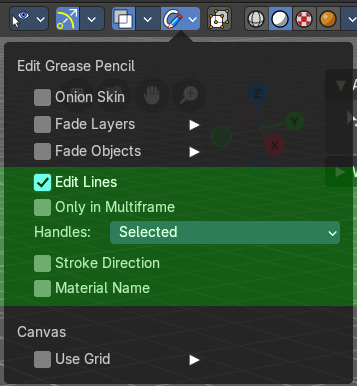
In Edit mode a few more options appears
| Entry | What it does |
|---|---|
| Edit Lines | Show editing lines when editing strokes. |
| Only in Multiframe | Show edit lines only in multiframe. |
Handles
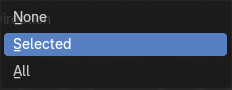
Limit the display of curve handles in edit mode.
| Entry | What it does |
|---|---|
| None | Handles are not displayed. |
| Selected | Just the handles of the selection are displayed. |
| All | All handles are displayed. |
| Entry | What it does |
|---|---|
| Stroke Direction | Show stroke drawing direction. The direction is indicated by a green dot. |
| Material Name | Show the material name that is assigned to each stroke. |
Grease Pencil - Sculpt mode
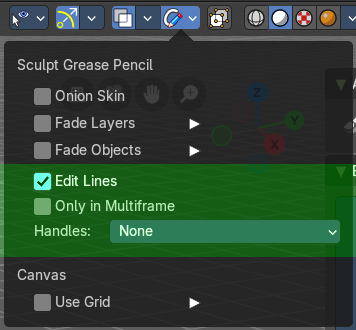
| Entry | What it does |
|---|---|
| Edit Lines | Show editing lines when editing strokes. |
| Only in Multiframe | Show edit lines only in multiframe. |
Handles
Limit the display of curve handles in edit mode.
| Entry | What it does |
|---|---|
| None | Handles are not displayed. |
| Selected | Just the handles of the selection are displayed. |
| All | All handles are displayed. |
Grease Pencil - Draw mode
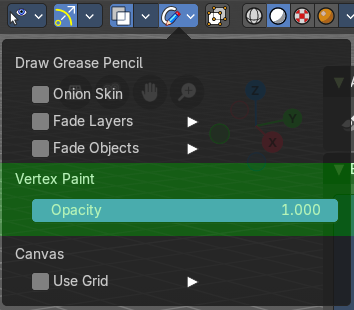
Vertex Paint
Opacity
The vertex paint mix factor.
Grease Pencil - Weight Paint mode

| Entry | What it does |
|---|---|
| Edit Lines | Show editing lines when editing strokes. |
| Only in Multiframe | Show edit lines only in multiframe. |
Handles
Limit the display of curve handles in edit mode.
| Entry | What it does |
|---|---|
| None | Handles are not displayed. |
| Selected | Just the handles of the selection are displayed. |
| All | All handles are displayed. |
Grease Pencil - Vertex Paint mode
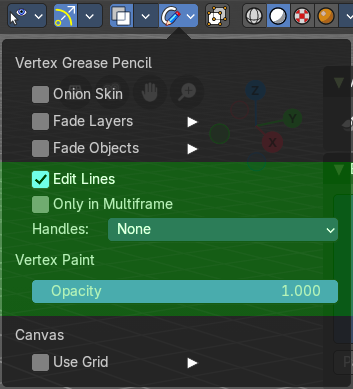
| Entry | What it does |
|---|---|
| Edit Lines | Show editing lines when editing strokes. |
| Only in Multiframe | Show edit lines only in multiframe. |
Handles
Limit the display of curve handles in edit mode.
| Entry | What it does |
|---|---|
| None | Handles are not displayed. |
| Selected | Just the handles of the selection are displayed. |
| All | All handles are displayed. |
Vertex Paint
Opacity
The vertex paint mix factor.
Grease Pencil - Sculpt mode - Auto-masking Panel

Automasking settings.
| Entry | What it does |
|---|---|
| Stroke | Affect only strokes below the cursor that are the same stroke. |
| Layer | Affect only strokes below the cursor that are at the same layer. |
| Material | Affect only strokes below the cursor that have the same material. |
| Active Layer | Affect only the active layer. |
| Active material | Affect only strokes with the active material. |