

































































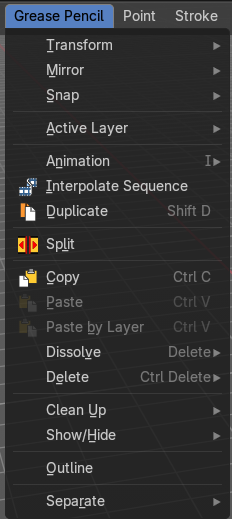
Grease Pencil - Edit mode - Grease Pencil menu
Transforms the selected geometry into a sphere shape.
Edit Mode - Grease Pencil Menu
Transform submenu
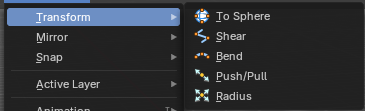
To Sphere
Transforms the selected geometry into a sphere shape.
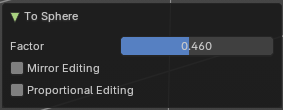
Last Operator To Sphere
| Entry | What it does |
|---|---|
| Factor | The transform factor. |
| Mirror Editing | Edit mirror geometry too. |
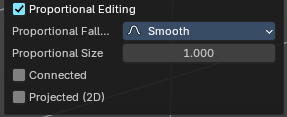
Proportional Editing
Proportional editing
Enables proportional editing. Activating proportional editing reveals further settings.
| Entry | What it does |
|---|---|
| Proportional Falloff | Adjust the falloff methods. |
| Proportional Size | See and adjust the falloff radius. |
| Connected | The proportional falloff gets calculated for connected parts only. |
| Projected(2D) | The proportional falloff gets calculated in the screen space. Depth doesn't play a role. When it's in the radius, then it gets calculated. |
Shear
Shear shears the selection.
In Object mode this tools requires to have more than one object selected.
The shear tool works along a imaginary 2d plane. The shear axis controls if the items are sheared along the x or the y axes of this plane. This is the plane along which the transformation happens. You can shear along the x or the y axis of this plane.
To make things even more complicated, the orientation of this imaginary plane is defined by the Axis and Axis Ortho items below.
Last Operator Shear
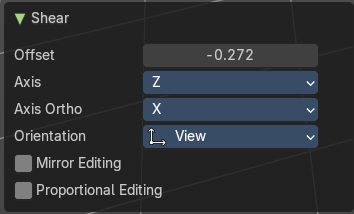
Offset
Adjust an offset.
Axis
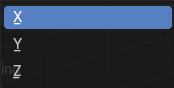
Defines one axis of the imaginary shear axis plane.
Axis Ortho
Defines the other axis of the imaginary shear axis plane.
| Entry | What it does |
|---|---|
| Orientation | Choose the orientation for the shear action. |
| Mirror Editing | Enable mirror editing. |
Proportional editing
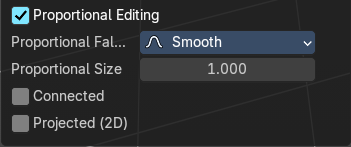
Enables proportional editing. Activating proportional editing reveals further settings.
| Entry | What it does |
|---|---|
| Proportional Falloff | Adjust the falloff methods. |
| Proportional Size | See and adjust the falloff radius. |
| Connected | The proportional falloff gets calculated for connected parts only. |
| Projected(2D) | The proportional falloff gets calculated in the screen space. Depth doesn't play a role. When it's in the radius, then it gets calculated. |
Bend
Bends the selection.
Push/Pull
It pushes or pulls the object positions relative to the center of the selection.
In Object mode this tool requires to have more than one object selected.
Last Operator Push/Pull
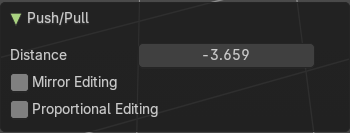
| Entry | What it does |
|---|---|
| Distance | Adjust the distance of influence of the tool. |
| Mirror Editing | Enable mirror editing. |
Proportional editing
Enables proportional editing. Activating proportional editing reveals further settings.
| Entry | What it does |
|---|---|
| Proportional Falloff | Adjust the falloff methods. |
| Proportional Size | See and adjust the falloff radius. |
| Connected | The proportional falloff gets calculated for connected parts only. |
| Projected(2D) | The proportional falloff gets calculated in the screen space. Depth doesn't play a role. When it's in the radius, then it gets calculated. |
Radius
Scales the selected geometry of a curve along its normals. Grease pencil is under the hood a curve. Transform orientation and Pivot point gets ignored.
A positive value pushes the vertices outwards. A negative value pushes the vertices inwards.
Last Operator Transform
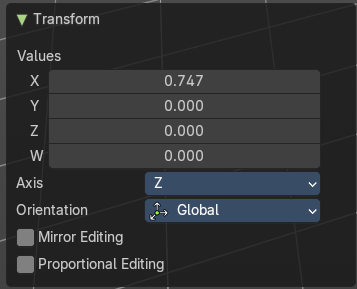
Values
The transform values.
Axis
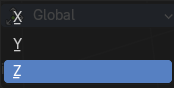
The transform axis.
Orientation
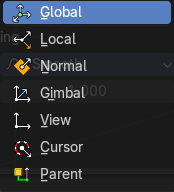
Choose the orientation.
| Entry | What it does |
|---|---|
| Mirror Editing | Enable Mirror Editing. |
| Proportional editing | Enables proportional editing. Activating proportional editing reveals further settings. · Proportional Falloff: Adjust the falloff methods. · Proportional Size: See and adjust the falloff radius. · Connected: The proportional falloff gets calculated for connected parts only. · Projected(2D): The proportional falloff gets calculated in the screen space. Depth doesn't play a role. When it's in the radius, then it gets calculated. |
Opacity
Changes the transparency of selected Grease Pencil vertices. Higher values = more opaque; lower values = more transparent. This is useful for shading, layering, or fade effects in drawings.
To use, activate then drag left or right to change the stroke opacity.
Note: This does not affect fill opacity, only stroke.
Last Operator Transform
Values
The transform values.
Axis
The transform axis.
Orientation
Choose the orientation.
| Entry | What it does |
|---|---|
| Mirror Editing | Enable Mirror Editing. |
| Proportional editing | Enables proportional editing. Activating proportional editing reveals further settings. · Proportional Falloff: Adjust the falloff methods. · Proportional Size: See and adjust the falloff radius. · Connected: The proportional falloff gets calculated for connected parts only. · Projected(2D): The proportional falloff gets calculated in the screen space. Depth doesn't play a role. When it's in the radius, then it gets calculated. |
Mirror submenu
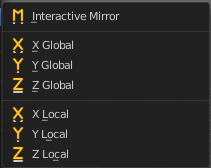
Mirror mirrors the selected geometry along the defined axis.
Interactive Mirror
Mirror by hotkeys. You activate the tool, type in x for x global for example, or x x for x local. And the selection gets mirrored
X Global, Y Global etc.
Mirrors the selection around the chosen axis.
Last Operator Mirror

The Last Operator Mirror panel gives you tools to adjust the mirror action.
Orientation
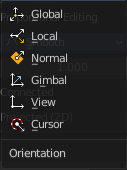
Orientation is a drop-down box . Choose the type of orientation for the mirroring action.
Constraint Axis
Constraint Axis gives you again the possibility to define the mirror axis. You can choose more than one axis here.
Snap submenu
Snap
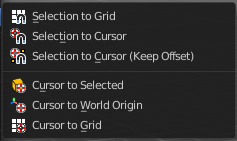
Choose several methods to snap one element to another. The menu items should be self explaining.
Last operator Snap Selection to Cursor
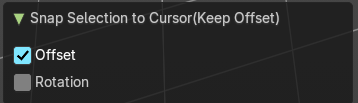
Some snap operations shows a last operation panel, some not.
| Entry | What it does |
|---|---|
| Offset | If the selection should snap as a whole, or if each individual element of the selection should snap. |
| Rotation | If the selection should be rotated to match the cursor. |
Active Layer
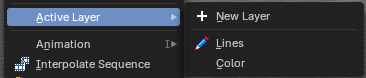
Set the active layer
New Layer
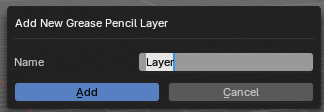
Add a new greasepencil layer. A popup will appear where you can add the name.
Layers
The list of the available layers.
Animation
Insert Blank Key frame ( Active Layer )
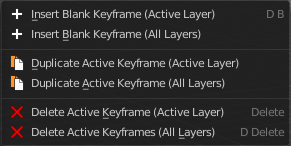
Inserts a key frame into the active layer.
Insert Blank Key frame ( All Layers )
Inserts a key frame into all layers.
Last Operator Insert Blank Frame
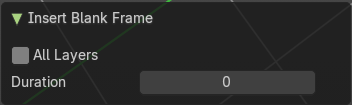
Some snap operations shows a last operation panel, some not.
All Layers
Insert into active layer or into all layers.
Duplicate Active Key frame ( Active Layer )
Duplicates the active key frame in the active layer.
Duplicate Active Key frame ( All Layers )
Duplicates the active key frame in all layers.
Last Operator Insert Blank Frame
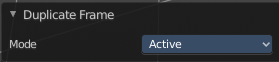
Some snap operations shows a last operation panel, some not.
Mode
Duplicate the active key frame in the active layer or in all layers.
Delete Active Key frame ( Active Layer )
Deletes the active key frame in the active layer.
Delete Active Key frame ( All Layers )
Deletes the active key frame in all layers
Single Operators
Interpolate Sequence
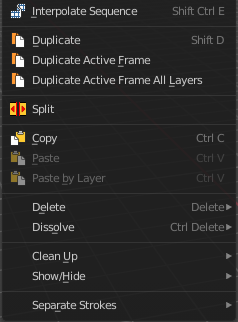
Interpolate strokes between the previous and next keyframe by adding multiple keyframes. When you are on a frame between two keyframes and click the sequence button, then a breakdown keyframe will be added on every frame between the previous and next keyframe.
Duplicate
Duplicates the current selection. This can be a single control point or a whole curve.
The copy sticks to the mouse until you release it. A Right click while moving will reset the position of the duplicate. The duplicated part will be part of the same object.
When you drag the duplicate around you will see the position values in the header.
Last Operator Duplicate
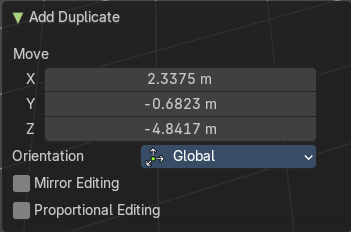
Move X , Y , Z
Orientation
Choose the orientation.
| Entry | What it does |
|---|---|
| Mirror Editing | Enable Mirror Editing. |
| Proportional editing | Enables proportional editing. Activating proportional editing reveals further settings. · Proportional Falloff: Adjust the falloff methods. · Proportional Size: See and adjust the falloff radius. · Connected: The proportional falloff gets calculated for connected parts only. · Projected(2D): The proportional falloff gets calculated in the screen space. Depth doesn't play a role. When it's in the radius, then it gets calculated. |
| Entry | What it does |
|---|---|
| Split | Split selected points to a new stroke. |
| Copy | Copies the selection. |
| Paste | Pastes a copied selection to active layer. You can have more than one layer. |
Paste by Layer
Pastes a copied selection to same, original layer. You can have more than one layer.
Last operator Paste Strokes
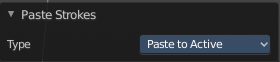
Type
Choose between the paste methods again.
Dissolve
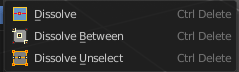
Dissolve is a union operation. Two edges becomes one edge by removing the vertice in between.
| Entry | What it does |
|---|---|
| Dissolve | Dissolves the selection. |
| Dissolve Between | Dissolves the vertices between the selected vertices. |
Dissolve Unselect
Dissolves the vertices that are not selected.
Last Operator Dissolve
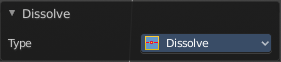
Type
Choose how you want to dissolve.
Delete
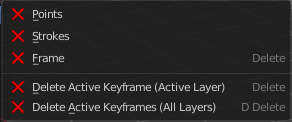
| Entry | What it does |
|---|---|
| Delete | Delete selected stroke points. |
| Delete Active Key frame(Active Layer) | Deletes the active key frame in the current active layer. |
| Delete Active Key frame(All Layers) | Deletes the active key frame in all layers. |
Cleanup sub menu
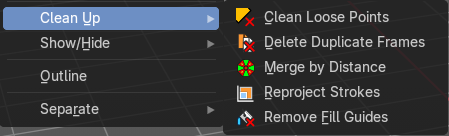
Clean Loose Points
Deletes not connected stroke geometry that is made of loose points.
Last Operator Clean Loose Points
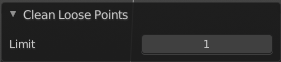
Limit
The number of vertices below which a stroke gets counted as a loose point.
Delete Duplicated Frames
Deletes all duplicated frames.
Last Operator Clean Duplicated Frames
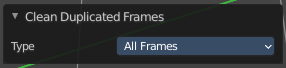
Type
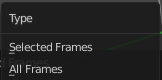
Delete just in the selected frames or in all frames.
Merge by Distance
Merge selected geometry that is in a specific range to each other.
Last Operator Merge by Distance
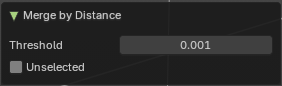
| Entry | What it does |
|---|---|
| Threshold | Delete just in the selected frames or in all frames. |
| Unselected | Also merge geometry by distance that is not selected but part of the stroke. |
Re project Strokes
Re project the selected strokes onto a new plane from the current viewport. So that all strokes are on one plane.
Re project Strokes menu
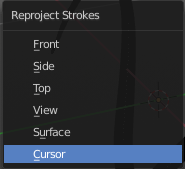
Using this tool opens a popup menu. Choose the projection type method.
Last Operator Re projectStrokes
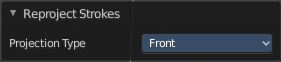
Projection Type
A popup menu. Choose the projection type method.
Remove Fill Guides
In Draw mode with the fill tool you are able to draw so called fill guide with holding down the Alt key. They act as the boundary of the fill area. This tool removes these fill guides.
Last Operator Remove Fill Guides
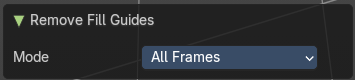
Mode
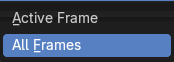
All frames or just the current frame.
Show / Hide
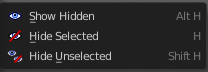
Show Hidden
Makes all curve geometry in the scene visible again.
Hide Selected
Hides the selected curve geometry.
Last Operator Hide Selected
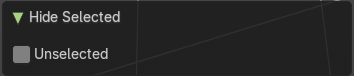
Unselected
Hides the not selected curve geometry.
Hide Unselected
Hides the not selected curve geometry. The selected geometry stays visible.
Outline
Convert selected strokes to perimeter.
Last Operator Outline
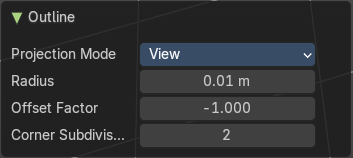
| Entry | What it does |
|---|---|
| Projection mode | Hides the not selected layers. |
| Radius | The radius. |
| Offset Factor | The offset factor. |
| Corner Subdivision | The corner subdivision resolution. |
Separate sub menu
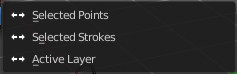
Separates the selection into a new grease pencil object.
| Entry | What it does |
|---|---|
| Selected Points | Separate the selected points with its edges. |
| Selected Strokes | Separate the whole stroke of the current selection. |
| Active Layer | Separate all the strokes at the current active layer. |
Last Operator Separate Strokes
Mode
Active Layer
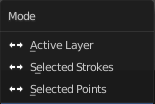
Separate all the strokes at the current active layer.
| Entry | What it does |
|---|---|
| Selected Strokes | Separate the whole stroke of the current selection. |
| Selected Points | Separate the selected points with its edges. |