

































































Curve & Surface - Edit mode - Control points menu
The control points menu exists for Curve and Surface objects in edit mode.
Edit Mode - Control Points menu
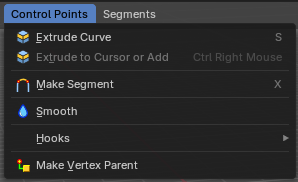
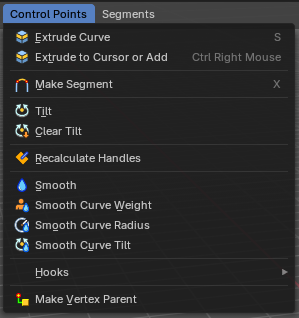
The control points menu exists for Curve and Surface objects in edit mode.
For the surface object type there are not this much operators available.
Extrude Curve
Extrudes the selected curve point(s).
Last operator Extrude Curve and Move
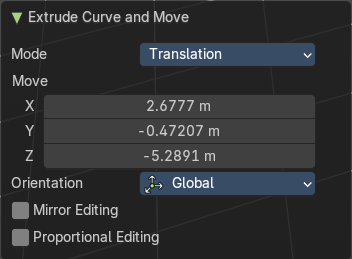
Mode
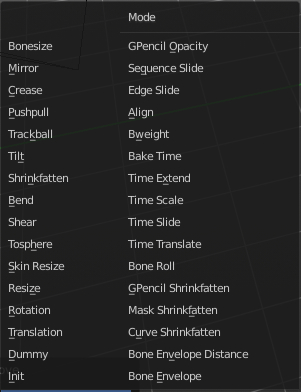
A drop-down box where you can choose between different extrude modes.
Default is Translation. Most other methods has no effect.
Move X , Y , Z
The position of the extruded point(s).
Orientation
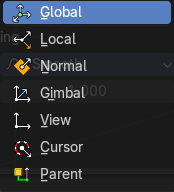
Adjust the orientation of the extrusion. It usually starts with Normal.
| Entry | What it does |
|---|---|
| Mirror Editing | Enable Mirror Editing. |
| Proportional editing | Enables proportional editing. Activating proportional editing reveals further settings. · Proportional Falloff: Adjust the falloff methods. · Proportional Size: See and adjust the falloff radius. · Connected: The proportional falloff gets calculated for connected parts only. · Projected(2D): The proportional falloff gets calculated in the screen space. Depth doesn't play a role. When it's in the radius, then it gets calculated. |
Extrude to Cursor or Add
Hotkey only tool. Extrude to the mouse position.
Last Operator Extrude to Cursor or Add
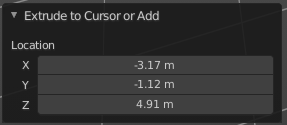
Location X Y Z
The location to extrude to.
Make Segment
Joins two curves by adding a segment between the end of the one and the beginning of the other. You can also create a closed curve that way.
Tilt
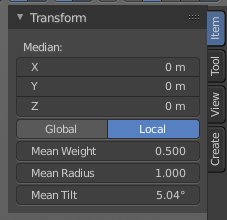
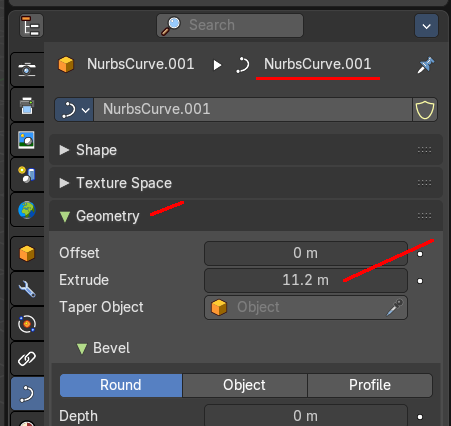
Modifies the Mean Tilt of the geometry of a curve. The curve needs to have geometry !
Activate the tool, and drag the mouse. You will see a value in the header now. The selected curve path will rotate by dragging the mouse.
The Tilt angle always starts at zero. It is relative. To modify the Mean Tilt use the edit box in the Transform panel.
Last Operator Tilt
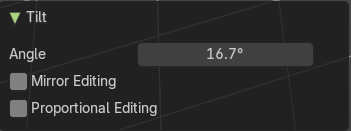
Angle
The Tilt angle.
Proportional editing
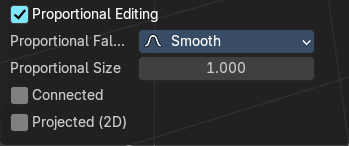
Enables proportional editing. Activating proportional editing reveals further settings.
| Entry | What it does |
|---|---|
| Proportional Falloff | Adjust the falloff methods. |
| Proportional Size | See and adjust the falloff radius. |
| Connected | The proportional falloff gets calculated for connected parts only. |
| Projected(2D) | The proportional falloff gets calculated in the screen space. Depth doesn't play a role. When it's in the radius, then it gets calculated. |
Clear Tilt
Sets the Mean Tilt to zero.
Recalculate Handles
Recalculates the normals of the selected curve and adjusts the handles accordingly.
Last Operator Recalc Normals
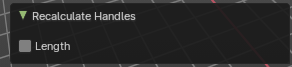
Length
Recalculates the handle length.
| Entry | What it does |
|---|---|
| Make Segment | Surface Object only. Join two curves by their selected ends. You need to select the end points of the curves that you want to join. A new segment will then be added in the gap. |
| Smooth | Flattens the angles of the selected control point(s). |
| Smooth Curve Tilt | Smooths the curve tilt of the selected control point(s). |
| Smooth Curve Radius | Smooths the curve radius of the selected control point(s). |
| Smooth Curve Weight | Interpolates the weight of the selected control point(s). |
Hooks
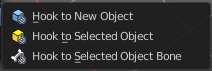
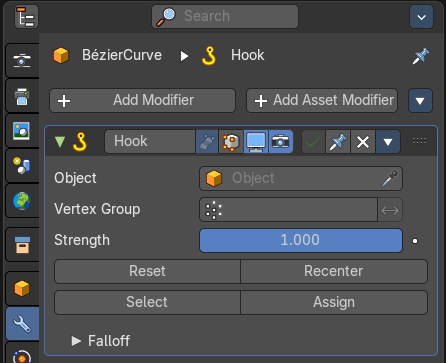
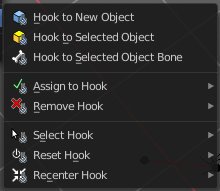
Hooks is a menu with tools around the hook modifier. You could also adjust the hook modifier from the Properties editor. But the menu items are more accessible.
When there is no hook modifier at the mesh then you just see three menu items. When there is minimum one hook modifier applied, then you will see an extended menu.
Hook to New Object
Creates a new Hook Modifier for the active object and assigns it to the selected vertices. It also creates an empty at the center of those vertices, which are hooked to it.
Hook to Selected Object
Does the same as Hook to New Object, but instead of hooking the vertices to a new empty, it hooks them to the selected object (if it exists). There should be only one selected object (besides the mesh being edited).
Last Operator Hook to Selected Object
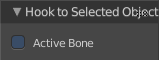
Active Bone
Hook to the object(s) of the active bone.
| Entry | What it does |
|---|---|
| Hook to Selected Object Bone | Does the same as Hook to New Object. B**ut it sets the last selected bone in the also selected armature as a target. |
| Assign to Hook | Assign the selected vertices to the chosen hook modifier. Existing hooks gets overwritten. One vertex can be assigned to more than one hook. |
| Remove Hook | Removes the chosen Hook Modifier from the object. |
| Select Hook | Selects all vertices assigned to the chosen Hook Modifier. |
| Reset Hook | Resets the chosen Hook Modifier. |
| Recenter Hook | Recenter the Hook Modifier. |
Make Vertex Parent
Parents another object to the selected vertice(s).
Workflow:
In Object mode select the object that you want to parent to a vertex. Shift select the parent object so that both are selected. Enter Edit mode. Then select one vertex for a single point. Then click the Make Vertex Parent button to make the relation.