

































































Add Menu
The Add menu contains everything that can be added to the scene. Geometry, camera, lights and so on.
Add Menu
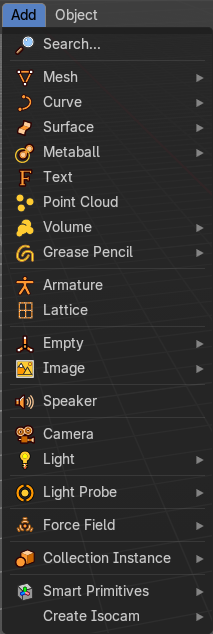
The Add menu contains everything that can be added to the scene. Geometry, camera, lights and so on.
When you create a primitive then the Adjust Last Operator Panel down left shows some settings for this primitive.

Note that the adjust last operator panel does not show when you add a primitive from the toolbar at the top. Then you have to open the adjust last operation panel from the toolbar.
Note also that those settings are not longer available when you perform any operation at the object. And be it to move the primitive. Some of those settings might still be available in the Properties editor. But things like create UV not. So when you want to adjust those settings, then do it immediately after creation.
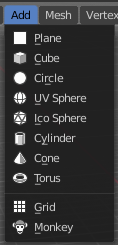
Several object types can be edited. A Mesh Primitive for example. They have different modes available then. Some not. Like an Empty. There is just the Object mode available for an Empty.
You can add some primitives in edit mode too. In object mode you have the whole range available. In Edit mode you usually just have the object type available with which you are in edit mode.
For example, when you are in edit mode with a mesh, then the add menu just shows the mesh content. When you add geometry in edit mode, then the added geometry becomes part of the current object.
Add menu – Search...
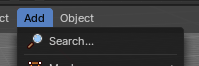
There is a search menu operator where you can search for specific object types in all categories.
Add menu – Type to Search
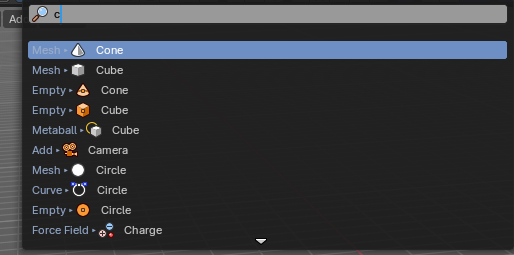
There is also a hidden search menu where you can search for specific object types in all categories with a key press when the menu is open.
Simply expand the add menu by clicking it, and start to type in the term that you want to find – this will automatically trigger the search.
Mesh
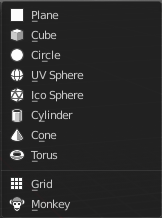
The Mesh section contains the primitives that are made of meshes.
Mesh objects are geometrical objects made of vertices, edges and faces. The geometry can be edited in various ways in edit mode. They can be sculpted in sculpt mode. The vertices can be painted in vertex paint mode. They can be used as a skin for a skeleton, and you can weight paint them so that it deforms with the armature. And you can add textures by UV mapping.
Plane
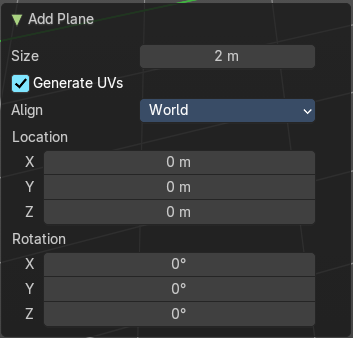
Plane creates a simple quad face mesh.
Last Operator Add Plane Panel
| Entry | What it does |
|---|---|
| Size | The size of the primitive. |
| Generate UV's | creates UV's for this primitive. |
Align
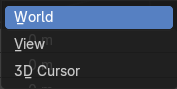
Aligns the geometry to the chosen view. World, View or 3D cursor.
Note that this option is dysfunctional when you call the Adjust Last Operator panel from the Toolbar editor.
| Entry | What it does |
|---|---|
| Location | Adjust the location of the primitive. |
| Rotation | defines the rotation of the primitive. |
Cube
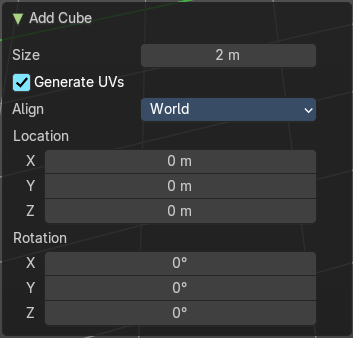
Cube creates a Cube mesh.
Last Operator Add Cube Panel
Size
The size of the primitive.
Generate UV's
creates UV's for this primitive.
| Entry | What it does |
|---|---|
| Align | Aligns the geometry to the chosen view. World, View or 3D cursor. Note that this option is dysfunctional when you call the Adjust Last Operator panel from the Toolbar editor. |
| Location | Adjust the location of the primitive. |
| Rotation | defines the rotation of the primitive. |
Circle
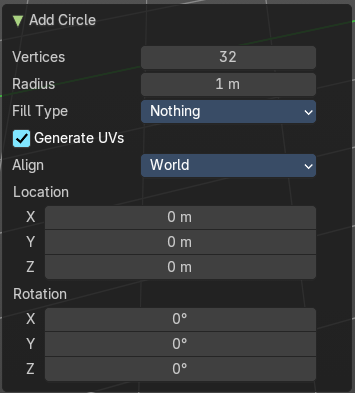
Circle creates a Circle mesh.
Last Operator Add Circle Panel
| Entry | What it does |
|---|---|
| Vertices | Defines of how much vertices the primitive is made. |
| Radius | Defines the radius of the primitive. |
Fill Type
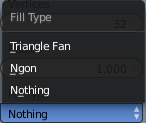
Defines how the primitive mesh is filled.
| Entry | What it does |
|---|---|
| Nothing | means you have pure edge geometry. |
| N-Gon | means that the circle face is a N-Gon face. |
| Triangle Fan | means that the circle face is triangulated. |
Generate UV's
creates UV's for this primitive.
| Entry | What it does |
|---|---|
| Align | Aligns the geometry to the chosen view. World, View or 3D cursor. Note that this option is dysfunctional when you call the Adjust Last Operator panel from the Toolbar editor. |
| Location | Adjust the location of the primitive. |
| Rotation | defines the rotation of the primitive. |
UV Sphere
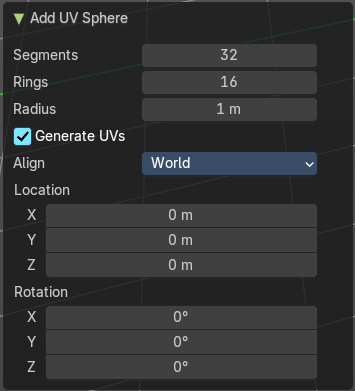
UV Sphere creates a sphere mesh.
Last Operator Add UV Sphere Panel
| Entry | What it does |
|---|---|
| Segments | Defines of how much segments the primitive has vertically. |
| Rings | Defines how much rings the sphere has horizontally. |
| Radius | Defines the radius of the primitive. |
Generate UV's
creates UV's for this primitive.
| Entry | What it does |
|---|---|
| Align | Aligns the geometry to the chosen view. World, View or 3D cursor. Note that this option is dysfunctional when you call the Adjust Last Operator panel from the Toolbar editor. |
| Location | Adjust the location of the primitive. |
| Rotation | defines the rotation of the primitive. |
Ico Sphere
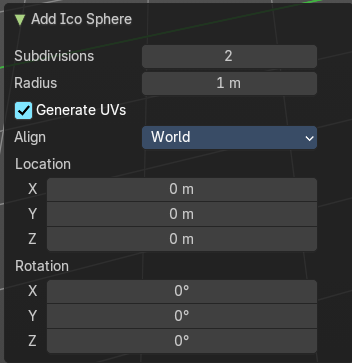
Ico Sphere creates a sphere mesh.
Last Operator Add Ico Sphere Panel
| Entry | What it does |
|---|---|
| Subdivisions | Defines the subdivision level of the primitive. |
| Radius | Defines the radius of the primitive. |
Generate UV's
creates UV's for this primitive.
| Entry | What it does |
|---|---|
| Align | Aligns the geometry to the chosen view. World, View or 3D cursor. Note that this option is dysfunctional when you call the Adjust Last Operator panel from the Toolbar editor. |
| Location | Adjust the location of the primitive. |
| Rotation | defines the rotation of the primitive. |
Cylinder
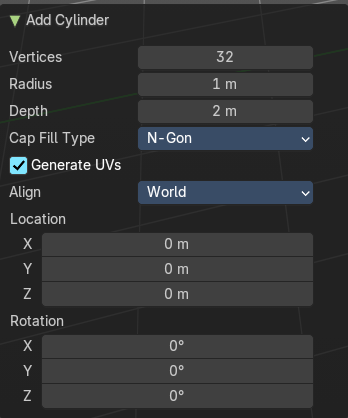
Cylinder creates a Cylinder mesh.
Last Operator Add Circle Panel
| Entry | What it does |
|---|---|
| Vertices | Defines of how much vertices the circle is made. |
| Radius | Defines the radius of the Cylinder. |
| Depth | Defines the length of the Cylinder. |
Cap Fill Type
Defines how the cap of the Cylinder mesh is filled.
| Entry | What it does |
|---|---|
| Nothing | means you have pure edge geometry. |
| N-Gon | means that the circle face is a N-Gon face. |
Triangle Fan
means that the circle face is triangulated.
Generate UV's
creates UV's for this primitive.
| Entry | What it does |
|---|---|
| Align | Aligns the geometry to the chosen view. World, View or 3D cursor. Note that this option is dysfunctional when you call the Adjust Last Operator panel from the Toolbar editor. |
| Location | Adjust the location of the primitive. |
| Rotation | defines the rotation of the primitive. |
Cone
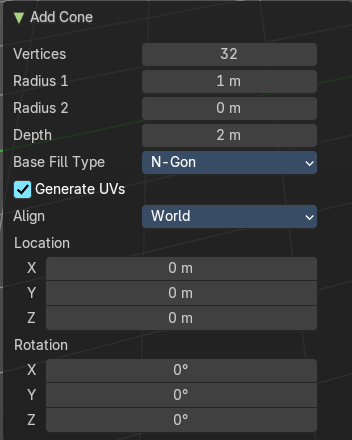
Cone creates a Cone mesh
Last Operator Add Cone Panel
| Entry | What it does |
|---|---|
| Vertices | Defines of how much vertices the primitive is made. |
| Radius 1 | Defines the base radius of the Cone. |
| Radius 2 | Defines the top radius of the Cone. |
| Depth | defines the length of the Cone. |
Base Fill Type
Defines how the primitive mesh is filled.
| Entry | What it does |
|---|---|
| Nothing | means you have pure edge geometry. |
| N-Gon | means that the circle face is a N-Gon face. |
| Triangle Fan | means that the circle face is triangulated. |
Generate UV's
Creates UV's for this primitive.
| Entry | What it does |
|---|---|
| Align | Aligns the geometry to the chosen view. World, View or 3D cursor. Note that this option is dysfunctional when you call the Adjust Last Operator panel from the Toolbar editor. |
| Location | Adjust the location of the primitive. |
| Rotation | Defines the rotation of the primitive. |
Torus
Torus creates a Torus mesh.
Last Operator Add Torus Panel
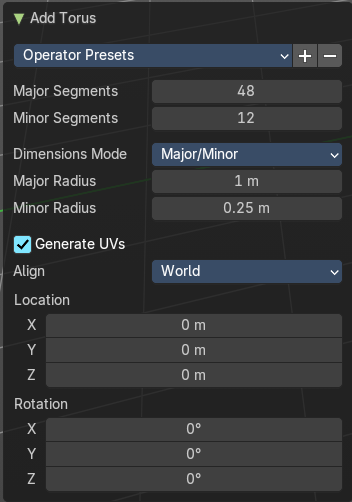
Operator Presets allows you to store presets for the Torus. So that you don't have to start from scratch when you need different tori with different setup. This presets are temporary. And cannot be stored between sessions.
| Entry | What it does |
|---|---|
| Major Segments | Defines the segment division of the Torus. |
| Minor Segments | Defines the circle division of the Torus. |
Dimension Mode
Major / Minor
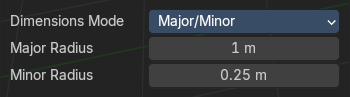
Use the major minor radii for the dimensions.
| Entry | What it does |
|---|---|
| Major Radius | The major radius |
| Minor Radius | The minor radius. |
Exterior / Interior
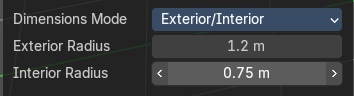
Use the major minor radii for the dimensions.
| Entry | What it does |
|---|---|
| Exterior Radius | The exterior radius. |
| Interior Radius | The interior radius. |
Generate UV's
Creates UV's for this primitive.
| Entry | What it does |
|---|---|
| Align | Aligns the geometry to the chosen view. World, View or 3D cursor. Note that this option is dysfunctional when you call the Adjust Last Operator panel from the Toolbar editor. |
| Location | Adjust the location of the primitive. |
| Rotation | Defines the rotation of the primitive. |
Grid
Grid creates a subidividable plane mesh
Last Operator Add Grid Panel
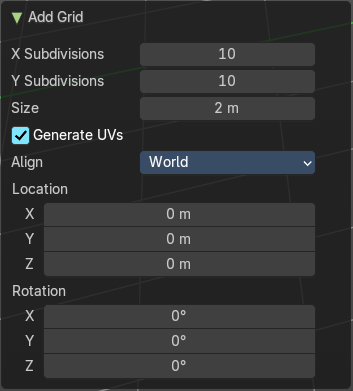
| Entry | What it does |
|---|---|
| X Subdivisions | Defines the number of subdivisions in x direction. |
| Y Subdivisions | Defines the number of subdivisions in Y direction. |
| Size | The size of the plane. |
Generate UV's
Creates UV's for this primitive.
| Entry | What it does |
|---|---|
| Align | Aligns the geometry to the chosen view. World, View or 3D cursor. Note that this option is dysfunctional when you call the Adjust Last Operator panel from the Toolbar editor. |
| Location | Adjust the location of the primitive. |
| Rotation | Defines the rotation of the primitive. |
Monkey
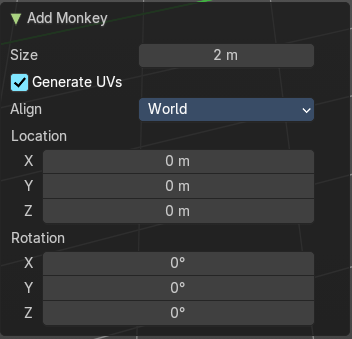
Monkey creates a monkey head mesh.
Last Operator Add Monkey Panel
| Entry | What it does |
|---|---|
| Size | The size of the primitive. |
| Generate UV's | Creates UV's for this primitive. |
Align
Aligns the geometry to the chosen view. World, View or 3D cursor.
Note that this option is dysfunctional when you call the Adjust Last Operator panel from the Toolbar editor.
| Entry | What it does |
|---|---|
| Location | Adjust the location of the primitive. |
| Rotation | Defines the rotation of the primitive. |
Curve
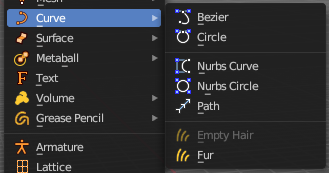
Add curves primitives.
Curve objects are mathematical curves that are defined by a start and endpoint. You can edit the shape of the curve by handlers. Curves have several purposes. They can be used as a path. Or you use them as the base for a mesh object.
The curve types are very similar. But do have some small differences. The difference between Bezier and Nurbs is that with Bezier you have handlers at the curve. And with a Nurbs you have a control geometry to influence the curve.
Note that Curves is no mesh data. You have to convert the Curves data to Mesh data when you want to work with it like with a mesh. Note also that you cannot convert it back to curve then.
| Entry | What it does |
|---|---|
| Bezier | Creates a Bezier type curve. |
| Circle | Circle creates a Bezier circle type curve. |
| Nurbs Curve | Nurbs Curve creates a Nurbs type curve. |
| Nurbs Circle | Nurbs Circle creates a Nurbs type circle curve. |
Path
Path creates a Nurbs type curve.
Last Operator Add Curve
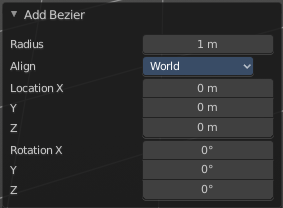
The Last Operator add panel is for all curves equal. Just the label changes.
Radius
The curve radius.
Align
Aligns the geometry to the chosen view. World, View or 3D cursor.
Note that this option is dysfunctional when you call the Adjust Last Operator panel from the Toolbar editor.
| Entry | What it does |
|---|---|
| Location | Adjust the location of the primitive. |
| Rotation | Defines the rotation of the primitive. |
Empty Hair
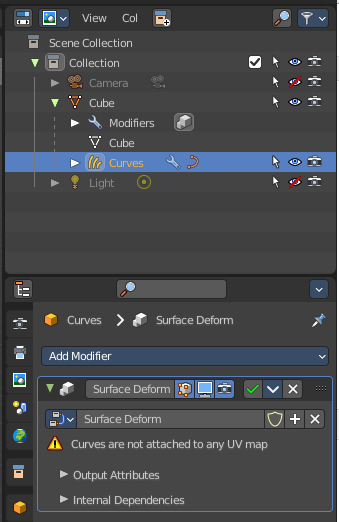
Adds an empty hair system.
This is a curve based hair system. There is another one with particles. The Empty Hair tool adds a Curves hair system and the corresponding Surface Deform modifier to a mesh. Which is nothing else than a renamed geometry node. This hair system is a geometry node solution.
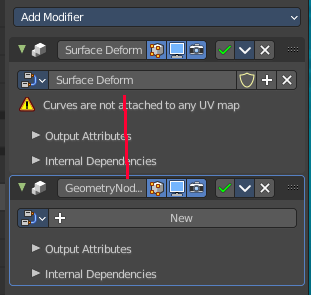
You need to have a mesh object selected to set the menu item active.
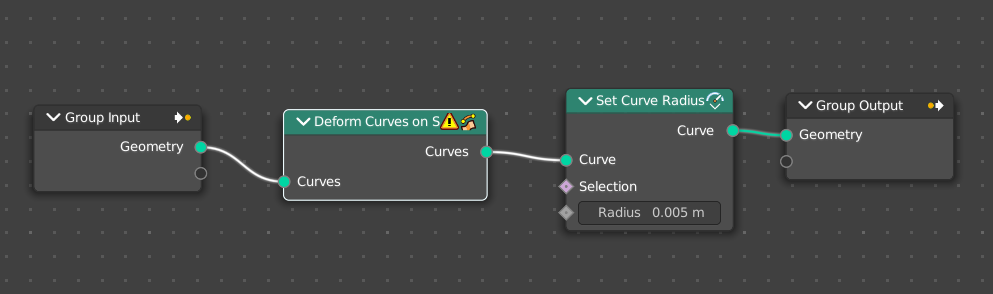
The actual hair then gets added and modified in sculpt mode and by geometry nodes.
A curve radius node is for example needed to control the thickness of the hair. Or you add a resample node to make the hair more detailed. And so on. Further settings can also be found in the Properties editor.
Fur
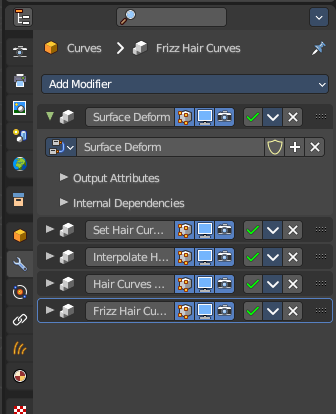
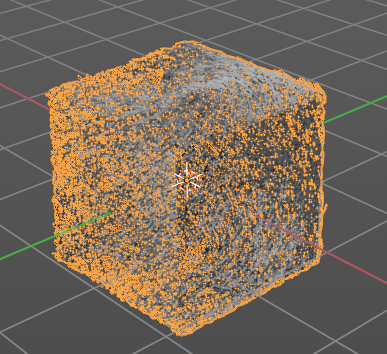
Adds a quick fur setup. Similar to Empty Hair, but with content. And all required modifiers.
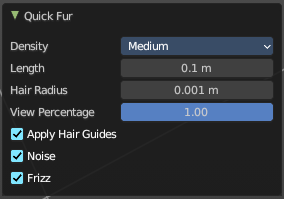
Last operator Quick Fur
Density
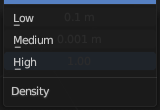
The fur density.
| Entry | What it does |
|---|---|
| Length | The fur length. |
| Hair Radius | The hair radius. |
| View Percentage | How much percent of the fur to show in the viewport. Does not affect rendering. |
| Apply hair guides | Apply hair guides if they exist. |
| Noise | Add some noise to the hair straints. |
| Frizz | Add some curl to the hair straints. |
Surface
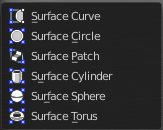
Surfaces are some kind of curves. But curves with which you can construct surfaces. Surfaces are all of type Nurbs curves.
Note that Surfaces similar to Curves is no mesh data. You have to convert the Surfaces data to Mesh data when you want to work with it like with a mesh. Note also that you cannot convert it back to Surface then.
| Entry | What it does |
|---|---|
| Surface Curve | Surface Curve creates a Nurbs type curve. |
| Surface Circle | Surface Circle creates a Nurbs type circle. |
| Surface Surface | Surface Surface creates a Nurbs type Surface. |
| Surface Cylinder | Surface Cylinder creates a Nurbs type cylinder. |
| Surface Sphere | Surface Sphere creates a Nurbs type sphere. |
Surface Torus
Surface Torus creates a Nurbs type Torus.
Last Operator Add Surface
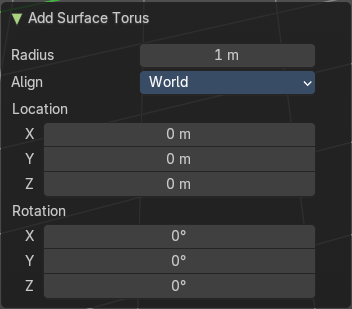
The Last Operator add panel is for all curves equal. Just the label is different.
Radius
The size of the object.
Align
Aligns the geometry to the chosen view. World, View or 3D cursor.
Note that this option is dysfunctional when you call the Adjust Last Operator panel from the Toolbar editor.
| Entry | What it does |
|---|---|
| Location | Adjust the location of the primitive. |
| Rotation | Defines the rotation of the primitive. |
Metaball
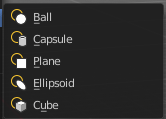
Meta-balls are procedural primitives. They are not defined by vertices or curves. The interesting behavior of meta-balls is that you can stick them into each other. And they have one surface then. Like merging two water drops. And this works in Object mode already.
| Entry | What it does |
|---|---|
| Ball | Ball creates a meta-ball in Sphere shape. |
| Capsule | Capsule creates a meta-ball in Capsule shape. |
| Plane | Plane creates a meta-ball in Plane shape. |
| Ellipsoid | Ellipsoid creates a meta-ball in Ellipsoid shape. |
Cube
Cube creates a meta-ball in Cube shape.
Last Operator Add Metaball
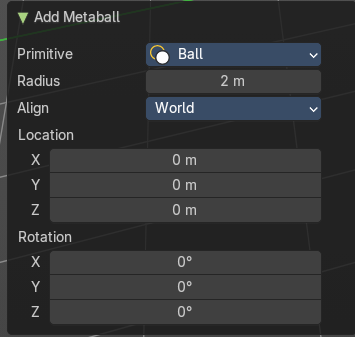
The Last Operator add panel is for all Meta-balls equal.
Primitive
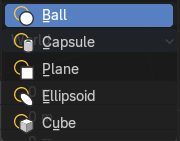
The metaball type.
Radius
The size of the object.
Align
Aligns the geometry to the chosen view. World, View or 3D cursor.
Note that this option is dysfunctional when you call the Adjust Last Operator panel from the Toolbar editor.
| Entry | What it does |
|---|---|
| Location | Adjust the location of the primitive. |
| Rotation | Defines the rotation of the primitive. |
Text
Text creates a text object. With a text object you can create a text in the 3D viewport. Text is not mesh geometry. It is a special curve geometry. But you can convert it to a mesh. See Object menu, Convert to.
Text can be cut, copied and pasted in the usual way by ctrl x, ctrl c and ctrl v
There is a limit of characters, which is by 50.000.
Objects as Fonts
You can also “create” your own “font” inside Bforartists! This is quite a complex process, so let’s detail it:
- First, you must create your chars. Each char is an object of any type (mesh, curve, meta...). They all must have a name following the schema: common prefix followed by the char name (e.g. ft.a, ft.b, etc.).
- Then, for the Text object, you must enable the Dupli Verts button (Object context - Anim Settings panel).
- Back in Editing context, in the Font panel, fill the Ob Family field with the common prefix of your “font” objects.
Now, each time a char in your text matches the suffix part of a “font” object’s name, this object is duplicated on this char. The original chars remain visible. The objects are duplicated so that their center is positioned at the lower right corner of the corresponding chars.
Note: You can enter the Edit mode with the standard hotkey. But you cannot switch back to Object mode with the standard hotkey. Since this hotkey gets count as input for the text object in Edit mode. You have to use the mode drop-down box to leave the Edit mode.
| Entry | What it does |
|---|---|
| Editing Text | Editing text is different from other object types in Bforartists. You edit on the one hand a curve type object, but also a text. And so the text editing standards applies. Like hitting backspace to delete parts of the text. |
| Inserting Text | You can type in new text. You can also copy text from a text editor and paste it. Or you can load a text file. To load text from a text file, use the Edit / Paste File tool. This will bring up a File Browser window for navigating to a valid UTF-8 file. |
Accent Characters
Warning: Note that this feature is broken by Blender design. A Bug report to fix it was rejected.
The hotkey alone is a challenge. Press the keys in the wrong order and it will not work.
And not all UTF8 characters are supported. The default font just supports a fraction. This can partially be fixed by choosing another font. But the underlying code also just works for a fraction. It can be that not even the listed combinations in the manual here are working for you. There is a conflict with different keyboard layouts involved. And there is no documentation of further possible key combinations available.
When you want to work with special UTF8 characters, then we highly recommend to write this text in a text file and import this text file then.
You have been warned!
Many special characters can be “composed” using a combination of two other characters. The hotkey for it is the character followed by Alt + Backspace followed by the desired key to produce the accent character. Note that the following key combinations works with the US keyboard layout, even when you use the german keyboard layout.
Some examples.
ã - A, Alt + Backspace, ~
á - A, Alt + Backspace, '
à - A, Alt + Backspace, Backslash
â - A, Alt + Backspace, \^
å - A, Alt + Backspace, O
æ - A, Alt + Backspace, E
ª - A, Alt + Backspace, Minus
ë - E, Alt + Backspace, "
ç - C, Alt + Backspace, Comma
¢ - C, Alt + Backspace, |
ø - O, Alt + Backspace, Slash
§ - S, Alt + Backspace, S
† - |, Alt + Backspace, Minus
‡ - |, Alt + Backspace, =
© - O, Alt + Backspace, C
® - O, Alt + Backspace, R
™ - T, Alt + Backspace, M
½ - 1, Alt + Backspace, 2
÷ - Minus, Alt + Backspace, :
± - Minus, Alt + Backspace, Plus
Last Operator Add Text
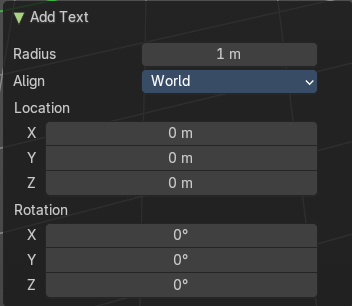
Radius
The size of the object.
Align
Aligns the geometry to the chosen view. World, View or 3D cursor.
Note that this option is dysfunctional when you call the Adjust Last Operator panel from the Toolbar editor.
| Entry | What it does |
|---|---|
| Location | Adjust the location of the primitive. |
| Rotation | Defines the rotation of the primitive. In Edit mode you can navigate the cursor with the arrow buttons. Enter adds a new paragraph. When you use the navigator you will see a last operator Move Cursor with further options. |
Last Operator Move Cursor
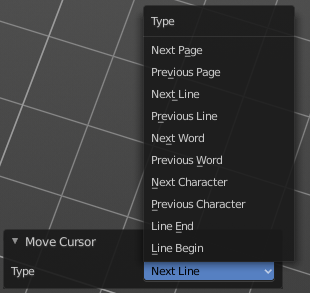
Type
The different methods to set the cursor.
Point Cloud
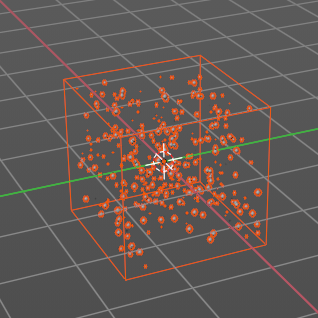
Creates a object of type Point Cloud. Point clouds can represent 3D scans. It is also planned to represent particles in the future. Each point can store data in a set of Attributes. The attributes can be found in the Properties Editor in the Object Data Properties.
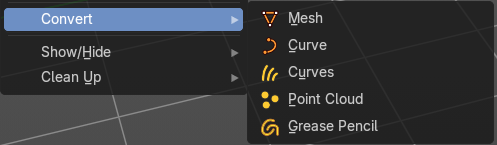
At the moment there is not this much that can be done with Point Clouds. But you can convert a object to a point cloud and vice versa.
Last Operator Add Point Cloud
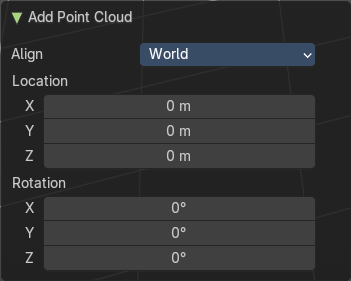
Align
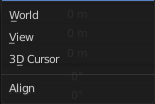
How to orient the point cloud at creation.
Note that this option is dysfunctional when you call the Adjust Last Operator panel from the Toolbar editor.
| Entry | What it does |
|---|---|
| Location X Y Z | The position of the point cloud at creation. |
| Rotation X Y Z | The rotation of the point cloud at creation. |
Volume

Add a volume object.
Import OpenVDB
Imports a volume object of type OpenVDB. This button opens a file browser.
Empty
Create an empty Volume object.
Last Operator Add Volume
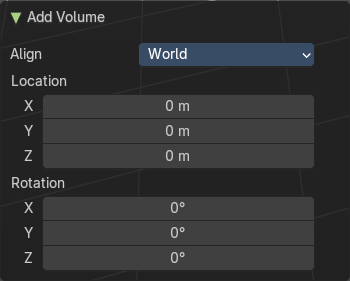
Align
How to orient the point cloud at creation.
Note that this option is dysfunctional when you call the Adjust Last Operator panel from the Toolbar editor.
| Entry | What it does |
|---|---|
| Location X Y Z | The position of the point cloud at creation. |
| Rotation X Y Z | The rotation of the point cloud at creation. |
Grease Pencil
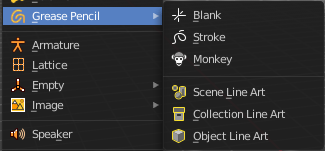
With a grease pencil object you can draw in the 3D viewport.
It starts as an object type. By switching into paint mode it becomes a paint feature. And editing turns it into a curve or a mesh object then.
It can be use to make traditional 2D animation, cut-out animation, motion graphics or use it as storyboard tool among other things.
You add a grease pencil object, switch to draw mode, choose the color or add a new one. And when done with drawing you can manipulate the grease pencil object in edit mode or in weight paint mode even further.
The colors are materials.
In the Tools tab you will find all the options and settings for drawing and manipulating the grease pencil object, means your drawing.
Blank
Adds a blank grease pencil object with just one black color and no geometry.
Stroke
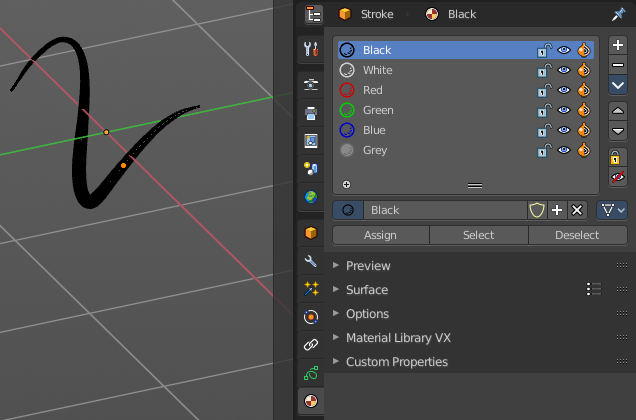
Adds a grease pencil stroke with some predefined colors.
Monkey
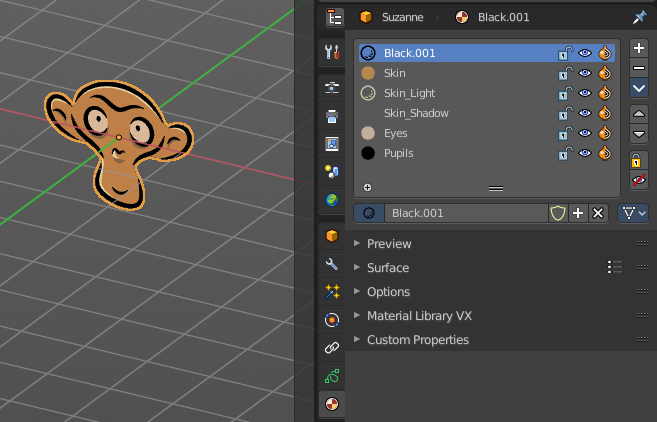
Adds the drawing of a monkey as an example with some predefined colors.
Scene Line Art
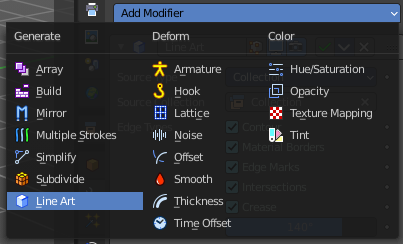
Line Art is a modifier for the grease pencil object. Scene Line Art adds a grease pencil object with the Line Art Modifer set up for the whole scene.
| Entry | What it does |
|---|---|
| Collection Line Art | Line Art is a modifier for the grease pencil object. Scene Line Art adds a grease pencil object with the Line Art Modifer set up for a collection. |
| Object Line Art | This menu item just shows when you have a mesh object selected. Line Art is a modifier for the grease pencil object. Scene Line Art adds a grease pencil object with the Line Art Modifer set up for the selected mesh object. |
Last Operator Add Grease Pencil
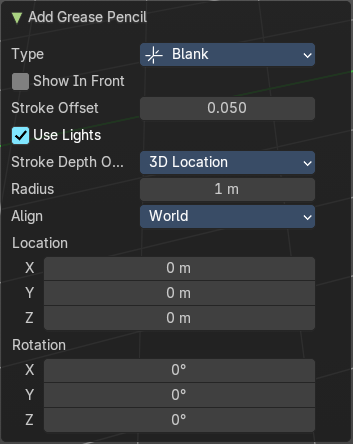
The Last Operator add Grease Pencil panel is for all grease pencil objects equal.
Type
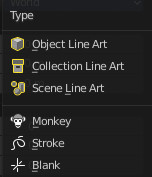
Choose the grease pencil type.
Show In Front
Show the grease pencil line art in front of everything.
| Entry | What it does |
|---|---|
| Stroke Offset | Stroke offset for the line art modifier. |
| Use Lights | Use lights for this grease pencil object. |
Stroke Depth Order
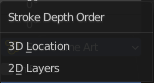
How to order the strokes.
Radius
The radius of the object.
Align
How to orient the point cloud at creation.
Note that this option is dysfunctional when you call the Adjust Last Operator panel from the Toolbar editor.
| Entry | What it does |
|---|---|
| Location X Y Z | The position of the point cloud at creation. |
| Rotation X Y Z | The rotation of the point cloud at creation. |
Armature
Armature adds the first bone of a skeleton. This bone can be further extended in edit mode. And you can animate the created skeleton in pose mode.
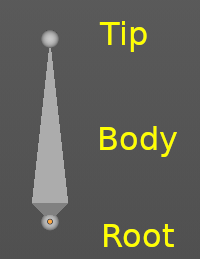
A bone has three elements. The start joint is called root or head. The body is called body. And the end joint is called tip or tail.
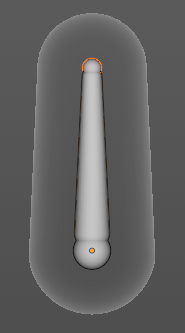
A bone can also have an influence area. The so called envelope.
The bones of an armature can be edited in Edit mode. And posed in Pose mode.
Last Operator Add Armature
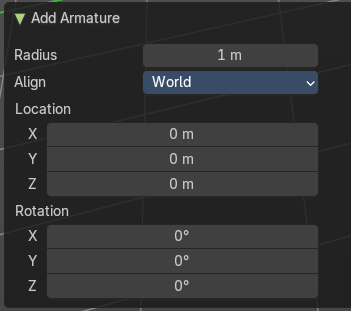
Radius
The radius of the object.
Align
How to orient the point cloud at creation.
Note that this option is dysfunctional when you call the Adjust Last Operator panel from the Toolbar editor.
| Entry | What it does |
|---|---|
| Location X Y Z | The position of the point cloud at creation. |
| Rotation X Y Z | The rotation of the point cloud at creation. |
Lattice
A lattice object is a control cage to control deforming at another object.
Usage
Create a Lattice object.
Make sure it is bigger than the object that you want to deform, and is around this object.
Add a Lattice Modifier to the object that you want to deform.
In the Object box of the Lattice Modifier add our created Lattice object.
Select Lattice Object. Enter Edit mode. And here you can deform the Lattice Object now, and the object to deform will follow.
Last Operator Add Object
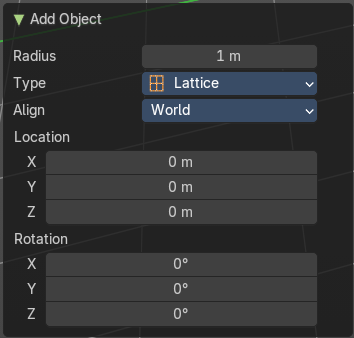
Radius
The radius of the object.
Type
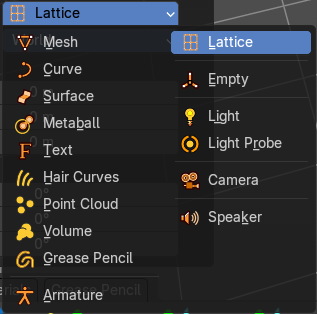
A dropdown menu where you can choose another object type instead of the lattice object.
Align
How to orient the object at creation.
Note that this option is dysfunctional when you call the Adjust Last Operator panel from the Toolbar editor.
| Entry | What it does |
|---|---|
| Location X Y Z | The position of the point cloud at creation. |
| Rotation X Y Z | The rotation of the point cloud at creation. |
Empty
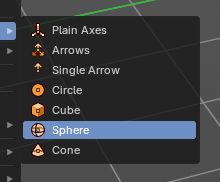
An Empty is an object without any data attached. It is basically just a container. It is empty. Empties can be used as anchor objects. Or as visible handlers at a skeleton for example.
The empty types differs just by how they gets displayed in the viewport.
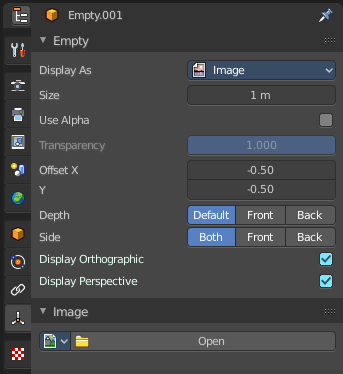
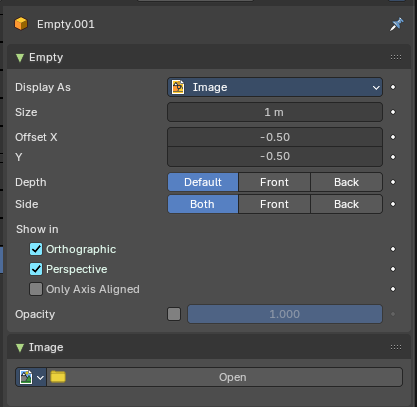
The empty of type image allows you to load an image to display the empty. This image can be adjusted and loaded in the object data panel of the empty object.
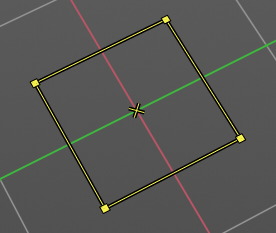
The image empty has also a transform widget, presented by the yellow color. It becomes visible when you hover with the mouse over the object.
Empties, no matter what shape, does not render to file.
Last Operator Add Empty
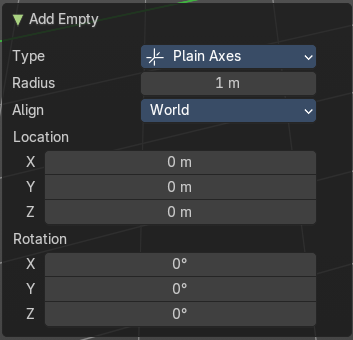
Type is a drop-down box where you can define the type of Empty object.
Radius is in real the size of the Empty object.
Align aligns the geometry to the chosen view. World, View or 3D cursor.
Note that this option is dysfunctional when you call the Adjust Last Operator panel from the Toolbar editor.
Location Adjust the location of the Empty object.
Rotation defines the rotation of the Empty object.
Type
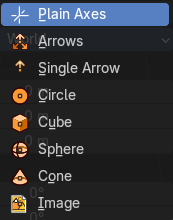
The empty type.
Radius
The radius of the object.
Align
How to orient the object at creation.
Note that this option is dysfunctional when you call the Adjust Last Operator panel from the Toolbar editor.
| Entry | What it does |
|---|---|
| Location X Y Z | The position of the point cloud at creation. |
| Rotation X Y Z | The rotation of the point cloud at creation. |
Image
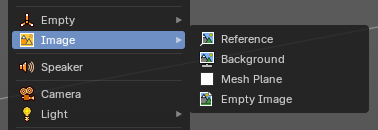
Image objects allows you to import and display images in the viewport. Image objects are nothing else than Empties of type Image. So in the outliner they will show up as empties.
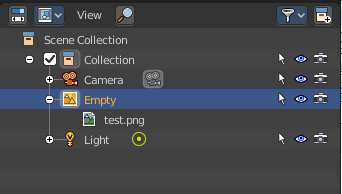
When you create an image object, then the file browser opens, choose the image that you want to use as the reference image. It loads with the correct ratio.
Neither reference images nor background images does render to file. They are just meant to display images in the viewport.
Reference
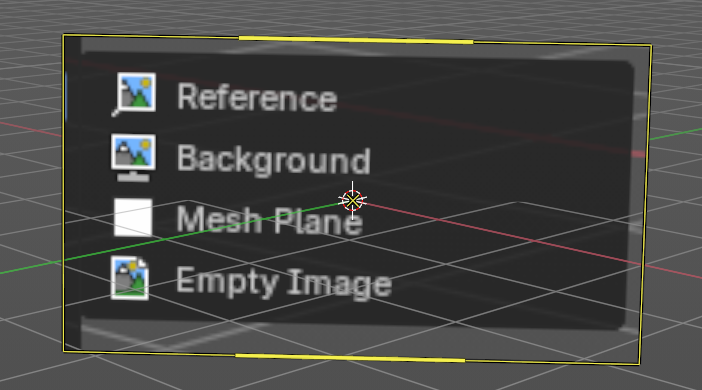
A reference image is for example used to model along the shape of a car at an image.
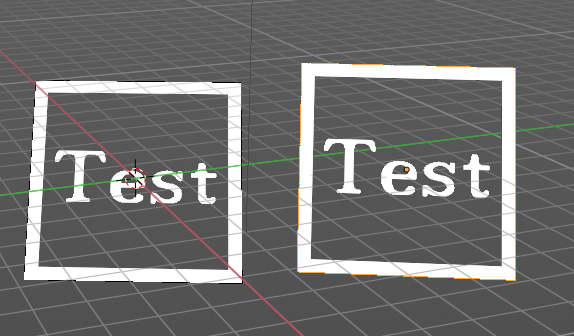
The image has also a transform widget, presented by the yellow color. It becomes visible when you hover with the mouse over the object.
Important, the reference image loads oriented in the current screen orientation. So when you need the image in the side view, then you should be in the side view when you create a reference image.
This image can be adjusted and changed in the object data panel of the object. Don't wonder about the panel name, which is Empty. As told above, the reference image is in fact nothing else than a special form of the image empty.
Background
Background images are meant to display images in the background of the viewport, while rendering.
There is just one difference between a Reference and a Background image.
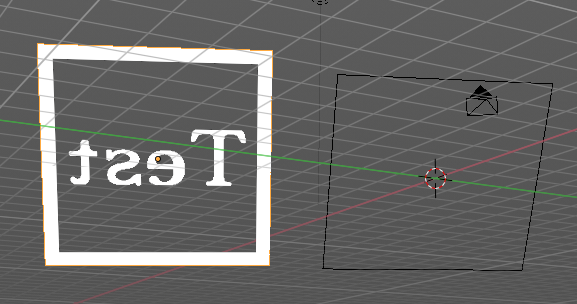
A reference image is double sided. A background image not. When you look from the back side, then it is transparent.
| Entry | What it does |
|---|---|
| Mesh Plane | Generates a textured mesh plane object with the correct aspect ratio and the file name of the loaded image. Mesh planes renders with the image. |
| Empty Image | Basically the same has Reference or Background, difference is user needs to pick settings manually. |
Speaker
A speaker object allows you to add a sound source to the scene. This can be used in a movie for example.
Last Operator Add Speaker
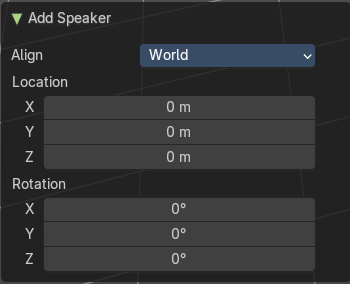
Align
How to orient the object at creation.
Note that this option is dysfunctional when you call the Adjust Last Operator panel from the Toolbar editor.
| Entry | What it does |
|---|---|
| Location X Y Z | The position of the point cloud at creation. |
| Rotation X Y Z | The rotation of the point cloud at creation. |
Camera
A camera object allows you to render your scene.
Camera objects can be further adjusted in the properties editor.
Last Operator Add Camera
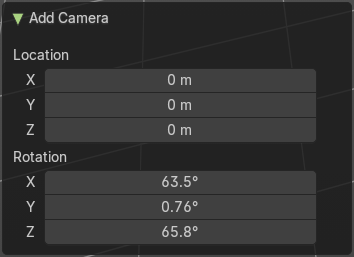
| Entry | What it does |
|---|---|
| Location X Y Z | The position of the point cloud at creation. |
| Rotation X Y Z | The rotation of the point cloud at creation. |
Light
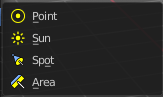
Lights lights the scene.
The lights that you add here lights the rendered scene. Not the scene in the viewport. Viewport lighting is managed in the viewport shading panel.
Lights can be further adjusted in the properties editor.
| Entry | What it does |
|---|---|
| Point | Point creates a Point Light. A point light shines into all directions. |
| Sun | Sun creates a light that behaves like a sun. It's a directional light. |
| Spot | Spot creates a Spot light. It's a directional light. |
Area
Area creates an Area light. It's a directional light.
Last Operator Add Light
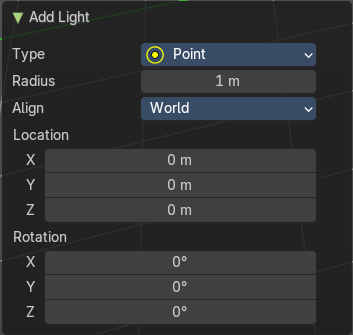
The Last Operator add panel is for all lights equal. Just the label differs.
Type
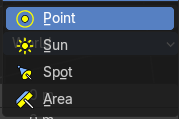
Set the light type.
Radius
The size of the light.
Align
How to orient the object at creation.
Note that this option is dysfunctional when you call the Adjust Last Operator panel from the Toolbar editor.
| Entry | What it does |
|---|---|
| Location X Y Z | The position of the point cloud at creation. |
| Rotation X Y Z | The rotation of the point cloud at creation. |
Light Probe
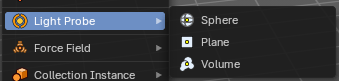
Light Probe objects are used by the Eevee render engine as support objects. They precompute lighting information locally in order to light the scene using indirect lighting. Which speeds things up.
There are three different light probe types. One for diffuse light lighting, two for specular lighting.
Light probes are a feature for real time render engines. This means Light probes does not work for the other renderers in Bforartists. Just in Eeevee.
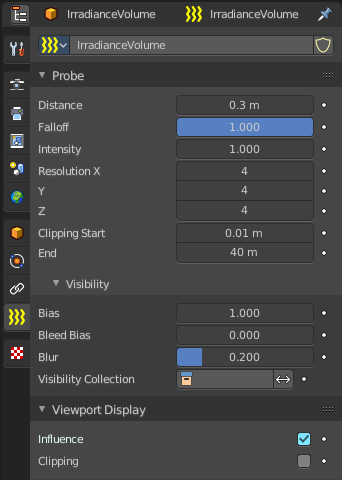
The light probes can be further adjusted in the Properties Editor.
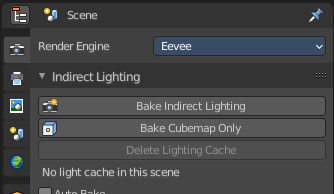
To work with the light probes you need to bake them. Baking lightpropbes happens in the render properties tab in the indirect lighting panel.
| Entry | What it does |
|---|---|
| Sphere | Adds a reflective light probe in sphere shape. |
| Plane | Adds a reflective light probe in plane shape. |
Volume
Adds a volumetric array light probe.
Last Operator Add Light Probe
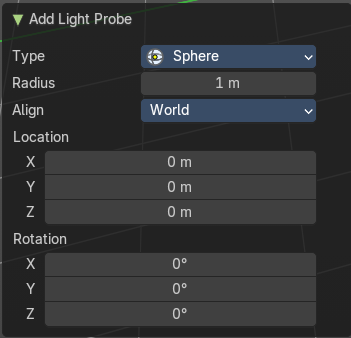
The Last Operator add panel is for all light probes equal. Just the label differs.
Type
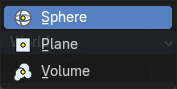
Set the light probe type.
Radius
The size of the light.
Align
How to orient the object at creation.
Note that this option is dysfunctional when you call the Adjust Last Operator panel from the Toolbar editor.
| Entry | What it does |
|---|---|
| Location X Y Z | The position of the point cloud at creation. |
| Rotation X Y Z | The rotation of the point cloud at creation. |
Force Field
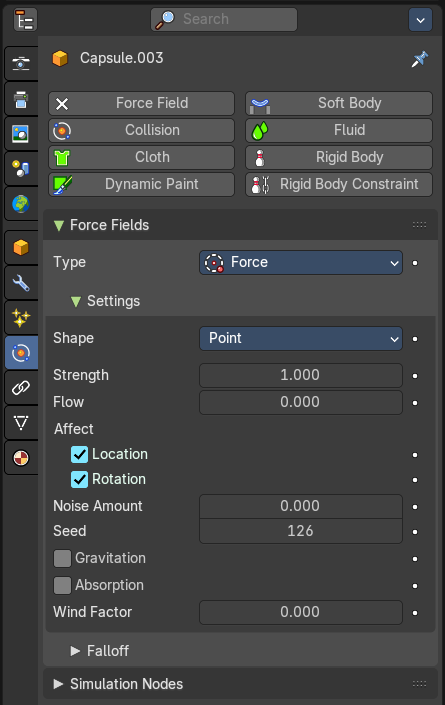
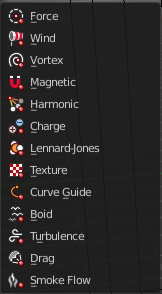
A Force Field is for physical simulations. It provides you with tools to add different forces to objects. Wind, Smoke, Gravity, Magnetic, etc. .
The added Force Fields can be further adjusted in the Properties panel.
Last Operator Add Effector
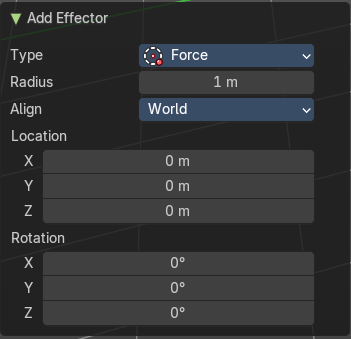
A Force Field is internally also called Effector. So our Last Operator panel has the title Add Effector. The Add Effector last operator is the same for all force fields.
Type
Set the light probe type.
Radius
The size of the light.
Align
How to orient the object at creation.
Note that this option is dysfunctional when you call the Adjust Last Operator panel from the Toolbar editor.
| Entry | What it does |
|---|---|
| Location X Y Z | The position of the point cloud at creation. |
| Rotation X Y Z | The rotation of the point cloud at creation. |
Collection Instance
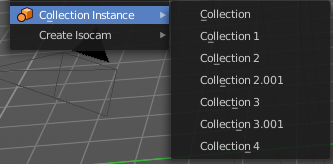
Add an instance of an existing collection. By default it is just one. But the menu lists all available collections in the scene.
Last Operator Add Collection Instance
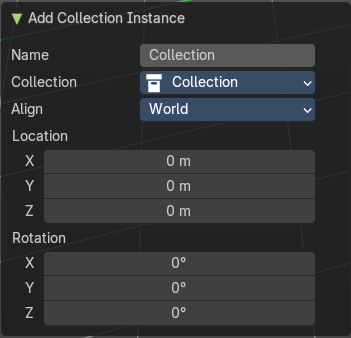
Align
How to orient the object at creation.
Note that this option is dysfunctional when you call the Adjust Last Operator panel from the Toolbar editor.
| Entry | What it does |
|---|---|
| Location X Y Z | The position of the point cloud at creation. |
| Rotation X Y Z | The rotation of the point cloud at creation. |
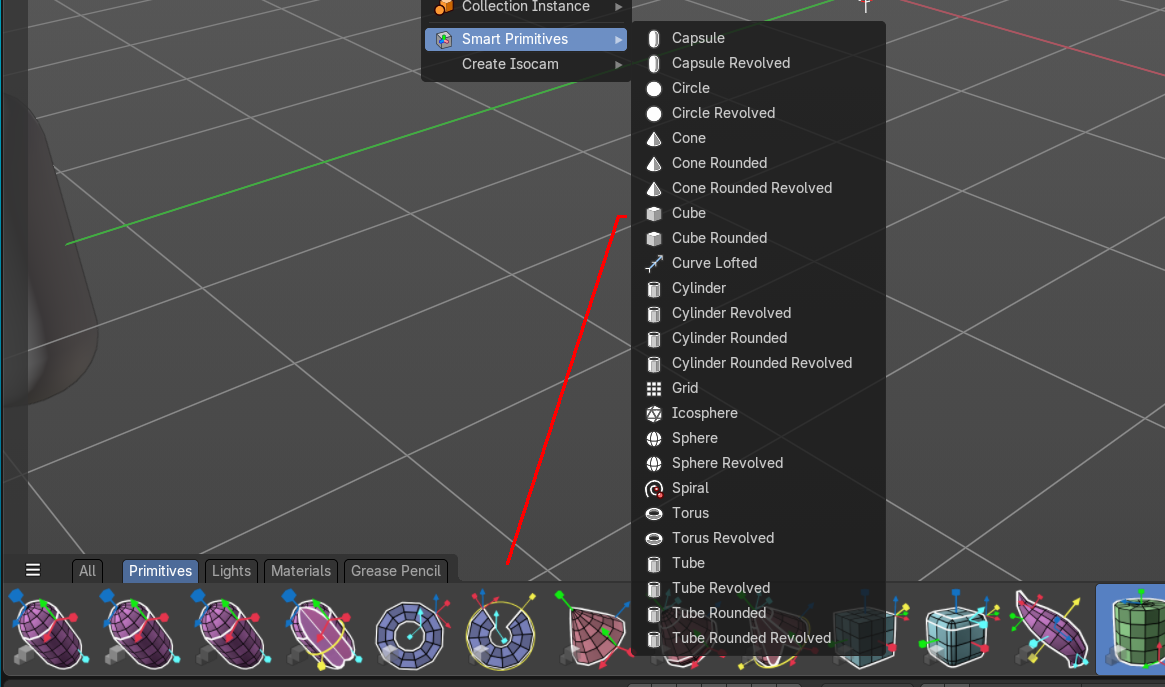
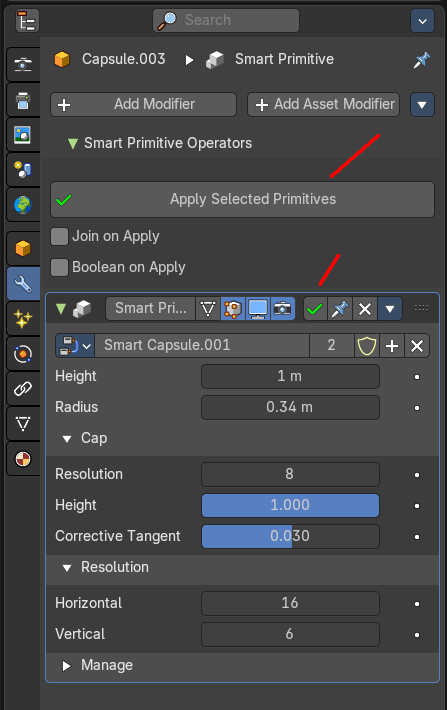
Smart Primitives
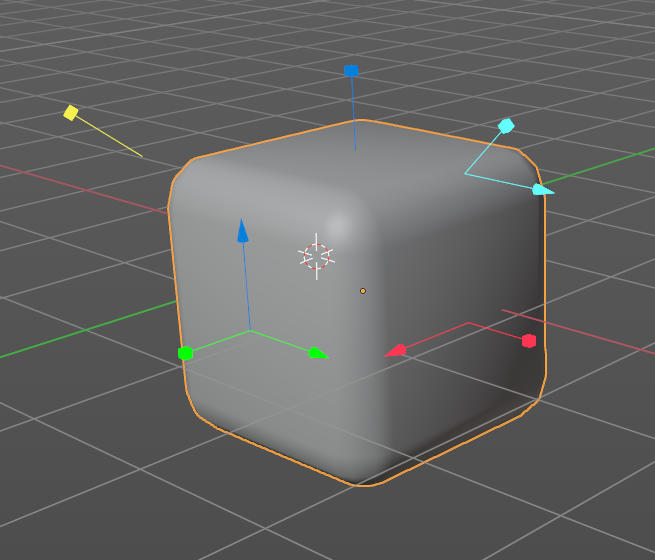
Smart Primitives are primitives that can be adjusted with widgets. They can also be found in the assets library.
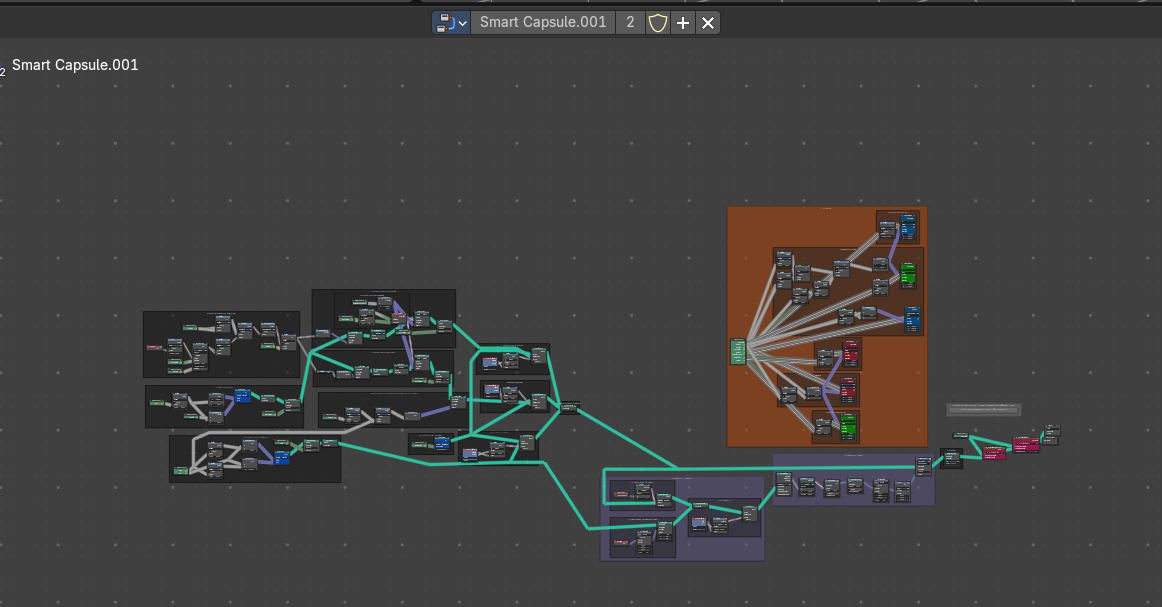
Under the hood they are made of node based modifiers. So if you are happy with the shape, then apply the modifier. And the widgets will be gone.
Create Isocam
The add menu is also a common menu where addons adds their entries. Create Isocam is such an add-on. It comes with Bforartists, and is activated by default.
Create Isocam is a script that creates an orthographic camera with which you can render isometric views for 2d isometric games. You can of course set the whole thing up by hand. This script saves you the work though.
True Isocam
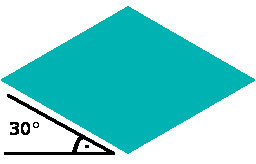
Creates a camera that has the mathematical isometric angles compared to the ground plane.
The camera has a rotation of 54.736 degrees.
Game Isocam

Creates a camera that has the isometric angles for a 2d isometric game. This angle differs a bit from the mathematical angle. With the mathematical angle we would get some not fitting stairs.
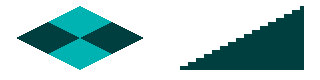
With the angle of 60 degrees for the camera we get a fitting result for an isometric game tile with the common 2:1 ratio.
GameIso4to3cam

There is another special view that fits together like the one with the 2:1 ratio . Here we don’t have a base tile of 64×32 and a ratio of 2:1, but one with 64×48 and a ratio of 4:3. It is of course not a power of two graphics anymore. And far away from the true isometric view. But the old graphics card limits are long gone. And when you need a more top down view, then this is perfect.
For that the camera has a rotation of 41.5 Grad.
Ground plane
Adds a ground plane that fits into the camera view of the iso cams.