

































































Metaball - Edit Mode - Metaball context menu
Call this menu with double right click in the 3D viewport. You need to be in Edit mode with a Metaball object.
Metaball Context Menu
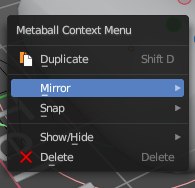
Call this menu with double right click in the 3D viewport. You need to be in Edit mode with a Metaball object.
Duplicate
Duplicates the current selection.
The copy sticks to the mouse until you release it. A Right click while moving will reset the position of the duplicate. The duplicated part will be part of the same object.
When you drag the duplicate around you will see the position values in the header.
Last Operator Duplicate
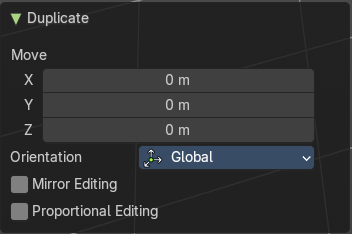
Move X , Y , Z
Orientation
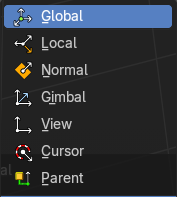
Choose the orientation.
Proportional editing
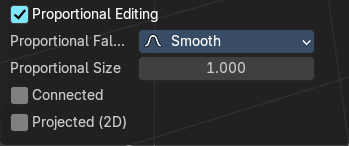
Enables proportional editing. Activating proportional editing reveals further settings.
| Entry | What it does |
|---|---|
| Proportional Falloff | Adjust the falloff methods. |
| Proportional Size | See and adjust the falloff radius. |
| Connected | The proportional falloff gets calculated for connected parts only. |
| Projected(2D) | The proportional falloff gets calculated in the screen space. Depth doesn't play a role. When it's in the radius, then it gets calculated. |
Mirror
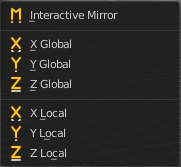
Mirror mirrors the selected geometry along the defined axis.
Interactive Mirror
Mirror by hotkeys. You activate the tool, type in x for x global for example, or x x for x local. And the selection gets mirrored.
X Global, Y Global etc.
Mirrors the selection around the chosen axis.
Last Operator Mirror
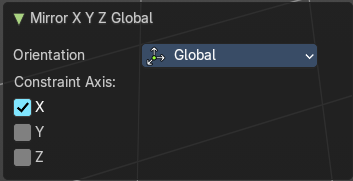
The Last Operator Mirror panel gives you tools to adjust the mirror action.
Orientation
Orientation is a drop-down box choose the type of orientation for the mirroring action.
Constraint Axis
Constraint Axis gives you again the possibility to define the mirror axis. You can choose more than one axis here.
Snap
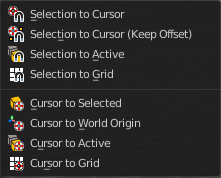
Choose several methods to snap one element to another. The menu items should be self explaining.
Last Operator Snap
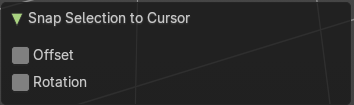
Some snap operations shows a last operation panel, some not.
| Entry | What it does |
|---|---|
| Offset | If the selection should snap as a whole, or if each individual element of the selection should snap. |
| Rotation | Rotate to match the cursor. |
Show/Hide
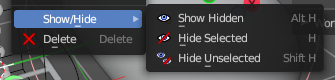
Sub-menu with shows or hide selection, unselected or hidden operators.
Show Hidden
Makes all geometry in the scene visible again.
Hide Selected
Hides the selected geometry.
Last Operator Hide Selected
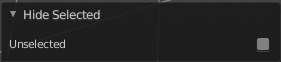
Unselected
Hides the not selected geometry.
Hide Unselected
Hides the not selected geometry. The selected geometry stays visible.
Delete
Deletes the current selection.