

































































Hair Curves - Edit Mode - Curves context menu
Call this menu with double right click in the 3D viewport. You need to be in Edit mode with a armature object.
Detailed table of collection
Edit Mode - Curves Context Menu
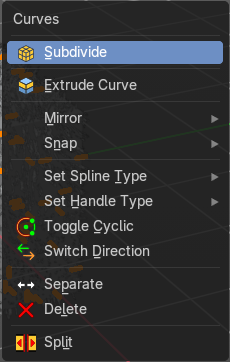
Call this menu with double right click in the 3D viewport. You need to be in Edit mode with a armature object.
Subdivide
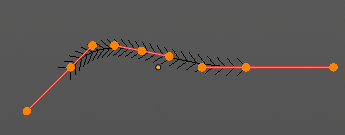
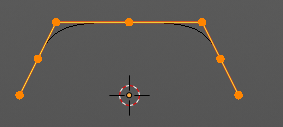
Subdivides the selected curve geometry, and adds more control points.
Last Operator Subdivide
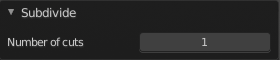
Number of Cuts
Number of subdivision cuts.
Extrude Curve
Extrudes the selected curve point(s).
Last operator Extrude Curve and Move
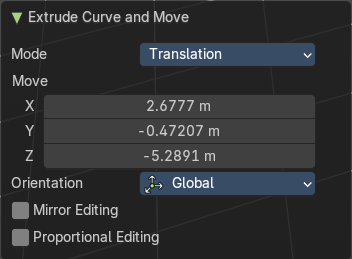
Mode
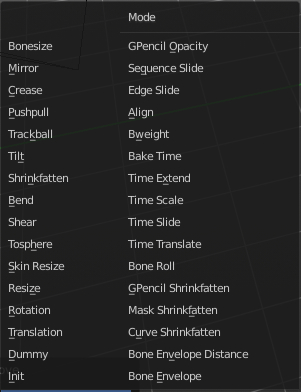
A drop-down box where you can choose between different extrude modes.
Default is Translation. Most other methods has no effect.
Move X , Y , Z
The position of the extruded point(s).
Orientation
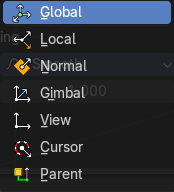
Adjust the orientation of the extrusion. It usually starts with Normal.
| Entry | What it does |
|---|---|
| Mirror Editing | Enable Mirror Editing. |
| Proportional editing | Enables proportional editing. Activating proportional editing reveals further settings. · Proportional Falloff: Adjust the falloff methods. · Proportional Size: See and adjust the falloff radius. · Connected: The proportional falloff gets calculated for connected parts only. · Projected(2D): The proportional falloff gets calculated in the screen space. Depth doesn't play a role. When it's in the radius, then it gets calculated. |
Mirror sub menu
Mirrors the selection.
Interactive Mirror
Mirrors the selection.
Usage:
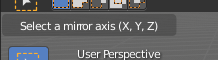
Activate the tool. In the header you will now see further instructions. Which is: type in the axis at which you want to mirror. Interactive mirroring starts in Global space. You can change the orientation in the last operator.
| Entry | What it does |
|---|---|
| X Y Z Global | Mirrors along the global axis. |
| X Y Z Local | Mirrors along the object axis. |
Last Operator Mirror
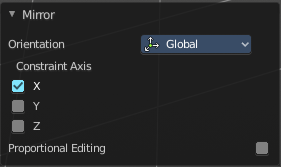
Orientation
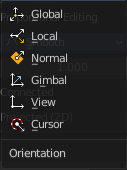
Choose the orientation in which the transform should happen.
Proportional editing
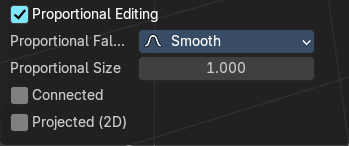
Enables proportional editing. Activating proportional editing reveals further settings.
| Entry | What it does |
|---|---|
| Proportional Falloff | Adjust the falloff methods. |
| Proportional Size | See and adjust the falloff radius. |
| Connected | The proportional falloff gets calculated for connected parts only. |
| Projected(2D) | The proportional falloff gets calculated in the screen space. Depth doesn't play a role. When it's in the radius, then it gets calculated. |
Snap sub menu
Selection to Cursor
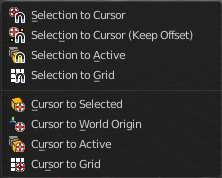
Snaps the currently selected object(s) to the cursor location.
Selection to Cursor(Keep Offset)
Snaps the currently selected object(s) to the cursor location, but keeps the offset of the selected objects to each other. Means the center of the current selection goes to cursor position. Not every individual object.
Last operator Snap Selection to Cursor
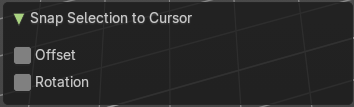
Offset
Keep the offset of the selected objects to each other.
Rotation
Rotate to match the cursor.
| Entry | What it does |
|---|---|
| Selection to Active | Snaps the currently selected object(s) to the active object. |
| Selection to Grid | Snaps the currently selected object(s) to the nearest grid point. |
| Cursor to Selected | Moves the cursor to the center of the selected object(s). |
| Cursor to World Origin | Moves the cursor to the world origin. |
| Cursor to Active | Moves the cursor to the center of the active object. |
| Cursor to Grid | Moves the cursor to the nearest grid point. |
Set Spline Type
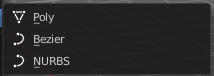
With set Spline Type you can set the type of the curve.
Poly is a straight line between the control points. Bezier has curve handlers. A nurbs curve has a control cage.
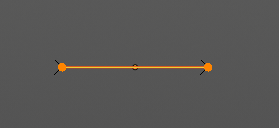
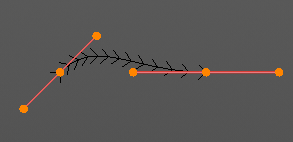
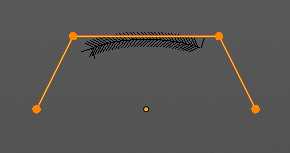
Last Operator Set Spline Type
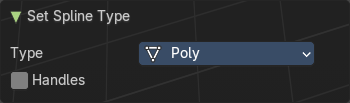
| Entry | What it does |
|---|---|
| Type | Type is a drop-down box choose the spline type |
| Handles | Use Handles when converting Bezier curves into polygons. |
Set Handle Type
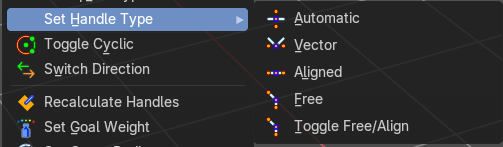
Handles defines the type of handle for the knots of the curve. You have the choice between Auto, Vector, Align and Free. And the Last Operator gives you a fifth possibility to toggle between Free and Align.
| Entry | What it does |
|---|---|
| Auto | Auto aligns the handles automatically. |
| Vector | Set Handle type to Vector. |
| Align | Set Handle type to Align. |
Free
Set Handle type to Free.
Toggle Free/Aligned
Toggle Free/Aligned.
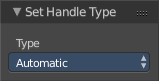
Last Operator Set Handle Type
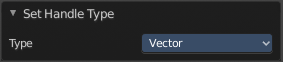
Type
Type is a drop-down box where you can set the handle type. You have the choice between Auto, Vector, Align, Free. And the fifth possibility toggles between Free and Align.
Toggle Cyclic
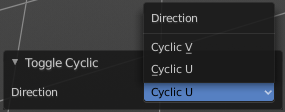
Toggle Cyclic closes or opens the curve.
Last Operator Toggle Cyclic
Direction
Direction is a drop-down box choose the direction in which the curve gets closed.
Switch Direction
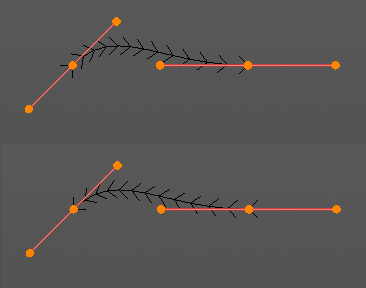
Just for Bezier Curve object type. Surface Nurbs curves doesn't have a direction. Switches the direction in which the curve is pointing.
| Entry | What it does |
|---|---|
| Separate | Separates the selected control points, and creates a new curve object out of it. You need to select two control points to select the segment between it. |
| Delete | Removes the selected control points or curves. |
| Split | Split selected points into a new object. |