

































































Grease Pencil object - Vertex Paint Mode - Brushes context menu
Call this menu with double right click in the 3D viewport. You need to be in Vertex Paint mode with a grease pencil object. Different brushes reveals different context menus. But the content is in the sum the same.
Vertex Paint Mode - Brushes Context Menu
Call this menu with double right click in the 3D viewport. You need to be in Vertex Paint mode with a grease pencil object. Different brushes reveals different context menus. But the content is in the sum the same.
In Vertex Paint mode you will call a context menu with the sliders from the Brush settings.
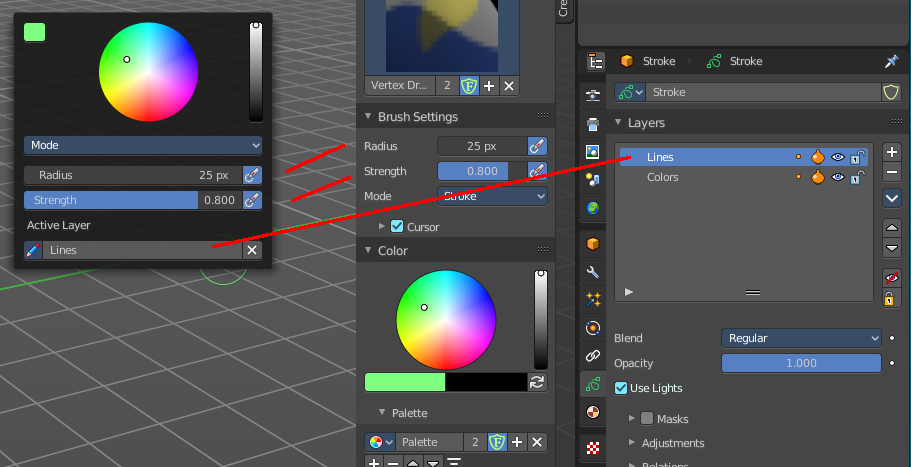
Color dialog
Define the color for your brush.
Up left is the active color. Change the color in the color dialog.
Mode
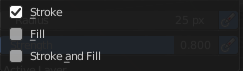
The stroke mode. What the vertex color affects. Stroke, Fill, or both.
| Entry | What it does |
|---|---|
| Radius | The radius of the sculpt brush. |
| Strength | The strength of the sculpt brush. |
Active Layer
The active grease pencil layer. You can choose another layer, and add new layers here too. It is the same content than in the Properties editor.
| Entry | What it does |
|---|---|
| Layer drop down box | The list of available layers. · New Layer: Add a new grease pencil layer. |
| Layer Edit Box | The currently active grease pencil layer. Rename it by clicking into the field. |
| Remove Layer | Remove the grease pencil layer. |
Show/Hide Dropdown
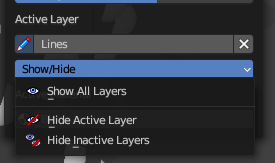
Sub-menu with shows or hide all layers, active layers or inactive layers operators.
Show All Layers
Makes all layers in the grease pencil object visible again.
Hide Active Layer
Hides the active grease pencil layer.
Last Operator Hide Layer(s)

Unselected
Hides the not selected geometry.
Hide Inactive Layers
Hides the not selected grease pencil layer. The selected layer stays visible.