

































































Grease Pencil object - Edit Mode - Point context menu
Call this menu with right click in the 3D viewport.
Edit Mode - Point Context Menu
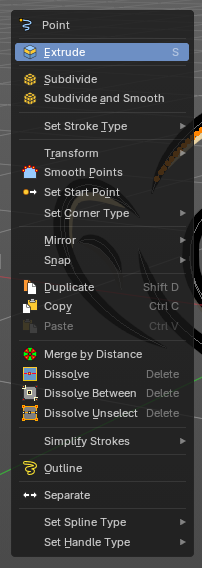
Call this menu with right click in the 3D viewport.
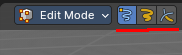
Extrude
Extrude selected points and move them. The new points stay connected with the original points of the stroke.
Last Operator Extrude Stroke Points
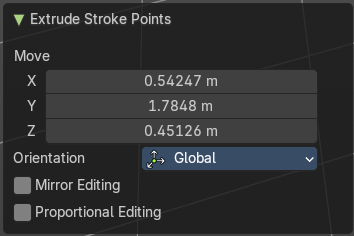
Move
The vector coordinates. They start relative to the initial vector.
Orientation
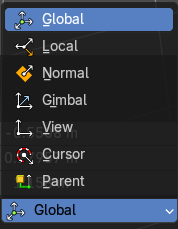
The orientation in which the extrude happens.
| Entry | What it does |
|---|---|
| Mirror Editing | Edit along a mirror axis. |
| Proportional editing | Enables proportional editing. Activating proportional editing reveals further settings. · Proportional Falloff: Adjust the falloff methods. · Proportional Size: See and adjust the falloff radius. · Connected: The proportional falloff gets calculated for connected parts only. · Projected(2D): The proportional falloff gets calculated in the screen space. Depth doesn't play a role. When it's in the radius, then it gets calculated. |
Subdivide
Subdivides the selected grease pencil geometry.
Last Operator Subdivide
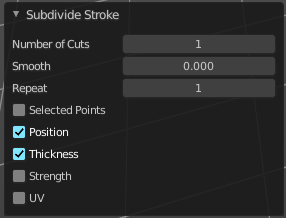
| Entry | What it does |
|---|---|
| Number of Cuts | Number of subdivision cuts. |
| Smooth | Smoothen the stroke, not just the new added vertices |
| Repeat | The number of times to repeat the procedure. |
| Selected Points | Limits the effect to only the selected points within the stroke. |
| Position | The operator affects the points location. |
| Thickness | The operator affect the points thickness. |
| Strength | The operator affect the points strength (alpha). |
| UV | The operator affect the UV rotation on the points. |
Subdivide and Smooth
Subdivides the selected grease pencil geometry.
Last Operator Subdivide and Smooth
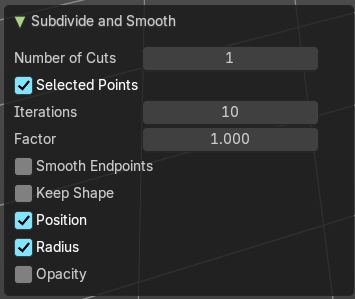
| Entry | What it does |
|---|---|
| Number of Cuts | Number of subdivision cuts. |
| Selected Points | Limits the effect to only the selected points within the stroke. |
| Iterations | Number of iterations. |
| Factor | Smooth factor |
| Smooth Endpoints | Smooth endpoints too. |
| Keep Shape | Keep the overall shape. |
| Position | The operator affects the points location. |
| Radius | Smooth radius. |
| Opacity | Smooth Opacity. |
Set Stroke Type - Sub Menu
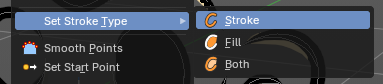
Defines how selected points are interpreted in the
Options:
| Entry | What it does |
|---|---|
| Stroke | Points are treated as part of a line stroke. |
| Fill | Points are treated as part of a filled region. |
| Both | Points contribute to both stroke and fill. |
Transform – Sub Menu
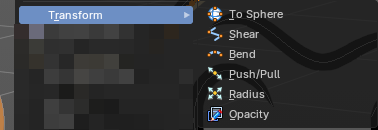
Provides geometric and visual transformations for selected Grease Pencil points or strokes.
Useful for reshaping, stylizing, and refining drawings with precise control
| Entry | What it does |
|---|---|
| To Sphere | Moves selected points toward a spherical distribution. – Strength slider controls how tightly points conform to a sphere. – Useful for rounding shapes or creating circular strokes. |
| Shear | Skews selected points along a chosen axis. – Creates slanted or diagonal distortions. – Ideal for stylized perspective effects or dynamic motion exaggeration. |
| Bend | Bends selected points around a pivot. – Angle and pivot settings define curvature. – Useful for wrapping strokes into arcs or circular motifs. |
| Push/Pull | Moves selected points outward or inward relative to their median center. – Push expands the shape; Pull contracts it. – Useful for inflating or compressing stroke geometry. |
| Radius | Adjusts the thickness (point radius) of selected vertices. – Larger radius = thicker stroke segments. – Useful for line weight variation or emphasis. |
| Opacity | Changes the transparency of selected vertices. – Higher values = more opaque; lower values = more transparent. – Useful for shading, layering, or fade effects in drawings. |
Smooth Points
Smoothens out the selected geometry.
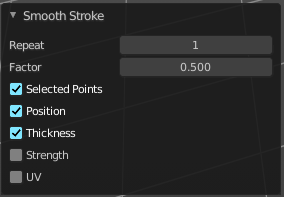
Last Operator Smooth Stroke
| Entry | What it does |
|---|---|
| Repeat | How often to repeat the procedure. |
| Factor | The amount of the smoothness to apply. |
| Selected points | When enabled, limits the effect to only the selected points within the stroke. |
| Position | When enabled, the operator affect the points location. |
| Thickness | When enabled, the operator affect the points thickness. |
| Strength | When enabled, the operator affect the points strength (alpha). |
| UV's | When enabled, the operator affect the UV rotation on the points. in the screen space. Depth doesn't play a role. When it's in the radius, then it gets calculated. calculated in the screen space. Depth doesn't play a role. When it's in the radius, then it gets calculated. |
Set Start Point

Select which point is the start point of the grease pencil curve. This defines the order of point indices, useful for Geometry nodes.
Note: Not available in stroke selection mode.
Set Corner Type - Sub Menu
Defines how selected corners are treated on the vertices of the Grease Pencil Useful for controlling the visual style, sharpness, and behavior of corners in strokes.
Round
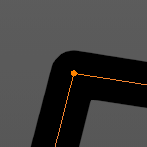
Smooths the corner into a curved transition. Ideal for organic shapes, soft edges, or stylized drawing. Automatically adjusts point handles to create a rounded arc.
Flat
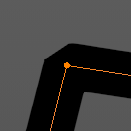
Creates a straight, flat corner with no curvature. Useful for blocky, mechanical, or architectural forms. Ensures the corner remains linear and angular.
Sharp
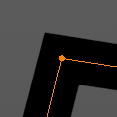
Marks the corner as a sharp transition. Preserves a distinct angle between segments.
Commonly used for precise, technical shapes or hard edges.
Mirror - Sub Menu
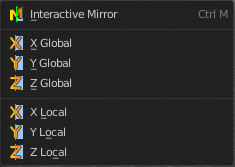
Mirror mirrors the selected geometry along the defined axis.
| Entry | What it does |
|---|---|
| Interactive Mirror | Mirror by hotkeys. You activate the tool, type in x for x global for example, or x x for x local. And the selection gets mirrored. |
| X Global, Y Global etc. | Mirrors the selection around the chosen axis. |
Last Operator Mirror
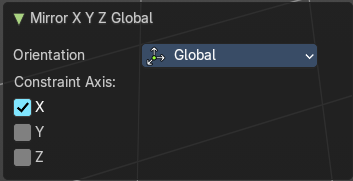
The Last Operator Mirror panel gives you tools to adjust the mirror action.
Orientation
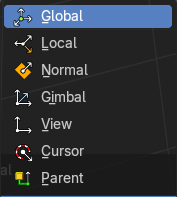
Orientation is a drop-down box. Choose the type of orientation for the mirroring action.
Constraint Axis
Constraint Axis gives you again the possibility to define the mirror axis. You can choose more than one axis here.
Snap- Sub Menu
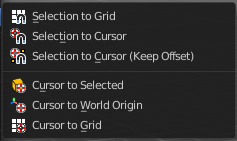
Choose several methods to snap one element to another. The menu items should be self explaining.
Last Operator Snap
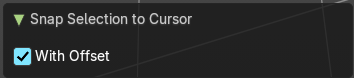
Some snap operations shows a last operation panel, some not.
With Offset
If the selection should snap as a whole, or if each individual element of the selection should snap.
Duplicate
Duplicates the current selection.
When you duplicate a selection, then it sticks to the mouse until you left click. And moves around. A right click repositions the duplicated geometry at its original location.
Last Operator Duplicate Strokes
Mode
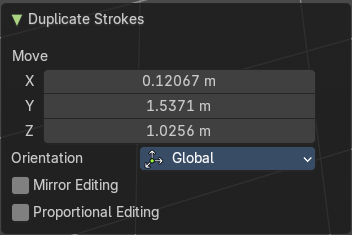
Not to find out. No tool tip, no entry in the Blender manual. Good Job Blender Developers.
Move X, Y, Z
Adjust the position.
Orientation
Orientation is a drop-down box. Choose the type of orientation for the mirroring action.
Mirror Editing
Edit along a mirror axis.
Proportional editing
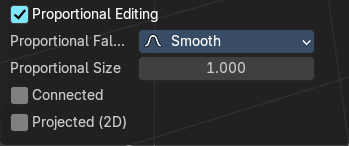
Enables proportional editing. Activating proportional editing reveals further settings.
| Entry | What it does |
|---|---|
| Proportional Falloff | Adjust the falloff methods. |
| Proportional Size | See and adjust the falloff radius. |
| Connected | The proportional falloff gets calculated for connected parts only. |
| Projected(2D) | The proportional falloff gets calculated in the screen space. Depth doesn't play a role. When it's in the radius, then it gets calculated. |
Copy
Copies the selection.
Paste
Pastes a copied selection to active layer. You can have more than one layer.
Last operator Paste Strokes
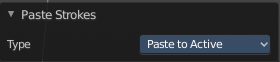
Type
Choose between the paste methods again.
Merge by Distance
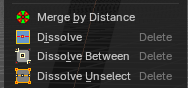
Merges seleceted vertices by distance.
| Entry | What it does |
|---|---|
| Dissolve | Dissolves the selection. |
| Dissolve Between | Dissolves the vertices between the selected vertices. |
Dissolve Unselect
Dissolves the vertices that are not selected.
Last Operator Dissolve
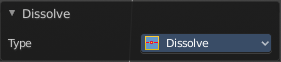
Type
Choose how you want to dissolve.
Simplify Strokes - Sub Menu
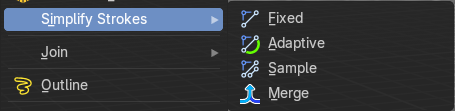
Stroke mode. Simplify the stroke.
| Entry | What it does |
|---|---|
| Fixed | Deletes every second point in the stroke, except the start and end points. |
| Adaptive | This method uses an algorithm called RDP algorithm (Ramer-Douglas-Peucker algorithm) for points deletion. The algorithm tries to keep the shape with the remaining points. |
| Sample | Samples points along the shape of the stroke, and increases the length of the edges. |
| Merge | Simplify the stroke by merging vertices closer than a given distance. |
Last Operator Simplify Stroke
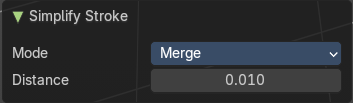
The simplify strokes operators share the same last operator.
Mode
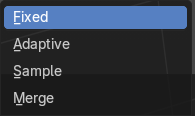
The method.
| Entry | What it does |
|---|---|
| Steps (Fixed) | How much levels of simplifying. |
| Factor (Adaptive) | How strong the simplification should be performed. |
| Length (Sample) | The sample length. |
| Distance (Merge) | The distance. Below this value the vertices gets merged. |
Outline
Adds an outline to the grease pencil.
Last Operator Outline
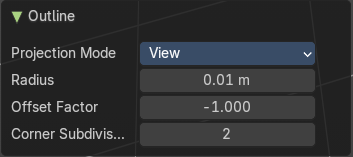
Projection Mode
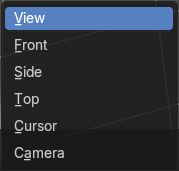
The orientation to project the outline.
| Entry | What it does |
|---|---|
| Radius | Thickness of the outline |
| Offset Factor | Offset from original outline. |
| Corner Subdivisions | How much iterations to subdivide the corners. |
Separate
Separates the selection into a new grease pencil object.
Last Operator Separate Strokes
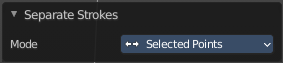
Mode
Active Layer
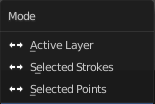
Separate all the strokes at the current active layer.
| Entry | What it does |
|---|---|
| Selected Strokes | Separate the whole stroke of the current selection. |
| Selected Points | Separate the selected points with its edges. |
Set Spline Type – Sub Menu
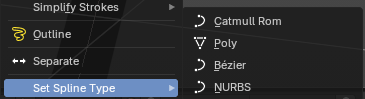
Convert the curve type of the grease pencil to another curve type. These different curve types allows you different ways of modification.
| Entry | What it does |
|---|---|
| Catmull Rom | Generates smooth curves passing through all control points. Produces natural, flowing strokes with minimal manual adjustment. Best for organic shapes and freehand drawing cleanup. |
| Poly | Represents strokes as straight line segments between points. No interpolation is applied. |
| Bézier | Converts strokes into Bézier curves with editable handles. Provides precise control over curvature and tangents. |
| NURBS | Uses Non-Uniform Rational B-Splines for interpolation. Allows smooth curves with weighted control points. |
Last Operator Separate Strokes
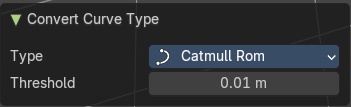
| Entry | What it does |
|---|---|
| Type | The curve types. |
| Threshold | The distance that the resulting points are allowed to be within. |
Set Handle Type – Sub Menu
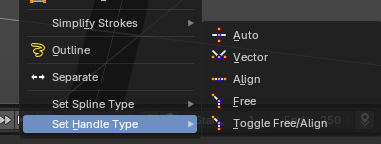
Defines how control point handles behave when editing curves or strokes.
Useful for shaping curvature, controlling tangents, and refining stroke flow in both Grease Pencil and curve objects.
| Entry | What it does |
|---|---|
| Auto | Automatically positions handles to create smooth, natural curves. Handles adjust dynamically as points are moved. |
| Vector | Creates straight, angular transitions at the control point. Handles point directly toward adjacent vertices. |
| Align | Keeps both handles aligned in opposite directions. Ensures smooth, symmetrical transitions through the control point. |
| Free | Allows each handle to move independently. Provides maximum flexibility for custom curve shaping. Best for fine-tuning irregular or stylized strokes. |
| Toggle Free/Align | Switches between Free and Align modes for the selected point. |