

































































Curve + Surface Object - Edit Mode - Curve context menus
Call this menu with double right click in the 3D viewport. You need to be in Edit mode with a Curve or a Surface object.
Curve context menus
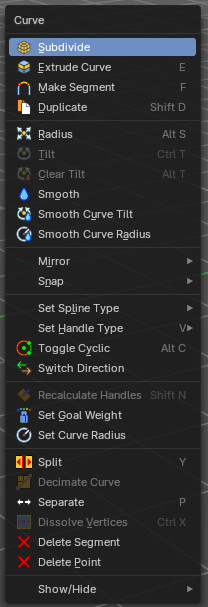
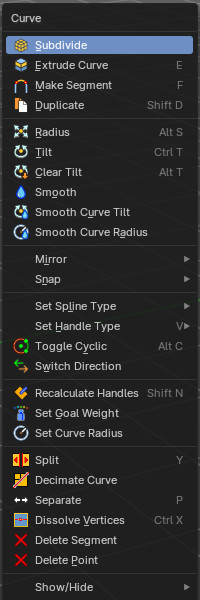
Call this menu with double right click in the 3D viewport. You need to be in Edit mode with a Curve or a Surface object.
With a surface object some options are greyed out.
Subdivide
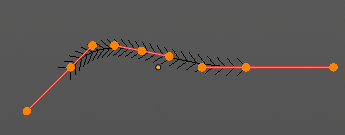
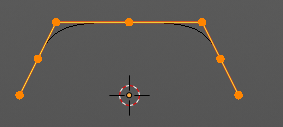
Subdivides the selected curve geometry, and adds more control points.
Last Operator Subdivide
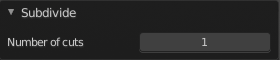
Number of Cuts
Number of subdivision cuts.
Extrude Curve
Extrudes the selected curve point(s).
Last operator Extrude Curve and Move
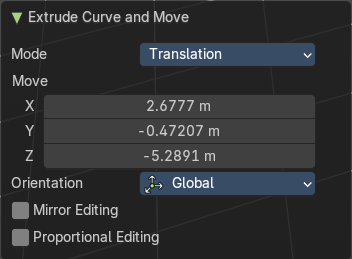
Mode
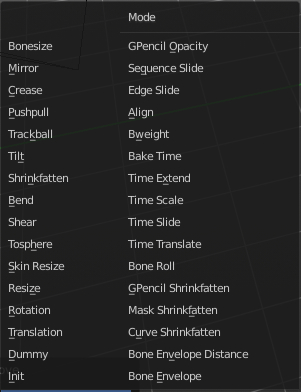
A drop-down box where you can choose between different extrude modes.
Default is Translation. Most other methods has no effect.
Move X , Y , Z
The position of the extruded point(s).
Orientation
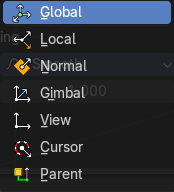
Adjust the orientation of the extrusion. It usually starts with Normal.
| Entry | What it does |
|---|---|
| Mirror Editing | Enable Mirror Editing. |
| Proportional editing | Enables proportional editing. Activating proportional editing reveals further settings. · Proportional Falloff: Adjust the falloff methods. · Proportional Size: See and adjust the falloff radius. · Connected: The proportional falloff gets calculated for connected parts only. · Projected(2D): The proportional falloff gets calculated in the screen space. Depth doesn't play a role. When it's in the radius, then it gets calculated. |
Make Segment
Joins two curves by adding a segment between the end of the one and the beginning of the other. You can also create a closed curve that way.
Duplicate
Duplicates the current selection. This can be a single control point or a whole curve.
The copy sticks to the mouse until you release it. A Right click while moving will reset the position of the duplicate. The duplicated part will be part of the same object.
When you drag the duplicate around you will see the position values in the header.
Last Operator Duplicate
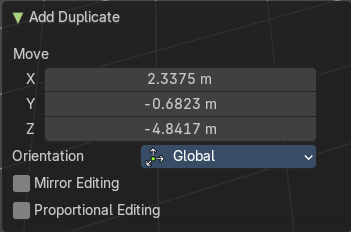
Move X , Y , Z
Orientation
Choose the orientation.
| Entry | What it does |
|---|---|
| Mirror Editing | Enable Mirror Editing. |
| Proportional editing | Enables proportional editing. Activating proportional editing reveals further settings. · Proportional Falloff: Adjust the falloff methods. · Proportional Size: See and adjust the falloff radius. · Connected: The proportional falloff gets calculated for connected parts only. · Projected(2D): The proportional falloff gets calculated in the screen space. Depth doesn't play a role. When it's in the radius, then it gets calculated. |
Radius
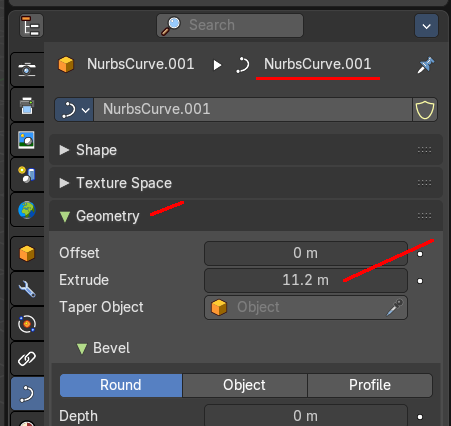
Scales the selected geometry of a curve along its normals. Transform orientation and Pivot point gets ignored.
A positive value pushes the vertices outwards. A negative value pushes the vertices inwards.
The curve needs to have geometry !
Last Operator Transform
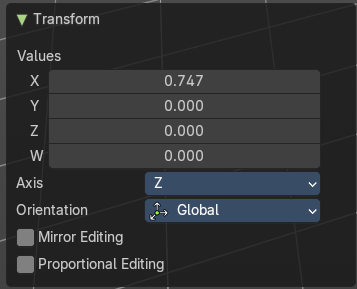
Values
The transform values.
Axis
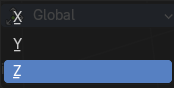
The transform axis.
Orientation
Choose the orientation.
| Entry | What it does |
|---|---|
| Mirror Editing | Enable Mirror Editing. |
| Proportional editing | Enables proportional editing. Activating proportional editing reveals further settings. · Proportional Falloff: Adjust the falloff methods. · Proportional Size: See and adjust the falloff radius. · Connected: The proportional falloff gets calculated for connected parts only. · Projected(2D): The proportional falloff gets calculated in the screen space. Depth doesn't play a role. When it's in the radius, then it gets calculated. |
Tilt
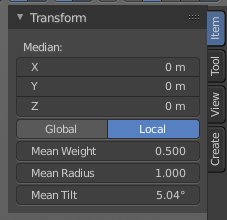
Modifies the Mean Tilt of the geometry of a curve. The curve needs to have geometry !
Activate the tool, and drag the mouse. You will see a value in the header now. The selected curve path will rotate by dragging the mouse.
The Tilt angle always starts at zero. It is relative. To modify the Mean Tilt use the edit box in the Transform panel.
Last Operator Tilt
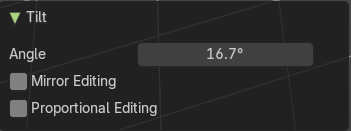
Angle
The Tilt angle.
Proportional editing
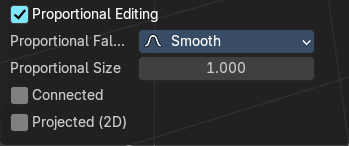
Enables proportional editing. Activating proportional editing reveals further settings.
| Entry | What it does |
|---|---|
| Proportional Falloff | Adjust the falloff methods. |
| Proportional Size | See and adjust the falloff radius. |
| Connected | The proportional falloff gets calculated for connected parts only. |
| Projected(2D) | The proportional falloff gets calculated in the screen space. Depth doesn't play a role. When it's in the radius, then it gets calculated. |
| Entry | What it does |
|---|---|
| Clear Tilt | Sets the Mean Tilt to zero. |
| Smooth | Flattens the angles of the selected control point(s). |
| Smooth Curve Tilt | Smooths the curve tilt of the selected control point(s). |
| Smooth Curve Radius | Smooths the curve radius of the selected control point(s). |
Mirror
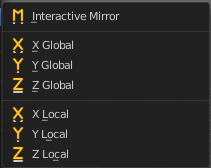
Mirror mirrors the selected geometry along the defined axis.
| Entry | What it does |
|---|---|
| Interactive Mirror | Mirror by hotkeys. You activate the tool, type in x for x global for example, or x x for x local. And the selection gets mirrored. |
| X Global, Y Global etc. | Mirrors the selection around the chosen axis. |
Last Operator Mirror
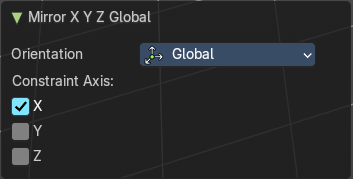
The Last Operator Mirror panel gives you tools to adjust the mirror action.
Orientation
Orientation is a drop-down box choose the type of orientation for the mirroring action.
Constraint Axis
Constraint Axis gives you again the possibility to define the mirror axis. You can choose more than one axis here.
Snap
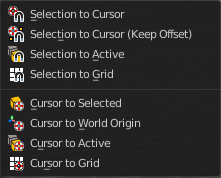
Choose several methods to snap one element to another. The menu items should be self explaining.
Last Operator Snap
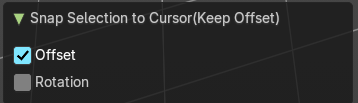
Some snap operations shows a last operation panel, some not.
| Entry | What it does |
|---|---|
| Offset | If the selection should snap as a whole, or if each individual element of the selection should snap. |
| Rotation | If the selection should be rotated to match the cursor. |
Set Spline Type
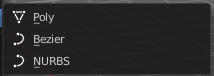
With set Spline Type you can set the type of the curve.
Poly is a straight line between the control points. Bezier has curve handlers. A nurbs curve has a control cage.
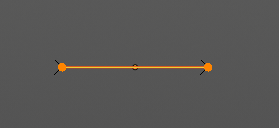
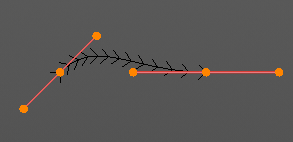
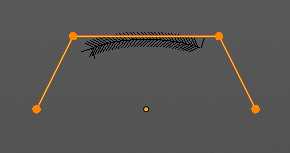
Last Operator Set Spline Type
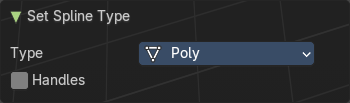
| Entry | What it does |
|---|---|
| Type | Type is a drop-down box choose the spline type |
| Handles | Use Handles when converting Bezier curves into polygons. |
Set Handle Type
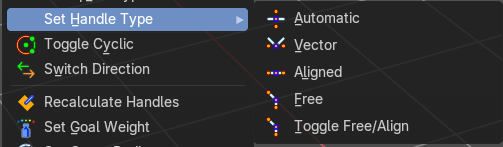
Handles defines the type of handle for the knots of the curve. You have the choice between Auto, Vector, Align and Free. And the Last Operator gives you a fifth possibility to toggle between Free and Align.
| Entry | What it does |
|---|---|
| Auto | Auto aligns the handles automatically. |
| Vector | Set Handle type to Vector. |
| Align | Set Handle type to Align. |
Free
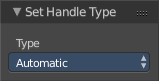
Set Handle type to Free.
Toggle Free/Aligned
Toggle Free/Aligned.
Last Operator Set Handle Type
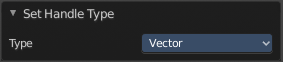
Type
Type is a drop-down box where you can set the handle type. You have the choice between Auto, Vector, Align, Free. And the fifth possibility toggles between Free and Align.
Toggle Cyclic
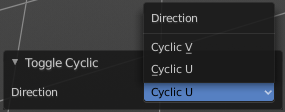
Toggle Cyclic closes or opens the curve.
Last Operator Toggle Cyclic
Direction
Direction is a drop-down box choose the direction in which the curve gets closed.
Switch Direction
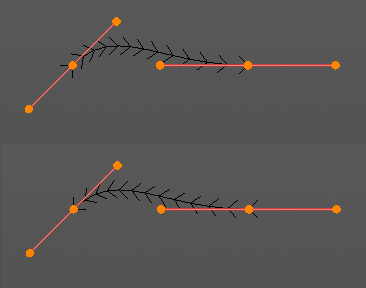
Just for Bezier Curve object type. Surface Nurbs curves doesn't have a direction. Switches the direction in which the curve is pointing.
Recalculate Handles
Recalculates the normals of the selected curve.
Last Operator Recalc Normals
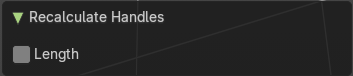
Length
Recalculates the handle length too.
Set Goal Weight
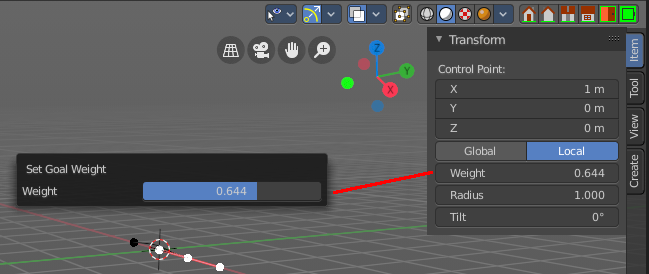
Sets the curve’s Weight for the selected control point to the specified value. If more than one control point is selected this will set the Mean Weight.
Set Curve Radius
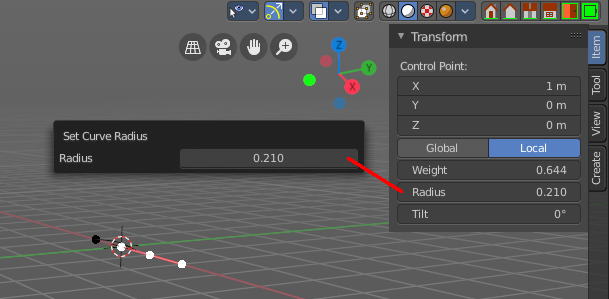
Sets the curve radius for the selected curve point to the specified value.
Split
Splits the curve at the selected control point(s). You need to select two control points to select the segment between it.
Decimate Curve
Decimates the currently selected geometry. It starts with a Ratio of 1. Which means no decimation. The lower the ratio the more decimation you will get.
Last Operator Decimate Curve
Ratio
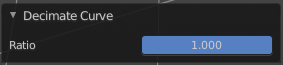
Adjust the strength of decimation.
| Entry | What it does |
|---|---|
| Separate | Separates the selected control points, and creates a new curve object out of it. You need to select two control points to select the segment between it. |
| Dissolve Vertices | Dissolves the selected vertices. When removing vertices in between then the curve stays intact and connected. |
| Delete Segment | Removes the segment between the selected vertices. |
| Delete Point | Dissolves the selected vertices. When removing vertices in between then the curve stays intact and connected. |
Show/Hide

Sub-menu with shows or hide selection, unselected or hidden operators.
Show Hidden
Makes all geometry in the scene visible again.
Hide Selected
Hides the selected geometry.
Last Operator Hide Selected
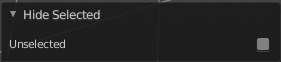
Unselected
Hides the not selected geometry.
Hide Unselected
Hides the not selected geometry. The selected geometry stays visible.