

































































Armature - Pose Mode - Pose context menu
Call this menu with double right click in the 3D viewport. You need to be in Edit mode with an armature object.
Pose Mode - Pose Context Menu
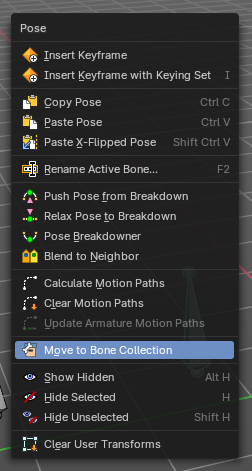
Call this menu with double right click in the 3D viewport. You need to be in Edit mode with an armature object.
Insert Key frame
Inserts a keyframe and uses the default keying set defined in the preferences.
Insert Key frame with Keying Set
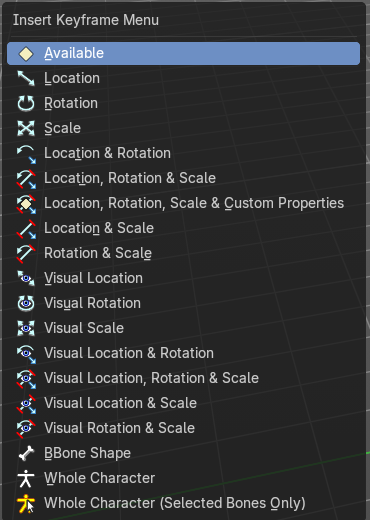
Opens a menu where you can insert a key frame with a defined keying set.
Copy Pose
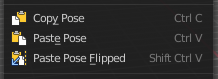
Copies the current pose. You copy what you have selected.
Paste Pose
Pastes a previous copied pose.
Paste X Flipped Pose
Pastes a previous copied pose, but flipped along X axis.
Last Operator Paste Pose
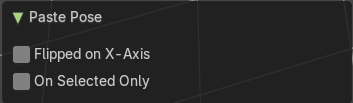
| Entry | What it does |
|---|---|
| Flipped on X Axis | Paste the pose flipped along X Axis. |
| On Selected Only | Paste just on the selected bones. Not on the unselected. |
Rename active Bone
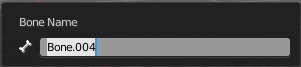
Calls a dialog where you can rename the active bone.
“Push Pose from Breakdown
Exaggerates the current pose. Pushes the current pose further away from the previous pose.
Last Operator Push Pose
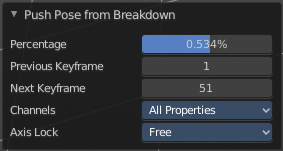
| Entry | What it does |
|---|---|
| Percentage | The percentage of exaggeration. |
| Previous Key frame | The key frame position before the current frame. |
| Next Key frame | The key frame position after the current frame. |
Channels
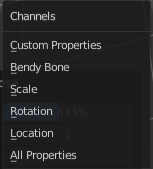
Limit the push effect to specific channels.
Axis Lock
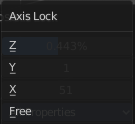
Limit the push effect to specific axis.
Relax Pose to Breakdown
Relaxes the current pose.
Last Operator Relax Pose to Breakdown
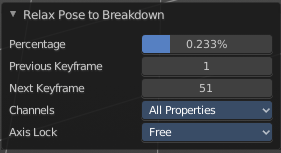
| Entry | What it does |
|---|---|
| Percentage | The percentage of relaxing. |
| Previous Key frame | The key frame position before the current frame. |
| Next Key frame | The key frame position after the current frame. |
Channels
Limit the relax effect to specific channels.
Axis Lock
Limit the relax effect to specific axis.
Pose Breakdowner
Creates a suitable breakdowner pose on the current frame.

When you perform the tool then you will see a per cent slider in the header where you can read the percentual influence of the blending. Move the mouse to position the blend pose where you need it.
Last Operator Pose Breakdowner
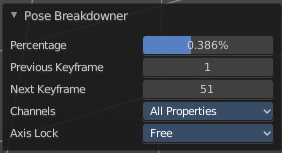
| Entry | What it does |
|---|---|
| Percentage | The percentage of exaggeration. |
| Previous Key frame | The key frame position before the current frame. |
| Next Key frame | The key frame position after the current frame. |
Channels
Limit the breakdowner pose to specific channels.
Axis Lock
Limit the breakdowner pose to specific axis.
Blend to Neighbour
Blends the current pose with the neighbouring poses.
When you perform the tool then you will see a per cent slider in the header where you can read the percentual influence of the blending. Move the mouse to position the blend pose where you need it.
Last Operator Blend to Neighbour
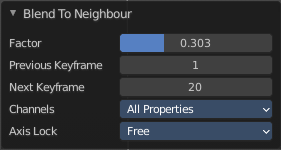
| Entry | What it does |
|---|---|
| Factor | The blend factor. |
| Previous Keyframe | The keyframe to calculate from before the current position. |
| Next Keyframe | The keyframe to calculate from after the current position. |
Channels
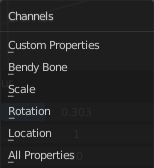
Axis Lock
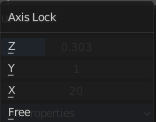
Lock the transformation along an axis.
Calculate Motion Paths
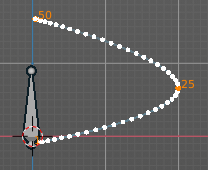
Objects can be animated. Let's say you send them from a to b to c. The object will move to b, then to c. Some kind of a path. This path is not visible by default.
With motion paths you can calculate this path, and make it visible.
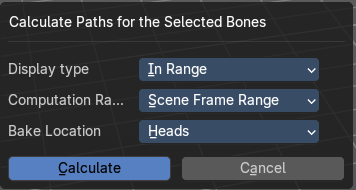
Calculate Motion path calls a setup dialog.
Display Type
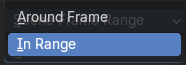
How to display the motion path.
| Entry | What it does |
|---|---|
| Around Frame | Display paths of poses within a fixed number of frames around the current frame. |
| In Range | Display paths of poses within specified frames. |
Computation Range
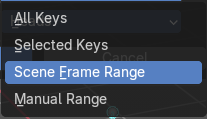
How much frames to compute.
| Entry | What it does |
|---|---|
| All Keys | From the first keyframe to the last. |
| Selected Keys | From the first selected keyframe to the last. |
| Scene Frame Range | The entire scene / preview range. |
| Manual Range | Manually determined frame range. |
Bake Location
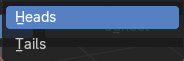
To bake from where.
| Entry | What it does |
|---|---|
| Heads | Calculate bone paths from heads. |
| Tails | Calculate bone paths from tails. |
Last Operator Calculate Bone Paths
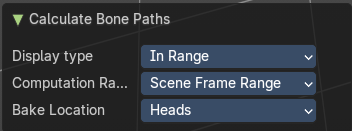
Same than the dialog.
Clear Motion Paths
Clear remove the motion path from the object.
Last Operator Clear Bone Paths
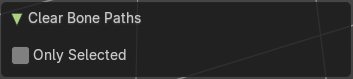
Only Selected
Only clear motion patsh of selected bones.
Update Armature Motion Paths
Updates the motion paths for the armature object.
Move to Bone Collection
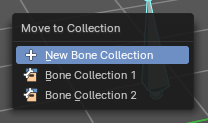
Armature and bones have their own collection system. This menu item opens a popup where you can put the selected bones into a New Collection or an existing Bone Collection.
| Entry | What it does |
|---|---|
| New Bone Collection | Assigns the selected bones to a new Bone Collection. This will prompt to name the new collection. |
| Bone List | Assigns or unassigns the selected bones to or from the collection. The green + icon and red – icon show if you can remove or add a bone to the listed collection. |
Show Hidden
Reveals the hidden bones.
Hide Selected
Hides the selected bones.
Last Operator Hide Selected
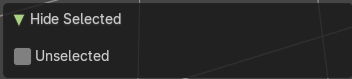
Unselected
Hide unselected bones too.
Hide Unselected
Makes all unselected bones hidden.
Clear User Transforms
Resets Pose of selected bones back to key frame state.
Last Operator Clear User Transforms
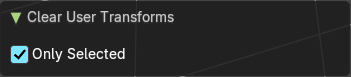
Only Selected
Only clear motion patsh of selected bones.