

































































Armature - Edit Mode - Armature context menu
Call this menu with double right click in the 3D viewport. You need to be in Edit mode with a armature object.
Detailed table of context
Edit Mode - Armature Context Menu
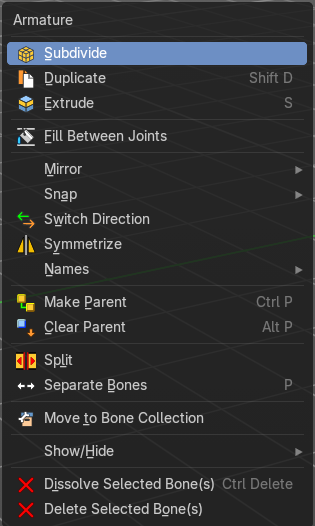
Call this menu with double right click in the 3D viewport. You need to be in Edit mode with a armature object.
Subdivide
Subdivide subdivides the current selection.
Last Operator Subdivide Multi
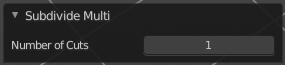
Number of Cuts
Adjust the number of subdivisions.
Duplicate
Duplicates selected bones.
You are automatically in grab mode, and so you can easily move the object out of position. Which is sometimes wanted, since you can position the duplicate then. But sometimes this is unwanted. A right click after releasing the mouse lets the object snap back into its creation position.

When you drag the duplicate around you will see the position values in the header.
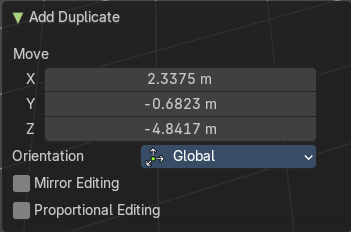
Last Operator Duplicate
| Entry | What it does |
|---|---|
| Duplicate Objects | Flip Names: Tries to flip the names of the bones. This is a name convention feature. When you have a bone called mybone.R, then it tries to become mybone.L |
| Move X , Y , Z | The Position of the duplicated object. |
Orientation
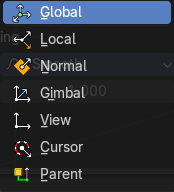
Orientation is a drop-down box choose the type of orientation for the duplicate action.
| Entry | What it does |
|---|---|
| Mirror Editing | Enable Mirror Editing. |
| Proportional editing | Enables proportional editing. Activating proportional editing reveals further settings. · Proportional Falloff: Adjust the falloff methods. · Proportional Size: See and adjust the falloff radius. · Connected: The proportional falloff gets calculated for connected parts only. · Projected(2D): The proportional falloff gets calculated in the screen space. Depth doesn't play a role. When it's in the radius, then it gets calculated. |
Extrude
Extrudes out a bone from the selected joints.
Last Operator Extrude
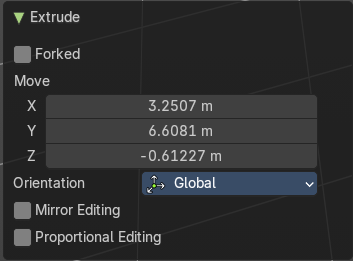
Forked
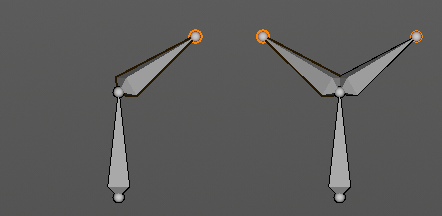
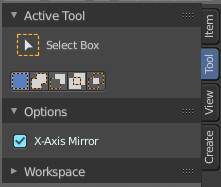
You need to tick X Axis Mirror. When you tick Forked, then the bone that you extrude to the one side will now be extruded to the other side too. The extrude gets mirrored along the x axis. This allows you to create a symmetrical armature.
Move X , Y, Z
The transform values for the new created joint(s)
Orientation
Choose the orientation.
| Entry | What it does |
|---|---|
| Mirror Editing | Enable Mirror Editing. |
| Proportional editing | Enables proportional editing. Activating proportional editing reveals further settings. · Proportional Falloff: Adjust the falloff methods. · Proportional Size: See and adjust the falloff radius. · Connected: The proportional falloff gets calculated for connected parts only. · Projected(2D): The proportional falloff gets calculated in the screen space. Depth doesn't play a role. When it's in the radius, then it gets calculated. |
Fill between Joints
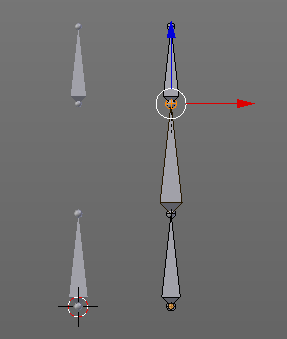
Fill between joints fills a bone between two selected joints.
When there is just one joint selected, then the bone is created between this selected joint and the 3D cursor.
Mirror sub menu
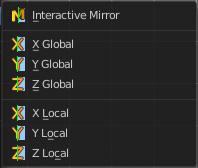
Mirror mirrors the selected geometry along the defined axis.
| Entry | What it does |
|---|---|
| Interactive Mirror | Mirror by hotkeys. You activate the tool, type in x for x global for example, or x x for x local. And the selection gets mirrored. |
| X Global, Y Global etc. | Mirrors the selection around the chosen axis. |
Last Operator Mirror
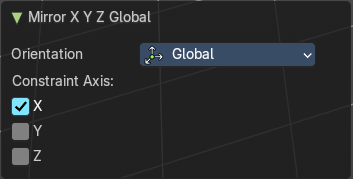
The Last Operator Mirror panel gives you tools to adjust the mirror action.
Orientation
Orientation is a drop-down box choose the type of orientation for the mirroring action.
Constraint Axis
Constraint Axis gives you again the possibility to define the mirror axis. You can choose more than one axis here.
Snap sub menu
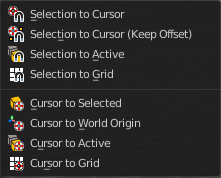
Choose several methods to snap one element to another. The menu items should be self explaining.
Last Operator Snap
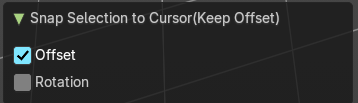
Some snap operations shows a last operation panel, some not.
| Entry | What it does |
|---|---|
| Offset | If the selection should snap as a whole, or if each individual element of the selection should snap. |
| Rotation | If the selection should be rotated to match the cursor. |
| Switch Direction | Switches the direction in which the selected bones are pointing. |
Symmetrize
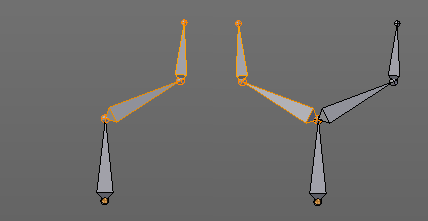
Creates a symmetrical mirrored copy of the currently selected bones along the X axis. The mirror center is the pivot of the armature.
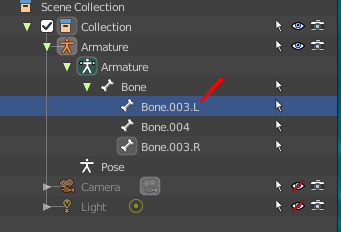
The bones that you want to symmetrize needs to follow the left right name conventions for bones. Bones without this left right naming are not affected by the tool. If there is a lower or upper case “L”, “R”, “left” or “right” with a separating dot in the bone name, then this tool creates and renames the bones names to its counter part. Bone.L becomes Bone.R.
Last Operator Symmetrize
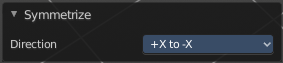
Direction
Define the calculation direction. From -X to + X or from +X to -X
Names sub menu
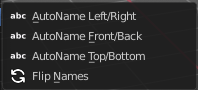
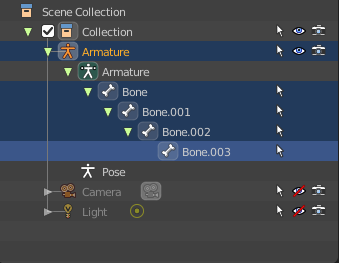
Bforartists has some internal name conventions for a symmetrical armature. Bones are for example named mybone.L or mybone.R, dependent at which side of the mirror axis they are. The Names items allows you to rename the bone names to this name convention.
| Entry | What it does |
|---|---|
| Autoname Left/Right | Renames the bones from left to right. |
| Autoname Front/Back | Renames the bones from front to back. |
Autoname Top/Bottom
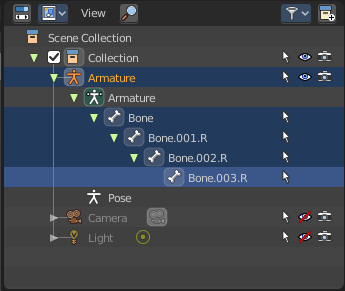
Renames the bones from top to bottom.
Last operator Autoname by Axis
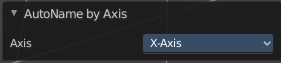
Axis
Choose the autoname axis again. Left/Right is X axis, Front/Back is Y axis, and Top/Bottom is Z axis.
Flip Names
When you mirror a half of an armature you end in names like Bone.001.R.001. But what we need is Bone.001.L for a symmetrical armature. Flip names flips the names to follow the left right name conventions.
Last operator Autoname by Axis
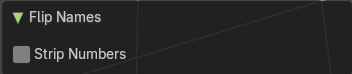
Strip Numbers
Tries to remove the numbers in the names if possible.
Make Parent
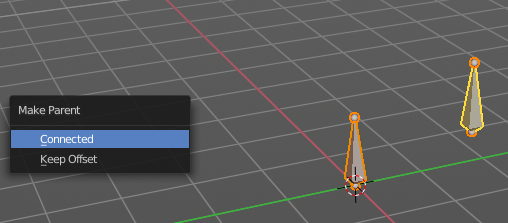
Adds a parent relationship.
Select a bone, hold down shift, select the bone that you want to parent it to. Perform Make Parent. In the popup choose the method that you want to use.
Connected
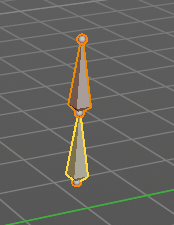
The child bone will jump to the position of the tail joint of the parent bone.
Keep Offset
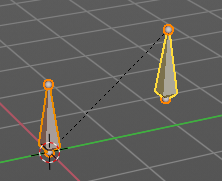
The bone will remain in its original position. The relationship will be displayed by a black dotted line.
Last Operator Make Parent
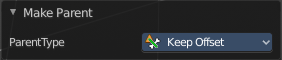
Parent Type
Choose between Connected and Keep Offset method again.
Clear Parent
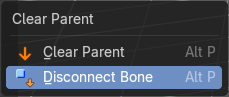
Clears the parent relationship of the selected bone(s). It calls a popup menu choose between two methods.
| Entry | What it does |
|---|---|
| Clear Parent | Clears the parent relationship of the selected bone(s). |
| Disconnect Bone | The parent-ship is kept. Turns a Connected parent relationship into a Keep Offset parent relationship. You can move the disconnected bone around without to pull the parent with it. |
Last Operator Clear Parent
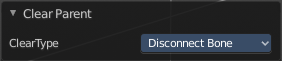
Clear Type
Choose between Clear Parent and Disconnect Bone method again.
| Entry | What it does |
|---|---|
| Split | Split splits the selected bone(s) from connected bones. They are still part of the armature. But the bone is now floating. And you can pull this bone(s) around without pulling the rest of the armature around. |
| Separate Bones | Separate separates the selected bone(s) from the armature. And creates a new, independent, armature. |
Move to Bone Collection
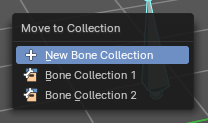
Armature and bones have their own collection system. This menu item opens a popup where you can put the selected bones into a New Collection or an existing Bone Collection.
| Entry | What it does |
|---|---|
| New Bone Collection | Assigns the selected bones to a new Bone Collection. This will prompt to name the new collection. |
| Bone List | Assigns or unassigns the selected bones to or from the collection. The green + icon and red – icon show if you can remove or add a bone to the listed collection. |
Show/Hide sub menu

Sub-menu with shows or hide selection, unselected or hidden operators.
Show Hidden
Makes all geometry in the scene visible again.
Hide Selected
Hides the selected geometry.
Last Operator Hide Selected
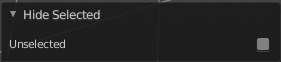
Unselected
Hides the not selected geometry.
Hide Unselected
Hides the not selected geometry. The selected geometry stays visible.
Dissolve selected bones
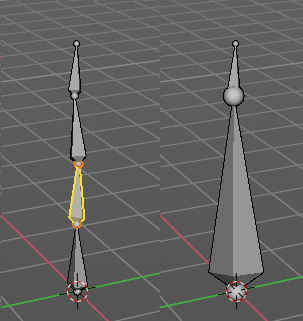
Merges the selected bone or joint with its hierarchical neighbor bones.
Delete selected bones
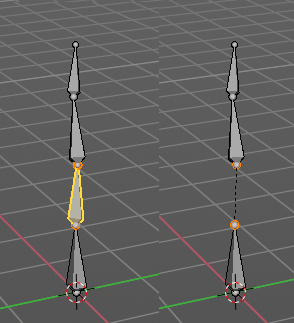
Deletes the selected bones. The hierarchy is kept. The involved bones becomes disconnected.