

































































All Modes
What every mode shares: the header tools and options, the View, Select, Navigation and Quick menus, the sidebar tabs and the asset shelf.
The parts of the 3D Viewport that stay the same in every mode and for every object.
Header
Introduction
The 3D View editor is the editor where you edit your 3D data. Here you can display and modify all the scene data like meshes, curves, metalballs, etc.
It has by default a grid in the middle. And you can navigate around in this view.
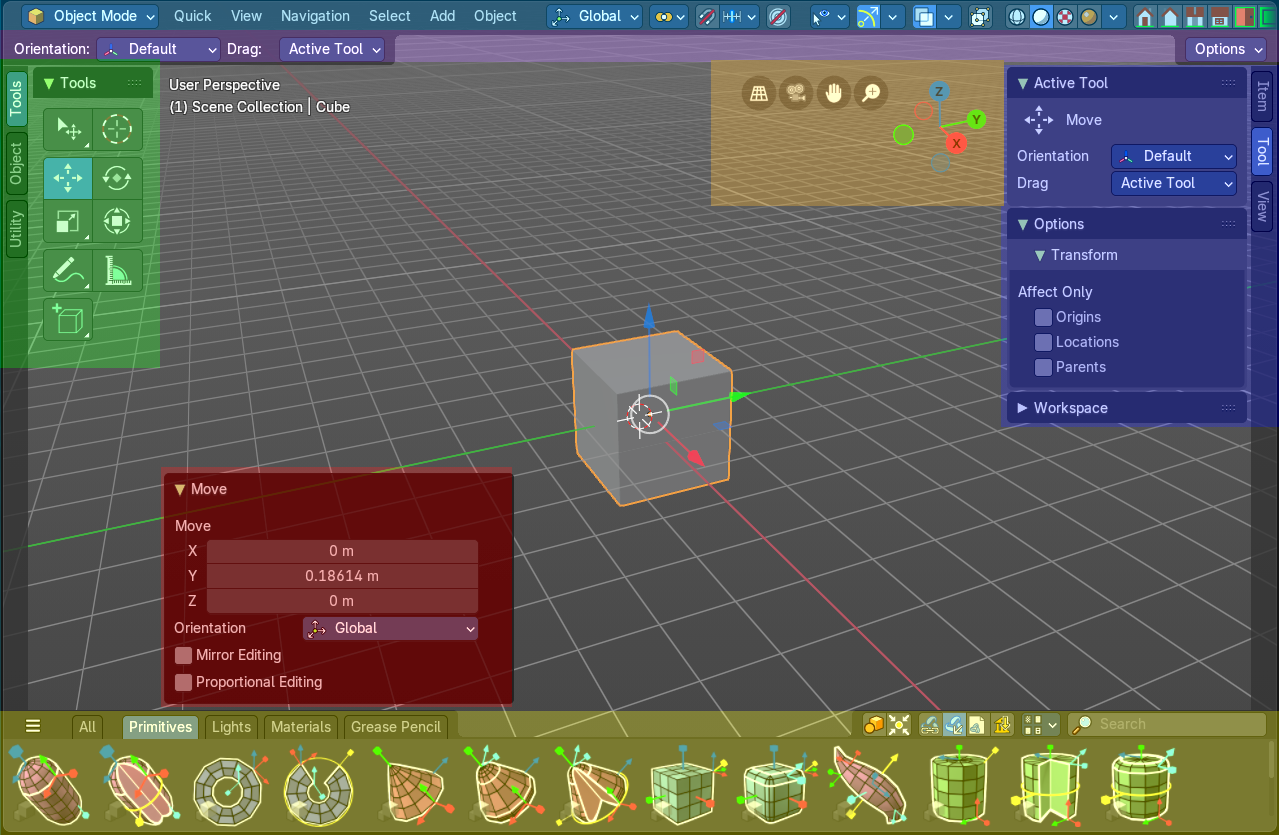
The 3D View has several areas. In this chapter we will cover the header area. Blue color, at the top, the area with the menus.
Header
The Header contains various menus, navigation elements and tools for the 3d view. This content vary, dependent of mode and object type. The Mesh menu just exists with a mesh object in Edit mode. The Object menu exists just in Object mode and so on.
The header is divided into three areas. Left is the mode drop down box. At the right of it is the text menus. And at the right side you will find some scene related settings.

The text menus will be explained one by one and mode by mode in their own chapters.
Header right click menus
The general right click menu functionality is explained in chapter 6 Editors introduction.
Editortype Menu
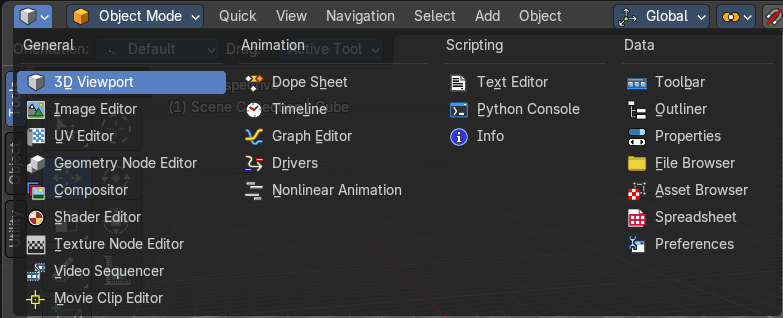
Bforartists is made of several editor types. Headers can display a menu where you can switch to other editor types.
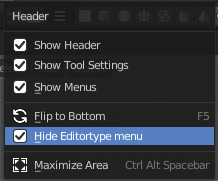
This menu is hidden by default. It is meant to edit the layouts, and should not be necessary for regular work. You can reveal it in the header right click menu. Or by splitting the view. The new window will then have the editor type menu again.
To split the view, move the mouse up right until it turns into a cross, then click and drag.
Header tools and Options
Introduction
The header in the 3D view contains various menus and tools. This chapter here is about the tools, modes and options elements in the header.
The text menus are covered in a own chapter each. They vary too much, dependent of mode and object type.
Mode Drop-down Box
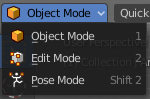
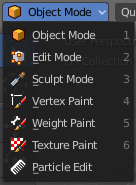
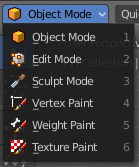
The Mode drop-down box allows you to switch between the different modes.
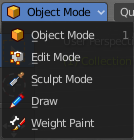
Modes are object states that allows you to edit and manipulate objects at different levels with different tool sets and goals. The sculpt mode for example allows you to sculpt a mesh object. Edit Mode allows to manipulate the mesh of the object, and so on.
The available modes can differ from object to object. An armature for example has an additional pose mode. And when you work with a grease pencil object, then several grease pencil modes becomes available.
| Entry | What it does |
|---|---|
| Object Mode | This mode allows to manipulate objects at Object level. Like move it around, rotate it, etc. This mode is available for all object types. |
| Edit Mode | The edit mode allows to edit the object. With a mesh object this means that you are able to modify and to change the geometry. With an armature you build your skeleton. And with a text object you can type in text, and choose the font etc. Not all objects has an edit mode. |
| Sculpt Mode | In this mode you can sculpt the mesh. This mode is available for mesh and grease pencil objects. |
| Vertex Paint | Vertex Paint is a mesh object only mode. In this mode you can paint vertices with colors. |
| Weight Paint | In this mode you can adjust weight painting for an armature for example. But Weight Painted mesh objects can also be used in conjunction with particles. Also a grease pencil stroke can be weight painted. |
| Texture Paint | Weight Paint is a mesh object only mode. In this mode you can paint at the texture of a mesh directly. This mode requires to have a working UV mapping and a texture at the mesh object. |
| Edit Strokes | Edit Strokes is a Grease Pencil only mode. It allows to manipulate the curves at a mesh level. |
| Particle Edit | Particle edit is a Particle System mode only. When you apply a particle system to a mesh object then this mode becomes available. It allows you to manipulate the particle system at a mesh level. You can comb hair particles for example. |
| Draw | Draw is a grease pencil object only mode. In this mode you draw grease pencil strokes. |
Mesh Object Sub Modes
The different modes can have some sub modes. For example different selection methods in mesh edit mode. Or a mask mode for texture painting. The sub mode settings can be found right from the Modes drop down box.
Edit Mode - Mesh Select Modes

When you enter the edit mode with a mesh object then you will see the mesh select modes. They allows you to switch between the three available selection modes Vertice select, Edge Select and Face Select.
Vertex Select allows you to select vertices.
Edge Select allows you to select edges.
Face select allows you to select faces.
The mesh display changes, dependent of the mode. When you have for example select vertices active, then the vertices highlights at the mesh.
You can have more than one mode active by shift clicking at the other mesh select modes.
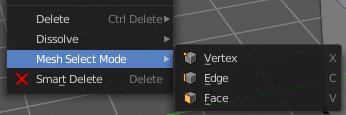
The standard Bforartists has hotkeys to switch between the modes. X, C and V. You cannot see or edit them at the header element. There is however a sub menu in the mesh menu, called Mesh Select Mode. Here you can see and edit the hotkeys.
Vertex Paint - Mask and Vertex Selection

Paint Mask
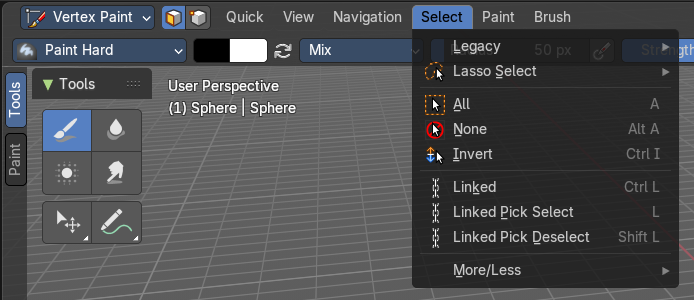
When you activate this tool then you reveal a Select menu in the header. And you can select the mesh parts that you want to manipulate. Note that you may first want to deselect all. By default everything is selected ...
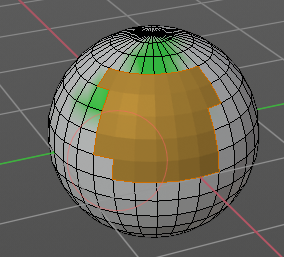
The select menu is explained in the chapter Vertex Paint modes. The menu items should be pretty self explaining though.
When you have selected a part of the mesh, then you can just paint the faces at this selected part. The edges are the border.
Vertex Selection
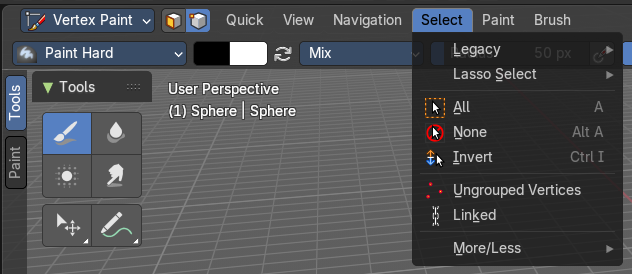
When you activate this tool then you reveal a Select menu in the header. And you can select the mesh parts that you want to manipulate. This tool is meant for Weight Painting. And so the mesh displays the vertices too.
Note that you may first want to deselect all. By default everything is selected ...
The select menu is explained in the chapter Vertex Paint modes. The menu items should be pretty self explaining though.
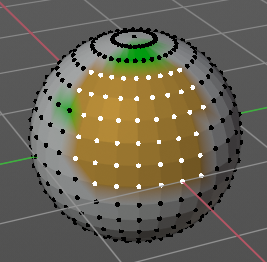
When you have selected a part of the mesh, then you can just paint the vertices at this selected part. The difference to the Paint mask method is that here the edges are not the border of the color. But there is a gradient between the vertices.
Weight Paint - Mask and Vertex Selection

Paint Mask
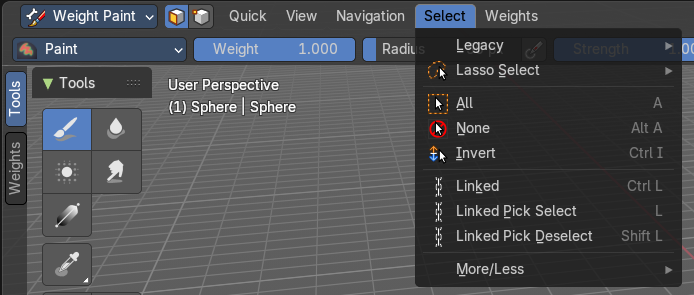
Mesh Object.
When you activate this tool then you reveal a Select menu in the header. And you can select the mesh parts that you want to manipulate. Note that you may first want to deselect all. By default everything is selected ...
The select menu is explained in the chapter Vertex Paint modes. The menu items should be pretty self explaining though.
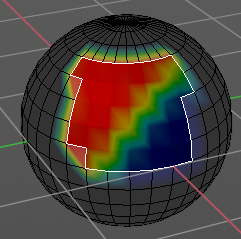
When you have selected a part of the mesh, then you can just paint the faces at this selected part. The edges are the border.
Vertex Selection
Mesh Object.
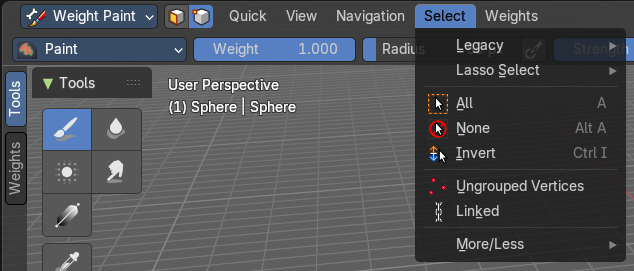
When you activate this tool then you reveal a Select menu in the header. And you can select the mesh parts that you want to manipulate. This tool is meant for Weight Painting. And so the mesh displays the vertices too.
Note that you may first want to deselect all. By default everything is selected ...
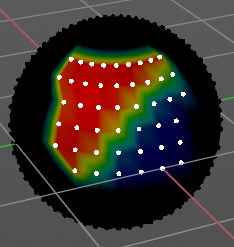
The select menu is explained in the chapter Vertex Paint modes. The menu items should be pretty self explaining though.
When you have selected a part of the mesh, then you can just paint the vertices at this selected part. There is no real difference to the faces method. The selection is the same.
Texture Paint - Mask Selection
Paint Mask
Mesh Object.
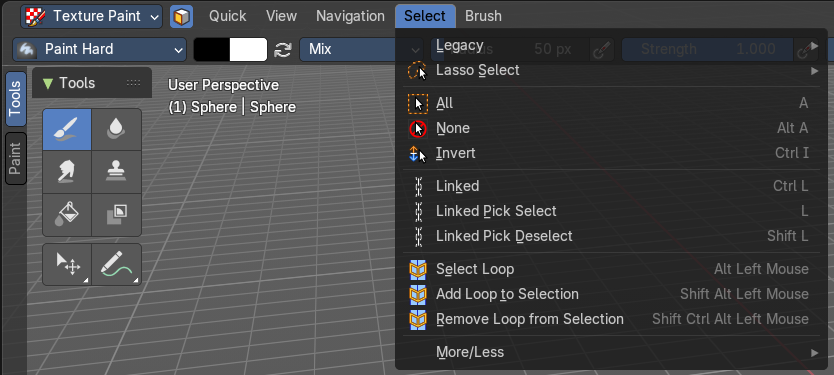
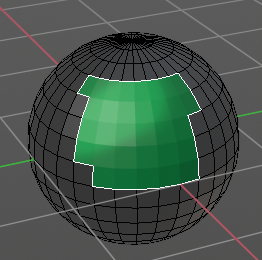
When you activate this tool then you reveal a Select menu in the header. And you can select the mesh parts that you want to manipulate. Note that you may first want to deselect all. By default everything is selected ...
The select menu is explained in the chapter Vertex Paint modes. The menu items should be pretty self explaining though.
When you have selected a part of the mesh, then you can just paint the faces at this selected part. The edges are the border.
Particle Edit - Select Modes

Mesh Object with a particle system. You can just have one method active at a time.
Path
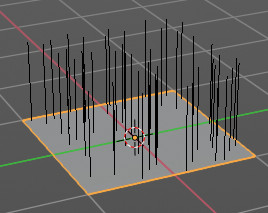
No key points are visible, you can select/deselect only all particles.
Point
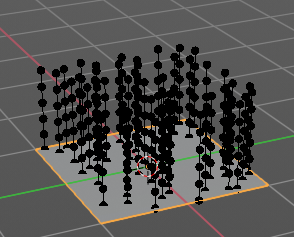
You can see, select and edit all key points of the particle paths.
Tip
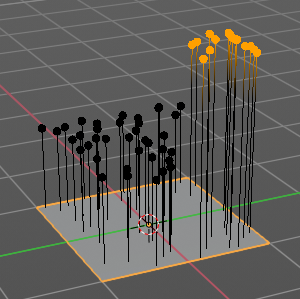
You can only see, select and edit the tip of the particles. This includes the brushes. The comb brush is a special case here. The other pat key points bends of course still in this mode. But affected by the brush is just the tip key.
Grease Pencil Sub Modes
The different modes can have some sub modes. For example different selection methods in mesh edit mode. Or a mask mode for texture painting. The sub mode settings can be found right from the Modes drop down box.
Edit Mode

The edit mode allows you to edit the grease pencil strokes.
Select Modes
You can only have one method active at a time.
Select Only Points
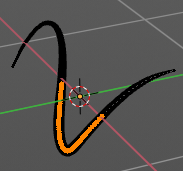
When you for example border select some points of the stroke, then just this points gets selected.
Select all Stroke Points
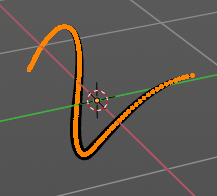
When you for example border select some points of the stroke, then the whole stroke gets selected.
Select all Stroke Points between other strokes
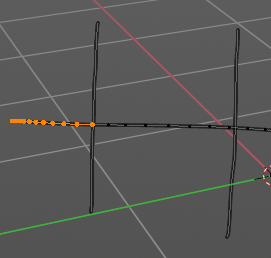
When you for example border select some points of the stroke, and this stroke crosses another stroke, then the part of the stroke up to the crossing point gets selected.
Multi-frame
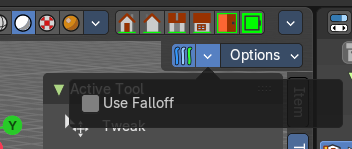
When this mode is active, then you can edit strokes from multiple grease pencil frames at once. The key frames must be selected to be included.
Use Falloff
Multi frame has a setting, which becomes visible when the mode is active.
Use Falloff when edit in Multi frame mode to compute brush effect by frame.
Sculpt Mode

The sculpt mode allows you to sculpt the grease pencil strokes.
| Entry | What it does |
|---|---|
| Selection Mask Points | Just the selected vertices gets sculpted. |
| Selection Mask Strokes | Just the selected strokes gets sculpted. |
| Selection Mask other strokes | Only sculpt selected stroke points between other strokes. |
Multi-frame
When this mode is active, then you can edit strokes from multiple grease pencil frames at once. The key frames must be selected to be included.
Use Falloff
Multi frame has a setting, which becomes visible when the mode is active.
Use Falloff when edit in Multi frame mode to compute brush effect by frame.
View
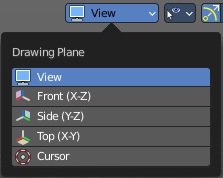
Relative to which plane to draw the strokes. Default orientation is view.
Draw Mode

The draw mode is the mode in which you draw the grease pencil strokes.
Origin
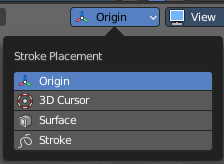
Where the stroke is placed.
View
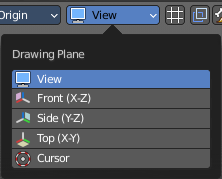
Relative to which plane to draw the strokes. Default orientation is view.
Multi-frame
When this mode is active, then you can edit strokes from multiple grease pencil frames at once. The key frames must be selected to be included.
| Entry | What it does |
|---|---|
| Use Additive Drawing | When creating new frames, then the strokes from the previous or active frame gets included as the base for the new stroke. |
| Automerge | Join last drawn strokes by distance with previous strokes in the active layer. |
| Add Weight Data for new strokes | Add Weight data for new strokes, according to the current vertex group and weight. When no vertex group is selected, then no weight is added. |
| Draw Strokes on Back | Usually a new stroke is drawn on top of existing strokes. Draw Strokes on Back adds the new strokes below the existing strokes. |
Weight Paint Mode
Multi frame
When this mode is active, then you can edit strokes from multiple grease pencil frames at once. The key frames must be selected to be included.
Use Falloff
Multi frame has a setting, which becomes visible when the mode is active.
Use Falloff when edit in Multi frame mode to compute brush effect by frame.
Vertex Paint Mode

Select Modes
You can only have one method active at a time.
Select Only Points
When you for example border select some points of the stroke, then just this points gets selected.
Select all Stroke Points
When you for example border select some points of the stroke, then the whole stroke gets selected.
Select all Stroke Points between other strokes
When you for example border select some points of the stroke, and this stroke crosses another stroke, then the part of the stroke up to the crossing point gets selected.
Multi frame
When this mode is active, then you can edit strokes from multiple grease pencil frames at once. The key frames must be selected to be included.
Use Falloff
Multi frame has a setting, which becomes visible when the mode is active.
Use Falloff when edit in Multi frame mode to compute brush effect by frame.
Geometry Node Group Tools
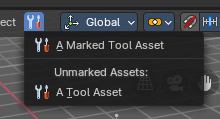
This header button menu with the tool icon is a container for Geometry Node Groups that have been set as “Tools” in the Geometry Nodes editor. These are act-once operators that now can be placed in the Geometry Node Group Tools or in custom entries in the 3D View header entries.
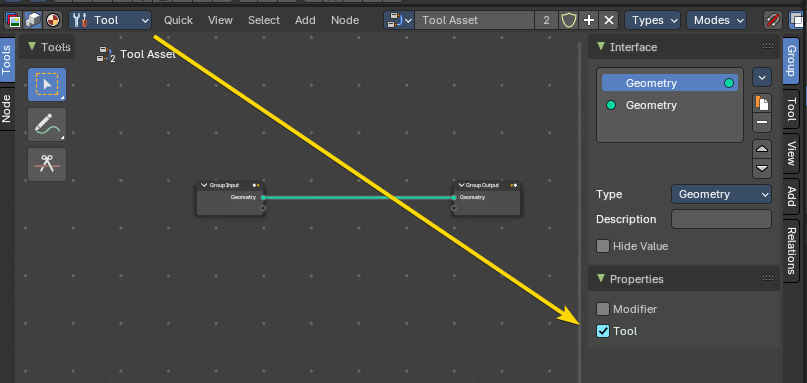
Example: here the Geometry Nodes has be switched to the Tool mode, and the node group Properites have been set to Tool. This node group will now show in the Geometry Node Group Tools header menu.
Marked Assets
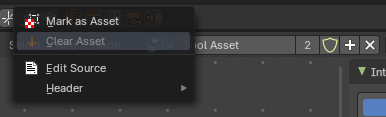
A marked Geometry Nodes node group set as an asset and a tool will display here. To mark, right click on the geometry node selector in the Geometry Nodes editor, and mark as asset.
Unmarked Assets
A local unmarked Geometry Nodes node group set as a tool will display under the “Unmarked Assets:” label.
Marked Assets with assigned Asset Browser Category
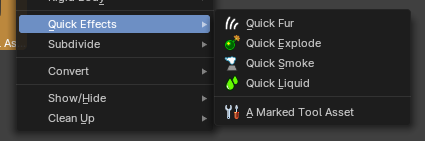
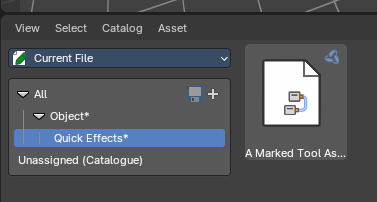
A marked node group set as a tool and as an asset and assigned to an Asset Browser category with the same category structure as the menu entry names will display as nested act-once operators.
Example: This is a marked-as-asset geometry node group with the name “A Marked Tool Asset” in the category “Object” then sub-category “Quick Effects”.
Object settings

The object settings just appears when the Tool Settings are hidden. This can be done in the View menu.
Transform Orientations
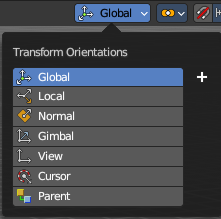
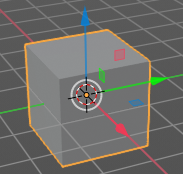
You can display Transform Manipulators at your object or selection by activating them in the tool shelf. They allow you to scale, rotate or move objects by grabbing their controls, and moving your mouse in the corresponding axis. The widget can be oriented in different ways by using another method in this drop down box. The names should be self explaining.
| Entry | What it does |
|---|---|
| View | The transform orientation aligns to the current view. |
| Gimbal | Aligns each axis to the Euler rotation axis as used for input. |
| Normal | This is of interest for bones for example. Aligns the transformation axis to average normal of the selected elements. Bone Y axis for Pose mode. |
| Local | Uses the local orientation of the selected elements. |
| Global | Uses the global orientation for the selected elements. |
| Cursor | Uses the orientation of the 3D cursor. |
| Parent | Uses the orientation of the parent object. |
Create Orientation
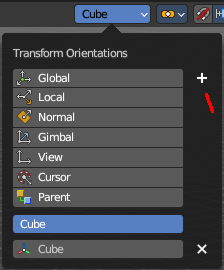
The create orientation button at the right adds a new orientation from the current mode and view. You can rename it.
This view is scene specific only. It does save and load with the current scene. But you cannot transfer it into another scene. When you create a new scene then this custom orientation is gone.
You can create more than one user orientation.
Last Operator Create Orientation
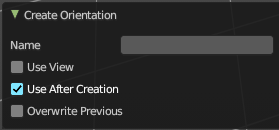
Create Orientation has some settings.
| Entry | What it does |
|---|---|
| Name | Rename the orientation. |
| Use View | Use the current view instead of the active object to create the new orientation. |
| Use after creation | Use this orientation after creation. |
| Overwrite Previous | Overwrite previous created orientation in case it has the same name. |
Transform Pivot Point
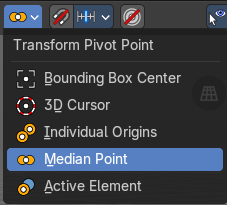
The Pivot Point is the center of your object or your selection. When you rotate or scale an object, or a group of vertices/edges/faces, you may want to shift the pivot point in 3D space. The names should be self explaining.
| Entry | What it does |
|---|---|
| Bounding Box Center | Pivot around the bounding box center of selected objects. |
| 3D Cursor | Pivot around the 3D cursor. |
| Individual Origins | Pivot around the center of each individual object. |
| Median Point | Pivot around the median point of selected objects. |
| Active Element | Pivot around the active element. |
Snapping
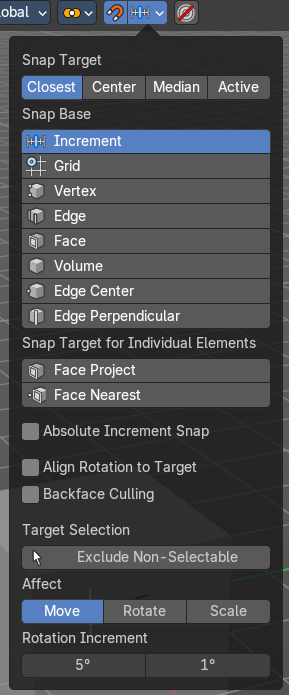
Activate snapping when transforming an element.
Snapping can be temporarily activated by holding Ctrl key. So no need to turn snapping on and off all the time.
You can snap to various scene elements in Object, Edit and Pose mode. And you can activate more than one snapping method by holding down Ctrl and clicking at the next snapping element.
Multiple Snap Targets
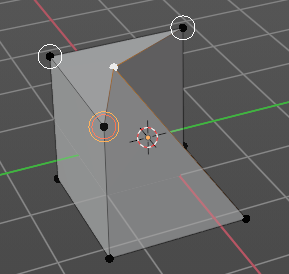
When you move the mouse with snapping on and the element to snap selected (This does not work with holding Ctrl), then you can press hotkey A to mark the current snapping point, then proceed to mark as many other snapping points as you wish. And the element that you want to snap will then be in the center of these marked snapping points. Marked snapping points will have a circle around.
Marking a point more than once will give it more weight in the averaged location.
Snap Target
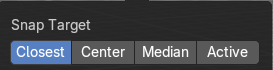
Which part to snap onto the target.
| Entry | What it does |
|---|---|
| Closest | Snap closest point onto the target. |
| Center | Snap transformation center onto the target. |
| Median | Snap median onto the target. |
| Active | Snap active onto the target. |
Snap to
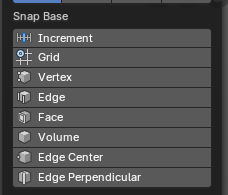
To which part of the target to snap.
| Entry | What it does |
|---|---|
| Increment | Incremental grid snapping. In Orthographic view the snapping increment changes depending on zoom level. **Note:**You can selected multiple by holding down the Shift key and selecting additional snap base modes. |
| Grid | Snap to a grid. |
| Vertex | Snap to a vertice. |
| Edge | Snap to an edge. |
| Face | Snap to a face. |
| Volume | Snaps to regions within the volume of the first object found below the mouse cursor. |
| Edge Center | Snaps to the center of an edge. |
| Edge Perpendicular | Snap to the nearest point of an edge. |
Snap Target for Individual Elements
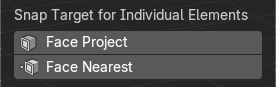
Type of element for individual transformed elements to snap to.
| Entry | What it does |
|---|---|
| Face Project | Snap by projecting onto faces. |
| Face Nearest | Snap to nearest point on faces. |
Snap Peel Object
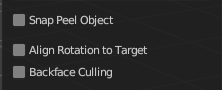
Only available with the Snap to Method Volume. Consider objects as whole when finding a volume center.
Snap to Same Target
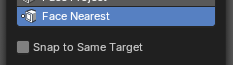
Only available with the Snap Face Nearest. Snap only to target that the source was initially near.
Absolute Increment Snap

Only available with Increment Snap mode, this will allow an absolute grid alignment while translating (based on the pivot center)
Align Rotation to Target

Align rotation with the snapping target.
Back face Culling
Exclude back facing geometry from snapping.
Target Selection
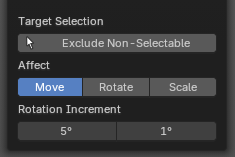
Align rotation with the snapping target.
Exclude Non-Selectable
Snap only onto objects that are selectable. This will ignore any objects that have been marked as un-selectable from the Outliner Editor.
| Entry | What it does |
|---|---|
| Affect | Adjust what transform methods should be affected by snapping. **Note:**You can selected multiple by holding down the SHIFT key and selecting additional transforms. · Move: Move the affected by snapping settings. · Rotate: Rotate the affected by snapping settings. · Scale: Scale the affected by snapping settings. |
| Rotation Increment | Snap in adjustable incremental steps. · Rotation Increment Slider: Angle used for rotation increments in the 3D editors. · Precision Rotation Increment Slider: Precision angle used for rotation increments in the 3D editors. |
Proportional Editing
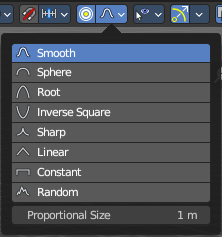
Enables proportional editing.
Proportional Editing is a way of transforming selected elements (such as vertices) while having that transformation affect other nearby elements with a falloff. For example, moving a single vertex will move unselected vertices within a given range. And the falloff means that selected vertices that are closer to the selected vertex will move more than those farther from it.
Settings
The settings appears when you activate Proportional Editing. Choose between different falloff methods for the proportional editing.
Proportional Size
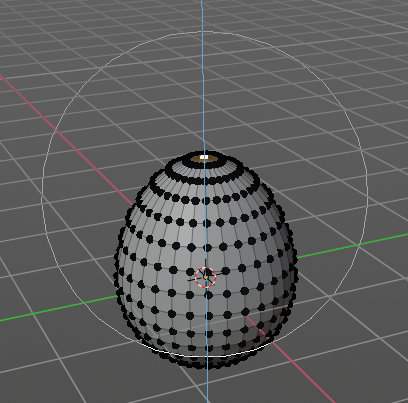
The influence of the proportional editing is defined by a radius. It is by default one standard unit.
You can change the influence radius for proportional editing with the mouse wheel or the Page up Page down arrows while keeping the mouse button pressed down and do the translation.

The exact radius value can be read in the header while transformation.
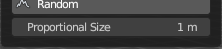
And it can also be read and edited at the Proportional Size slider in the Proportional Editing panel.
Last Operator Proportional Editing
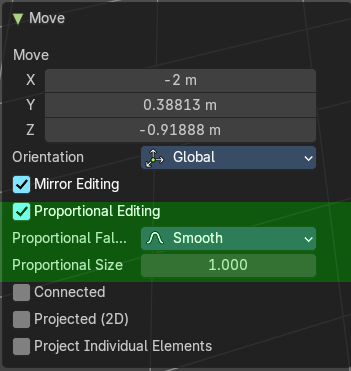
When you translate an object, move it around or rotate or scale it, then the last operator contains also proportional editing settings.
| Entry | What it does |
|---|---|
| Proportional Editing | Enable proportional editing. |
| Proportional Falloff | Adjust the falloff methods again. |
| Proportional Size | Adjust the falloff radius. Note that the white circle is not displayed when using this slider. |
| Connected | The proportional falloff gets calculated for connected parts only. |
| Projected(2D) | In depth direction along the view the radius is ignored. It selects as deep as there is something to select. |
Selectability & Visibility
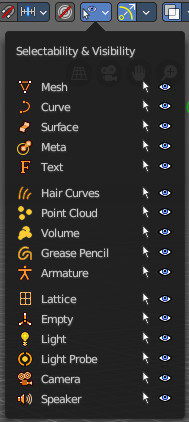
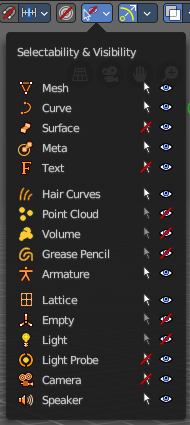
In this drop down box you can set specific elements in the scene to either not selectable or invisible.
When the elements are invisible then they are also not selectable.
When you have set some objects to not selectable or invisible, then the icon in the menu header changes.
Viewport Gizmo
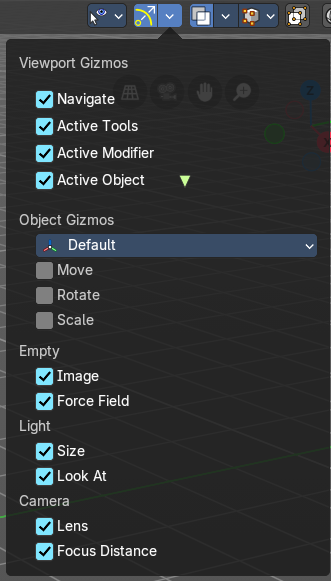
This menu allows you to adjust what gizmos shows. The button at the left turns them all off or on.
Show Gizmo
Shows or hides all available gizmos at once.
Gizmo Options
Turn on or off specific widgets.
Viewport Gizmos
Navigate
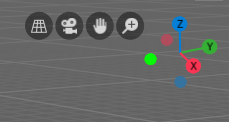
Turn on or off the navigate widget. The navigate gizmo is the block of buttons and the widget up right.
Active Tools
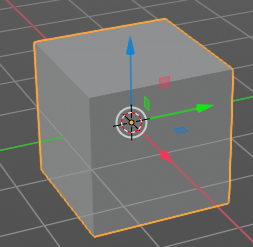
Turn on or off the active tool widget. When you activate one of the transformation buttons in the tool shelf, then a gizmo will appear at the object.
Active Modifier
Toggles the gizmos for the active Geometry Nodes modifier assets.
Active Object
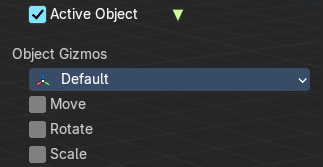
Turn on or off the Object Gizmos. The Object Gizmos is an extra set of translate gizmos, similar to the active tool widget that shows when you activate one of the transform buttons in the tool shelf. These alternatively show the transform gizmos as permanent gizmos as long as you don't have another tool selected that overrides this widget.
Object Gizmos
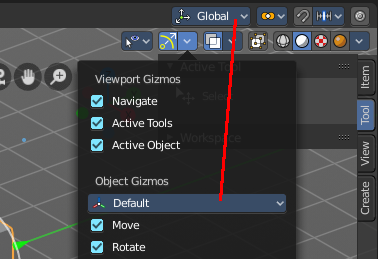
Transformation Orientation
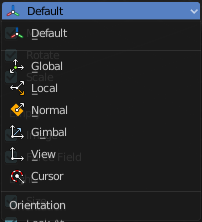
Adjust the orientation of the widget. By default it uses the transform orientation from the viewport. This set can override the transform orientation.
You can have all transform methods on at once.
Move
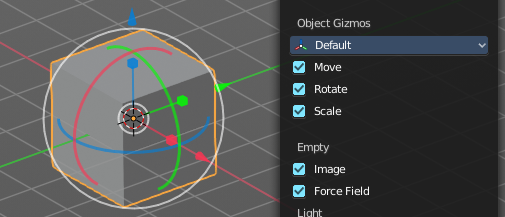
Shows the move part of the widget.
| Entry | What it does |
|---|---|
| Rotate | Shows the rotate part of the widget. |
| Scale | Shows the scale part of the widget. |
Empty
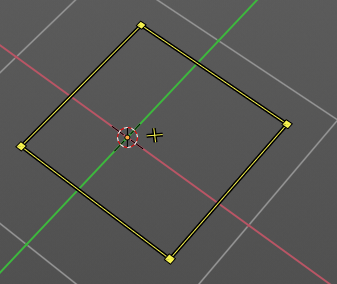
Image
Shows the transform gizmo at an empty of type Image. You need to hover with the mouse over the object to reveal the yellow gizmo.
Force Field
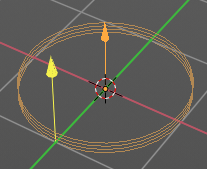
Some force field types have a gizmo. Shows the transform gizmo at a force field.
Light
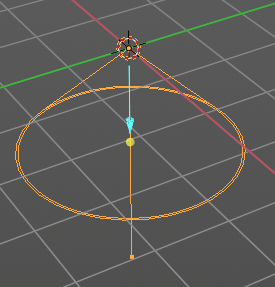
| Entry | What it does |
|---|---|
| Size | Show the gizmo to adjust the size of lights. That's the blue arrow here. |
| Look At | Show the gizmo to adjust the direction of the light. That's the yellow dot in the middle of the circle. |
Camera
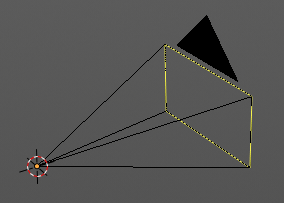
Lens
Show the gizmo to adjust the lens and orthographic size. The yellow square.
Focus Distance
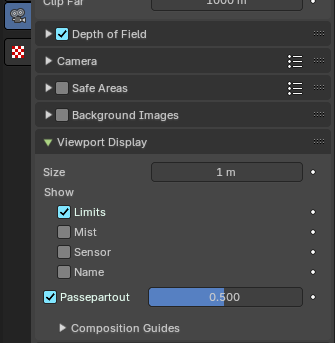
Shows the gizmo to adjust the focus distance.
You first need to turn on the Limits gizmo in the camera settings in the Viewport Display panel. Then you can turn off the focus distance gizmo part with Focus Distance.
Mesh Object - Sculpt mode
Color attributes panel
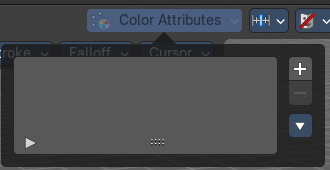
This panel also exists in the properties editor.
Currently this panel is greyed out and dysfunctional in Sculpt mode. It is WIP.
Global Auto Masking
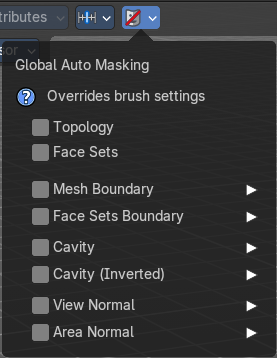
These override all brush settings, but you can also set these auto masking features per brush.
| Entry | What it does |
|---|---|
| Topology | Affect only vertices that are connected to the current active vertex under the brush. |
| Face Sets | Affect only vertices that share face sets with the active vertex. |
Mesh Boundary
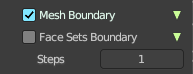
Do not affect non manifold boundary edges.
The setting that appears on activation and is valid for both, Mesh Boundary and Face Sets Boundary.
Face Sets Boundary
Do not affect vertices that belong to a face set boundary.
The setting that appears on activation and is valid for both, Mesh Boundary and Face Sets Boundary.
Steps
Distance where boundary edge automasking is going to protect vertices from the fully masked edge.
Cavity
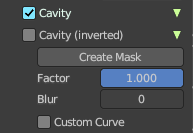
Do not affect vertices on peaks. This feature is based on the surface curvature.
The setting that appears on activation and is valid for both, Cavity, and Cavity (Inverted).
Cavity (Inverted)
Do not affect vertices in valleys. This feature is based on the surface curvature.
The setting that appears on activation and is valid for both, Cavity, and Cavity (Inverted).
| Entry | What it does |
|---|---|
| Create Mask | Creates a mask based on the curvature of the surface. |
| Factor | The contrast of the cavity mask. |
| Blur | The number of times the cavity mask is blurred |
Custom Curve
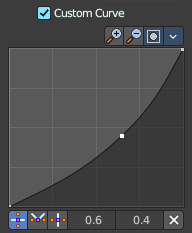
Use a custom falloff curve for the cavity mask.
Selecting Points
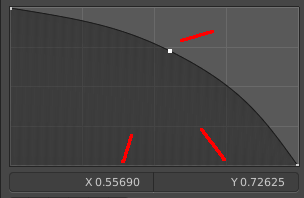
You can select curve points. This reveals two edit boxes for the x and y coordinate of this point.
Selected points can be moved around. Left click at them, hold the mouse button down and move them to a new location.
Adding Points
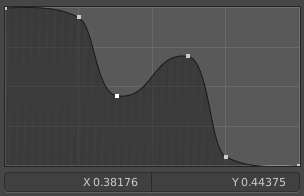
You can add new curve points by simply left clicking at the curve. Move the mouse to position them where you need it.
Navigation elements

The navigation elements at the top are described from left to right.
Zoom in and out
The two buttons with the magnifying glass at it zooms in and out in the curve window.
Clipping Options
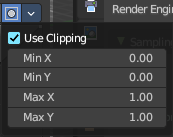
Set up clipping for the stroke.
Use Clipping
Turns clipping on or off.
| Entry | What it does |
|---|---|
| Min and Max X Y | The values for the clipping area. |
| Tools | Tools is a menu where you can find some curve related tools. · Reset View: Resets the curve windows zoom. · Extend horizontal: Extends the curve before the first curve point and after the last curve point horizontally. · Extend extrapolated: Extends the curve before the first curve point and after the last curve point extrapolated. · Reset Curve: Resets the curve to the initial shape. |
Handle Types

Sets the handle type for the current selected curve point.
X Y Position
The position of the current active curve point.
Delete Points
Deletes the current active curve point.
View Normal
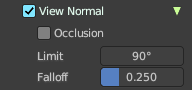
Affect only vertices with a normal that faces the viewer.
| Entry | What it does |
|---|---|
| Occlusion | Only affect vertices that are not occluded by other faces. With Occlusion on the Limit and Falloff options are not available. |
| Limit | View normal limit. The range of angles that will be affected. |
| Falloff | Extend the angular range with a falloff gradient. |
Area Normal
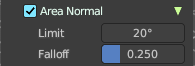
Affect only vertices with a similar normal to where the stroke starts.
| Entry | What it does |
|---|---|
| Limit | Area normal limit. The range of angles that will be affected. |
| Falloff | Extend the angular range with a falloff gradient. |
Mesh Object - Vertex Paint mode
Color Attributes panel
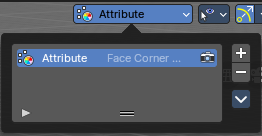
This panel also exists in the properties editor.
In vertex paint mode and sculpt mode you can paint vertices of a mesh with a color. This will create a vertex color index. You can see and manage this vertex color indexes in the Vertex Colors panel.
Vertex colors can for example be used to mix shaders together. Or also directly render them. In the shader editor color attributes can be used by the Attribute node.
A mesh can have more than one vertex color index and type. But just one index can be the active one.
Active Color Index
A List of the vertex color indexes for this mesh.
| Entry | What it does |
|---|---|
| Color index name | The name of the vertex color index. It can be renamed by double clicking at it. |
| Active Render | Set this vertex color index as the one to render. Just one vertex color index can be active at a time. But you can use another vertex color index in a material. |
| Drag Handler | The two vertical lines at the end is a handler with which you can expand the list. |
| Search Field | You can expand a search field at the bottom of the list. Type in your term and hit enter to filter for your term. · Invert: Exclude the search term instead of searching for it. · Sort by Name: Sort the List by name. |
| Add + | Create a vertex color index. |
Add Color Attribute Popup
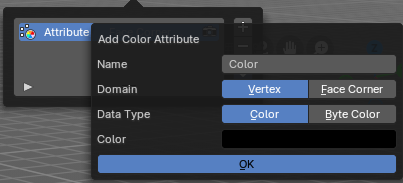
Name
The name of the color attribute index.
Domain
The domain of the color attribute.
- Vertex stores the color attribute data in the vertices of the mesh data
- Face Corner stores the color attribute data in the face corners of the mesh data
Data Type
The the color attribute type.
- Color stores RGBA color 32-bit floating point values
- Byte Color stores RGBA color 32-bit positive integer values
| Entry | What it does |
|---|---|
| Color | The Default fill colour |
| Ok | Confirm to apply |
Remove -
Delete the selected vertex color index.
Adjust last operator Add Color Attribute
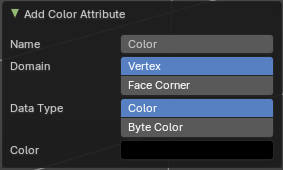
This is basically the same content as above. Minus the OK button.
Specials menu
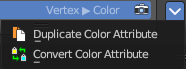
Duplicate Color Attribute
Duplicates the selected color attribute.
Convert Color Attribute
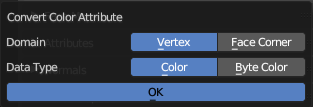
Convert a color attribute domain and data type. This tool calls a popup where you can choose what to convert.
Mesh Object - Weight Paint mode
Vertex Groups
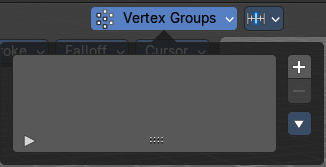
This panel also exists in the properties editor.
A Vertex group is a group of vertices, a selection of the mesh. It is for example used to weight a specific mesh part to a bone. Or to control the growth of hair particles.
This panel allows you to manage and edit vertex groups. Weight painting creates vertex groups automatically.
In Edit mode this panel shows some further controls.
Vertex groups exists for mesh and lattice objects.
Active Vertex Group list
A List of the vertex groups for this mesh.
| Entry | What it does |
|---|---|
| Group name | The name of the group. It can be renamed by double clicking at it. |
| Lock | The lock icon at the end of a group name locks the group from being editable. |
| Drag Handler | The two vertical lines at the end is a handler with which you can expand the list. |
| Search Field | You can expand a search field at the bottom of the list. Type in your term and hit enter to filter for your term. · Invert: Exclude the search term instead of searching for it. · Sort by Name: Sort the List by name. |
| Entry | What it does |
|---|---|
| Add + | Create an empty vertex group. |
| Remove - | Deletes the active vertex group. |
Specials menu
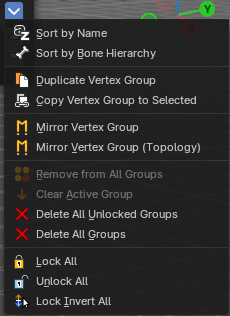
| Entry | What it does |
|---|---|
| Sort by Name | Sorts the vertex groups alphabetically by name. |
| Sort by Bone Hierarchy | Sorts the vertex groups by the hierarchy of the assigned bones. |
Duplicate Vertex Group
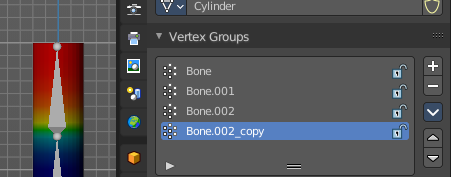
Add a copy of the active vertex group as a new group. The new group will be named like the original group with “_copy” appended at the end of its name. And it will contain associations to exactly the same vertices with the exact same weights as in the source vertex group.
| Entry | What it does |
|---|---|
| Copy Vertex Group to Selected | Copy all vertex groups to other selected objects provided they have matching indices (typically this is true for copies of the mesh which are only deformed and not otherwise edited). |
| Mirror Vertex Group | Mirrors weights and/or flips group names from one side of a symmetrical mesh to the other. Only mirroring along local X axis is supported. Vertices that have no corresponding vertex on the other side will not be affected. Note, the weights are not transferred to the corresponding opposite bone weight group. |
| Mirror Vertex Group (Topology) | Performs the Mirror Vertex Group with the Topology Mirror option enabled. |
| Remove from All Groups | Unassigns the selected vertices from all groups. Even locked. |
| Clear Active Group | Remove all assigned vertices from the active group. The group is made empty. Note that the vertices may still be assigned to other vertex groups of the object. This feature does not affect locked groups. |
| Delete All Unlocked Groups | Remove all vertex groups from the object that are not locked. |
| Delete All Groups | Remove all vertex groups from the object. |
| Lock All | Lock all groups. |
| Unlock All | Unlock all groups. |
| Lock Invert All | Invert group locks. |
Move Vertex Group Up / Down

Moves the selected vertex group up or down in the list.
Mesh Object - Texture Paint mode
Texture Slots
The texture slots panel allows you to manage the textures that you use for texture painting. When the mesh doesn't have a texture yet to paint at, then you get a hint about a missing texture. No Textures. The Add Texture Paint Slot button allows you to add one. Base Color allows you to create a diffuse map.
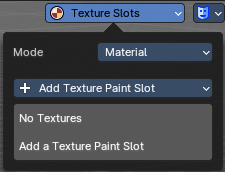
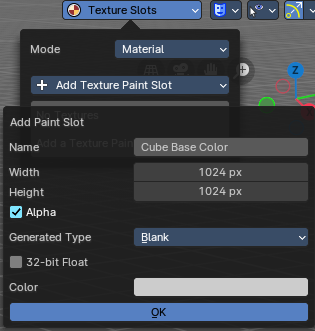
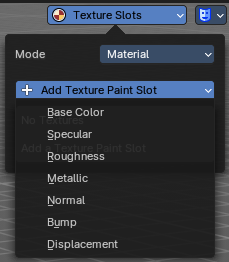
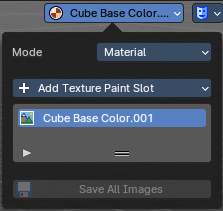
Mode
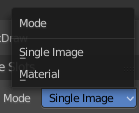
Choose in which mode you want to paint. Single Image just works with a single image, without any material.
Material works with a material and a texture. The texture is here part of the material.
Add Texture Paint Slot
Here you can choose what type of texture you want to add for texture painting.
The texture gets added to the shader, and connected to the correct node. A base color is meant for diffuse, and so it connects with the base color slot.
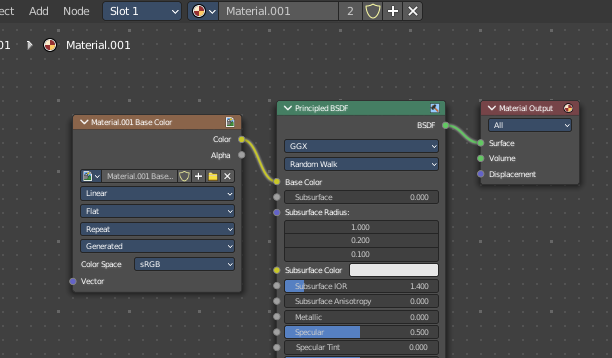
Paint Slot with mode Material
| Entry | What it does |
|---|---|
| Material Paint Slot | A list of the available paint slot materials. |
| Add Texture Paint Slot | The + button at the right. Add more materials to the Material Paint Slot. |
Paint Slot with Mode Single Image
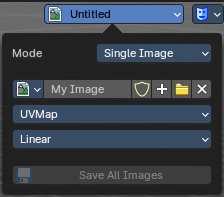
Image List
A list of the available images, which allows you choose one in case one exists.
New/Open

When no image is loaded then you can create a new image here, or load a new image.
Edit Box
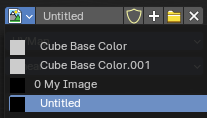
See the name of the image, and edit the name.
| Entry | What it does |
|---|---|
| Fake User | When enabled then this image will be stored internally. But not the painted changes at it!! |
| New Image | Create a new image. |
| Open Image | Open an image |
| Unlink Data Block | Delete the Image when saving the scene, closing and reopening Bforartists. Note that the number of Users must be zero. Or the image comes back. |
UV Map
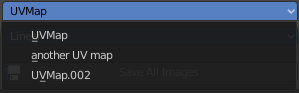
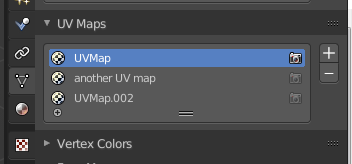
Choose a UV map to work with. Usually there is just one. But there can be more than one UV map. You can add and manage more in the Object data tab in the UV Map panel.
Interpolation
Set the interpolation type. Linear or Closest.
Save all Images
Saves all images. Internal images needs to be saved manually first. They don't have a path yet to which they could be saved. You will get an invalid path warning.
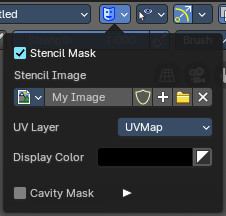
Stencil Mask
Stencil mask allows mask painting with a stencil map. It is a sub menu tab. In expanded state it shows the falloff curve, which can be edited.
Activate Stencil map
Activates the stencil map.
Stencil Image

Choose or load your stencil texture.
Texture browser
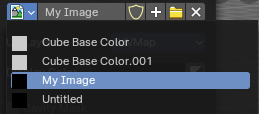
Here you will find a list of currently loaded textures.
Edit Box
The currently active stencil texture.
The number right of it, in this case 2, indicates how much number of users ( internally ) this brush uses. This means that this data block (the brush) shares currently settings with at least one other object. Most probably the parent brush where we have created it from. Click at the value to make this brush a single user. The button will vanish then.
The shield icon button set the brush to have a fake user. Zero user data-blocks are normally not saved. But sometimes you want to force the data to be kept even when the data block has no user.
The + button allows you to add a new pencil with the current settings. Note that the brushes are NOT saved when you close Bforartists. You can save them into the current blend file. Or you can save the startup file. But be careful here. This saves everything else of the current state of Bforartists too.
The X button deletes the brush as the active one. It does NOT delete it from the brushes list.
UV Layer
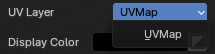
At which UV map the stencil texture is active.
Display Color
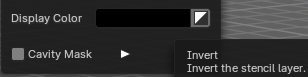
The stencil color in the viewport.
Invert the stencil color
Inverts the stencil color.
Cavity Mask
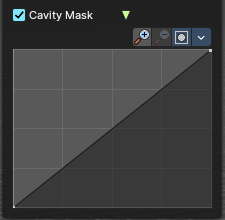
Cavity mask allows mask painting according to mesh geometry cavity. It is a sub menu tab. In expanded state it shows the falloff curve, which can be edited.
| Entry | What it does |
|---|---|
| Activate Cavity mask | Activates the Cavity mask. |
| Navigation elements | The navigation elements at the top are described from left to right. |
| Zoom in and out | The two buttons with the magnifying glass at it zooms in and out in the curve window. |
| Zoom in and out | The two buttons with the magnifying glass at it zooms in and out in the curve window. |
| Tools | Tools is a menu where you can find some curve related tools. · Reset View: Resets the curve windows zoom. · Reset Curve: Resets the curve to the initial shape. |
Use Clipping
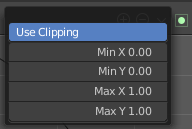
Clipping options. Set up clipping for the stroke.
Vector Handle
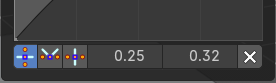
Set handle type to Vector.
| Entry | What it does |
|---|---|
| Auto Handle | Set handle type to Auto. |
| Auto Clamped Handle | Set handle type to Auto Clamped. |
| X / Y | The x and y position of the selected point. |
| Delete Points | Deletes selected curve points. |
Curve Object - Edit Mode
Set Handle Type
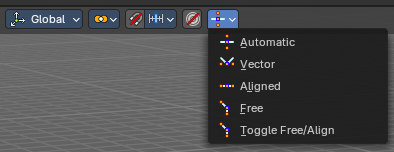
Handles defines the type of handle for the control points of the curve. You have the choice between Auto, Vector, Align and Free. And the Last Operator gives you a fifth possibility to toggle between Free and Align.
| Entry | What it does |
|---|---|
| Auto | Auto aligns the handles automatically. |
| Vector | Set Handle type to Vector. |
| Align | Set Handle type to Align. |
Free
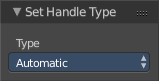
Set Handle type to Free.
Toggle Free/Aligned
Toggle Free/Aligned.
Last Operator Set Handle Type
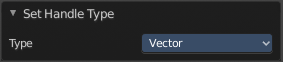
Type
Type is a drop-down box where you can set the handle type. You have the choice between Auto, Vector, Align, Free. And the fifth possibility toggles between Free and Align.
Viewport Overlays - all modes
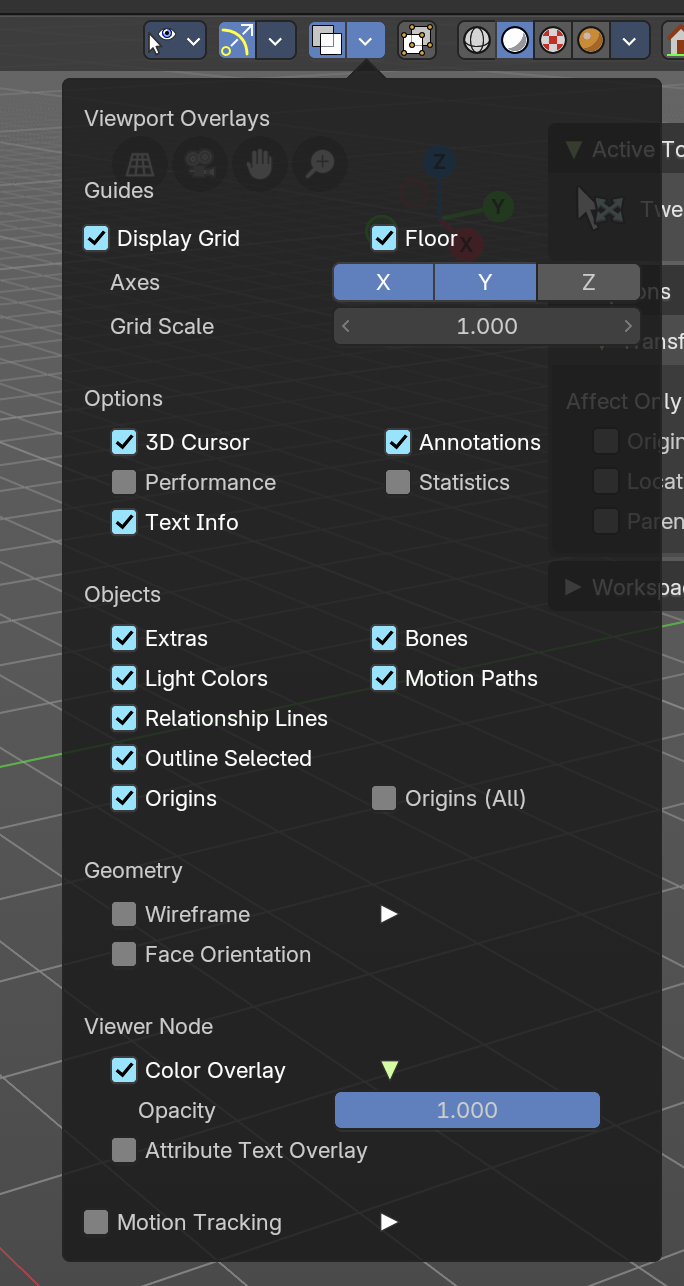
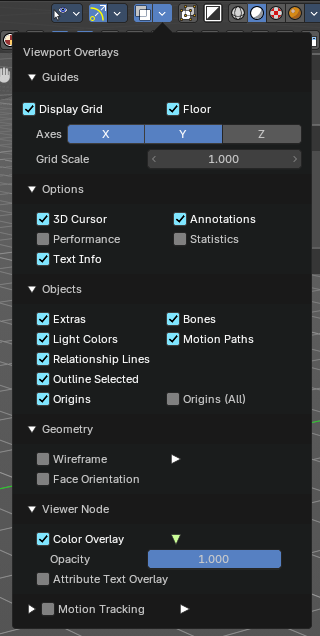
Turn on or off all overlays. This includes the ground grid, things like relationship lines, and several other elements in the viewport. Some content is available in all modes. Some content is changing, dependent of the mode you are in. In Edit mode with a mesh object you will get some normal functionality for example.
Guides
| Entry | What it does |
|---|---|
| Grid | Show the whole ground grid, including axes. You can also show the grid in orthographic mode of the viewport. |
| Floor | Show the ground grid, the white part of it. |
Axes
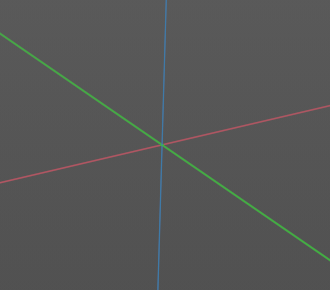
Show the colored axis lines in the 3d view
( now works in both perspective / orthographic Views).
Scale
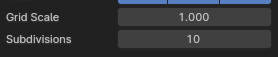
Scale the ground grid. This works in perspective and orthographic view.
Subdivisions
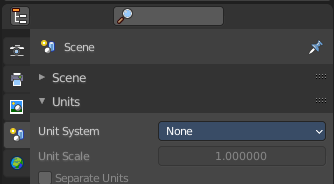
Subdivisions just shows with a Unit system of None. It allows you to subdivide the ground grid.
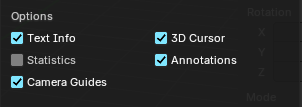
Options
Text Info
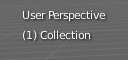
In the upper left corner of the 3D view there is a text info string, which can be hidden here. It tells you in what view you are, what is selected, and things like frames per second when you play an animation
Annotations
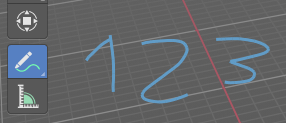
Show or hide annotations. Annotations can be drawn at the 3D View with the annotation tool in the tool shelf.
Statistics
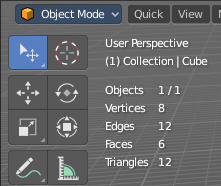
Displays statistical informations in the upper left corner of the 3d viewport. Object count, vertices, and so on.
3D Cursor

Show or hide the 3D cursor. That's the white red circle in the center of the viewport.
Camera Guides
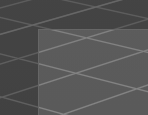
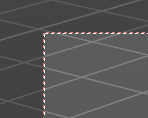
Just in Camera mode.
Display the dotted line around the inside of the passepartout.
Objects
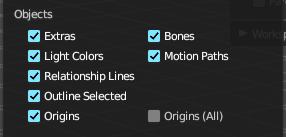
Extras
Show or hide object details. Including things like empty wires like lights, cameras, and other visual guides.
Light Colors
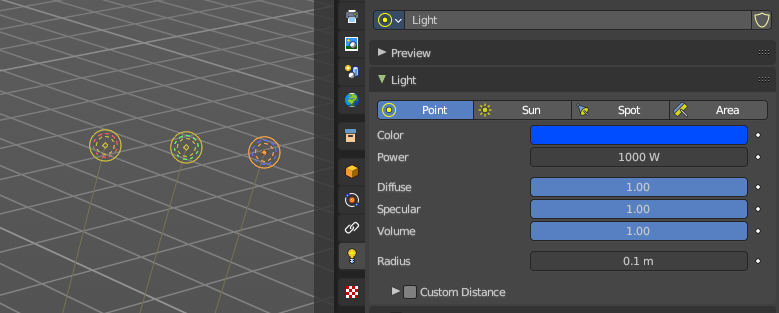
Displays the light widget in the color of the light.
Relationship Lines
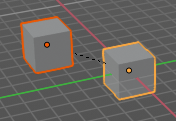
Show or hide relationship lines. When you for example parent one object to another then you will see a dotted line. The relationship line.
Outline Selected
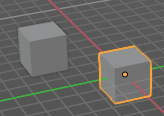
Show the selected object with an outline
Bones
Show or hide bones.
Motion Paths
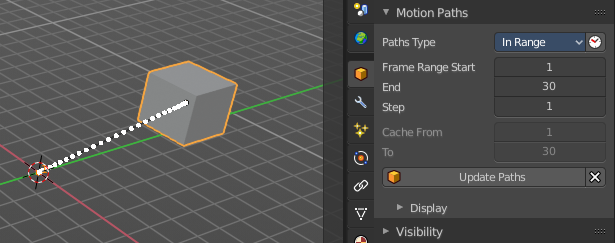
Show or hide motion paths. Motion paths can be calculated in the Motion Paths panel. You need an animation for that.
Origins
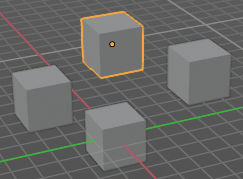
Show or hide the origin of the selected object. The origin is the center point of the object, and represented by an orange dot.
Origins(All)
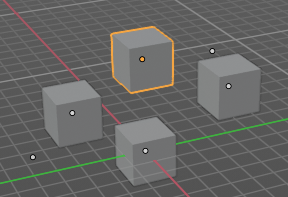
Show or hide the origin of all objects. Even from hidden ones. The not selected objects shows the center point with a white dot.
Geometry
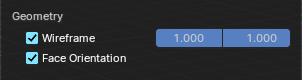
Geometry related settings.
Wire frame
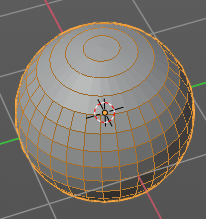
Show the wire frame in object mode.
| Entry | What it does |
|---|---|
| Wireframe Threshold | With a wire frame value of 1 all edges are drawn. The lower the value, the more edges will disappear. |
| Opacity | The opacity of the displayed edges. |
Face Orientation
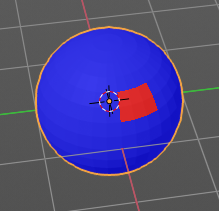
This mode allows to check for faces with flipped normals, which cannot be seen with the defaults. Blue is pointing outwards, red is pointing inwards.
Fade inactive Geometry
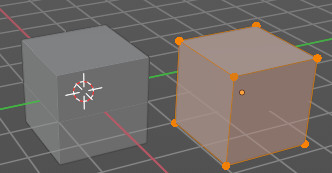
Edit mode feature, does not show in other modes. Fades the not active geometry, the not selected scene objects, towards a plain grey. In Object mode this setting has no effect.
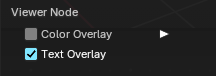
Viewer Node
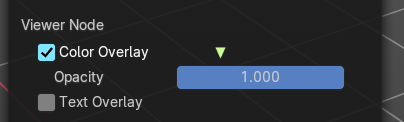
Viewer node related settings.
Color Overlay
Enable color overlay in viewport for geometry attributes that are connected to an enabled Geometry Nodes’ viewer node.
Opacity
The opacity of the color overlay mentioned above.
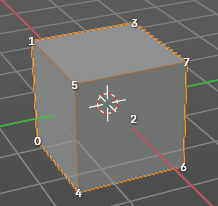
Text Overlay
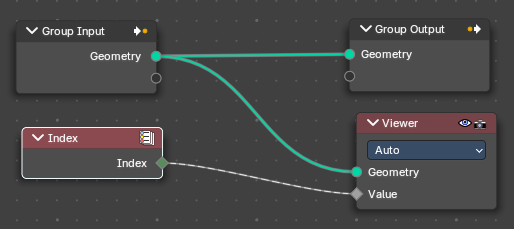
Show geometry attribute values that are connected to an enabled Geometry Nodes’ viewer node as text in viewport. This option just shows when you have geometry nodes at the object, and there is a viewer node in the tree. Example with index values:
Motion Tracking
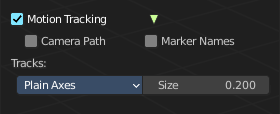
Motion tracking related settings. When you turn it on, then some further options appears. These features just shows before you bake the solution. Not with the resolved solution.
| Entry | What it does |
|---|---|
| Camera Path | Shows the camera path. |
| Marker Names | Shows the marker names. |
Track display type
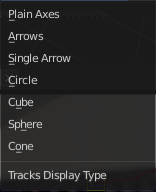
How to display the tracks.
Track size
Adjust the display size of the tracks of reconstructed data
Viewport Overlays - Mesh Object - Edit Mode
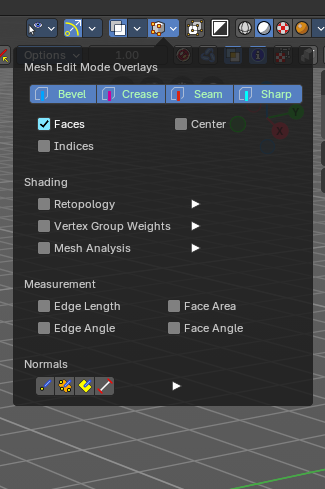
The Viewport Overlays panel shows different content, dependent of mode and object type. This is with mesh object in edit mode.
Mesh Edit Mode Overlays
| Entry | What it does |
|---|---|
| Bevel | Display weights created for the Bevel Modifier. |
| Crease | Display edges marked with a crease for the Subdivision Surface Modifier. |
| Seam | Display the UV unwrapping seams. |
| Sharp | Display sharp edges, used with the edge split modifier. |
| Faces | Highlight faces by using a face overlay that applies to both selected and unselected faces. This affects all selection modes. |
| Center | Show face-center points in solid shading modes. This is disabled in wireframe and xray mode. Only affects face-select mode. |
Indices
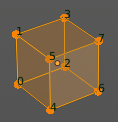
Display the indices of selected vertices, edges and faces at the mesh.
Shading
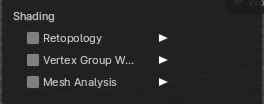
Retopology

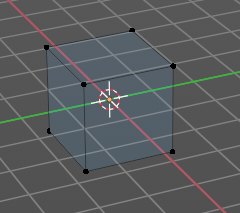
Hides the solid mesh and offset the overlay towards the view to make retopology easier. The selection is occluded by inactive geometry. You have to enable X-ray.
Vertex Groups Weights

Display weights in Edit Mode. When you activate this feature then further options appears.
Zero Weights
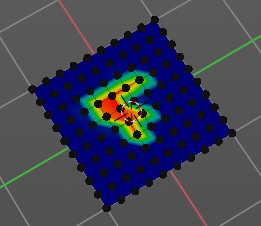
None
Don't show the vertices with zero weights with a specific color. They appear blue like vertices with a very low weighting.
Active
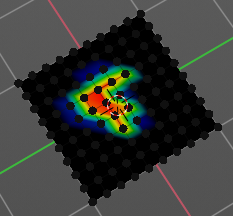
Zero weights vertices are shown with a black color in the active vertex group.
All
Zero weights vertices are shown with a black color in all vertex groups of the mesh.
Mesh Analysis
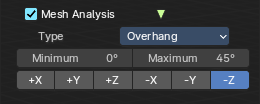
Show the mesh analysis overlay and settings. Note that editing may be slow with mesh analysis tools on. And modifiers can make trouble.
Type
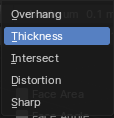
The mesh analysis type.
Overhang
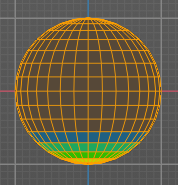
Extrusion 3D printers have a physical limit to the overhang that can be printed. The Overhang type shows the overhang in different ways. Angle and axis can be adjusted.
| Entry | What it does |
|---|---|
| Minimum/Maximum | Minimum/Maximum angle to display. |
| Axis | Choose which angle to calculate. |
Thickness
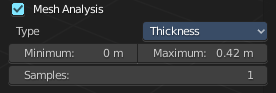
3D Printers have a limited wall-thickness. Too thin areas cannot be printed. This mode displays thin areas as red.
Minimum/Maximum
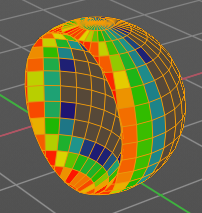
Minimum/Maximum thickness to display.
Samples
The number of samples to use to calculate the thickness.
Intersections

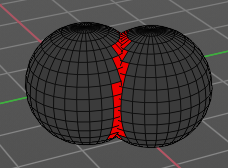
A mesh can be made of more than one closed sub mesh. Join two spheres and you have one mesh with two closed sub meshes. Such intersections can be a problem with printing. Intersect marks intersecting areas with red.
Distortion
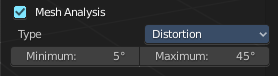
Marks distorted faces.
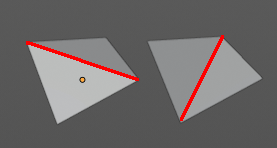
Distorted geometry, means uneven quads or N-gons, can cause problems with printing. Since the triangulation of a distorted quad or N-gon is undefined. And printing works with tris. With a quad there are already two solutions in which direction the edge to triangulate the face can point.
Minimum/Maximum
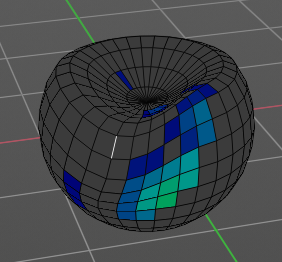
Adjust the minimum and maximum values after which a face gets displayed as distorted.
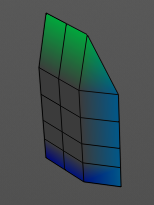
Sharp Edges
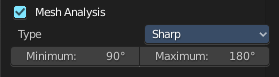
Similar to wall-thickness, sharp edges can be too thin to be able to print.
Minimum/Maximum
Adjust the minimum and maximum values after which an edge gets displayed as sharp.
Measurement

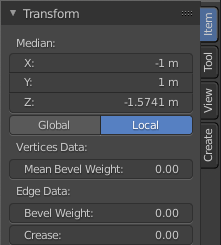
Shows measure values at the selected elements. The units are displayed as chosen in the preferences. These values respects global/ local in the transform panel. And so the values can differ when you have scaled the mesh in object mode, and the scaling is not applied yet. Use Global to take the object scale into account.
Edge Length
Shows the length of selected edges.
Edge Angle
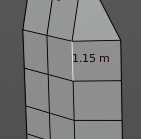
Shows the angle of selected edges between two faces.
| Entry | What it does |
|---|---|
| Face Area | Show the area of selected faces. |
| Face Angle | Show the angle of selected face corners. |
Normals
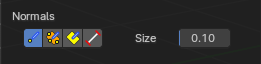
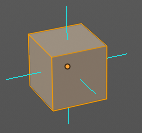
Show the normals for the chosen elements. They will be displayed as lines.
| Entry | What it does |
|---|---|
| Display vertex normals | Displays the normals of the vertices |
| Display split normals | Displays the per vertex face normals |
| Display normals | Displays the face normals. |
Constant Screen Size Normals
Display the normals either in size relative to the object. Or constant to the screen size.

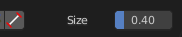
Relative to the object is measured in object units. Absolute to the screen size is measued in pixels.
Size
Adjust the length of the line that represents the normal.
Freestyle

Freestyle is the line renderer integrated into Bforartists. For freestyle you can mark edges and faces.
| Entry | What it does |
|---|---|
| Edge Marks | Display Freestyle edge marks, used with the Freestyle renderer. |
| Face Marks | Display Freestyle face marks, used with the Freestyle renderer. |
Viewport Overlays - Mesh Object - Sculpt Mode
Show Mask
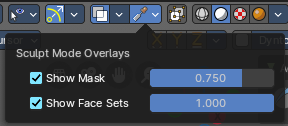
Show mask as overlay on object. The opacity of the overlay can be controlled by the slider.
Show Face Sets
Show face sets as overlay on object. The opacity of the overlay can be controlled by the slider.
Viewport Overlays - Mesh Object - Vertex Paint Mode
Opacity
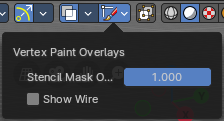
How strong the painted color gets shown.
Show Wire
Display the wire at the mesh. Normally the wire is hidden.
Viewport Overlays - Mesh Object - Weight Paint Mode
Opacity
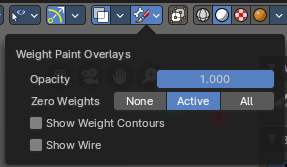
The opacity of the color overlay.
Zero Weights
None
Don't show the vertices with zero weights with a specific color. They appear blue like vertices with a very low weighting.
Active
Zero weights vertices are shown with a black color in the active vertex group.
All
Zero weights vertices are shown with a black color in all vertex groups of the mesh.
Show Weight Contours
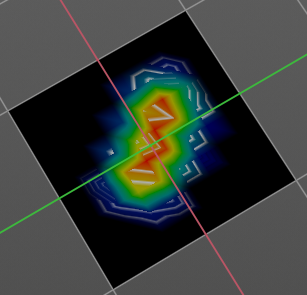
Show contour lines formed by points with the same interpolated weight.
Show Wire
Display the wire at the mesh. Normally the wire is hidden.
Show Bone X Ray
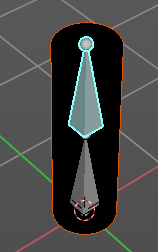
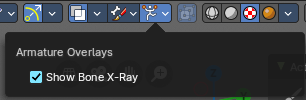
This prop just shows when you have both, the bone and the mesh object selected by holding down shift, and switch to weight paint.
This has in general the same effect than draw in front. It shows the bones on top of the mesh geometry.
Viewport Overlays - Mesh Object - Texture Paint Mode
Stencil Opacity
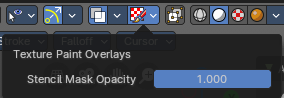
How strong the painted color gets shown.
Viewport Overlays - Hair Object - Sculpt Mode
Selection Opacity
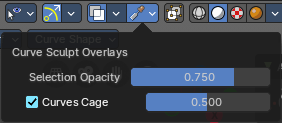
How solid not selected curves are displayed. Note that you can't make them fully transparent.
Curves Cage
Highlight the selected curves.
Cage Opacity
How strong selected curves are highlighted.
Viewport Overlays - Armature in Pose Mode
Show Bone X Ray
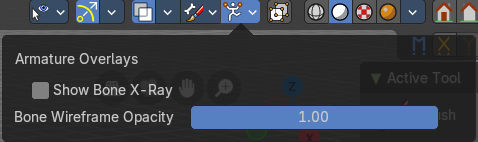
This has in general nearly the same effect than draw in front. It shows the bones on top of the mesh geometry. But you can fade the mesh geometry to black.
Bone Wireframe Opacity
The maximum opacity of bones in wireframe display mode.
Viewport Overlays - Grease Pencil
In Object Mode
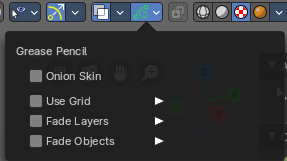
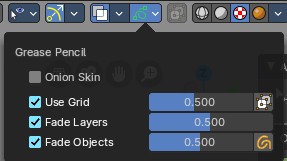
Onion Skin
Show ghosts of the key frames before and after the current frame.
Canvas
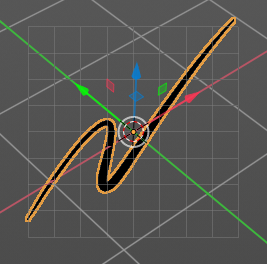
Display a grid over Grease Pencil drawing plane. The opacity of the grid can be controlled with a slider.
Canvas X Ray
Show the grid in front of the stroke.
Fade Layers
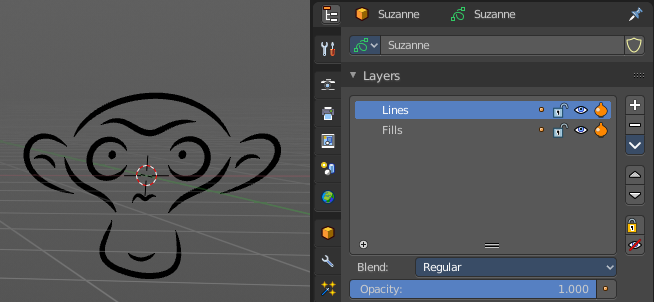
Controls the opacity of the not selected layers in the current grease pencil object.
I have set the fade layers opacity to 1 here. When you select the other layer, then the inner part becomes visible again, and the black outlines hides.
Fade Objects
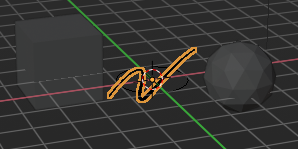
Fades everything in the viewport but the grease pencil color to black.
Fade Grease Pencil Objects
Fades the not active grease pencil objects to black too.
In Edit Mode
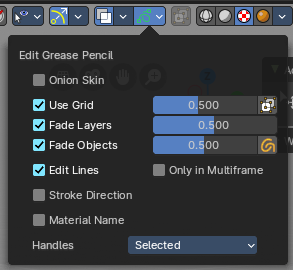
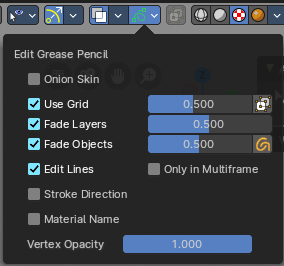
Onion Skin
Show ghosts of the key frames before and after the current frame.
Canvas
Display a grid over Grease Pencil drawing plane. The opacity of the grid can be controlled with a slider.
Canvas X Ray
Show the grid in front of the stroke.
Fade Layers
Control the opacity of the not selected layers in the current grease pencil object.
I have set the fade layers opacity to 1 here. When you select the other layer, then the inner part becomes visible again, and the black outlines hides.
| Entry | What it does |
|---|---|
| Fade Objects | Fades everything in the viewport but the grease pencil color to black. · Fade Grease Pencil Objects: Fades the not active grease pencil objects to black too. |
| Edit Lines | Show the edges of the curve when editing strokes. |
Stroke Direction
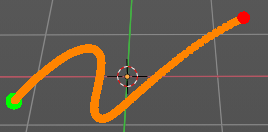
Shows a red and a green dot at the end of the stroke. Green dot is start. Red dot is end.
Only in multi frame
Only show edges of the curve while in multi frame edition.
Material Name
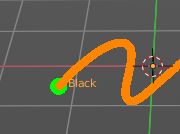
Displays the material name at the start of the stroke.
Vertex Opacity
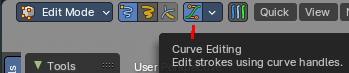
With Curve Editing off. How strong the selected vertices of the stroke shows.
Handles
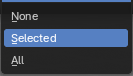
With Curve Editing on. Limit the display of curve handles in edit mode.
| Entry | What it does |
|---|---|
| None | Don't limit the handles. |
| Selected | Just limit the selected handles. |
| All | Limit all handles. |
In Sculpt and Weight paint Mode


Onion Skin
Show ghosts of the key frames before and after the current frame.
Canvas
Display a grid over Grease Pencil drawing plane. The opacity of the grid can be controlled with a slider.
Canvas X Ray
Show the grid in front of the stroke.
Fade Layers
Control the opacity of the not selected layers in the current grease pencil object.
I have set the fade layers opacity to 1 here. When you select the other layer, then the inner part becomes visible again, and the black outlines hides.
| Entry | What it does |
|---|---|
| Fade Objects | Fades everything in the viewport but the grease pencil color to black. · Fade Grease Pencil Objects: Fades the not active grease pencil objects to black too. |
| Edit Lines | Show the edges of the curve when editing strokes. |
| Only in multi frame | Only show edges of the curve while in multi frame edition. |
| Vertex Opacity | Sculpt mode only. How strong the selected vertices of the stroke shows. |
In Draw Mode
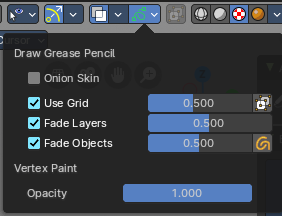
Onion Skin
Show ghosts of the key frames before and after the current frame.
Canvas
Display a grid over Grease Pencil drawing plane. The opacity of the grid can be controlled with a slider.
Canvas X Ray
Show the grid in front of the stroke.
Fade Layers
Control the opacity of the not selected layers in the current grease pencil object.
I have set the fade layers opacity to 1 here. When you select the other layer, then the inner part becomes visible again, and the black outlines hides.
| Entry | What it does |
|---|---|
| Fade Objects | Fades everything in the viewport but the grease pencil color to black. · Fade Grease Pencil Objects: Fades the not active grease pencil objects to black too. |
| Vertex Opacity | How strong the selected vertices of the stroke shows. |
In Vertex Paint mode
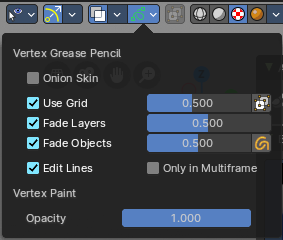
Onion Skin
Show ghosts of the key frames before and after the current frame.
Use Grid
Display a grid over Grease Pencil drawing plane. The opacity of the grid can be controlled with a slider.
Canvas X Ray
Show the grid in front of the stroke.
Fade Layers
Control the opacity of the not selected layers in the current grease pencil object.
I have set the fade layers opacity to 1 here. When you select the other layer, then the inner part becomes visible again, and the black outlines hides.
| Entry | What it does |
|---|---|
| Fade Objects | Fades everything in the viewport but the grease pencil color to black. · Fade Grease Pencil Objects: Fades the not active grease pencil objects to black too. |
| Edit Lines | Show the edges of the curve when editing strokes. |
| Only in multi frame | Only show edges of the curve while in multi frame edition. |
| Vertex Opacity | How strong the selected vertices of the stroke shows. |
| Opacity | The vertex paint opacity. |
Viewport Shading

At the very right of the header you can find the viewport shading settings. Here you adjust the display of the viewport. The order goes from left to right.
Show X Ray
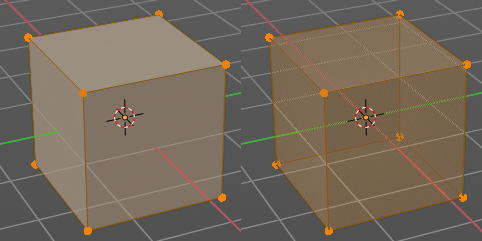
This viewport setting is connected with the viewport shading. It allows you to show and edit the back geometry. Or hide it, so that you can just edit the geometry that points forwards.
Viewport Shading
Defines how geometry gets displayed in the viewport.
| Entry | What it does |
|---|---|
| Wire frame | Displays the content in the viewport as Wire frame. |
| Solid | Displays the content in the viewport with a solid white color. |
| Material | Displays the content in the viewport with all material settings and with OpenGL rendering. Note that this does not exist when you choose the Workbench renderer. |
| Rendered | Displays the content in the viewport like you would have rendered it. This mode is dependent of what render engine you have currently active. |
Viewport Shading Settings
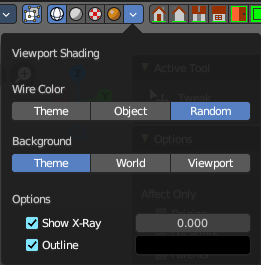
The viewport shading panel. Its settings changes, dependent of which viewport shading mode you have activated. And provides you with further settings for it.
Viewport Shading Settings with Wire frame
Color
Single
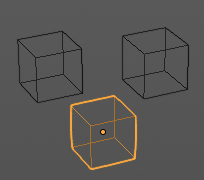
The selected object gets highlighted. The wire frame is the color of the selection outline. The not selected objects shows a black wire frame.
Object
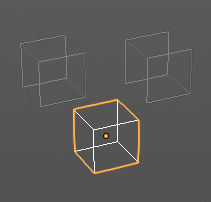
The selected object gets highlighted. The wire frame is white. The not selected objects shows a Grey wire frame.
Random
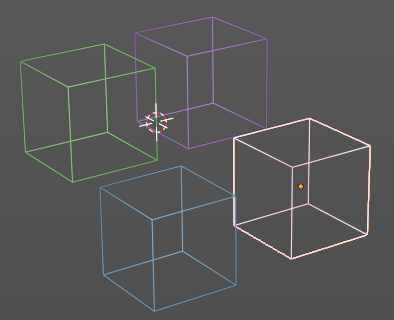
The selected object gets highlighted. The wire frame is a random wire frame color. The not selected objects shows a random wire frame color. You cannot influence this random color. It is random.
Background
| Entry | What it does |
|---|---|
| Theme | Uses the viewport background color as defined in the theme. |
| World | Uses the world background color as the viewport background color. |
Viewport
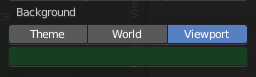
Defines a custom color for the viewport background color.
Options
Show X Ray
This viewport setting is connected with the viewport shading. It allows you to show and edit the back geometry. Or hide it, so that you can just edit the geometry that points forwards.
| Entry | What it does |
|---|---|
| X Ray Alpha | Adjust the amount of transparency. |
| Outline | Show the not selected objects with an outline. |
| Outline Color | Defines the color of the outline for not selected objects. |
Viewport shading Settings with Solid
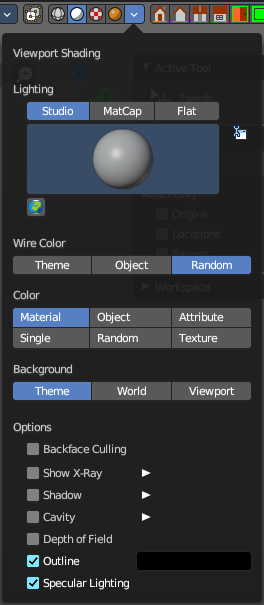
Lighting
Choose between different lighting methods.
Note that this methods are not for rendering the scene. This lighting methods are meant to light the viewport.
Studio
Uses a studio setup lighting. You can choose between several studio light setups in the library menu below. This library menu is a box with a preview of the currently active light setup.
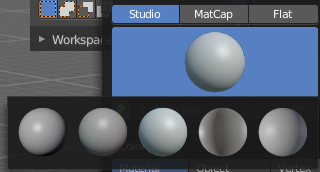
| Entry | What it does |
|---|---|
| World Space Lighting | Make the lighting fixed to the world. And not follow the camera when you rotate around the scene. |
| Rotation | The rotation of the light setup. This edit box is just active when you use World Space Lighting. |
Show Light Preferences
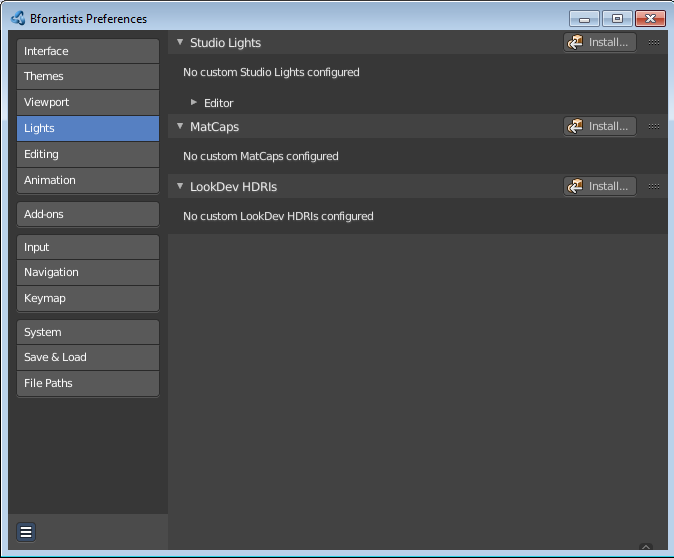
At the right of the drop down box you will see a tiny button. It will open the preferences, where you can edit the existing studio light setups, or add new Studio light setups. This chapter is explained in the preferences manual part.
Wire Color
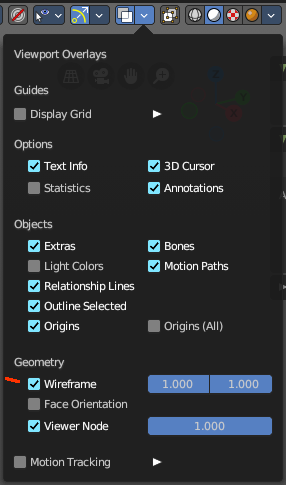
Allows you to display the wire color in different colors. Note that you need to have Wireframe display activated in the Viewport Overlays to see this effect.
Theme
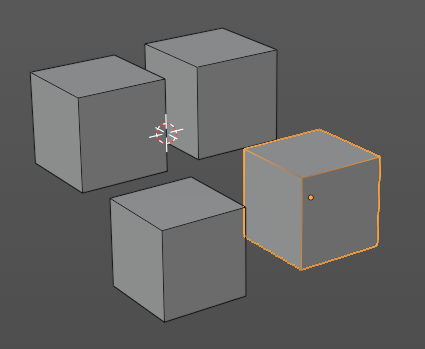
Displays the wireframe color as defined in the theme.
Object
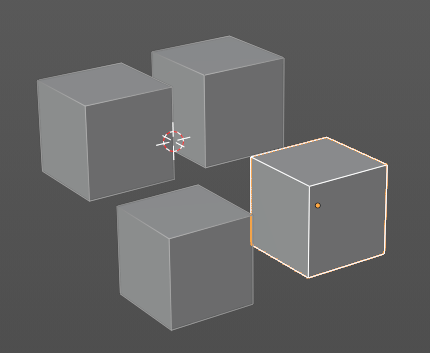
Displays the wireframe color object based.
Random
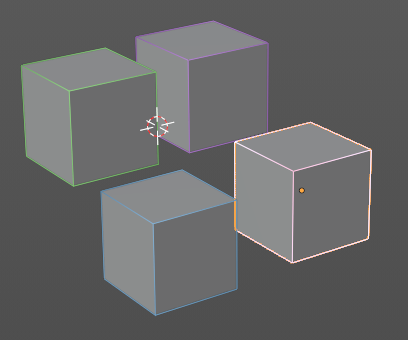
Displays the wireframe color in a random color.
Color
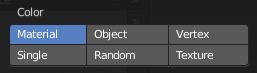
Influence how the objects in the scene are colored. Just one setting can be active at one time.
| Entry | What it does |
|---|---|
| Material | Uses the color of the material, in case a material is assigned to the object(s). |
| Object | Uses the Object color. |
| Vertex | Shows the vertex colors in case vertex colors exists. |
Single
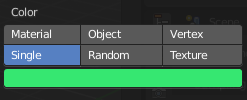
Define a custom color. A color picker box appears when you activate single.
| Entry | What it does |
|---|---|
| Random | Colors the objects with a random color |
| Texture | Shows the texture in case a material with a texture is assigned to the object(s). |
Background
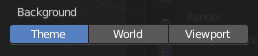
Define the look of the viewport background
| Entry | What it does |
|---|---|
| Theme | Uses the background as defined in the theme. |
| World | Uses the background as defined in the world settings of the scene. |
Viewport
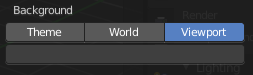
Use a custom color. When you activate this setting, then a color picker field appears, adjust a custom color.
Options
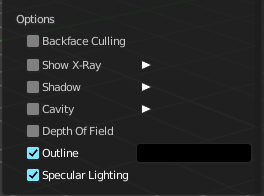
Back face Culling
Use back face culling to hide backsides of faces.
Show X Ray
This viewport setting is connected with the viewport shading. It allows you to show and edit the back geometry. Or hide it, so that you can just see and edit the geometry that points forwards.
Note that you can either have Show X Ray active. Or Shadow and Cavity.
X Ray Alpha
Adjust the strength of the transparency effect.
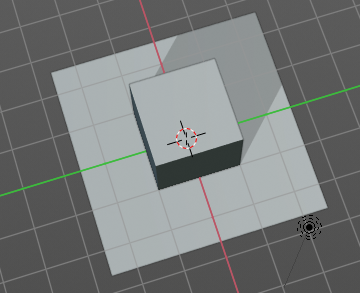
Shadow

Cast a shadow. Note that the shadow casting light is not part of the chosen studio light. It is an independent light.
Shadow Intensity
Here you adjust the strength of the shadow. Higher value means darker shadow.
Light Settings
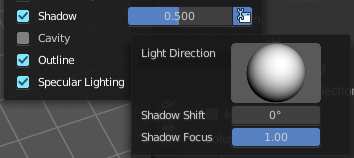
Adjust some settings of the light.
| Entry | What it does |
|---|---|
| Light Direction | Click into the field and drag the mouse to change the direction of the light that casts the shadow. |
| Shadow Shift | The shadow termination angle. This can be used to minimize self shadowing artifacts. |
| Shadow Focus | The shadow hardness. It controls the falloff near the edge of the shadow. |
Cavity
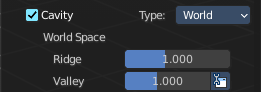
Show Cavity. Cavity highlights ridges and valleys in the scene geometry. When you activate this setting, then further settings appears.
Type
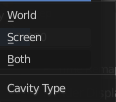
The method how to calculate the cavity. In worlds pace, in screen space. Or in both.
World
Draw the cavity shading in world space.
World Space / Ridge Valley
Factor for the cavity ridges and valleys.
Shading Options
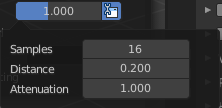
Adjust samples, distance and attenuation for the cavity ridges and valleys.
Screen
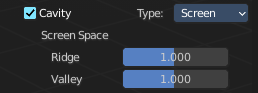
Draw the cavity shading in Screen space.
Screen Space / Ridge Valley
Factor for the curvature ridges and valleys.
Both
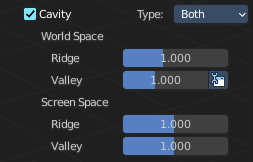
Draw the cavity shading in both, World Space and Screen space.
Settings see above.
| Entry | What it does |
|---|---|
| Depth of Field | Use depth of field for the viewport. It uses the values from the active camera. |
| Outline | Show the not selected objects with an outline. · Outline Color: Define the color of the outline for not selected objects. |
| Specular Lighting | Render specular highlights. |
Matcap
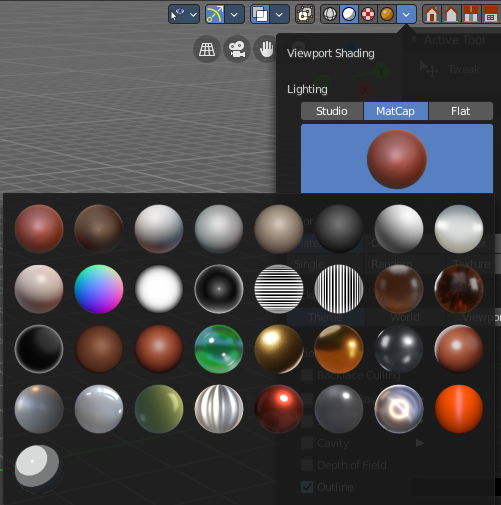
Matcap stands for material capture. With Matcap you use a special matcap shader at the mesh. This shader is usually something colorful, which makes for example sculpting easier.
You can choose between several matcap setups in the library menu below. This library menu is a box with a preview of the currently active matcap setup.
Show Light Preferences
At the right of the library menu box you will see a tiny button. It will open the preferences, where you can edit the existing studio light setups, or add new Studio light setups. This chapter is explained in the preferences manual part.
Flip Matcap
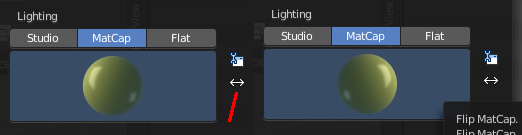
Some matcaps have a direction from which the light comes. With Flip Matcap you can flip this direction.
Color
Influence how the objects in the scene are colored. Just one setting can be active at one time.
| Entry | What it does |
|---|---|
| Material | Uses the color of the material, in case a material is assigned to the object(s). |
| Object | Uses the Object color. |
| Vertex | Shows the vertex colors in case vertex colors exists. |
Single
Define a custom color. A color picker box appears when you activate single.
| Entry | What it does |
|---|---|
| Random | Colors the objects with a random color |
| Texture | Shows the texture in case a material with a texture is assigned to the object(s). |
Background
This defines the look of the viewport background
| Entry | What it does |
|---|---|
| Theme | Uses the background as defined in the theme. |
| World | Uses the background as defined in the world settings of the scene. |
Viewport
Use a custom color. When you activate this setting, then a color picker field appears, adjust a custom color.
Options
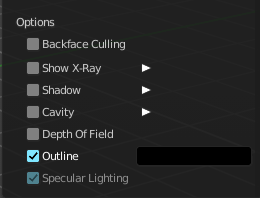
Back face Culling
Use back face culling to hide backsides of faces.
Show X Ray
This viewport setting is connected with the viewport shading. It allows you to show and edit the back geometry. Or hide it, so that you can just see and edit the geometry that points forwards.
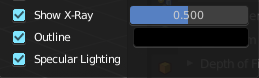
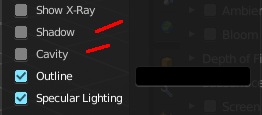
Note that you can either have Show X Ray active. Or Shadow and Cavity. When activating Show X Ray, the other two options will be hidden.
X Ray Alpha
Adjust the strength of the transparency effect.
Shadow
Cast a shadow. Note that the shadow casting light is not part of the chosen studio light. It is an independent light.
Shadow Intensity
Here you adjust the strength of the shadow. Higher value means darker shadow.
Light Settings
Adjust some settings of the light.
| Entry | What it does |
|---|---|
| Light Direction | Click into the field and drag the mouse to change the direction of the light that casts the shadow. |
| Shadow Shift | The shadow termination angle. This can be used to minimize self shadowing artifacts. |
| Shadow Focus | The shadow hardness. It controls the falloff near the edge of the shadow. |
Cavity
Show Cavity. Cavity highlights ridges and valleys in the scene geometry. When you activate this setting, then further settings appears.
Type
The method how to calculate the cavity. In worlds pace, in screen space. Or in both.
World
Draw the cavity shading in world space.
World Space / Ridge Valley
Factor for the cavity ridges and valleys.
Shading Options
Adjust samples, distance and attenuation for the cavity ridges and valleys.
Screen
Draw the cavity shading in Screen space.
Screen Space / Ridge Valley
Factor for the curvature ridges and valleys.
Both
Draw the cavity shading in both, World Space and Screen space.
Settings see above.
| Entry | What it does |
|---|---|
| Outline | Show the not selected objects with an outline. · Outline Color: Define the color of the outline for not selected objects. |
| Specular Lighting | Render specular highlights. |
Flat
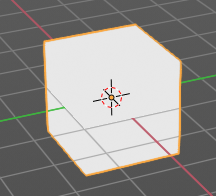
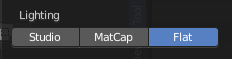
Lights the objects plain white.
Color
Influence how the objects in the scene are colored. Just one setting can be active at one time.
| Entry | What it does |
|---|---|
| Material | Uses the color of the material, in case a material is assigned to the object(s). |
| Object | Uses the Object color. |
| Vertex | Shows the vertex colors in case vertex colors exists. |
Single
Define a custom color. A color picker box appears when you activate single.
| Entry | What it does |
|---|---|
| Random | Colors the objects with a random color |
| Texture | Shows the texture in case a material with a texture is assigned to the object(s). |
Background
Define the look of the viewport background.
| Entry | What it does |
|---|---|
| Theme | Uses the background as defined in the theme. |
| World | Uses the background as defined in the world settings of the scene. |
Viewport
Use a custom color. When you activate this setting, then a color picker field appears, adjust a custom color.
Options
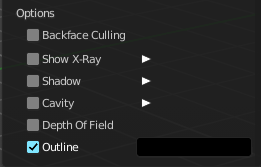
Back face Culling
Use back face culling to hide backsides of faces.
Show X Ray
This viewport setting is connected with the viewport shading. It allows you to show and edit the back geometry. Or hide it, so that you can just see and edit the geometry that points forwards.
Note that you can either have Show X Ray active. Or Shadow and Cavity. When activating Show X Ray, the other two options will be hidden.
X Ray Alpha
Adjust the strength of the transparency effect.
Shadow
Cast a shadow. Note that the shadow casting light is not part of the chosen studio light. It is an independent light.
Shadow Intensity
Here you adjust the strength of the shadow. Higher value means darker shadow.
Light Settings
Adjust some settings of the light.
| Entry | What it does |
|---|---|
| Light Direction | Click into the field and drag the mouse to change the direction of the light that casts the shadow. |
| Shadow Shift | The shadow termination angle. This can be used to minimize self shadowing artifacts. |
| Shadow Focus | The shadow hardness. It controls the falloff near the edge of the shadow. |
Cavity
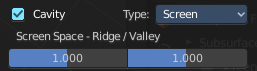
Show Cavity. Cavity highlights ridges and valleys in the scene geometry. When you activate this setting, then further settings appears.
Type
The method how to calculate the cavity. In worlds pace, in screen space. Or in both.
World
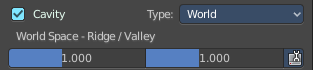
Draw the cavity shading in world space.
World Space / Ridge Valley
Factor for the cavity ridges and valleys.
Shading Options
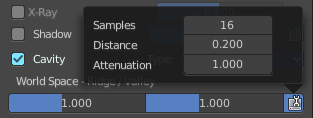
Adjust samples, distance and attenuation for the cavity ridges and valleys.
Screen
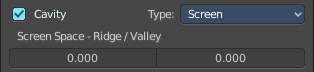
Draw the cavity shading in Screen space.
Screen Space / Ridge Valley
Factor for the curvature ridges and valleys.
Both
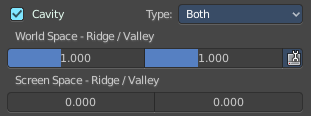
Draw the cavity shading in both, World Space and Screen space.
Settings see above.
| Entry | What it does |
|---|---|
| Outline | Show the not selected objects with an outline. · Outline Color: This defines the color of the outline for not selected objects. |
| Specular Lighting | Render specular highlights. |
Viewport Shading with Material Preview
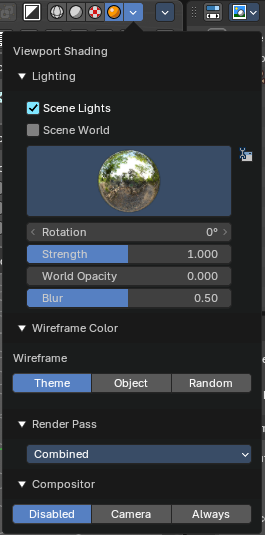
In this mode you can use a hdr file to light the scene.
This mode is just available with Cycles and Eevee renderer. Workspace renderer does not have this mode.
| Entry | What it does |
|---|---|
| Lighting | — |
| Scene Lights | Use the scene lights instead of the hdr to light the scene. |
| Scene World | Use the scene world to light the scene. This turns off the hdr. And the further options are not longer available. |
HDR File Browser
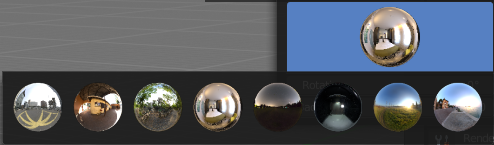
Pick a hdr file to light the world with.
Show light preferences
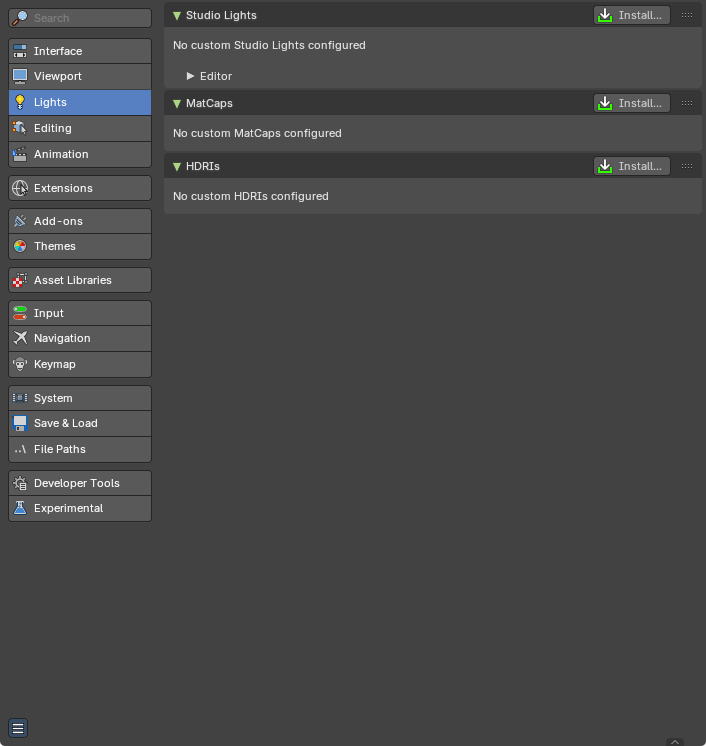
At the right of the library menu box you will see a tiny button. It will open the preferences, where you can edit the existing studio light setups, or add new Studio light setups. This chapter is explained in the preferences manual part.
| Entry | What it does |
|---|---|
| World Space Lighting | Make the hdr rotation fixed, and not follow the camera. |
| Rotation | The rotation of the hdr file. |
| Background | Show the studio light in the background. The higher the value the more the studio light gets mixed into the hdr. |
| World Opacity | Show the studio light in the background |
| Blur | The blur factor. |
Wire Color
Allows you to display the wire color in different colors. Note that you need to have Wireframe display activated in the Viewport Overlays to see this effect.
Theme
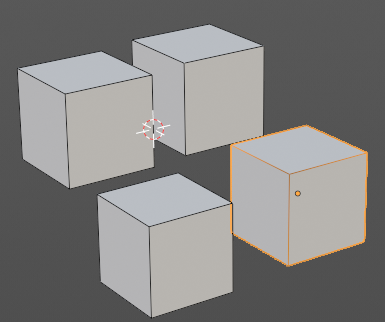
Displays the wireframe color as defined in the theme.
Object
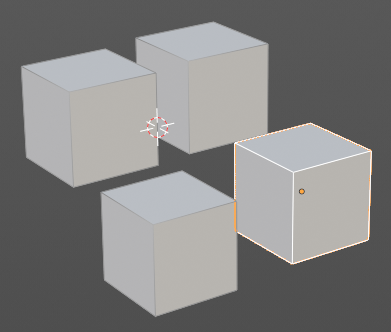
Displays the wireframe color object based.
Random
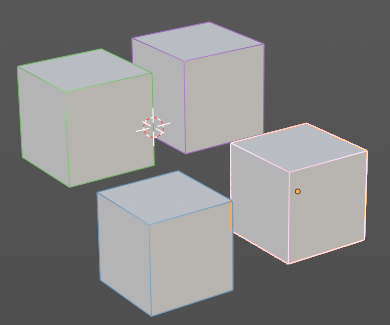
Displays the wireframe color in a random color.
Render Pass
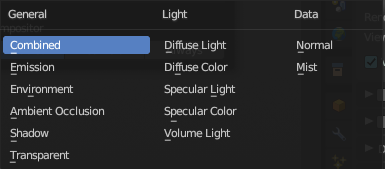
Choose what render passes to calculate.
Compositor
Alllows you to display the compositor result in the viewport. Note that you need to have a active compositor node setup for this to work.
| Entry | What it does |
|---|---|
| Disabled | To display the compositor result in the viewport is disabled. |
| Camera | Displays the compositor result when you are in camera view. |
| Always | Always displays the compositor result. |
Viewport Shading with Rendered
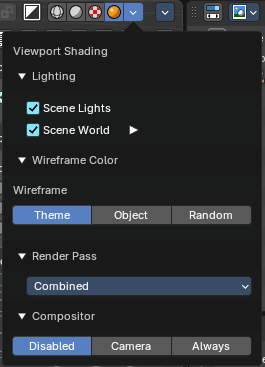
With rendered shading the viewport uses the renderer settings of the chosen render engine. Workbench has no specific shading settings here. And the panel is empty. Cycles and Eeevee have some further settings.
Lighting
Scene Lights
Render lights and light probes in the scene.
Scene World
Use scene world for lighting. When you turn off Scene World then you reveal further settings.
| Entry | What it does |
|---|---|
| Studiolight Preview | Displays the current active hdri file to light the scene. A click at the display allows you to pick another hdri file. · Show Light preferences: Opens the light preferences in the preferences where you can pick more hdri files. |
| Rotation | The rotation of the studio light. |
| Strength | The strength of the studio light. |
| World Opacity | The opacity of the hdri. |
| Blur | Eevee. Blur the studiolight in the background. |
Wire Color
Allows you to display the wire color in different colors. Note that you need to have Wireframe display activated in the Viewport Overlays to see this effect.
Theme
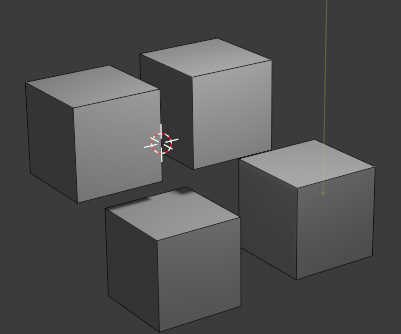
Displays the wireframe color as defined in the theme.
Object
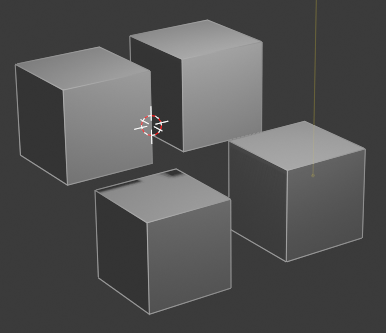
Displays the wireframe color object based.
Random
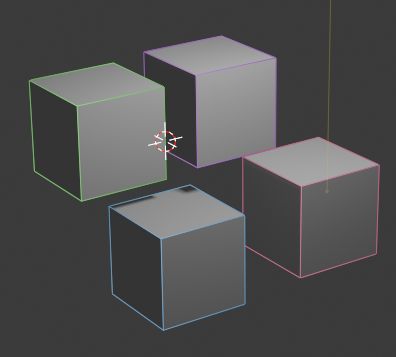
Displays the wireframe color in a random color.
Render Pass
Choose what render passes to calculate.
Compositor
Alllows you to display the compositor result in the viewport. Note that you need to have a active compositor node setup for this to work.
| Entry | What it does |
|---|---|
| Disabled | To display the compositor result in the viewport is disabled. |
| Camera | Displays the compositor result when you are in camera view. |
| Always | Always displays the compositor result. |
Pause Preview
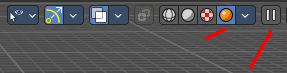
When you choose the Cycles renderer and set the viewport shading mode to rendered, then it reveals one more button at the right. Pause Preview pauses the rendering in the viewport when Cycles is chosen as the viewport renderer.
Align View Buttons

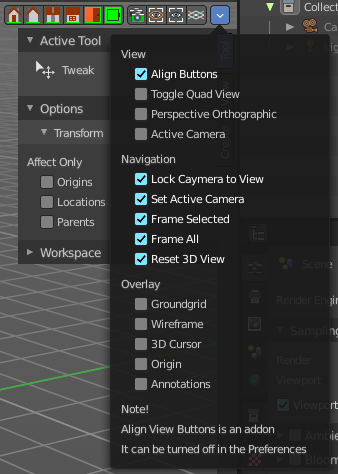
Align View Buttons is an addon. The buttons allows you to align the view to the orthographic views. And brings further functionality from the View menu and other hard to reach locations.
The content is all a double entry by purpose, to have these buttons at the top hierarchical position for quick access. And it is already described at the original UI position. So we won't go into detail here.
This addon can be turned off in the Preferences.
Grease Pencil - all modes - Layer Panel
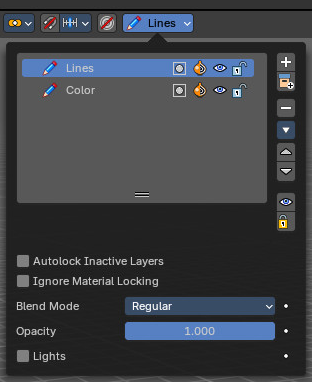
This panel shows in most of the modes. It is the same content than the Layers panel in the Object Data Properties.
Layer list
| Entry | What it does |
|---|---|
| Layer name | The name of the layer. |
| Mask Layer | Toggle the Masks visibility in the layer. |
| Onion Skinning | Toggle the use the layer for Onion Skinning. |
| Viewport/Render Visibility | Toggle layer visibility in the viewport and in render. |
| Lock | Toggle layer from being editable. |
Search Field

You can expand a search field at the bottom of the list. Type in your term and hit enter to filter for your term.
| Entry | What it does |
|---|---|
| Add new layer | Adds a new layer. |
| Remove layer | Removes the selected layer. |
Layer Specials
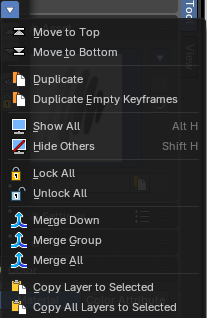
| Entry | What it does |
|---|---|
| Move to Top | Moves the selected layer to the top of the list. |
| Move to Bottom | Moves the selected layer to the bottom of the list. |
| Duplicate Layer | Makes an exact copy of the selected layer appending a number to differentiate its name. |
| Duplicate Empty Keyframes | Makes a copy of the active grease pencil layer. |
| Show All | Turns on the visibility of every layer in the list. |
| Hide Others | Turns off the visibility of every layer in the list except the active one. |
| Lock All | Locks edition of all the layers in the list |
| Unlock All | Unlocks edition of all the layers in the list. |
| Merge Down | Merge the selected layer with the layer below, the new layer keeps the name of the lower layer. |
| Merge Group | Merge the selected layer in the active group with the layer below, the new layer keeps the name of the lower layer. |
| Merge All | Merge the selected layer with all other layers. |
| Copy Layer to Selected | Makes a copy of the layer and move it to the selected Grease Pencil object. |
| Copy all Layers to Selected | Makes a copy of all layers and moves it to the selected Grease Pencil object. |
| Entry | What it does |
|---|---|
| Reorder Layer up/down | Moves the selected layer up or down in the list. |
| Isolate Layers | Hide and lock the layer. |
| Isolate Layers | Lock the layer. |
| Autolock inactive layer | Locks automatically the edition of every layer in the list except the active one. This way you avoid to make unwanted changes in other layers without the need to lock them every time. |
| Igonre Material Locking | Allow editing strokes even if they use locked materials. |
Blend mode
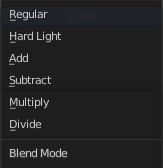
The layer blending operation to perform. See Color Blend Modes.
| Entry | What it does |
|---|---|
| Opacity | Used to set the opacity of the layer. |
| Lights | When enabled, the layer is affected by lights. |
Grease Pencil - Options Panel
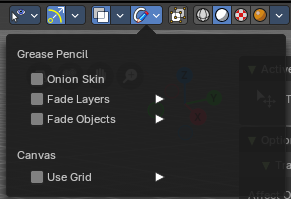
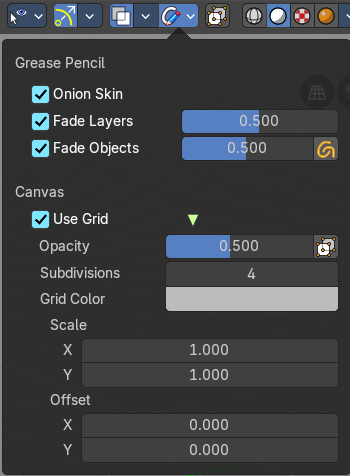
Options for the use of the grease pencil.
Grease Pencil - all modes
| Entry | What it does |
|---|---|
| Onion Skin | Use onion skinning. Onion skinning shows ghosts of the keyframes before and after the current position. |
| Fade Layers | Fade all layers except the active one. · Opacity: The fading opacity. |
| Fade Objects | Fade all objects except the active one. · Opacity: The fading opacity. · Fade Grease Pencil Objects: Fade also all Grease Pencil Objects except the active one. |
Canvas
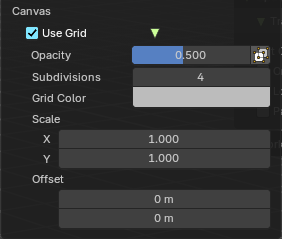
Use Grid
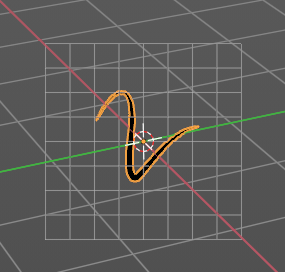
Use a reference grid behind the grease pencil.
| Entry | What it does |
|---|---|
| Opacity | The opacity of the grid. |
| Canvas X Ray | Show the canvas in front of the grease pencil. |
| Subdivisions | How much subdivisions the grid has. |
| Grid Color | The grid color. |
| Scale X , Y | The size of the grid. |
| Offset | The offset of the grid. |
Grease Pencil - Edit mode
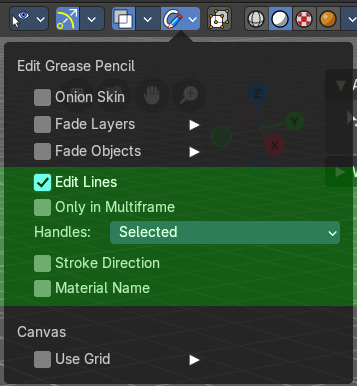
In Edit mode a few more options appears
| Entry | What it does |
|---|---|
| Edit Lines | Show editing lines when editing strokes. |
| Only in Multiframe | Show edit lines only in multiframe. |
Handles
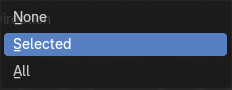
Limit the display of curve handles in edit mode.
| Entry | What it does |
|---|---|
| None | Handles are not displayed. |
| Selected | Just the handles of the selection are displayed. |
| All | All handles are displayed. |
| Entry | What it does |
|---|---|
| Stroke Direction | Show stroke drawing direction. The direction is indicated by a green dot. |
| Material Name | Show the material name that is assigned to each stroke. |
Grease Pencil - Sculpt mode
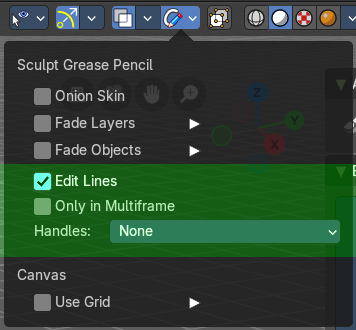
| Entry | What it does |
|---|---|
| Edit Lines | Show editing lines when editing strokes. |
| Only in Multiframe | Show edit lines only in multiframe. |
Handles
Limit the display of curve handles in edit mode.
| Entry | What it does |
|---|---|
| None | Handles are not displayed. |
| Selected | Just the handles of the selection are displayed. |
| All | All handles are displayed. |
Grease Pencil - Draw mode
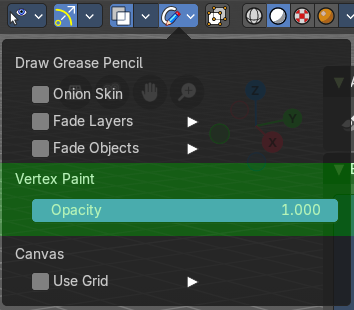
Vertex Paint
Opacity
The vertex paint mix factor.
Grease Pencil - Weight Paint mode

| Entry | What it does |
|---|---|
| Edit Lines | Show editing lines when editing strokes. |
| Only in Multiframe | Show edit lines only in multiframe. |
Handles
Limit the display of curve handles in edit mode.
| Entry | What it does |
|---|---|
| None | Handles are not displayed. |
| Selected | Just the handles of the selection are displayed. |
| All | All handles are displayed. |
Grease Pencil - Vertex Paint mode
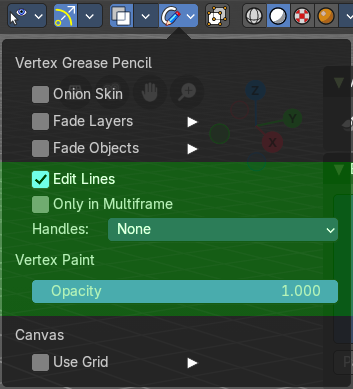
| Entry | What it does |
|---|---|
| Edit Lines | Show editing lines when editing strokes. |
| Only in Multiframe | Show edit lines only in multiframe. |
Handles
Limit the display of curve handles in edit mode.
| Entry | What it does |
|---|---|
| None | Handles are not displayed. |
| Selected | Just the handles of the selection are displayed. |
| All | All handles are displayed. |
Vertex Paint
Opacity
The vertex paint mix factor.
Grease Pencil - Sculpt mode - Auto-masking Panel

Automasking settings.
| Entry | What it does |
|---|---|
| Stroke | Affect only strokes below the cursor that are the same stroke. |
| Layer | Affect only strokes below the cursor that are at the same layer. |
| Material | Affect only strokes below the cursor that have the same material. |
| Active Layer | Affect only the active layer. |
| Active material | Affect only strokes with the active material. |
Navigation Menu
All Modes - Navigation Menu
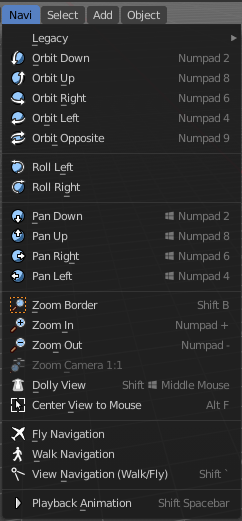
The Navigation menu provides you with all tools around viewport navigation. It is available in all modes.
Legacy

The legacy menu contains operators from the old tool system that already exists in the tool shelf and uses the new tool system.
Move
Activates the old move tool. The old move tool does not show a widget!
Note that the hotkey for this tool is not displayed correctly. But can't be fixed by us. The hotkey is ctrl W
| Entry | What it does |
|---|---|
| Snapping | Holding down Ctrl activates temporary global snapping. |
| Precision movement | When you hold down shift, then you will have a much slower but also much preciser movement. |
Header Values

When you move your object then you will see some values in the header, which defines the current position of the object.
The value m stands for the default metric system. Meters. You can change the units in the Properties editor in the Scene properties in the Units panel. When you choose kilometers here then you will see a km instead m.

The value D stands for the distance of the current selected axis. This can also be two axis. Then you have two d values. The value in the brackets is then the direct distance to the starting point.
These values are always relative to the starting point. You always start with zero, regardless of the real world position.
Numerical Input
When you move the object, and hold down the mouse and type in a value, like 20, then the movement will be performed by the value that you have typed in. In this case by 20 units in direction of the selected axis.
Limit Axis
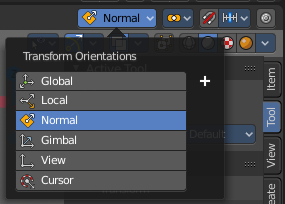
When you want to rotate a specific axis, then press X or Y or Z to limit the rotation to this axis. You usually start in global orientation. But you can change this in the Orientation settings.
By holding down the mouse button and pressing the X, Y or Z key twice you can toggle this to local. But also to other orientations. This depends in what orientation you start. With normal you can toggle that way between Normal and global.
This can be combined with the numerical input. Type in X, type in X again to use the local space, type in 20 to move by 20 units in local orientation. Release the mouse to confirm.
Orientation
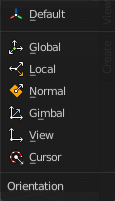
The widget can have different orientations. The menu items should be self explaining.
Last Operator Move
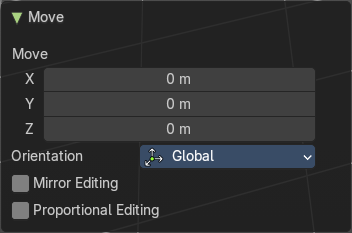
Move X, Y Z
The position. Attention, the actual world orientation and rotation does not matter here. It always starts with a value of zero, and moves relative to this zero then. For the actual location values have a look in the sidebar in the transform panel.
Orientation
The widget can have different orientations. The menu items should be self explaining.
Mirror Editing
Enables mirror editing.
Proportional editing
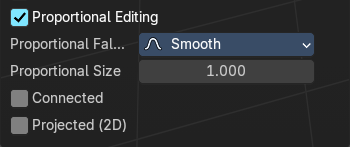
Enables proportional editing. Activating proportional editing reveals further settings.
| Entry | What it does |
|---|---|
| Proportional Falloff | Adjust the falloff methods. |
| Proportional Size | See and adjust the falloff radius. |
| Connected | The proportional falloff gets calculated for connected parts only. |
| Projected(2D) | The proportional falloff gets calculated in the screen space. Depth doesn't play a role. When it's in the radius, then it gets calculated. |
Rotate
Activates the old Rotate tool. This tool has no widget!
Snapping
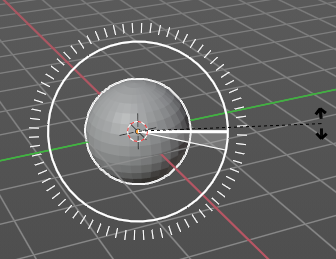
Holding down Ctrl activates temporary global snapping. It snaps then by 5 degrees steps.
When you use the white circle to rotate, then the widget also shows a division circle around the widget. This divisions shows even finer when you do precision rotation.
Precision rotation
When you hold down shift, then you will have a much slower but also much preciser rotation.
Header Values
When you rotate your object then you will see some values in the header, which defines the current rotation of the object. The rotation is shown in degrees.
Numerical Input
When you rotate the object, and hold down the mouse and type in a value, like 20, then the rotation will be performed by the value that you have typed in. In this case by 20 degree around the selected axis.
Limit Axis

When you want to rotate a specific axis, then press X or Y or Z to limit the rotation to this axis. You usually start in global orientation. But you can change this in the Orientation settings.
By holding down the mouse button and pressing the X, Y or Z key twice you can toggle this to local. But also to other orientations. This depends in what orientation you start. With normal you can toggle that way between Normal and Global.
This can be combined with the numerical input. Type in X, type in X again to use the local space, type in 20 to rotate by 20 degree. Release the mouse to confirm.
Orientation
The 3d cursor can have different orientations. The menu items should be self explaining.
Last Operator Rotate
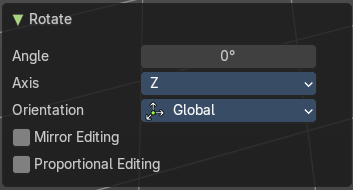
| Entry | What it does |
|---|---|
| Angle | The rotation. Attention, the actual world orientation and rotation does not matter here. It always starts with a value of zero, and rotates relative to this zero then. For the actual rotation values have a look in the sidebar in the transform panel. |
| Axis | Which axis to rotate. |
Orientation
The widget can have different orientations. The menu items should be self explaining.
Mirror Editing
Enables mirror editing.
Proportional editing
Enables proportional editing. Activating proportional editing reveals further settings.
| Entry | What it does |
|---|---|
| Proportional Falloff | Adjust the falloff methods. |
| Proportional Size | See and adjust the falloff radius. |
| Connected | The proportional falloff gets calculated for connected parts only. |
| Projected(2D) | The proportional falloff gets calculated in the screen space. Depth doesn't play a role. When it's in the radius, then it gets calculated. |
Scale
Activates the old Scale tool. This tool has no widget!
| Entry | What it does |
|---|---|
| Snapping | Holding down Ctrl activates temporary global snapping. |
| Precision Scale | When you hold down shift, then you will have a much slower but also much preciser scale. |
Header Values

When you scale your object then you will see some values in the header, which defines the current scale of the object.
These values are always relative to the starting point. You always start with 1, regardless of the real world scale.
Numerical Input
When you scale the object, and hold down the mouse and type in a value, like 20, then the scale will be performed by the value that you have typed in. In this case by factor 20 along the selected axis.
Limit Axis
When you want to rotate a specific axis, then press X or Y or Z to limit the scale to this axis. You usually start in global orientation. But you can change this in the Orientation settings.
By holding down the mouse button and pressing the X, Y or Z key twice you can toggle this to local. But also to other orientations. This depends in what orientation you start. With normal you can toggle that way between Normal and Global.
This can be combined with the numerical input. Hold down mouse, type in X, type in X again to use the local space, type in 20 to scale by 20 units. Release the mouse to confirm.
Orientation
The 3d cursor can have different orientations. The menu items should be self explaining.
Last Operator Resize
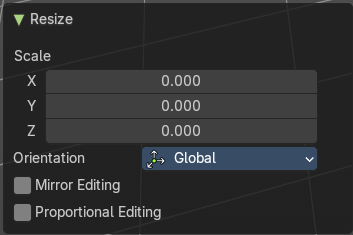
| Entry | What it does |
|---|---|
| Angle | The rotation. Attention, the actual world orientation and rotation does not matter here. It always starts with a value of zero, and rotates relative to this zero then. For the actual rotation values have a look in the sidebar in the transform panel. |
| Axis | Which axis to rotate. |
Orientation
The widget can have different orientations. The menu items should be self explaining.
Mirror Editing
Enables mirror editing.
Proportional editing
Enables proportional editing. Activating proportional editing reveals further settings.
| Entry | What it does |
|---|---|
| Proportional Falloff | Adjust the falloff methods. |
| Proportional Size | See and adjust the falloff radius. |
| Connected | The proportional falloff gets calculated for connected parts only. |
| Projected(2D) | The proportional falloff gets calculated in the screen space. Depth doesn't play a role. When it's in the radius, then it gets calculated. |
| Entry | What it does |
|---|---|
| Orbit Down | Orbits downwards. |
| Orbit Up | Orbits upwards. |
| Orbit Right | Orbits to the right. |
| Orbit Left | Orbits to the left. |
| Orbit Opposite | Rotates the view by 180 degree. |
| Roll Left | Rolls the viewport counter clockwise. |
| Roll Right | Rolls the viewport clockwise. |
| Pan Down | Pans the viewpoint downwards. The scene moves up. |
| Pan Up | Pans the viewpoint upwards. The scene moves down. |
| Pan Right | Pans the viewpoint to the right. The scene moves to the left. |
| Pan Left | Pans the viewpoint to the left. The scene moves to the right. |
| Zoom Region | Draws a rectangle and zooms then to fit the size of this rectangle. Zooming in is done with drawing the rectangle with left mouse button. Zooming out is done with drawing the rectangle with middle mouse button. |
| Zoom In | Zooms into the viewport. Works also in camera view. |
| Zoom Out | Zooms out of the viewport. Works also in camera view. |
| Zoom Camera 1:1 | Zooms the camera fitting to match the render output size by factor 1:1 |
| Dolly View | Dolly View is a special zoom mode. Be careful with this navigation method, you can easily trap yourself to not zoom able anymore! |
| Center View to Mouse | Centers the view to the current mouse position. |
| Fly Navigation | Switches to Fly navigation. In this view mode the camera acts like an air plane. Right click leaves the fly mode. |
| Walk Navigation | Switches to Walk Navigation. In this view mode the camera acts like a player in a first person shooter. Gravity will pull you down, The ground grid is the ground. And you can move around with WASD keys. Right click leaves the walk mode. |
| View Navigation | Switches to View Navigation Mode. In this view mode the view gets rotated moved and scaled from the Camera view point. Right Click leaves the view mode. |
| Playback Animation | Plays back an existing animation. |
Quick Menu
Quick Menu
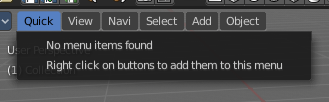
The quick menu, or in long Quick Favorites menu, is a menu that can be customized to your needs. Here you can add operators for quick access.
It is located in the header of the 3D view, But it can be called by hotkey Q directly under the mouse. This hotkey works in other editors too.
When the menu is empty, then you will see the message "No Menu Items found". This means that you first have to add some tools to the menu. It is a user configurable menu.
Note that added operators in this menu does not have icons. Just text.
Adding an operator to the Quick menu
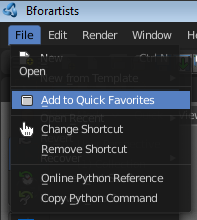
Open the panel or the menu where your operator is that you want to add.
Let's add the open command from the File menu. Open the File menu, right click at open, and choose Add to Quick Favorites.
Do the same with Save As. We should now have two new menu items in the Quick menu, which you can use now.
As a rule of thumb, when the right click menu has an Add to Quick Favorites, then you can add it to the quick menu.
Note that you can also add operators from the tool shelf at the left. And also operators from other editor types. Some other editors have their own quick menu though. The Image Editor for example. These operators gets added in the quick menu of the image editor then. And does not show in the quick menu in the header of the 3D view.
Adding a menu to the Quick menu
It is also possible to add a menu to the Quick menu. For example the whole Add menu. The way is the same. Right click at it, and choose Add to Quick Favorites.
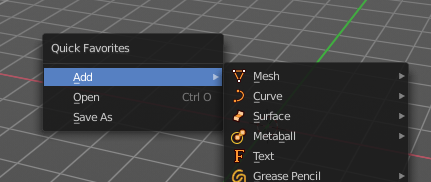
Order
You might notice that the add menu adds at the top of the menu, and not at the bottom as you would expect. First comes menus, then comes operators. And they get added in the order in which you add them.
Besides that, operators and menus gets added in the order that you add them. They cannot be sorted afterwards. So be careful how you add them. You can of course always remove operators and menus, and re-add them at the end of the list.
Removing an operator from the Quick menu
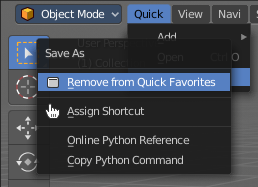
Removing is as simple as adding. Right click at the operators in the Quick menu, and choose Remove from Quick favorites.
Context and mode dependent content
The quick favorites menu exists in nearly all editors. Usually available in the header. So that you know this functionality exists. In case it is missing you can call it with hotkey Q.
The content of the quick favorites menu changes, dependent over which editor you are, and in what mode you are. When you add for example an operator from the image editor, then this operator just shows in the quick menu when you call the menu from the image editor. Same goes for the modes. Edit mode tools will just show in edit mode. And so on.
Select Menu
Select menu
The Select menu provides you with all functionality around selecting. The content differs, dependent in which mode you are, and what object type you have selected. Some select functionality is very special for just one object type in one special mode. But not every mode has a select menu.
Object Mode - Select menu
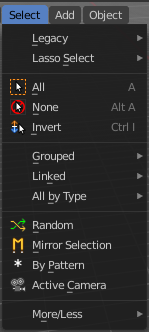
The select menu in Object mode is for all object types equal. It provides you with several selection methods.
Legacy

The legacy sub menu contains tools that exists in the tool shelf already. It's the old way to do things. Different to the tools in the tool shelf, these tools are usually modal. And performs once. You have to call them again in case you want to repeat the tool.
| Entry | What it does |
|---|---|
| Box select | Draw a rectangle to select everything inside of the rectangle. It automatically adds to the current selection. Holding down shift subtracts from the selection. |
| Circle select | Brush select content. The radius of the brush can be adjusted by holding down left mouse button and using the scroll wheel or the + or - button at the numpad. It automatically adds to the current selection. Holding down shift subtracts from the selection. To exit the circle select tool click with the right mouse button. |
Lasso Select
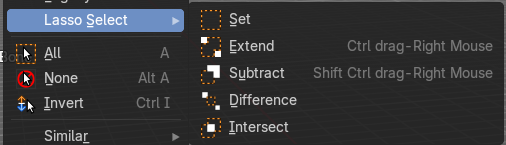
A sub menu with the available lasso select modes.
| Entry | What it does |
|---|---|
| All | Select everything. |
| None | Select nothing. |
| Inverse | Invert the current selection. |
Grouped
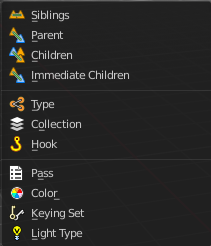
Select different types of objects within the group. It requires to have a group selected.
The menu items are pretty self explaining. So we won't go into detail here.
Last Operator Select Grouped
| Entry | What it does |
|---|---|
| Extend | Extends existing selection instead of deselecting everything first. |
| Type | Type is a drop-down list choose the Linked type again. |
Linked
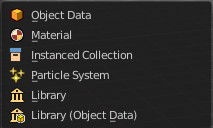
Linked is a menu select different types.
Select all objects that shares a common data-block with the active object. Select Linked uses the active object as a basis to select all others.
| Entry | What it does |
|---|---|
| Object Data | Selects every object that is linked to the same Object Data. |
| Material | Selects every object that is linked to the same material data-block. |
| Instanced Collection | Selects every object that is linked to the instanced collection. |
| Particle System | Selects all objects that use the same Particle System. |
| Library | Selects all objects that are in the same Library. |
| Library (Object Data) | Selects all objects that are in the same Library and limited to object data. |
All by Type
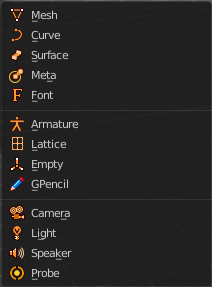
Select objects of a specific type.
The menu items are pretty self explaining. So we won't cover every single menu item here.
Last Operator Select By Type
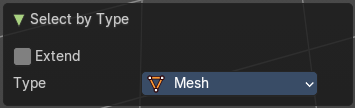
| Entry | What it does |
|---|---|
| Extend | With this option activated the selection does not clear before performing the selection operation, but extends. This means when you have a mesh object selected, and want to select all objects by type curve, then the mesh object is still selected. Without Extend just the curve objects are selected. The mesh object gets deselected. |
| Type | Type is a drop-down box choose the object type to select again. |
Random
Selects random objects.
Last Operator Select Random
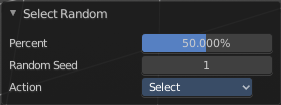
| Entry | What it does |
|---|---|
| Percent | The Percentage of objects that should be selected randomly. |
| Random Seed | The Seed for the random number generator. |
| Action | Action is a drop-down box choose if you want to select or to deselect random. |
Mirror Selection
Select the mirrored parts of an object. For example for L.Sword it selects R.Sword.
Last Operator Select Mirror
Extend
Extends existing selection instead of deselecting everything first.
By Pattern
Selects all objects whose name matches the entered string. For missing parts you need to add an asterix.
For example, you have four cubes in the scene. Cube, Cube.001, Cube.002 and mycube3. Then the term " Cube " will just select the first cube. While the term " Cube* " will select the first three. And " *cube* " will select all four.
Supported wild-cards:
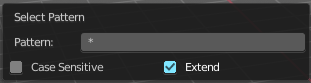
* matches everything
? matches any single character[abc] matches characters in “abc”[!abc] match any character not in “abc”
The tool operates immediately at entering the string.
| Entry | What it does |
|---|---|
| Pattern | Type in your string. |
| Case Sensitive | When ticked then the string comparison happens by taking upper and lower letters into account. |
Extend
Extends existing selection instead of deselecting everything first.
Last Operator Select Pattern
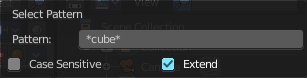
The Last Operator Select Pattern contains the same menu items than the pop-up. So see above. Also, it does not appear in the 3D view. But when you call it from the edit menu or with hotkey.
Active Camera
Selects the active camera.
More/ Less
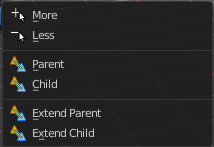
| Entry | What it does |
|---|---|
| More | More requires to have a parent or child relationship. It expands the selection. |
| Less | Less requires to have a parent or child relationship. It reduces the selection. |
| Parent | Parent requires to have a parent or child relationship. It selects the parent object of the currently selected object(s). |
| Child | Child requires to have a parent or child relationship. It selects the child object(s) of the currently selected object(s). |
| Parent extended | Parent extended requires to have a parent or child relationship. It selects the parent object of the currently selected object(s). But keeps the active object in the selection, even when it's not currently selected. |
| Child Extended | Child Extended requires to have a parent or child relationship. It selects the child object(s) of the currently selected object(s). But keeps the active object in the selection, even when it's not currently selected. |
Mesh - Edit Mode
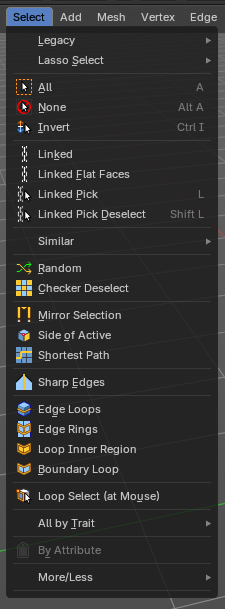
The select menu for a mesh object in Edit mode.
A few tools here acts different, dependent in which mesh select mode you are. For example, when you are in mesh select method vertices, then the Random operator picks random vertices.
So you might want to check the mesh select mode when something does not work in an expected way.

Legacy
The legacy sub menu contains tools that exists in the tool shelf already. It's the old way to do things. Different to the tools in the tool shelf, these tools are usually modal. And performs once. You have to call them again in case you want to repeat the tool.
| Entry | What it does |
|---|---|
| Box select | Draw a rectangle to select everything inside of the rectangle. It automatically adds to the current selection. Holding down shift subtracts from the selection. |
| Circle select | Brush select content. The radius of the brush can be adjusted by holding down left mouse button and using the scroll wheel or the + or - button at the numpad. It automatically adds to the current selection. Holding down shift subtracts from the selection. To exit the circle select tool click with the right mouse button. |
Lasso Select
A sub menu with the available lasso select modes.
| Entry | What it does |
|---|---|
| All | Select everything. |
| None | Select nothing. |
| Invert | Invert the current selection. |
Linked
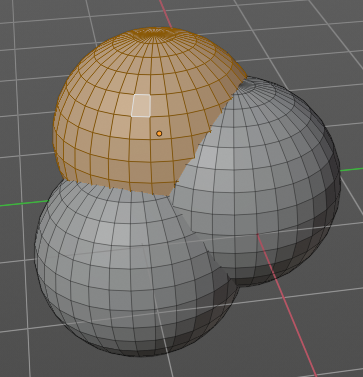
Select the geometry that is directly linked with the current geometry. You can for example have a mesh with several closed sub meshes. Those sub meshes. are not linked together, but are part of the object.
Last Operator Select Linked All
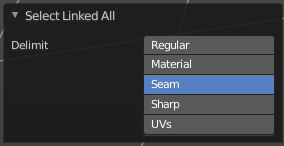
Delimit
Add a limit to the selection. For example, just select up to the next seam.
Linked Flat Faces
Select the geometry that is co planar to the current selection. It works also in other selection modes, but you need to have face geometry selected.
Last Operator Select Linked Flat Faces
Adjust the angle up to which a face counts as co planar.
Linked Pick
Same as with Linked. But works with what is under the mouse cursor.
Linked Pick Deselect
Same as with Linked. But works with what is under the mouse cursor. And deselects the selection.
Last Operator Select Linked
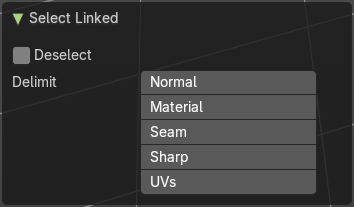
| Entry | What it does |
|---|---|
| Deselect | Select or deselect. |
| Delimit | Add a limit to the selection. For example, just select up to the next seam. |
Similar
Select geometry based on how similar certain properties are to it. The methods changes, dependent in which mesh selection mode you are. There is a pitfall with having more than one mesh selection method selected. Then you just get the face regions type presented. Vertices, Edges, Faces, more than one ...
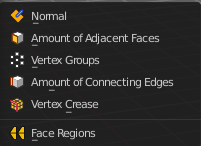
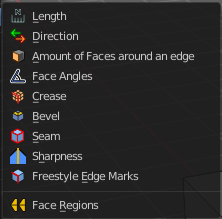
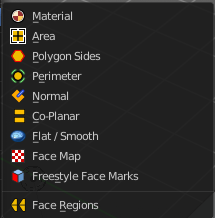

Last Operator Select Similar
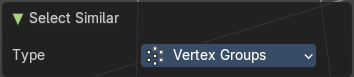
The last operator changes, dependant of the method.
Type
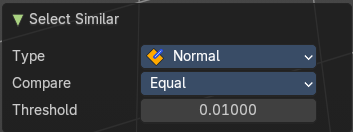
Choose the select similar method again.
| Entry | What it does |
|---|---|
| Compare | Compare with method less, greater or equal. |
| Threshold | Adjust the threshold value after which the element counts as similar. |
Random
Selects a random group of vertices, edges, or faces, dependent of the mesh selection method.
Last Operator Select Random
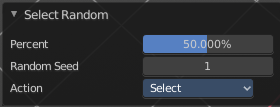
| Entry | What it does |
|---|---|
| Percent | How much percent will be random selected. |
| Random Seed | The random seed value. |
| Action | Select or deselect. |
Checker Deselect
Deselect alternating faces, edges or vertices to create a checker like pattern. The result is dependent of the mesh selection method.
Last Operator Checker Deselect
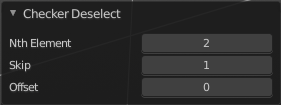
| Entry | What it does |
|---|---|
| Nth Element | Define how much elements gets unchecked. With 2 you have a checker board pattern. Every second element gets deselected. |
| Skip | Skip elements before the checker algorithm deselects again. |
| Offset | Offset the deselected elements. |
Mirror selection
Requires to have a symmetrical mesh. Selects the mirrored mesh parts from a selection.
Last Operator Select Mirror
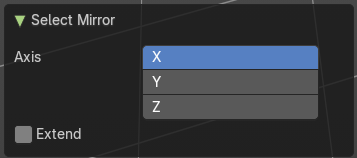
| Entry | What it does |
|---|---|
| Axis | The world axis to mirror at. |
| Extend | Keep the current selection. Without extend the current selection gets deselected. |
Side of Active
Selects all mesh data in direction of a single axis, starting from the current selection.
Last Operator Side of Active
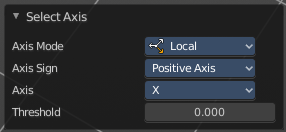
Axis mode
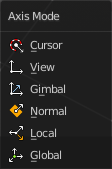
The axis orientation to work with.
Axis Sign
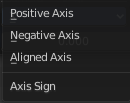
In which direction to work form the current selection.
Axis
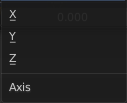
The axis to work with.
Threshold
Define a threshold to extend the selection.
Shortest Path
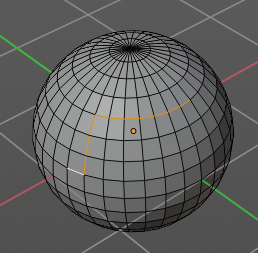
Select the shortest edge path between two selected mesh elements. This can be vertices, edges or faces. A start and an end point must be selected.
Last Operator Select shortest path
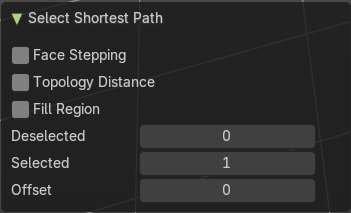
Face Stepping
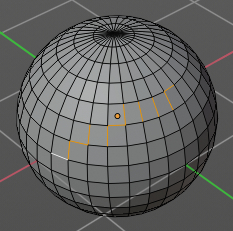
Traverse connected faces.
Topology Distance

Find the minimum number of steps instead of the shortest distance.
Fill Region
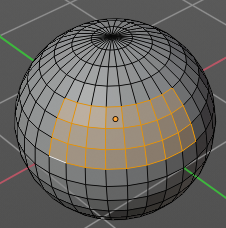
Select the region faces too.
Nth Element
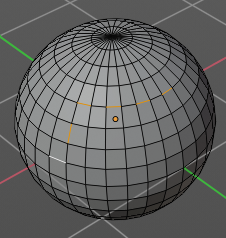
Don't select the whole path, but just every nth element of it.
| Entry | What it does |
|---|---|
| Skip | This is connected to nth element. Number of elements to skip at once. |
| Offset | This is connected to nth element. Start with an offset. |
Sharp Edges
Select all edges that are marked as sharp.
Last Operator Select Sharp Edges
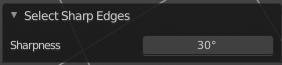
Sharpness
The angle after which a sharp edge gets selected.
Edge Loop
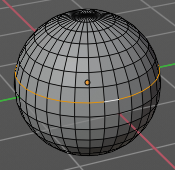
Selects a loop of edges from a selected edge. The method stops at poles. That's vertices where three or more than four edges comes together. At a UV sphere the north and south pole ...
Last Operator Multi Select Loops
Ring
Select edge ring instead of edge loop.
Edge Ring
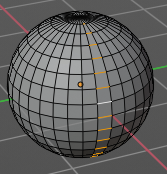
Selects edges parallel to a selected edge in the same ring of faces. The method stops at poles. That's vertices where three or more than four edges comes together. At a UV sphere the north and south pole ...
Last Operator Multi Select Loops
Ring
Select edge ring instead of edge loop.
Loop Inner-Region
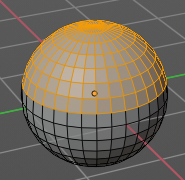
Select everything that is enclosed by an edge loop. When the loop is not closed, then it might select everything ...
By default the smaller enclosed part gets selected. The Inner-Region.
Last Operator Select Loop Inner-Region
Select Bigger
Select the bigger enclosed part instead of the smaller enclosed part.
Boundary Loop
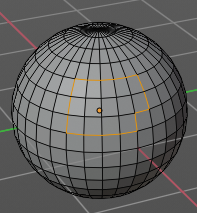
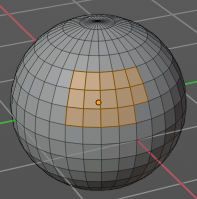
Select the edges that encloses a selection of faces.
Loop Select Pick
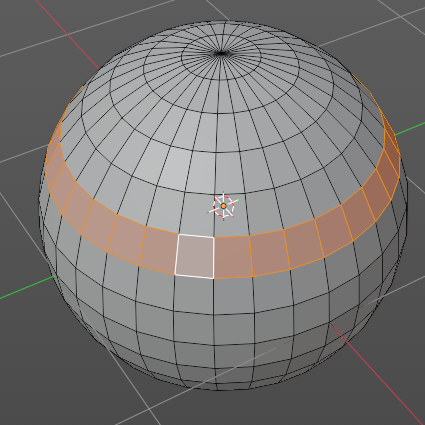
Quickly selects a loop of connected edges or faces using a single click.
Ideal for selecting edge loops, face rings, or structured mesh flows during modeling.
Hold Alt and click with Left Mouse Button (LMB) on an edge or face.
The operator automatically detects and selects the shortest loop path based on mesh topology.
If you hold Shift + Alt, you can add loops.
Note: This is a* mouse-only operator*; it does not appear in menus.
Last Operator Select Loop
Face Loop Delimiter
Controls how face loops are detected and selected based on edge properties. Useful for refining loop selection behavior when working with complex or stylized geometry.
| Entry | What it does |
|---|---|
| Seam | When enabled, loop selection stops at UV seams. Useful for selecting loops that respect texture boundaries or unwrap logic. |
| Sharp | When enabled, loop selection stops at sharp edges. Ideal for isolating loops along hard surface transitions or shading splits. |
| Material | When enabled, loop selection stops at material boundaries. Useful for selecting loops within a single material zone or across multi-material meshes. |
All by Trait sub menu
Non Manifold
Select non manifold geometry. Enclosed faces inside of a geometry for example.
Last Operator Select Non-Manifold
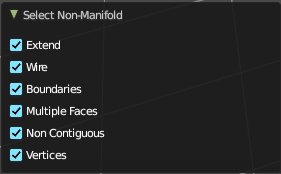
What exact kind of non manifold geometry should be selected. The options names should be self explaining.
Loose Geometry
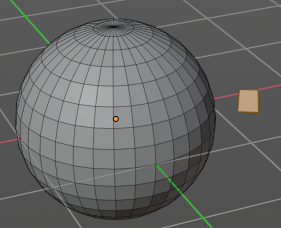
Selects loose geometry.
Last Operator Select Loose Geometry
Extend
Extend the current selection.
Interior Faces
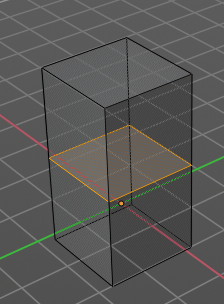
Select faces where all edges have more than 2 faces. In the picture here we have inlaying faces by joining two cubes together, then merge the vertices by distance. So the two faces from the former two cubes are now interior faces. That's usually unwanted geometry that you want to select and to remove.
Faces by Sides
Selects faces that has the same number of edges, or better said vertices. Tris, quads, N-gons.
Last Operator Select Faces by Side
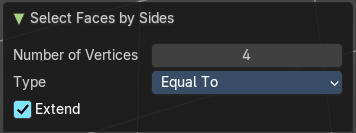
Sharpness
Extend the current selection.
Number of vertices

How many numbers of vertices the face should have. 4 is a quad.
| Entry | What it does |
|---|---|
| Type | Selection type. |
| Extend | Extend the current selection. |
Poles by count
Select poles. A pole is a vertice where more than four edges meet.
Last Operator Select by Pole Count
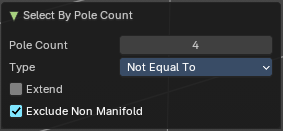
Pole count
What value to compare the vertice and its edges to. The number four here is the non pole value. Everything different will be treaten as a pole.
Type
How to compare to the pole count value.
| Entry | What it does |
|---|---|
| Extend | Extend the current selection. |
| Exclude Non Manifold | Exclude non manifold geometry from the calculation. |
Ungrouped Vertices
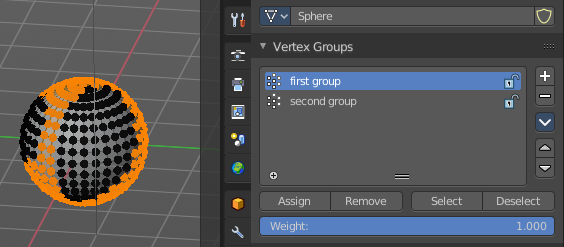
This operator selects all vertices in a mesh that are not assigned to any vertex group. It’s especially useful in rigging, weight painting, and cleanup workflows where ungrouped vertices can cause deformation issues or be overlooked during asset preparation.
Last Operator Select Ungrouped
Extend
Extends the current selection.
Select by Attribute
This operator selects elements based on the active boolean attribute. Useful for selection of boolean attributes set by Geometry Nodes.
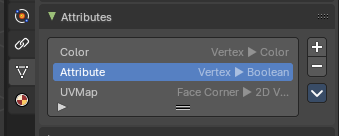
To use, make sure you have a boolean attribute assigned and selected in the Properties Editor - Mesh Data – Attributes tab.
More / Less
| Entry | What it does |
|---|---|
| More | Extends the current selection. |
| Less | Reduces the current selection. |
Next Active
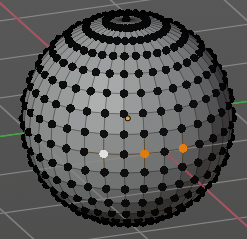
Selects the next active element. For example, when you have two vertices selected, then the next vertice in the row with the same distance will be selected as the next active.
Previous Active
Like next active, but deselects in the other direction down to the first selected vertice with every step.
Mesh - Vertex and Weight Paint Mode
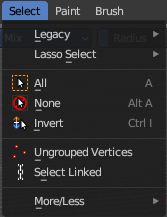
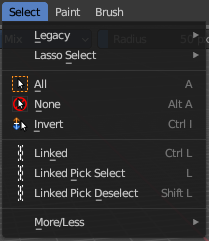
This select menu shows with the sub modes Paint Mask and Vertex Selection in vertex paint mode and weight paint mode.
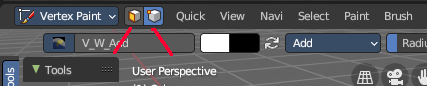
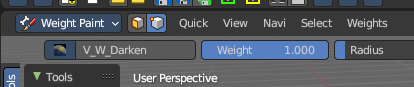
Legacy
The legacy sub menu contains tools that exists in the tool shelf already. It's the old way to do things. Different to the tools in the tool shelf, these tools are usually modal. And performs once. You have to call them again in case you want to repeat the tool.
| Entry | What it does |
|---|---|
| Box select | Draw a rectangle to select everything inside of the rectangle. It automatically adds to the current selection. Holding down shift subtracts from the selection. |
| Circle select | Brush select content. The radius of the brush can be adjusted by holding down left mouse button and using the scroll wheel or the + or - button at the numpad. It automatically adds to the current selection. Holding down shift subtracts from the selection. To exit the circle select tool click with the right mouse button. |
Lasso Select
A sub menu with the available lasso select modes.
| Entry | What it does |
|---|---|
| All | Select everything. |
| None | Select nothing. |
| Invert | Invert the current selection. |
| Ungrouped Vertices | Vertex Selection Mode. Select vertices that does not belong to a group. |
Select Linked
Vertex Selection Mode. Select the geometry that is directly linked with the current geometry. You can for example have a mesh with several closed sub meshes. Those sub meshes. are not linked together, but are part of the object.
Last Operator Select Linked All
Delimit
Add a limit to the selection. For example, just select up to the next seam.
| Entry | What it does |
|---|---|
| Linked | Paint Mask mode. Select linked faces. Mouse only tool. |
| Linked Pick Select | Paint Mask mode. Select linked faces. Mouse only tool. |
| Linked Pick Deselect | Paint Mask mode. Deselect linked faces. Mouse only tool. |
More/Less Sub-menu

| Entry | What it does |
|---|---|
| More | Icrease the selection. |
| Less | Decrease the selection. |
Mesh - Texture Paint Mode
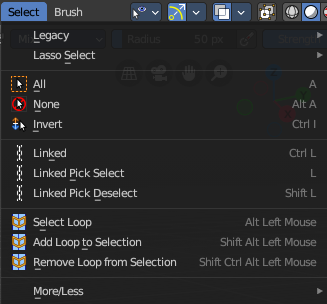
This select menu shows with the sub mode Paint Mask.
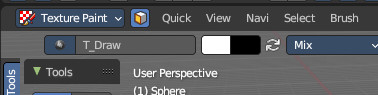
Legacy
The legacy sub menu contains tools that exists in the tool shelf already. It's the old way to do things. Different to the tools in the tool shelf, these tools are usually modal. And performs once. You have to call them again in case you want to repeat the tool.
| Entry | What it does |
|---|---|
| Box select | Draw a rectangle to select everything inside of the rectangle. It automatically adds to the current selection. Holding down shift subtracts from the selection. |
| Circle select | Brush select content. The radius of the brush can be adjusted by holding down left mouse button and using the scroll wheel or the + or - button at the numpad. It automatically adds to the current selection. Holding down shift subtracts from the selection. To exit the circle select tool click with the right mouse button. |
Lasso Select
A sub menu with the available lasso select modes.
| Entry | What it does |
|---|---|
| All | Select everything. |
| None | Select nothing. |
| Invert | Invert the current selection. |
| Ungrouped Vertices | Vertex Selection Mode. Select vertices that does not belong to a group. |
Select Linked
Vertex Selection Mode. Select the geometry that is directly linked with the current geometry. You can for example have a mesh with several closed sub meshes. Those sub meshes. are not linked together, but are part of the object.
Last Operator Select Linked All
Delimit
Add a limit to the selection. For example, just select up to the next seam.
| Entry | What it does |
|---|---|
| Linked | Paint Mask mode. Select linked faces. Mouse only tool. |
| Linked Pick Select | Paint Mask mode. Select linked faces. Mouse only tool. |
| Linked Pick Deselect | Paint Mask mode. Deselect linked faces. Mouse only tool. |
| Select Loop | Selects a face loop. Mouse operator. The result is dependant of thhe face under the mouse. So please use the mouse. |
| Add Loop to Selection | Adds a face loop to an existing selection. Mouse operator. The result is dependant of thhe face under the mouse. So please use the mouse. |
| Remove Loop from Selection | Subtracts a face loop from an existing selection. Mouse operator. The result is dependant of thhe face under the mouse. So please use the mouse. |
More/Less submenu
| Entry | What it does |
|---|---|
| More | Icrease the selection. |
| Less | Decrease the selection. |
Curve Object - Edit Mode
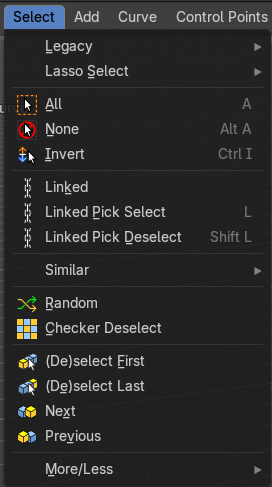
Legacy
The legacy sub menu contains tools that exists in the tool shelf already. It's the old way to do things. Different to the tools in the tool shelf, these tools are usually modal. And performs once. You have to call them again in case you want to repeat the tool.
| Entry | What it does |
|---|---|
| Box select | Draw a rectangle to select everything inside of the rectangle. It automatically adds to the current selection. Holding down shift subtracts from the selection. |
| Circle select | Brush select content. The radius of the brush can be adjusted by holding down left mouse button and using the scroll wheel or the + or - button at the numpad. It automatically adds to the current selection. Holding down shift subtracts from the selection. To exit the circle select tool click with the right mouse button. |
Lasso Select
A sub menu with the available lasso select modes.
| Entry | What it does |
|---|---|
| All | Select everything. |
| None | Select nothing. |
| Invert | Invert the current selection. |
Linked
Select the geometry that is directly linked with the current geometry. You can for example have a mesh with several closed sub meshes. Those sub meshes. are not linked together, but are part of the object.
Last Operator Select Linked All
Delimit
Add a limit to the selection. For example, just select up to the next seam.
Linked Pick Select
Same as with Linked. But works with what is under the mouse cursor.
Linked Pick Deselect
Same as with Linked. But works with what is under the mouse cursor. And deselects the selection.
Last Operator Select Linked
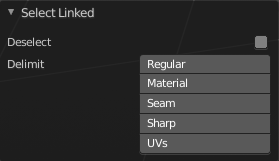
| Entry | What it does |
|---|---|
| Deselect | Select or deselect. |
| Delimit | Add a limit to the selection. For example, just select up to the next seam. |
Similar
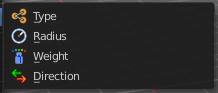
Select curve geometry based on how similar certain properties are to it.
Last Operator Select Similar
Type
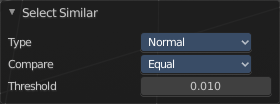
Choose the select similar method again.
| Entry | What it does |
|---|---|
| Compare | Compare with method less, greater or equal. |
| Threshold | Adjust the threshold value after which the element counts as similar. |
Random
Selects a random group of curve points.
Last Operator Select Random
| Entry | What it does |
|---|---|
| Percent | How much percent will be random selected. |
| Random Seed | The random seed value. |
| Action | Select or deselect. |
Checker Deselect
Deselect alternating curve points.
Last Operator Checker Deselect
| Entry | What it does |
|---|---|
| Nth Element | Define how much elements gets unchecked. With 2 you have a checker board pattern. Every second element gets deselected. |
| Skip | Skip elements before the checker algorithm deselects again. |
| Offset | Offset the deselected elements. |
| Entry | What it does |
|---|---|
| De/Select First | Select or deselect first curve point. |
| De/Select Last | Select or deselect last curve point. |
| Next Active | Selects the next active element. For example, when you have two vertices selected, then the next vertice in the row with the same distance will be selected as the next active. |
| Previous Active | Like next active, but deselects in the other direction down to the first selected vertice with every step. |
| Sub menu More / Less | More: Extends the current selection. · Less: Reduces the current selection. |
Surface Object - Edit Mode
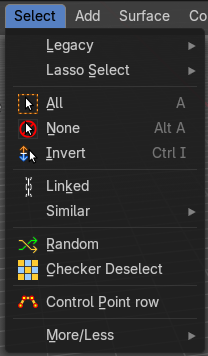
Legacy
The legacy sub menu contains tools that exists in the tool shelf already. It's the old way to do things. Different to the tools in the tool shelf, these tools are usually modal. And performs once. You have to call them again in case you want to repeat the tool.
| Entry | What it does |
|---|---|
| Box select | Draw a rectangle to select everything inside of the rectangle. It automatically adds to the current selection. Holding down shift subtracts from the selection. |
| Circle select | Brush select content. The radius of the brush can be adjusted by holding down left mouse button and using the scroll wheel or the + or - button at the numpad. It automatically adds to the current selection. Holding down shift subtracts from the selection. To exit the circle select tool click with the right mouse button. |
Lasso Select
A sub menu with the available lasso select modes.
| Entry | What it does |
|---|---|
| All | Select everything. |
| None | Select nothing. |
| Inverse | Invert the current selection. |
Linked
Select the geometry that is directly linked with the current geometry. You can for example have a mesh with several closed sub meshes. Those sub meshes are not linked together, but are part of the object.
Last Operator Select Linked All
Delimit
Add a limit to the selection. For example, just select up to the next seam.
Similar
Select curve geometry based on how similar certain properties are to it.
Last Operator Select Similar
Type
Choose the select similar method again.
| Entry | What it does |
|---|---|
| Compare | Compare with method less, greater or equal. |
| Threshold | Adjust the threshold value after which the element counts as similar. |
Random
Selects a random group of control points.
Last Operator Select Random
| Entry | What it does |
|---|---|
| Percent | How much percent will be random selected. |
| Random Seed | The random seed value. |
| Action | Select or deselect. |
Checker Deselect
Deselect alternating control points.
Last Operator Checker Deselect
| Entry | What it does |
|---|---|
| Nth Element | Define how much elements gets unchecked. With 2 you have a checker board pattern. Every second element gets deselected. |
| Skip | Skip elements before the checker algorithm deselects again. |
| Offset | Offset the deselected elements. |
| Entry | What it does |
|---|---|
| Control Point Row | Selects a row of control points, including the active one. |
| Sub menu More / Less | More: Extends the current selection. · Less: Reduces the current selection. |
Metaball Object - Edit Mode
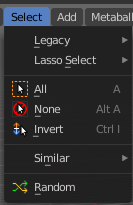
Legacy
The legacy sub menu contains tools that exists in the tool shelf already. It's the old way to do things. Different to the tools in the tool shelf, these tools are usually modal. And performs once. You have to call them again in case you want to repeat the tool.
| Entry | What it does |
|---|---|
| Box select | Draw a rectangle to select everything inside of the rectangle. It automatically adds to the current selection. Holding down shift subtracts from the selection. |
| Circle select | Brush select content. The radius of the brush can be adjusted by holding down left mouse button and using the scroll wheel or the + or - button at the numpad. It automatically adds to the current selection. Holding down shift subtracts from the selection. To exit the circle select tool click with the right mouse button. |
Lasso Select
A sub menu with the available lasso select modes.
| Entry | What it does |
|---|---|
| All | Select everything. |
| None | Select nothing. |
| Inverse | Invert the current selection. |
Similar
Select metaball geometry based on how similar certain properties are to it.
Last Operator Select Similar
Type
Choose the select similar method again.
| Entry | What it does |
|---|---|
| Compare | Compare with method less, greater or equal. |
| Threshold | Adjust the threshold value after which the element counts as similar. |
Random
Selects a random metaball element.
Last Operator Select Random
| Entry | What it does |
|---|---|
| Percent | How much percent will be random selected. |
| Random Seed | The random seed value. |
| Action | Select or deselect. |
Text Object - Edit Mode
All
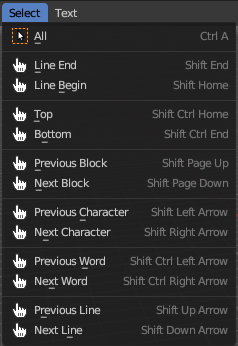
Select everything.
Line End, Line Begin, etc.
Select corresponding element.
Point Cloud Object - Edit Mode
All
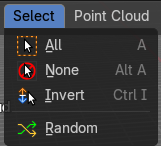
Select everything.
| Entry | What it does |
|---|---|
| None | Select nothing. |
| Invert | Invert the current selection. |
Random
Selects random elements.
Last Operator Select Random
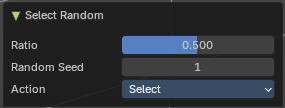
| Entry | What it does |
|---|---|
| Ratio | The ratio of objects that should be selected randomly. |
| Random Seed | The Seed for the random number generator. |
| Action | Action is a drop-down box choose if you want to select or to deselect random. |
Grease Pencil Object - Edit Mode, Vertex Paint Mode
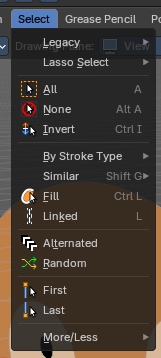
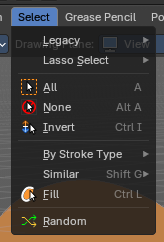
This is the select menu for the grease pencil object. The content changes dependent of the Select mode, either in Vertex or Stroke mode.
Legacy
The legacy sub menu contains tools that exists in the tool shelf already. It's the old way to do things. Different to the tools in the tool shelf, these tools are usually modal. And performs once. You have to call them again in case you want to repeat the tool.
| Entry | What it does |
|---|---|
| Box select | Draw a rectangle to select everything inside of the rectangle. It automatically adds to the current selection. Holding down shift subtracts from the selection. |
| Circle select | Brush select content. The radius of the brush can be adjusted by holding down left mouse button and using the scroll wheel or the + or - button at the numpad. It automatically adds to the current selection. Holding down shift subtracts from the selection. To exit the circle select tool click with the right mouse button. |
Lasso Select – Sub Menu
A sub menu with the available lasso select modes.
| Entry | What it does |
|---|---|
| All | Select everything. |
| None | Select nothing. |
| Inverse | Invert the current selection. |
By Stroke Type – Sub Menu

Filters and selects points based on their stroke type.
Useful for quickly isolating either line strokes or fill regions when editing complex Grease Pencil drawings.
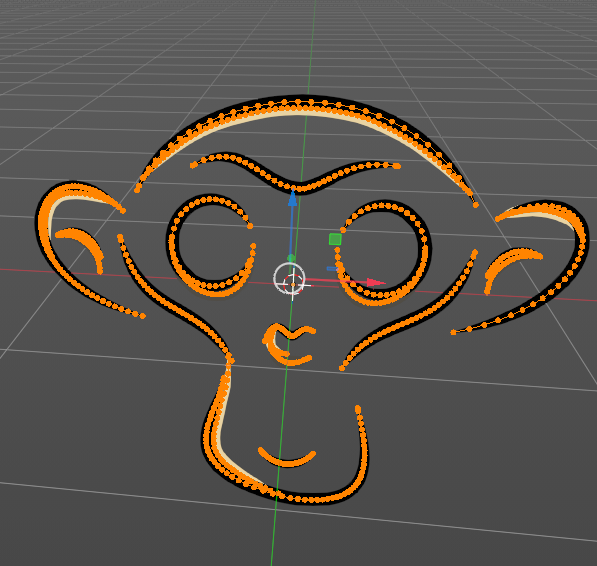
Stroke
Selects only points that belong to stroke outlines.
Ideal for editing linework separately from fills.
Commonly used in cleanup, inking, or when adjusting contours.
Fill
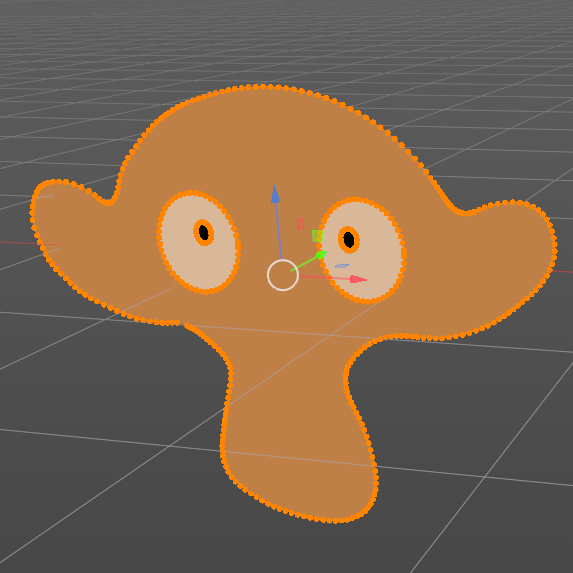
Selects only points that belong to filled regions.
Useful for editing shapes, color areas, or solid regions independently.
Helps separate fill geometry from outline strokes.
Last Operator Select by Stroke Type
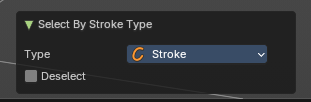
| Entry | What it does |
|---|---|
| Type | Dropdown to choose which stroke type to select: – Stroke: selects outline points. – Fill: selects fill region points. |
| Deselect | Checkbox that inverts the action |
Select Similar – Sub Menu
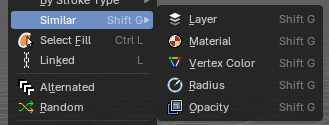
Select equal elements by the chosen method.
| Entry | What it does |
|---|---|
| Layer | Selects all vertices that belong to the same Grease Pencil layer as the active vertex. Useful for layer-based editing and organization. |
| Material | Selects vertices assigned to the same material. Ideal for isolating strokes by color or shading style. |
| Vertex Color | Selects vertices with matching vertex color attributes. Useful for color-based editing in complex drawings. |
| Radius | Selects vertices with a similar point radius (thickness). Helps isolate strokes with consistent line weight. |
| Opacity | Selects vertices with similar opacity values. Useful for editing transparency effects or semi-opaque strokes. |
Last Operator Select Similar
Mode
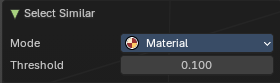
The selection mode.
Threshold
How equal it really needs to be to count as equal.
Fill
Selects all vertices that belong to fill regions of Grease Pencil strokes. Useful for isolating and editing filled shapes separately from outline strokes
Linked
Select the geometry that is directly linked with the current geometry. You can for example have a mesh with several closed sub meshes. Those sub meshes. are not linked together, but are part of the object.
Last Operator Select Linked All
Delimit
Add a limit to the selection. For example, just select up to the next seam.
Alternated
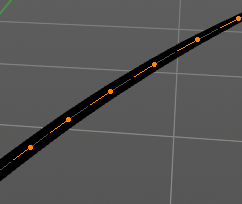
Select every second element.
Last Operator Alternated
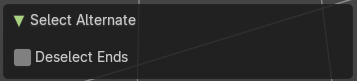
Deselect Ends
The end points are always unselected.
Random
Selects random elements.
Last Operator Select Random
| Entry | What it does |
|---|---|
| Ratio | The ratio of objects that should be selected randomly. |
| Random Seed | The Seed for the random number generator. |
| Action | Action is a drop-down box choose if you want to select or to deselect random. |
First
Select the first element in the stroke.
Last
Select the last element in the stroke.
Last Operator Select Ends
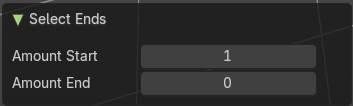
The last operator Select Ends is valid for both, the first and last operator.
| Entry | What it does |
|---|---|
| Amount Start | Number of points to select from the start. |
| Amount End | Number of points to select from the end. |
More / Less – Sub Menu
| Entry | What it does |
|---|---|
| More | Extends the current selection. |
| Less | Reduces the current selection. |
Armature Object - Edit Mode
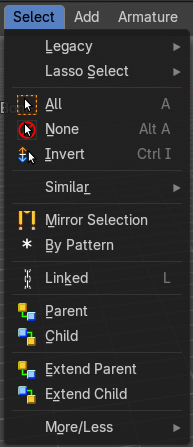
Legacy
The legacy sub menu contains tools that exists in the tool shelf already. It's the old way to do things. Different to the tools in the tool shelf, these tools are usually modal. And performs once. You have to call them again in case you want to repeat the tool.
| Entry | What it does |
|---|---|
| Box select | Draw a rectangle to select everything inside of the rectangle. It automatically adds to the current selection. Holding down shift subtracts from the selection. |
| Circle select | Brush select content. The radius of the brush can be adjusted by holding down left mouse button and using the scroll wheel or the + or - button at the numpad. It automatically adds to the current selection. Holding down shift subtracts from the selection. To exit the circle select tool click with the right mouse button. |
Lasso Select
A sub menu with the available lasso select modes.
| Entry | What it does |
|---|---|
| All | Select everything. |
| None | Select nothing. |
| Inverse | Invert the current selection. |
Similar
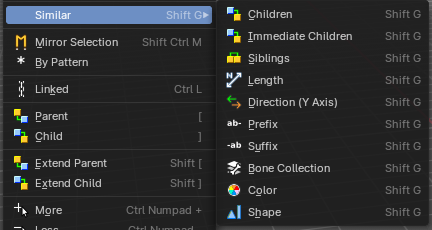
Select armature bones based on how similar certain properties are to it.
Most methods are self explaining. Immediate children selects just the direct children of the active object, while Children selects everything downwards the hierarchy.
Last Operator Select Similar
Type
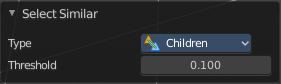
Choose the select similar method again.
| Entry | What it does |
|---|---|
| Compare | Compare with method less, greater or equal. |
| Threshold | Adjust the threshold value after which the element counts as similar. |
Mirror Selection
Select the mirrored parts of an object. For example for L.bone it selects R.bone.
Last Operator Select Mirror
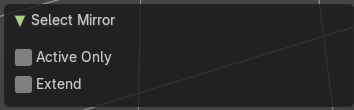
| Entry | What it does |
|---|---|
| Active Only | Only operate at the active bone. |
| Extend | Extends existing selection instead of deselecting everything first. |
By Pattern
Selects all objects whose name matches the entered string. For missing parts you need to add an asterix.
For example, you have four cubes in the scene. Cube, Cube.001, Cube.002 and mycube3. Then the term " Cube " will just select the first cube. While the term " Cube* " will select the first three. And " *cube* " will select all four.
Supported wild-cards:
* matches everything
? matches any single character[abc] matches characters in “abc”[!abc] match any character not in “abc”
The tool operates immediately at entering the string.
| Entry | What it does |
|---|---|
| Pattern | Type in your string. |
| Case Sensitive | When ticked then the string comparison happens by taking upper and lower letters into account. |
| Extend | Extends existing selection instead of deselecting everything first. |
Last Operator Select Pattern
The Last Operator Select Pattern contains the same menu items than the pop-up. So see above. Also, it does not appear in the 3D view. But when you call it from the edit menu or with hotkey.
Linked
Select all bones linked by parent.
Last Operator Select Linked All
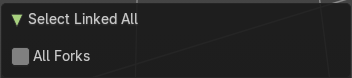
All Forks
Follow forks in the parents chain. Means select upwards too.
| Entry | What it does |
|---|---|
| Parent | Parent requires to have a parent or child relationship. It selects the parent object of the currently selected object(s). |
| Child | Child requires to have a parent or child relationship. It selects the child object(s) of the currently selected object(s). |
| Extend Parent | Extend Parent requires to have a parent or child relationship. It selects the parent object of the currently selected object(s). But keeps the active object in the selection, even when it's not currently selected. |
| Extend Child | Extend Child requires to have a parent or child relationship. It selects the child object(s) of the currently selected object(s). But keeps the active object in the selection, even when it's not currently selected. |
| Sub menu More / Less | More: More requires to have a parent or child relationship. It expands the selection. · Less: Less requires to have a parent or child relationship. It reduces the selection. |
Armature Object - Pose Mode
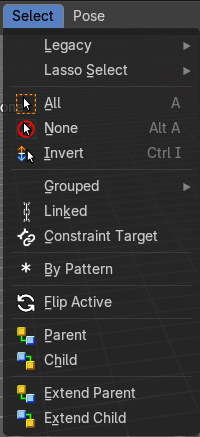
Legacy
The legacy sub menu contains tools that exists in the tool shelf already. It's the old way to do things. Different to the tools in the tool shelf, these tools are usually modal. And performs once. You have to call them again in case you want to repeat the tool.
| Entry | What it does |
|---|---|
| Box select | Draw a rectangle to select everything inside of the rectangle. It automatically adds to the current selection. Holding down shift subtracts from the selection. |
| Circle select | Brush select content. The radius of the brush can be adjusted by holding down left mouse button and using the scroll wheel or the + or - button at the numpad. It automatically adds to the current selection. Holding down shift subtracts from the selection. To exit the circle select tool click with the right mouse button. |
Lasso Select
A sub menu with the available lasso select modes.
| Entry | What it does |
|---|---|
| All | Select everything. |
| None | Select nothing. |
| Inverse | Invert the current selection. |
Grouped
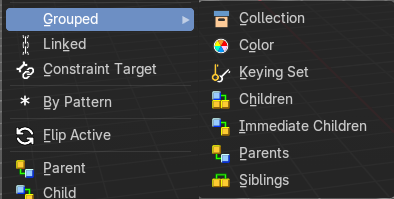
Select grouped bones by type. Items should be self explaining.
| Entry | What it does |
|---|---|
| Linked | Select all bones that are either parent or child of the selected bone. |
| Constraint Targets | Select the bones used as targets for the currently selected bone. |
By Pattern
Selects all objects whose name matches the entered string. For missing parts you need to add an asterix.
For example, you have four cubes in the scene. Cube, Cube.001, Cube.002 and mycube3. Then the term " Cube " will just select the first cube. While the term " Cube* " will select the first three. And " *cube* " will select all four.
Supported wild-cards:
* matches everything
? matches any single character[abc] matches characters in “abc”[!abc] match any character not in “abc”
The tool operates immediately at entering the string.
| Entry | What it does |
|---|---|
| Pattern | Type in your string. |
| Case Sensitive | When ticked then the string comparison happens by taking upper and lower letters into account. |
| Extend | Extends existing selection instead of deselecting everything first. |
Last Operator Select Pattern
The Last Operator Select Pattern contains the same menu items than the pop-up. So see above. Also, it does not appear in the 3D view. But when you call it from the edit menu or with hotkey.
Flip Active
Mirrors the bone selection. Works with an armature with mirrored parts.
Last Operator Flip Active/Selected Bone
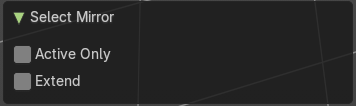
| Entry | What it does |
|---|---|
| Active Only | Only select the mirror part of the active bone. |
| Extend | Extend the current selection. |
| Entry | What it does |
|---|---|
| Parent | Parent requires to have a parent or child relationship. It selects the parent object of the currently selected object(s). |
| Child | Child requires to have a parent or child relationship. It selects the child object(s) of the currently selected object(s). |
| Extend Parent | Extend Parent requires to have a parent or child relationship. It selects the parent object of the currently selected object(s). But keeps the active object in the selection, even when it's not currently selected. |
| Extend Child | Extend Child requires to have a parent or child relationship. It selects the child object(s) of the currently selected object(s). But keeps the active object in the selection, even when it's not currently selected. |
Lattice Object - Edit Mode
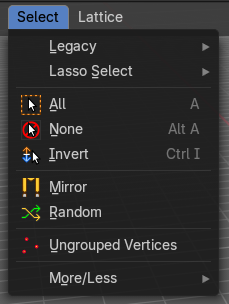
Legacy
The legacy sub menu contains tools that exists in the tool shelf already. It's the old way to do things. Different to the tools in the tool shelf, these tools are usually modal. And performs once. You have to call them again in case you want to repeat the tool.
| Entry | What it does |
|---|---|
| Box select | Draw a rectangle to select everything inside of the rectangle. It automatically adds to the current selection. Holding down shift subtracts from the selection. |
| Circle select | Brush select content. The radius of the brush can be adjusted by holding down left mouse button and using the scroll wheel or the + or - button at the numpad. It automatically adds to the current selection. Holding down shift subtracts from the selection. To exit the circle select tool click with the right mouse button. |
Lasso Select
A sub menu with the available lasso select modes.
| Entry | What it does |
|---|---|
| All | Select everything. |
| None | Select nothing. |
| Inverse | Invert the current selection. |
Mirror
Select the mirrored parts to the current selection.
Last Operator Select Mirror
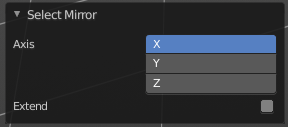
| Entry | What it does |
|---|---|
| Axis | Choose the world axis to mirror at. |
| Extend | Extends existing selection instead of deselecting everything first. |
Ungrouped Verts
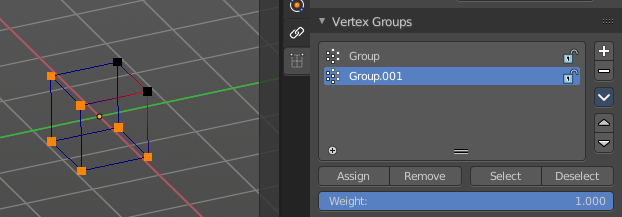
Selects ungrouped Vertices. Requires to have at least one vertex group assigned.
Last Operator Select Ungrouped
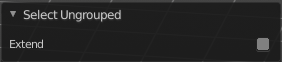
Extend
Extends the current selection instead of deselecting everything first.
Sub menu More / Less
| Entry | What it does |
|---|---|
| More | Extends the current selection. |
| Less | Reduces the current selection. |
Particles - Particle Mode
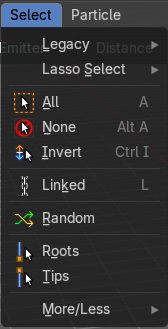
Legacy
The legacy sub menu contains tools that exists in the tool shelf already. It's the old way to do things. Different to the tools in the tool shelf, these tools are usually modal. And performs once. You have to call them again in case you want to repeat the tool.
| Entry | What it does |
|---|---|
| Box select | Draw a rectangle to select everything inside of the rectangle. It automatically adds to the current selection. Holding down shift subtracts from the selection. |
| Circle select | Brush select content. The radius of the brush can be adjusted by holding down left mouse button and using the scroll wheel or the + or - button at the numpad. It automatically adds to the current selection. Holding down shift subtracts from the selection. To exit the circle select tool click with the right mouse button. |
Lasso Select
A sub menu with the available lasso select modes.
| Entry | What it does |
|---|---|
| All | Select everything. |
| None | Select nothing. |
| Inverse | Invert the current selection. |
| Linked | Selects the linked particles. |
Random
Selects random particles.
Last Operator Select Random
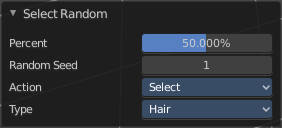
| Entry | What it does |
|---|---|
| Percent | The Percentage of objects that should be selected randomly. |
| Random Seed | The Seed for the random number generator. |
| Action | Action is a drop-down box choose if you want to select or to deselect random. |
| Type | Select the whole hair, or hair points. |
More / Less sub menu
| Entry | What it does |
|---|---|
| More | Extends the current selection. |
| Less | Reduces the current selection. |
Hair Curve – Edit Mode
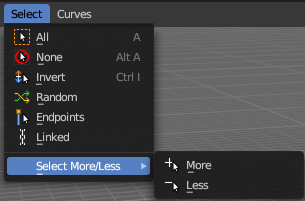
The (Empty) Hair Curve object in the Edit mode has a select menu. Here you can select existing curves in different ways to mask selections for tool shelf operators. Selected curves are editable, deselected curves are locked from editing and are visually opaque with dark gray in the 3D View editor.
All
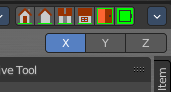
Selects all the control points of the hair strands.
If you want a want a symmetrical haircut, tick X Mirror in the Symmetry panel or in the Header to the top right.
| Entry | What it does |
|---|---|
| None | Deselects all the control points of the hair curves. |
| Invert | Deselects all the control points of the hair curves. |
| Random | Randomizes existing selection or creates a new random selection of control points of the hair curves. |
| Endpoints | Selects the end points of the control points of the hair curves. |
| Linked | Select linked control points. |
| Select More/Less submenu | More: Extends the current selection. · Less: Reduces the current selection. |
Hair Curve – Sculpt Mode

The (Empty) Hair Curve object in the Sculpt mode has a select menu. Here you can select existing curves in different ways to mask selections for tool shelf operators. Selected curves are editable, deselected curves are locked from editing and are visually opaque with dark gray in the 3D View editor.
All
Selects all the control points of the hair strands.
If you want a want a symmetrical haircut, tick X Mirror in the Symmetry panel or in the Header to the top right.
| Entry | What it does |
|---|---|
| None | Deselects all the control points of the hair curves. |
| Invert | Deselects all the control points of the hair curves. |
| Random | Randomizes existing selection or creates a new random selection of control points of the hair curves. |
| Endpoints | Selects the end points of the control points of the hair curves. |
| Grow | Select curves which are close to curves that are selected already. |
View Menu
View Menu
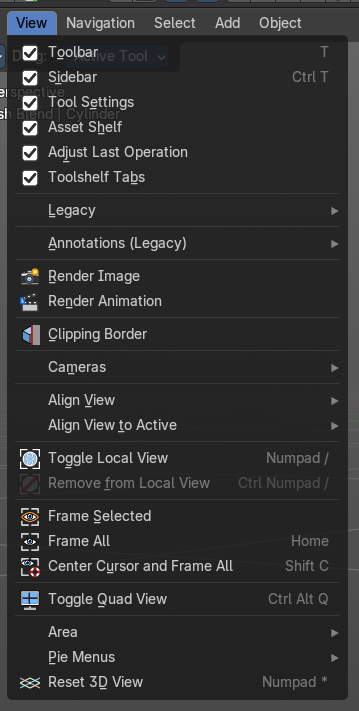
The View menu contains all View related tools. The range goes from tools to maximize the current window across align view tools up to rendering related tools for the viewport like Render Border.
Toolbar
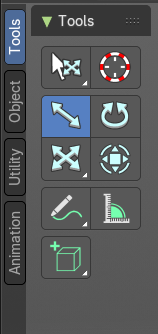
Shows or hides the toolbar at the left in the 3D view.
Sidebar
Shows or hides the sidebar at the right in the 3D view.
Tool Settings

Shows or hides the tool settings above the header in the 3D view.
Asset Shelf

Shows or hides the asset shelf at the bottom of the 3d view.
Adjust Last Operation
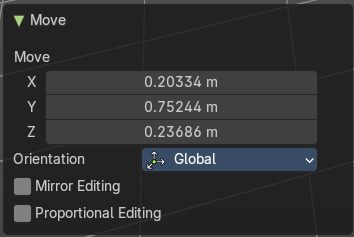
Shows or hides the Adjust Last Operation panel down left in the 3D view.
Note that the Adjust Last Operation panel can also be called from the edit menu at the top. And from the toolbar at the right. Here you can also add a hotkey to call it with a hotkey.
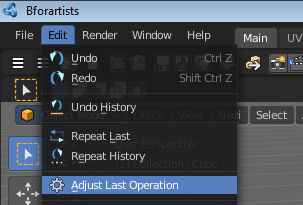
Tool Shelf Tabs
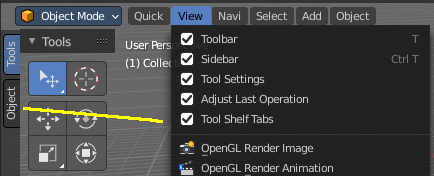
Shows or hides the tool shelf tabs. This tool shelf tabs contains tools from the header menus, and are a double menu entry by design. Here you can turn them off if you don't want to work with this tool set.
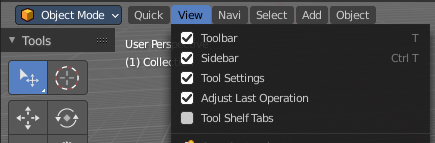
Note that you need to adjust the width of the tool shelf manually afterwards since it does not automatically update the width of the tool shelf area.
Note that you need to save the startup.blend to save the state of this checkbox.
Legacy

Set 3D Cursor
The old legacy operator to set the position of the 3D cursor in the viewport. This method is especially with rigging the much faster method. So we keep this operator. It is up to you if you want to work with the old operator or with the tool in the tool shelf.
Hotkey only tool. The menu entry just exists to show that this operator exists!
Annotations (Legacy)
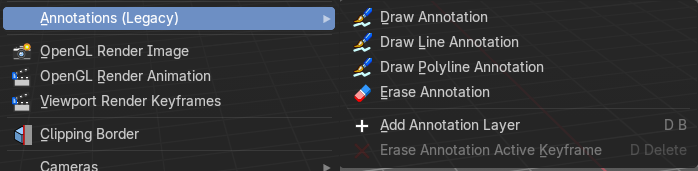
This group of operators is useful to take notes without changing tool-shelf operators. These notes can be colored in the View tab of the Property Shelf. Each layer is a single color. You can also animate the notes with keyframes, editable in the dopesheet. d
Note: These are legacy operators, meaning they are equally available in the Toolshelf as a modal operator.
| Entry | What it does |
|---|---|
| Draw Annotation | Starts the annotation free hand draw tool in the editor. |
| Draw Line Annotation | Starts the annotation line draw tool to draw straight lines in the editor. |
| Draw Polyline Annotation | Starts the annotation Polyline draw tool in the editor which allows to draw multiple connected straight lines in the editor. |
| Erase Annotation | Starts the annotation erase tool in the editor which erases any strokes in the editor. |
| Add Annotation Layer | Starts a new annotation layer. |
| Erase Annotation Active Keyframe | Erases the active keyframe of the annotation. |
Render Image
Renders an Image, using the Viewport renderer. This can be useful for preview renderings.
Note: Note that this menu item is a double menu entry. The same menu item exists in the Render menu in the Info Header. But this is required when you work with more than one 3D view. When you use the entry in the Render menu, then it picks an arbitrary 3D view. When you use the menu entry in the 3D view, then it renders from this 3D view.
Render Animation
Renders an animation, using the Viewport renderer. This can be useful for preview renderings.
Note: Note that this menu item is a double menu entry. The same menu item exists in the Render menu in the Info Header. But this is required when you work with more than one 3D view. When you use the entry in the Render menu, then it picks an arbitrary 3D view. When you use the menu entry in the 3D view, then it renders from this 3D view.
Clipping Border
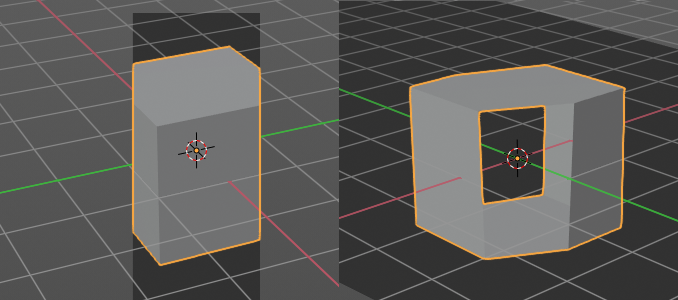
With clipping you can draw a rectangle that excludes the display of everything outside of this rectangle. That way you can look inside the geometry when you rotate the viewport. To clear the clipping use the tool again. It is a toggle.
Render Region
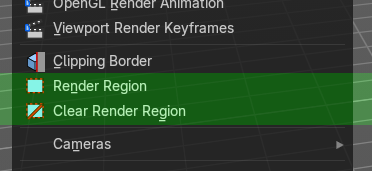
Note: Cycles only!
With the Render Region tool you can drag a rectangle at the viewport to define a portion of the screen to render. The benefit here is to have much faster preview renderings. You just render what you want to judge, and not the whole image.
It has two use cases. The one is with the rendering through the camera. Just what is marked gets rendered. The other is directly in the viewport, with the Viewport shading method Rendered. Render border works with all renderers.
You can have both render border cases active at the same time. When you remove it then just the render border from the current case gets deleted. Either you are in camera view, or you are in viewport view.
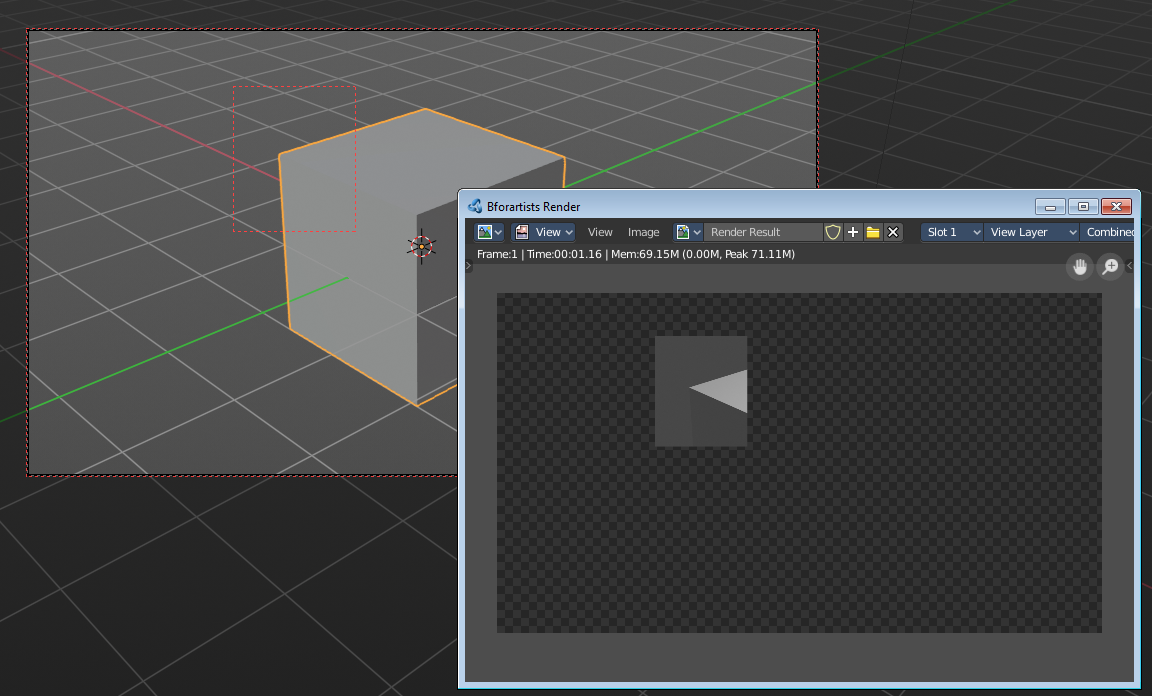
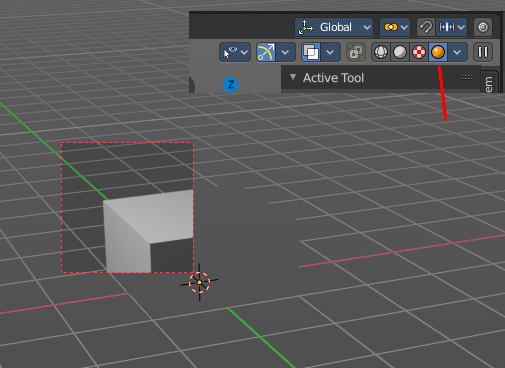
Clear Render Region
Removes the Render Region rectangle from the viewport.
Cameras sub menu

| Entry | What it does |
|---|---|
| Set Active Object as Camera | With this tool you can set any object to be the active camera where you render from. |
| Set Active Camera | Set the current camera as the active camera. |
| Active Camera | Switches to Camera view and back to Viewport Camera. |
Frame camera bounds
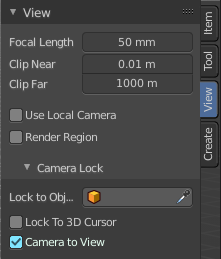
It centers the camera to view.
This tool is of use when you are in camera view. Else it is greyed out and inactive. There is a Grey passepartout around the camera view. It can be that this passepartout does not fit into the viewport. It can be too big or too small. And so you might want to zoom out or in.
Normally when you are in camera view, then you zoom in or out the view with the zoom tool. Not this passepartout. But with lock camera off you can zoom the passepartout to reach geometry that is not in the camera view.
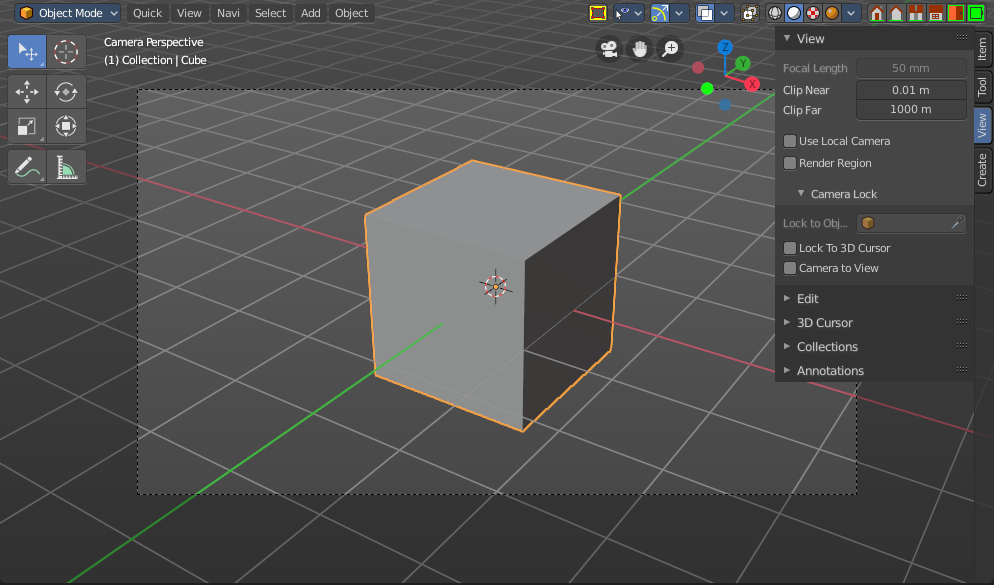
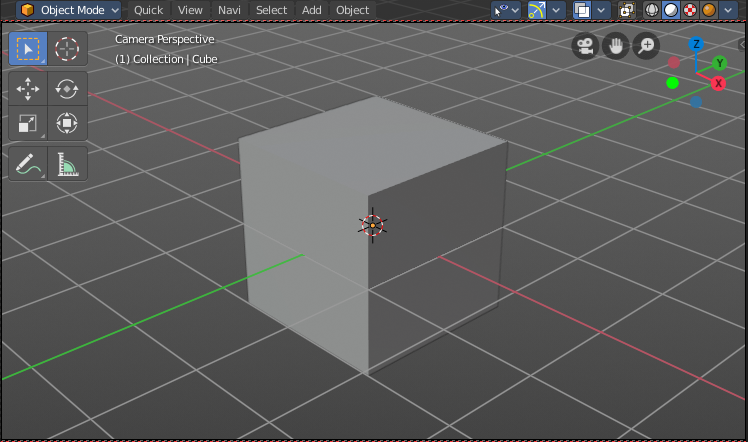
The other way is Frame camera bounds. It fits the camera view into the viewport.
Align View
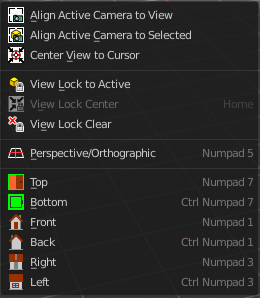
Align View is a menu where you can choose between different view align methods. The view gets aligned at the world coordinates. Here we also find a few more align methods.
| Entry | What it does |
|---|---|
| Align Active Camera to View | Aligns the active camera to the current view. This means you can navigate with the viewport camera, select the render camera, and align it with this tool, so that the render camera has the same position and angle than the viewport camera. |
| Align Active Camera to Selected | Aligns the active camera to the current selected object. This means you can navigate with the viewport camera, select the render camera, and align it with this tool, so that the render camera has the same position and angle than the selected object. |
| Center View to Cursor | Centers the view at the 3D cursor position. |
| View Lock to Active | Locks the view to the currently active object. |
| View Lock Center | Centers the view to the currently active and locked object. This tool is just active when you have performed a View Lock to Active before. |
| View Lock Clear | Removes the View Lock to Active from the object. |
| Perspective/Orthographic | Toggles between perspectivic and orthographic view in the 3D viewport. Perspectivic view acts like a real camera with the perspectivic distortions. Orthographic view acts like a mathematical display of an object, without distortions. |
| Top, Bottom, etc. | Switches to Top view, Bottom View, etc. |
Align View to Active
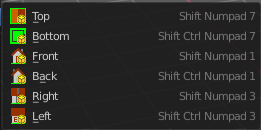
Align View to Active is a menu where you can choose between different view align methods. The view gets aligned relative to the rotation of the currently active object. Not in World coordinates. The menu items should be self explaining. So we won't list them one by one.
Toggle Local View
Toggle Local View zooms in or out until the Selection is displayed fitting in the viewport. And hides all other objects but the Selection.
Remove from local View
It can be that you select more than one object, and switch to local view. Then you decide that one of the objects is in the way. With remove from local view you can remove this object without to leave the local view.
This menu item is greyed out when you are not in local view.
Frame Selected / Frame Last Stroke
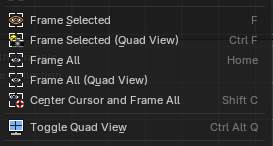
Zooms in or out in the 3d viewport until the Selection is displayed fitting in the viewport.
When in Sulpt, Vertex Paint, Weight Paint, and Texture Paint mode, this will Frame Last Stroke of the brush.
| Entry | What it does |
|---|---|
| Frame Selected (Quad View) | Just with Quad view. Zooms in or out in the 3d viewport until the Selection is displayed fitting in the viewport of all four views. |
| Frame All | Zooms in or out in the 3d viewport until all objects in the scene are displayed fitting in the viewport. |
Frame All (Quad View)
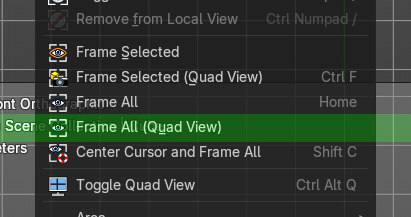
Just with Quad view. Zooms in or out in the 3d viewport until all objects in the scene are displayed fitting in the viewport of all four views.
Center Cursor and Frame All
Center Cursor and View all centers the 3D Cursor at 0/0/0, and zooms in or out in the 3d viewport until all objects in the scene are displayed fitting in the viewport.
Toggle Quad view
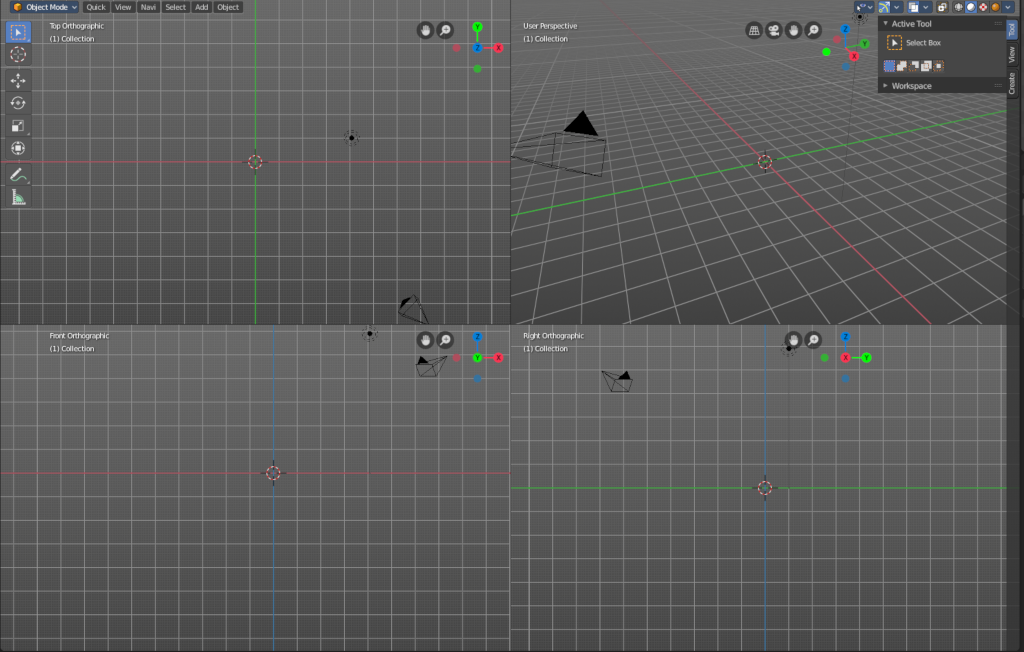
Displays the 3D View divided into four split screen parts. Note that the orthographic views cannot be switched in this mode. They remain orthographic, you cannot rotate them.
To return to single view reuse the menu item in the View menu.
Area
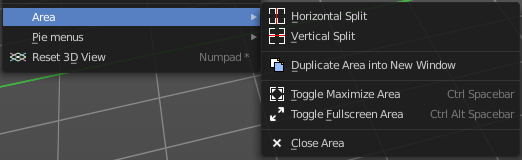
This menu contains general view functionality. And exists in most other editor types too.
| Entry | What it does |
|---|---|
| Horizontal Split | Splits the current view horizontally into two independent editor windows. |
| Vertical Split | Splits the current view vertically into two independent editor windows. |
Duplicate Area into New Window
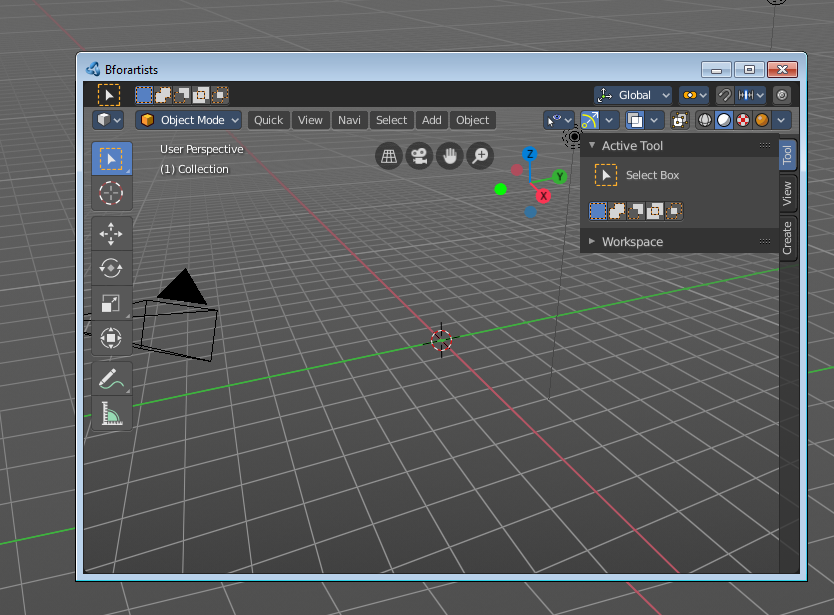
Duplicate Area into New Window makes the selected editor window floating. You can then drag it around at the monitor. It is not connected with the rest of the UI anymore.
A separated window cannot be merged into the main window again. You have to close it when not longer needed.
| Entry | What it does |
|---|---|
| Toggle Maximize Area | Displays the editor maximized with menus. To return from the maximized view press hotkey Ctrl + Space bar. Or reuse the menu item in the area menu. |
| Toggle Full screen Area | Displays the editor maximized without menus. To return from the full screen view press hotkey Ctrl + Alt + Space bar. |
| Close Area | Closes the area window. |
Pie menus
Lists the available pie menus, and gives you the ability to read the hotkeys and assign own hotkeys.
A pie menu is a radial array of operators that can be used with gestures to quickly use common operators or properties.
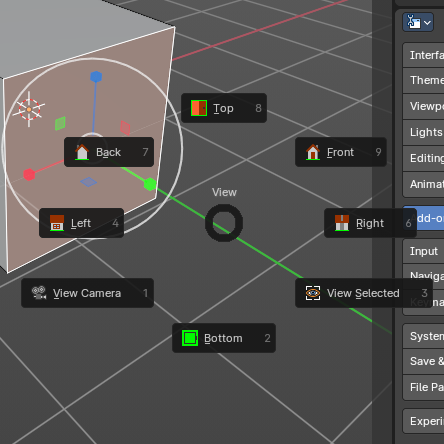
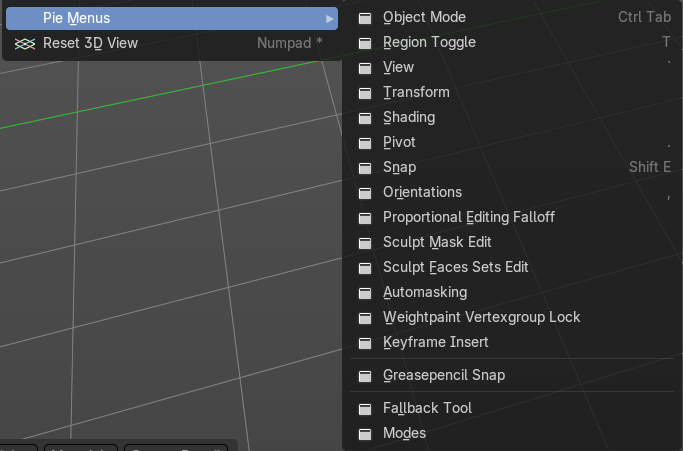
Reset 3D View
Resets the 3D view to the defaults.
Note that this is an add-on, and can be turned off in the addons section of the preferences.
Tool Shelf
Tool Shelf
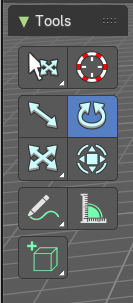
Some editors have a tool shelf at the left. Here you can find and use various tools.
Active Tool
In the tool shelf there can just be one active tool in the tool shelf. An activated tool stays active as long as you don't change it. To deactivate the current tool you have to choose another tool. One of the select tools for example.
Tool Settings
When you activate a tool in the tool shelf then you will also reveal its tool settings. There are two locations where you can find the tool settings. In the header, and in the sidebar in the Tool tab. It's your choice with which panel you want to work.
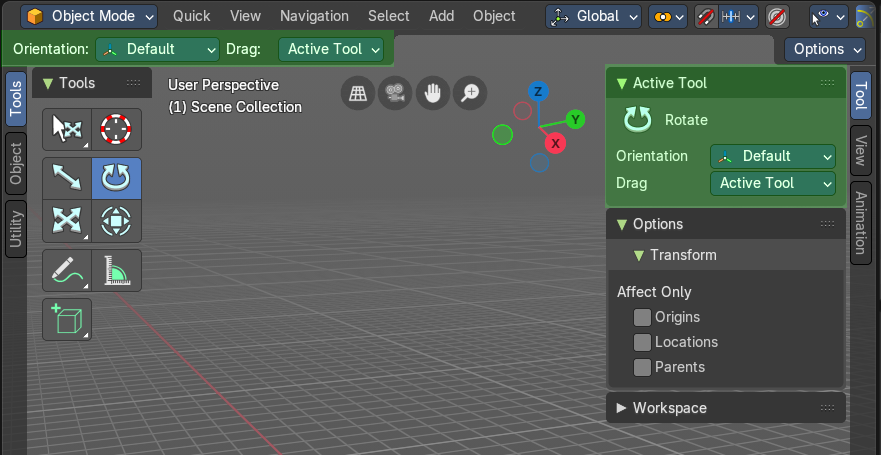
Mode dependent content
The content of the tool shelf is changing depend and of the mode that you are in, and dependent of the object type. A mesh object in edit mode has another set of tools than a metaball. But there are some tools that are available in all modes. 3D Cursor, Select tools and Transform tools.
Tool tips
The new tool system works here and there different from the old tool system. It is one gigantic hack on top of the old tool system. Already the tool tips are different. It misses the Python strings. And some tools misses a proper description. The tool tips are separated from the operators.
Tool groups

Some icons have a white small triangle down right. This indicates that this icon is part of a tool group. This group can be revealed by holding down the mouse until the popup reveals the hidden tools. You can then choose the needed tool in this group. And it will become the one that gets displayed.
Resizing the tool shelf
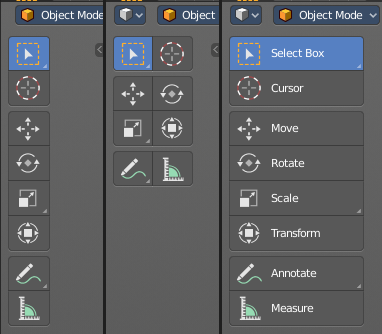
The tool shelf can be resized by dragging the border of it in and out.
You have the choice between one, two and three icon rows. And text and icon buttons.
Currently the default starts with two rows.
Switching Tools
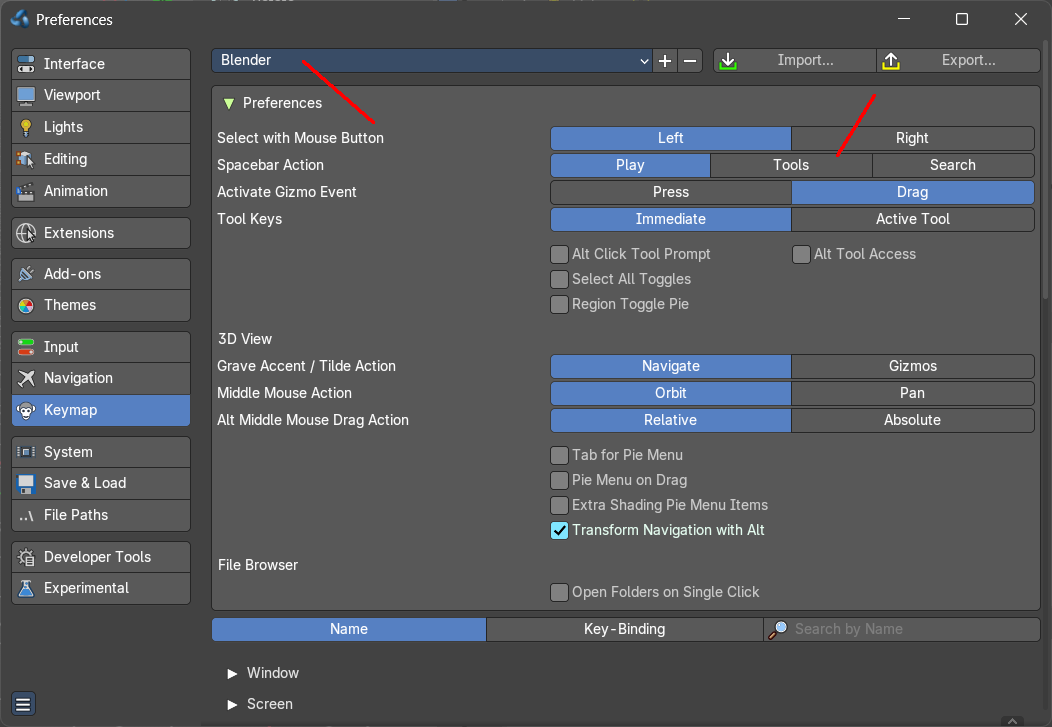
The Blender key map provides a way to call the tools from the tool shelf under the mouse in a popup menu. And with hotkeys. Even when they don't have a hotkey assigned in the toolbar yet.
Keyboard tool switching is not enabled by default. You need to set the key-map preference Space bar Action to Tools. And when you press space bar, then you will see the tool shelf content under the mouse. But with an hotkey assigned. And then you can use this hotkey in combination with the space bar to activate the tool
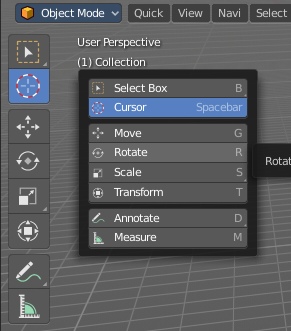
Spacebar-T for Transform, Spacebar-D for Annotate, Spacebar-M for measure, and so on.
The accelerator keys are displayed in the tool tips of the tools in the tool shelf. The hotkeys are hard coded. And are NOT the hotkeys for the tools in the tool shelf. But just the hotkeys in conjunction with the space bar menu!
Attention, this is not implemented in the Bforartists key map. This feature is just available in the Blender key map!
Cycling through Tools in groups
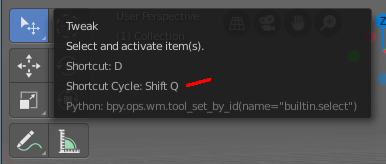
You can assign a hotkey to a group of tools, and then activate Cycle in the key map manager. This allows you to cycle through the tools in this group with the hotkey.
This is for example done with the Select tool group. The hotkey to cycle through the tools in the group shows in the tool tip.
Tool Shelf Tabs
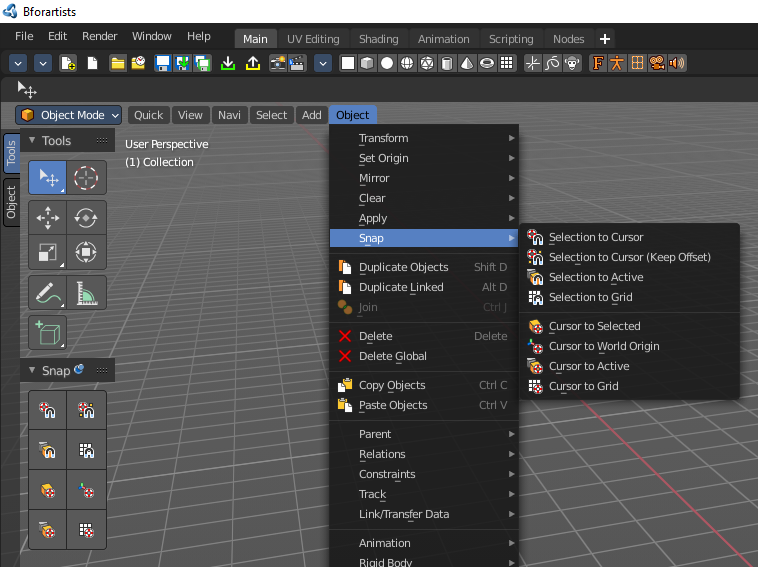
The tool shelf contains not only the new tool system tools. But contains also the old tools fom the text menus in the header in tabs. They are a double menu entry by design. This tabs are faster to access. They resize like the tool shelf tabs, and allows icon rows of one, two and three width, and also the display as text buttons.
You can also pin panels. This allows for example to display the snap tools below the regular tool shelf tools. So that you don't need to dig in the text menus all the time. When they are pinned, then they are in reach with one click.
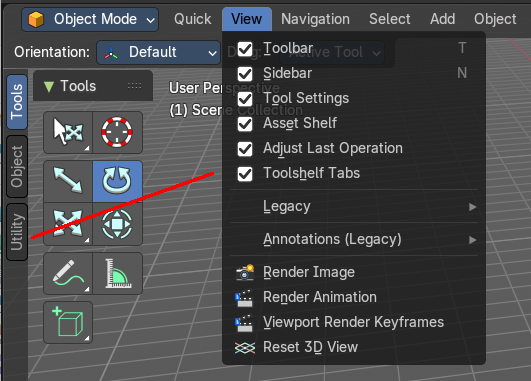
We won't explain the tools here, since they are already covered in the corresponding text menus.
You can turn the tabs off in the View menu if you don't want to work with this tool set.
Note that you need to adjust the width of the tool shelf manually afterwards since it does not automatically update the width of the tool shelf area.
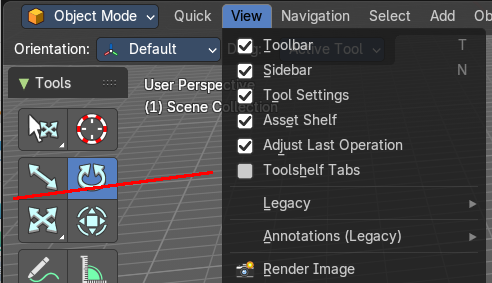
Note that you need to save the startup.blend to save the state of this checkbox. So be careful with modifications.
Sidebar
Introduction
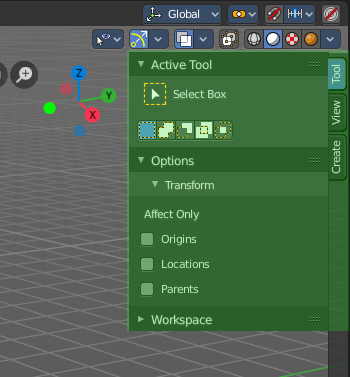
The 3D View is made of several areas. At the right side you will find the sidebar.
In the sidebar you will find tool settings and view related settings. And it is also the home of addons. The Create tab is already created by an add-on. The Mini Lightlib add-on., which is covered in chapter 7.3.13
The content differs, dependent of the chosen object and the current mode.
The Tools tab is also a special chapter. It contains the settings for the tools from the tool shelf.
Animation Tab
Animation tab - Global Transform Panel
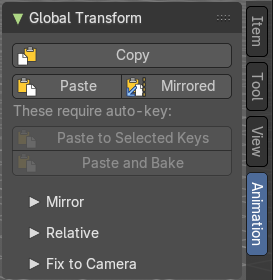
Tools that can be useful for animation. Paste a mirrored armature part for example.
| Entry | What it does |
|---|---|
| Copy | Copies the matrix of the current active object or bone to the clipboard. It uses world space matrices. |
| Paste | Pastes the copied matrix to the current active object or bone from the clipboard. It uses world space matrices. |
| Mirrored | Pastes the copied matrix to the current active object or bone from the clipboard. But mirrored along the global X axis. It uses world space matrices. |
Paste to selected keys

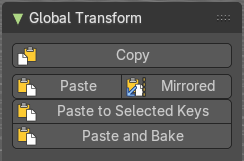
Requires Auto Keying to be on.
Pastes the matrix from the clipboard to thecurrent active object or bone. It uses world space matrices.
Paste and Bake
Requires Auto Keying to be on.
Pastes the matrix from the clipboard to thecurrent active object or bone. And bakes it ton an action. It uses world space matrices.
Mirror Subpanel
| Entry | What it does |
|---|---|
| Object | The object to mirror over. Leave empty and name a bone to always mirror over that bone of the active armature. |
| Bone | Bone to use for the mirroring. |
Relative Subpanel
The upper global transform copy and paste actions works global. These buttons works relative to a chosen object.
| Entry | What it does |
|---|---|
| Object | The object to paste relative to its matrix. |
| Copy | Copies the matrix of the current active object or bone to the clipboard. It uses the relative matrix from the defined object. |
| Paste | Pastes the copied matrix to the current active object or bone from the clipboard. It uses the relative matrix from the defined object. |
Fix to Camera subpanel
Fix Location / Rotation / Scale
Include location /rotation /scale keys when fixing to the scene camera.
Fix to Scene Camera
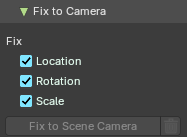
The actual fixing. Generate new keys to fix the selected object / bone to the camera on unkeyed frames.
Adjust last operator Fix to Scene Camera
Location / Rotation / Scale
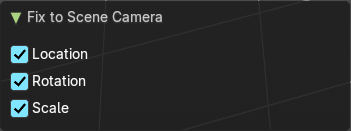
Include location /rotation /scale keys when fixing to the scene camera.
Delete generated keys
Delete the keys that were generated by the Fix to Scene Camera tool.
Item tab
Item tab - Transform Panel
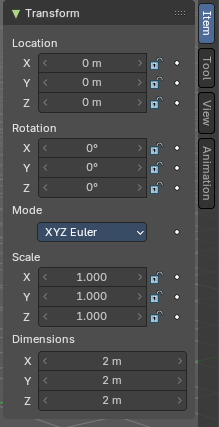
When you add an object to the scene then the Item tab with the Transform panel becomes visible. The content changes, dependent of the object type. And it changes with the mode.
In general you will most of the time see the same content though. Location, Rotation, Scale and Dimension.
Animate Property
The properties with a dot button behind can be animated.
Note that you can, different from Blender, animate multiple objects at once this way.
Keyframe and Driver coloring
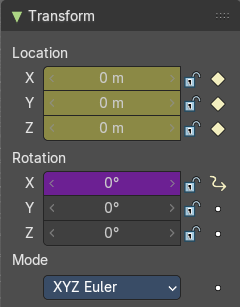
When a keyframe exists at the current position, then the corresponding edit box turns yellow. When a driver exists at the current position, then the corresponding edit box turns purple.
Note that you can have either a driver or a keyframe. Both is not possible.
Location
The current location of the object in its X, X and Z axis. The lock button behind the edit boxes allows you to lock the values.
Rotation
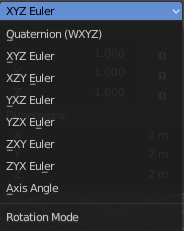
The current rotation of the object in its X, X and Z axis in world coordinates. The lock button behind the edit boxes allows you to lock the values.
Rotation Mode
Adjust what method gets used for the rotation. Euler rotation can run into a so called Gimbal lock, which can be avoided with quaternion rotation mode. But for most cases the default XYZ Euler method should work.
Quaternion
With euler angles you will have three values available. But with a quaternion you will have four values available. And quaternions reveals a 4L button. This button shows or hides a lock behind the W value. Normally a quaternion has just three locks, one for each of the single axis. The W value is a mathematical construct from the three object axis. And you usually neither want to edit it nor to lock it therefore.
Locking the W axis will lock all axis.
Scale
The current scale of the object in its X, X and Z axis in world coordinates. The lock button behind the edit boxes allows you to lock the values.
Scale is not dimensions. Your object can have a scale of 1 in world coordinates. But a dimension of 4.5. Note that for some operations it is required to have a scale of 1 to get some operations to work. This can be achieved with applying scale in the Object menu.
Dimensions
The current dimension of the object in its X, X and Z axis in world coordinates. The lock button behind the edit boxes allows you to lock the values.
The Dimensions edit boxes are just available for primitives objects. Objects like Empties or a Camera doesn't have a dimension, but a scale factor.
Right Click menu
Location, Rotation and Scale edit boxes and the locks have a right click menu with further functionality.
When there is already a keyframe available then the right click menu looks a bit different. Same counts for adding a driver first.

| Entry | What it does |
|---|---|
| Insert Keyframe | Inserts a keyframe at the current position. The keyframe type depends of where you right click. Insert Keyframe adds a keyframe for all axis. |
| Insert Single Keyframe | Inserts a keyframe at the current position. The keyframe type depends of where you right click. Insert Single Keyframe adds a keyframe for just the current axis. |
Add Driver
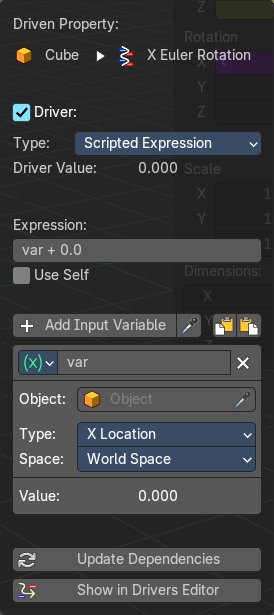
In Bforartists lots of things can be animated. Also buttons. Add Driver does exactly what it tells. It adds a driver for animation needs to the element. Drivers allows to control animation by properties like expressions, scripts or movements of other objects. Drivers are explained in the chapter 18 Editors - Drivers.
When you click the button the Driven Property panel will appear where you can change the properties for this driver. You don't need to confirm the driver creation. It is just further settings.
Driver Settings
| Entry | What it does |
|---|---|
| Type | The Driver type. There are two categories of drivers. Built-in and Custom · Built-in functions (Average, Sum, Min and Max): The driven property will have the value of the average, sum, lowest or highest (respectively) of the values of the referenced Driver Variables. If there is only one driver variable, these functions will yield the same result. · Custom (Scripted Expression): An arbitrary Python expression that can refer to the Driver Variables by name. |
| Driver Value | The current result of the driver setup. |
Expression
| Entry | What it does |
|---|---|
| Expression edit box | Add a custom expression. An Expression to use for scripted expression. The expression has access to a set of standard constants and math functions provided in the Driver Name space. For an example of adding a custom function to the name space. When the expression is invalid then you get an error message. This error message appears also with the default values. Just ignore. |
| Use Self | The variable self can be used for drivers to reference their own data. This is useful for objects and bones to avoid having creating a Driver Variable pointing to itself. Example: self.location.x applied to the Y rotation property of the same object will make the object tumble when moving. Note that dependencies for properties accessed via self may not be fully tracked. |
Driver Variables
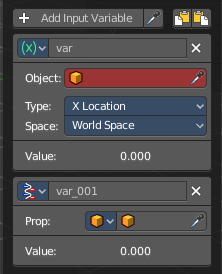
Driver Variables are references to properties, transformation channels, or the result of a comparison between transformations of two objects. It is displayed by a panel with all necessary settings, which gets filled in automatically when you create the driver.
Add Input variable
Add manually a new driver variable.
Picker should allow you to pick a target object. But this is dysfunctional here since the panel closes immediately when you move the mouse out of it. Please use the picker in the Driver Editor.
Copy and Paste buttons allows you to copy and paste Driver variable panels.
Driver Variable panel
Variable type
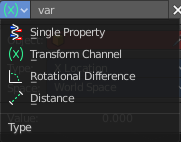
The content of the Driver variable panel changes, dependent of the variable type that you choose here. We came from the transform panel, so our default type here is transform channel. That's what we will explain here.
| Entry | What it does |
|---|---|
| Object | Our object type. |
| Type | The type of the driver. |
| Space | The transform space in which the transform should happen. |
| Value | The resulting value of the driver. |
| Entry | What it does |
|---|---|
| Update Dependencies | Update all dependencies. |
| Show in Drivers Editor | Opens the Drivers editor in a floating window. The drivers editor is explained in the chapter 18 Editors - Drivers. |
Open Drivers Editor
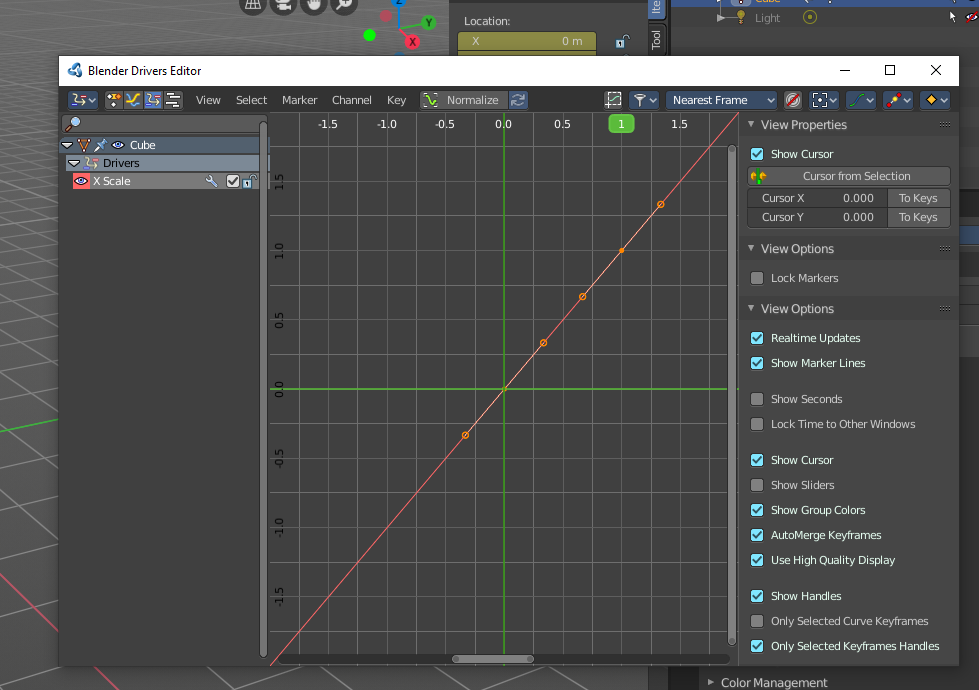
Opens the Drivers editor in a floating window. The drivers editor is explained in the chapter 18 Editors - Drivers.
| Entry | What it does |
|---|---|
| Add All to Keying Set | Add All to Keying Set adds the information of the element to the current keyframe. |
| Add single to Keying Set | Add to Keying Set adds the information of the element to the current keyframe. |
| Remove from Keying Set | Remove from Keying Set removes the information of the element from the current keyframe. · Reset All to Default Value: Resets the X Y and Z values to the default value. · Reset Single to Default Value: Resets the value for the single edit box under the mouse to the default value. |
| Copy All to Selected | Allows to copy the current rotation of all axis to another object. Workflow. Select target object, hold down shift, select source object, and use Copy All to Selected. |
| Copy Single to Selected | Allows to copy the current rotation of the single selected axis to another object. Workflow. Select target object, hold down shift, select source object, and use Copy All to Selected. |
| Copy Data Path | Copy Data Path copies the RNA data path for this property. |
| Copy Full Data Path | Copy Data Path copies the RNA data path for this property. |
| Copy as new Driver | Copies the current value as a new driver. |
| Assign Shortcut | This is just for the locks. Here you could assign a shortcut. |
| Online Python Reference | Developer feature. Open the Blender Python Reference. |
| Edit Source | Developer feature. When you have a text editor open in the current layout then you can call the UI script that contains this menu item. |
| Replace Keyframes | Replaces the keyframes in all axis at the current position. |
| Replace single Keyframe | Replaces the keyframe in the currently selected axis at the current position. |
| Delete Keyframes | Deletes the keyframes in all axis at the current position. |
| Delete Single Keyframe | Deletes the keyframe in the currently selected axis at the current position. |
| Clear Keyframes | Deletes all keyframes for all axis. |
| Clear single Keyframe | Deletes all keyframes for the currently selected axis. |
| Delete Drivers | Deletes the drivers for all axis. |
| Delete Single Driver | Deletes the drivers for just the current axis. |
| Copy Driver | Copies the driver. |
| Edit Driver | Opens the Driven Property panel where you can change the settings for this driver. |
| Reset Panel Zoom | Resets the panel to 100% zoom factor. |
Item tab - Transform Panel in Edit Mode
Just primitive objects like mesh and curve does have an edit mode. Non primitive objects like a camera or an empty doesn't have an edit mode. With two exceptions. Text and Force Field type Curve Guide. Both are curve types.
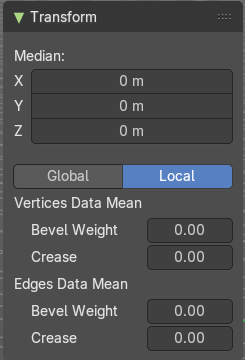
Mesh Objects
| Entry | What it does |
|---|---|
| Median | Median is the position of the selected mesh part. |
| Global / Local | Define if the orientation of the selection is local to the selected object, or global to the world coordinates. |
| Vertices Data | Mean Bevel Weight: Adjust the bevel weight for the selected vertices when you have a bevel modifier at the mesh. |
| Edges Data | Mean Bevel Weight: Adjust the bevel weight for the selected edges when you have a bevel modifier at the mesh. · Mean Crease: Adjust the weight of the selected vertices when you have a subdivision surface modifier at the mesh. |
Curve Objects / Surface Objects
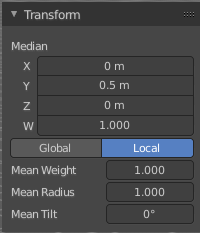
| Entry | What it does |
|---|---|
| Median | Median is the position of the selected mesh part |
| Global / Local | Define if the orientation of the selection is local to the selected object, or global to the world coordinates. |
| Mean Weight | Adjust the weight used by softbody. Needs softbody. |
| Mean Radius | Adjust the radius of the curve control points |
| Mean Tilt | Adjust the tilt of the curve control points. |
Metaball Objects
Median
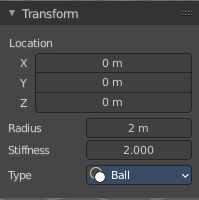
Median is the position of the selected mesh part
| Entry | What it does |
|---|---|
| Global / Local | Define if the orientation of the selection is local to the selected object, or global to the world coordinates. |
| Radius | Adjust the radius of the selected meta element. |
Stiffness
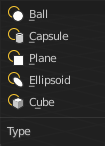
Adjust the stiffness of the selected meta element.
Type
Type is a drop down box. Adjust the meta element type.
Text Objects
Text objects do have an edit mode, but they don't show content in the Transform panel.
Armature objects Edit Mode
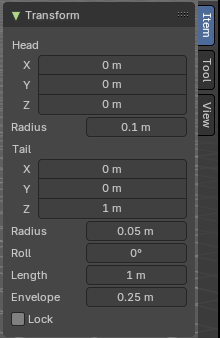
Bones do have a head and a tail. You cannot position the whole bone by numeric values, but the head and tail joints.
| Entry | What it does |
|---|---|
| Head | Adjust the world position of the head joint in x, y and z coordinates. · Radius: This is just useful when you use Envelopes type bones. Adjust the Envelope radius of the head joint. |
| Tail | Adjust the world position of the tail joint in x, y and z coordinates. · Radius: This is just useful when you use Envelopes type bones. Adjust the Envelope radius of the tail joint. |
| Roll | Adjust the bone roll. · Length: Adjust the length of the bone. · Envelope: This is just useful when you use Envelopes type bones. Adjust the overall Envelope size. · Lock: Lock the transform of the bones in edit mode. The bones cannot be moved, rotated or scaled. |
Lattice Objects
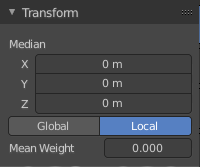
You need to have some vertices of the Lattice object selected to see the content.
| Entry | What it does |
|---|---|
| Vertex | See and set the vertex positions of the lattice objects. |
| Global / Local | Define if the orientation of the selection is local to the selected object, or global to the world coordinates. |
| Mean Weight | Lattice object is a deform cage. Adjust the mean weight of the selected vertice(s). |
Item tab - Transform Panel in Pose Mode
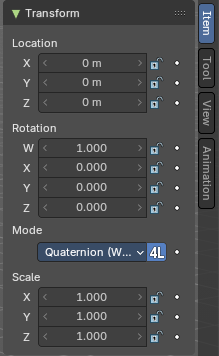
Armature Objects in Pose Mode
The content in Pose mode is the same than in Object mode. We have Location, Rotation and Scale Edit Boxes. And the corresponding lock and animate buttons.
With one small difference. The rotation mode starts with Quaternions by default. And not with Euler Angles.
Item tab - Mesh Object - Vertex Weights Panel
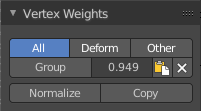
The Vertex Weights panel shows in Edit and Weight Paint mode, when you have vertices selected, and the selected vertice(s) has a weight assigned.
It allows you to modify the weight of this selected vertice(s).
In Weight paint mode you need to be in vertex selection mode and have a vertice selected. It will not show with face select mode. To select a vertice in weight paint mode hold down ctrl and click.
In Edit Mode you can select more than one vertices. In Weight Paint Mode just one vertice at a time.
| Entry | What it does |
|---|---|
| Filter Vertex Groups | The first row is a setting. You can filter by all, only vertex groups that are assinged to deform bones. Or vertex groups that are assigned to non deform bones. |
| Group | Set as active Vertex Group. · Weight: The weight of the selected vertice(s). The range goes from 0 to 1. · Paste Weight to Selected: Copy this group's weight to other selected vertices. · Delete Weight: Deletes the weight for this selected vertice(s). |
| Normalize | Normalizes the weight of the selected vertice(s). |
| Copy | Copy active vertex to other selected vertices. |
Item tab - Curve Object - Active Spline Panel
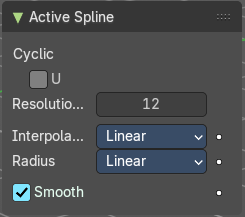
| Entry | What it does |
|---|---|
| Cyclic | Make this curve or surface a closed loop in the U direction. |
| Resolution U | Subdivisions per segments. |
Interpolation Tilt
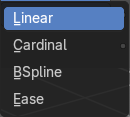
The tilt interpolation type.
Radius
The radius interpolation type.
Smooth
Smooth the normals of the surface or a beveled curve.
Item tab - Surface Object - Active Spline Panel
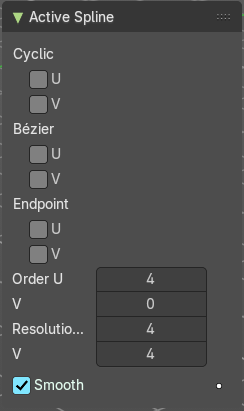
| Entry | What it does |
|---|---|
| Cyclic U / V | Make this curve or surface a closed loop in the U or V direction. |
| Bezier U / V | Make this curve or surface act like a Bezier curve in the U or V direction. |
| Endpoint U / V | Make this nurbs or surface meet the endpoints in the U or V direction. |
| Order U / V | Nurbs Order in the U or V direction. |
| Resolution U / V | The subdivision per segment. |
| Smooth | Smooth the normals of the surface or a beveled curve. |
Item tab - Grease Pencil Object - Active Spline Panel
Cyclic
Make this curve or surface a closed loop in the U direction.
View Tab
View tab
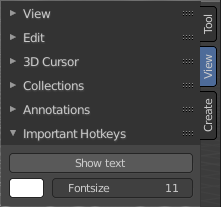
The View tab contains viewport related settings.
The content is in all modes and for all object types the same.
View tab - View Panel
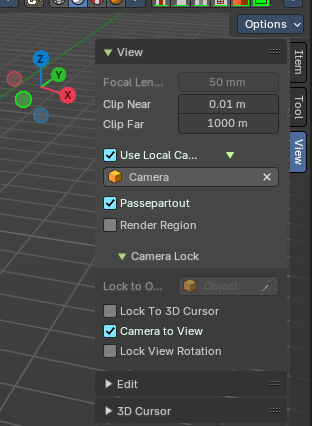
The View panel contains some camera settings for the world camera and the render camera.
| Entry | What it does |
|---|---|
| Focal Length | Set up the focal length for the world camera. You need to be in perspectivic view. In Orthographic view the lens values doesn't have an effect. |
| Clip Near / Clip Far | Set up the clipping values for the world camera. Geometry behind the end value and before the start value will not be drawn. |
Use Local Camera
Normally when you render an image it gets rendered from the currently active camera. Define a custom camera that is always used for rendering. Regardless which camera is the active one.
Passepartout

Toggles and shows all camera passepartout overlays.
Use Render Region

When you have defined a render region rectangle, then you can toggle it on and off with this switch. See View menu in the 3d view header, the render region menu item.
Camera Lock
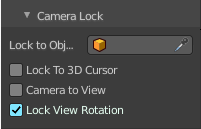
Camera Lock is a sub tab with camera related settings.
| Entry | What it does |
|---|---|
| Lock to Object | Locks the view of the world camera to an object. Choose an object for it. |
| Lock to 3D Cursor | Locks the view of the world camera to the 3D cursor. You can either lock to an object or to the 3d cursor. When you choose an object then the checkbox for the 3d cursor vanishes. |
Lock Camera to view
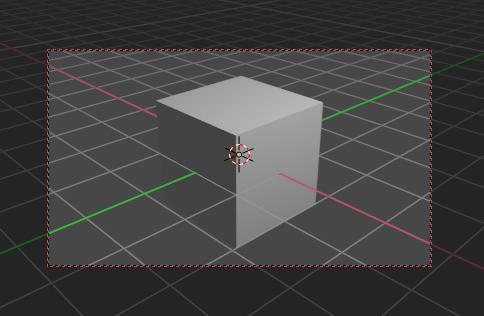
This menu item allows you to navigate in camera view like you would be in world view. When it is unticked then you can navigate the passepartout, you can zoom and move it. And when you rotate the view, then you will leave the camera mode.
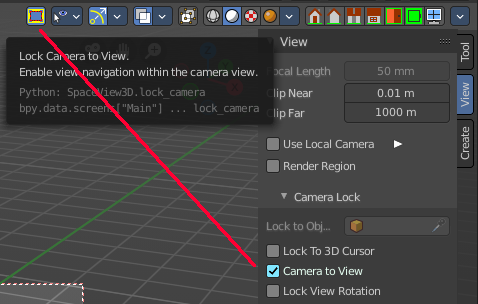
Note that this functionality also exists in the header when you are in camera view. This double menu entry exists by design.
Lock View Rotation
Locks the camera rotation, you cannot rotate the camera anymore. A use case is the 2D Animation workspace, where you can easily accidentally rotate the orthographic view out of position.
View tab - Edit Panel
Lock Object Modes
Restrict selection to content that is in the same mode than the current element.
View Tab - 3D Cursor Panel
Location
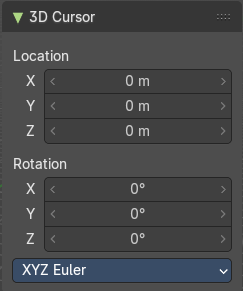
The position of the 3D cursor in world coordinates.
Rotation
The rotation of the 3D cursor in world coordinates.
Right Click menu
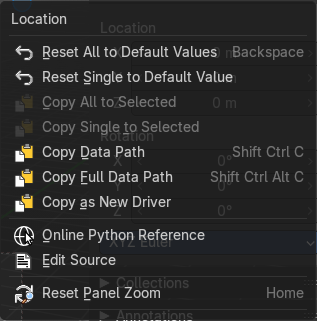
When you right click at the edit boxes then a menu with further functionality appears.
| Entry | What it does |
|---|---|
| Reset All to Default Value | Resets the X Y and Z values to the default value. |
| Reset Single to Default Value | Resets the value for the single edit box under the mouse to the default value. |
| Entry | What it does |
|---|---|
| Copy All to Selected | Allows to copy the current rotation of all axis to another object. Workflow. Select target object, hold down shift, select source object, and use Copy All to Selected. |
| Copy Single to Selected | Allows to copy the current rotation of the single selected axis to another object. Workflow. Select target object, hold down shift, select source object, and use Copy All to Selected. |
| Copy Data Path | Copy Data Path copies the RNA data path for this property. |
| Copy as new Driver | Copies the current value as a new driver. |
| Online Python Reference | Developer feature. Open the Blender Python Reference. |
| Edit Source | Developer feature. When you have a text editor open in the current layout then you can call the UI script that contains this menu item. |
| Reset Panel Zoom | Resets the zoom level of the sidebar. You can zoom it with holding Ctrl and dragging MMB. |
View tab - Collections Panel
Local Collections
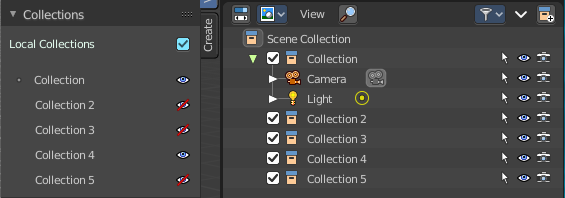
Allows the list of visible collections to be controlled per viewport rather than globally.
List of Collections
The Collections panel shows a list of collections. They can be hidden in the viewport by clicking on the eye icon.
If a collection contains objects, there is a circle to the left of the collection name. If a collection is empty, there is no circle to the left of the collection name.
By clicking directly on the collection names, it “isolates” the collection by hiding all other collections, and showing the direct parents and all the children of the selected collection.
View tab - Annotations Panel
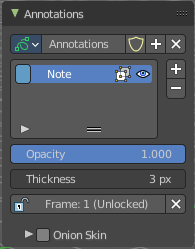
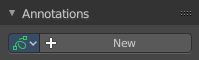
Manage the Annotation layers and materials.
When you don't have drawn an annotation yet then the panel just contains a New button.
Annotations prop
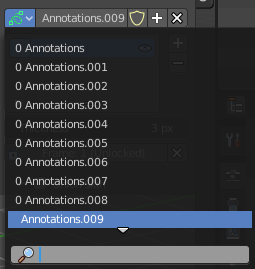
Add, remove and rename new annotations.
Drop down box
A list of the available annotation layers.
| Entry | What it does |
|---|---|
| Edit Box | The name of the current annotation. You can rename the annotation to your needs here. |
| Fake User | Assign a fake user to this annotation. Fake users is an odd concept to keep data in the scene even if it has no user somewhere. The fake user is then a dummy user so that the object is not deleted when saving the scene. |
List of Annotation Strokes

Here you see your Annotation layers for the current Annotation. Every layer can have an own color.
At the right side you find buttons to sort them and to add and remove new Annotation layers.
You can change the color by clicking at the color field. A color dialog will pop up. You can rename annotation layers by double clicking at it.
| Entry | What it does |
|---|---|
| In Front | Toggle if the stroke is displayed in front of geometry or behind. |
| Eye icon | The eye icon allows you to make it invisible And it has a search field. |
| Add Annotation | Add a new annotation. |
| Delete Annotation | Delete the annotation. |
| Move up / Down | Move the selected annotation up or down in the list |
| Entry | What it does |
|---|---|
| Opacity | The opacity of the stroke. |
| Thickness | The thickness of the annotation stroke. |
| Frame Locked/Unlocked | Lock frame displayed by current layer. This toggles whether the active layer is the only one that can be edited. |
Onion Skin
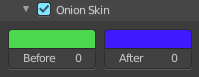
Enable Onion Skinning.
Onion Skinning allows to show ghosts of the keyframes before and after the current frame. In this sub panel you can adjust the color of the onion skin frames.
With the numbers below the colors you can define how many frames before or after are displayed that way.
View tab - Stereoscopy Panel
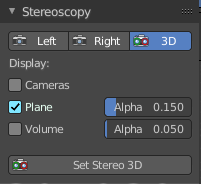
This panel shows when you have Stereoscopy enabled in the Output Properties of the Properties editor. Some content depends of the Stereoscopy settings.
Left / Right / 3D

With Stereoscopy setting Stereo 3D.
Show the image in the 3d view from the left or right camera, or from both.
Views / 3D

With Stereoscopy setting Multi-View.
Show the image in the 3d view from the single cameras, or from both.
| Entry | What it does |
|---|---|
| Cameras | With Stereoscopy setting Stereo 3D. Show the left and right cameras. |
| Plane | Show the convergence plane. · Alpha: The transparency of the convergence plane. |
| Volume | Show the stereoscopy volume. · Alpha: The transparency of the stereoscopy volume. |
Set Stereo 3D
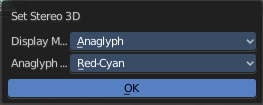
Calls a panel where you can adjust the stereoscopy display in the 3D view to preview the result.
This settings does not affect the output, just how the result gets displayed in the viewport!
Display Mode
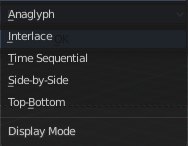
How to display the stereoscopic image when viewing through the camera. This is the preview mode. You need a special monitor for some of the methods. There are five methods available.
Display Mode Type Anaglyph
Render Views for left and right eyes as two differently filtered colors in a single image. You need anaglyph glasses to see the 3d effect.
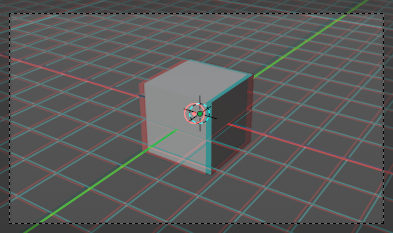
Anaglyph Type
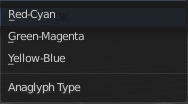
The color model to display the graphics.
Display Mode Type Interlace
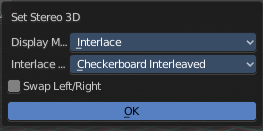
Render Views from left and right eyes interlaced into a single image. You need a 3D Ready monitor to see the stereo effect.
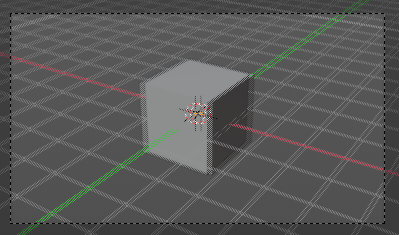
Interlace Type
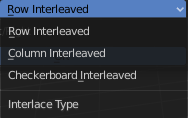
The interlace type that you can choose.
Swap Left/Right
Swaps left and right camera view.
Display Mode Type Time Sequential
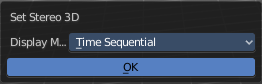
Render alternate eyes. Also known as page flip. Needs a graphics card that supports quad buffer.
Display Mode Type Side by Side
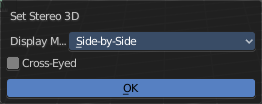
Displays images of the two cameras side by side. You need to go into Window Full screen to see the effect.
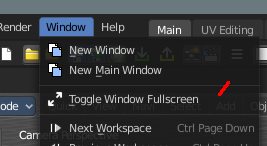
Don't use the full screen. feature in the View menu of the 3D view, but the Window toggle full screen. in the Window menu!
Warning: the menus becomes nearly unreadable then. The whole UI gets distorted by splitting the main window of Bforartists into two views. You might want to assign a shortcut here before trying.
Cross Eyed
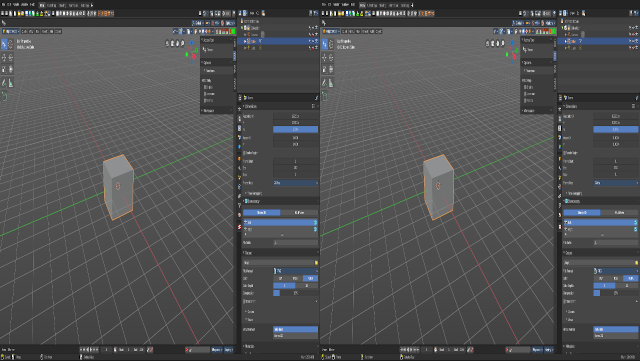
Swaps left and right camera view.
Display Mode Type Top Bottom
Displays images of the two cameras top and bottom. You need to go into Window Full screen to see the effect.
Don't use the full screen. feature in the View menu of the 3D view, but the Window toggle full screen. in the Window menu!
Warning: the menus becomes nearly unreadable then. The whole UI gets distorted by splitting the main window of Bforartists into two views. You might want to assign a shortcut here before trying.
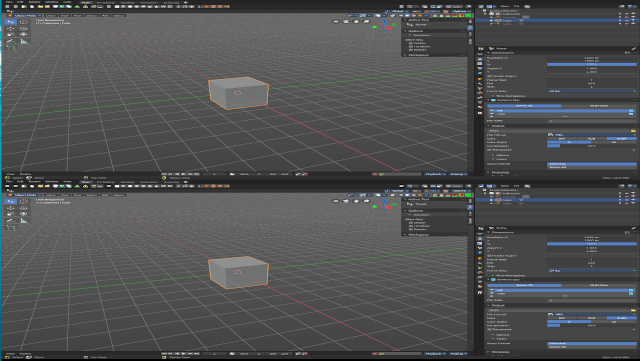
View tab - Quad View panel
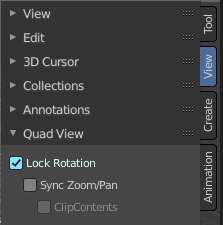
This panel just shows when you are in quad view. Toggle Quad View can be found in the View menu.
Lock rotation
Quad view has four windows. Three of them can be locked to the orthographic views.
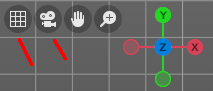
Turning off Lock Rotation reveals the quick navigation buttons Switch to Camera View and Switch between Perspectivic and Orthographic display.
| Entry | What it does |
|---|---|
| Sync Zoom Pan | In the three orthographic views you can either zoom and pan individually. Or you zoom and pan them in sync. |
| Clip Contents | Clip objects based on what is visible in the other orthographic side views. The perspectivic view is not affected. |
View tab - Important Hotkeys
This panel is an addon called Important Hotkeys, and can be turned off in the Preferences.
It displays the most important hotkeys in the viewport.
| Entry | What it does |
|---|---|
| Show Text | Show or hide the text in the viewport. |
| Color | Define what color the text should have. Default is white. |
Font Size
The size of the font.
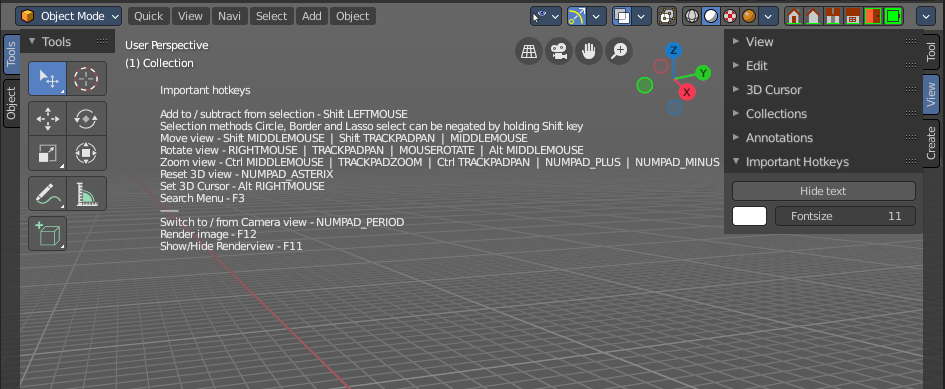
Context Menus
The pages of this part are listed in the sidebar under Context menus.
More
Asset Shelf
Click to switch the active brush.

Click to switch the active brush.
Click to switch the active brush.
The Grease Pencil sculpt brushes are divided into categories. Click to switch the active brush.

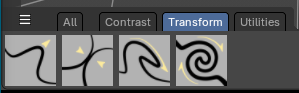
The Grease Pencil draw brushes are divided into categories. Click to switch the active brush.


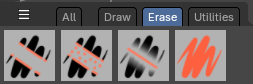


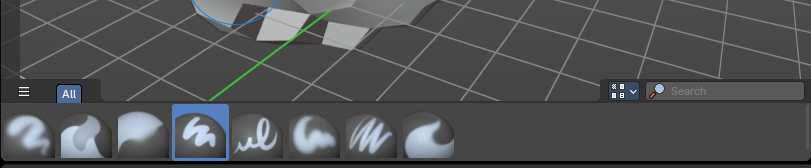

When in the Mesh Sculpt mode of the 3D View, the Asset Shelf exposes brush assets.
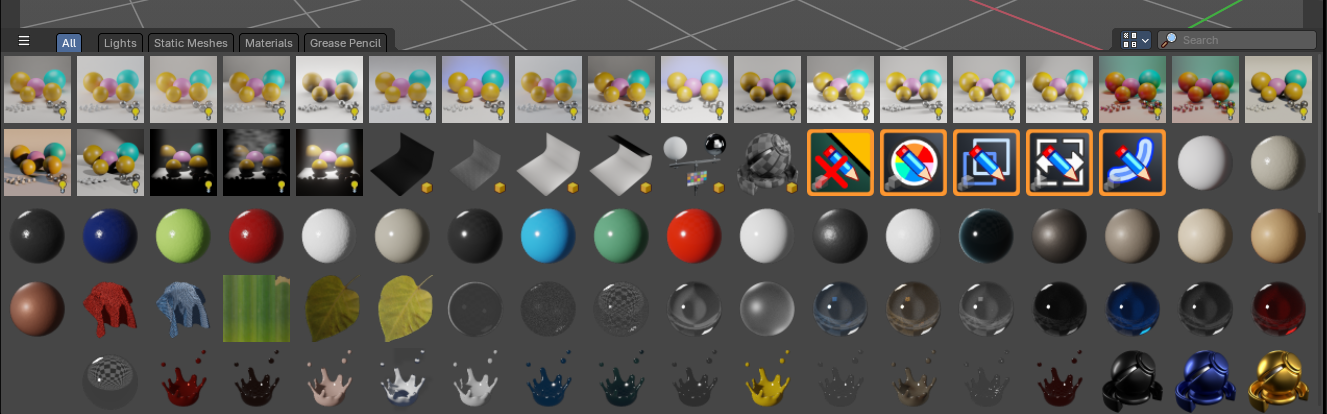
The Object mode asset shelf exposes your Asset Browser library assets directly in the 3D View.
Introduction
The Asset Shelf is a quick access to marked assets for the Asset Browser available in the footer of many editors.
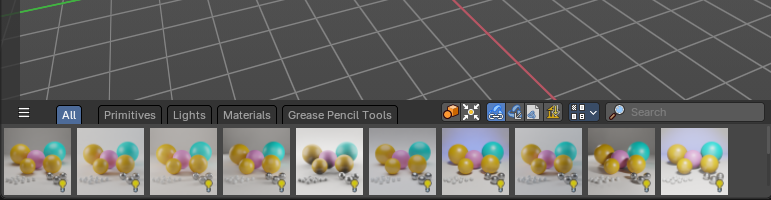
The 3D View is made of several areas, and at the bottom of the 3D View you will find the Asset Shelf.
- Blue: Catalog Selector
- Red: Catalog tabs
- Orange: Import Properties
- Green: Display Settings
- Purple: Search Filter
- Yellow: Assets List
This shelf lists Essential and user defined assets from the Asset Browser for quick and easy access to drag and drop marked assets into the 3D View - directly from the 3D view footer.
Location
The 3D Shelf is available in the following editors:
- 3D View
- Image Editor
- Node Editors: Shader, Compositor, Geometry Nodes
Catalog Selector
To the top left, you can pick and choose which asset library catalog will show in the header – these will help filter assets you would like to see listed in the Asset Shelf.
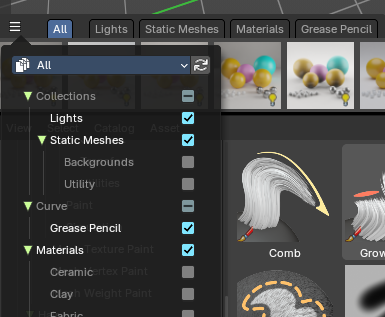
When you select a category, it will create a tab in the header.
You can alternatively filter by library and expose a selection of Catalogs per library.
Asset Library Dropdown Selector
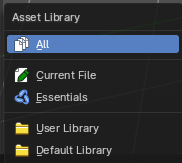
These are available asset libraries you can filter assets to the Asset Shelf.
- The All category shows all Catalogs from all asst Libraries.
- The Current File shows all Catalogs from the current Blend file.
- The Essentials shows all default Catalogs built in to Bforaritsts.
- The User Library shows all Catalogs from a user defined library.
- If you have the Default Library addon by Bforartists, this will show the Default Library Catalogs.
Refresh
Refresh the libraries.
Catalog Tabs
When you pick a Catalog in the Catalog Selector, these catalogs will list as tabs at the top of the Asset Shelf.
Choose a tab to filter the assets by Catalog.
Import Method
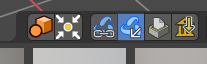
| Entry | What it does |
|---|---|
| Instance Collections on Linking | When linking or appending collections, this will instance the collection to the scene at the mouse cursor. |
| Drop Instances to Origin | When linking or appending collections as instances, this will position the new instance to the world center origin. |
| Link | Import the assets as linked data. This will link data from the asset library to the current scene and file. |
| Append | Import the assets as copied data, with no link to the original asset data This will append data to the current scene and file. |
Append (Reuse Data)
Import the assets as copied data while avoiding multiple copies of nested, typically heavy data. For example the textures of a material asset, or the mesh of an object asset, don't have to be copied every time this asset is imported. The instances of the asset share the data instead.

Recommending using Pack instead
You can go in the Preferences, in Developers Tools tab and enable No Packing to show Append (Reuse) back
Pack

Import the asset as packed. Make it is unchanged modified, linked with the original data.
Link (Override)
Import the assets as linked library overrided data. This will only override the active hierarchy. The active hierarchy is defined by the last selected object of a collection or the armature.
To override all selected contents, use the Outliner Editor by right clicking on the asset and Overriding Selected and Content.
Display Settings
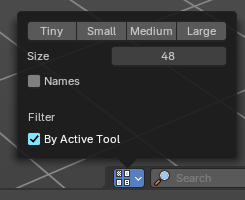
To the right you can find the display settings.
| Entry | What it does |
|---|---|
| Quick Sizes | Some quick presets between Tiny 48, small 96, Medium 128 and Large 256px thumbnails |
| Size | Changes the size of the asset thumbnails with a slider. |
| Names | Toggles the asset names. |
| By Active Tool | Note: Only available in the Brush Asset Shelf in draw and paint modes. This toggles a filter that will show only brushes set by the active brush mode set in the Toolshelf to the left. For example, it will only show Paint draw mode brushes but not Erasers at the same time. Note: If you want to see all types of brushes regardless of the mode, turn this off. |
Search Filter
Search and filters the assets by name.
Use
When in the Object mode, you can drag and drop collections, mesh objects, materials, geometry nodes and world shaders to the 3D View to link or append the assets.
Select an asset, press and drag into the 3D View to place into the scene.
Asset Types
Collections

Marked collections as assets will show here. Drag and drop will default to linking the collection to scene as an instance.
Mesh Objects
Marked mesh objects as assets will show here. Drag and drop will default to appending the collection to scene.

Materials

Marked materials as assets will also show here. Drag and drop will default to append to scene.
Geometry Nodes
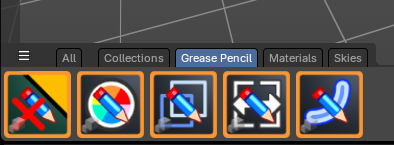
Geometry Nodes with the tag “Geometry Nodes” and “3D View” in the Tags panel of the left sidebar of the Asset Browser will show here.
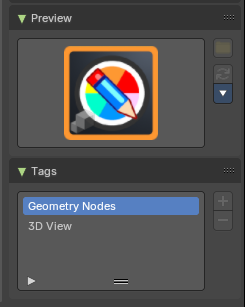
Drag and drop will default to append to scene.
Note: To mark a Geometry Nodes asset to show in the 3D Asset Shelf, go to the Asset Browser editor, and in the sidebar under the Tags panel, add “Geometry Nodes” and “3D View”
Worlds
World shaders marked as assets will show here. Drag and drop will default to append to scene.

Use
Select a brush to change the brush settings to the saved brush asset. Select a brush category
Asset Type
Sculpt mode brushes.
Use
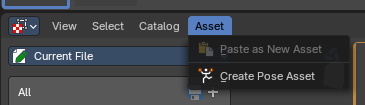
- In the 3D View, select your Armature object and go into Pose Mode
- Select the bones you want to store as a pose
- In the Asset Browser Header Asset menu, use the operator Create Pose Asset
- This will create a Pose Asset in the Unassigned (Catalogue) category in the Current File.
- Click on the new Pose Asset in the Asset Shelf or Asset Browser to apply. Press and drag to apply with a slider strength.
- You can alternatively right click on the Pose Asset for alternative methods of applying the pose.
<!-- -->
Pose Asset Context Menu
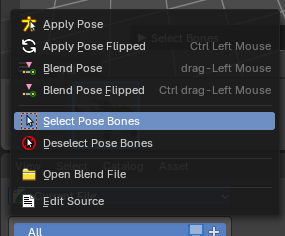
When you right click into the a pose asset then an Asset context menu opens. For more information, please refer to the Editors – Asset Browser chapter
Apply Pose
Apply the Pose asset to the selected bones.
Apply Pose Flipped
Apply the flipped Pose asset to the selected bones.
Blend Pose
Blends the selected bones with the Pose asset.
Blend Pose Flipped
Blends the selected bones with the flipped Pose asset.
Select Pose Bones
Selects the pose bones stored in the Pose asset
Deselect Pose Bones
Deselects the pose bones stored in the Pose asset
Shader Editor
Drag the nodes from the asset shelf into the shader editor viewport. Note that you need to have an active shader.
The Shader nodes are divided into serveral categories.

Compositor Editor
There are currently no nodes in the asset shelf in the compositor editor.
Geometry Nodes Editor
Drag the nodes from the asset shelf into the geometry nodes editor viewport. Note that you need to have an active node tree.
The geometry nodes are divided into serveral categories.
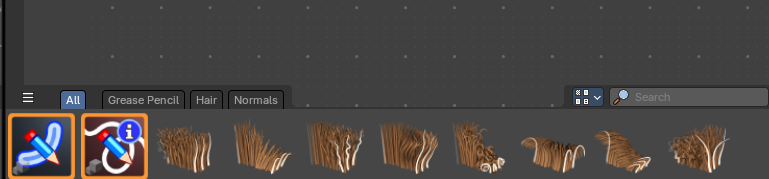
Image Editor – Paint Mode

Click to switch the active brush.