
































































Color
Color nodes: Adjust.
Add menu - Color
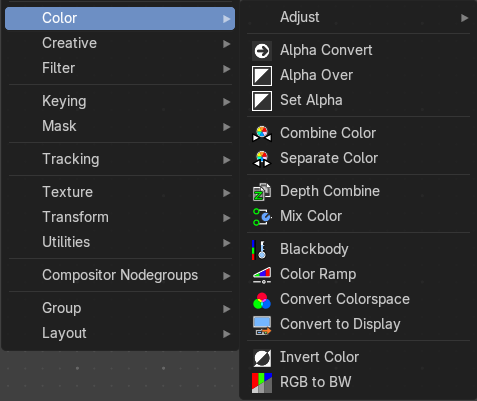
Here you find color related nodes.
Alpha Convert
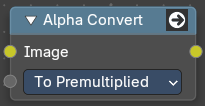
This node converts the alpha channel interpretation of an image from pre-multiplied to straight or vice versa. With a straight alpha channel you might run into artifacts at the borders when the pixels in the semi transparent areas.
Input
Image
The input image.
Properties
Mapping Type
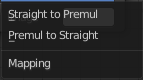
Convert straight to premultiplied. Or convert premultiplied to straight.
Output
Image
The image output.
Alpha Over
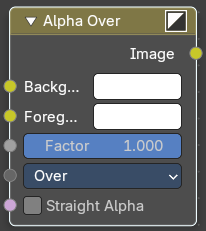
The Alpha Over node is used to layer images with an alpha channel on top of one another.
Where the foreground image pixels have an alpha greater than 0, the background image will be overlaid.
| Entry | What it does |
|---|---|
| Inputs | Background: Input for the background image. · Foreground: Input for the foreground image. · Factor: Controls the amount of foreground image. A factor less than 1 will make the foreground more transparent. |
| Straight Alpha | Defines wether teh foreground ins in straight alpha form, which is necessary to konw for proper alpha composing. Images in the compositor are in premultiplied alpha form by default. So it should be false in most cases. But if, and only if, the foreground was converted to straight alpha form for some reason, this should be set to true. |
Properties
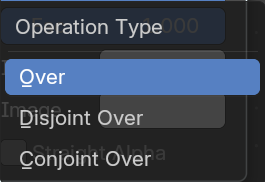
| Entry | What it does |
|---|---|
| Over | The foreground goes over the background according to the alpha of the foreground. |
| Disjoint Over | The foreground goes over the background according to the alpha of the foreground while assuming the background is being held out by the foreground. |
| Conjoint Over | The foreground goes over the background according to the alpha of the foreground. But the foreground completely covers the background if it is more opaque but not necessarily completely opaque. |
Outputs
Image
Image output.
Set Alpha
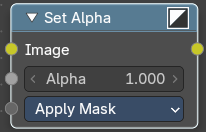
The Set Alpha Node adds an alpha channel to an image.
Inputs
| Entry | What it does |
|---|---|
| Image | Standard image input. |
| Alpha | The amount of Alpha can be set for the whole image by using the input field or per pixel by connecting to the socket. |
Type
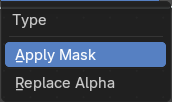
| Entry | What it does |
|---|---|
| Apply Mask | Multiply the alpha channel of the input image by the alpha input value. |
| Replace Alpha | Replace the alpha channel of the input image by the alpha input value. |
Outputs
Image
The image output.
Combine Color
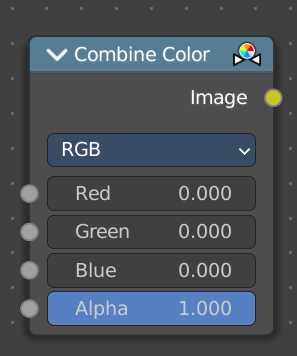
Combine single RGBA floating point channels into a single image.
Input
Mode
- RGB colour processing
- HSV colour processing
- HSL colour processing
- YcbCr converts an YCbCrA image to RGBA color space and unions the channels.
- Y: Luminance, 0=black, 1=white
- Cb: Chrominance Blue, 0=Blue, 1=Yellow
- Cr: Chrominance Red, 0=Red, 1=Yellow
- YUV converts an YUVA image to RGBA color space. Note that U and V values range from -0.5 to +0.5.
| Entry | What it does |
|---|---|
| Input – RGB mode | R, G, B and A: The red, green, blue and alpha channels of an image. |
| Input – HSV mode | H , S and V: The Hue, Saturation and Value channels of an image. |
| Input – HSL mode | H , S and L: The Hue, Saturation and Luminescence channels of an image. |
Input – YCbCRA mode
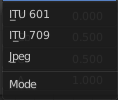
Y, Cb, Cr and A
Luminance, Chrominance Blue, Chrominance Red and Alpha input.
| Entry | What it does |
|---|---|
| Properties | Modes: ITU 601, ITU 709, Jpeg. These are encoding standards for the YCbCrA color space. |
| Input – YUVA mode | Y, U, V and A: Luminance, Chrominance U, Chrominance V and Alpha channel. |
| Output | Image: The output image. |
Separate Color
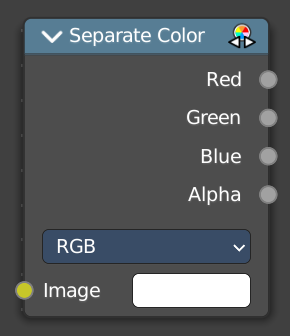
Separates the single RGBA channels from a single image.
Input
Mode
- RGB colour processing
- HSV colour processing
- HSL colour processing
- YcbCr converts an YCbCrA image to RGBA color space and unions the channels.
- Y: Luminance, 0=black, 1=white
- Cb: Chrominance Blue, 0=Blue, 1=Yellow
- Cr: Chrominance Red, 0=Red, 1=Yellow
- YUV converts an YUVA image to RGBA color space. Note that U and V values range from -0.5 to +0.5.
Output – RGB mode
| Entry | What it does |
|---|---|
| R, G, B and A | The red, green, blue and alpha channels of an image. |
| Output – HSV mode | H , S and V: The Hue, Saturation and Value channels of an image. |
| Output – HSL mode | H , S and L: The Hue, Saturation and Luminescence channels of an image. |
Output – YCbCRA mode
| Entry | What it does |
|---|---|
| Y, Cb, Cr and A | Luminance, Chrominance Blue, Chrominance Red and Alpha input. |
| Properties | — |
| Modes | ITU 601, ITU 709, Jpeg. These are encoding standards for the YCbCrA color space. |
Output – YUVA mode
Y, U, V and A
Luminance, Chrominance U, Chrominance V and Alpha channel.
Depth Combine
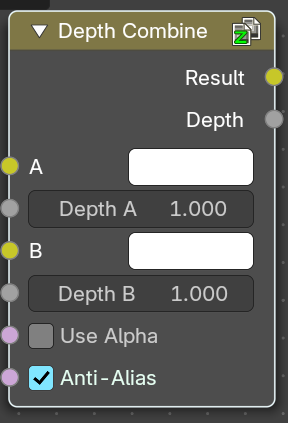
The Depth Combine node combines two images based on their Z-depth maps. It overlays the images using the provided Z values to detect which parts of one image are in front of the other.
Inputs
| Entry | What it does |
|---|---|
| A | The background image. |
| Depth A | Z depth of the background image. |
| B | The foreground image. |
| Depth B | Z depth of the foreground image. |
| Use Alpha | The chosen Image pixel alpha channel is also carried over. If a pixel is partially or totally transparent, the result of the Z Combine will also be partially transparent; in which case the background image will show through the foreground (chosen) pixel. |
| Anti-Alias Z | Applies Anti-Aliasing to avoid artifacts at sharp edges or areas with a high contrast. |
Outputs
| Entry | What it does |
|---|---|
| Result | If both Z values are equal, it will use the foreground image. Whichever Z value is less decides which image pixel is used. See Z-buffer. |
| Depth | The combined Z depth, which allows to thread multiple Z-combines together. |
Mix Color
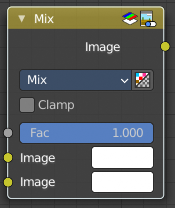
The Mix Node mixes images by working on the individual and corresponding pixels of the two input images. Called “MixRGB” in the shader and texture context.
| Entry | What it does |
|---|---|
| Inputs | Factor: Controls the amount of influence the node exerts on the output image. · Image 1: Usually the background image. The image size and resolution sets the dimensions of the output image. · Image 2: Usually he foreground image. |
| Properties | Mix: Choose the different blending modes. Add, Subtract, Multiply, Screen, Divide, Difference, Darken, Lighten, Overlay, Color Dodge, Color Burn, Hue, Saturation, Value, Color, Soft Light, Linear Light. · Clamp: Limit the highest color value to not exceed 1. |
| Outputs | Image: Image output. |
Blackbody
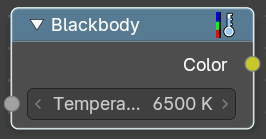
Convert a blackbody temperature to a rgb value.
| Entry | What it does |
|---|---|
| Inputs | Temperature: The blackbody temperature. |
| Outputs | Color: The output RGB color. |
ColorRamp
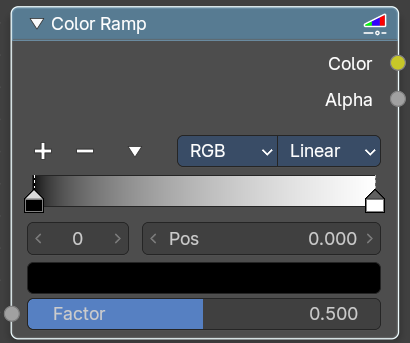
The Color Ramp Node is used for mapping values to colors with the use of a gradient.
Inputs
Factor
The Factor input is used as an index for the color ramp.
Properties
Color Ramp
Color Ramps enables the user to specify a range of colors based on color stops. The color between the color stops gets interpolated.
Controls
| Entry | What it does |
|---|---|
| + | Add a stop to your color ramp. The stop will be added after the selected one, in the middle to the next one. |
| - | Deletes the selected color stop from the list. |
Tools menu
| Entry | What it does |
|---|---|
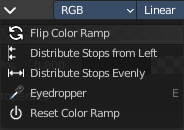
| Flip Color Ramp | Flips the gradient, inverting the values of the color ramp. |
| Distribute Stops from Left | Rearrange the stops so that every step has the same space to the right. |
| Distribute Stops Evenly | Space between all neighboring stops becomes equal. |
| Eyedropper (pipette icon) E | An Eyedropper to sample a color or gradient from the interface to be used in the color ramp. |
Reset Color Ramp
Resets the color ramp to its default state.
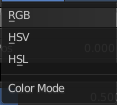
Color Mode
| Entry | What it does |
|---|---|
| RGB | Blends color by mixing each color channel and combining. |
| HSV/HSL | Blends colors by first converting to HSV or HSL, mixing, then combining again. This has the advantage of maintaining saturation between different hues, where RGB would de-saturate, this allows for a richer gradient. |
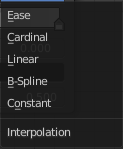
Interpolation
| Entry | What it does |
|---|---|
| Ease | Uses an Ease Interpolation for the color stops. |
| Cardinal | Uses a Cardinal Interpolation for the color stops. |
| Linear | Uses a Linear Interpolation for the color stops. |
| B-Spline | Uses a B-Spline Interpolation for the color stops. |
| Constant | Uses a Constant Interpolation for the color stops. |
Color Ramp

The color band. A click at one of the color stops makes it the active one. You can move the color stops by clicking at them and dragging them around.
Active Color Stop elements
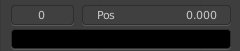
Adjust the active color stop.
| Entry | What it does |
|---|---|
| Choose active color stop | Choose the color stop by index. |
| Pos | The position of the active color stop. The range goes from 0.000 to 1.000 |
Outputs
| Entry | What it does |
|---|---|
| Color | The color output. |
| Alpha | Alpha channel output. |
Convert Colorspace
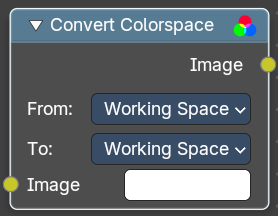
Convert between color spaces.
Note that the conversion is skipped when converting between the same color spaces or to or from data spaces.
Input
Image
The input image.
Properties
From
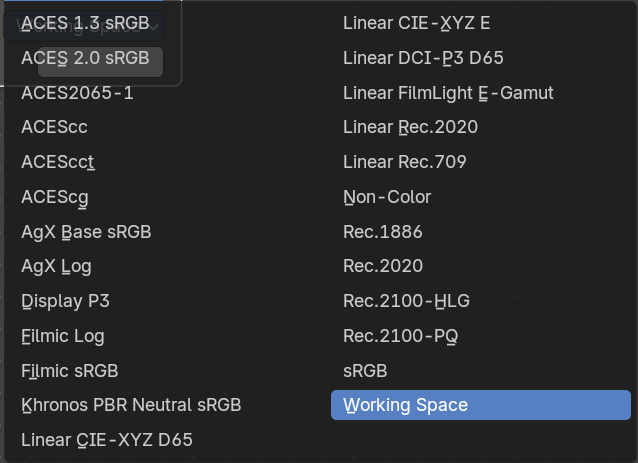
The current color space.
To
The destination color space.
Output
Image
The image output.
Convert to Display
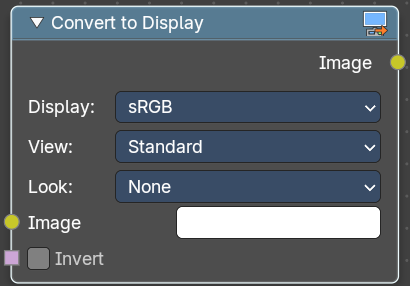
Transforms an image from scene-linear color space into a display-referred format, using Blender’s color management pipeline. This is essential when working with raw data, custom view transforms, or prepping visuals for final output.
Inputs
| Entry | What it does |
|---|---|
| Image | The input image in scene-linear space—typically the result of render layers, raw file input, or procedural compositing. |
| Invert | Reverses the display transform—useful for decoding display-referred images back to linear. |
Properties
Display
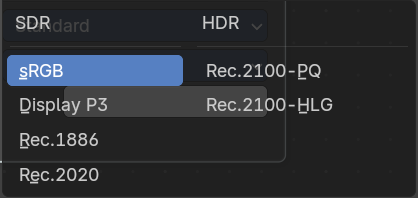
Selects the target display device (e.g. sRGB, Rec.709, Display P3).
Determines how the image is mapped for viewing on screens.
View
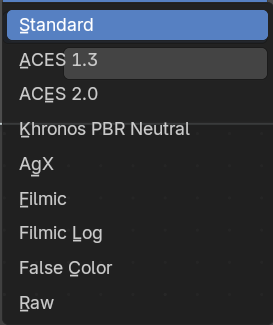
Applies a tone mapping curve (e.g. Standard, Filmic, Raw).
Controls contrast, highlight rolloff, and perceptual brightness.
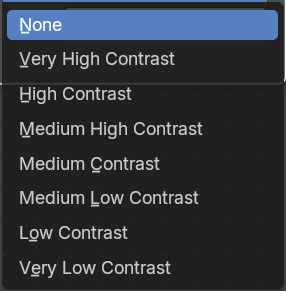
Look
Optional artistic adjustment layer (e.g. Medium Contrast, High Contrast, None).
Adds stylized tweaks on top of the view transform.
Output
Image
The display-referred result, ready for preview, export, or further compositing.
Invert Color
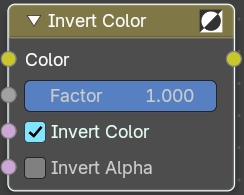
The Invert Node inverts the colors in the input image, producing a negative.
Inputs
| Entry | What it does |
|---|---|
| Color | Standard input. |
| Factor | Controls the amount of influence the node exerts on the output image. |
| Invert Color | Invert the RGB values. |
| Invert Alpha | Invert the Alpha values. |
Outputs
Color
Standard image output.
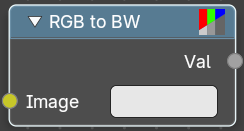
RGB to BW
The RGB to BW Node converts an RGB color image to a gray-scale image based at its luminance.
| Entry | What it does |
|---|---|
| Inputs | Image: Color image input. |
| Outputs | Val: Gray-scale value output. |
Adjust
Add menu - Color - Adjust
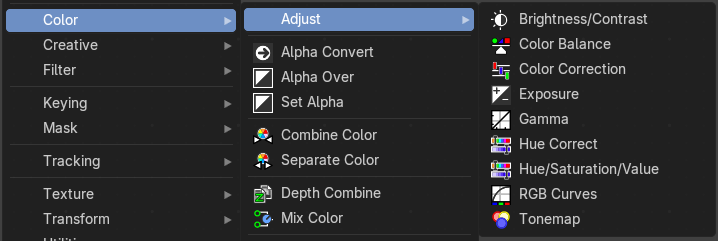
Here you find color related nodes.
Brightness/Contrast
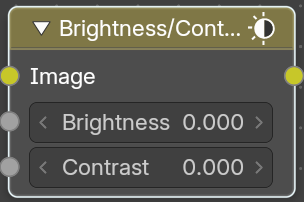
Adjust the brightness and contrast.
Inputs
| Entry | What it does |
|---|---|
| Image | The image input |
| Brightness | An additive-type factor by which to increase the overall brightness of the image. Use a negative number to darken an image. |
| Contrast | A scaling type factor by which to make brighter pixels brighter, but keeping the darker pixels dark. Higher values make details stand out. Use a negative number to decrease the overall contrast in the image. |
Outputs
Color
Standard output.
Note: It is possible that this node will put out a value set that has values beyond the normal range, i.e. values greater than one and less than zero. If you will be using the output to mix with other images in the normal range, you should clamp the values using the Map Value node (with the Min and Max enabled), or put through a Color Ramp node (with all normal defaults).
Color Balance

The Color Balance node can adjust the color and values of an image.
Inputs
| Entry | What it does |
|---|---|
| Factor | Controls the amount of influence the node exerts on the output image. |
| Image | Standard image input. |
Properties
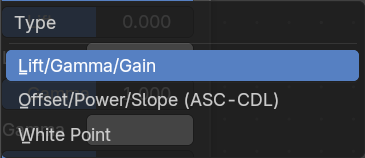
Type
You can choose between different formulas.
Lift/Gamma/Gain

| Entry | What it does |
|---|---|
| Lift | Increases the value of dark colors. |
| Gamma | Will adjust mid tones. |
| Gain | Adjusts highlights. |
Color wheel
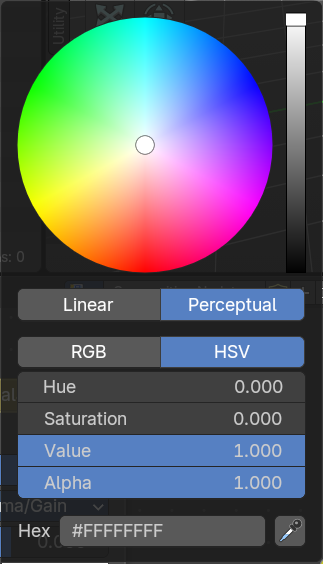
When you click at one of the colors then you will call a color wheel where you can adjust the colors.
Offset/Power/Slope (ASC-CDL)
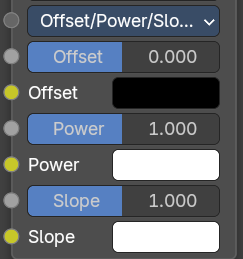
| Entry | What it does |
|---|---|
| Offset | Summand. (Adjusts the overall brightness.) |
| Basis | Additional offset, allows to specify a negative Offset value. |
| Power | Over-all exponent. (Adjusts the mid tones. |
| Slope | Multiplier. (Adjusts the highlights.) |
Color wheel
When you click at one of the colors then you will call a color wheel where you can adjust the colors.
White Point
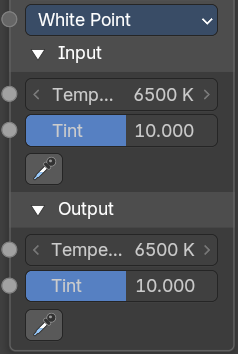
Chromatic adaption from a different white point.
| Entry | What it does |
|---|---|
| Input | — |
| Temperature | Color temperature of the inputs white point. |
| Tint | Color tint of the inputs white point. |
| Picker | Pick an input whitepoint. The color that gets mapped to white. |
| Output | — |
| Temperature | Color temperature of the outputs white point. · Tint: Color tint of the outputs white point. · Picker: Pick an output whitepoint. The color which gets white gets mapped to. |
Outputs
Image
The output image.
Advanced
The Offset/Power/Slope Formula
out = (i × s + o)p
where:
out: The color graded pixel code value.
i: The input pixel code value (0 to 1) (black to white).
s: Slope (any number 0 or greater, nominal value is 1.0).
o: Offset (any number, the nominal value is 0).
p: Power (any number greater than 0, nominal value is 1.0).
Color Correction
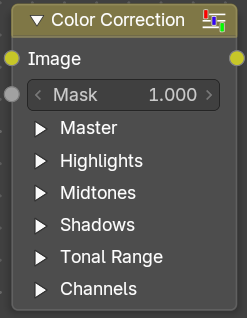
With the Color Correction node you can adjust the color of an image. Separated in several tonal ranges (highlights, mid tones and shadows) and only affect the necessary RGB channels.
Input
| Entry | What it does |
|---|---|
| Image | Image Input. |
| Mask | Input a mask to cover parts of the image so that they are affected. |
Properties
Master panel
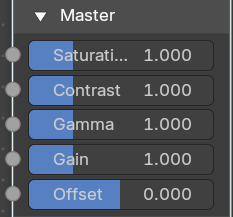
| Entry | What it does |
|---|---|
| Saturation | Adjusts the image’s saturation. |
| Contrast | Adjust image contrast. |
| Gamma | Exponential gamma correction, affecting the whole image. (Works like Power in the Color Balance node.) |
| Gain | Multiplier, stronger influence on the whole image. (Works like Slope in the Color Balance node.) |
| Offset | Controls the offset of the entire image. |
Highlights panel
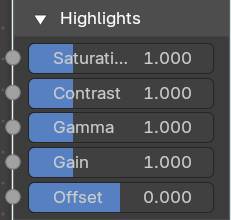
| Entry | What it does |
|---|---|
| Saturation | Adjusts the saturation of the highlights. |
| Contrast | Adjust image contrast of the highlights. |
| Gamma | Exponential gamma correction, affecting the highlights of the image. (Works like Power in the Color Balance node.) |
| Gain | Multiplier, stronger influence on the highlights. (Works like Slope in the Color Balance node.) |
| Offset | Controls the offset of the of the highlights. |
Midtones panel
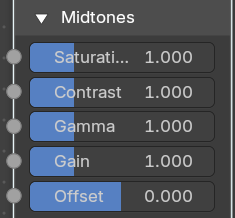
| Entry | What it does |
|---|---|
| Saturation | Adjusts the saturation of the midtones. |
| Contrast | Adjust image contrast of the midtones. |
| Gamma | Exponential gamma correction, affecting the midtones of the image. (Works like Power in the Color Balance node.) |
| Gain | Multiplier, stronger influence on the midtones. (Works like Slope in the Color Balance node.) |
| Offset | Controls the offset of the of the midtones. |
Midtones panel
| Entry | What it does |
|---|---|
| Saturation | Adjusts the saturation of the midtones. |
| Contrast | Adjust image contrast of the midtones. |
| Gamma | Exponential gamma correction, affecting the midtones of the image. (Works like Power in the Color Balance node.) |
| Gain | Multiplier, stronger influence on the midtones. (Works like Slope in the Color Balance node.) · Offset: Controls the offset of the of the midtones. |
Shadows panel
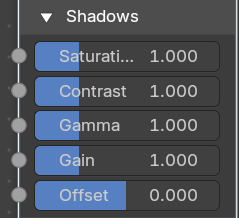
| Entry | What it does |
|---|---|
| Saturation | Adjusts the saturation of the shadows. |
| Contrast | Adjust image contrast of the shadows. |
| Gamma | Exponential gamma correction, affecting the shadows of the image. (Works like Power in the Color Balance node.) |
| Gain | Multiplier, stronger influence on the shadows. (Works like Slope in the Color Balance node.) |
| Offset | Controls the offset of the of the shadows. |
Tonal range panel
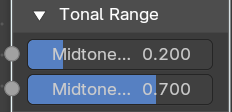
Mid tones Start, Mid tones End
Defines the start and the end of mid tones range, i.e. values where the whole tonal range is divided into the highlights, mid tones and shadows (there is also a smooth transition between the ranges of width 0.2 units).
Channels
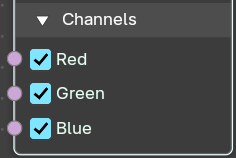
Red, Green, Blue
Specifies which RGB channels will be affected by correction.
Outputs
Color
The image output.
Exposure
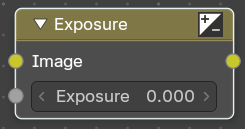
The Exposure Node node allows you to make areas of an image brighter or dimmer.
| Entry | What it does |
|---|---|
| Inputs | Image: Standard image input. · Exposure: The scalar factor to adjust the exposure of the image. |
| Outputs | Image: Standard image output. |
Gamma
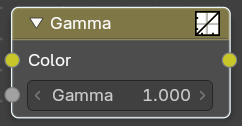
Use this node to apply a gamma correction.
| Entry | What it does |
|---|---|
| Inputs | Image: Image input. · Gamma: An exponential brightness factor. |
| Outputs | Image: Image output. |
Hue Correct
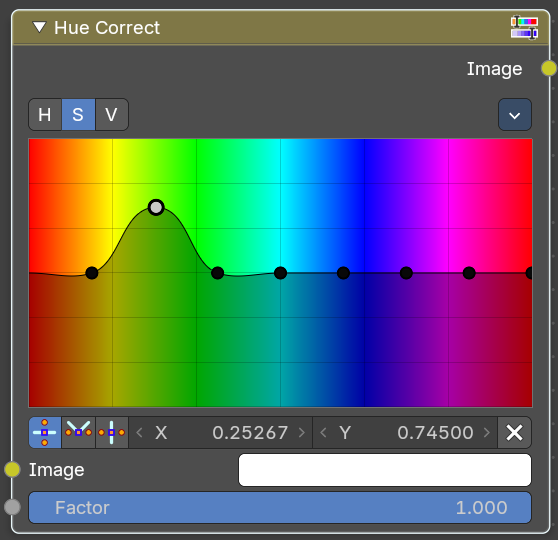
With the Hue Correct Node you can adjust the Hue, Saturation, and Value of an image with an input curve.
Inputs
| Entry | What it does |
|---|---|
| Image | Standard image input. |
| Factor | Controls the amount of influence the node exerts on the output image. |
Properties
Level
H (Hue), S (Saturation), V (Value). Choose which curve you want to modify.
Tools menu
| Entry | What it does |
|---|---|
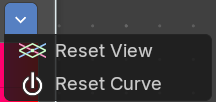
| Reset View | Resets the view. This menu item is here dysfunctional, you cannot view in or out. |
| Reset Curve | Resets the curve to defaults. |
| Auto Handle | Sets the handle for the curve points to Auto Handle. |
| Vector Handle | Sets the handle for the curve points to Vector Handle. |
| Auto Clamped | Sets the handle for the curve points to Auto Clamped. |
| X / Y | The x and y position of the currently selected curve point. |
| Delete Points | Deletes the currently selected curve point. |
Output
Image
Image Output
Hue/Saturation/Value
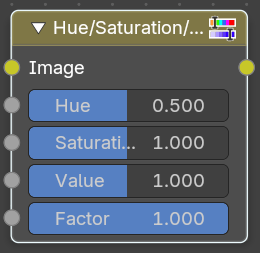
The Hue Saturation Node applies a color transformation in the HSV color space. Called “Hue Saturation Value” in shader and texture context.
Inputs / Properties
The inputs also works as properties when nothing is connected.
| Entry | What it does |
|---|---|
| Image | Plug in an image. |
| Hue | Specifies the hue rotation of the image. 360° are mapped to (0 to 1). The hue shifts of 0 (-180°) and 1 (+180°) have the same result. |
| Saturation | A saturation of 0 removes hues from the image, resulting in a gray scale image. A shift greater than 1.0 increases saturation. |
| Value | Value is the overall brightness of the image. De/Increasing values shift an image darker/lighter. |
| Factor | Controls the amount of influence the node exerts on the output image. |
| Image | Standard input. |
Outputs
Image
Standard output.
Hue/Saturation Tips
Some things to keep in mind that might help you use this node better:
Hues are vice versa
A blue image, with a Hue setting at either end of the spectrum (0 or 1), is output as yellow (recall that white, minus blue, equals yellow). A yellow image, with a Hue setting at 0 or 1, is blue.
Hue and Saturation work together.
So, a Hue of 0.5 keeps the blues the same shade of blue, but Saturation can deepen or lighten the intensity of that color.
Gray & White are neutral hues
A gray image, where the RGB values are equal, has no hue. Therefore, this node can only affect it with Value. This applies to all shades of gray, from black to white; wherever the values are equal.
Changing the effect over time
The Hue and Saturation values can be animated with a Time Node or by animating the property.
RGB Curves
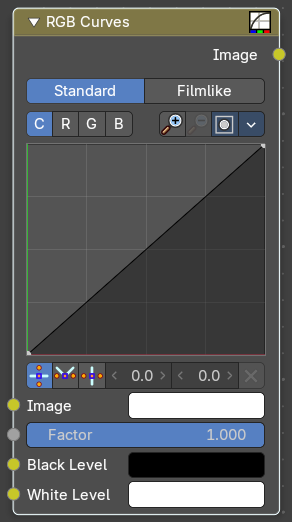
The RGB Curves Node allows color corrections for each color channel and levels adjustments in the compositing context.
Inputs
| Entry | What it does |
|---|---|
| Image | Standard image input. |
| Factor | Controls the amount of influence the node exerts on the output image. |
| Black Level | Defines the input color that is (linear) mapped to black. |
| White level | Defines the input color that is (linear) mapped to white. |
Properties

Tone
What tone mapping to use. Standard or Film like.
Curve Field
Channel buttons

Clicking on one of the channels displays the curve for each.
C (Combined RGB), R (Red), G (Green), B (Blue).
Navigation elements
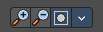
They are described from left to right.
Zoom in and out
The two buttons with the magnifying glass at it zooms in and out in the curve window.
Clipping
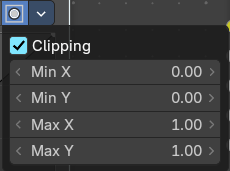
Clipping options. Set up clipping for the stroke.
Tools
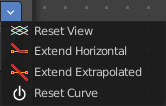
Tools is a menu where you can find some curve related tools.
| Entry | What it does |
|---|---|
| Reset View | Resets the curve windows zoom. |
| Extend horizontal | Extends the curve before the first curve point and behind the last curve point horizontally. |
| Extend extrapolated | Extends the curve before the first curve point and behind the last curve point extrapolated. |
| Reset Curve | Resets the curve to the initial shape. |
| Curve edit field | Create and tweak a Bezier curve that varies the input levels (X axis) to produce an output level (Y axis). |
Selecting Points
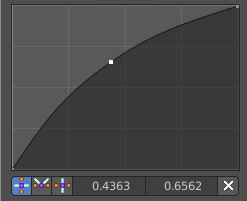
This setting uses the curve widget: click to add points, drag to move them. See Curve Widget in the Interface chapter.
Adding Points
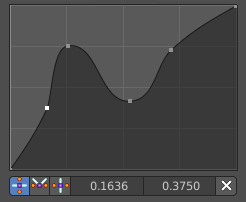
Curve point settings

When you have a point selected then you will reveal further settings at the bottom.
| Entry | What it does |
|---|---|
| Vector Handle | Set handle type to Vector. |
| Auto Handle | Set handle type to Auto. |
| Auto Clamped Handle | Set handle type to Auto Clamped. |
Outputs
Color
Standard output.
Tonemap
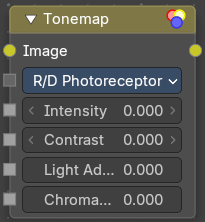
Tone mapping is a technique used in image processing and computer graphics to map one set of colors to another in order to approximate the appearance of high dynamic range images in a medium that has a more limited dynamic range.
Tone mapping addresses the problem of strong contrast reduction from the scene values (radiance) to the displayable range, while preserving the image details and color appearance. This is important to appreciate the original scene content.
Inputs
Image
Plug in the HDR image.
Properties
Type
There are two methods of tone mapping. Rh Simple and R/D Photo receptor.
Rh Simple
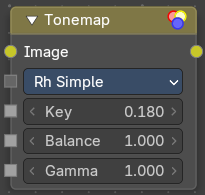
| Entry | What it does |
|---|---|
| Key | The value the average luminance is mapped to. |
| Balance | Normally always 1, but can be used as an extra control to alter the brightness curve. |
| Gamma | If not used, set to 1. |
R/D Photo receptor

| Entry | What it does |
|---|---|
| Intensity | A value smaller than zero darkens image. A value greater than zero makes it brighter. |
| Contrast | Set to 0 to use estimate from input image. |
| Adaptation | If 0, global; if 1, based on pixel intensity. |
| Color Correction | If 0, same for all channels; if 1, each independent. |
Outputs
Image
The Image output.