

































































Menus, buttons and controls
The UI contains various control elements. Buttons, Menus, toggles, etc.
The UI contains various control elements. Buttons, Menus, toggles, etc.
Menu
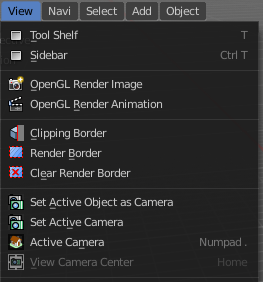
In the header you may find text menus. A text menu contains usually buttons. But it can also contain toggles. Or other menus.
Menu Search
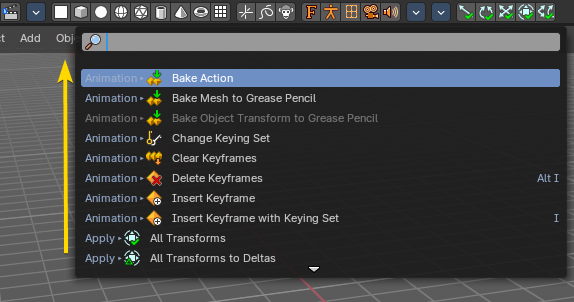
You can search any header menu while it is open with the search menu operator by pressing Space. This will allow filtering the menu contents without navigating into the sub-menus.
Button
A button is a UI element that allows you to perform an operation at click. There are various button types in the UI. Text Buttons in the text menus, text buttons in the panels, and icon buttons in the header and in the tool shelf.
Toggles
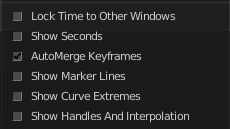

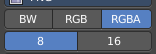
Toggles can be radio buttons. But also icon or text buttons. Where they are the same is that they have states. On and off for example. They can also have more states than just two.
Edit Box
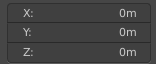
Some UI elements are editable. Edit boxes are used for things like position, angle, name, etc. . Click into the editable area to enter the edit mode. Do the changes, like typing in a new value, then press Enter to confirm the change.
Value edit boxes have some extra functionality. They work as sliders too. Hover with the mouse over the edit box. The mouse cursor will turn into two arrows.
Snapping

Sliders can snap incrementally. Hover with the mouse over the slider, start to slide, and holding down Ctrl will snap the sliders in incremental steps.
When it's a default value between 0 and 1 then it usually snaps in 0.1 steps. When it's a default value over 1 then it usually snaps in steps of 10.
Drop down box
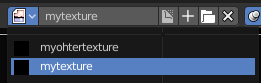
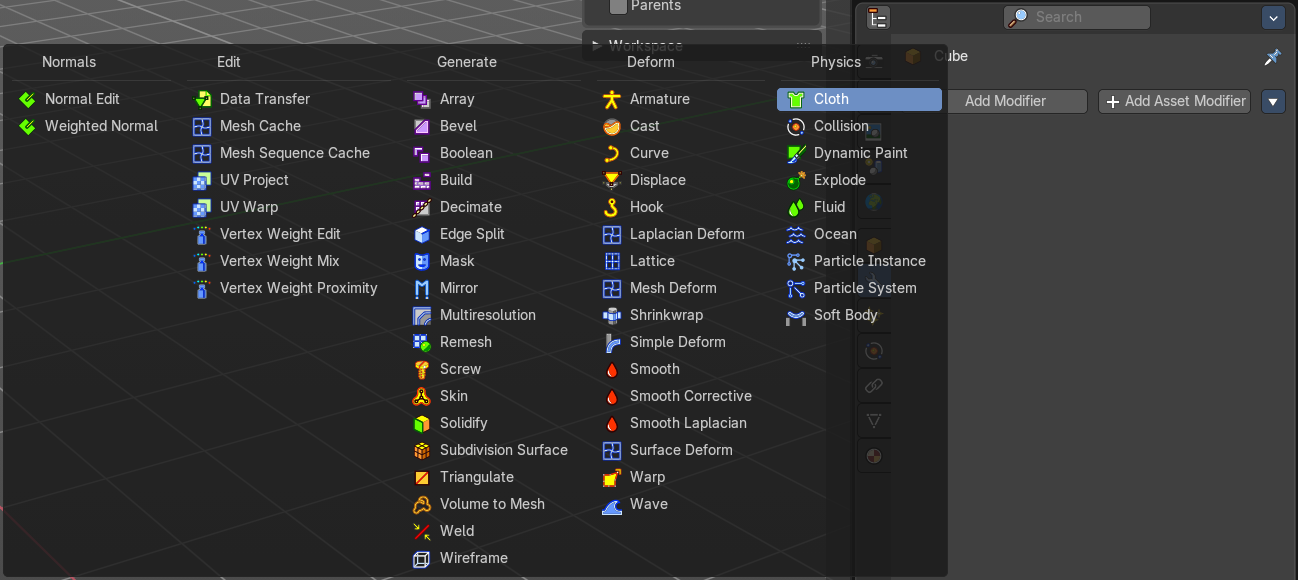
A drop down box is another kind of a menu. Usually you choose something here. Like a special setting. Or when you add a modifier. A list drop down box can show you the loaded textures for example. and allow you to choose another one.
Color Picker
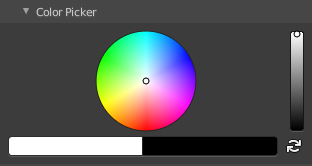
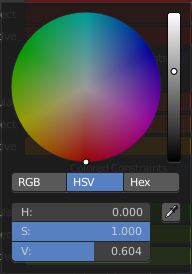
You may stumble across color pickers in the UI. When you do a painting job for example. This allows you to adjust color for the specific task. Like adjusting the brush color.
Widgets
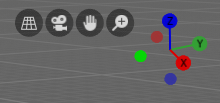
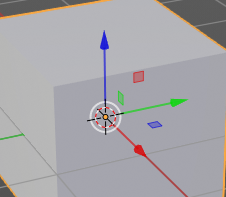
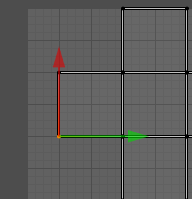
There are various widget types in Bforartists to find. Most of them in the 3D View. Widgets allows you to manipulate the transformation along one or more axis.
Cursors


A cursor is a center point, and allows manipulation in different ways. Objects gets created at the 3D cursor in the 3D view. You can set the cursor at different locations. You can snap it to elements, and you can snap elements to it.
Value Editing
You will find lots of value edit boxes in the Bforartists interface. To set the render size for example. Or to set the position of an object.
Multi Value Editing
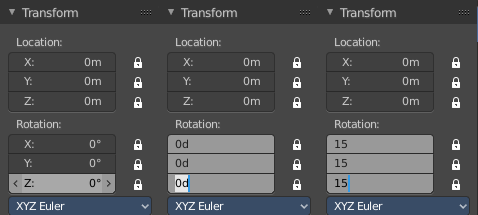
Sometimes you want to edit multiple values at once. The object scale for example. This can be done by clicking into the first edit box, and then drag with the mouse across the other edit boxes. They will become active now. And when you edit one value, then the other values will change too.
Expressions
You can also enter expressions in value edit boxes. And the result will be calculated. For example, 3*2 instead of 6. or 5/10+3. Even constants like pi (3.142) or functions like sqrt(2) (square root of 2) may be used.
Expressions as Drivers
You may want your expression to be re-evaluated after its entered. Blender supports this using Drivers (a feature of the animation system).
Expression beginning with #, have a special use. Instead of evaluating the value and discarding the expression, a driver is added to the property with the expression entered.
The expression #frame is a quick way to access map a value to the current frame, but more complex expressions are also supported #fmod(frame, 24) / 24 for example.
This is simply a convenient shortcut to add drivers which can also be added via the RMB menu.
Units
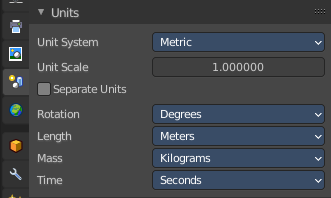
You can mix units with numbers. This means when you work in meters, then you can type in cm for centimeters. And the correct value will be used then.
You can even mix units in the same expression. For example 1m, 3mm. Or do complex mathematical calculations like 2.2mm + 5' / 3" - 2yards . Commas are optional.
Units can be adjusted in the Properties Editor in the Scene tab in the Units panel.
Such units needs to be set in the scene settings. Metric or Imperial.
Unit Names
Unit names have can be used with both long and short forms. Both is recognized.
Here is a list of recognized unit names you can use. Plurals of the names are recognized too, so meter and meters can both be used.
Imperial Units
| thou | mil | 0.0000254 |
| inch | ", in | 0.0254 |
| foot, feet | ', ft | 0.3048 |
| yard | yd | 0.9144 |
| chain | ch | 20.1168 |
| furlong | fur | 201.168 |
| mile | mi, m | 1609.344 |
Metric Units
| micrometer | um | 0.000001 |
| millimeter | mm | 0.001 |
| centimeter | cm | 0.01 |
| decimeter | dm | 0.1 |
| meter | m | 1.0 |
| dekameter | dam | 10.0 |
| hectometer | hm | 100.0 |
| kilometer | km | 1000.0 |
Menu shortcuts
- Arrow keys can be used to navigate into a menu
- Each menu item has an underlined character which can be pressed to activate it.
- Number keys or numpad can be used to access menu items. (Where 1 is the first menu item, 2 the second... etc. For larger menus Alt + 1 the 11th... up to Alt + 0 the 20th)
- Press Enter to activate the selected menu item.
- Press Esc to cancel the menu.