
































































Node Groups
Node Groups nodes: Geometry, Geometry › Operations, Geometry › Selection, Grease Pencil › Operations, Grease Pencil › Read, Grease Pencil › Write….
Geometry
Add menu - Geometry nodes - Geometry
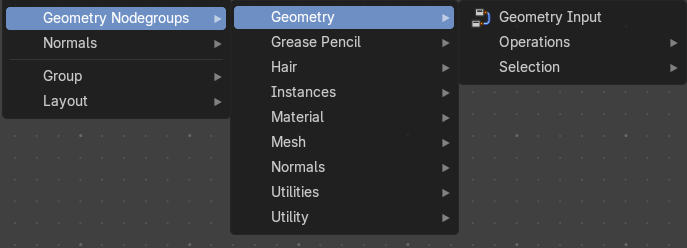
The nodes in this submenu are node groups. They use the regular single nodes under the hood.
It is virtually impossible to document these nodes in detail. So we will just list them.
When you double click the header, then you will enter the first level of the group. When you then press tab, or click again at the header, then you will reach the single nodes.
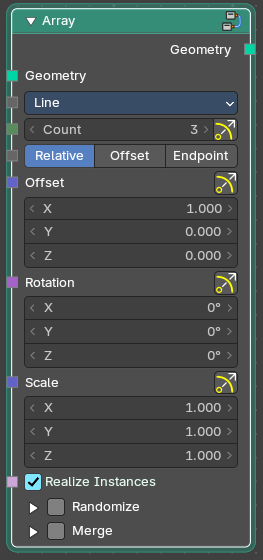
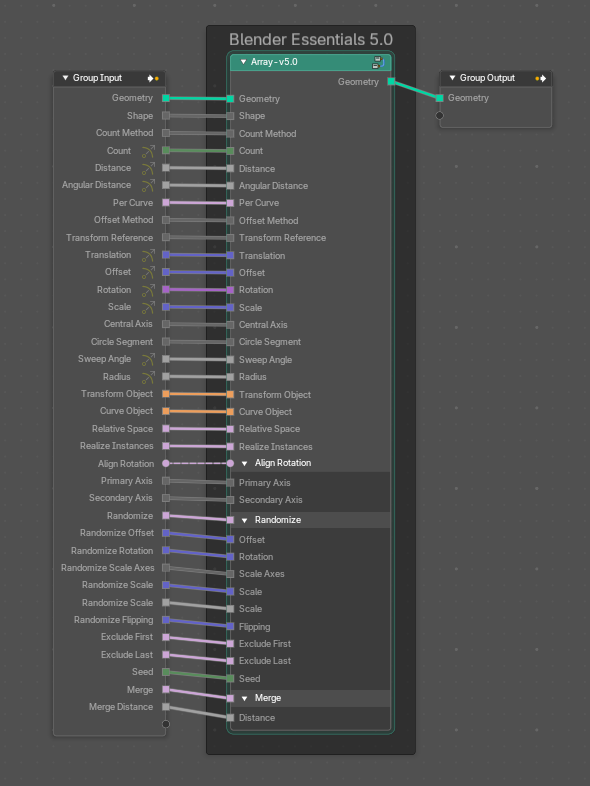
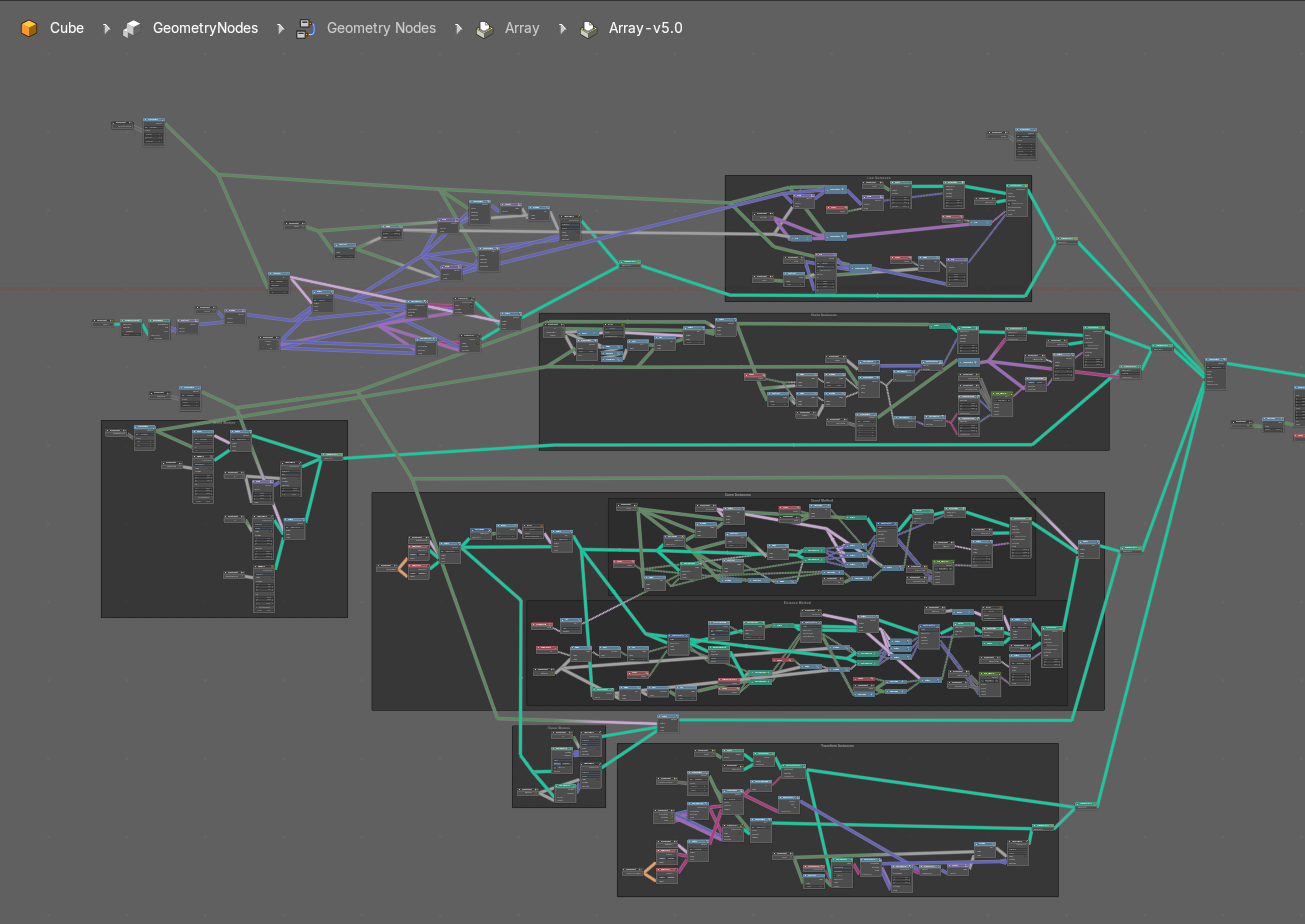
To leave the group you can use the breadcrumb up left in the header. These breadcrumbs are clickable. Or the Parent Node Tree button up right in the header.

Geometry Input
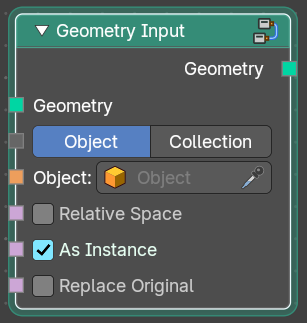
Geometry input
Geometry › Operations
Add menu - Geometry nodes - Geometry - Operations

The nodes in this submenu are node groups. They use the regular single nodes under the hood.
It is virtually impossible to document these nodes in detail. So we will just list them.
When you double click the header, then you will enter the first level of the group. When you then press tab, or click again at the header, then you will reach the single nodes.
To leave the group you can use the breadcrumb up left in the header. These breadcrumbs are clickable. Or the Parent Node Tree button up right in the header.
Displace Geometry
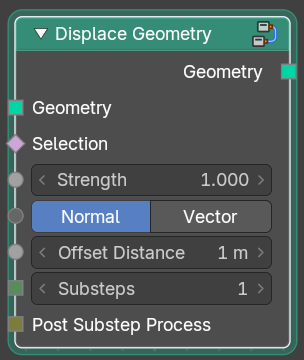
Displaces the geometry.
Smooth Geometry
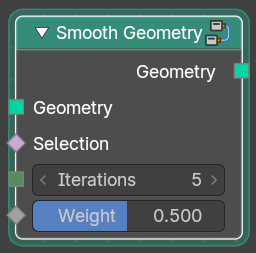
Smoothens the geometry.
Geometry › Selection
Add menu - Geometry nodes - Geometry - Selection

The nodes in this submenu are node groups. They use the regular single nodes under the hood.
It is virtually impossible to document these nodes in detail. So we will just list them.
When you double click the header, then you will enter the first level of the group. When you then press tab, or click again at the header, then you will reach the single nodes.
To leave the group you can use the breadcrumb up left in the header. These breadcrumbs are clickable. Or the Parent Node Tree button up right in the header.
Box Selection
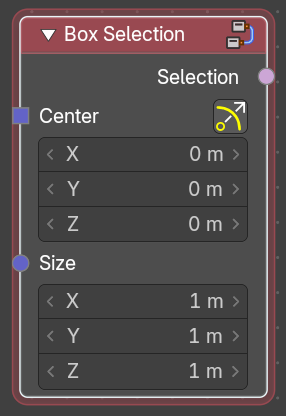
Box select geometry.
Normal Selection
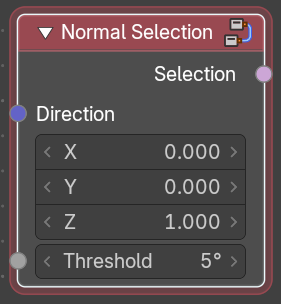
Select geometry by the normals direction.
Sphere Selection
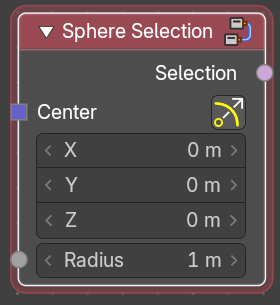
Select geometry by a sphere shape.
Grease Pencil › Operations
Add menu - Geometry nodes - Grease Pencil - Operations

The nodes in this submenu are node groups. They use the regular single nodes under the hood.
It is virtually impossible to document these nodes in detail. So we will just list them.
When you double click the header, then you will enter the first level of the group. When you then press tab, or click again at the header, then you will reach the single nodes.
To leave the group you can use the breadcrumb up left in the header. These breadcrumbs are clickable. Or the Parent Node Tree button up right in the header.
Delete Empty Layers
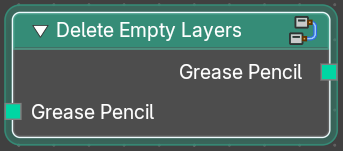
Deletes empty grease pencil layers
Grease Pencil › Read
Add menu - Geometry nodes - Grease Pencil - Read

The nodes in this submenu are node groups. They use the regular single nodes under the hood.
It is virtually impossible to document these nodes in detail. So we will just list them.
When you double click the header, then you will enter the first level of the group. When you then press tab, or click again at the header, then you will reach the single nodes.
To leave the group you can use the breadcrumb up left in the header. These breadcrumbs are clickable. Or the Parent Node Tree button up right in the header.
Layer Size
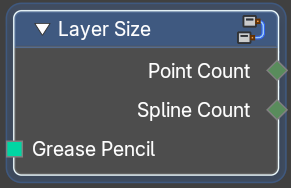
Retreive the point count and spline count of a grease pencil layer.
Material Fill Info
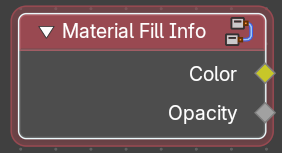
Retreive the color and opacity of a grease pencil layer.
Stroke Info
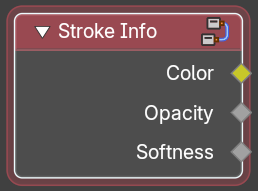
Retreive the color, opacity and softness of a grease pencil stroke.
Grease Pencil › Write
Add menu - Geometry nodes - Grease Pencil - Write
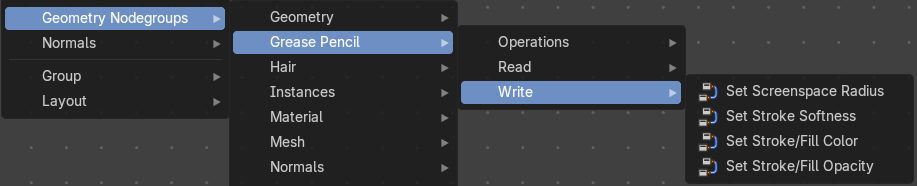
The nodes in this submenu are node groups. They use the regular single nodes under the hood.
It is virtually impossible to document these nodes in detail. So we will just list them.
When you double click the header, then you will enter the first level of the group. When you then press tab, or click again at the header, then you will reach the single nodes.
To leave the group you can use the breadcrumb up left in the header. These breadcrumbs are clickable. Or the Parent Node Tree button up right in the header.
Set Screenspace Radius
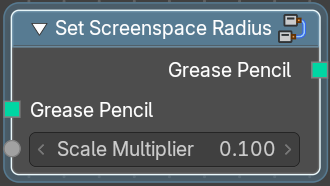
Set the screenspace radius of the grease pencil.
Material Fill Info
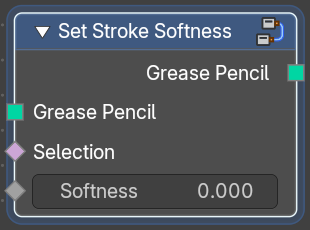
Set the stroke softness of the grease pencil.
Set Stroke / Fill Color
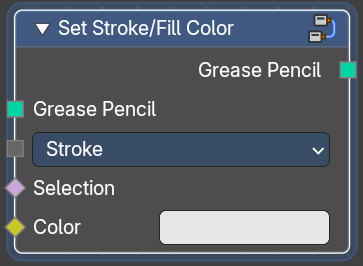
Set the stroke fill color of the grease pencil.
Set Stroke / Fill Opacity
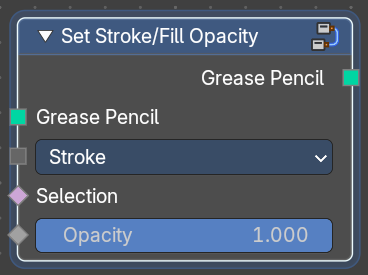
Set the stroke fill opacity of the grease pencil.
Hair › Deformation
Add menu - Hair - Deformation

The nodes in this submenu are node groups. They use the regular single nodes under the hood.
It is virtually impossible to document these nodes in detail. So we will just list them.
When you double click the header, then you will enter the first level of the group. When you then press tab, or click again at the header, then you will reach the single nodes.
To leave the group you can use the breadcrumb up left in the header. These breadcrumbs are clickable. Or the Parent Node Tree button up right in the header.
Blend Hair Curves

Blends the shape between multiple hair curves in a certain radius together.
| Entry | What it does |
|---|---|
| Input | Geometry: The input geometry. · Factor: Factor to blend overall effect. · Blend Radius: Radius to select neighbors for blending. · Blend Neighbours: Amount of neighbors used for blending. · Preserve Length: Preserve the length of each curve during deformation. |
| Output | Geometry: The output geometry. |
Displace Hair Curves

Displaces hair curves by a vector based on options.
Input
| Entry | What it does |
|---|---|
| Geometry | The input geometry. |
| Factor | Factor to blend overall effect. |
| Shape | Shape of the influence along curves. 0 means constant. 0.5 means linear. |
| Object | The object to determine the displacement space. |
| Displace Vector | The vector for the displacement. |
| Surface Object | Surface object used to sample the normal for displacement. |
| Surface Geometry | Surface geometry used to sample the normal for displacement. |
| Surface UV Map | Surface UV Map used to sample the normal for displacement. |
| Surface Normal Displacement | Amount of displacement along the surface normals. |
Output
Geometry
The output geometry.
Frizz Hair Curves

Deforms hair curves using a random vector per point to frizz them.
| Entry | What it does |
|---|---|
| Input | Geometry: The input geometry. · Cumulative Offset: Apply offset cumulatively. · Factor: Factor to blend overall effect. · Distance: Overall distance factor for the deformation. · Shape: Shape of the influence along curves. 0 means constant. 0.5 means linear. · Seed: Random seed for the operation. · Preserve Length: Preserve the length of each curve during deformation. |
| Output | Geometry: The output geometry. · Offset Vector: The vector by which each point was offset during deformation. |
Hair Curves Noise

Deforms hair curves using noise texture.
Input
| Entry | What it does |
|---|---|
| Geometry | The input geometry. |
| Cumulative Offset | Apply offset cumulatively. |
| Factor | Factor to blend overall effect. |
| Distance | Overall distance factor for the deformation. |
| Shape | Shape of the influence along curves. 0 means constant. 0.5 means linear. |
| Scale | Scale of the noise texture by root position. |
| Scale along Curve | Scale of the noise texture along the curve. |
| Offset per curve | — |
| Seed | Random seed for the operation. |
| Preserve Length | Preserve the length of each curve during deformation. |
Output
| Entry | What it does |
|---|---|
| Geometry | The output geometry. |
| Offset Vector | The vector by which each point was offset during deformation. |
Roll Hair Curves

Rolls up hair curves, starting from their tips.
Input
| Entry | What it does |
|---|---|
| Factor | Factor to blend overall effect. |
| Subdivision | Subdivision level applied before deformation. |
| Variation Level | Level of smoothing on the roll path to include shape variation. |
| Roll Lenght | Length of each curve to be rolled |
| Roll Radius | Radius of the rolls. |
| Roll Depth | Depth offset of the rolls. |
| Roll Taper | Taper of the roll. |
| Retain Overall Shape | Offset the roll along the original curve to retain shape. |
| Roll Direction | The axis around each curve is rolled. |
| Random Orientation | Amount of randomization of the direction of the roll. |
| Seed | Random seed for the operation. |
| Preserve Length | Preserve the length of each curve during deformation. |
Output
Geometry
The output geometry.
Rotate Hair Curves

Rotates each hair curve around an axis.
| Entry | What it does |
|---|---|
| Input | Geometry: The input geometry. · Factor: Factor to blend overall effect. · Axis: Rotation Axis. The default is tangent at root. · Angle: Angle of rotation · Random Off: Random offset to the rotation angle per curve. · Lock Ends: Lock rotation to the axis between the curve ends. · Seed: Random seed for the operation. |
| Output | Geometry: The output geometry. |
Shrinkwrap Hair Curves

Shrinkwrap hair curves to a mesh surface from below and optionally from above.
| Entry | What it does |
|---|---|
| Input | Geometry: The input geometry. · Surface: Surface geometry used for shrinkwrap. · Surface Object: A surface object used for shrinkwrap. · Factor: Factor to blend overall effect. · Offset Distance: Distance of the surface to shrinkwrap. · Above Surface: Blend shrinkwrap for points above the surface. · Smoothing Steps: The steps of Smoothing applied after shrinkwrap. · Lock Roots: Lock the position of root points. |
| Output | Geometry: The output geometry. |
Smooth Hair Curves

Smoothes the shape of hair curves.
| Entry | What it does |
|---|---|
| Input | Geometry: The input geometry. · Amount: Amount of smoothing. · Shape: Shape of the influence along curves. 0 means constant. 0.5 means linear. · Iterations: Amount of smoothing steps. · Weight: Smoothing weight. · Lock Tip: Lock the position of tip points. · Preserve Length: Preserve the length of each curve during deformation. |
| Output | Geometry: The output geometry. |
Straighten Hair Curves

Straighten hair curves between root and tip.
| Entry | What it does |
|---|---|
| Input | Geometry: The input geometry. · Amount: Amount of smoothing. · Shape: Shape of the influence along curves. 0 means constant. 0.5 means linear. · Preserve Length: Preserve the length of each curve during deformation. |
| Output | Geometry: The output geometry. |
Trim Hair Curves

Trims or scales hair curves to a certain length.
Input
| Entry | What it does |
|---|---|
| Geometry | The input geometry. |
| Scale Uniform | Scale each curve uniformly to reach the target length. |
| Length Factor | Multiply the original length by a factor |
| Replace Length | Use the length input to fully replace the original length. |
| Length | Target length for the operation. |
| Mask | Mask to blend overall effect. |
| Random Offset | Trim hair curves randomly up to a certain amount. |
| Pin at parameter | Pin each curve at a certain point for the operation. |
| Seed | Random seed for the operation. |
Output
Geometry
The output geometry.
Hair › Generation
Add menu - Hair - Generation

The nodes in this submenu are node groups. They use the regular single nodes under the hood.
It is virtually impossible to document these nodes in detail. So we will just list them.
When you double click the header, then you will enter the first level of the group. When you then press tab, or click again at the header, then you will reach the single nodes.
To leave the group you can use the breadcrumb up left in the header. These breadcrumbs are clickable. Or the Parent Node Tree button up right in the header.
Duplicate Hair Curves

Duplicates hair curves a certain amouunt of times in the given radius.
| Entry | What it does |
|---|---|
| Input | Geometry: The input geometry. · Amount: Amount of duplication per curve. · Viewport Amount: How much percent is used in the viewport. · Radius: The radius in which the duplicate curves are offset from the guides. · Distribution Shape: Shape of distriubution from center to the edge aroudn the guide. · Tip Roundness: Offset of the curves to round the tip. · Even Thickness: Keep an even thickness of the distribution of duplicates. · Seed: Random seed for the operation. |
| Output | Geometry: The output geometry. · Guide Index: The guide index map that was used for the operation. |
Generate Hair Curves

Generates new hair curves on a surface mesh.
Input
| Entry | What it does |
|---|---|
| Surface | The surface to generate the hairs on. |
| Surface Object | A surface object to generate the hairs on. |
| Surface UV map | Surface UV map used for attachment. |
| Surface Rest Position | Set the surface mesh into its rest position before attachment. |
| Hair Length | Length of the generated hair curves. |
| Hair Material | The material for the hair curves. |
| Control Points | Amount of control points for the generated hair curves. |
| Poisson Disk Distribution | Use Poisson Disk distribution to keep a minimum distance between the hair curves. |
| Density | How dense the generated hair curves are. |
| Density Mask | Factor for the density of generated hair curves. |
| Mask Texture | Discard points based on a mask texture after distribution. This mask can be loaded here. |
| Viewport Amount | How dense the generated hair curves are displayed in the viewport. |
| Seed | Random seed for operation. |
Output
| Entry | What it does |
|---|---|
| Geometry | The output geometry. |
| Curves | The output curves. |
| Surface Normal | The surface normals. |
Interpolate Hair Curves

Interpolates existing guide curves on a surface.
Input
| Entry | What it does |
|---|---|
| Guide Curves | Input guide curves. |
| Surface Geometry | The surface geometry to generate the hairs on. |
| Surface Object | A surface object to generate the hairs on. |
| Surface UV map | Surface UV map used for attachment. |
| Surface Rest Position | Set the surface mesh into its rest position before attachment. |
| Follow Surface Normal | Align the interpolated curves to the surface normal. |
| Part by Mesh Islands | Use mesh islands of the surface geometry for painting. |
| Interpolation Guides | Amount of guides to be used for interploation per curve. |
| Distance to Guides | Distance aorund each guide to spawn interpollated curves. |
| Poisson Disk Distribution | Use Poisson Disk distribution to keep a minimum distance between the hair curves. |
| Density | How dense the generated hair curves are. |
| Density Mask | Factor for the density of generated hair curves. |
| Mask Texture | Discard points based on a mask texture after distribution. This mask can be loaded here. |
| Viewport Amount | How dense the generated hair curves are displayed in the viewport. |
| Seed | Random seed for operation. |
Output
| Entry | What it does |
|---|---|
| Geometry | The output geometry. |
| Guide Index | The output curves. |
| Surface Normal | The surface normals. |
Hair › Guides
Add menu - Hair - Guides

The nodes in this submenu are node groups. They use the regular single nodes under the hood.
It is virtually impossible to document these nodes in detail. So we will just list them.
When you double click the header, then you will enter the first level of the group. When you then press tab, or click again at the header, then you will reach the single nodes.
To leave the group you can use the breadcrumb up left in the header. These breadcrumbs are clickable. Or the Parent Node Tree button up right in the header.
Braid Hair Curves
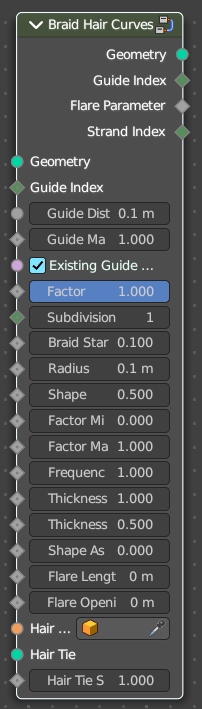
Deforms existing hair curves into braids.
Input
| Entry | What it does |
|---|---|
| Geometry | The input geometry. |
| Guide Index | Index map input. This input has priority. |
| Guide Distance | Minimum distance between two guides for new guide map. |
| Guide Mask | Mash for which curve are eligible to be selected as guides. |
| Existing Guide Map | Use the existing guide map attribute if available |
| Factor | Factor to blend overall effect. |
| Subdivision | Subdivision level applied before deformation. |
| Braid Start | Where to start to blend deformation in percent from the root. |
| Radius | Overall radius of the braids. |
| Shape | Shape of the braid radius along each curve. |
| Factor Min | Minimum radius of the braid. |
| Factor Max | Maximum radius of the braid. |
| Frequency | Frequency factor of the braids. |
| Thickness | Thickness of the braids. |
| Thickness Shape | Shape adjsutment of the strand thickness for the braids. |
| Shape Assymetry | Asymetry of the shape adjustment of the strand thickness. |
| Flare Length | Length of the flare at the end of the braid. |
| Flare Opening | Opening radius of the flare at the tip of the braid. |
| Hair Tie Object | Object used for the hair tie instance. |
| Hair Tie | Geometry used for the hair tie instance. This has priority. |
| Hair Tie Scale | Scale of the hair tie instance. |
Output
| Entry | What it does |
|---|---|
| Geometry | The output geometry. |
| Guide Index | The guide index map that was used for the operation. |
| Flare Parameter | Parameter between 0 and 1 along the flare. |
| Strand Index | Index of the strand within a braid that each curve belongs to. |
Clump Hair Curves

Clumps together existing hair curves.
Input
| Entry | What it does |
|---|---|
| Geometry | The input geometry. |
| Guide Index | Index map input. This input has priority. |
| Guide Distance | Minimum distance between two guides for new guide map. |
| Guide Mask | Mash for which curve are eligible to be selected as guides. |
| Existing Guide Map | Use the existing guide map attribute if available. |
| Factor | Factor to blend overall effect. |
| Shape | Shape of the influence along curves. 0 means constant. 0.5 means linear. |
| Tip Spread | Distance of random sread at the curve tips |
| Clump Offset | Offset of clump in a random direction. |
| Distance Falloff | Falloff distance for the clumping effect. 0 means no falloff. |
| Distance Threshold | Distance threshold for the clumping effect. 0 means no falloff. |
| Preserve Length | Preserve the length of each curve during deformation. |
Output
| Entry | What it does |
|---|---|
| Geometry | The output geometry. |
| Guide Index | The guide index map that was used for the operation. |
Create Guide Index Map
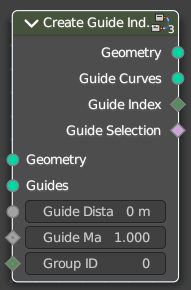
Creates an attribute that maps each curve to its nearest guide via index.
| Entry | What it does |
|---|---|
| Input | Geometry: The input geometry. · Guides: Index map input. This input has priority. · Guide Distance: Minimum distance between two guides for new guide map. · Guide Mask: Mash for which curve are eligible to be selected as guides. · Group ID: The id that is used to group curves togethert for guide map creation. |
| Output | Geometry: The output geometry. · Guide Curves: The output guides · Guide Index: The guide index map that was used for the operation. · Guide Selection: The output guide selection. |
Curl Hair Curves

Deform existing hair curves into curls.
Input
| Entry | What it does |
|---|---|
| Geometry | The input geometry. |
| Guide Index | Index map input. This input has priority. |
| Guide Distance | Minimum distance between two guides for new guide map. |
| Guide Mask | Mash for which curve are eligible to be selected as guides. |
| Existing Guide Map | Use the existing guide map attribute if available. |
| Factor | Factor to blend overall effect. |
| Subdivision | Subdivision level applied before deformation. |
| Curl start | — |
| Radius | — |
| Factor Start | Form where to blend deformation in percent, starting from the root. |
| Factor End | Factor for the radius at the curl end. |
| Frequency | Frequency factor of the curls. |
| Random Offset | Amount of random offset per curve. |
| Seed | Random seed for the operation. |
Output
Geometry
The output geometry.
Hair › Read
Add menu - Hair - Read
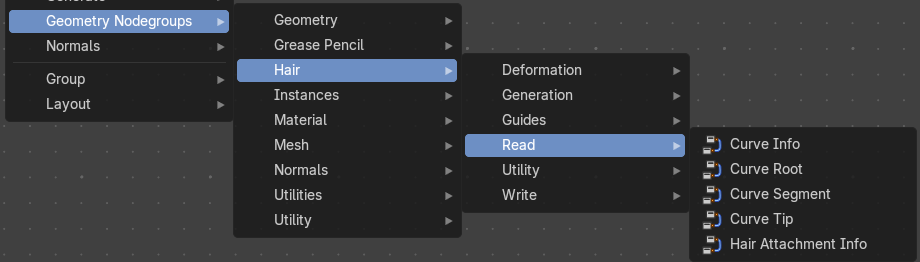
The nodes in this submenu are node groups. They use the regular single nodes under the hood.
It is virtually impossible to document these nodes in detail. So we will just list them.
When you double click the header, then you will enter the first level of the group. When you then press tab, or click again at the header, then you will reach the single nodes.
To leave the group you can use the breadcrumb up left in the header. These breadcrumbs are clickable. Or the Parent Node Tree button up right in the header.
Curve Info
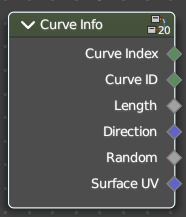
Reads information about each curve.
Output
| Entry | What it does |
|---|---|
| Curve Index | Index of each curve. |
| Curve ID | ID of each curve. |
| Length | Length of each curve. |
| Direction | Direction of each curve. |
| Random | Random Vector of each curve. |
| Surface UV | Attachment surface UV coordinate of each curve. |
Curve Root
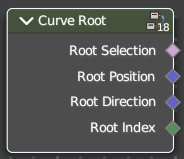
Reads information about the root point of each curve.
Output
| Entry | What it does |
|---|---|
| Root Selection | Boolean selection of curve root points. |
| Root Position | The position of a root point of a curve. |
| Root Direction | Direction of the root segment of a curve. |
| Root Index | Index of the root point of a curve. |
Curve Segment
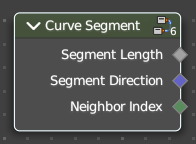
Reads the information of the curve segment before the current point.
| Entry | What it does |
|---|---|
| Output | — |
| Segment Length | Length of the segment |
| Segment Direction | Direction of the segment |
| Neighbor Index | Index of the neighbouring point on segment. |
Curve Tip
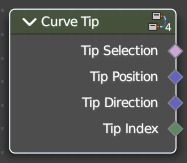
Reads information about the tip point of each curve.
| Entry | What it does |
|---|---|
| Output | — |
| Tip Selection | Boolean selection of the tip points. |
| Tip Position | Position of the tip point of a curve. |
| Tip Direction | Direction of the segment of the tip point of a curve. |
| Tip Index | Index of the tip point of a curve. |
Hair Attachment Info
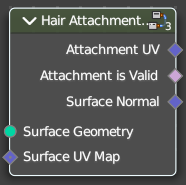
Reads attatchment information regarding a surface mesh.
| Entry | What it does |
|---|---|
| Input | Surface Geometry: Surface geometry of the curve attachment. · Surface UV Map: Surface UV map used for attachment. |
| Output | Attachment UV: Surface attachment UV coordinate stored on each curve. · Attachment is Valid: Is the attached UV coordinate valid? · Surface Normal: The normal direction of the surface mesh at the attachment point. |
Hair › Utility
Add menu - Hair - Utility

The nodes in this submenu are node groups. They use the regular single nodes under the hood.
It is virtually impossible to document these nodes in detail. So we will just list them.
When you double click the header, then you will enter the first level of the group. When you then press tab, or click again at the header, then you will reach the single nodes.
To leave the group you can use the breadcrumb up left in the header. These breadcrumbs are clickable. Or the Parent Node Tree button up right in the header.
Attach Hair Curves to Surface

Attaches hair curves to a surface mesh.
Input
| Entry | What it does |
|---|---|
| Geometry | The input geometry. |
| Surface Object | A surface object to attach to. It needs to have matching transforms. |
| Surface | Surface geometry to attach hair curves to. |
| Surface UV Map | Surface UV Map used to attach hairs to. |
| Surface Rest Position | Set the surface into rest position before attachment. |
| Sample Attachment UV | Sample the surface UV mapp at the attachment point. |
| Snap to Surface | Snap the root of the curve to the closest surface point. |
| Align to Surface Normal | Align the curves to surface normals. Needs a guide as reference. |
| Blend along Curve | Blend deformation along eacah curve from the root. |
Output
| Entry | What it does |
|---|---|
| Geometry | The output geometry. |
| Surface UV Coordinate | Surface UV Coordinate at the attachment point. |
| Surface Normal | Surface Normal at the attachment point. |
Redistribute Curve Points
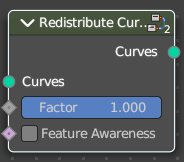
Redistributes existing control points evenly along each curve.
| Entry | What it does |
|---|---|
| Input | Curves: The input curve. · Factor: Factor to blend overall effect. · Feature Awareness: Use simple feature awareness to keep feature definition. |
| Output | Curves: The output curves. |
Restore Curve Segment Length
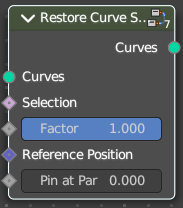
| Entry | What it does |
|---|---|
| Input | Curves: The input curve. · Selection: A selection of the input curve. · Factor: Factor to blend overall effect. · Reference Position: Reference position before deformation. · Pin at Parameter: Pin each curve at a certain point for the operation. |
| Output | Curves: The output curves. |
Hair › Write
Add menu - Hair - Write
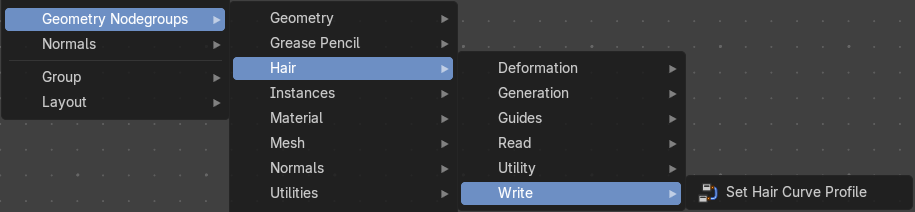
The nodes in this submenu are node groups. They use the regular single nodes under the hood.
It is virtually impossible to document these nodes in detail. So we will just list them.
When you double click the header, then you will enter the first level of the group. When you then press tab, or click again at the header, then you will reach the single nodes.
To leave the group you can use the breadcrumb up left in the header. These breadcrumbs are clickable. Or the Parent Node Tree button up right in the header.
Set Hair Curve Profile
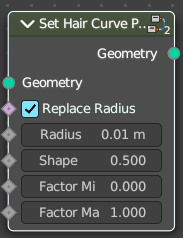
Set the radius attribute of hair curces according to a profile shape.
| Entry | What it does |
|---|---|
| Input | Geometry: The input geometry. · Replace Radius: Replace the original radius. · Radius: Base radius to be set when replace radius is enabled. · Shape: Shape of the radius along the curve. · Factor Min: Factor of the radius at the minimum. · Factor Max: Factor of the radius at the maximum. |
| Output | Geometry: The output geometry. |
Instances
Add menu - Geometry nodes - Instances

The nodes in this submenu are node groups. They use the regular single nodes under the hood.
It is virtually impossible to document these nodes in detail. So we will just list them.
When you double click the header, then you will enter the first level of the group. When you then press tab, or click again at the header, then you will reach the single nodes.
To leave the group you can use the breadcrumb up left in the header. These breadcrumbs are clickable. Or the Parent Node Tree button up right in the header.
Instance on Elements
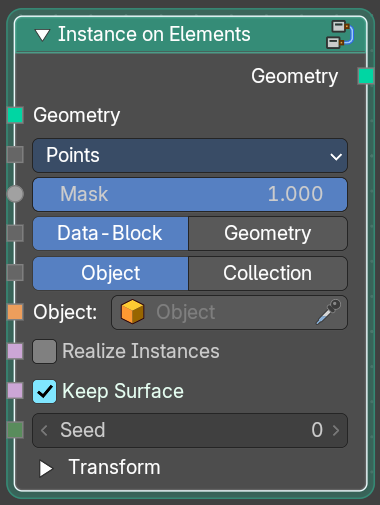
Create copies of referenced geometry on geometry elements.
Randomize Transforms
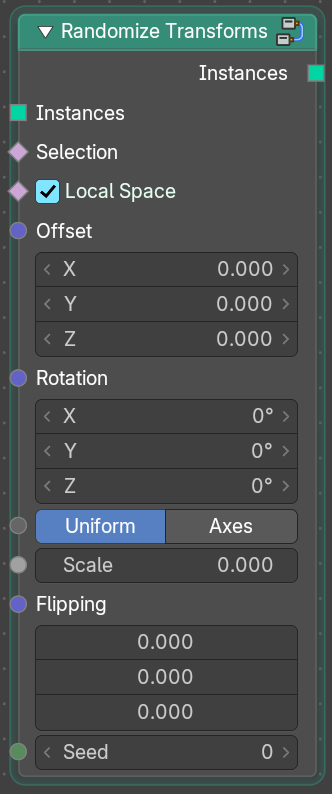
Randomize the transform of instances.
Material
Add menu - Geometry nodes - Material
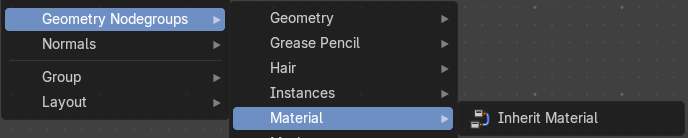
The nodes in this submenu are node groups. They use the regular single nodes under the hood.
It is virtually impossible to document these nodes in detail. So we will just list them.
When you double click the header, then you will enter the first level of the group. When you then press tab, or click again at the header, then you will reach the single nodes.
To leave the group you can use the breadcrumb up left in the header. These breadcrumbs are clickable. Or the Parent Node Tree button up right in the header.
Inherit Material
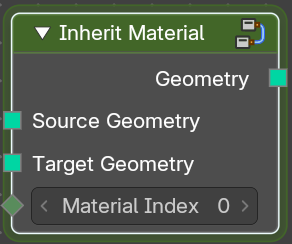
Applies an existing material from the source geometry at the target geometry.
Mesh
Add menu - Geometry nodes - Mesh
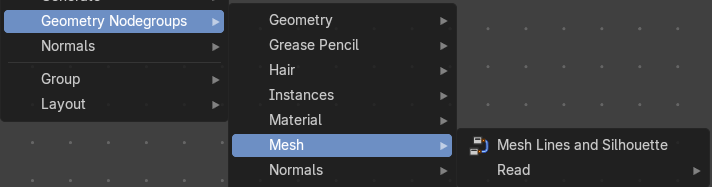
The nodes in this submenu are node groups. They use the regular single nodes under the hood.
It is virtually impossible to document these nodes in detail. So we will just list them.
When you double click the header, then you will enter the first level of the group. When you then press tab, or click again at the header, then you will reach the single nodes.
To leave the group you can use the breadcrumb up left in the header. These breadcrumbs are clickable. Or the Parent Node Tree button up right in the header.
Mesh Lines and Silhouette
Creates a Inverses Hull lines with a mesh silhouette. This also contains overrides, randomizatoin and other settings.
Mesh › Read
Add menu - Geometry nodes - Mesh - Read
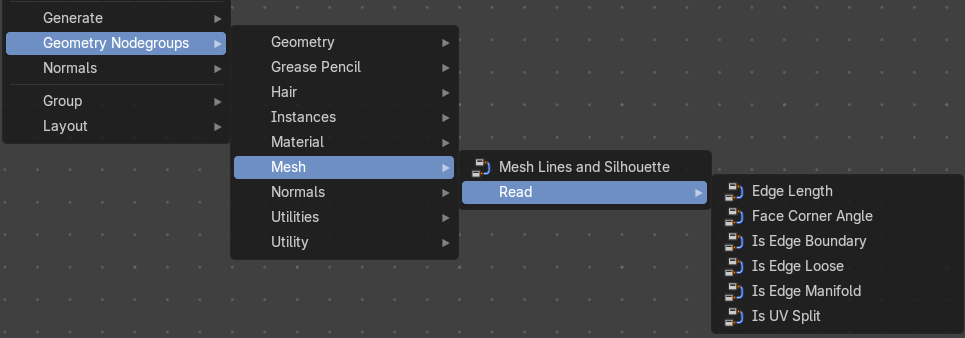
The nodes in this submenu are node groups. They use the regular single nodes under the hood.
It is virtually impossible to document these nodes in detail. So we will just list them.
When you double click the header, then you will enter the first level of the group. When you then press tab, or click again at the header, then you will reach the single nodes.
To leave the group you can use the breadcrumb up left in the header. These breadcrumbs are clickable. Or the Parent Node Tree button up right in the header.
Edge Length
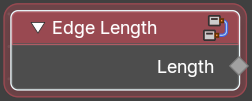
Returns the length of an edge.
Face Corner Angle
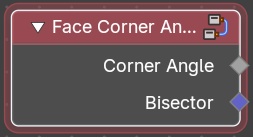
Returns the angle between two edges.
Is Edge Boundary
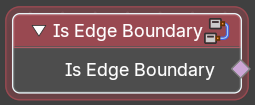
Returns a selection of boundary edges.
Is Edge Loose
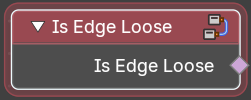
Returns a selection of loose edges.
Is Edge Manifold
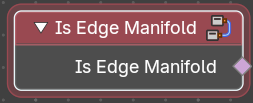
Returns a selection of manifold edges.
Is UV Split
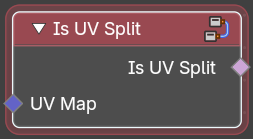
Returns a selection of seam edges at the border of UV patches.
Normals
Add menu - Geometry nodegroups - Normals
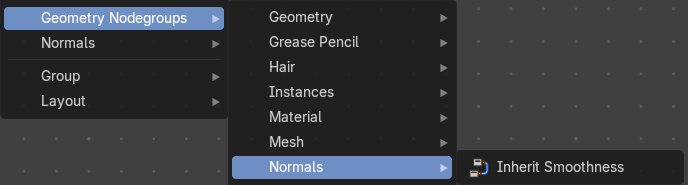
The nodes in this submenu are node groups. They use the regular single nodes under the hood.
It is virtually impossible to document these nodes in detail. So we will just list them.
When you double click the header, then you will enter the first level of the group. When you then press tab, or click again at the header, then you will reach the single nodes.
To leave the group you can use the breadcrumb up left in the header. These breadcrumbs are clickable. Or the Parent Node Tree button up right in the header.
Inherit Smoothness
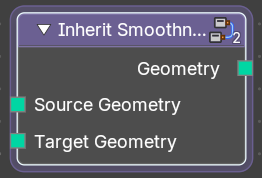
Passes normal smoothness of the parent object.
Utilities
Add menu - Geometry nodegroups - Utilities
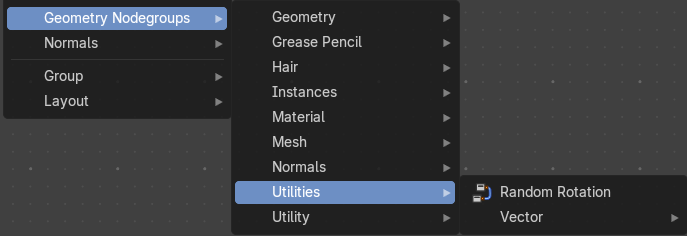
The nodes in this submenu are node groups. They use the regular single nodes under the hood.
It is virtually impossible to document these nodes in detail. So we will just list them.
When you double click the header, then you will enter the first level of the group. When you then press tab, or click again at the header, then you will reach the single nodes.
To leave the group you can use the breadcrumb up left in the header. These breadcrumbs are clickable. Or the Parent Node Tree button up right in the header.
Random Rotation
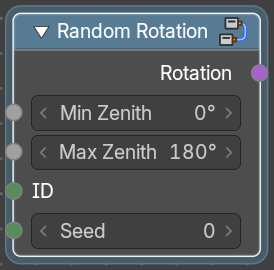
Returns a uniformly distributed random rotation
Utilities › Vector
Add menu - Geometry nodegroups - Utilities - Vector
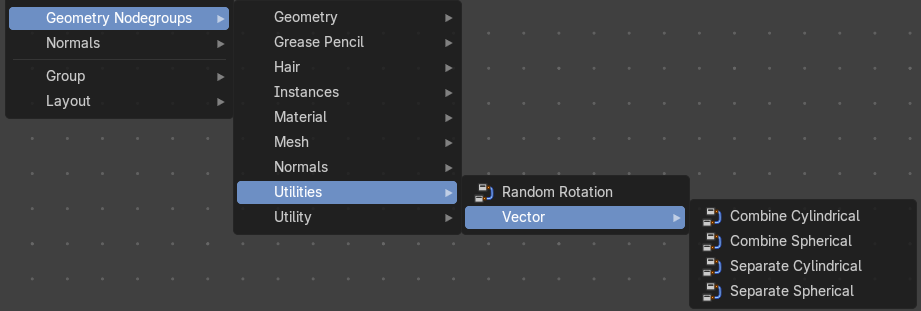
The nodes in this submenu are node groups. They use the regular single nodes under the hood.
It is virtually impossible to document these nodes in detail. So we will just list them.
When you double click the header, then you will enter the first level of the group. When you then press tab, or click again at the header, then you will reach the single nodes.
To leave the group you can use the breadcrumb up left in the header. These breadcrumbs are clickable. Or the Parent Node Tree button up right in the header.
Combined Cylindrical
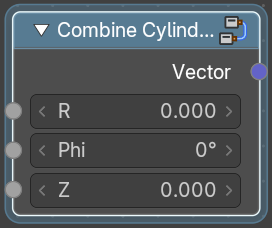
Create a vector from its cylindrical components.
Combined Spherical
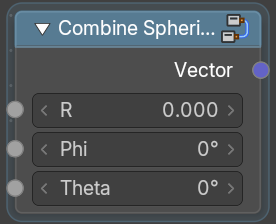
Create a vector from its spherical components.
Separate Cylindrical
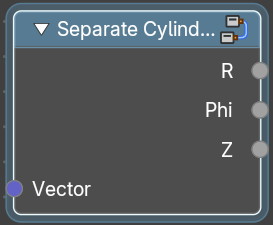
Decompose into its cylindrical components.
Separate Spherical
Decompose into its spherical components.
Utility
Add menu - Geometry nodegroups - Utility
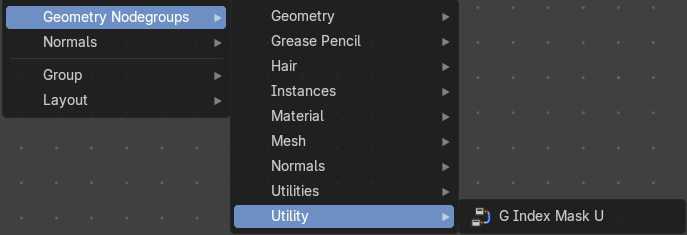
The nodes in this submenu are node groups. They use the regular single nodes under the hood.
It is virtually impossible to document these nodes in detail. So we will just list them.
When you double click the header, then you will enter the first level of the group. When you then press tab, or click again at the header, then you will reach the single nodes.
To leave the group you can use the breadcrumb up left in the header. These breadcrumbs are clickable. Or the Parent Node Tree button up right in the header.
G Index Mask U
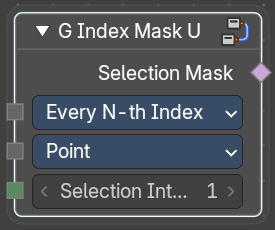
Selects an indicy by using various functions.