

































































Input
Input nodes: Constant, Gizmo, Import, Scene.
Constant
Add menu - Input - Constant
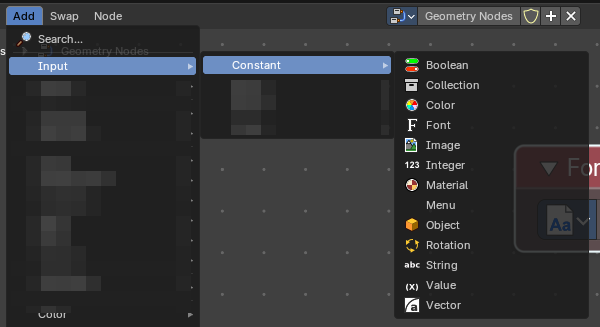
Here you find input nodes.
Boolean
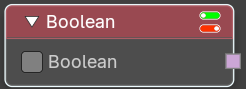
Inputs a boolean value.
| Entry | What it does |
|---|---|
| Properties | Value: The input boolean. |
| Outputs | Boolean: The boolean state. |
Collection
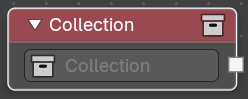
Outputs a single collection.
| Entry | What it does |
|---|---|
| Properties | Collection: The collection to select from the scene. |
| Outputs | Collection: The collection data useful to get instances as children. |
Color
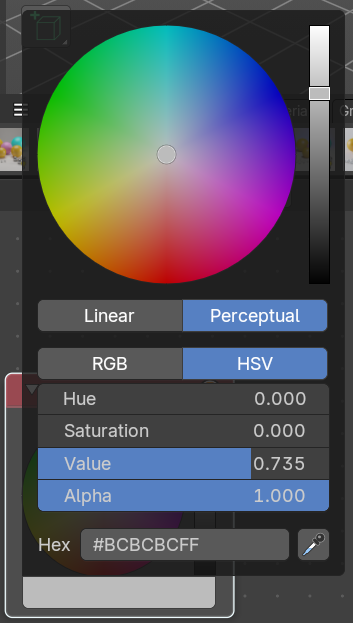
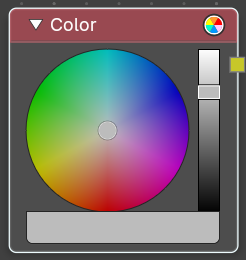
Define a input color.
This node is a color wheel.
Clicking at the color field at the bottom will reveal the standard Blender color dialog, where you can input numeric values.
Outputs
Color
Standard color output.
Font
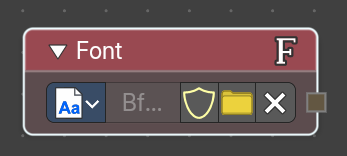
Provides a constant reference to a font data inside Geometry Nodes. Useful for procedural text generation, typography-driven effects, and node-based workflows where font consistency is required
Parameters
| Entry | What it does |
|---|---|
| Font Selector | Dropdown or file browser to choose the font datablock. Can reference internal fonts or external font files. |
| Output | Provides a Font datablock reference that other nodes can consume. Typically used as input for text-related nodes. |
Image
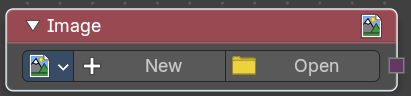
Add a input image.
Properties
Image
Load or connect a image.
New
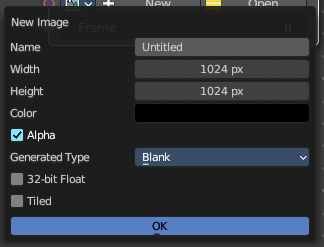
Create a new image.
Opens a new image dialog where you can adjust the color, size and further settings.
Open
Open a existing image.
Image prop
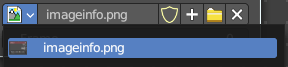
| Entry | What it does |
|---|---|
| Image browser | A list of available images |
| Image name | The name of the image |
| Fake user | Add a fake user to this asset. |
New
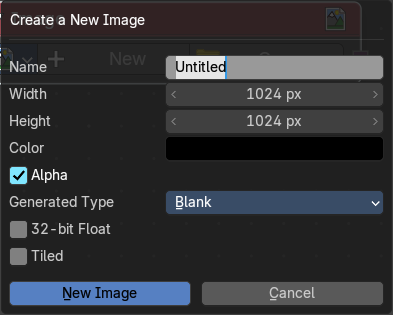
Create a new image.
Opens a new image dialog where you can adjust the color, size and further settings.
| Entry | What it does |
|---|---|
| Open Image | Open a existing image. |
| Remove | Removes the image as the active image. |
Frame
For videos. Which frame to use.
Outputs
Image
The output image.
Integer
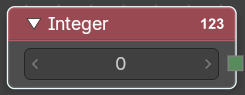
Inputs a integer value.
| Entry | What it does |
|---|---|
| Properties | Value: The input integer. |
| Outputs | Integer: The integer value. |
Material
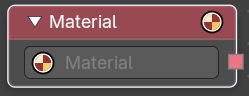
Retreive a material.
Outputs
Material
The material output.
Object
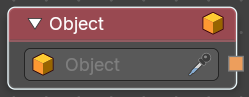
Retrieves a single object.
| Entry | What it does |
|---|---|
| Properties | Object: The object to select from the scene. |
| Outputs | Object: The object data useful to get object info. |
Rotation
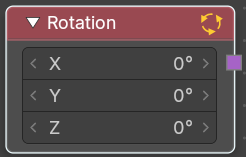
Apply a constant rotation.
| Entry | What it does |
|---|---|
| Properties | X, Y Z: The rotation that you want to apply. |
| Outputs | Rotation: The output rotation vector. |
String
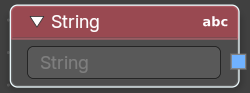
Input a string.
| Entry | What it does |
|---|---|
| Properties | String: The string that you want to input. |
| Outputs | Value: The value set in the node properties. |
Value
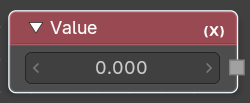
Input numerical values to other nodes in the tree.
| Entry | What it does |
|---|---|
| Properties | Value: Single numerical value (floating point). |
| Outputs | Value: The value set in the node properties. |
Vector
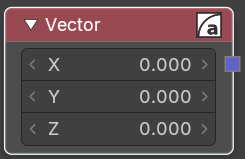
Creates a single vector of three values that can be used as an input.
Properties
| Entry | What it does |
|---|---|
| X Y Z | The values of the vector. |
| Output | Vector: Standard vector output. |
Gizmo
Add menu - Input - Gizmo
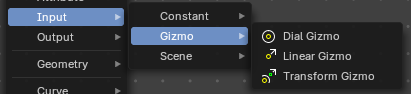
Here you find input nodes.
Dial Gizmo
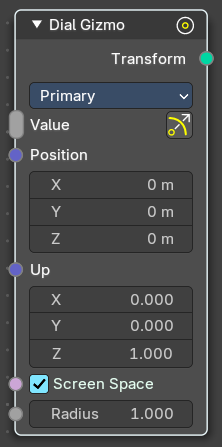
Displays the rotation gizmo in the 3d view.
Inputs
| Entry | What it does |
|---|---|
| Value | Show or hide the widget. |
| Position | Where to show the widget in relation to the object. |
| Up | The up vector to define the rotation. |
| Screen Space | Use screen space or object space values to display the widget. |
| Radius | The radius of the widget. |
Properties
Color
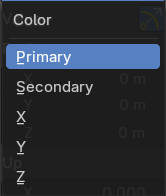
The widget color, defined in the theming.
Pin Gizmo
Always display the gizmo.
Outputs
Transform
The output transform. No positions, no matrices, Gizmos.
Linear Gizmo
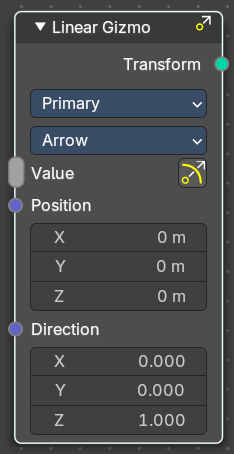
Displays the translation gizmo in the 3d view.
Inputs
| Entry | What it does |
|---|---|
| Value | Show or hide the widget. |
| Position | Where to show the widget in relation to the object. |
| Direction | The direction vector. |
| Screen Space | Use screen space or object space values to display the widget. |
| Radius | The radius of the widget. |
Properties
Color
The widget color, defined in the theming.
Draw Style
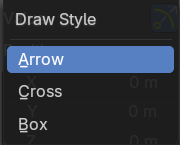
How to draw the widget.
Pin Gizmo
Always display the gizmo.
Outputs
Transform
The output transform. No positions, no matrices, Gizmos.
Transform Gizmo
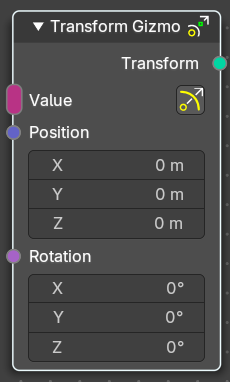
Displays the transform gizmo in the 3d view.
| Entry | What it does |
|---|---|
| Inputs | Value: Show or hide the widget. · Position: Where to show the widget in relation to the object. · Rotation: The rotation vector. · Screen Space: Use screen space or object space values to display the widget. · Radius: The radius of the widget. |
| Properties | Pin Gizmo: Always display the gizmo. |
| Outputs | Transform: The output transform. No positions, no matrices, Gizmos. |
Import
Add menu - Input - Import
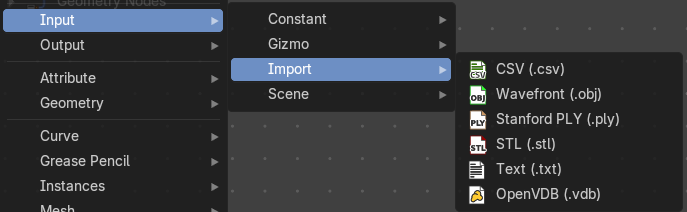
Here you find import nodes. These are useful for importing file based data into the Geometry Nodes trees.
Import CSV (.csv)
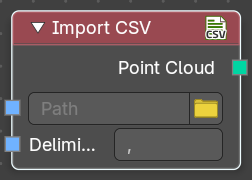
The Import CSV node is used to bring structured tabular data into Geometry NOdes, particularly for workflows involving point cloud generation. You can select a CSV file, specify the appropriate delimiter, and extract formatted data to use in the node tree.
Inputs
| Entry | What it does |
|---|---|
| Path | Specifies the location of the CSV file to be imported. This can also be a string input. · Open: Includes a folder icon button for browsing files. |
| Delimiter | Defines the character separating values in the CSV file. Default value is a comma (,). The Delimiter field determines how data is parsed from the fil |
Outputs
Generates a point cloud data type from the imported CSV file.
Import Wavefront (.obj)
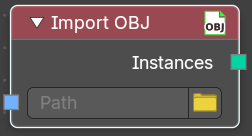
The Import OBJ node is used to load Wavefront OBJ files into Geometry Nodes, allowing you to integrate external 3D models into the Geometry Nodes tree. Useful for importing static meshes into a procedural workflow
Inputs
Path
Specifies the location of the OBJ file to be imported. This can also be a string input.
Open
Includes a folder icon button for browsing files.
Outputs
Instances
Outputs the imported OBJ file as an instance within the node tree. You can later realize the instance for mesh data.
Import Standford (.ply)
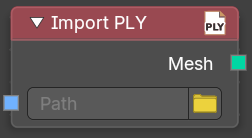
The Import PLY node is used to bring Polygon File Format (PLY) meshes into Geometry Nodes, facilitating workflows that incorporate 3D scanned data or procedural mesh generation. It allows you to load PLY files with vertex color and geometry information into the Geometry Nodes node tree.
Inputs
Path
Specifies the location of the PLY file to be imported. This can also be a string input.
Open
Includes a folder icon button for browsing files.
Outputs
Mesh
Outputs the imported PLY file as a mesh, including vertex positions, colors, and potential additional attributes.
Import STL (.stl)
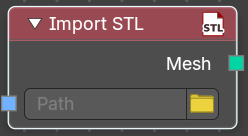
The Import STL node is used to bring Stereolithography (STL) files into Geometry Nodes, making it ideal for workflows involving 3D printing, CAD models, and mesh-based processing. This node allows you to load STL files and integrate them into Geometry Nodes tree.
Inputs
Path
Specifies the location of the STL file to be imported. This can also be a string input.
Open
Includes a folder icon button for browsing files.
Outputs
Mesh
Outputs the imported STL file as a mesh. Typically this may be curve data, so you can use the Mesh to Curve node to convert to curves without a problem.
Import Text (.txt)
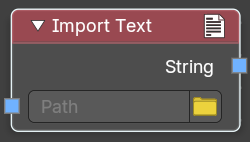
The Text Node is used to generate and manipulate text within Geometry Nodes. It allowsyouto input and format text dynamically, making it useful for procedural labeling, engraving, and other text-based effects.
Inputs
Path
Specifies the location of the TXT file to be imported. This can also be a string input.
Open
Includes a folder icon button for browsing files.
Outputs
String
Outputs the imported text file as string value.
Import OpenVDB (.vdb)
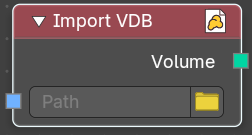
The** Import VDB node is used to bring OpenVDB volumetric data **into Geometry Nodes, making it an essential tool for fluid simulations, smoke, and cloud-based effects. It allowsyouto import voxel-based data and integrate it into procedural workflows.
Inputs
Path
Specifies the location of the VDB file to be imported. This can also be a string input.
Open
Includes a folder icon button for browsing files.
Outputs
Volume
Outputs the imported VDB file as a volumetric grid, which can be modified within the node tree.
Scene
Add menu - Input - Scene
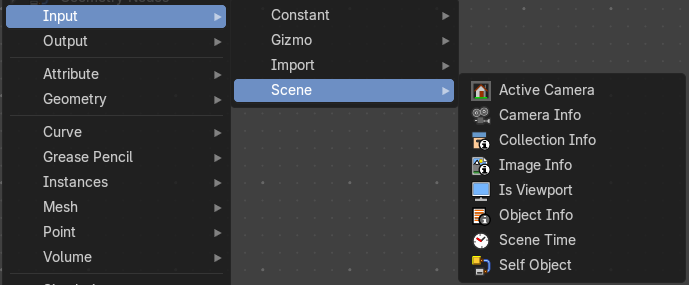
Here you find input nodes.
Active Camera
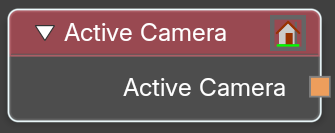
The node outputs the the scene's current active camera.
Typical usage would be to connect this node to an Object Info node to
obtain its transform.
Outputs
Active Camera
The active camera.
Camera Info
The node outputs settings from the chosen camera.
Typical usage would be to connect this node to an Object Info node to
obtain its transform.
| Entry | What it does |
|---|---|
| Inputs | Camera: The camera object. |
| Outputs | — |
| Projection Matrix | The projection matrix. |
| Focal length | The focal length. |
| Sensor | The sensor size. |
| Shift | The camera shift. |
| Clip Start | The camera near clipping distance. |
| Clip End | The camera far clipping distance. |
| Focus Distance | Distance to the focus point for depth of field. |
| Is Orthographic | If the camera is using orthographic view. |
| Orthographic Scale | The orthographic camera scale in case it is using Orthographic view. |
Collection Info
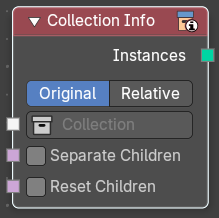
The Collection Info node retreives information from collections. This can be useful to use an external collection to control parameters in the geometry node tree.
Inputs
| Entry | What it does |
|---|---|
| Collection | Collection to get the properties from. |
| Separate Children | Output each child of the collection as a separate instance. The output is sorted alphabetically. · Reset Children: Reset the transform of every child instance in the output. This setting is just active when Separate Children is active. |
| Entry | What it does |
|---|---|
| Properties | Transform Space: The transformation of the geometry outputs. · Original: Output the geometry relative to the collection offset. · Relative: Bring the input collection geometry into the modified object, maintaining the relative position between the objects in the scene. |
| Outputs | Geometry: Geometry of the collection in world space with all its modifiers applied. |
Image Info
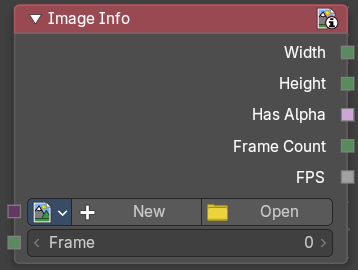
Retreive infos from an image.
Input
Image
Load or connect a image.
New
Create a new image.
Opens a new image dialog where you can adjust the color, size and further settings.
Open
Open a existing image.
Image prop
| Entry | What it does |
|---|---|
| Image browser | A list of available images |
| Image name | The name of the image |
| Fake user | Add a fake user to this asset. |
New
Create a new image.
Opens a new image dialog where you can adjust the color, size and further settings.
| Entry | What it does |
|---|---|
| Open Image | Open a existing image. |
| Remove | Removes the image as the active image. |
Frame
For videos. Which frame to use.
Outputs
| Entry | What it does |
|---|---|
| Width | The width of the image. |
| Height | The height of the image |
| Has Alpha | Returns true if the image has an alpha channel |
| Frame Count | For movies. How many frames. |
| FPS | For movies, what FPS rate. |
Is Viewport
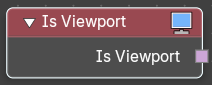
The Is Viewport node outputs true when geometry nodes is evaluated for the viewport. For the final render the node outputs false.
Outputs
Is Viewport
A booleran that indicates if the geometry nodes is evaluated for preview.
Object Info
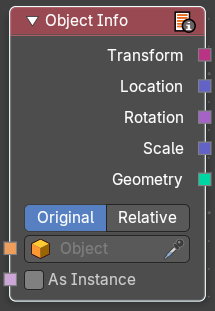
The Object Info node retreives information from objects. And outputs it then.
| Entry | What it does |
|---|---|
| Inputs | Object: Object to get the properties from. |
| Outputs | Transform: Transform matrix output. · Location: Location of the object in world space. · Rotation: Rotation of the object in world space. · Scale: Scale of the object in world space. · Geometry: Geometry of the object in world space with all its modifiers applied. |
Scene time
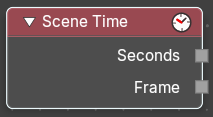
Outputs the current scene time in seconds or in frames.
The Frame output is a float value to make subframe rendering for motion
blur possible.
Outputs
| Entry | What it does |
|---|---|
| Seconds | Output in seconds. |
| Frame | Output in Frames. |
Self Object
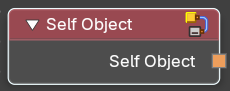
Retreives the parent object of the geometry nodegroup.