

































































Geometry
Geometry nodes: Read, Sample, Write, Material, Operations.
Add menu - Geometry
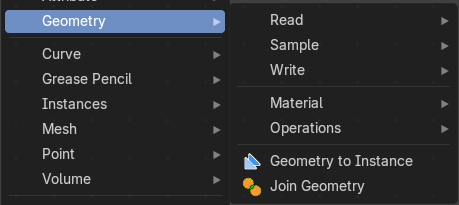
Here you find nodes to modify the geometry.
Geometry to Instance
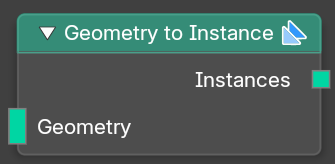
Turns every connected input geometry into an instance. These instances can then for example be used in the Instance on Points node.
| Entry | What it does |
|---|---|
| Inputs | Geometry: The input geometry. |
| Outputs | Instances: The output instances. |
Join Geometry
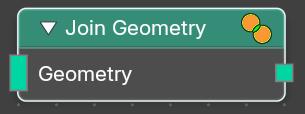
The Join Geometry enables you to merge separately generated pieces of geometry into a single one. In case that the inputted pieces contain different types of geometry, the output will contain multiple types of geometry.
| Entry | What it does |
|---|---|
| Inputs | Geometry: Standard geometry input. |
| Output | Geometry: Standard geometry output. |
Read
Add menu - Geometry - Read
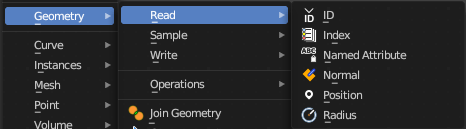
Here you find nodes to modify the geometry.
ID
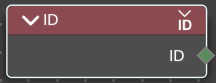
Retreive the ID of the object.
Outputs
ID
The ID of the object.
Index
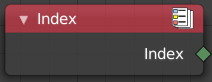
Retreives an integer value indicating the position of each element in the list. This list depends on the internal order of the data in the geometry, which is not necessarily visible in the 3D Viewport. However, the index value is visible in the left-most column in the Spreadsheet Editor.
Outputs
Index
Integer value which enumerates each point on the geometry.
Named Attribute
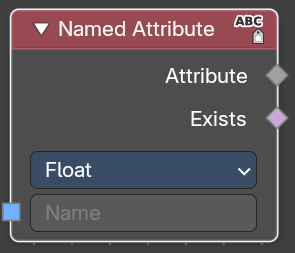
Adds a field input.
Input
Name
The input name for the field.
Input
Data Type
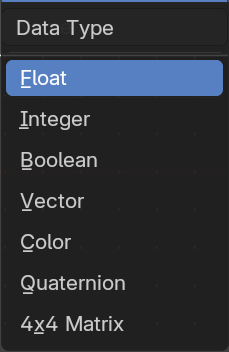
What data type to use.
Output
Attribute
The output attribute name.
Normal
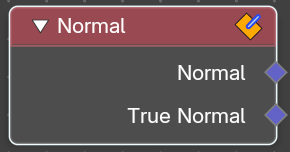
Returns a vector for each evaluated point indicating the normal direction. The output can depend on the attribute domain used in the node evaluating the field, but the output is always a normalized unit vector.
The output depends on where you plug in the normal node.
| Entry | What it does |
|---|---|
| Face | On the face domain, the normal is the “up” direction of the face. |
| Mesh Vertices | For mesh vertices, the normal is an average of the surrounding face normals. If the vertex does not have any connected faces, the output is simply the normalized position of that vertex. |
| Edge | The normal output for each edge is the average of the edge’s two vertex normals. |
Face Corner
The output for each face corner is the same as the face normal of the corresponding face.
Curve Control Points
The output of this node when used for curve geometry is the evaluated normal of the curve, which depends on the twist method. The normal vector is always perpendicular to the direction of the curve’s path at every point.
Warning!
Please keep in mind that for NURBS and Bézier spline curves the value retrieved from this node is the value at every control point. Which may not correspond to the visible evaluated points. For NURBS splines the difference may be even more pronounced and the result may not be as expected. A Resample Curve Node can be used to create a poly spline, where there is a control point for every evaluated point.
Outputs
| Entry | What it does |
|---|---|
| Normal | The normal vector output. |
| True Normal | For meshes, outputs normal without custom normal attributes taken into account. |
Position
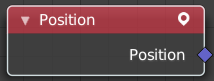
The Position node outputs a vector of each point of the geometry the node is connected to.
The node can work on geometry domains besides points. In that case, the position data will be automatically interpolated to the new domain. For example, when used as part of the input to the mesh edge split node, the position for each edge will be the average position of the edges two vertices.
For instances, the output is the origin of each instance. However, if the node is for a geometry node that adjusts data inside instances, the position output of this node will be in the local space of each instance.
Outputs
Position
The position vector output.
Radius
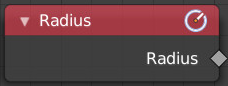
Retrieve the radius of the object.
Outputs
Radius
The radius output.
Sample
Add menu - Geometry - Sample
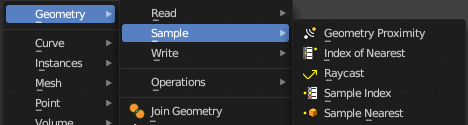
Here you find nodes to modify the geometry.
Geometry Proximity
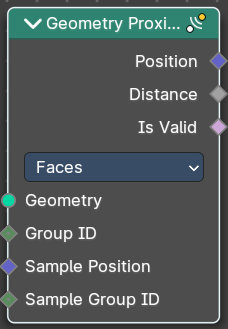
This node finds the closest position on the target for each point in the input geometry.
Inputs
| Entry | What it does |
|---|---|
| Geometry | The target object. |
| Group ID | Is evaluated on the face domain, and splits the input mesh into multiple parts, each with its own id. |
| Sample Position | The position where the computed location is stored. |
| Sample Group ID | Determines in which group the closest nearest surface is detected. |
Properties
Target Geometry
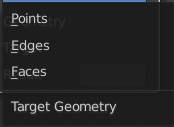
The element of the target geometry to calculate the distance from.
Outputs
| Entry | What it does |
|---|---|
| Position | Closest location on the surface of the target mesh, or the closest point in the target point cloud in Points mode. |
| Distance | Distance from the source position to the closest location in the target. |
| Is Valid | Wether the sampling was successful. It is false when the sampled group is empty. |
Index of Nearest

Retreive values from specific geometry elements.
| Entry | What it does |
|---|---|
| Inputs | Position: The position of the nearest element. · Group ID: The group ID of the nearest element. |
| Outputs | Index: The Index of the nearest element. · Has Neighbor: Has this element a neighbor. |
Raycast
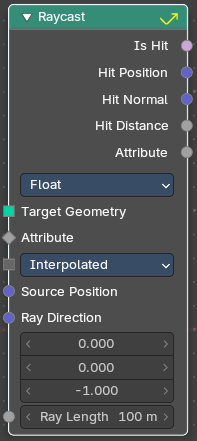
This node sends a raycast and retreives data from the hit target.
Inputs
| Entry | What it does |
|---|---|
| Target Geometry | This is actually the source object that sends the ray. |
| Attribute | Attribute input. |
Interpolation
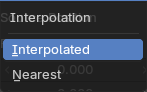
Mapping from the target geometry to hit points.
| Entry | What it does |
|---|---|
| Source Position | Source position input. |
| Ray Direction | A vector 3 for the ray direction. |
| Ray Length | The length of the ray. |
Properties
Data Type
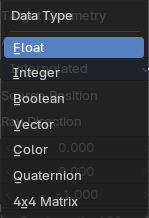
What data to calculate on hit.
Output
| Entry | What it does |
|---|---|
| Is Hit | Has the raycast hit something? |
| Hit Position | The hit position if any. |
| Hit Normal | The normal of the hit point. |
| Hit Distance | The distance of the hit point. |
| Attribute | The attribute of the hit object. |
Sample Index
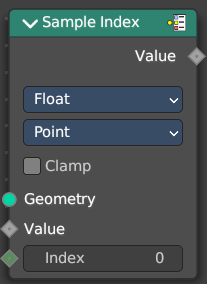
Retreive values from specific geometry elements.
Inputs
| Entry | What it does |
|---|---|
| Geometry | The source object to take the data from. |
| Value | The value to retreive. |
| Index | The index position of the value. |
Properties
Data Type
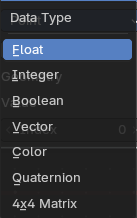
The type for the source and result data.
Domain
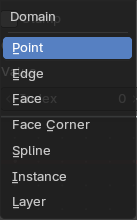
What kind of data to process.
Clamp
Clamp the indices to the size of the attribute domain.
Output
Value
The output value.
Sample Nearest
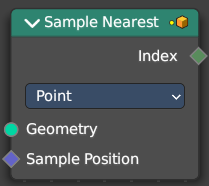
Retreives the element of a geometry closest to a position.
Inputs
| Entry | What it does |
|---|---|
| Geometry | The source object to take the data from. |
| Sample Position | The position of the source object. |
Properties
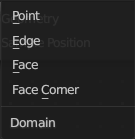
Domain
What data to process.
Output
Index
The index output.
Write
Add menu - Geometry - Write
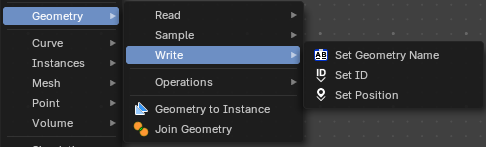
Here you find nodes to modify the geometry.
Set Geometry Name
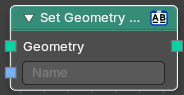
Sets the name of the target geometry.
| Entry | What it does |
|---|---|
| Inputs | Geometry: Geometry input. · Name: The name that you want to set |
| Outputs | — |
| Geometry | Geometry output. |
Set ID
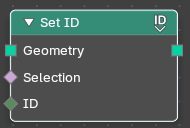
Sets the ID of the target geometry.
| Entry | What it does |
|---|---|
| Inputs | Geometry: Geometry input. · Selection: Selection input. · ID: ID Input |
| Outputs | — |
| Geometry | Geometry output. |
Set Position
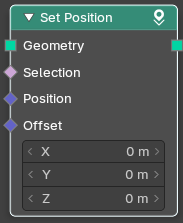
The Set Position node controls the location of each point, the same way as controlling the position attribute. If the input geometry contains instances, this node will affect the location of the origin of each instance.
The input node for this data is the Position Node.
| Entry | What it does |
|---|---|
| Inputs | Geometry: Geometry input. · Selection: Whether or not to change the position of each point or instance. True values mean the position will be changed, false values mean it will remain the same. · Position: The new position for selected elements. By default, this is the same as if the Position Node was connected, meaning the node will do nothing. · Offset: An optional translation for each point. This is evaluated at the same time as the Position input, meaning that fields evaluated for it will not reflect the changed position. |
| Outputs | — |
| Geometry | Geometry outputs. |
Material
Add menu - Geometry - Material
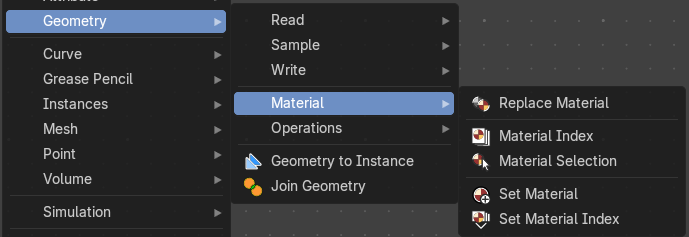
Here you find nodes to modify the material.
Replace Material.
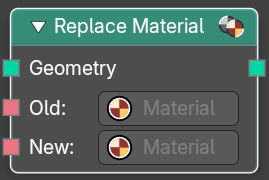
Sets the name of the target geometry.
| Entry | What it does |
|---|---|
| Inputs | Geometry: Geometry input. · Old: The material that you want to replace. · New: The new material that replaces the old material. |
| Outputs | — |
| Geometry | Geometry output. |
Material Index
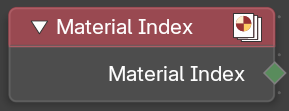
Retreive the material index.
| Entry | What it does |
|---|---|
| Outputs | — |
| Material Index | The material index. |
Material Selection
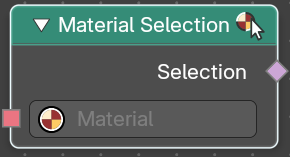
Select a mesh part by material.
| Entry | What it does |
|---|---|
| Inputs | Geometry: Geometry input. |
| Outputs | — |
| Material Index | The material index. |
Set Material
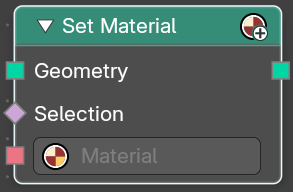
Assign a material to a selection.
| Entry | What it does |
|---|---|
| Inputs | Geometry: Geometry input. · Selection: The selection of the geometry. · Material: The material to assign. |
| Outputs | — |
| Geometry | The geometry with the new material assigned. |
Set Material Index
Set the material index of a selection.
| Entry | What it does |
|---|---|
| Inputs | Geometry: Geometry input. · Selection: The selection of the geometry. · Material Index: The material index to assign to the selection. |
| Outputs | — |
| Geometry | The geometry with the new material index assigned. |
Operations
Add menu - Geometry - Operations
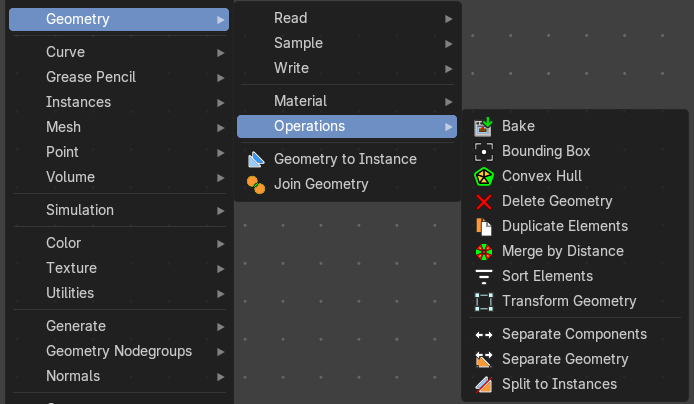
Here you find nodes to modify the geometry.
Bake
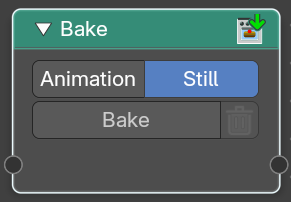
Allows saving and loading per-calculated geometry node data. This allows you to bake and “freeze” node tree parts to achieve better performance, where any data up to the node will no-longer be evaluated. Another use is to bake data for use with a render engine.
To bake, the file must be saved first.
Note: When baked, the header of the node will show how many frames have been baked.
| Entry | What it does |
|---|---|
| Input | Geometry: Standard geometry input. You can bake multiple geometry inputs. |
| Properties | Animation / Still: Bake an animation or a single frame. Note that the bake node does not do automatic caching. |
| Operators | Bake: The bake operator button. Press this to bake. · Delete Geometry Node Bake: Delete baked data of a single bake node or simulation. |
| Output | Geometry: Standard geometry output. |
Bounding Box
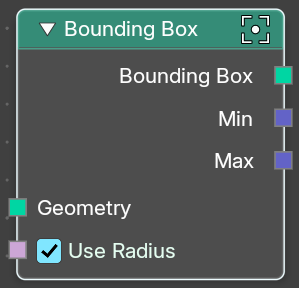
The Bounding Box geometry node allows you to work with the values of a bounding box.
| Entry | What it does |
|---|---|
| Inputs | Geometry: Standard geometry input. · Use Radius: Take the radius attribute into account when computing curves, point clouds and grease pencil. |
| Output | Bounding Box: Standard output. · Min: The minimum values of the bounding box. · Max: The maximum values of the bounding box. |
Convex Hull
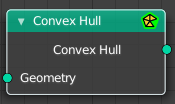
The node allows you to work with the values of a convex hull of this object.
| Entry | What it does |
|---|---|
| Inputs | Geometry: Standard geometry input. |
| Output | Convex Hull: Standard output. |
Delete Geometry
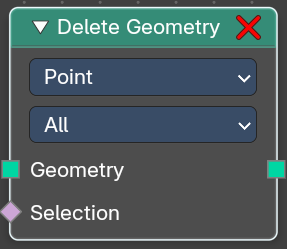
The node allows you to work with the values of a convex hull of this object.
Inputs
| Entry | What it does |
|---|---|
| Geometry | Standard geometry input. |
| Selection | A selection of the geomerty |
Properties
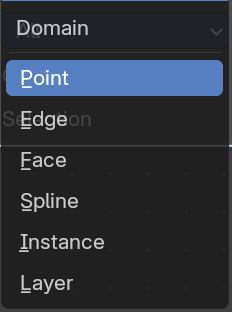
Domain
What element to delete.
Mode
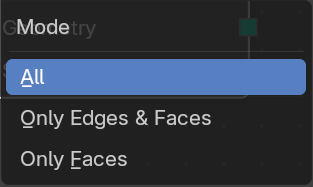
Delete mode. Names should be self explaining.
Output
Geometry
Standard output.
Duplicate Elements
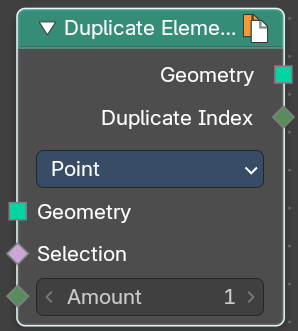
Duplicates a part of a geometry a dynamic number of times.
Inputs
| Entry | What it does |
|---|---|
| Geometry | Standard geometry input. |
| Selection | A selection of the geomerty. |
| Amount | Number of times the geometry should be duplicated. |
Properties
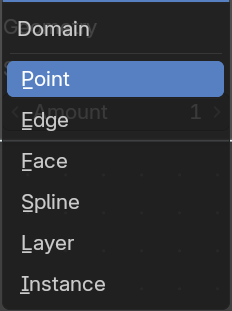
Domain
What element to duplicate.
Output
| Entry | What it does |
|---|---|
| Geometry | Standard output. |
| Duplicate Index | The index of the duplicated elements. |
Merge by Distance

Welds the selected geometry below a given distance into one vertice.
Input
| Entry | What it does |
|---|---|
| Geometry | The input geometry. |
| Selection | A selection of the input geometry. |
Mode
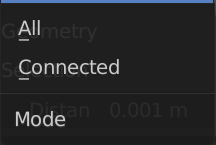
| Entry | What it does |
|---|---|
| All | Merges all vertices in reach. |
| Connected | Merges just vertices that are connected by edges. |
Distance
The merge distance. Everything below this distance will be merged into one vertice.
Output
Geometry
The output geometry.
Sort Elements
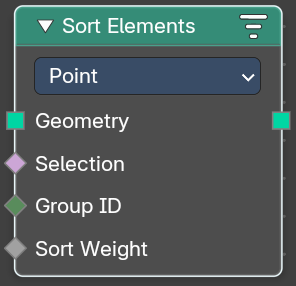
The Sort Elements node rearranges geometry elements by changing their indices.
Input
Geometry
The input geometry.
Selection
A selection of the input geometry. If left blank, all elements are sorted. Non selected elements will be keep their current indices.
| Entry | What it does |
|---|---|
| Group ID | Group ID input value. A group is defined as all elements with the same group id. Elements with the same group ID are sorted together. If this is not a field, the node has no affect. |
| Sort Weight | The sorted values used to do the reordering. If this is not a field, the node has no affect. |
Properties
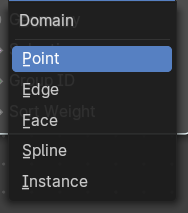
Domain
| Entry | What it does |
|---|---|
| Point | The fields are evaluated on points, control points, and vertices. |
| Face | The fields are evaluated on the edges of the mesh component. |
| Edge | The fields are evaluated on the faces of the mesh component. |
| Spline | The fields are evaluated on the splines in the curve component. |
| Instance | The fields are evaluated on the top-level instances. Realized instances are ignored. |
Output
Geometry
The output geometry.
Transform Geometry
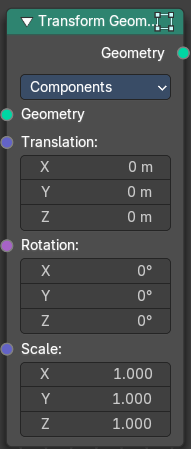
Move, rotate or scale the geometry. The transformation is applied to the entire geometry, and not per element. For example, you can not rotate individual point cloud points with this node.
Inputs
Mode
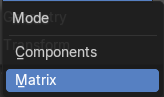
The transformation mode for the node.
Components mode
Uses single values and vectors.
| Entry | What it does |
|---|---|
| Geometry | Standard geometry input. |
| Translation | Translates the geometry in local space of the modified object. |
| Rotation | Euler rotation in local space. |
| Scale | Scale to transform the geometries in local space. |
Matrix mode
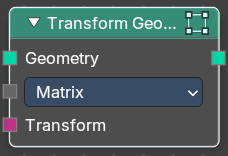
Uses a matrix to transform.
| Entry | What it does |
|---|---|
| Geometry | Standard geometry input. |
| Transform | Transform matrix input. |
Output
Geometry
Standard geometry output.
Separate Components
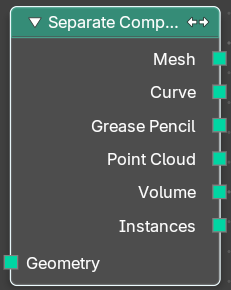
Splits a geometry into its components.
| Entry | What it does |
|---|---|
| Inputs | Geometry: Geometry input. |
| Outputs | Mesh: Mesh component of the input geometry. · Curve: Curve component of the input geometry. · Grease Pencil: Grease Pencil component of the input geometry. · Point Cloud: Point cloud component of the input geometry. · Volume: Volume component of the input geometry. In case that the input contains multiple volume instances, only the first volume component will be calculated. · Instance: The single instances of the geometry. |
Separate Geometry
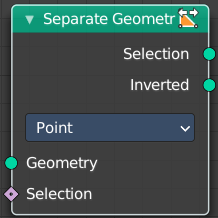
Separates a selection of a geometry into its own object.
Tip: when you combine it with the Compare Floats nodem then you get a more precise control of which parts are separated to a given output geometry.
Inputs
| Entry | What it does |
|---|---|
| Geometry | Geometry input. |
| Selection | Selection input. |
Properties
Domain
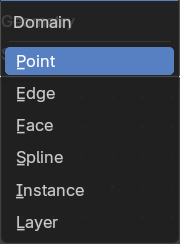
What kind of geometry to separate.
Note that when selecting a domain that doesn’t modify all components, the unmodified components will appear in both outputs.
| Entry | What it does |
|---|---|
| Outputs | — |
| Selection | Separated selection. · Inverted: The inverted separated selection. |
Split to Instances
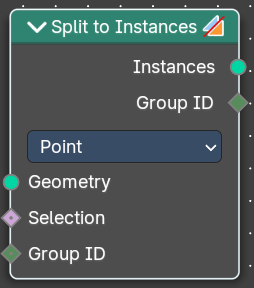
This node allows splitting up a geometry into groups. A group is defined as all elements with the same group id.
The node supports meshes, curves, point clouds and instances. Note that it only works on the top-level geometry. It does not go into nested instances because it also generates new instances.
Inputs
| Entry | What it does |
|---|---|
| Geometry | Geometry input. |
| Selection | Selection input. |
| Group ID | Group ID input value. |
Properties
Domain
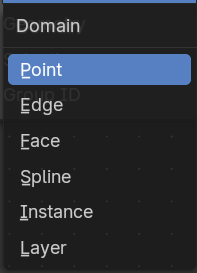
What kind of geometry to separate.
Note that when selecting a domain that doesn’t modify all components, the unmodified components will appear in both outputs.
| Entry | What it does |
|---|---|
| Outputs | — |
| Instances | Instances output. An Instance per group. · Group ID: Group ID output value. |