

































































Filter
Filter nodes: Blur.
Add menu - Filter
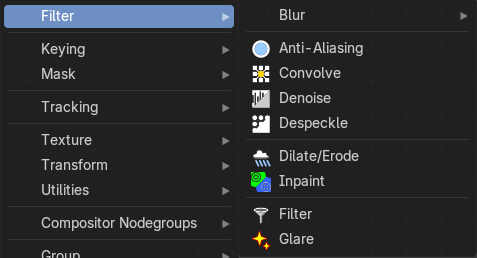
The Filter add menu contains multiple filters you can use on image data, including blurs and other lens effects.
Anti-Aliasing
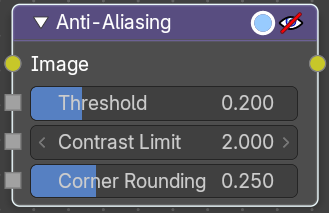
Adds antialiasing to edges in an image.
| Entry | What it does |
|---|---|
| Inputs | Image: Standard image input. · Threshold: Threshold to detect edges. · Contrast Limit: How much to eliminate suspicious edges to avoid artifacts. · Corner Rounding: How much sharp corners will be rounded. |
| Outputs | Image: Standard image output. |
Convolve
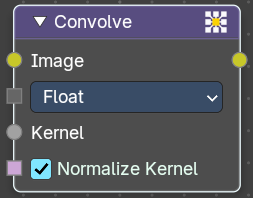
Applies a custom convolution kernel to an image, enabling advanced filtering effects like blurring, sharpening, edge detection, embossing, and more. This node gives artists direct control over pixel-level transformations.
| Entry | What it does |
|---|---|
| Inputs | Image: The source image to be processed. Accepts any RGBA input. · Kernel Data Type: Which data type input to use. · Kernel: A matrix of values that defines the convolution operation. Can be manually defined or procedurally generated. Operates per-channel (R, G, B, A) unless separated beforehand. · Normalize Kernel: When enabled, the kernel values are normalized to prevent brightness shifts. |
| Outputs | Image: The result of the convolution operation as an image. |
Denoise
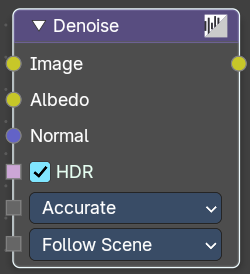
The Denoise node is used to denoise renders from Cycles and other ray tracing renderers. This helps to significantly reduce render time by rendering with fewer samples.
It is uses Open Image Denoise, which transforms noisy images into clean images with machine learning.
Inputs
| Entry | What it does |
|---|---|
| Image | Noise image input. |
| Albedo | Optional Albedo render pass to better preserve detail. For Cycles, it is recommended to use the Denoising Albedo render pass, which is available when enabling the Denoising Data passes. |
| Normal | Optional normal render pass to better preserve detail. For Cycles, it is recommended to use the Denoising Normal render pass, which is available when enabling the Denoising Data passes. |
| HDR | Preserve colors outside the 0 to 1 range. |
Prefilter
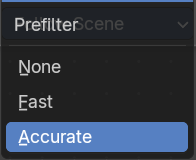
Allows users to apply a prefiltering step before denoising, which can improve the denoising result.
| Entry | What it does |
|---|---|
| None | No prefiltering applied. |
| Fast | Applies a quick prefiltering step to improve denoising with minimal processing time. |
| Accurate | Applies a detailed prefiltering step for the best denoising result, but takes more processing time. |
Quality
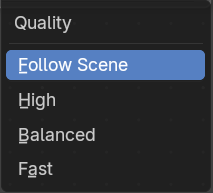
Defines the quality level of the denoising process:
| Entry | What it does |
|---|---|
| Follow Scene | Uses the quality set in the scene settings, allowing quick switching between different quality modes for all nodes. |
| High | Highest quality, but longest processing time. |
| Balanced | Slightly lower quality, but halves processing time compared to High. |
| Fast | Further reduced quality for a small increase in speed over Balanced. |
Outputs
Image
Denoised image output.
Despeckle
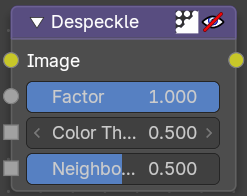
The Despeckle node is used to smooth areas of an image in which noise is noticeable, while leaving complex areas untouched.
This works by the standard deviation of each pixel and its neighbors is calculated to determine if the area is one of high complexity or low complexity. If the complexity is lower than the threshold then the area is smoothed using a simple mean filter.
| Entry | What it does |
|---|---|
| Inputs | Image: Standard image input. · Factor: Controls the amount the filter effects the image. · Color Threshold: The threshold to control high/low complexity. · Neighbor Threshold: The threshold to control the number of pixels that must match. |
| Outputs | Image: Standard image output. |
Dilate/Erode
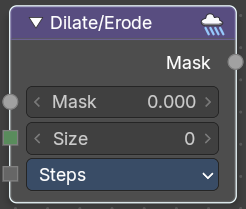
The Dilate/Erode node provides a morphology (mathematical shape analysis) filter.
Inputs
| Entry | What it does |
|---|---|
| Mask | Single color channel (or a black-and-white image) input. |
| Size | The filter radius. A positive value of Distance dilates (expands) the influence of a pixel on its surrounding pixels. A negative value erodes (shrinks) its influence. |
Type
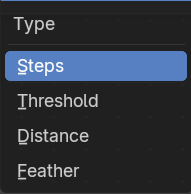
There are four different dilate / erode modes. Step, Threshold, Distance and Feather.
Outputs
Mask
The filtered mask output.
Inpaint
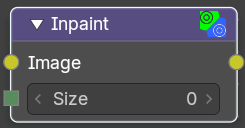
The Inpaint node is used to extend borders of an image into transparent or masked regions. This can be useful to solve problems like “wire removal” and holes created during chroma keying.
| Entry | What it does |
|---|---|
| Inputs | Image: Standard image input. · Size: The size of the inpaint in pixels. |
| Outputs | Image: Standard image output. |
Filter
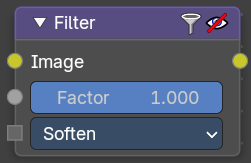
The Filter node implements various common image enhancement filters.
Inputs
Image
Standard image input.
Factor
Controls the amount of influence the node exerts on the output image.
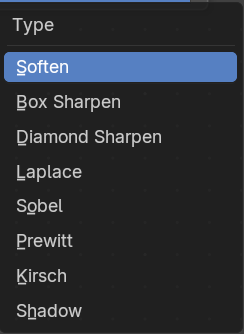
Type
The available filter types. Soften, Laplace, Sobel, Prewitt and Kirsch all perform edge detection (in slightly different ways) based on vector calculus and set theory equations.
| Entry | What it does |
|---|---|
| Soften | Slightly blurs the image. |
| Box Sharpen | Increases the contrast, especially at edges. |
| Diamond Sharpen | A moderate sharpening filter |
| Laplace | Softens around edges. |
| Sobel | Creates a negative image that highlights edges. |
| Prewitt | Tries to do Sobel one better. |
| Kirsch | Giving a better blending than Sobel or Prewitt, when approaching an edge. |
| Shadow | Performs a relief, emboss effect, darkening outside edges. |
Outputs
Image
Standard image output.
Glare
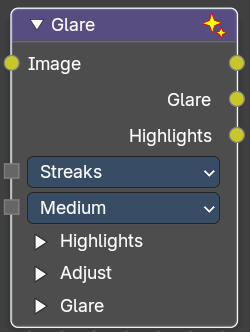
The Glare node is used to add bloom, lens flares, fog, glows around exposed parts of an image and much more.
Type
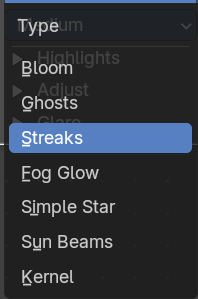
The glare type
| Entry | What it does |
|---|---|
| Bloom | Creates a bloom effect. |
| Ghosts | Creates a haze over the image. |
| Streaks | Creates bright streaks used to simulate lens flares. |
| Fog Glow | Looks similar to Ghost. However, it is much smaller in size and gives more of an atmospheric haze or “glow” around the image. |
| Simple Star | Works similar to Streaks but gives a simpler shape looking like a star. |
| Sun Beams | Creates sun beams. |
| Kernel | A custom kernel convolution mode. It allows you for example to generate the glare aura of a candle flame. |
Quality
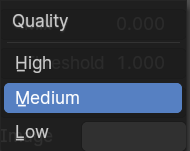
If not set to something other the High, then the glare effect will only be applied to a low resolution copy of the image. This can be helpful to save render times while only doing preview renders.
Inputs
Image
Standard image input.
Highlights subpanel
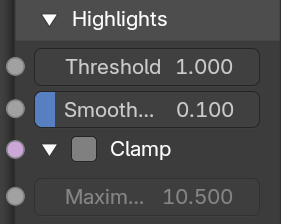
| Entry | What it does |
|---|---|
| Threshold | Pixels brighter than this value will be affected by the glare filter. |
| Smooth | The smoothness of the extracted highlight. |
| Clamp | Clamp the values between 0 and a maximum value. |
| Maximum Value | The maximum clamp value. |
Adjust subpanel
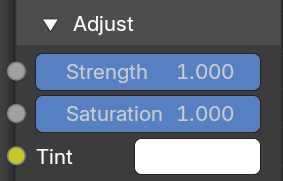
| Entry | What it does |
|---|---|
| Strength | Soft range of [0, 1], can be boosted beyond 1. Serves the same function as a Mix option but offers better control. |
| Saturation | Adjusts the intensity of the colors in the glare effect. A higher value results in more vivid colors, while a lower value will desaturate the colors, making them appear more muted. · Tint: Applies a color tint to the glare effect. This allows you to add a specific hue to the glare, giving you creative control over the color balance and overall mood of the effect. |
Glare subpanel with glare type Bloom
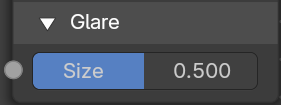
Size
Scale of the glow relative to the size of the original bright pixels.
Glare subpanel with glare type Ghosts
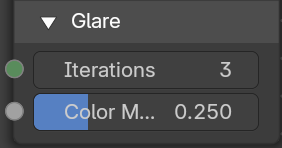
| Entry | What it does |
|---|---|
| Size | Scale of the glow relative to the size of the original bright pixels. |
| Iterations | The number of times to run through the filter algorithm. Higher values will give more accurate results but will take longer to compute. Note that, this is not available for Fog Glow as it does not use an iterative-based algorithm. |
| Color Modulation | Used for Streaks and Ghosts to create a special dispersion effect. Johannes Itten describes this effect, Color Modulation, as subtle variations in tones and chroma. |
Glare subpanel with glare type Streaks
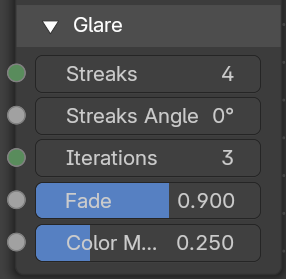
| Entry | What it does |
|---|---|
| Streaks | Creates bright streaks used to simulate lens flares. |
| Streak Angle | The angle of the streaks. · Iterations: The number of times to run through the filter algorithm. Higher values will give more accurate results but will take longer to compute. Note that, this is not available for Fog Glow as it does not use an iterative-based algorithm. · Fade: Controls the gradual reduction of thestreakseffect's intensity. A higher fade value means the effect will dissipate more smoothly and subtly over a larger area, whereas a lower fade value will keep the glare more concentrated and abrupt. · Color Modulation: Used for Streaks and Ghosts to create a special dispersion effect. Johannes Itten describes this effect, Color Modulation, as subtle variations in tones and chroma. |
Glare subpanel with glare type Fog Glow

Size
The size of the glare relative ot the image
Glare subpanel with glare type Simple Star
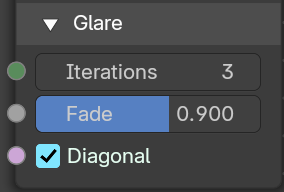
| Entry | What it does |
|---|---|
| Iterations | The number of times to run through the filter algorithm. Higher values will give more accurate results but will take longer to compute. Note that, this is not available for Fog Glow as it does not use an iterative-based algorithm.. |
| Fade | Controls the gradual reduction of thestreakseffect's intensity. A higher fade value means the effect will dissipate more smoothly and subtly over a larger area, whereas a lower fade value will keep the glare more concentrated and abrupt. |
Diagonal
Align the star diagonally.
Glare subpanel with glare type Sunbeams
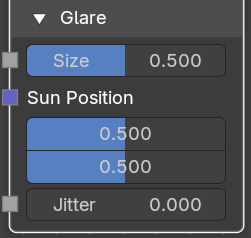
Size
Scale of the glow relative to the size of the original bright pixels.
| Entry | What it does |
|---|---|
| Sun position | The position of the source of the rays in normalized coordinates. 0 means lower left corner. 1 means upper right corner. |
| Jitter | The amount of jitter when computing rays. |
Glare subpanel with glare type Kernel
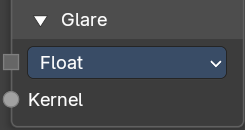
Kernel Data Type
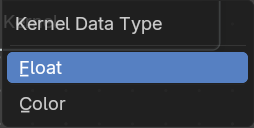
What data to compute for the kernel. Float or color.
Kernel
The kernel input.
Outputs
| Entry | What it does |
|---|---|
| Image | Output with the generated glare result. |
| Glare | The generated glare only. |
| Highlights | The highlights from the generated glare. |
Blur
Add menu - Filter - Blur
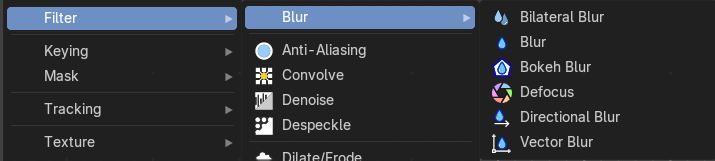
The Filter add menu contains multiple filters you can use on image data, including blurs and other lens effects.
Bilateral Blur
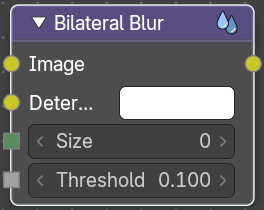
The Bilateral Blur node performs a high-quality adaptive blur on the source image, allowing to blur images while retaining their sharp edges.
It can be used for various purposes like: smoothing noisy render passes to avoid longer computation times in example ray-traced ambient occlusion, blurry refraction's/reflections, soft shadows, or to make non-photo realistic compositing effects.
Inputs
| Entry | What it does |
|---|---|
| Image | Standard image input. If only the image input is connected, the node blurs the image depending on the edges present in the source image. |
| Determinator | Which is non-obligatory and if the Determinator is connected, it serves as the source for defining edges/borders for the blur in the image. This has great advantage in case the source image is too noisy, but normals in combination with Z-buffer can still define exact borders/edges of objects. |
| Size | The size of the blur in pixels. |
| Threshold | The threshold of the blur area. Pixels are considered to be in the blur area if the average difference between their determinator of the center pixels is less than this threshold. |
Outputs
Image
Standard image output.
Blur
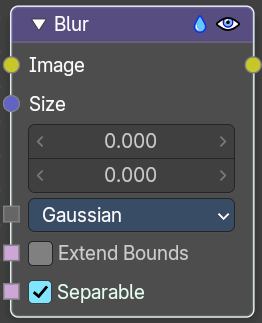
The Blur node provides several blur modes to blur an image. The icon top right allows you to collapse and show the image part of the node.
Inputs
Image
Standard image input.
Size
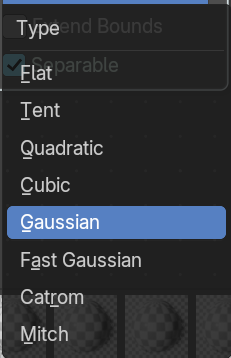
The optional Size input will be multiplied with the X and Y blur radius values. It accepts also a value image, to control the blur radius with a mask. The values should be mapped between (0 to 1) for an optimal effect.
| Entry | What it does |
|---|---|
| Type | The different blur types. · Flat: Simply blurs everything uniformly. · Tent: Preserves the high and the lows better by making a linear falloff. · Quadratic: Looks similar to Gaussian but can be a little faster but slightly worse looking. · Cubic: Preserve the highs, but give an almost out-of-focus blur while smoothing sharp edges. · Gaussian: Gives the best looking results but tends to be the slowest. · Fast Gaussian: An approximation of the Gaussian. · Catmull-Rom: Catmull-Rom keeps sharp contrast edges crisp. · Mitch: Preserve the highs, but give an almost out-of-focus blur while smoothing sharp edges. |
| Extend Bounds | Allows the image, that is being blurred, to extend past its original dimension. |
| Separable | Blur along the horizontal and vertical directions independently. This method is faster. |
Outputs
Image
Standard image output.
Bokeh Blur
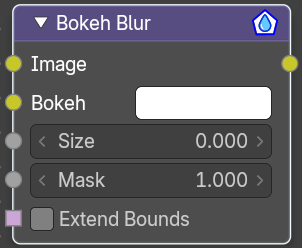
The Bokeh Blur node generates a bokeh type blur similar to Defocus. Unlike defocus an in-focus region is defined in the Compositor.
Several performance optimizations are also available such as OpenCL support, calculation area restriction and masking.
Inputs
| Entry | What it does |
|---|---|
| Image | Standard image input. |
| Bokeh | This is an input for the Bokeh Image node. |
| Size | Size controls the amount of blur. Size can either be a single value across the entire image or a variable value controlled by an input image. In order to use the latter, the Variable Size option must be selected. See the examples section below for more on how to use this. |
| Mask | Here you can input a Box Mask matte node or a Mask input node to restrict the area of the image the blur is applied to. This could be helpful, for example, when developing a node system by allowing only a small area of the image to be filtered thus saving composite time each time adjustments are made. |
| Extend Bounds | Extend the bounds of the input image to fully fit the blurred image. |
Outputs
Image
Image output.
Defocus
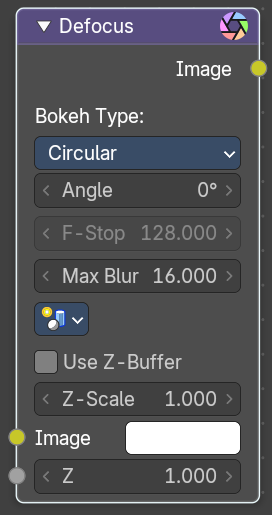
It is typically used to emulate depth of field (DOF) using a post-processing method with a Z-buffer input. But also allows to blur images that are not based on Z depth too.
Inputs
| Entry | What it does |
|---|---|
| Image | Standard image input. |
| Z | Z-buffer input, but could also be a (greyscale) image used as a mask, or a single value input. |
Properties
Bokeh Type
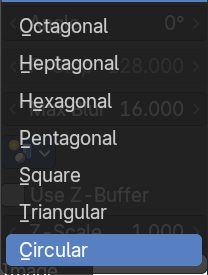
The number of iris blades of the virtual camera’s diaphragm.
Disk (to emulate a perfect circle) or Triangle (3 blades), Square (4 blades), Pentagon (5 blades), Hexagon (6 blades), Heptagon (7 blades) or Octagon (8 blades).
| Entry | What it does |
|---|---|
| Angle | This button is deactivated, if the Bokeh Type is set to Disk. It can be used to add a rotation offset to the Bokeh shape. The value is the angle in degrees. |
| F-Stop | This option controls the amount of focal blur in the same way as a real camera. It simulates the aperture f of a real lens’ iris, without modifying the luminosity of the picture. The default value 128 is assumed to be infinity: everything is in perfect focus. Half the value will double the amount of blur. This button is deactivated, if No Z-buffer is enabled. |
| Max Blur | This value limits the amount of blur by setting a maximum blur radius. Could be used to optimize the performance. The default value of 0 means no limit. |
Scene
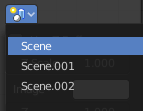
Select the linked scene. Scenes can be created in the properties editor in the Scene properties tab in the Scene panel.

| Entry | What it does |
|---|---|
| Use Z-buffer | Should be activated for a non Z-buffer in the Z input. No Z-buffer will be enabled automatically whenever a node that is not image based is connected to the Z input. |
| Z Scale | Only active when No Z-buffer is enabled. When No Z-buffer is used, the input is used directly to control the blur radius (similar to F-Stop when using the Z-buffer). This parameter can be used to scale the range of the Z input. |
| Image | Input Image |
| Z | The Z value of the image. |
Outputs
Image
Image output.
Directional Blur
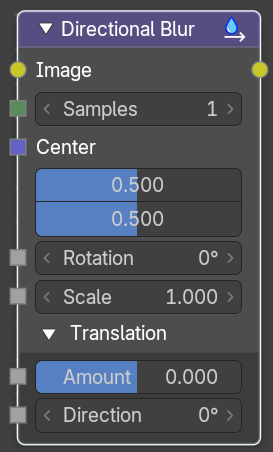
Blurs an image in a specified direction and magnitude. Can be used to fake motion blur.
Inputs
| Entry | What it does |
|---|---|
| Image | Standard image input. |
| Samples | The number of samples to compute the blur. |
| Center X, Y | Sets the position where the blur center is. This makes a difference if the angle, spin, and/or zoom are used. |
| Distance | How large the blur effect is. |
| Rotation | Rotates the image each iteration to create a spin effect, from the center point. |
| Scale | Scales the image each iteration, creating the effect of a zoom. |
| Translation subtab | Amount: The translation amount relative to the image. · Direction: The translation direction. |
Outputs
Image
Image output.
Vector Blur
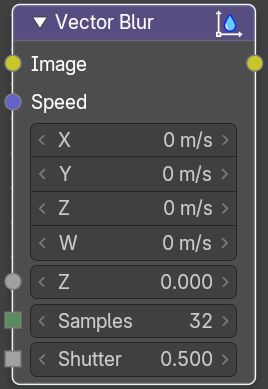
The Vector Blur node is a fast method for simulating Motion blur in compositing. It uses the vector speed render pass to blur the image pixels in 2D.
| Entry | What it does |
|---|---|
| Inputs | Image: Image input, to be linked to the “Combined” render pass. · Speed: Input for the “Vector” render pass. See Cycles render passes. · Z: Z depth, to be linked to the “Depth” render pass. · Samples: Quality factor. · Shutter: Time between open and close the shutter. |
| Outputs | Image: Motion blurred image output. |