

































































Edit Mode
Edit the text itself: every header menu, tool, sidebar tab and context menu of Edit Mode.
: every menu, tool, sidebar tab and context menu of this mode, on one page. Use the panels on the right to jump between the regions.
Header
Text menu
7.1.26 Editors - 3D View - Header - Text - Edit mode - Text menu
Edit Mode - Text Menu
Cut
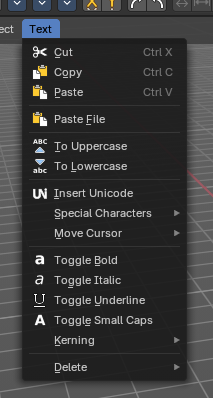
Cuts the selection.
| Entry | What it does |
|---|---|
| Copy | Copies the selection. |
| Paste | Pastes a copied selection. |
| Paste File | Opens the file browser where you can choose a text file to paste the text from. It needs to be UTF8. |
| To Uppercase | Sets the selected text to be uppercase letters. |
To Lowercase
Sets the selected text to be uppercase letters.
Last Operator Set Case
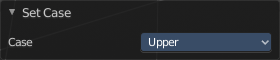
Set Case has one Last Operator for all items.
Insert Unicode
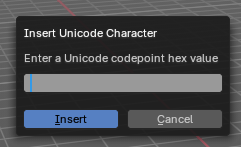
Inserts a Unicode character. When you use the operator, a dialogue box will prompt you to enter a Unicode codepoint hex value to insert the character.
Special Characters
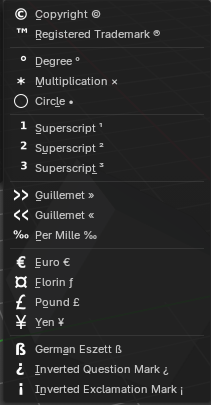
Special characters is a sub menu that contains some special text characters, like copyright, which you can insert into the text.
- Copyright ©
- Registered Trademark ™
- Degree °
- Multiplication ×
- Circle ○
- Superscript ¹
- Superscript ²
- Superscript ³
- Guillemet Left «
- Guillemet Right »»
- Per Mile ‰
- Euro €
- Florin
- Pound £
- Yen ¥
- German Eszett
- Inverted Question Mark ¿
- Inverted Exclamation Mark ¡
Move Cursor
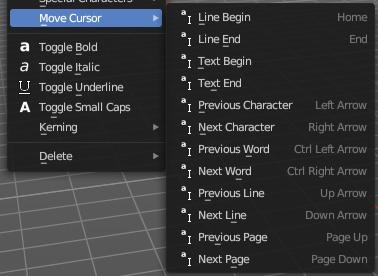
Set the cursor at specific positions in the text.
| Entry | What it does |
|---|---|
| Toggle Bold | Bold sets the selected letters to be displayed as bold letters. |
| Toggle Italic | Italic sets the selected letters to be displayed as italic letters. |
| Toggle Underline | Underline sets the selected letters to be displayed as underlined letters. |
| Toggle Small Caps | Toggle small caps sets the selected letters to be displayed as if they were upper case letters, but with lower case size. |
Kerning

Kerning is the distance between letters. Increase, decrease and reset the kerning.
| Entry | What it does |
|---|---|
| Decrease Kerning | Decreases the distance between the letters. |
| Increase Kerning | Increases the distance between the letters. |
| Reset Kerning | Resets the distance between the letters to the default values from the font. |
Last Operator Change Spacing
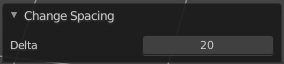
Delta
Adjust the spacing. The range goes from -20 to 20.
Delete
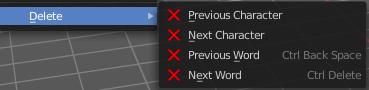
Deletes the selected text.
Tool Shelf
Tools
Tool Shelf - Text - Edit Mode
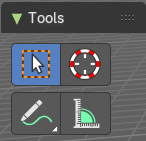
The tool shelf does not have any specific tools in the tool shelf yet for the text object.
The tweak tool allows you to select text parts.
3D Cursor, Measure and Annotate tools
The 3D Cursor, Measure and annotate tools at the end of the list are explained in the chapter 7.1.1 Editors - 3D View - Tool Shelf - Object Mode. We won't cover this tools again here.
Context Menus
Text context menu
Edit Mode - Text Context Menu
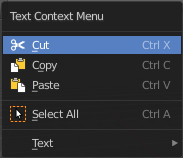
Call this menu with double right click in the 3D viewport. You need to be in Edit mode with a Text object.
| Entry | What it does |
|---|---|
| Cut | Cuts the selection. |
| Copy | Copies the selection. |
| Paste | Pastes a copied selection. |
| Select All | Selects the whole text. |
Text
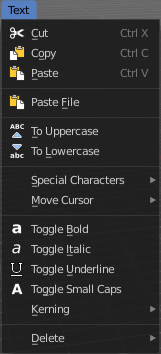
| Entry | What it does |
|---|---|
| Cut | Cuts the selection. |
| Copy | Copies the selection. |
| Paste | Pastes a copied selection. |
| Paste File | Opens the file browser where you can choose a text file to paste the text from. It needs to be UTF8. |
| To Uppercase | Sets the selected text to be uppercase letters. |
To Lowercase
Sets the selected text to be uppercase letters.
Last Operator Set Case
Set Case has one Last Operator for all items.
Special Characters
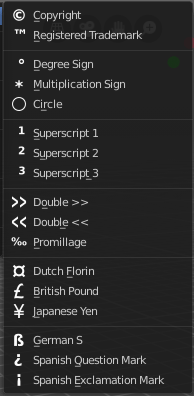
Special characters is a sub menu that contains some special text characters, like copyright, which you can insert into the text.
Move Cursor
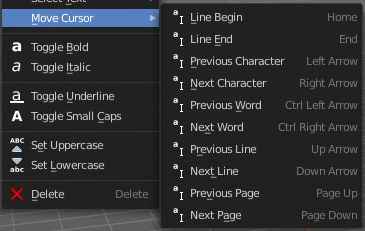
Set the cursor at specific positions in the text.
| Entry | What it does |
|---|---|
| Toggle Bold | Bold sets the selected letters to be displayed as bold letters. |
| Toggle Italic | Italic sets the selected letters to be displayed as italic letters. |
| Toggle Underline | Underline sets the selected letters to be displayed as underlined letters. |
| Toggle Small Caps | Toggle small caps sets the selected letters to be displayed as if they were upper case letters, but with lower case size. |
Kerning
Kerning is the distance between letters. Increase, decrease and reset the kerning.
| Entry | What it does |
|---|---|
| Decrease Kerning | Decreases the distance between the letters. |
| Increase Kerning | Increases the distance between the letters. |
| Reset Kerning | Resets the distance between the letters to the default values from the font. |
Last Operator Change Spacing
Delta
Adjust the spacing. The range goes from -20 to 20.
Delete
Deletes the selected text.