

































































Particle Edit
Comb, cut and style particle hair: menus, tools and settings.
: every menu, tool, sidebar tab and context menu of this mode, on one page. Use the panels on the right to jump between the regions.
Header
Particle menu
Particle Mode - Particle Menu
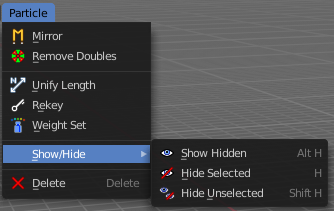
Mirror
Mirrors the selected particles.
If you want a symmetrical haircut, first select all particles, then mirror the particles, then tick X Mirror in the Particle panel.
| Entry | What it does |
|---|---|
| Remove Doubles | Remove double vertices that are very close to each other. This can for example happen when you mirror the particles. |
| Unify Length | Unifies the length of the selected hair particles. The length is calculated by the average length of the selection. |
Rekey
You need to have some hair particles selected.

Rekey changes the number of keys for the selected particles, including root and tip keys. This tool brings up a popup where you can adjust the number of keys. Two means you have only a root and a tip key. Everything more subdivides the selected hair particle with more keys.
Weight Set
Manually set a weight for the selected keys to interpolate between the current key weight and the brushes weight.
Last Operator Weight Set
Factor
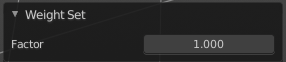
The strength of the keys weighting.
Delete
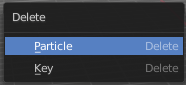
Delete either the whole particle, or just the selected key of the particle.
Show/Hide - Submenu
Show or hide the selected geometry
| Entry | What it does |
|---|---|
| Show Hidden | Makes all hidden geometry visible again. |
| Hide Selected | Hides the selected geometry. |
| Hide Unselected | Hides the not selected geometry. The selected geometry stays visible. |
Last Operator Hide Selected
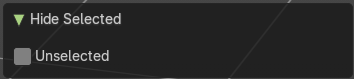
Each of the menu items uses the same Last Operator. With different strings for the booleans.
Unselected
Hide the unselected geometry instead the seleced.
Tool Shelf
Tools
Tool Shelf - Mesh - Particle Edit Mode
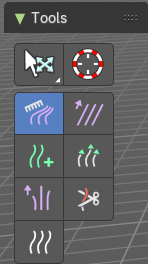
You can attach a particle system to a mesh object. And then you can switch to a Particle Edit Mode.
This mode allows you to edit the particles. In the tool shelf you will find several brushes. These brushes are of use for particles of type hair. They can be combed, cut etc. .
Select and 3D Cursor tools
Select tools group and 3D Cursor are explained in the chapter 7.1.1 Editors - 3D View - Tool Shelf - Object Mode. We won't cover this tools again here.
Hotkeys
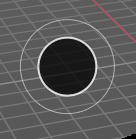
Pressing F allows you to change the brush size onscreen. Drag the mouse to increase or decrease the size. Left click applies the new size, right click cancels the resizing.
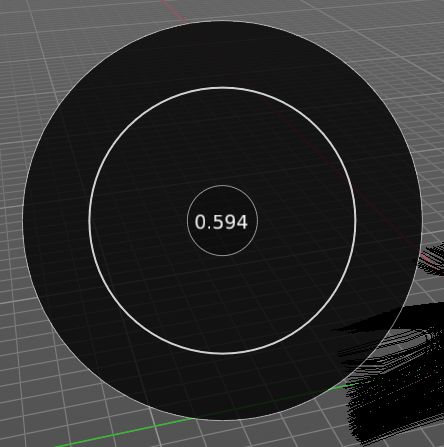
Pressing Shift F allows you to change the strength of the brush. Drag the mouse to increase or decrease the size. Left click applies the new size, right click cancels the resizing.
Comb
Allows you to comb the strands of the particle system.
Tool Settings
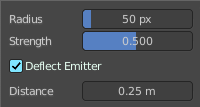
| Entry | What it does |
|---|---|
| Radius | The brush radius. The button behind the edit box allows you to set the radius by mouse move. This is a hotkey tool, and should be performed in the viewport. |
| Strength | The brush strength. The button behind the edit box allows you to set the radius by mouse move. This is a hotkey tool, and should be performed in the viewport. |
| Deflect Emitter | Prevent paths to intersect the emitter mesh geometry. |
| Distance | The distance to keep particles away from the emitter mesh geometry. |
Smooth
Allows you to smooth the strands of the particle system.
Tool Settings
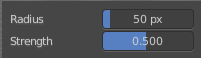
| Entry | What it does |
|---|---|
| Radius | The brush radius. The button behind the edit box allows you to set the radius by mouse move. This is a hotkey tool, and should be performed in the viewport. |
| Strength | The brush strength. The button behind the edit box allows you to set the radius by mouse move. This is a hotkey tool, and should be performed in the viewport. |
Add
Allows you to add strands to the particle system.
Tool Settings
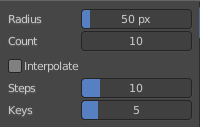
| Entry | What it does |
|---|---|
| Radius | The brush radius. The button behind the edit box allows you to set the radius by mouse move. This is a hotkey tool, and should be performed in the viewport. |
| Count | The amount of strands. |
| Interpolate | Interpolate new particles from the existing ones. |
| Steps | Brush steps. Steps is connected with Interpolate. |
| Keys | How many keys to make new particles with. |
Length
Manipulate the length of the strands.
Tool Settings
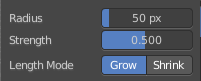
| Entry | What it does |
|---|---|
| Radius | The brush radius. The button behind the edit box allows you to set the radius by mouse move. This is a hotkey tool, and should be performed in the viewport. |
| Strength | The brush strength. The button behind the edit box allows you to set the radius by mouse move. This is a hotkey tool, and should be performed in the viewport. |
| Length Mode | Grow or shrink the particles. |
Puff
Manipulate the volume of the strands.
Tool Settings
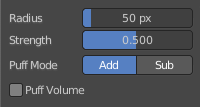
| Entry | What it does |
|---|---|
| Radius | The brush radius. The button behind the edit box allows you to set the radius by mouse move. This is a hotkey tool, and should be performed in the viewport. |
| Strength | The brush strength. The button behind the edit box allows you to set the radius by mouse move. This is a hotkey tool, and should be performed in the viewport. |
| Add / Sub | Add or subtract to the current volume. |
| Puff Volume | Apply Puff to unselected end points. |
Cut
Cut away particles.
Tool Settings
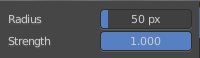
| Entry | What it does |
|---|---|
| Radius | The brush radius. The button behind the edit box allows you to set the radius by mouse move. This is a hotkey tool, and should be performed in the viewport. |
| Strength | The brush strength. The button behind the edit box allows you to set the radius by mouse move. This is a hotkey tool, and should be performed in the viewport. |
Weight
Manipulate the weight of the strands.
Tool Settings
| Entry | What it does |
|---|---|
| Radius | The brush radius. The button behind the edit box allows you to set the radius by mouse move. This is a hotkey tool, and should be performed in the viewport. |
| Strength | The brush strength. The button behind the edit box allows you to set the radius by mouse move. This is a hotkey tool, and should be performed in the viewport. |
Sidebar
Particle Edit Mode
Tools Tab in Particle Edit Mode
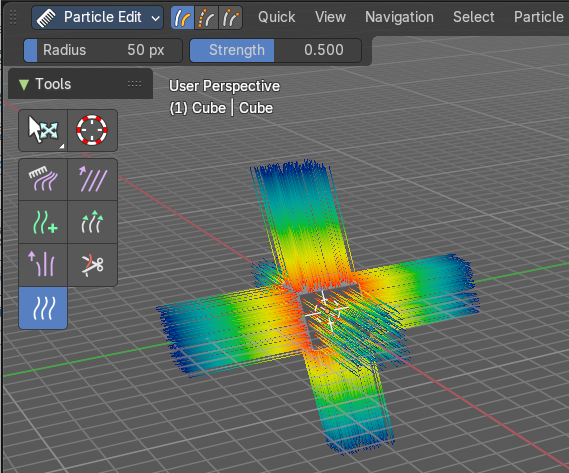
The Particle Edit mode enables to edit particle settings. For example, Hair Particles can be manipulated with some brushes. They can be combed, cut etc.
The Tools tab contains the settings for the hair editing brushes.
Different from the other paint modes, there is no brush panel. The brushes are here part of the tool settings of the single brushes.
The brush settings can be found in the Particle Tool panel instead.
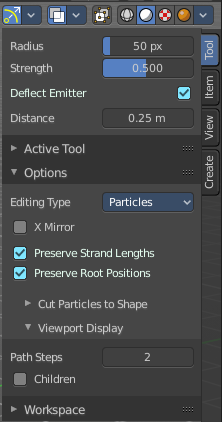
Particle Edit Mode - Particle Tool panel
Comb brush
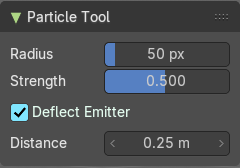
| Entry | What it does |
|---|---|
| Radius | The size of the brush. |
| Strength | The strength of the brush. |
| Deflect Emitter | Keep paths from intersecting the emitter. |
| Distance | Distance to keep particles away from emitter. |
Smooth brush
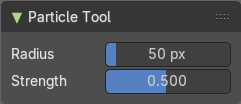
| Entry | What it does |
|---|---|
| Radius | The size of the brush. |
| Strength | The strength of the brush. |
Add brush
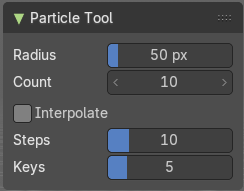
| Entry | What it does |
|---|---|
| Radius | The size of the brush. |
| Strength | The strength of the brush. |
| Interpolate | Interpolate new particles from existing ones. |
| Steps | Brush steps. |
| Keys | How many keys to make new particles with. |
Length brush
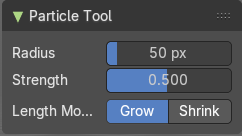
| Entry | What it does |
|---|---|
| Radius | The size of the brush. |
| Strength | The strength of the brush. |
| Length | Make hairs longer with Grow, or shorter with Shrink. |
Puff brush
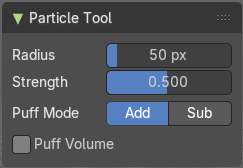
| Entry | What it does |
|---|---|
| Radius | The size of the brush. |
| Strength | The strength of the brush. |
| Puff Mode | Add makes hairs more puffy. Sub (tract) makes hairs less puffy. |
Cut brush

| Entry | What it does |
|---|---|
| Radius | The size of the brush. |
| Strength | The strength of the brush. |
Weight brush
| Entry | What it does |
|---|---|
| Radius | The size of the brush. |
| Strength | The strength of the brush. hier weiter |
Particle Edit Mode - Options panel
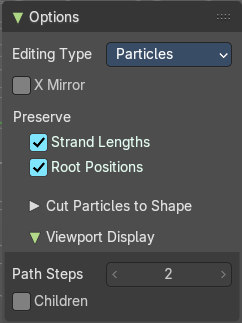
This panel contains some further options for the particles.
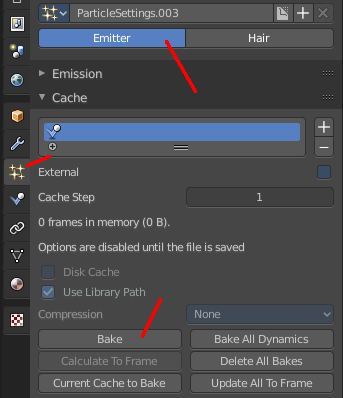
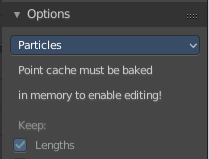
Note that you need to bake some particle types to be able modify them. Emitter for example. You will get a warning then, and the Options panel content is greyed out.
The particles can be baked in the Particles tab in the Cache panel.
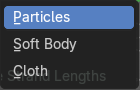
| Entry | What it does |
|---|---|
| Editing Type | The Particle Edit Type. This edit box just shows you what particle type you currently have. It does not allow you to change the particle type. |
| X Mirror | Mirrors the selected particles. If you want a symmetrical haircut, first select all particles, then mirror the particles, then tick X Mirror. |
| Preserve | Strand Lengths: Keep the path lengths constant. · Root Positions: Keep root keys unmodified. |
Cut particles to Shape
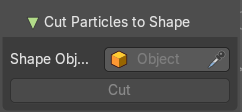
Define an object to cut the hair particles into the shape of the object.
The Cut button with which you perform the option becomes active when you choose a shape object from the list, or pick it in the scene.
Viewport Display

With Hair
| Entry | What it does |
|---|---|
| Path Steps | How many steps to display the path with. Meant is the resolution for the hair strains. |
| Children | Display all particles, including children. For performance reasons child particles are usually not displayed in the viewport. |
With Emitter
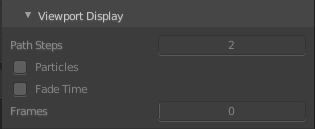
The emitter particle system must be editable, or the settings remains greyed out. Bake ...
| Entry | What it does |
|---|---|
| Path Steps | How many steps to display the emitter path with. |
| Particles | Display the actual particles. |
| Fade Time | Fade paths and keys further away from the current frame |
| Frames | How many frames to fade. |